- Capabilities
- Getting started
- Architecture center
- Platform updates
Filter List
The Filter List widget is used to visualize a high-level summary of object data and allow users to filter within that summary. Module builders configuring a Filter List widget can use features including the following:
- Histograms and distribution charts that visualize the most common property values in a property type and enable filtering by property value.
- A keyword search component that allows broad filtering across an object set on a user-entered search term.
- Single- and multi-select components that enable searching and filtering on all values of a given property type.
- An output object set filter variable that allows filtering criteria applied within this widget to be applied to downstream object set variables within the module.
- The ability to set default filtering criteria via the output object set filter variable.
- The option to enable users to add and remove filters on property types.
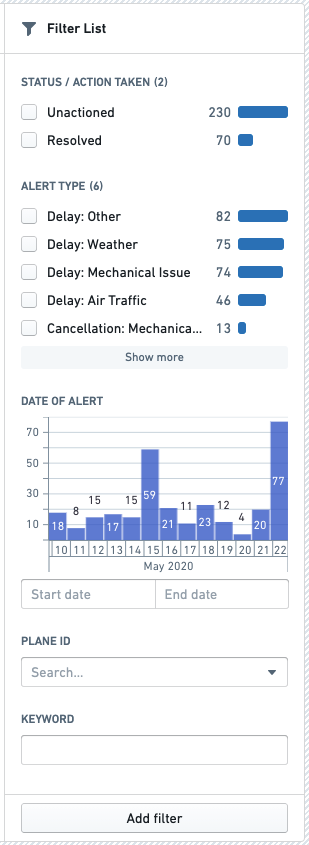
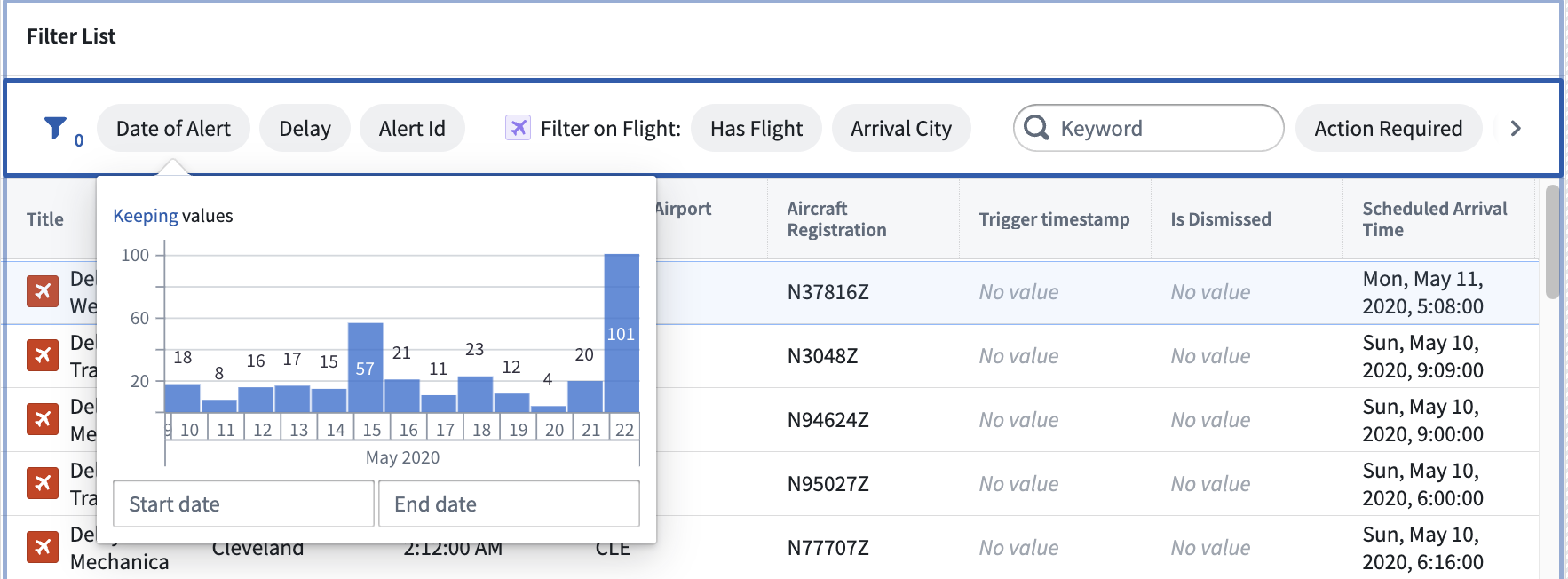
The screenshot below shows an example of a configured Filter List widget displaying Flight Alert objects in both vertical and pill layout:
Configuration Options
Here is a screenshot of the initial state of a newly added Filter List widget alongside its initial configuration panel:
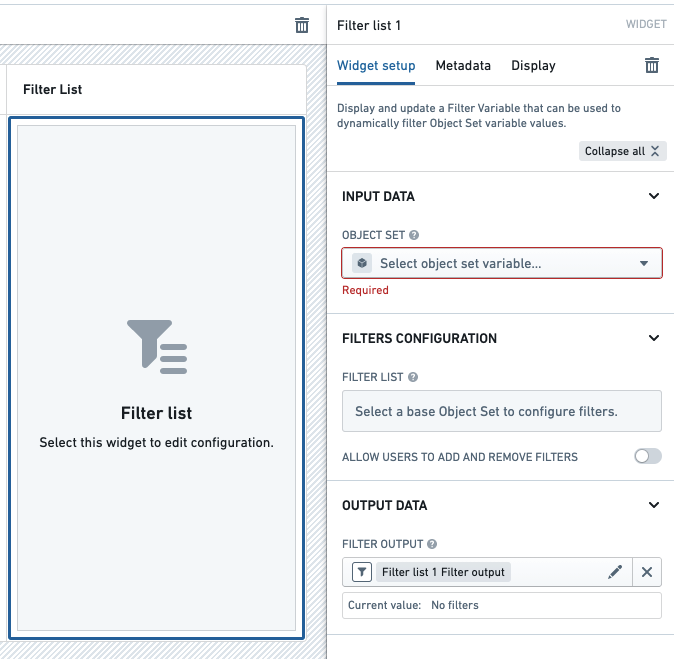
For the Filter List widget, the core configuration options are the following:
- Input data
- Object set
- This input variable determines the object data that will be displayed within the widget.
- A module builder can either reuse an existing object set variable created elsewhere in this module or define a new object set variable inline.
- Many of the other configuration options shown below will only be configurable once this object set parameter has been populated.
- Object set
- Filters configuration
- Add filter
- Selecting a property here will result in that property being displayed within the Filter List and filterable by users.
- Filter component
-
This option determines how each property is visualized within the Filter List.
-
Options include keyword, histogram, single- and multi-select dropdowns, distribution chart, single- and multi-date pickers, and timeline displays.
-
For string properties, filter component menus are displayed for all properties, including those that do not support exact matching. Properties without exact match support show the Keyword search option, while other options appear disabled with a tooltip explaining why they are unavailable. Derived properties also support keyword search, enabling filtering on computed property values.
-
For string properties with regex queries enabled in Ontology Manager, regex search is available as a filter option. When the Keyword option is selected, the interface indicates whether the property is indexed for regex search.
-
- Allow user to add and remove filters
- If enabled, users will see an Add filter button within the widget and will be able to add and remove filterable properties.
- Add filter
- Layout configuration
- Vertical layout
- This option will layout all the filters from top to bottom in a vertical scrolling fashion.
- Pills layout
- This option will layout all the filters horizontally within an interactive pill. Once selected, the pill opens a popover with filter configuration UI.
- Vertical layout
- Output data
- Filter output
- This variable plays two roles within the Filter List.
- The first role is serving as the widget's output variable; an object set filter variable that contains the currently applied filtering criteria from the widget and can be used to filter object set variables within this module.
- The second role is providing a means of setting the default filtering criteria for the Filter List; setting a default value for this variable will result in those default property filters being applied within the Filter List when this module is initially loaded.
- Filter outputs can be used to filter object sets of different object types so long as the property IDs match. To check whether the property IDs of two different object types are identical, navigate to the Ontology Manager and look for property IDs.
- Filtered values may also be extracted from the widget's filter output field by setting up filter value extraction on the object set filter variable, allowing them to be used elsewhere in your module.
- Filter output
Filter object sets of multiple object types
You can use a variable to store a union of multiple object sets of different object types and pass it to the Filter List widget. The Filter List will allow the following filtering options:
- Common property: The properties that the different object types have in common. The properties must have the same property ID to be matched together. The object types sharing attributes must use the same Object Storage version ( either V1 or V2).
- Single property: A unique property that exists on only one of the object types. This property is not found in any of the other object types.
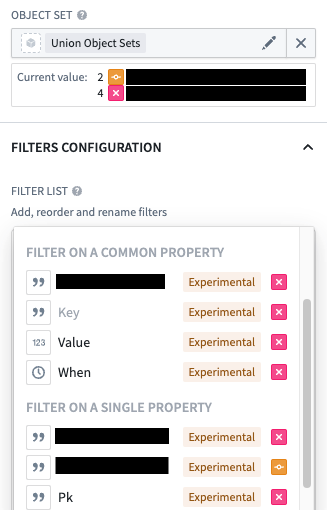
The output variable of the Filter List widget can then be used to filter the variable containing the unioned object sets and all object types instances will be filtered.
Filter on linked properties
Object types on Object Storage v1 have a linked object filter limit of 100,000 objects. If your linked object type has more than 100,000 objects, consider migrating to Object Storage v2.
To filter on linked object properties, select a link within the Filter on a link section of the Add filter... dropdown.
Once selected, click into the link config to add filter sections. You will see a setup similar to the Filters configuration options described in the Configuration Options section, with some additional options.
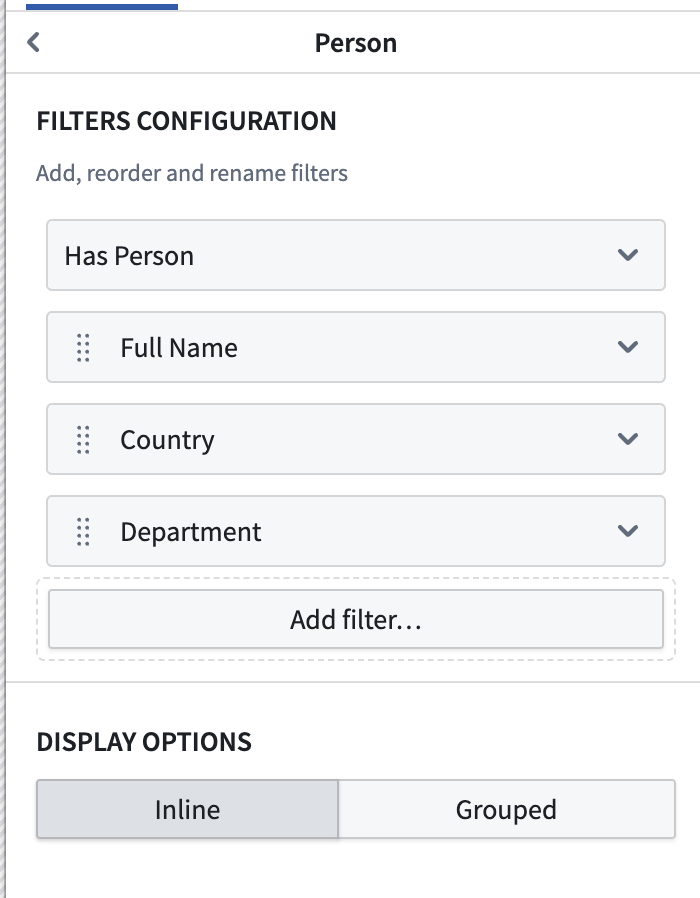
- Has link
- The Has Link filter is unique to linked object filters and filters on the presence of a link. For example: "Filter for all Tasks that have a link to Person."
- Display options
- Inline
- The inline display option will display the linked filters alongside non-linked filters (in the same grouping).
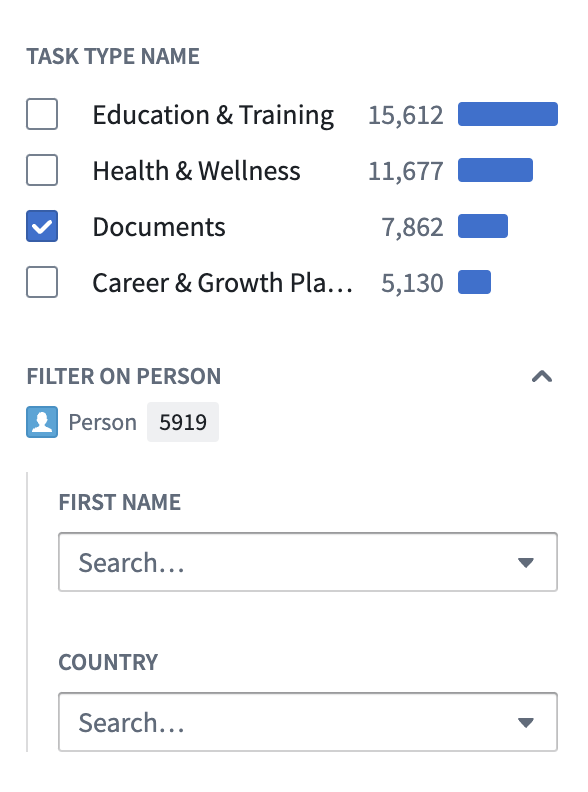
- Grouped
- The grouped option will visually group linked filters into a section, adding an object icon and linked object count as seen in the screenshot below.
- Collapse by default: When enabled, this option will display the linked filter group as collapsed by default when the module is loaded.
- Inline
Advanced filtering
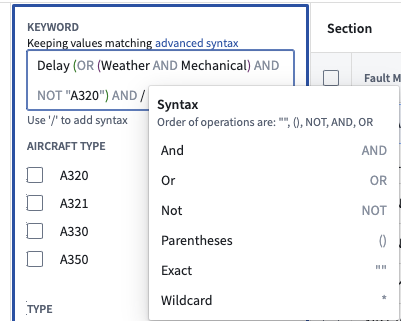
The Filter List widget supports more advanced workflows through the keyword search widget. By switching the search type to advanced syntax, you can chain search operations with each other and define the order of operations through brackets. If no brackets are defined, common Boolean logic is used to determine precedence of operators as follows: quotations, parentheses, NOT, AND, OR.
The new advanced keyword search widget can be accessed through the Filter List widget. Once the Filter List widget is configured, any keyword search filter component will have the advanced syntax as an option in the dropdown UI.