- Capabilities
- Getting started
- Architecture center
- Platform updates
Models and agent modes
Pilot supports multiple AI models and two agent modes that control how Pilot processes your instructions. This page describes the available options and when to use each one.
Available models
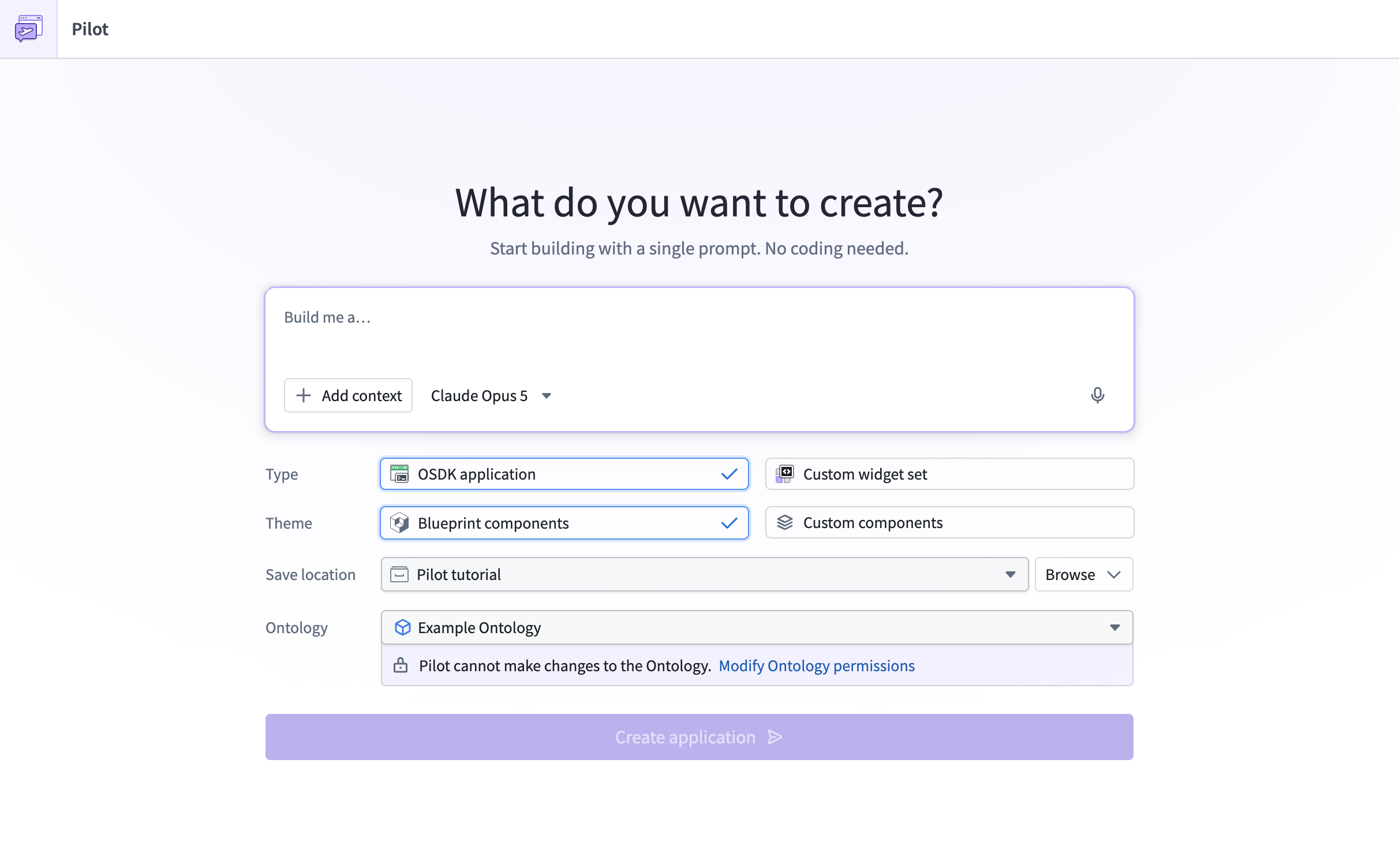
Pilot supports models from multiple providers. Select the model beside Add context on the welcome screen. Some environments also expose model selection in the chat panel's More menu; if it contains only Clear chat history, model selection is unavailable there. Available model families include:
- Claude (Anthropic): Claude Opus and Claude Sonnet variants
- GPT (OpenAI): GPT model variants
- Gemini (Google): Gemini Pro variants
Different models have different strengths. In general, larger models produce higher-quality output for complex tasks, while smaller models respond faster for straightforward changes. Where session model selection is available, you can switch models without losing your work.
Agent modes
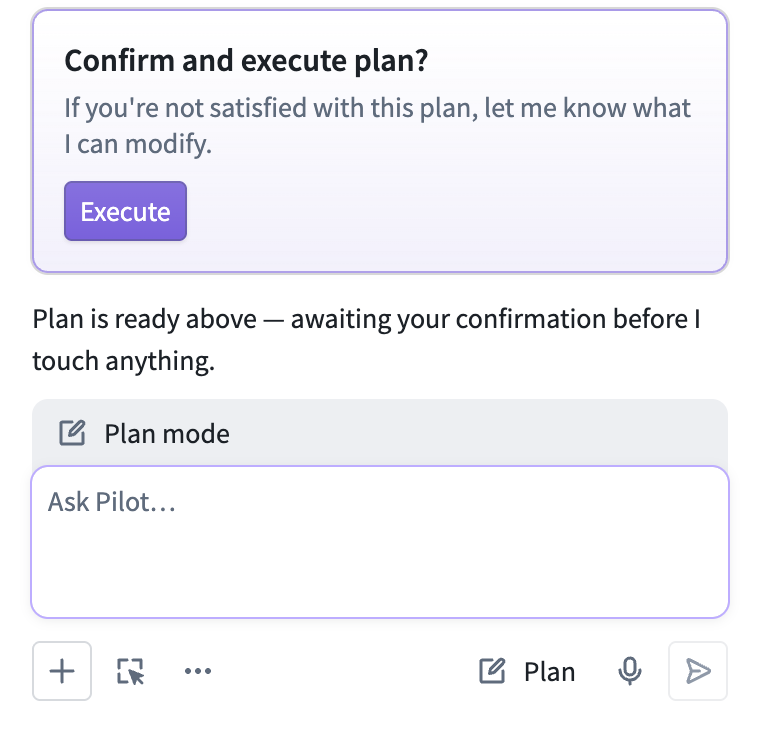
Pilot operates in one of two modes, controlled by the mode toggle next to the prompt input.
Act mode
Act mode is the default. When you submit a prompt, Pilot executes changes immediately. The agents read your instructions, make decisions, and apply changes to the ontology, design, and code without first presenting a plan for approval. Some tools and production-data analysis can still require a response.
Use act mode when you want Pilot to work autonomously and you are comfortable reviewing changes after they are applied. Act mode is unavailable on protected or deleted code branches; switch to an editable branch to make changes.
Plan mode
In plan mode, Pilot creates a detailed plan before executing changes. After you submit a prompt, Pilot outlines what it intends to do and waits for your approval before proceeding.
Select Execute after reviewing the plan. On a protected branch, select Implement on a branch to create an editable code branch. See Branches, changes, and proposals.
Use plan mode in the following situations:
- You want to review proposed changes before they are applied.
- You are making significant structural changes to the ontology or application.
- You want to understand the scope of a change before Pilot begins work.
To toggle between modes, select the mode toggle next to the prompt input in the chat panel. The current mode is displayed as Act or Plan.
Subagents
Pilot delegates work to specialized subagents, each focused on a specific aspect of the application. The subagents are as follows:
- Ontology architect: Defines and modifies object types, action types, link types, and their properties.
- Designer: With Custom components, creates the design specification, including color palette, typography, layout, and interaction patterns.
- App builder (frontend architect): Implements the React application using the ontology.
- Notional data generator: Creates realistic sample data for testing the application in a container.
- Production-data viewer: Where enabled, analyzes real data in a separate context. Review the analysis before sharing it with application-building agents; see Production-data analysis.
When a subagent is active, the chat panel displays its activity in a separate thread. You can expand the thread to follow the subagent's reasoning and tool usage.
Agent tools
Pilot agents use a set of tools to build and modify your application. You do not need to invoke these tools directly. Pilot selects and uses the appropriate tools based on your instructions.
The following tools are available to agents:
- File operations: Reading, writing, and editing source code files
- Search tools: Finding files and searching file contents by pattern
- Shell commands: Running build commands, installing dependencies, and executing scripts
- Ontology search: Querying existing ontology object types, action types, and functions
- Version control: Committing and pushing code changes
Available skills
When Skills is available in the Add menu, use it to inspect and search the skills available in the repository. The menu lists skills; selecting a listed name does not execute a task. Explain the outcome you want in your prompt.