- Capabilities
- Getting started
- Architecture center
- Platform updates
Subgraphs in Pipeline Builder
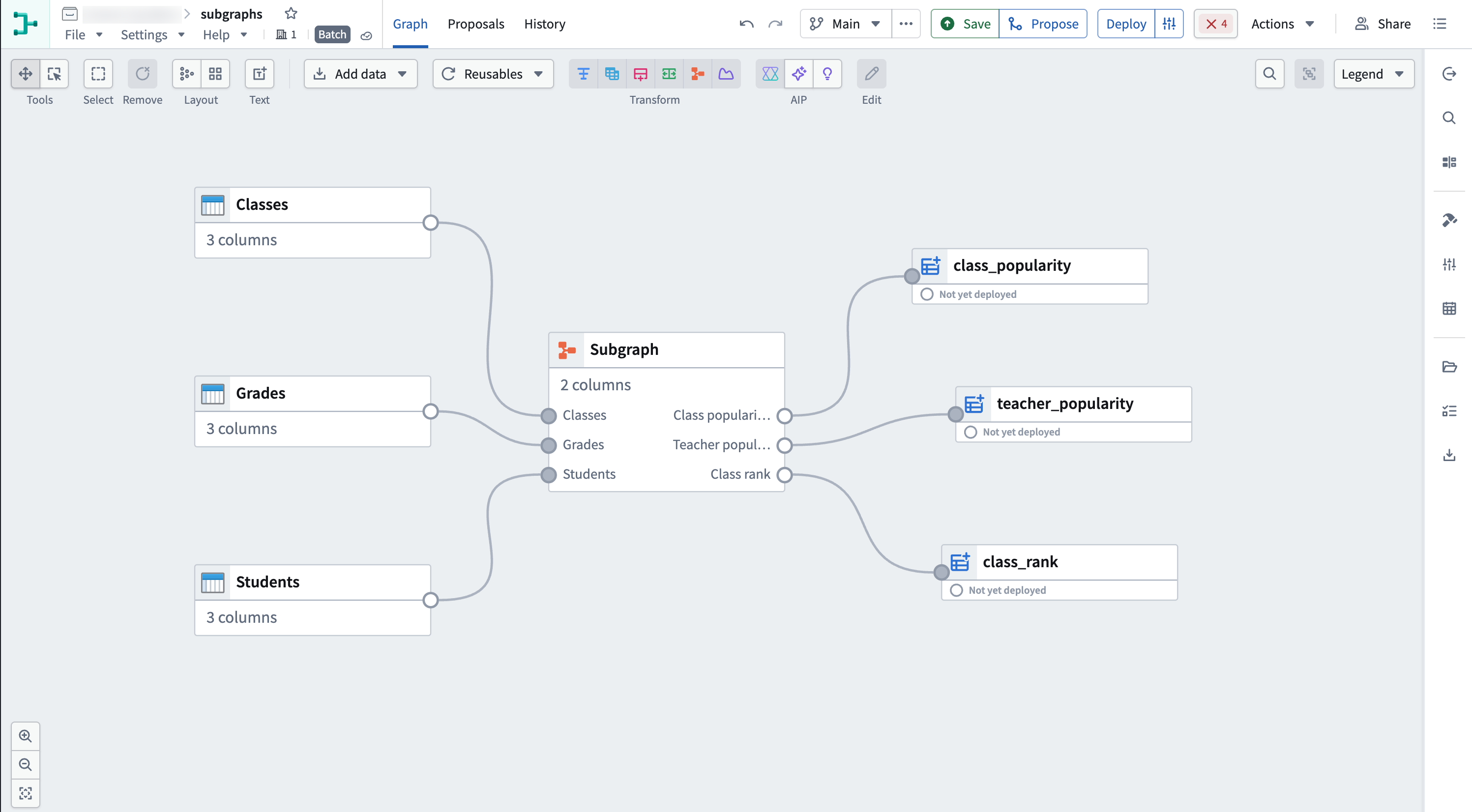
The subgraph feature in Pipeline Builder lets you package one or more transforms into a reusable block. You can then apply that block anywhere in a pipeline without rebuilding the logic each time. Each place you apply a subgraph is an instance of it. Subgraphs offer several benefits:
- Reuse logic: Package complex logic and apply it across multiple locations in your pipeline or across branches.
- Reduce duplication: Update a subgraph once to affect all its instances.
- Simplify pipelines: Replace long chains of nodes with a single subgraph node, making graphs easier to read and maintain.
This guide covers how to:
- Create a new subgraph from scratch
- Create a subgraph from existing nodes
- Add a subgraph to your pipeline
Create a new subgraph from scratch
You create and manage subgraphs from the Reusables menu.
-
In Pipeline Builder, open the pipeline in which you want to define the subgraph.
-
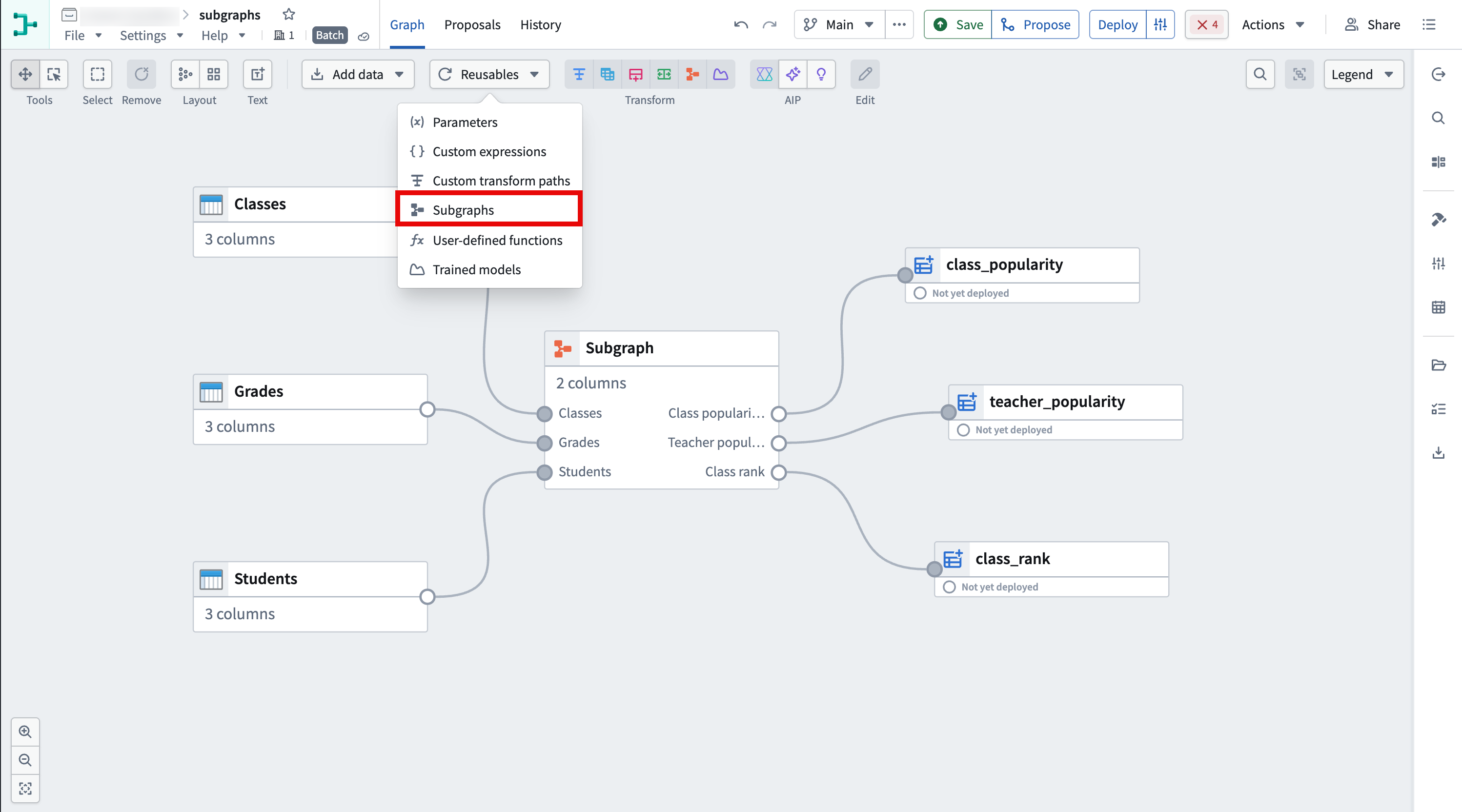
At the top of the graph, select Reusables, then select Subgraphs.
-
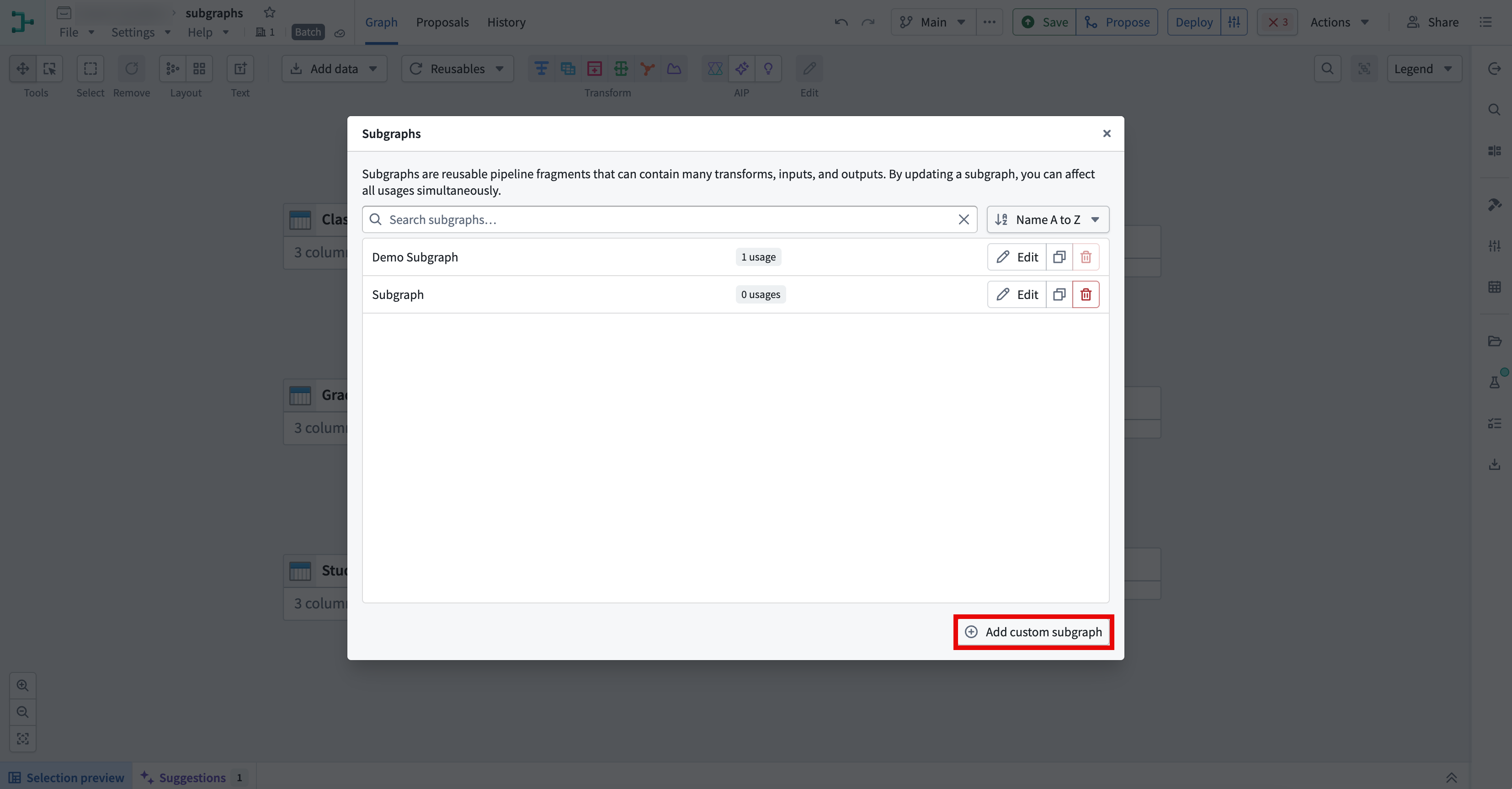
In the Subgraphs window, select Add custom subgraph.
Configure the subgraph inputs
Inputs in the subgraph editor work differently from inputs in the main Pipeline Builder graph. A subgraph input defines the columns the subgraph requires. An empty subgraph input is valid and means no columns are required. If your subgraph requires columns, you must map each one to a compatible column in the main graph when you apply the subgraph to your pipeline.
-
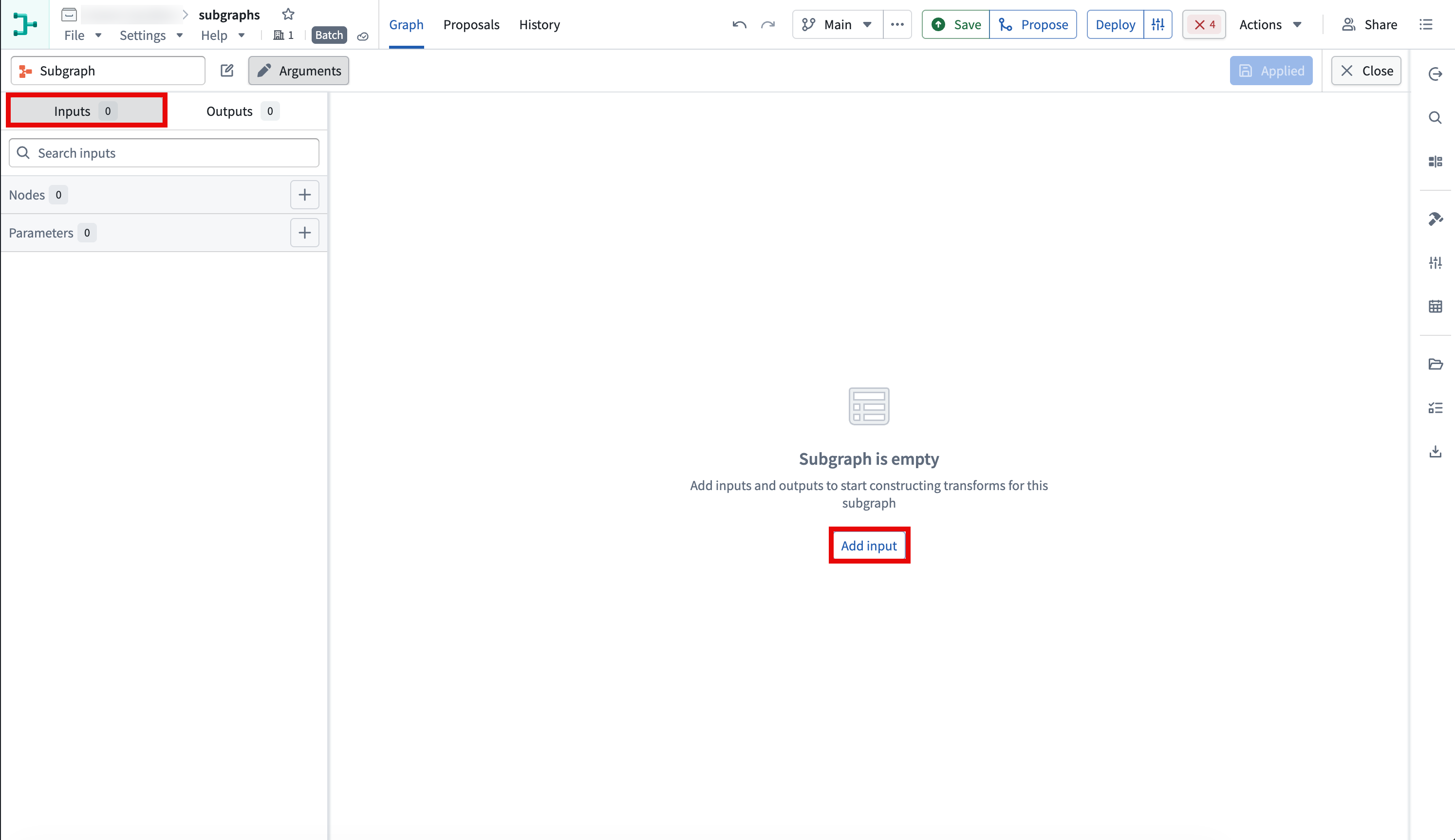
Select the Inputs tab in the top left to manage inputs, or select Add input in the center of the screen to add a node input.
-
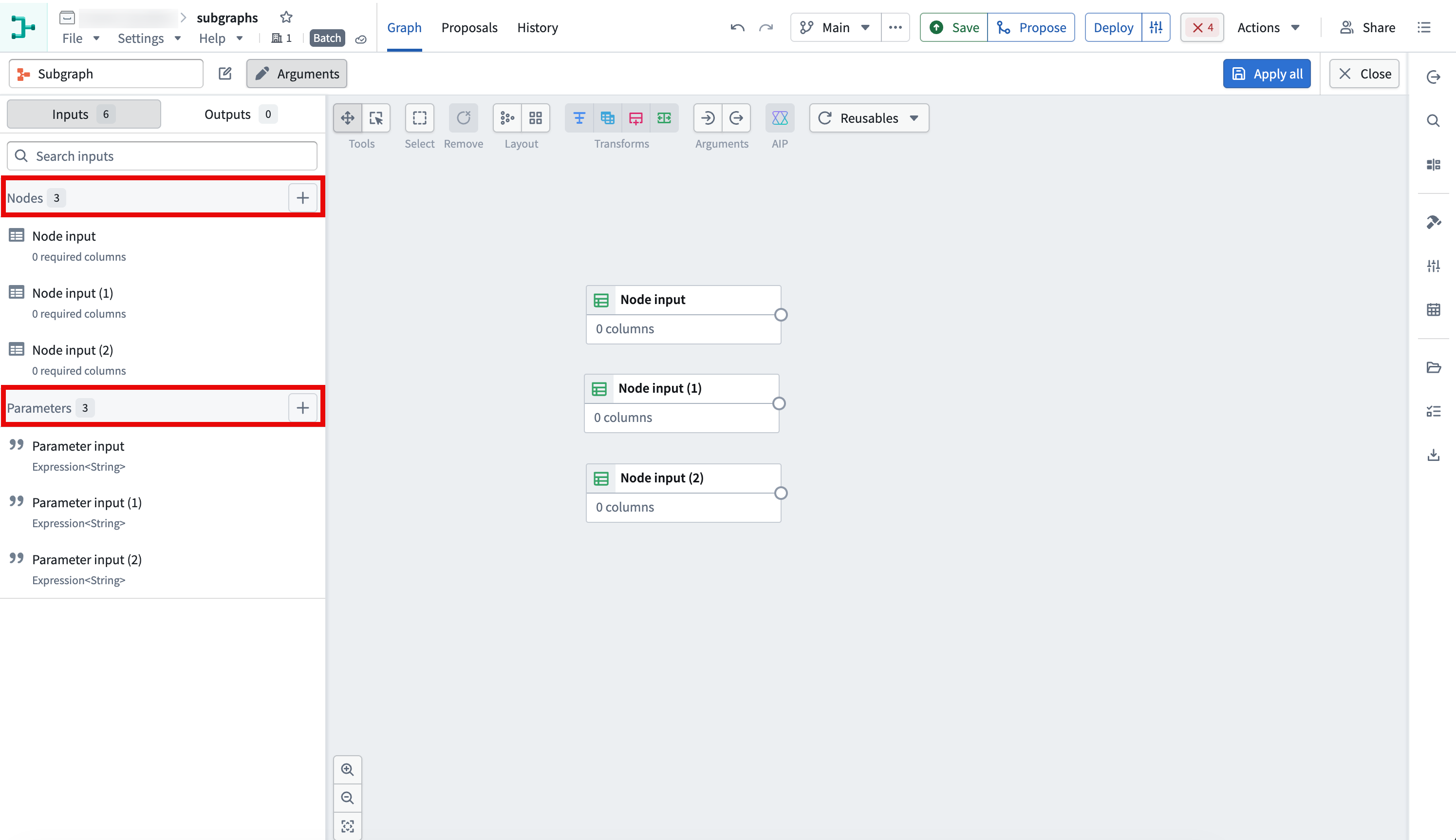
To add a node input, select + next to Nodes. To add a parameter input, select + next to Parameters.
Node inputs
-
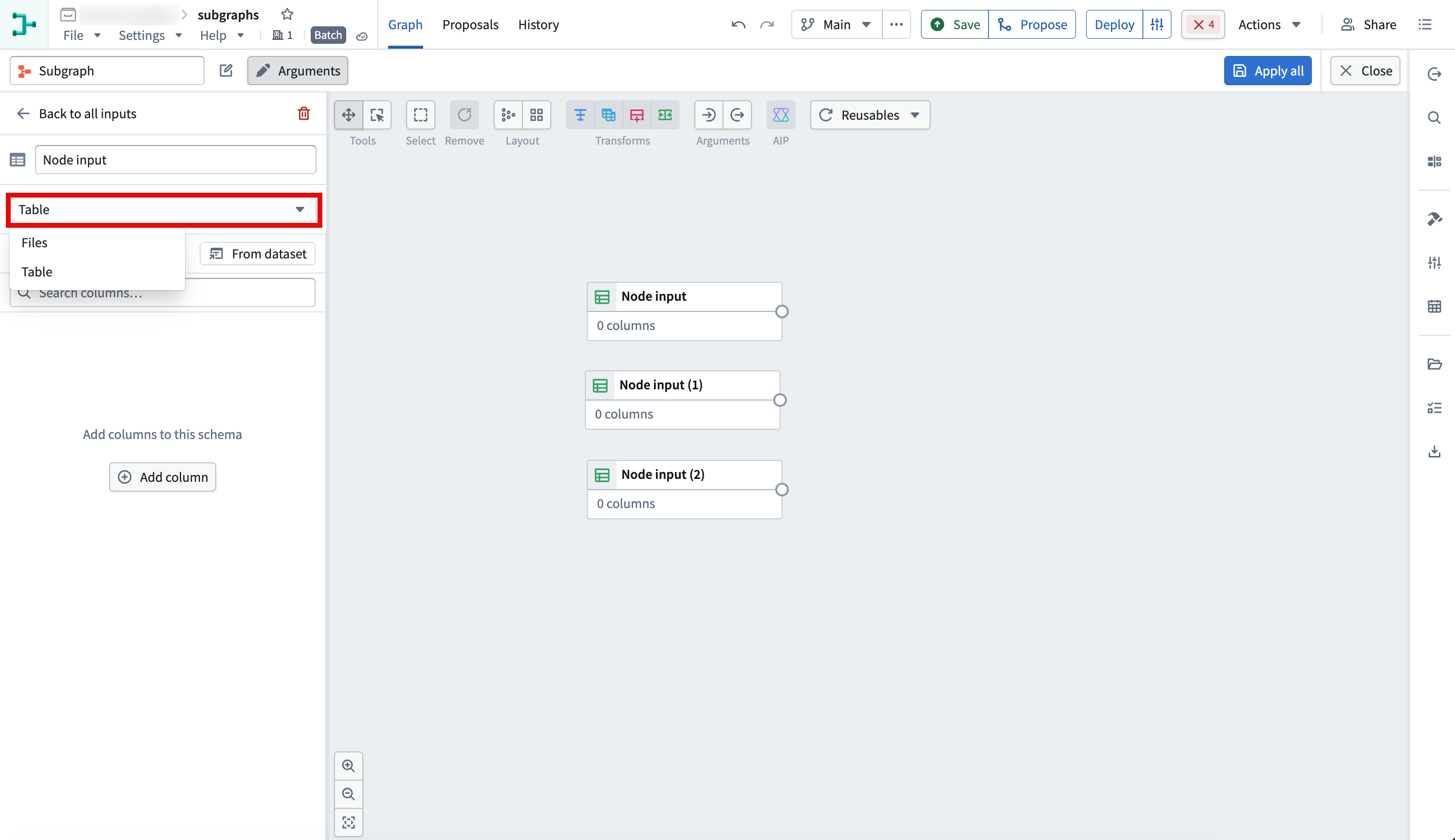
Select an input type of Files or Table from the dropdown menu.
-
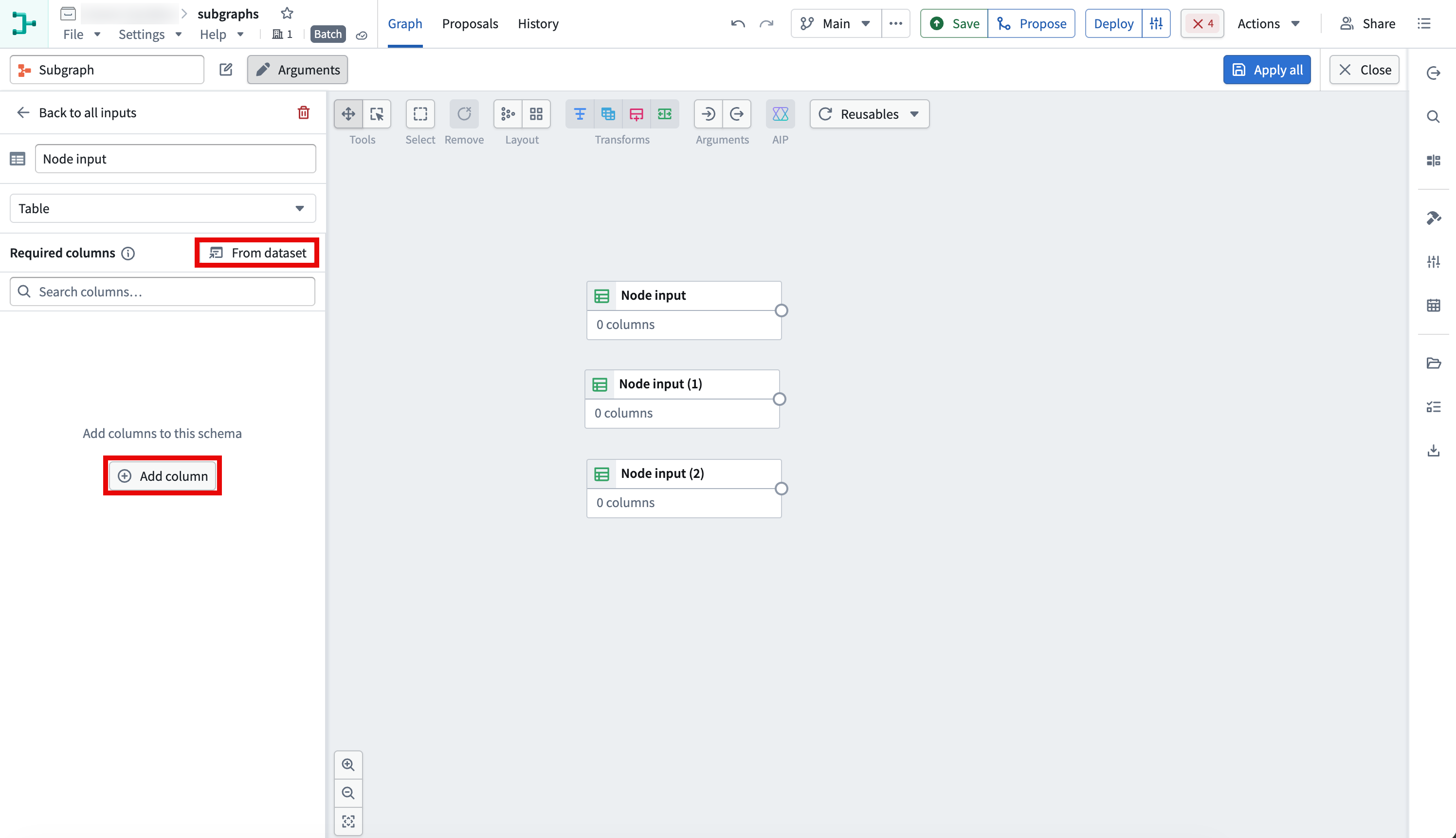
To add a schema, either copy required columns from an existing dataset using the From dataset button or manually add columns using the Add column button.
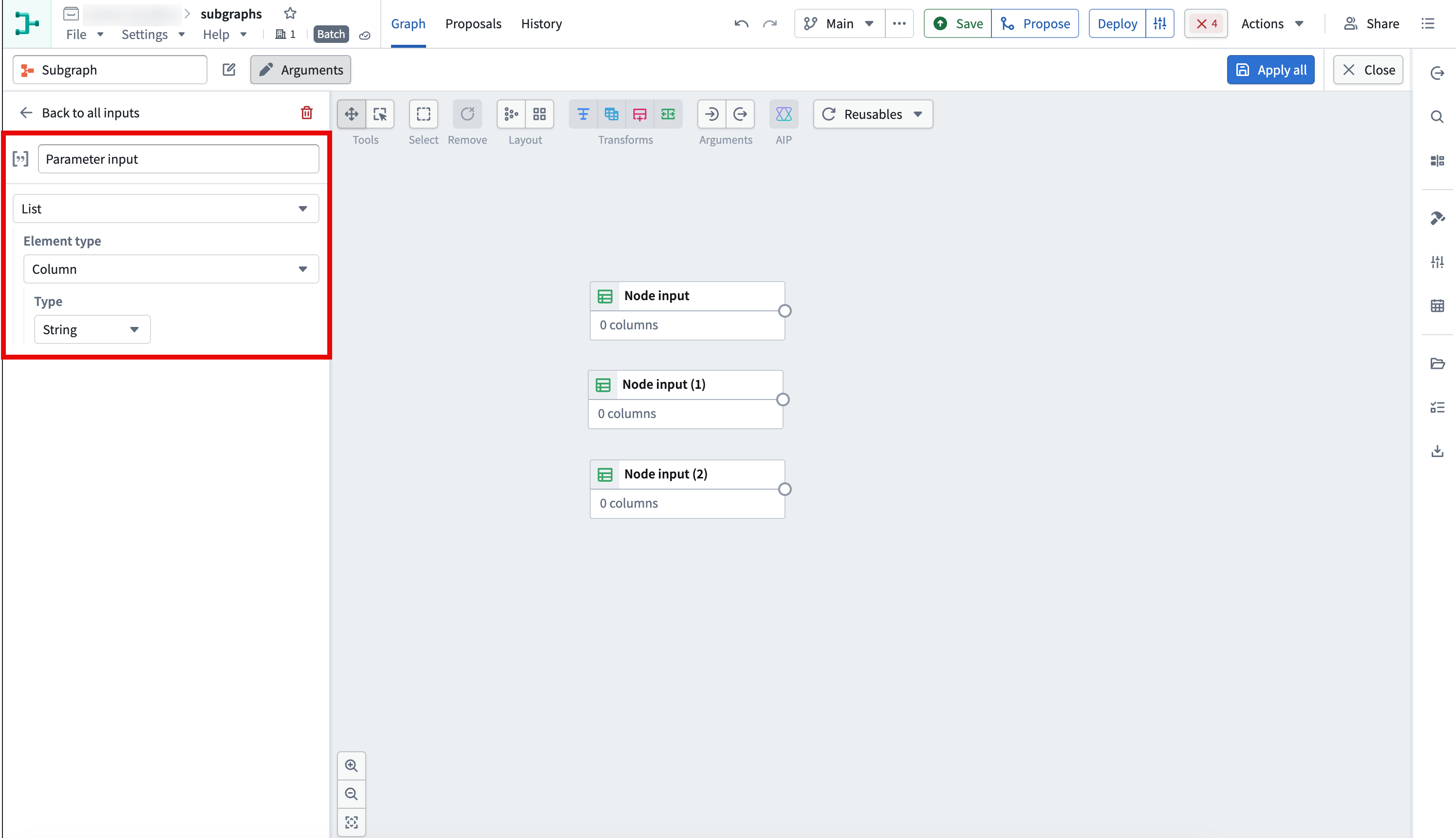
Parameter inputs
Parameter inputs are defined in the reusable subgraph and let each instance supply its own configuration values. Reference a parameter in a compatible transform field inside the subgraph, then configure its value when adding or editing an instance.
To configure a parameter input, select a parameter type from the first dropdown menu. Additional fields vary by the selected parameter type but can include Element type and Type.
Build the subgraph logic
With inputs defined, you can build the subgraph logic like you would in the main graph view:
- From the input node, add transforms, splits, joins, and other logic.
- Create an output node at the end of your transform path using New output.
- Check that all expected outputs are listed in the Outputs tab in the subgraph editor.
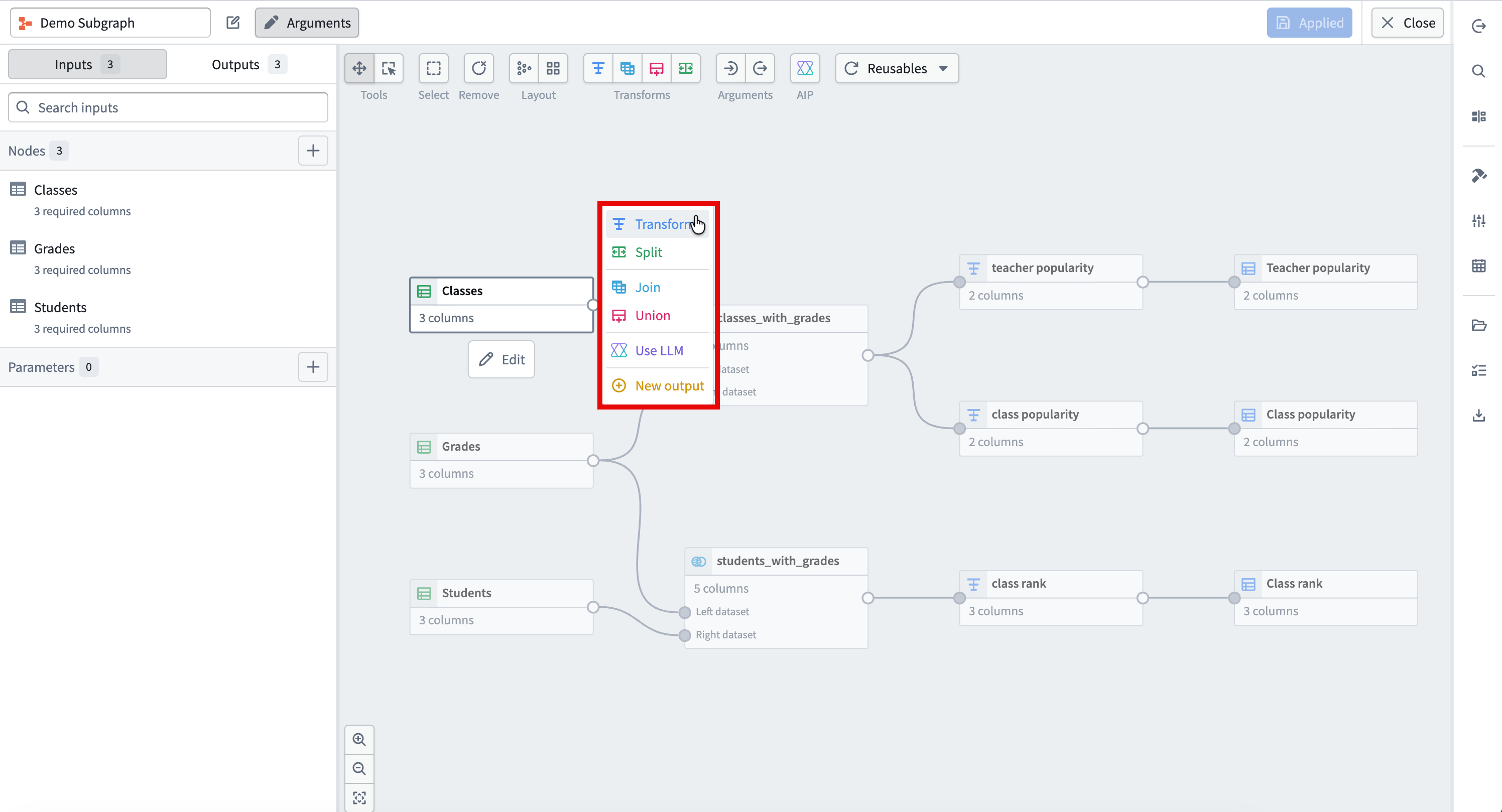
When you are done, enter a clear name in the subgraph name field in the top left, then select Apply all in the top right. Select Close to exit the subgraph editor. Your subgraph is now available in the Reusables menu.

Create a subgraph from existing nodes
You might already have a sequence of nodes that you want to reuse. You can package those nodes into a new subgraph.
Select the nodes to package
-
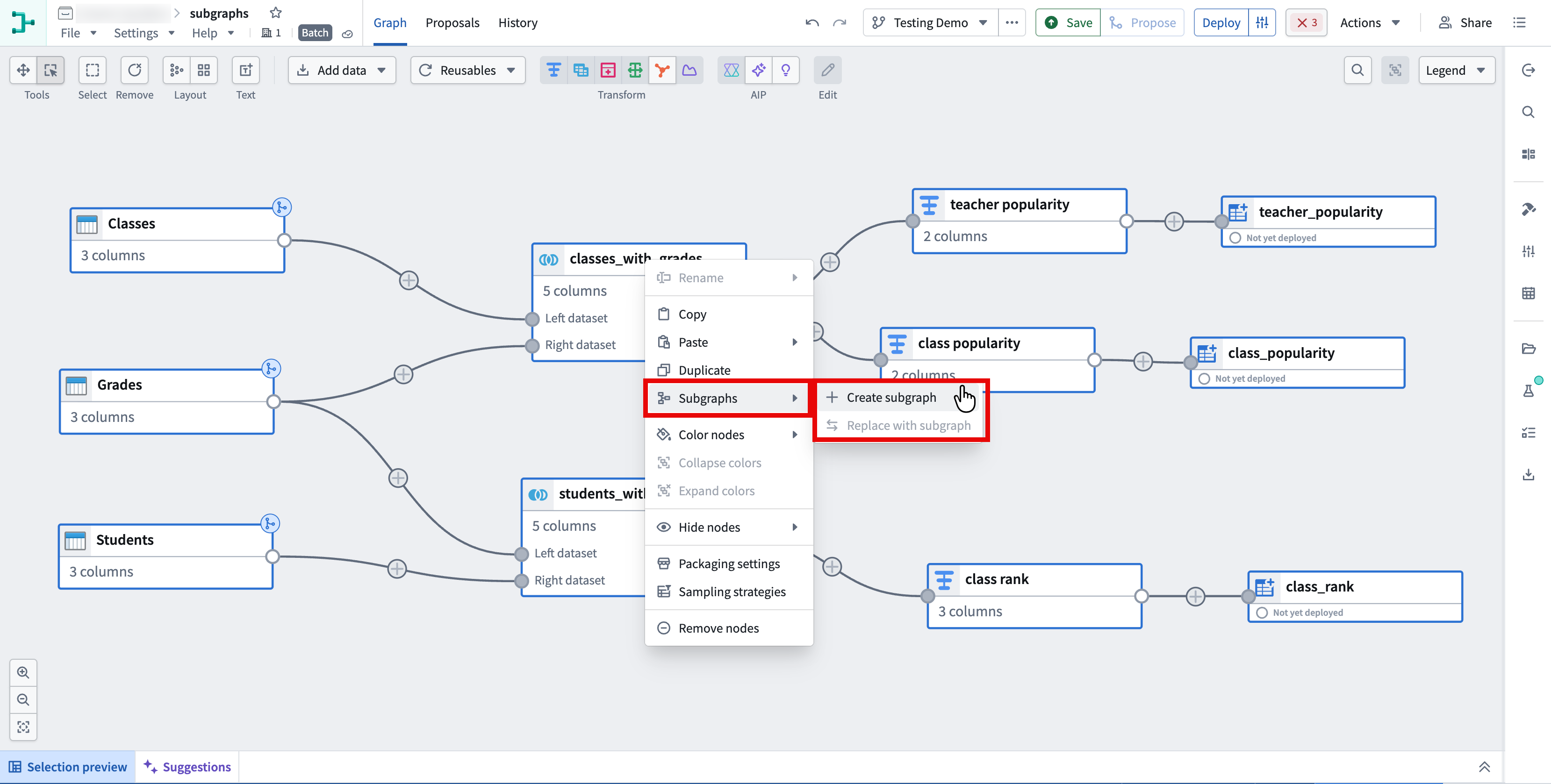
In your main pipeline, select the nodes you want to package. For example, you might select a join, sort, and aggregation sequence.
-
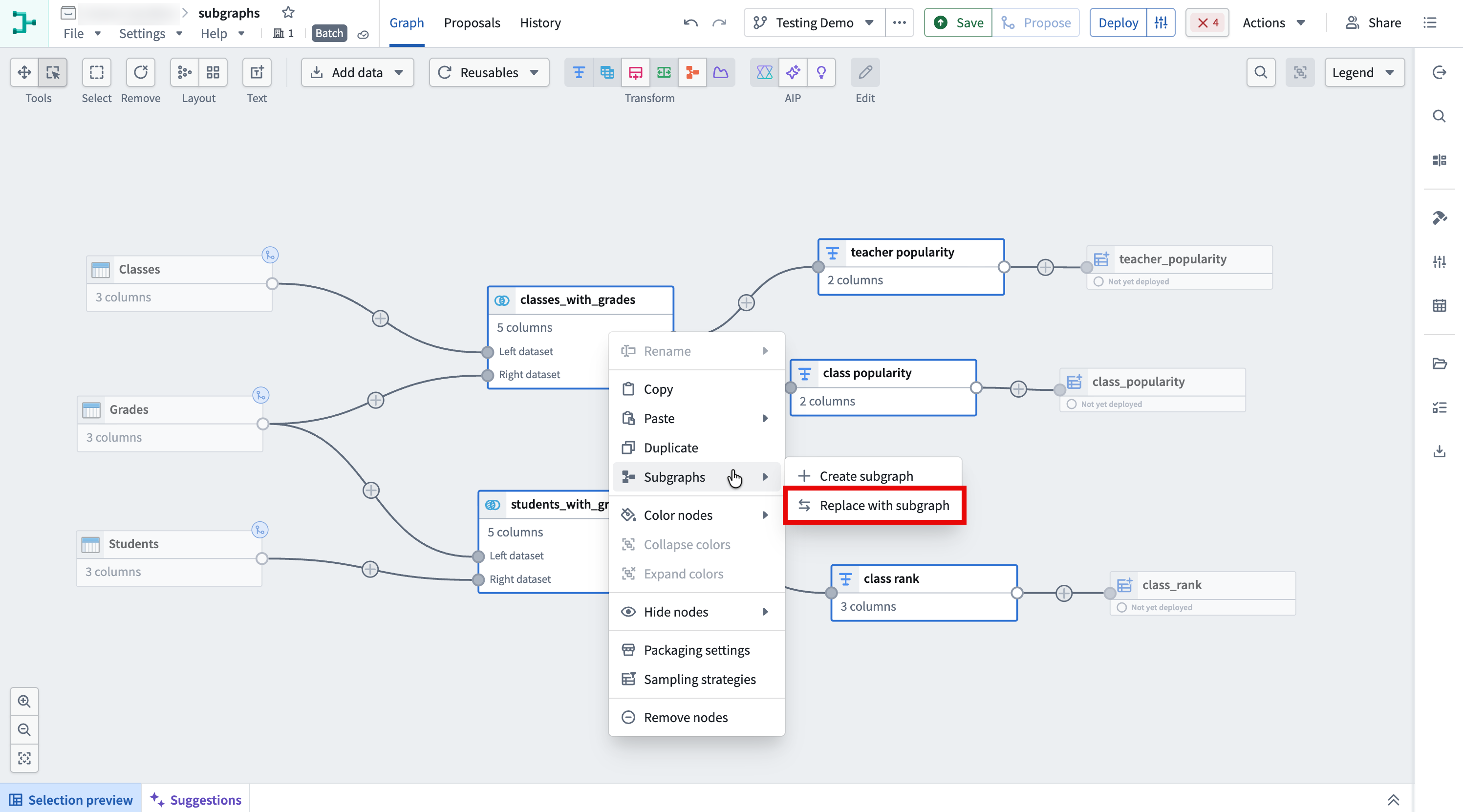
Right-click the selection and select Subgraphs.
-
To package the nodes into a new subgraph, select Create subgraph.
-
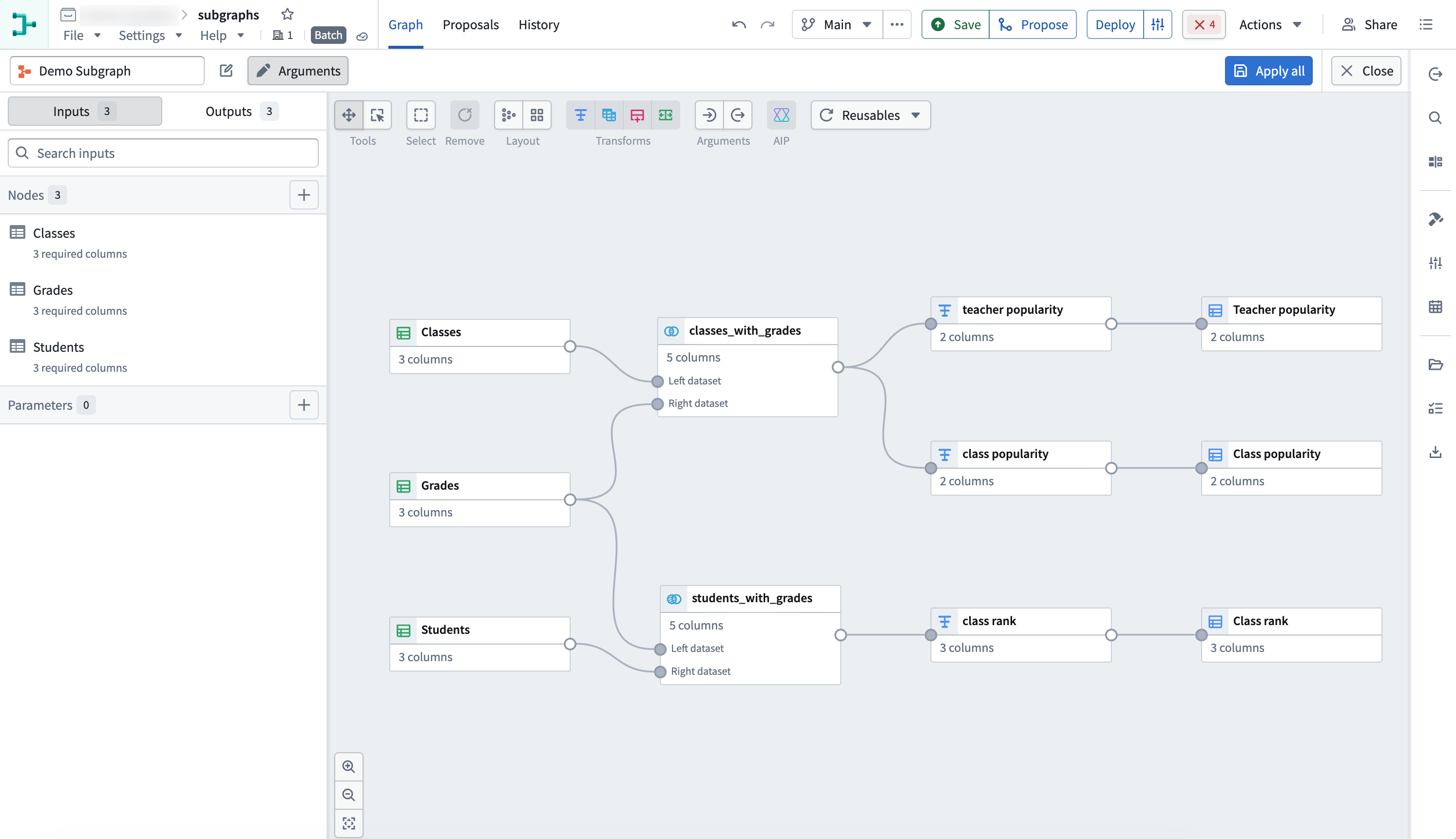
A new subgraph editor opens containing the selected nodes, with input schemas already populated.
-
When the subgraph is valid and no schema errors appear, select Apply all, then select Close to exit the subgraph editor.
-
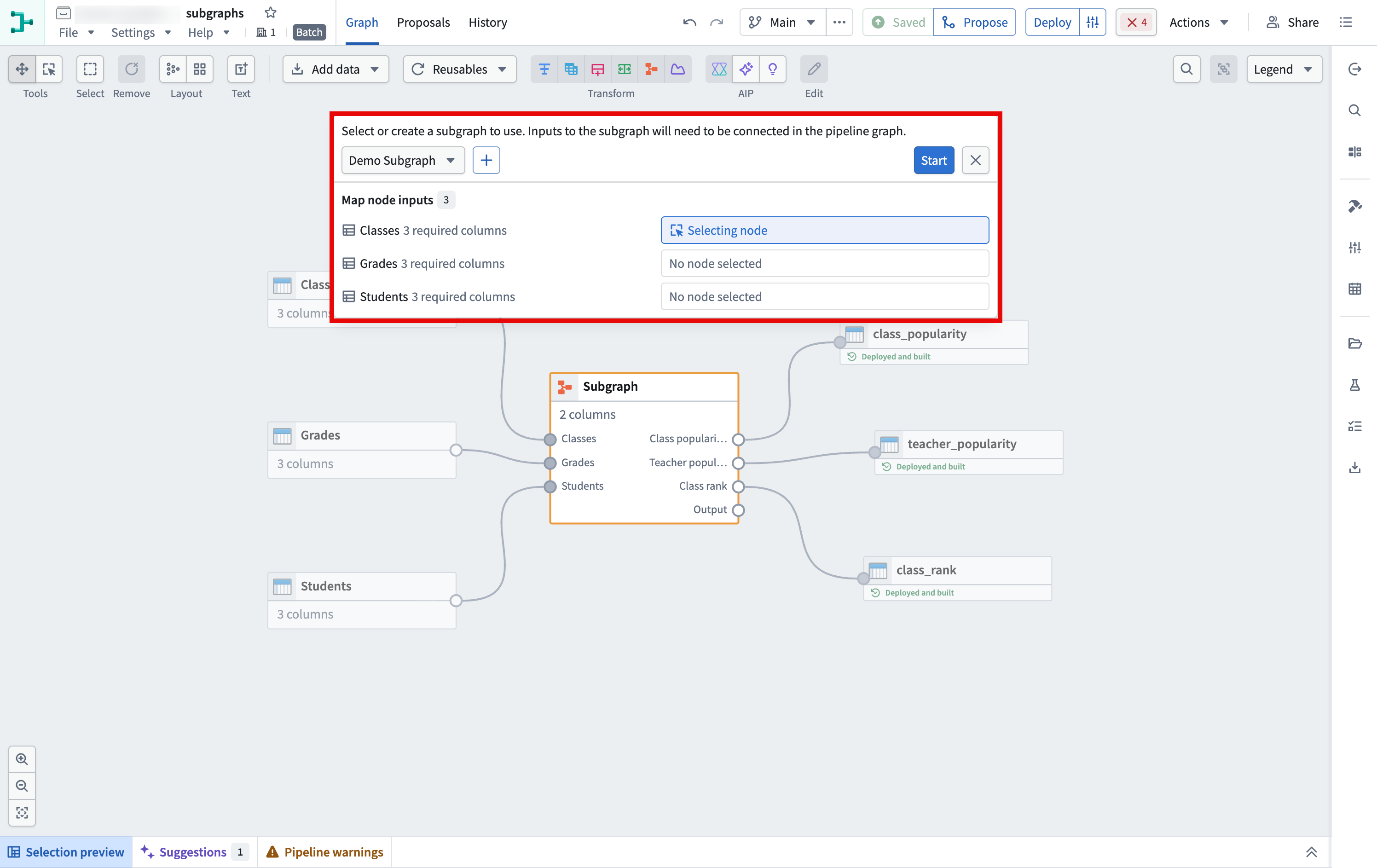
Next, map your inputs in the main Pipeline Builder graph view.
-
After you map your inputs, select Start in the top right of the mapping view. Then select Apply in the configuration view. If the subgraph has no parameter inputs, the configuration view shows
No parameters to configure.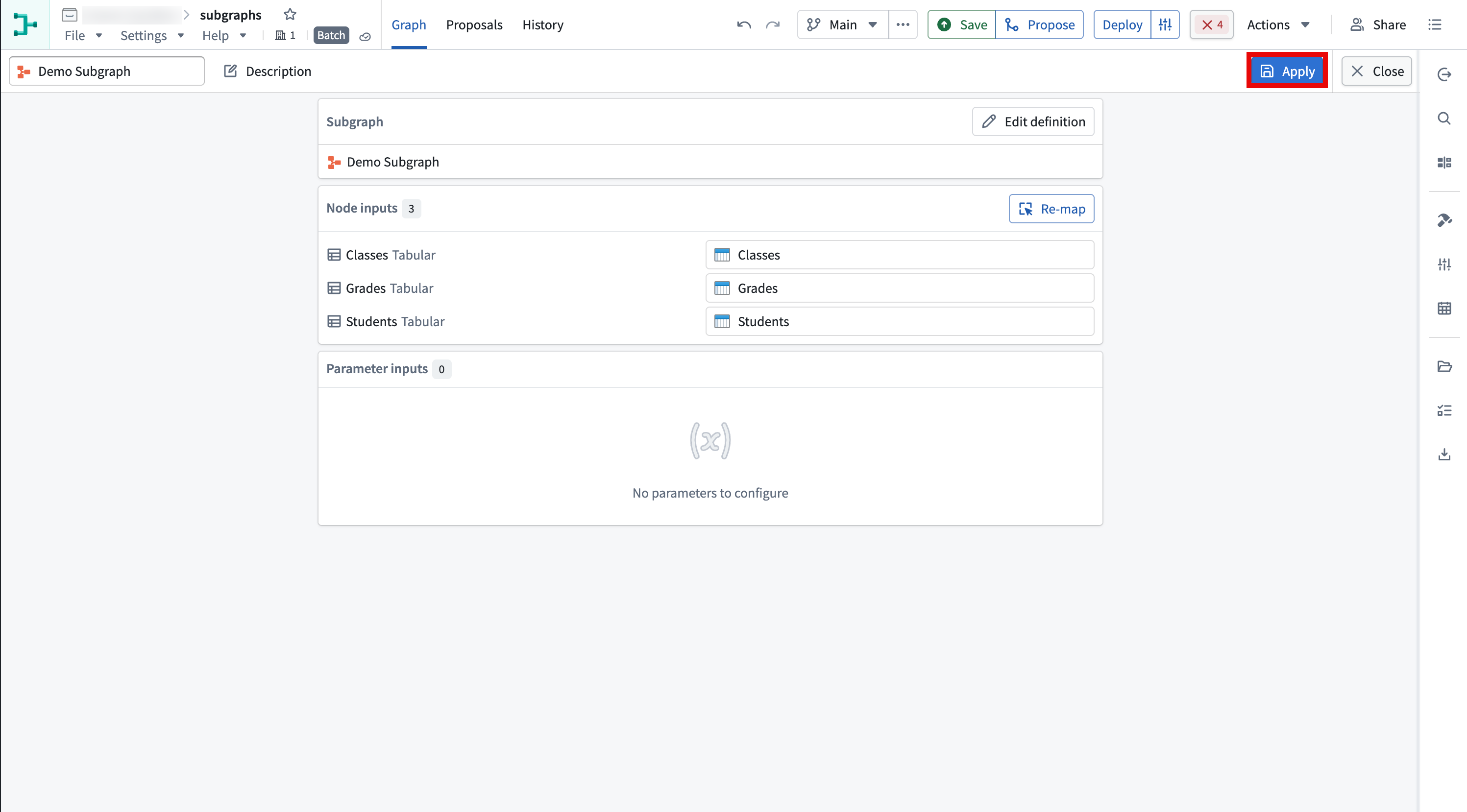
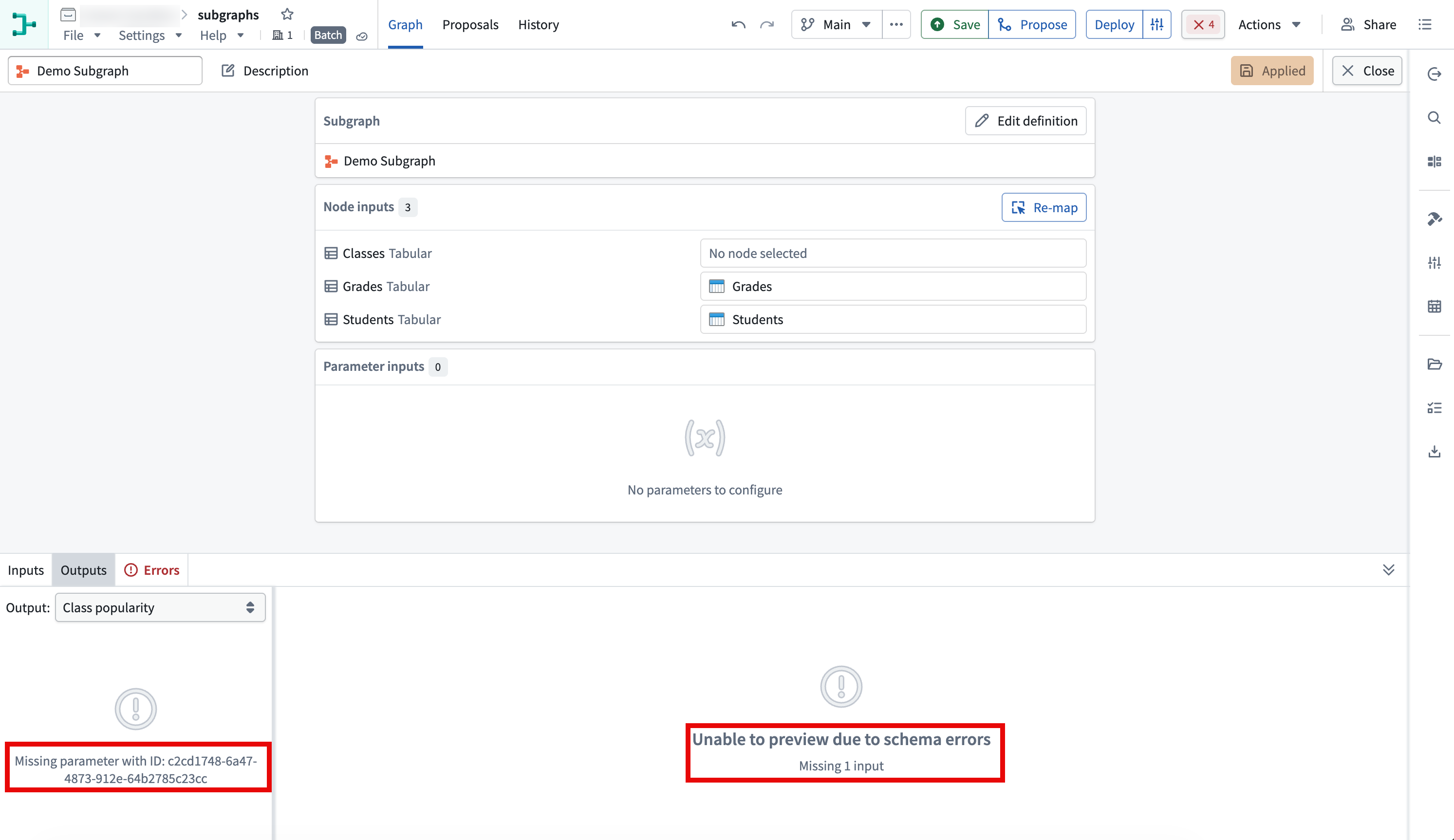
If any required inputs are missing, schema errors appear in the Errors tab and on the pipeline graph.
Add a subgraph to your pipeline
You can add an existing subgraph to your pipeline or use it to replace selected transforms.
Apply a subgraph to selected nodes
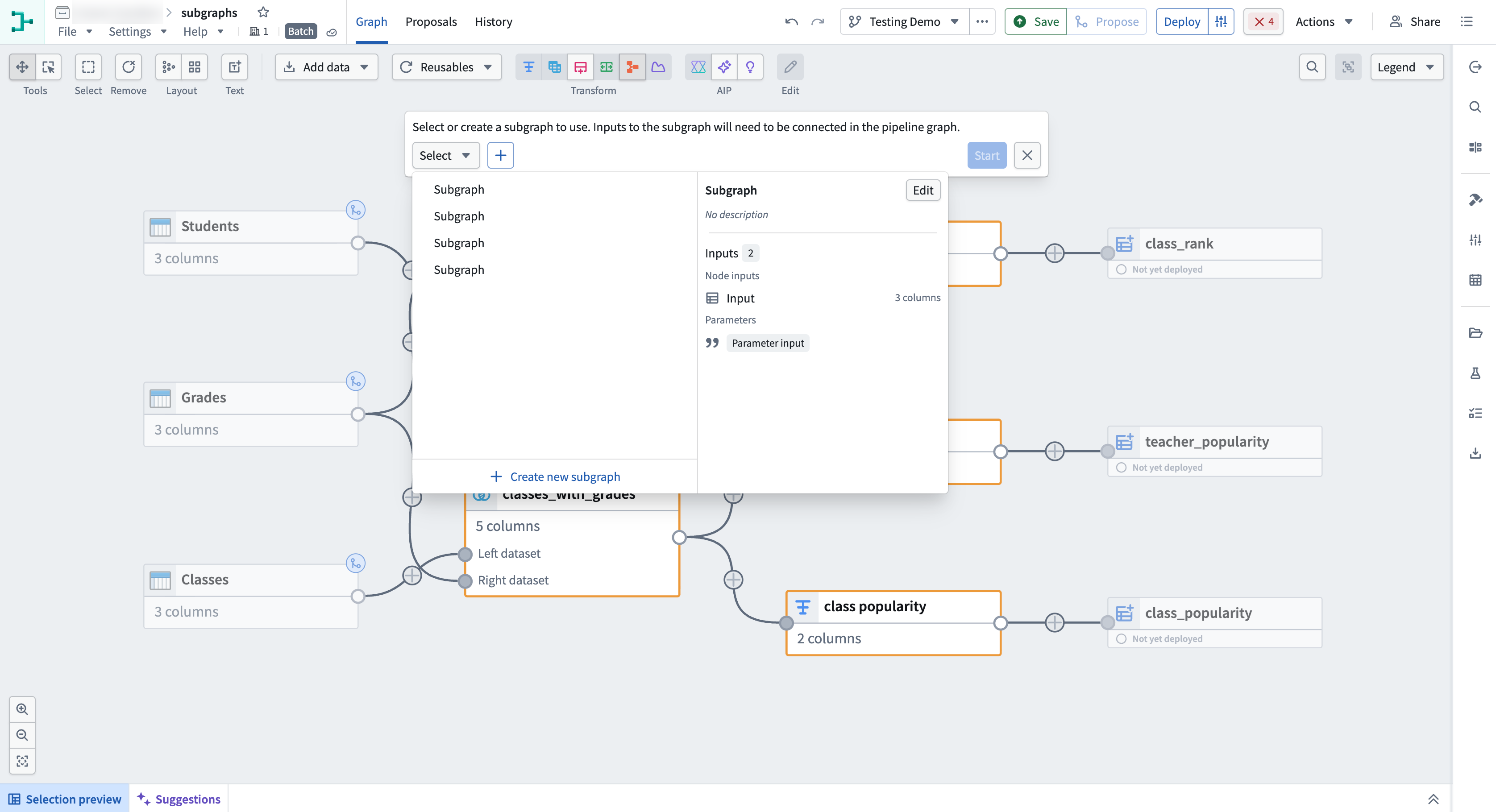
- Select the source node or nodes for your subgraph.
- In the toolbar, select the Apply subgraph to table icon.
- Choose the subgraph you want to add to your pipeline.
Replace selected transforms with a subgraph
For Replace with subgraph to be enabled, every selected node must be a transform.
- Select the transforms you want to replace, then right-click the selection and select Subgraphs > Replace with subgraph.
- Choose an existing subgraph, map its node inputs to nodes in the pipeline, and select Start.
- In the configuration view, configure any parameter inputs, then select Apply to replace the selected transforms.