- Capabilities
- Getting started
- Architecture center
- Platform updates
Configure scoped sessions
Scoped sessions require a user to pick a subset of predefined Markings to access during their Foundry session to create a visual separation between different types of work. Scoped sessions function across both the Foundry file system and ontology workspaces.
Scoped sessions can reduce the chances of accidental cross-pollination of work across different purposes in Foundry. For example, a user working on a particular healthcare research project may be prohibited from using information in another healthcare research project (even though they may have access), since the intermingling of data could compromise the validity of their research. By requiring users to explicitly select their working scope at login, the risk of cross-pollination is reduced and the user can work with greater confidence.
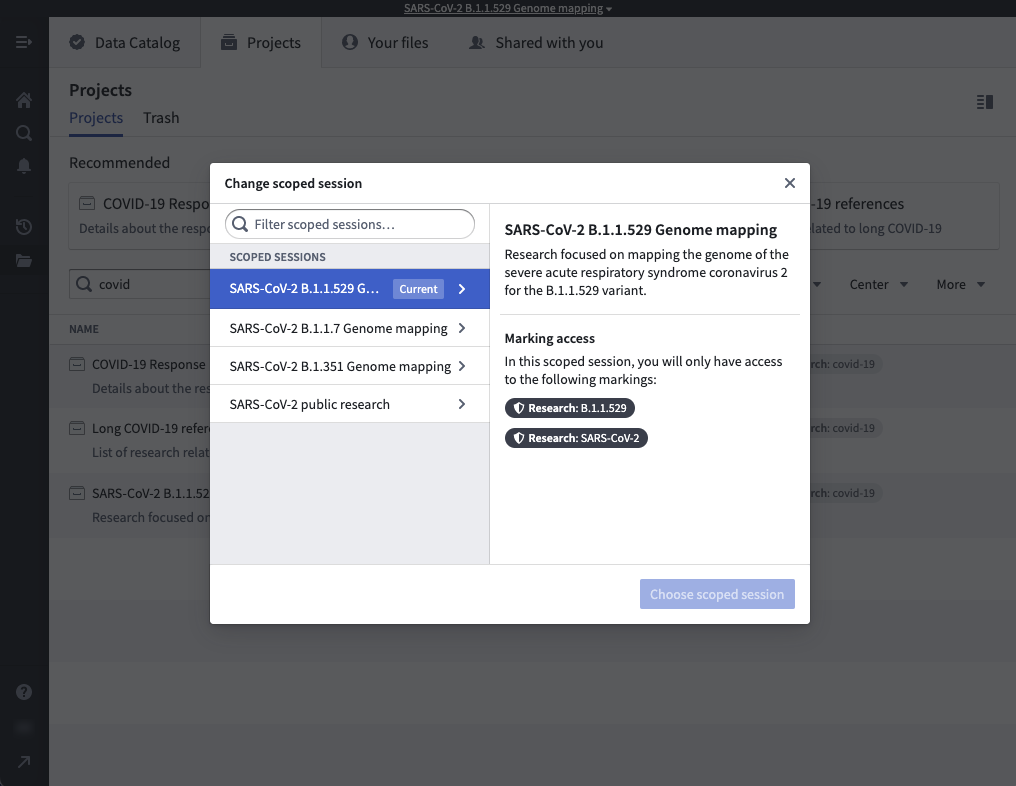
An administrator can configure scoped sessions for your Organization from within Control Panel. Scoped sessions should be configured carefully since they can affect all users who log into Foundry and may potentially lead to the display of a Foundry workspace banner. For this reason, scoped sessions are disabled by default.
To enable scoped sessions for your Organization, we recommend following these high-level steps:
Review your Marking setup
Scoped sessions restrict access based on a user's Marking membership. Therefore, to restrict a user's scope throughout the platform, you must both:
- Have the correct users as members of the correct Markings, and
- Have Markings applied to projects, folders, or files in the way you want to focus a user's access in Foundry.
For example, assume Anya Kimball is a user who should only work on a specific research project at a given time and not see any other research projects. This is a good use case for using scoped sessions. To begin setting up scoped sessions, first ensure that Anya is a member of the correct set of research Markings.
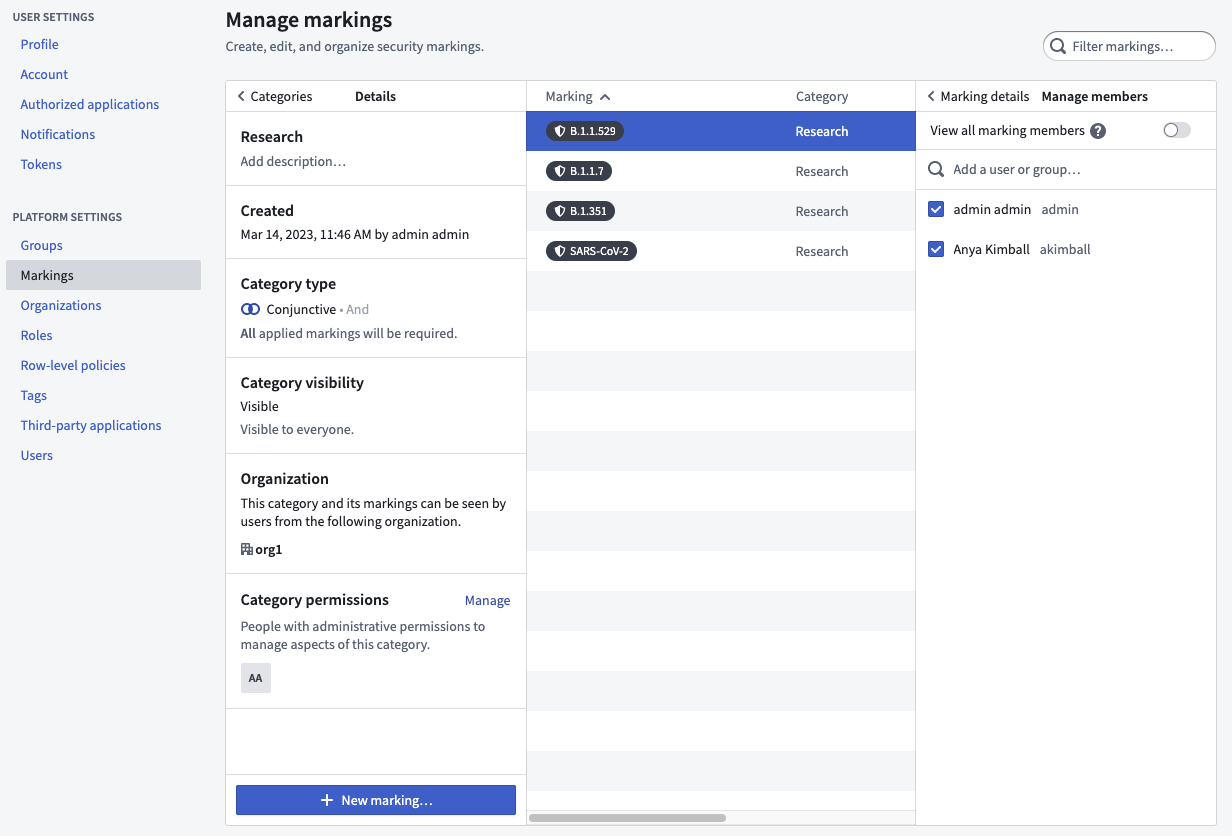
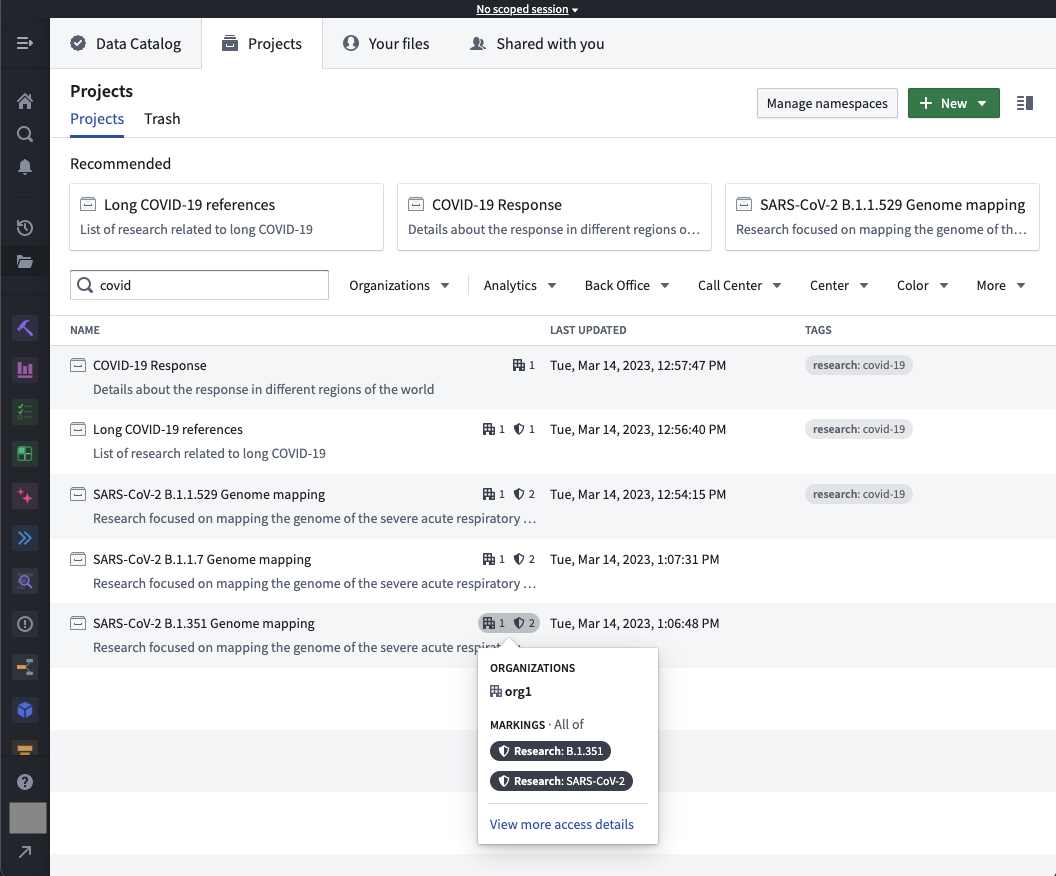
Then you would confirm that the research Markings are applied correctly throughout the Foundry platform. Users will be able to see anything that has one or more of the Markings included in the scoped session. Also, users will be able to see anything that does not have a Marking.
Create scoped sessions
To create a scoped session, open the Security presets & scoped sessions settings for your Organization in Control Panel. Navigate to the Sessions tab. Select New scoped session, then complete the form that appears.
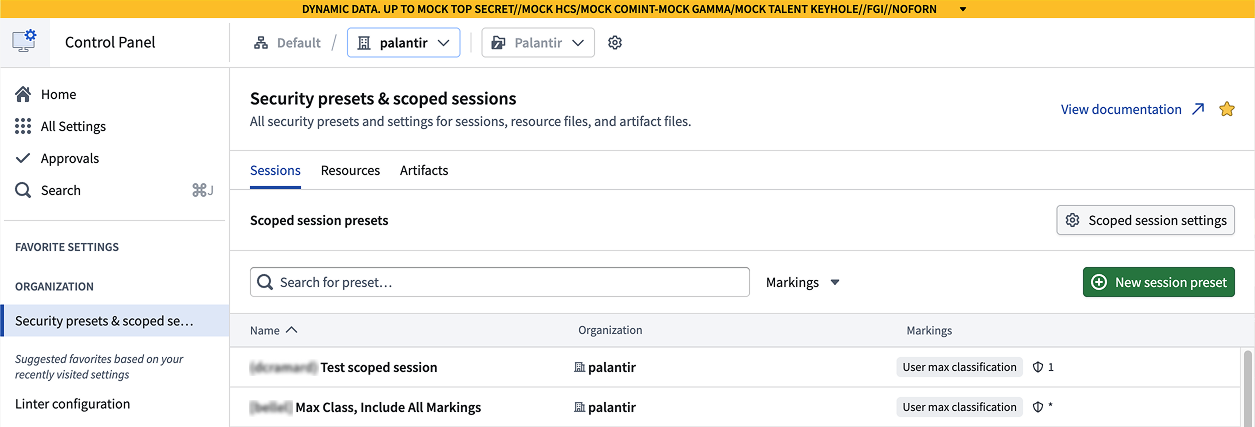
A name is required with the option to display this in the session banner when it is the user's active session. If Classification-based Access Controls (CBAC) is enabled for your environment, then in Markings, there is a section to add CBAC Markings to the scoped session. Further down, you have the option to add Markings to the scoped session. After creation, you can edit the same set of details available during the creation process.
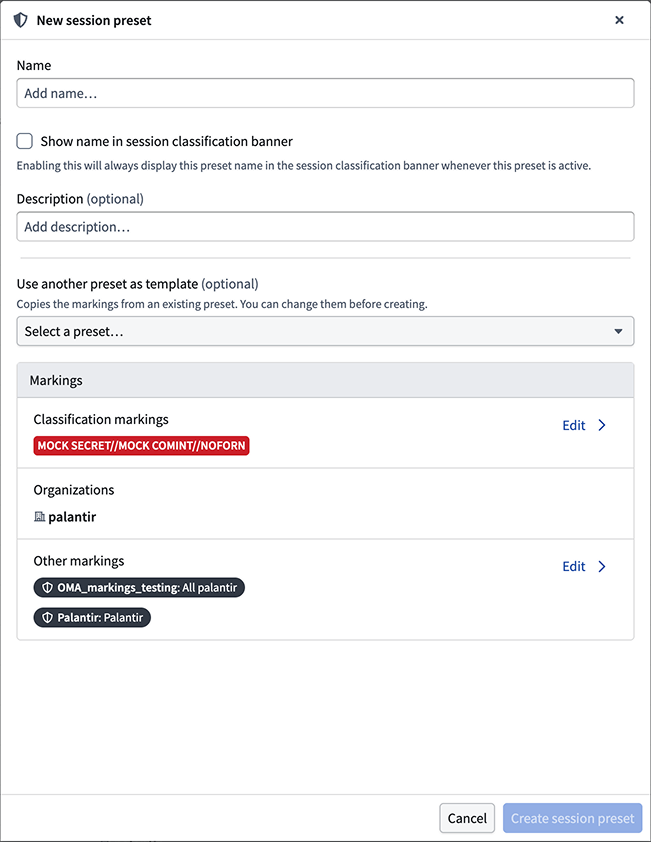
Only users who are members of all the Markings selected in the scoped session will be able to use this scoped session. In the above, a user must be a member of those CBAC Markings and OMA_markings_testing: All palantir and Palantir: Palantir to be able to select this scoped session when logging into Foundry.
You can change the Markings for a given scoped session by selecting Manage in the right-side panel. You can also delete a scoped session with the Delete scoped session button.
Review scoped session settings
Before enabling scoped sessions, consider the following configuration questions:
- Do you want users to always see the scoped session selector at login?
- Do you want to allow users to have unscoped marking access?
- Do you want to allow users to scope their group access?
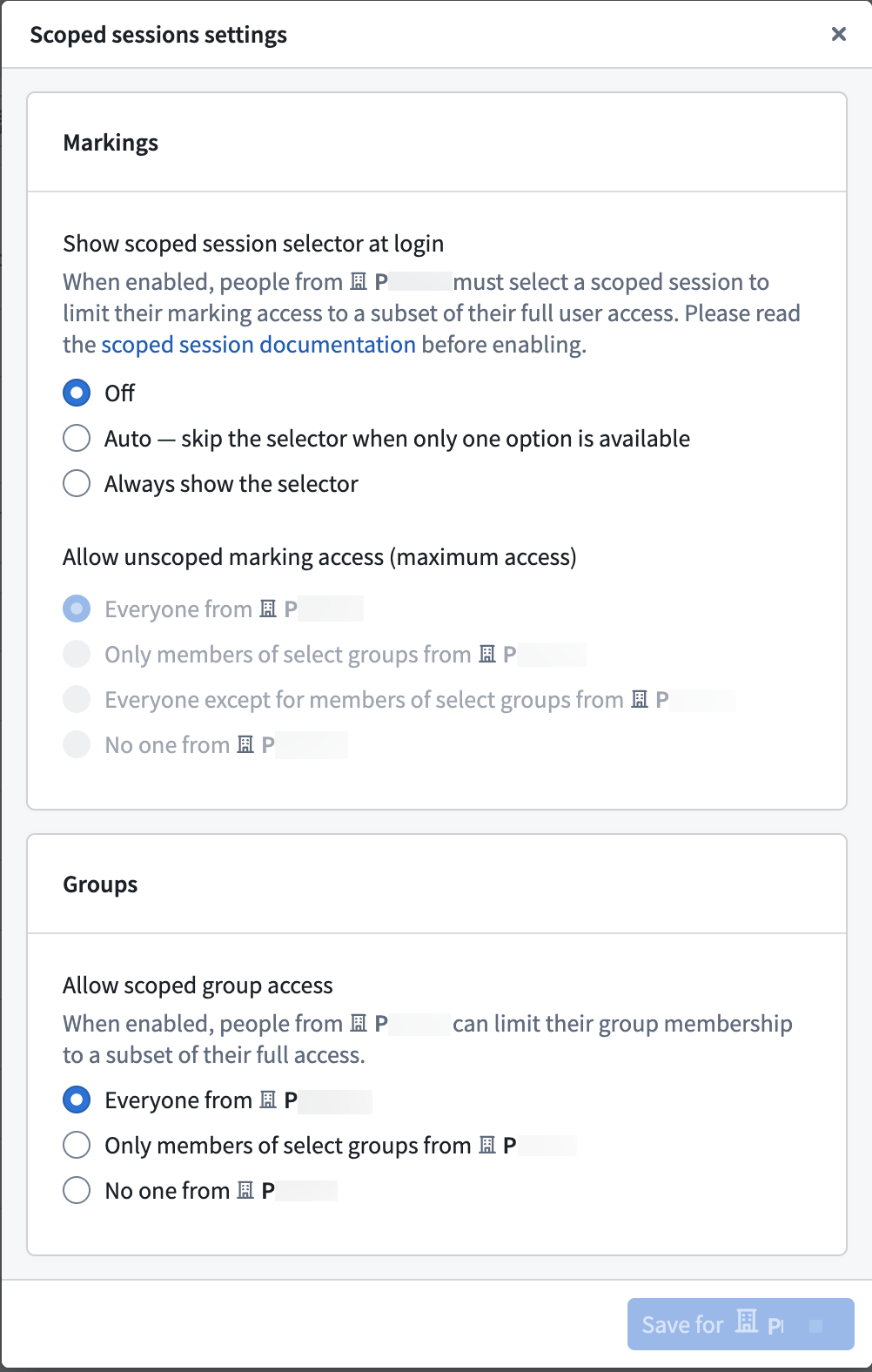
Show scoped session selector at login
Use the guidelines below when configuring the scoped session selector:
-
When configured as Off to denote that the scoped sessions marking selector is not required at login, users will automatically log in with unscoped marking access.
-
When configured as Auto - skip the selector when only one option is available, users will only see the scoped session selector at login when they have access to more than one scoped session.
-
When configured to Always show selector, users will always see the scoped session selector when logging in, even if only one session is available to them.
Allow unscoped marking access
Even when the scoped sessions marking selector is shown, a user may be granted permission to continue with unscoped marking access. You can enable unscoped marking access for all users in your Organization, for members of select groups only, or for all users except members of selected groups. This provides more control over who can bypass scoped sessions. Typically, administrators or support users should be allowed to have unscoped marking access.
Allow scoped group access
In addition to being able to scope their marking access, users can also scope their group access. This is useful for users who are members of multiple groups and want to limit their access to a subset of their groups for testing purposes. By default, all users can scope their group access, but you can restrict this to specific groups, if needed.
Review the emulation mode documentation to learn more about scoping group and marking access to help when testing workflows in the platform.
Example usage
After scoped sessions are configured, you can view a similar dialog below upon logging into Foundry.
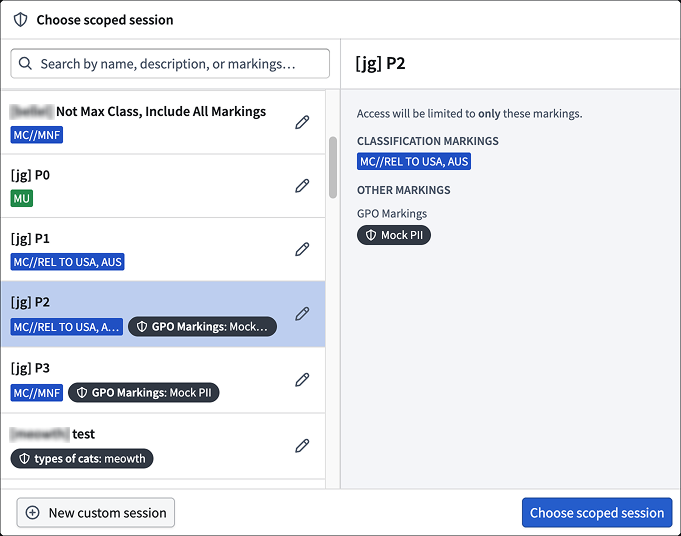
After selecting the "Maximum access (No scoped session)" in this case, you would have access to all projects, folders, and files with these Classification Markings or Other Markings on them.
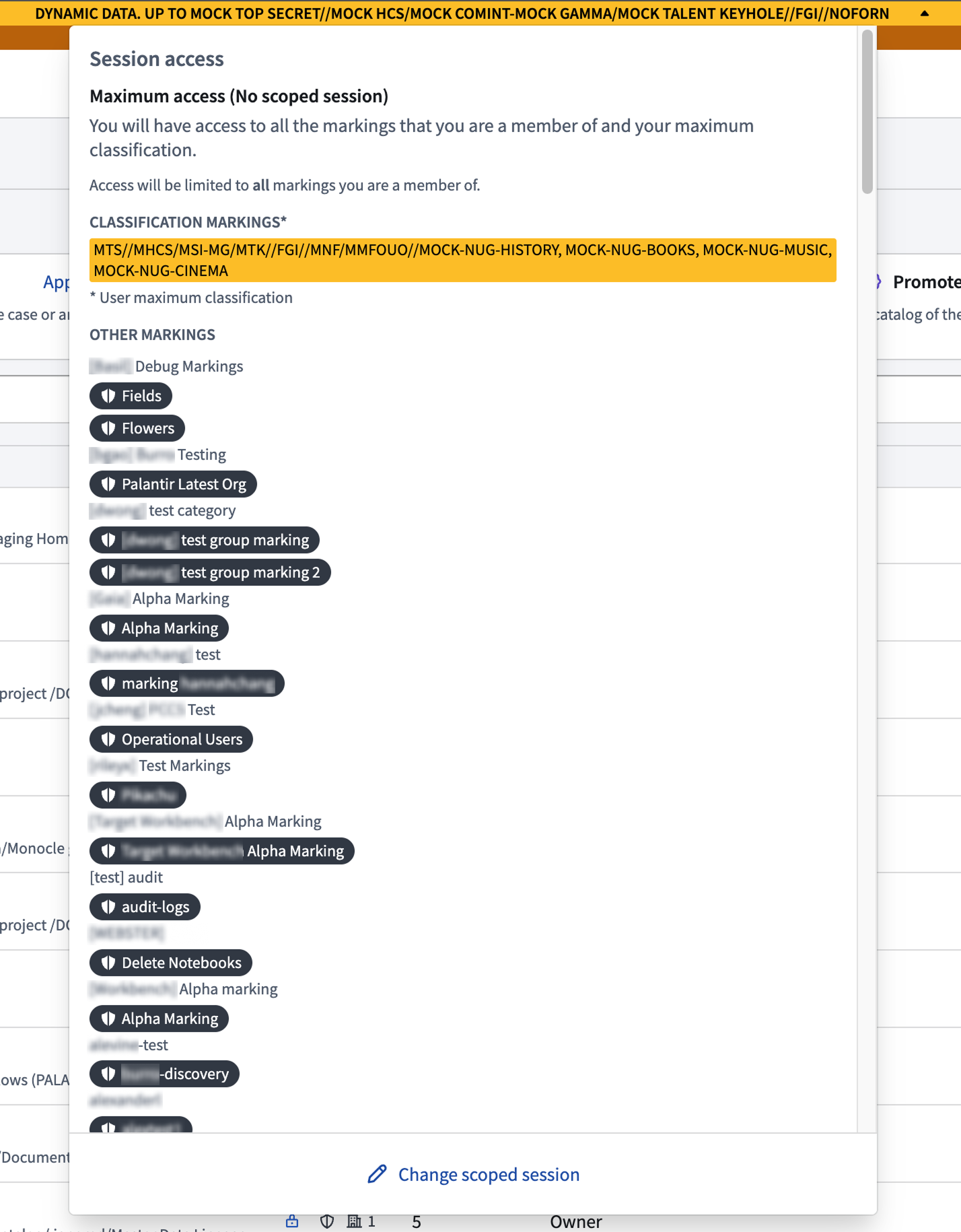
More details about scoped sessions from a user's perspective can be found in the Markings documentation.