# Create geospatial time series properties with Pipeline Builder
The pipeline you create in [Pipeline Builder](../../pipeline-builder/overview/index.md) with this guide will generate [time series data](../time-series-concepts-glossary/index.md#time-series-object-type-backing-dataset) from raw location updates and prepare the object backing dataset with series ID references. This data will back a [time series sync](../time-series-concepts-glossary/index.md#time-series-sync) to associate with [time series properties](../time-series-concepts-glossary/index.md#time-series-property-tsp) on the `Ship` object type.
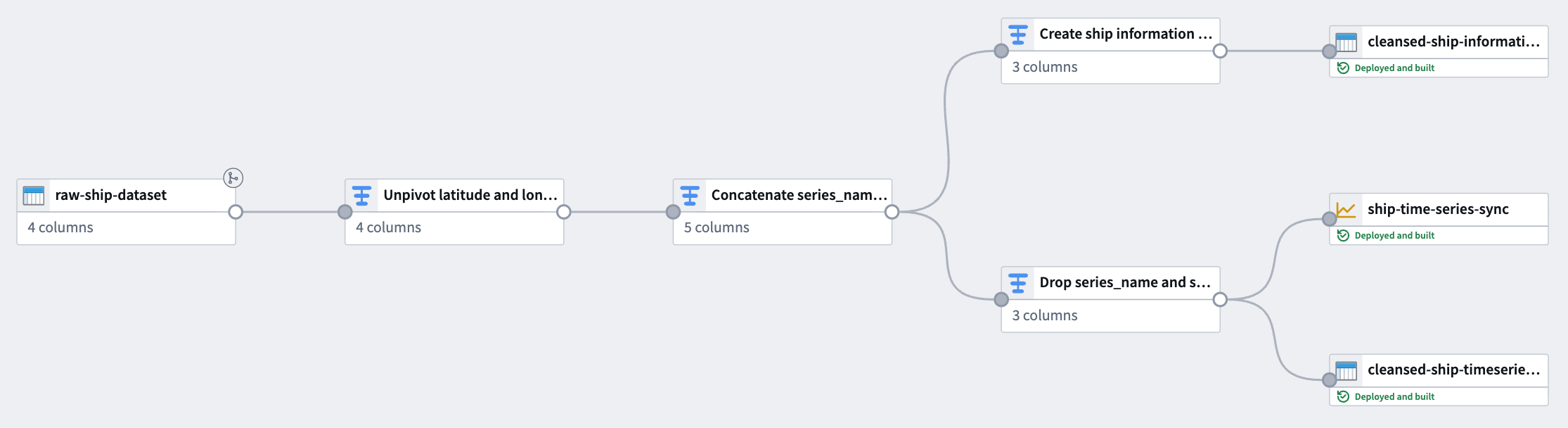
The notional raw location dataset used in this example includes the following columns:
* **ship\_id:** `string` | A unique identifier for each ship.
* **timestamp:** `timestamp` | The time at which the location was recorded.
* **longitude:** `double` | The longitude of the ship at the recorded time.
* **latitude:** `double` | The latitude of the ship at the recorded time.
You can copy the raw data below and import it as a dataset in Foundry before adding it to a new pipeline in Pipeline Builder:
| ship_id |
timestamp |
longitude |
latitude |
| ship-001 |
2025-01-01 08:00:00 |
139.7492 |
35.7607 |
| ship-001 |
2025-01-01 14:00:00 |
140.0097 |
35.2652 |
| ship-001 |
2025-01-01 20:00:00 |
139.5932 |
35.7231 |
| ship-002 |
2025-01-02 08:00:00 |
135.7609 |
35.1223 |
| ship-002 |
2025-01-02 14:00:00 |
135.9821 |
35.3055 |
| ship-002 |
2025-01-02 20:00:00 |
136.2015 |
35.4878 |
## Part I: Transform time series data
Using the raw location dataset, apply the following transforms in Pipeline Builder to create a time series sync-compatible dataset.
### 1. Unpivot latitude and longitude columns
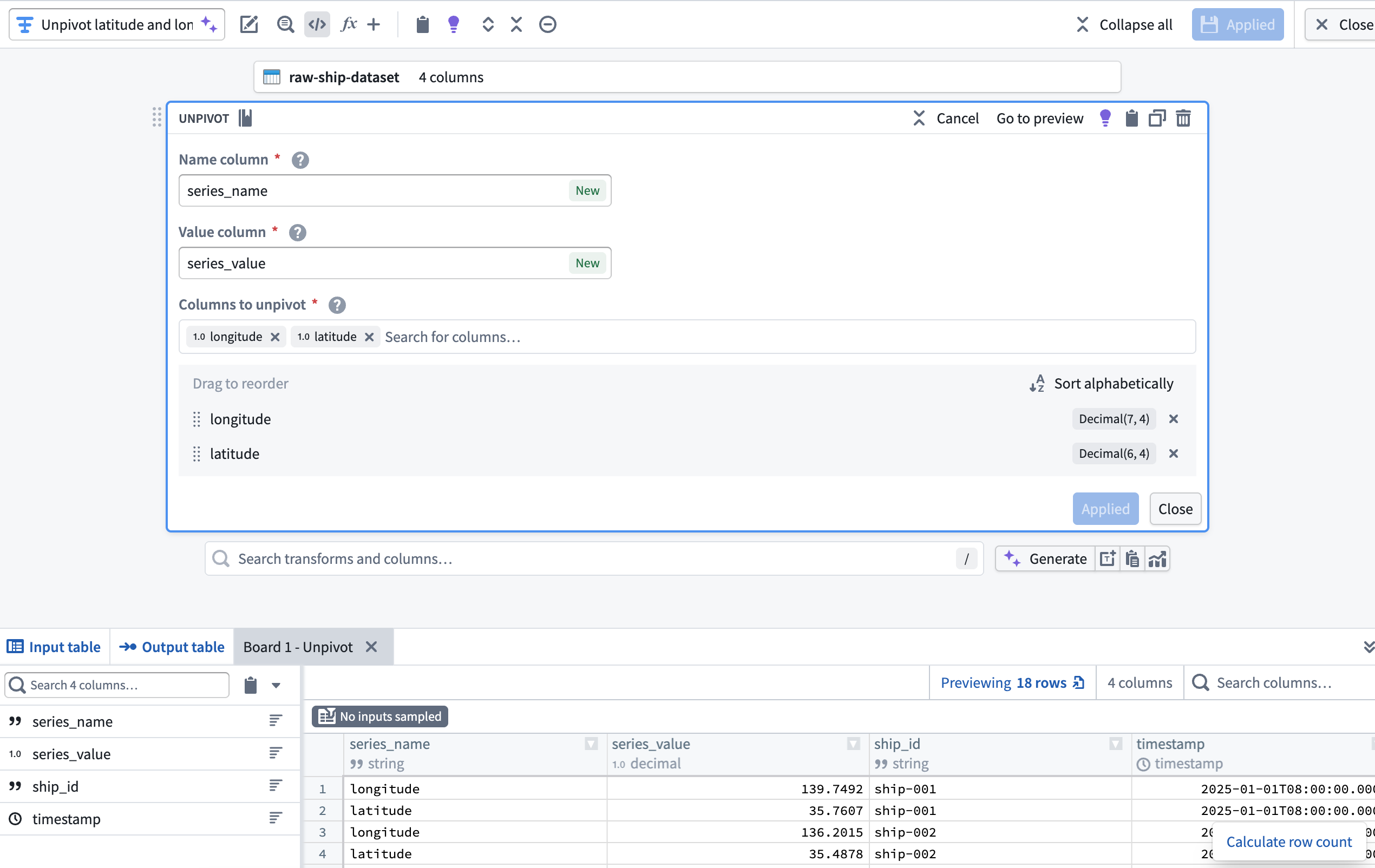
Since the dataset contains both latitude and longitude as separate columns, use an **Unpivot** transform to merge them into a single value column. This is necessary to match the [required schema for a time series sync](../time-series-syncs/index.md). With the dataset added to your pipeline, add a transform node to **Unpivot** the `latitude` and `longitude` columns into a new `series_name` **Name column** and `series_value` **Value column**.
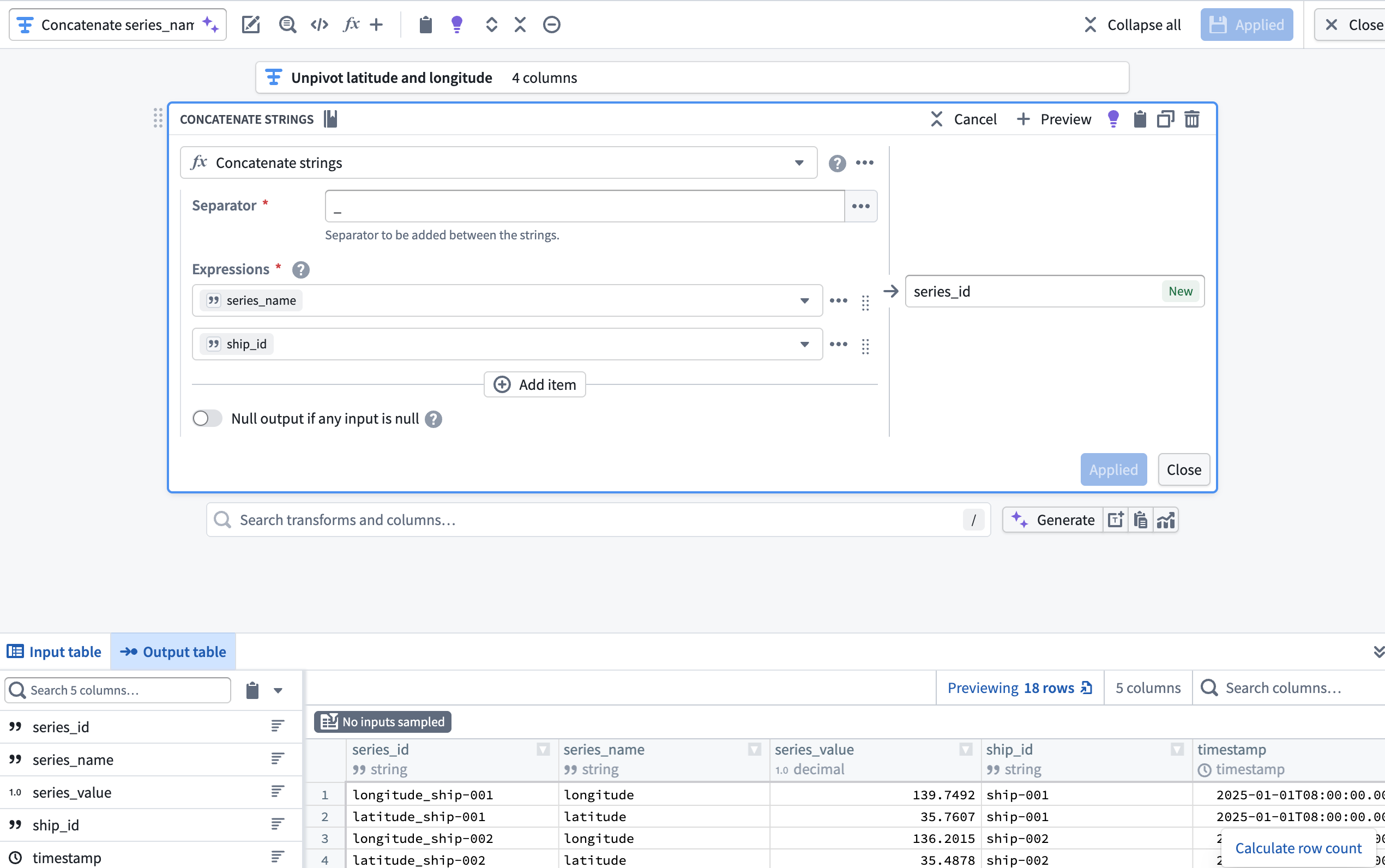
### 2. Create a `series_id` column using the Concatenate strings transform
Next, add a transform node to concatenate the `series_name` and `ship_id` columns to create a new `series_id` column using the **Concatenate strings** transform.
### 3. Create the object backing dataset
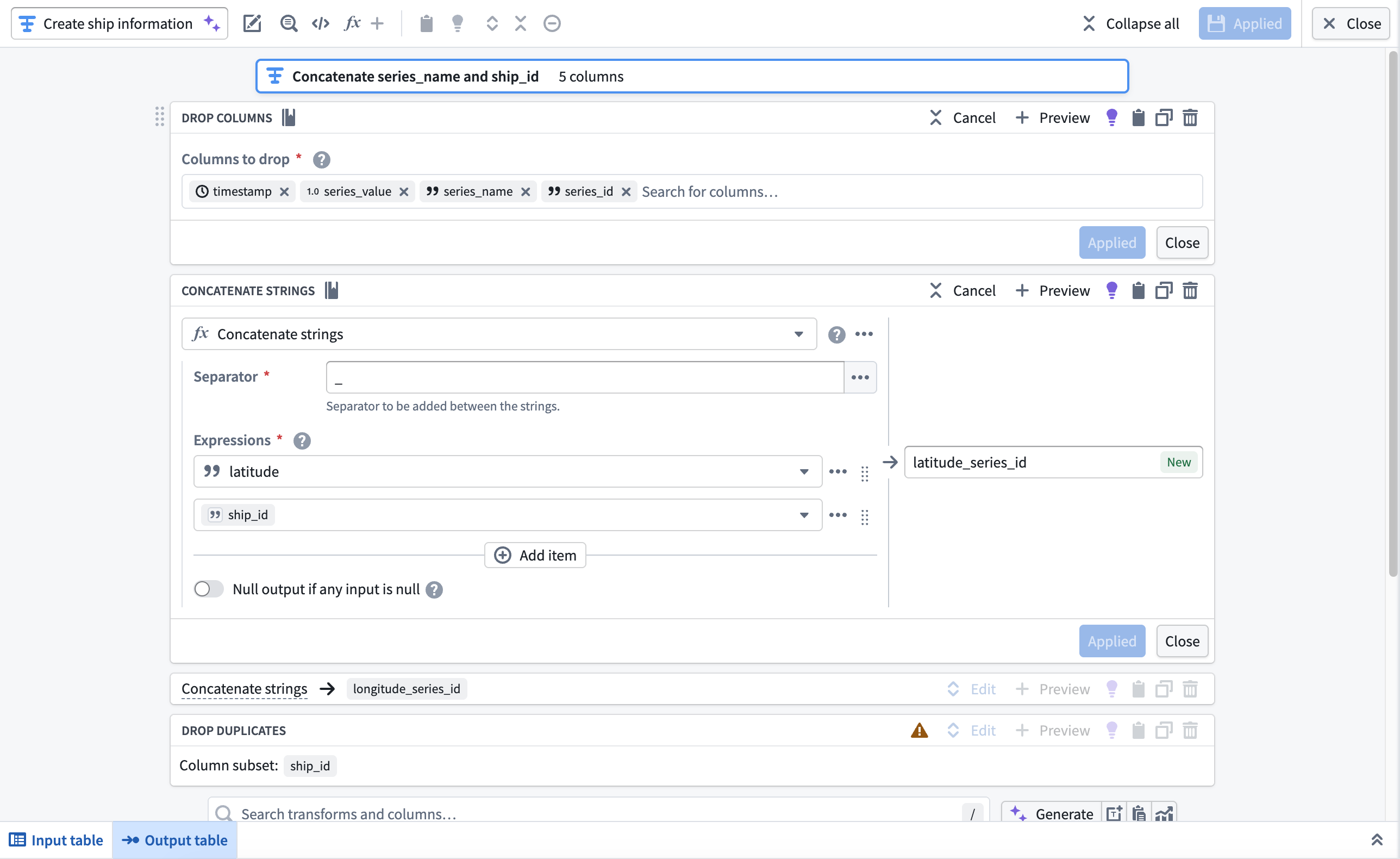
Next, you will use the **Drop columns**, **Concatenate strings**, and **Drop duplicates** transforms to create the `Ship` object type's backing dataset. After you complete these transformations in your pipeline, your dataset will contain the following schema and values:
| longitude_series_id |
latitude_series_id |
ship_id |
| longitude_ship-001 |
latitude_ship-001 |
ship-001 |
| longitude_ship-002 |
latitude_ship-002 |
ship-002 |
Add a transform node and apply the transforms listed above.
* **Drop columns:** Drop the `timestamp`, `series_value`, `series_name`, and `series_id` columns.
* **Concatenate strings:** Use an underscore as the **Separator** to concatenate the `latitude` and `longitude` columns with `ship_id` in separate transform blocks.
* **Drop duplicates:** Drop the `ship_id` column after it is used in the concatenation with `latitude` and `longitude`.
After you configure the transforms, navigate back to your pipeline's canvas and choose **Add output** > **New dataset** from the newly created transform node to output a dataset to back the object type.
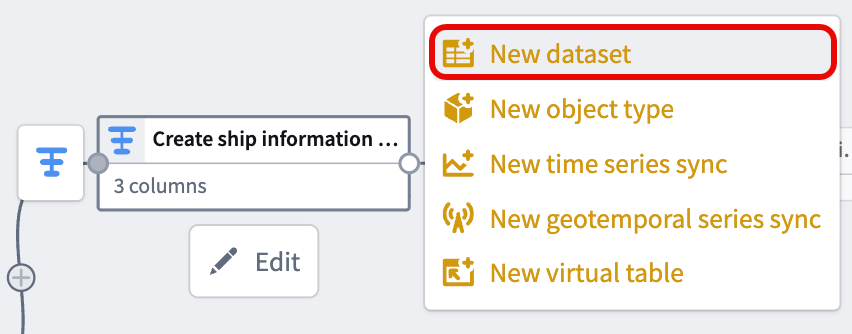
Give your dataset a descriptive name, such as `cleansed-ship-information-dataset`. Select **Save** in the top ribbon and **Deploy** your pipeline to create the dataset.
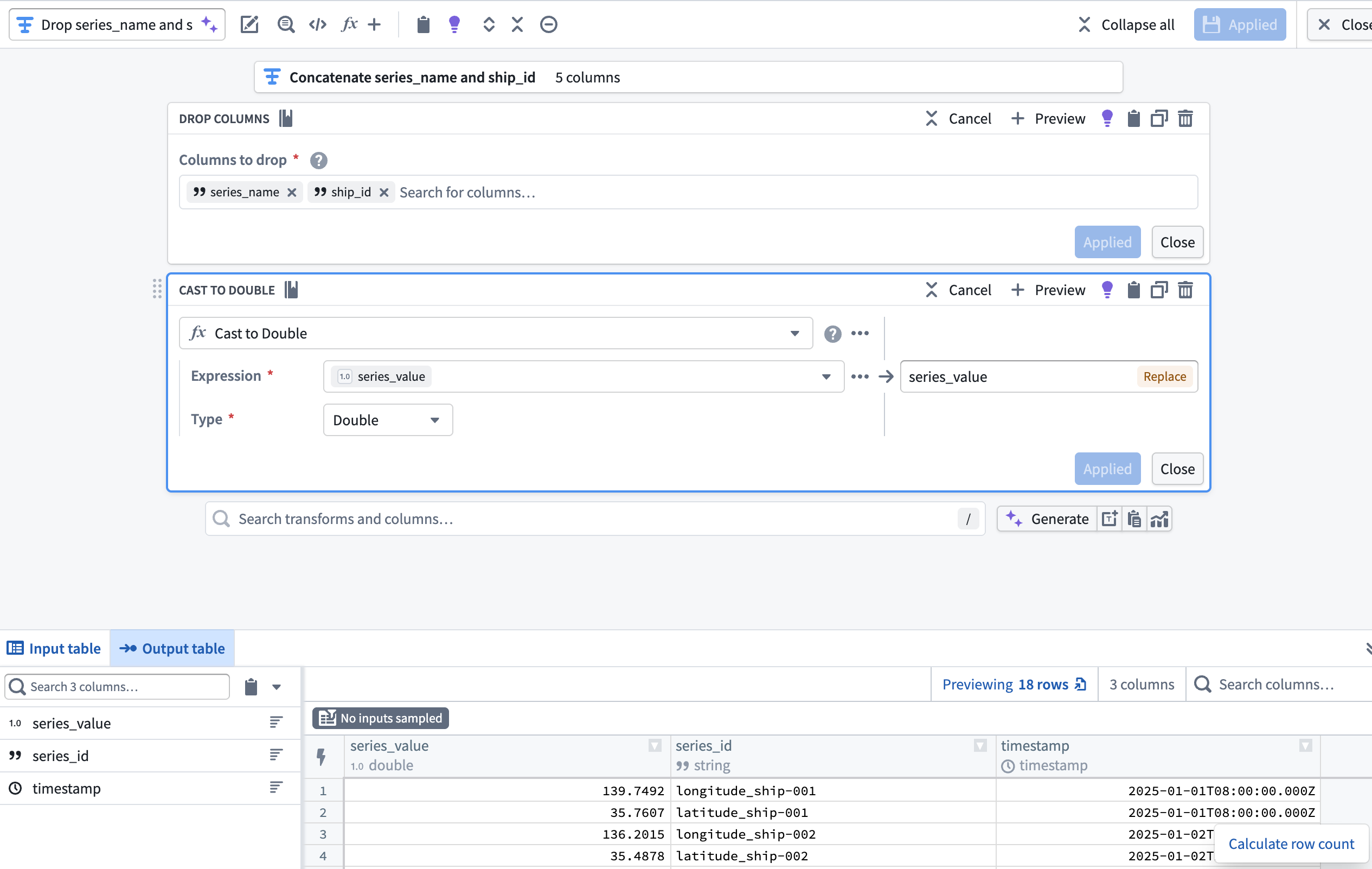
### 4. Drop `ship_id` and `series_name` before casting `series_value` to `Double`
With your object type's backing dataset created, navigate back to the transform node you created in [step two](#2-create-a-series_id-column-using-the-concatenate-strings-transform) to create your time series sync.
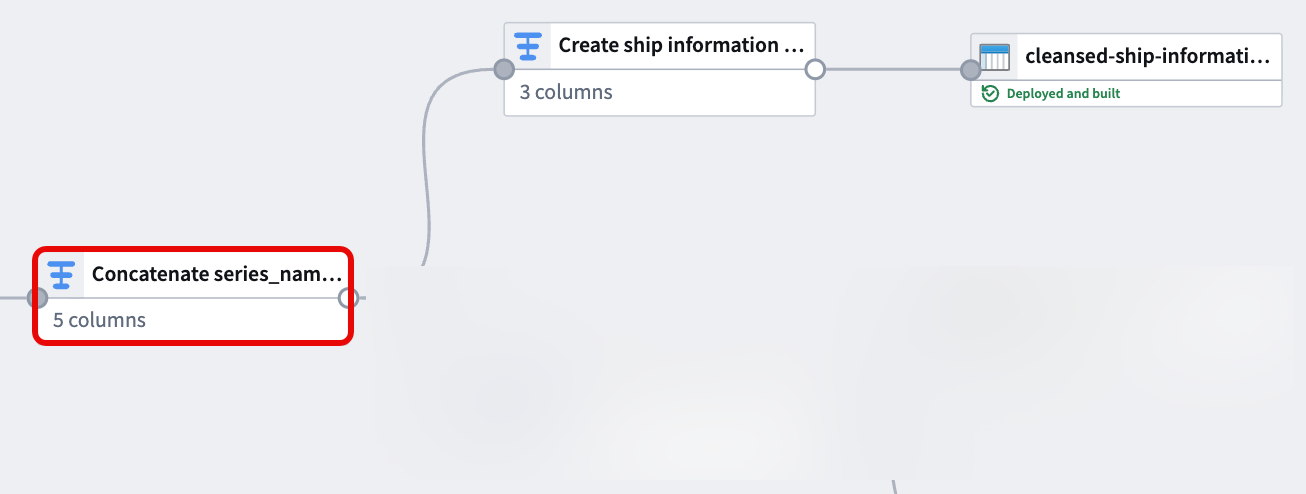
Now that the `series_id` and `series_value` columns are derived from and supersede the `ship_id` and `series_name`, add a transform node to drop `ship_id` and `series_name` then cast `series_value` to type `Double`. This enables you to output a time series sync from your cleansed dataset which will back **Track Latitude** and **Track Longitude** properties on a [track object](../../map/integrate-objects/index.md#track-objects).
## Part II: Create the time series sync
You can reference similar instructions in the [time series properties use case tutorial](../time-series-properties-use-case-pipeline/index.md#part-ii-create-the-time-series-sync). However, the instructions below provide guidance specific to this `Ship` geospatial object type example.
You can choose to output a new *dataset* instead of a time series sync. However, outputting a time series sync in Pipeline Builder will save you a step during the [Ontology configuration phase](../geospatial-time-series-ontology/index.md).
To output a time series sync from your cleansed dataset, select the final transform node on your pipeline's canvas and choose **Add output** > **New time series sync**. Next, populate the **Series ID**, **Time**, and **Value** options in the **Pipeline Outputs** drawer that renders on the right side of your pipeline with your cleansed dataset's `series_id`, `timestamp`, and `series_value` columns. Save and deploy your pipeline to create a time series sync.
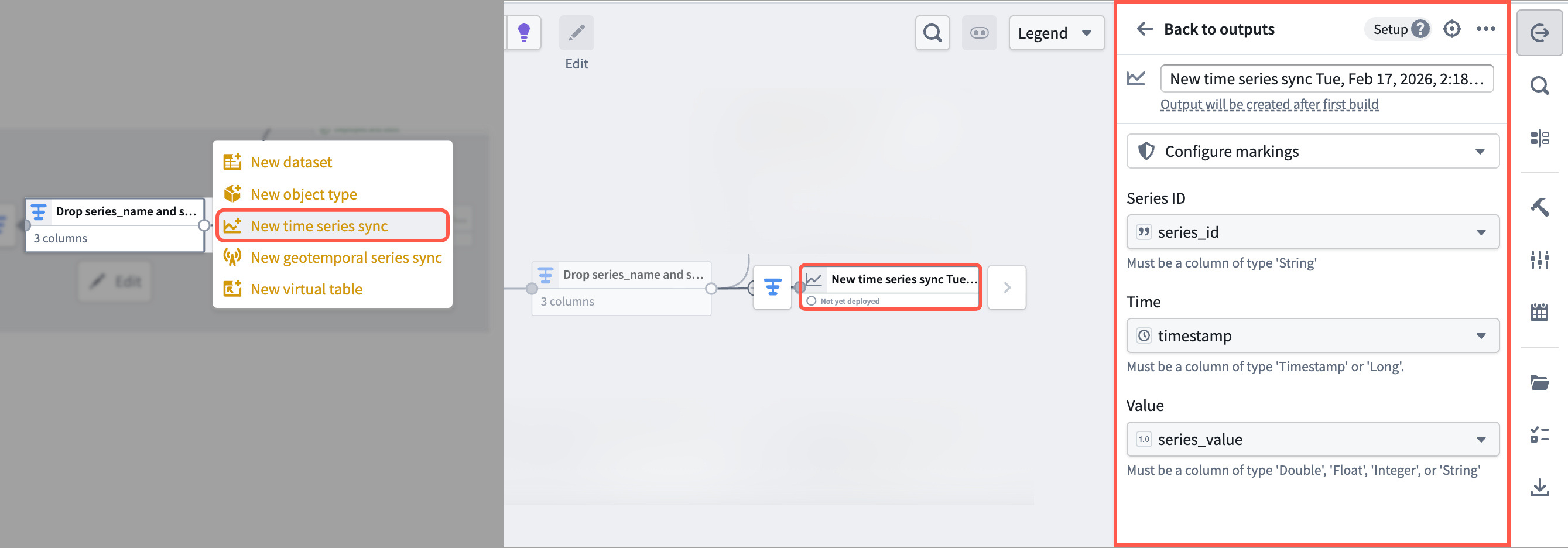
Foundry saves your newly created time series sync in the same [Compass folder](../../compass/overview/index.md) as your pipeline.
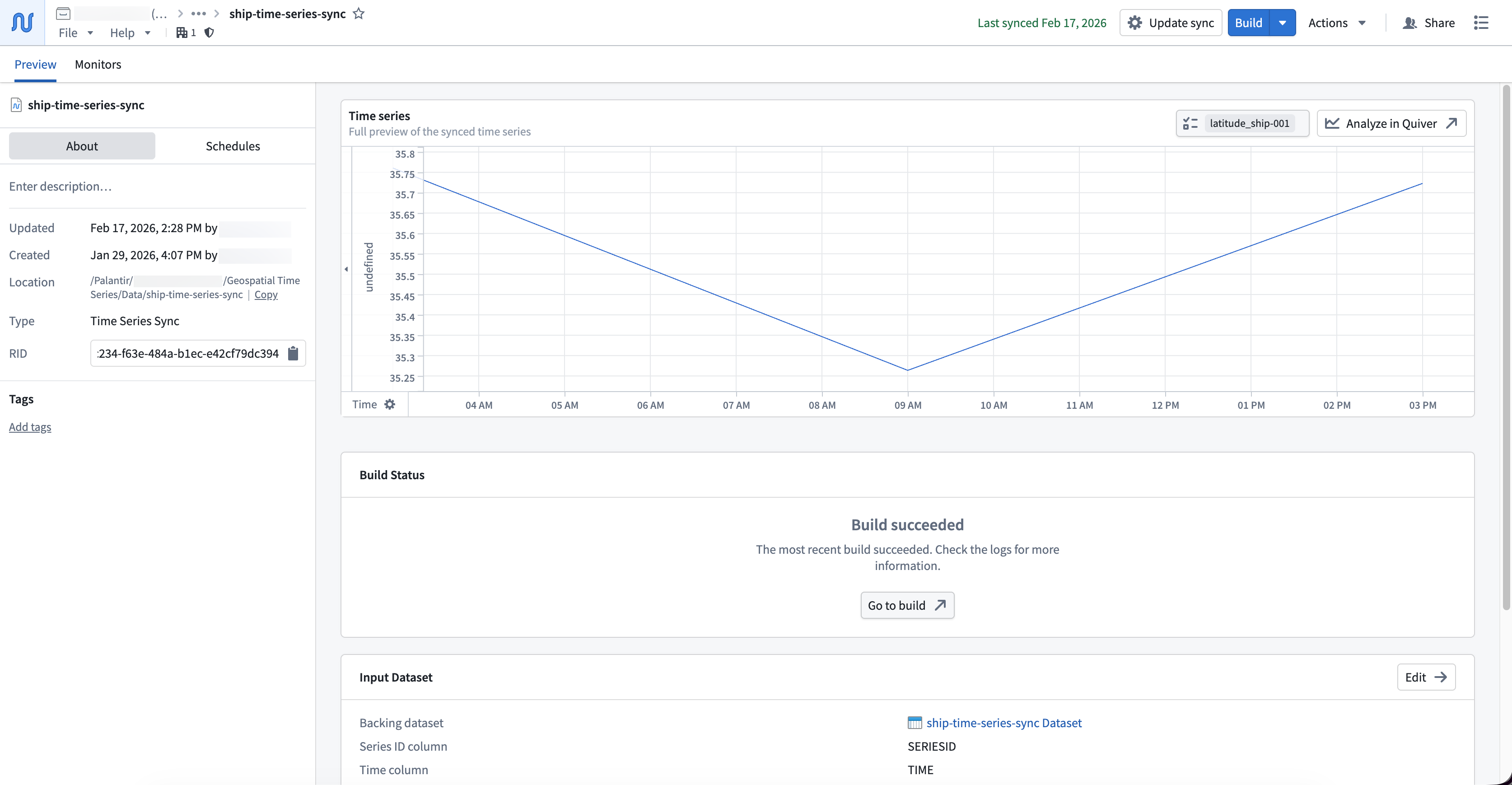
With your time series sync created, you can now create and configure an [object type in your Ontology that contains the time series sync as time series properties](../geospatial-time-series-ontology/index.md).