# Getting started with function-backed time series
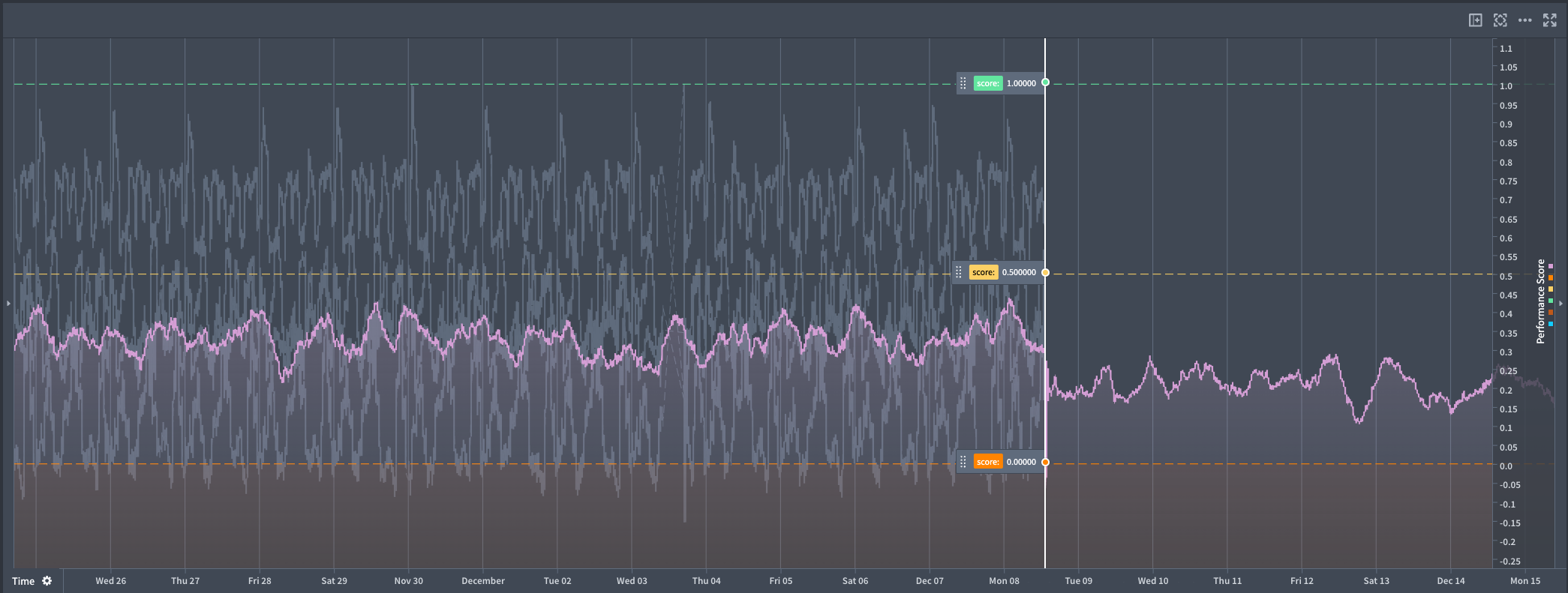
This guide will help you get started with creating a function-backed time series that can be used in Quiver analyses to enable real-time forecasting workflows.
## Prerequisites
To set up function-backed time series, you need the following resources:
* A Foundry function that returns a numeric time series using the time series SDK.
* A tagged version of that function to reference in Quiver.
## Set up a function-backed time series in Quiver
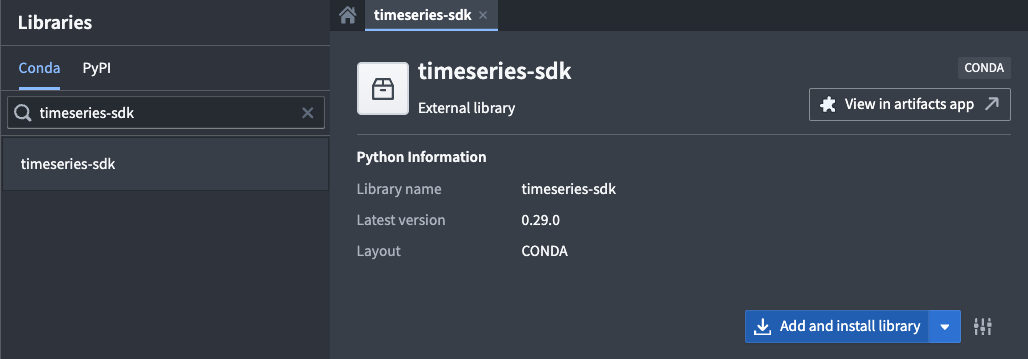
1. **Install the time series SDK:** In Code Repositories, add the `timeseries-sdk` library to your code repository using the **Libraries** tab.
2. **Write a Python function:** Create a function that returns a serialized pandas DataFrame with the following columns:
* **`timestamp`:** A pandas timestamp.
* **`value`:** A numeric value, for example int32 or float.
The time series SDK provides a library for serializing a pandas DataFrame as shown in the example below.
```python
from functions.api import function
from timeseries_sdk.types import TimeSeries
from ontology_sdk.ontology.objects import Machine
import pandas as pd
@function
def performance_prophet_forecast(
machine: Machine,
periods: int = 96, # number of future steps
freq: str = "15min", # sampling frequency
) -> list[bytes]:
"""
Forecast a machine's performance_score using Prophet.
"""
from prophet import Prophet
# Retrieve performance score data (columns: timestamp, value)
df = machine.performance_score.to_pandas(all_time=True)
if df.empty:
return TimeSeries.serialize(pd.DataFrame(columns=["timestamp", "value"]))
# Prepare the data for Prophet
df = df.rename(columns={"timestamp": "ds", "value": "y"}).sort_values("ds")
model = Prophet().fit(df)
# Create future data frame for forecast
future = model.make_future_dataframe(periods=periods, freq=freq, include_history=True)
forecast = model.predict(future)
# Format the forecast output
out = forecast[["ds", "yhat"]].rename(columns={"ds": "timestamp", "yhat": "value"})
return TimeSeries.serialize(out)
```
3. **Publish the function:** Publish your function and tag a version.
4. **Use the function in Quiver:**
* Add a **Code function time series card**.

* Select your function, choose the correct version, and configure its inputs.
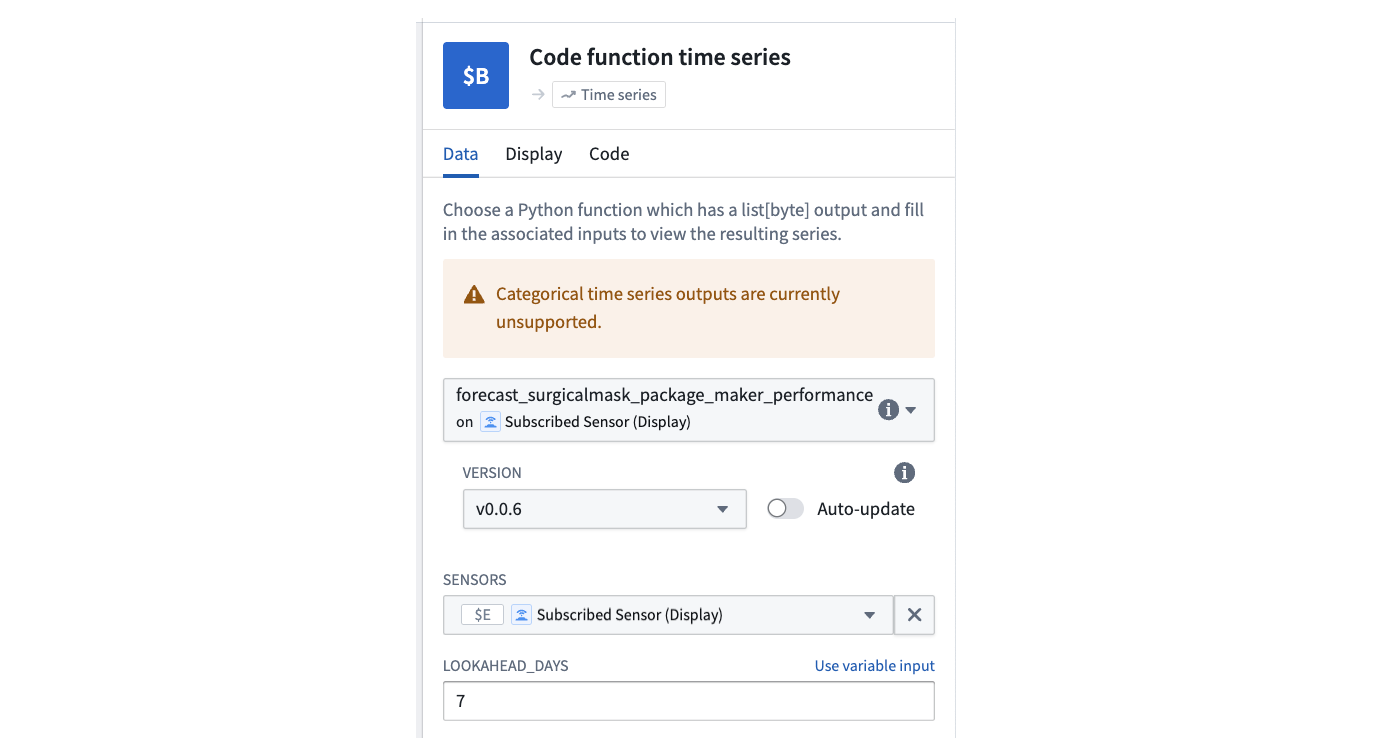
* Optionally, add another instance of the card to compare multiple scenarios side-by-side.