# Show and hide content
Showing or hiding content affects how all editors and viewers see the report.
## Show / hide the report creator
To show or hide the name of the user who created a report:
1. *(If needed)* Switch to Editing mode.
2. Click the **Settings** button in the application header.

3. Click **Show creator name** in the settings menu.
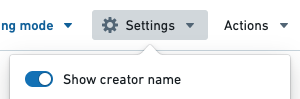
As a report editor, you can opt to show or hide the creator name above the report title.

## Show / hide the report outline
To show or hide the outline in a report:
1. *(If needed)* Switch to Editing mode.
2. Click the **Actions** button in the application header.

3. Click **Show outline** in the actions menu.
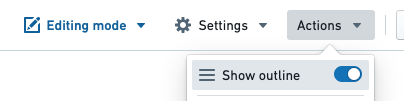
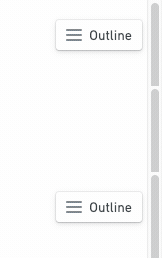
This will toggle the outline button in the top-right of the report:
## Show / hide a piece of content's title
To show or hide the title of a piece of content:
1. *(If needed)* Switch to Editing mode.
2. Click the **Settings** cog in the top right corner of a piece of content

3. Click **Show title** in the settings menu.
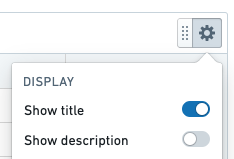
This will toggle the title above the widget.
Content titles are displayed in the report outline to improve navigability.
## Show / hide a piece of content's description
To show or hide the title of a piece of content:
1. *(If needed)* Switch to Editing mode.
2. Click the Settings cog in the top right corner of a piece of content

3. Click **Show description** in the settings menu.
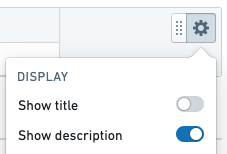
This will toggle the description below the widget.
## Display parameters in a toolbar or sidebar
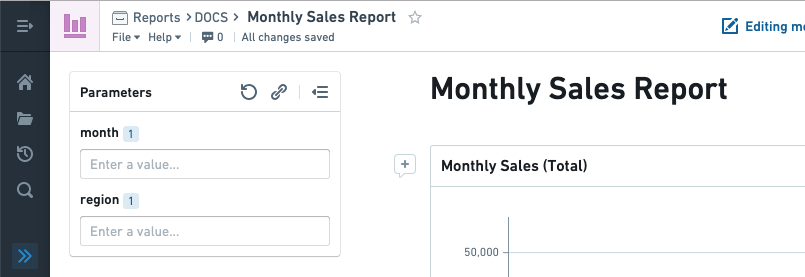
Reports lets you control how report parameters are displayed:
Display parameters in a *sidebar* if you have many parameters and want to display them in a scrollable list.
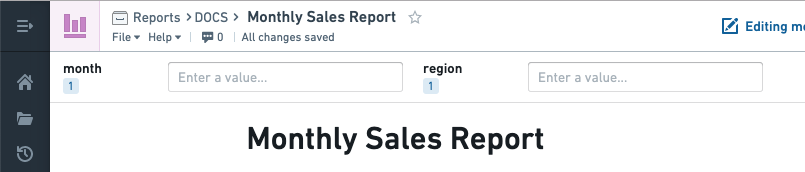
Display parameters in a *toolbar* (along the top) if you only have a few parameters and/or if the report content needs more width to display optimally.
To change how the list of parameters is displayed:
1. Click **Settings** in the application header.

2. Under "Parameters Display", click **Sidebar** or **Toolbar** as needed.