# Merge multiple parameters
Reports lets you merge many parameters into one. This is useful for reducing the number of parameters in a report, particularly in the following cases:
* **If two parameters are conceptually identical.** For example, if you added two Contour widgets from different analyses, they may each have pulled a separate **Year** parameter into the report. Merging the two Year parameters together allows report viewers to control both Contour widgets with one parameter value.
* **To display a parameter value in a text block.** In some cases, you may want to display the current parameter value in a block of text. Merging a parameter created within a text block (as described in [Add a parameter within text](../add-parameter/index.md#add-a-parameter-within-text)) into a parameter imported from another application (as described in [Add a parameter from another Foundry application](../add-parameter/index.md#add-a-parameter-from-another-foundry-application)) will accomplish this. *This workflow is also discussed in [Edit text in a report](../add-content/index.md#inline-parameters)*.
Concretely, merging Parameter A into Parameter B will:
* Hide Parameter A from the parameters bar, and
* Cause all widgets that were affected by Parameter A to be affected by Parameter B instead.
## Merge parameters
You can merge as many parameters as you want into a single parameter.
To merge one parameter (“Parameter A”) into another (“Parameter B”):
1. *(If needed)* Switch to Editing mode.
2. Click and hold the drag handle for Parameter A.
3. Drag Parameter A onto Parameter B, still holding the mouse button, until you see a “Merge” icon and label.
4. Release the mouse button.
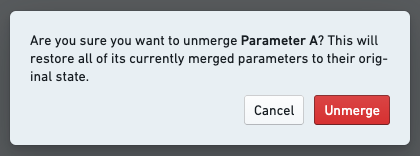
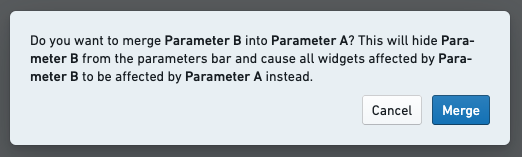
5. Click **Merge** in the confirmation dialog.
Merged parameters will show a small “merged” label beneath the parameter's title.
## Unmerge parameters
Merging is a reversible operation. Unmerging a parameter will:
* Display all linked parameters in the parameters bar again, and
* Cause all widgets that were originally affected by the linked parameters to be controlled by those parameters again (instead of the “master” merged parameter).
Unmerging a merged parameter unmerges all of its linked parameters, not just the most recently linked parameter.
To unmerge a parameter:
1. *(If needed)* Switch to Editing mode.
2. Click the gear icon next to the merged parameter in the parameters bar.
3. Click **Unmerge** in the Parameter Settings menu.
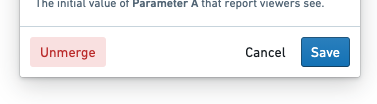
4. Click **Unmerge** in the confirmation dialog.