# Add to a Notepad document
There are two main ways to add a dashboard to a Notepad document: copy-pasting and embedding.
## Copy-paste to Notepad from a dashboard
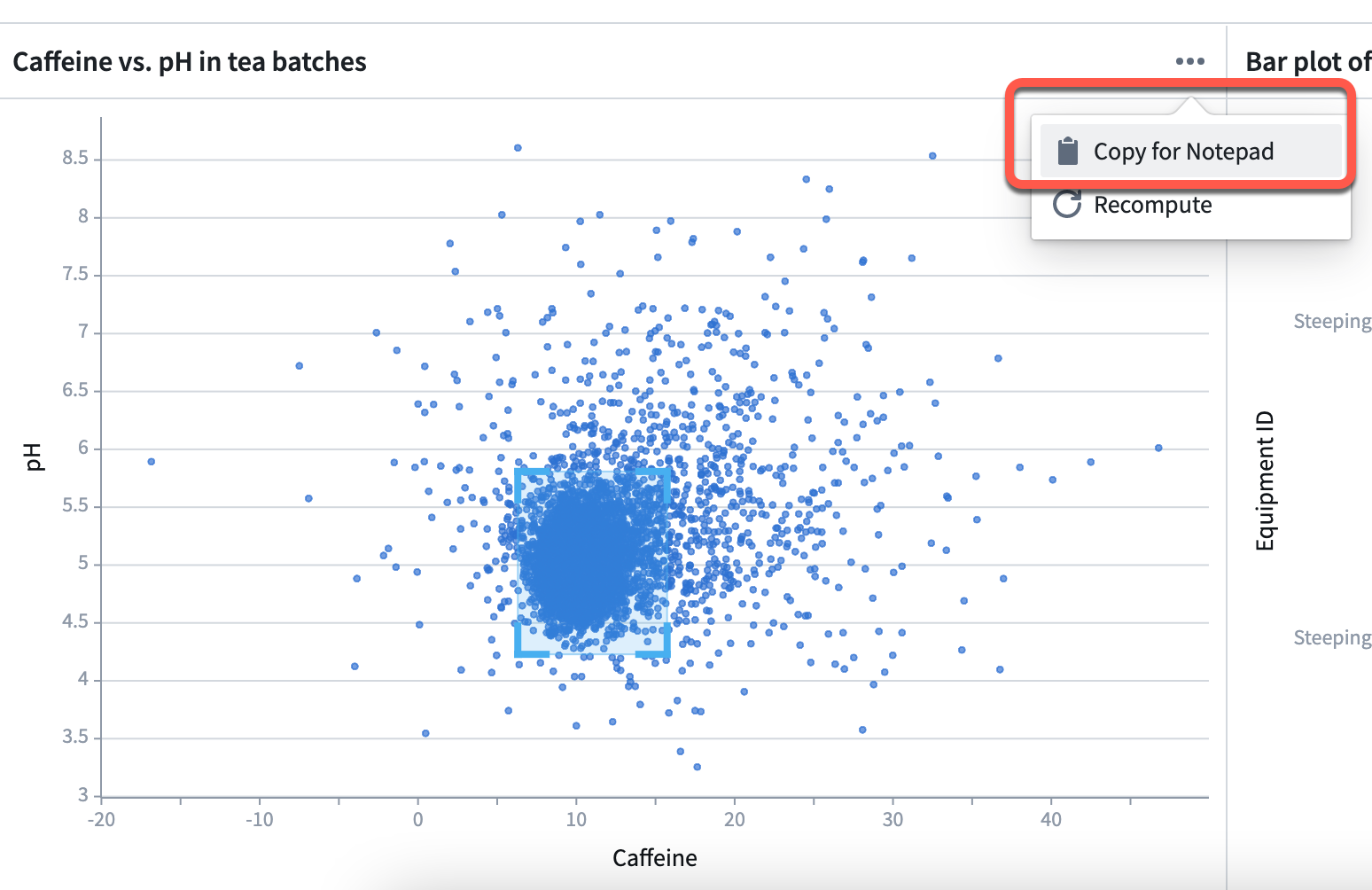
Cards on a dashboard can be copy-pasted into a [Notepad document](../../notepad/overview/index.md) using the **Copy for Notepad** action.
 Copying cells in which multiple parameters or metrics are bundled is not supported.
## Embed a dashboard in a Notepad document
Embed a Quiver dashboard in a [Notepad document](../../notepad/overview/index.md) to export it to PDF or DOCX, print it, or lock its data at a point in time.
Follow the steps below to add a dashboard to a Notepad document.
* Open the Notepad document.
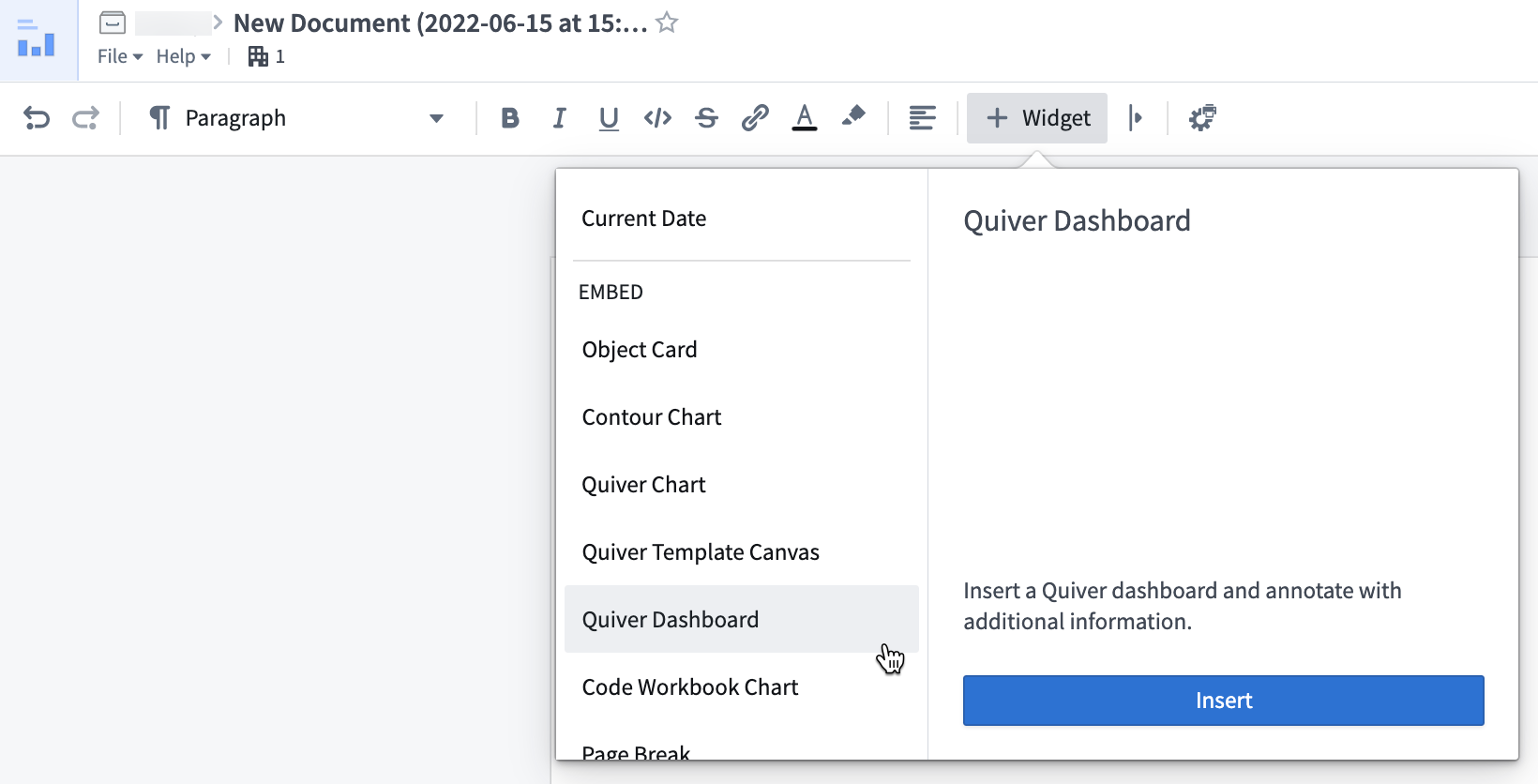
* Select the **+ Widget** button in the top bar.
* Choose **Quiver dashboard**.
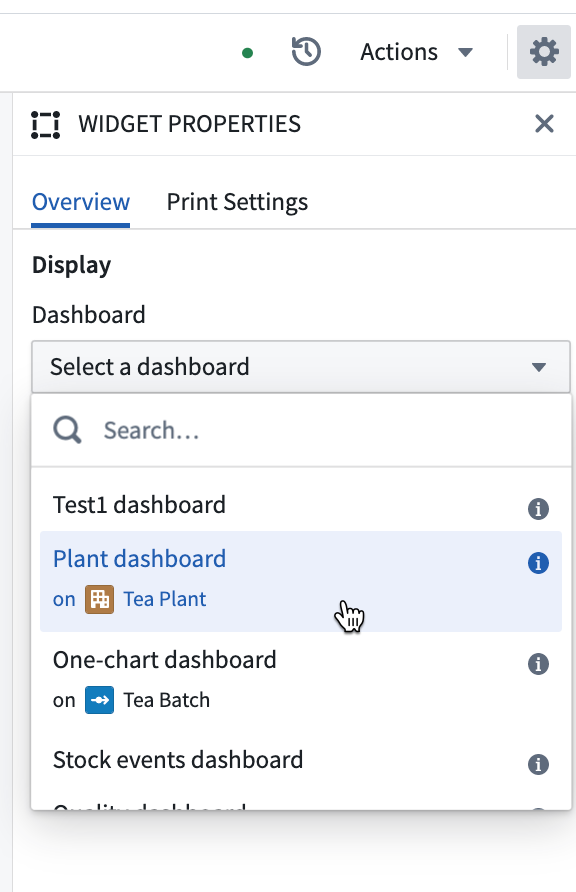
* In the configuration panel on the right, select the dashboard you want to embed.
Copying cells in which multiple parameters or metrics are bundled is not supported.
## Embed a dashboard in a Notepad document
Embed a Quiver dashboard in a [Notepad document](../../notepad/overview/index.md) to export it to PDF or DOCX, print it, or lock its data at a point in time.
Follow the steps below to add a dashboard to a Notepad document.
* Open the Notepad document.
* Select the **+ Widget** button in the top bar.
* Choose **Quiver dashboard**.

* In the configuration panel on the right, select the dashboard you want to embed.
 * Select the version of the dashboard you want to insert, or toggle **Auto-update** if you would like the latest version to always be shown.
* Finally, if your dashboard has inputs defined, the inputs will be displayed in the **Dashboard inputs** section. You can map the inputs to variables in your Notepad document with the mapping table below.
|Quiver input type |Notepad input type |
| --- | --- |
| Boolean | String |
| Number | String |
| String | String |
| Time | String, in ISO format |
| Time Range | String, `ISO format - ISO format` |
| Time Series | *Not supported* |
| Object | Object |
| Object Set | Object Set |
| String List | String: `["option_1","option_2"]` |
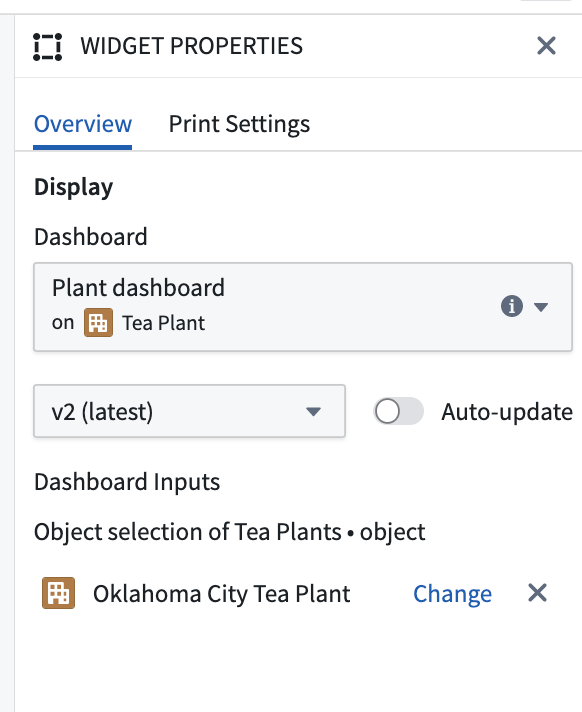
In the example below, the dashboard has one object input that has been configured directly in the editor.
* Select the version of the dashboard you want to insert, or toggle **Auto-update** if you would like the latest version to always be shown.
* Finally, if your dashboard has inputs defined, the inputs will be displayed in the **Dashboard inputs** section. You can map the inputs to variables in your Notepad document with the mapping table below.
|Quiver input type |Notepad input type |
| --- | --- |
| Boolean | String |
| Number | String |
| String | String |
| Time | String, in ISO format |
| Time Range | String, `ISO format - ISO format` |
| Time Series | *Not supported* |
| Object | Object |
| Object Set | Object Set |
| String List | String: `["option_1","option_2"]` |
In the example below, the dashboard has one object input that has been configured directly in the editor.