# Parameters
**Parameters** let a user manually input values to dynamically change data in an analysis. Parameters can be used in any card that takes the parameter’s output type as input.
Each parameter has a specific type (for example: numeric, string, date/time, a single object, or a numeric range). The input to a parameter card is usually a user-entered value. In the case of the [property value select parameter](../card-property-value-select-parameter/index.md), the user can pick a value from a dropdown based on values of a chosen object set property.
Parameter cards can be added to an analysis from the parameter panel, by searching for cards with the search bar (via the **Search cards** button in the top menu), or they can be created inline from many editors.
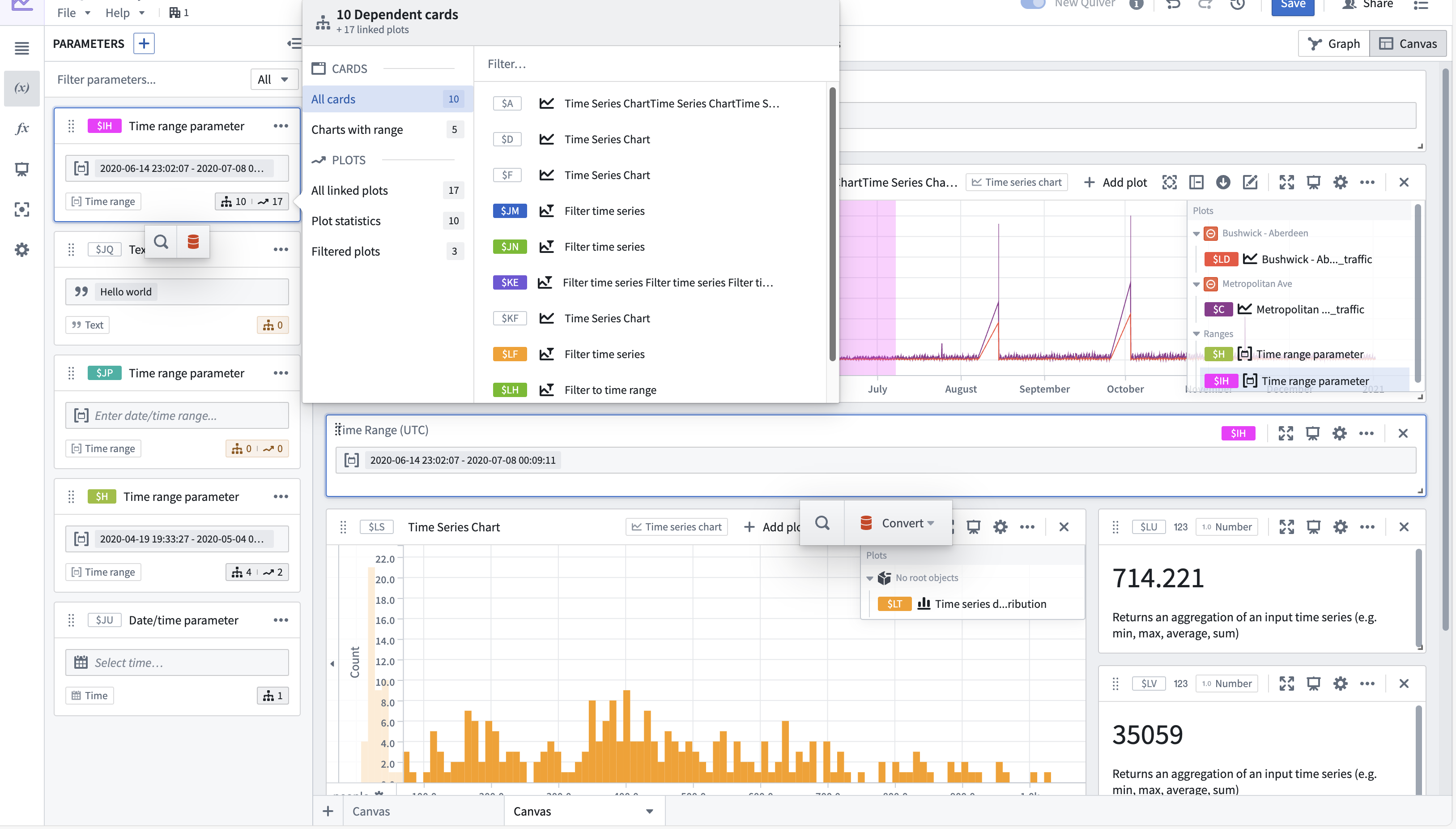
All parameter cards existing in an analysis are referenced in the parameters panel on the left. From there, you can change parameter values to see how downstream cards in the analysis look with different values. You can also identify which cards are using each parameter.
[Learn more about how to parameterize an analysis on the Palantir Developers YouTube channel. ↗](https://www.youtube.com/watch?v=2C-zfsRboSU)
* [The parameters panel](#the-parameters-panel)
* [List of parameters](#list-of-parameters)
* [Add a parameter](#add-a-parameter)
* [Add a parameter using card search](#add-a-parameter-using-card-search)
* [Add a parameter from the parameters panel](#add-a-parameter-from-the-parameters-panel)
* [Add a parameter when configuring another card](#add-a-parameter-when-configuring-another-card)
* [Example: Use parameters to dynamically filter object sets](#example-use-parameters-to-dynamically-filter-object-sets)
## The parameters panel
The parameters panel can be found in the left sidebar, under the variable icon ( ), and is a unified location for managing parameters in your analysis.
The panel allows you to:
* Create new parameters
* Delete unused parameters
* See all parameters from your analysis in a single place.
* Change parameter values and observe changes in your analysis.
* Configure parameters (such as changing the label, placeholder value, and so on).
* See in which cards a given parameter is used. Some parameter types have additional details and controls relating to their use with time series. This is indicated by an extra section next to the number of cards that use the parameter. The number in the additional section represents how many plots are contained in the time series charts where the parameter is used. [Learn more about additional controls on date/time range parameters](../timeseries-ranges/index.md).
## List of parameters
Below is the full list of parameters available in Quiver:
* [Numeric parameter](../card-numeric-parameter/index.md)
* [String parameter](../card-string-parameter/index.md)
* [Boolean parameter](../card-boolean-parameter/index.md)
* [Date/time parameter](../card-datetime-parameter/index.md)
* [Duration unit parameter](../card-duration-unit-parameter/index.md)
* [Time range parameter](../card-datetime-range-parameter/index.md)
* [Numeric range parameter](../card-numeric-range-parameter/index.md)
* [Object selector](../card-object-selector/index.md)
* [Property value select parameter](../card-property-value-select-parameter/index.md)
* [String selector](../card-string-selector/index.md)
* [Transform table row selector](../card-transform-table-row-selector/index.md)
* [String array parameter](../card-string-array-parameter/index.md)
* [X/Y range parameter](../card-xy-range-parameter/index.md)
* [Action button](../card-action-button/index.md)
## Add a parameter
You can add a parameter card by one of several ways:
* Add a parameter from the [parameters panel](#the-parameters-panel).
* Add a parameter by searching for cards.
* Add a parameter when configuring the card that takes the parameter as input.
See below for step-by-step instructions for each of the ways listed above.
### Add a parameter from the parameters panel
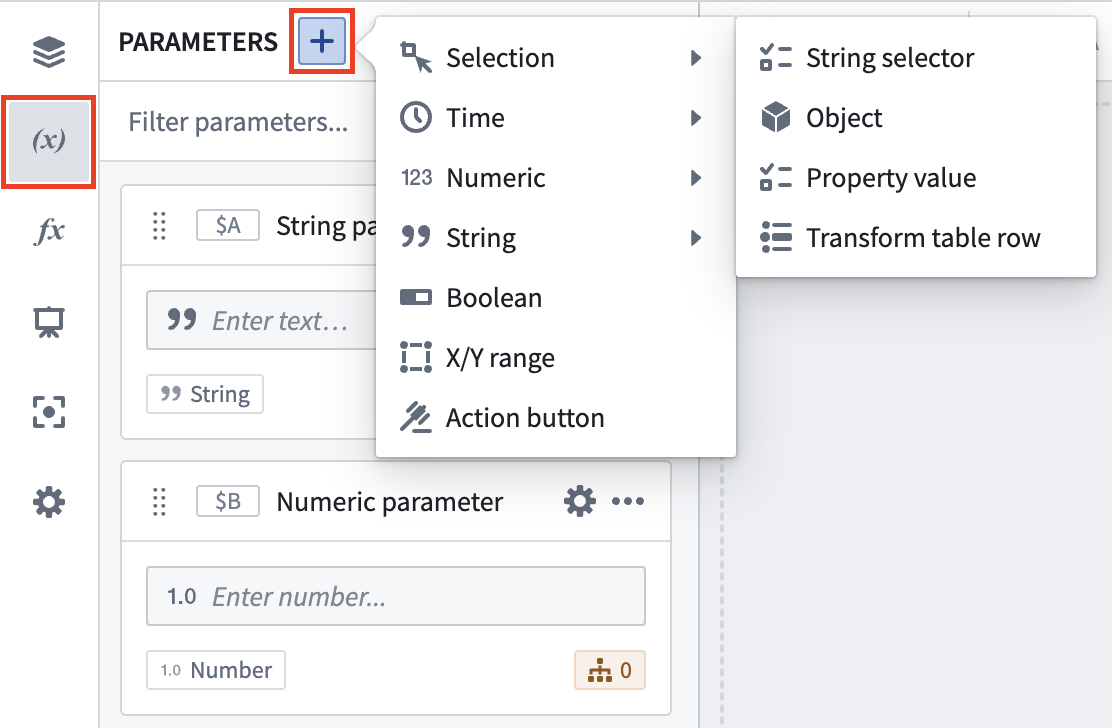
To add a parameter from the [parameters panel](#the-parameters-panel):
1. Open the parameters panel by selecting the variable icon () in the left sidebar.
2. Select the **+** button in the panel header.
3. Select the desired parameter.
), and is a unified location for managing parameters in your analysis.
The panel allows you to:
* Create new parameters
* Delete unused parameters
* See all parameters from your analysis in a single place.
* Change parameter values and observe changes in your analysis.
* Configure parameters (such as changing the label, placeholder value, and so on).
* See in which cards a given parameter is used. Some parameter types have additional details and controls relating to their use with time series. This is indicated by an extra section next to the number of cards that use the parameter. The number in the additional section represents how many plots are contained in the time series charts where the parameter is used. [Learn more about additional controls on date/time range parameters](../timeseries-ranges/index.md).

## List of parameters
Below is the full list of parameters available in Quiver:
* [Numeric parameter](../card-numeric-parameter/index.md)
* [String parameter](../card-string-parameter/index.md)
* [Boolean parameter](../card-boolean-parameter/index.md)
* [Date/time parameter](../card-datetime-parameter/index.md)
* [Duration unit parameter](../card-duration-unit-parameter/index.md)
* [Time range parameter](../card-datetime-range-parameter/index.md)
* [Numeric range parameter](../card-numeric-range-parameter/index.md)
* [Object selector](../card-object-selector/index.md)
* [Property value select parameter](../card-property-value-select-parameter/index.md)
* [String selector](../card-string-selector/index.md)
* [Transform table row selector](../card-transform-table-row-selector/index.md)
* [String array parameter](../card-string-array-parameter/index.md)
* [X/Y range parameter](../card-xy-range-parameter/index.md)
* [Action button](../card-action-button/index.md)
## Add a parameter
You can add a parameter card by one of several ways:
* Add a parameter from the [parameters panel](#the-parameters-panel).
* Add a parameter by searching for cards.
* Add a parameter when configuring the card that takes the parameter as input.
See below for step-by-step instructions for each of the ways listed above.
### Add a parameter from the parameters panel
To add a parameter from the [parameters panel](#the-parameters-panel):
1. Open the parameters panel by selecting the variable icon () in the left sidebar.
2. Select the **+** button in the panel header.
3. Select the desired parameter.
 ### Add a parameter using card search
To add a parameter card by searching for it:
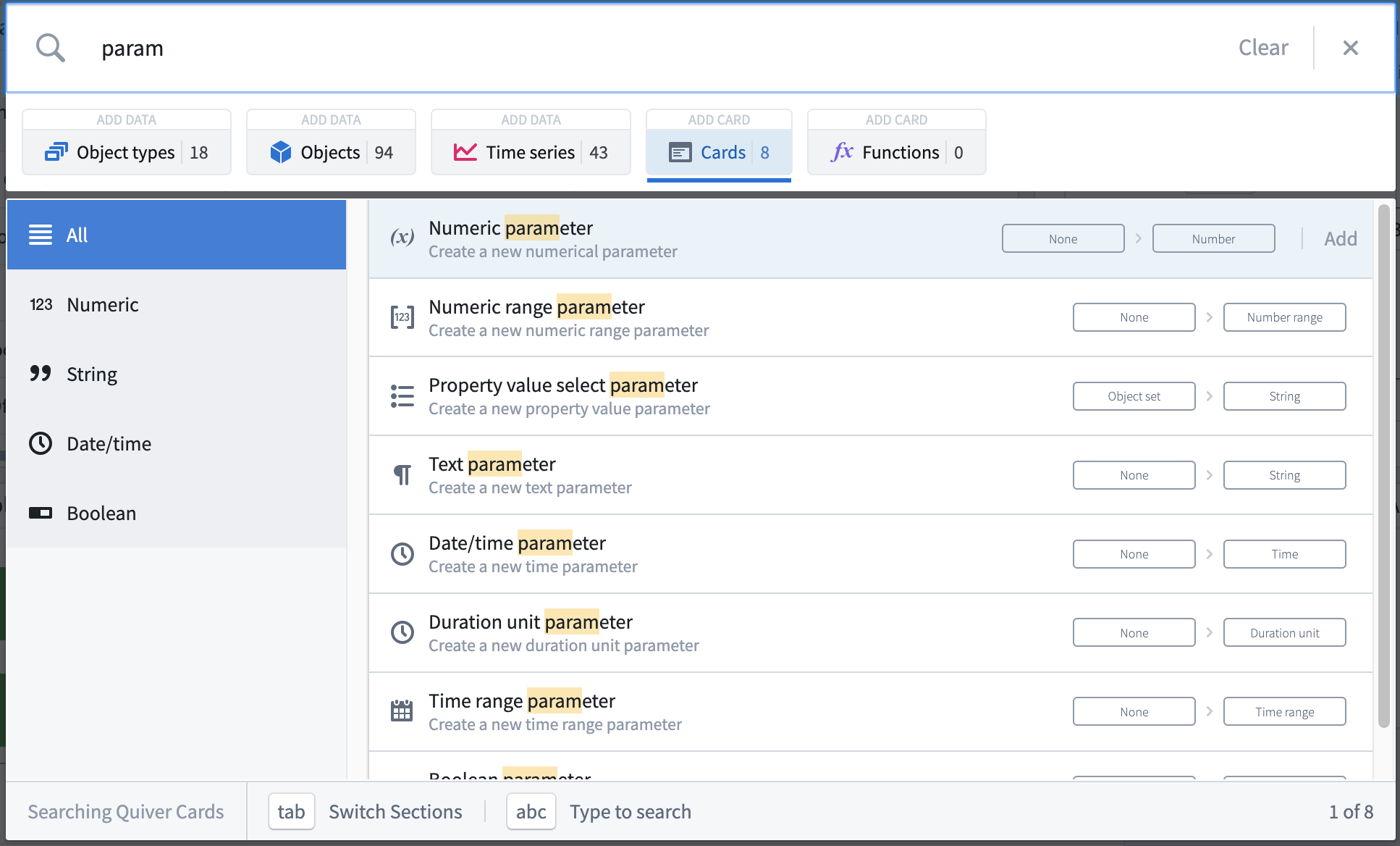
1. Open the [search bar](../analysis-toolbars/index.md#search-bar) by selecting **Search cards** in the top menu bar.
2. Search for “parameter” to see all the parameter cards.
3. Select the desired parameter type.
### Add a parameter using card search
To add a parameter card by searching for it:
1. Open the [search bar](../analysis-toolbars/index.md#search-bar) by selecting **Search cards** in the top menu bar.
2. Search for “parameter” to see all the parameter cards.
3. Select the desired parameter type.
 ### Add a parameter when configuring another card
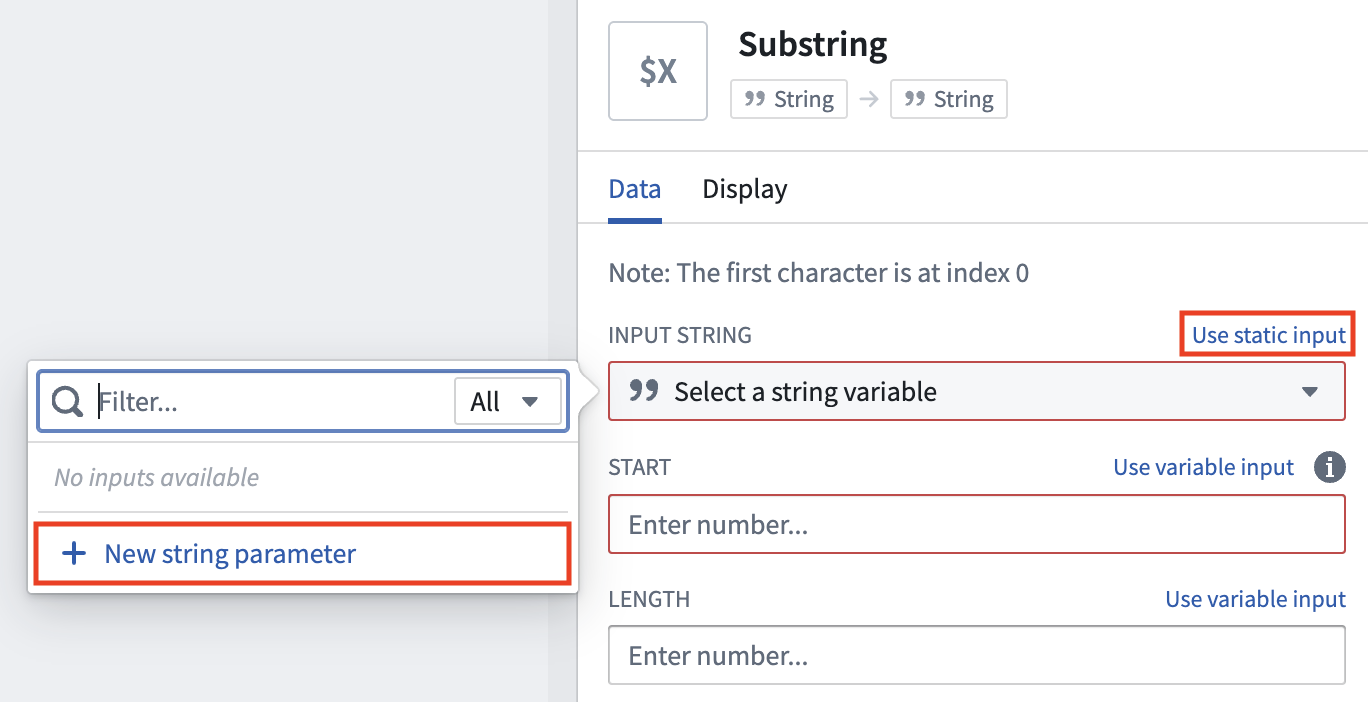
When configuring a card input that you wish to parameterize, you can add a parameter directly from the card editor. For example, the image below shows how you can configure the [substring](../card-substring/index.md) card to take a string parameter as the input string.
To add a parameter from a card configuration editor:
1. Open the card configuration editor of the target card by selecting the configure icon (
### Add a parameter when configuring another card
When configuring a card input that you wish to parameterize, you can add a parameter directly from the card editor. For example, the image below shows how you can configure the [substring](../card-substring/index.md) card to take a string parameter as the input string.
To add a parameter from a card configuration editor:
1. Open the card configuration editor of the target card by selecting the configure icon ( ) in the card header.
2. Select the **Use variable input** button to parameterize a configuration value.
3. Select **Create new parameter** from the input dropdown.
) in the card header.
2. Select the **Use variable input** button to parameterize a configuration value.
3. Select **Create new parameter** from the input dropdown.
 ## Example: Use parameters to dynamically filter object sets
In the analysis below, we have created a bar plot and two numerical aggregations that both read from the **Filter Transactions** object set. The following steps show how to control the filtering of objects in the object set using parameters, and how the bar plot and numeric aggregations update accordingly.
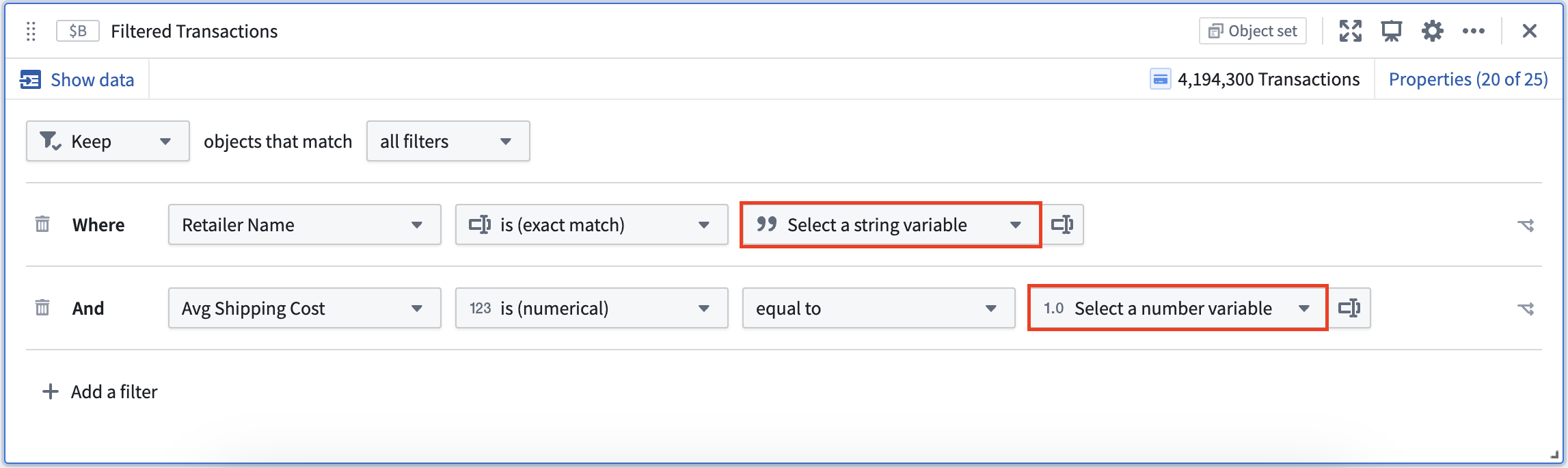
To begin, we can add a property filter for Retailer Name. Next, create a new [property value select parameter](../card-property-value-select-parameter/index.md) to control this value. You can create the parameter by selecting the **Use variable input** button next to the filter input box and then **Create new parameter**. This will both add the new parameter card to your analysis and set it to control the filter.
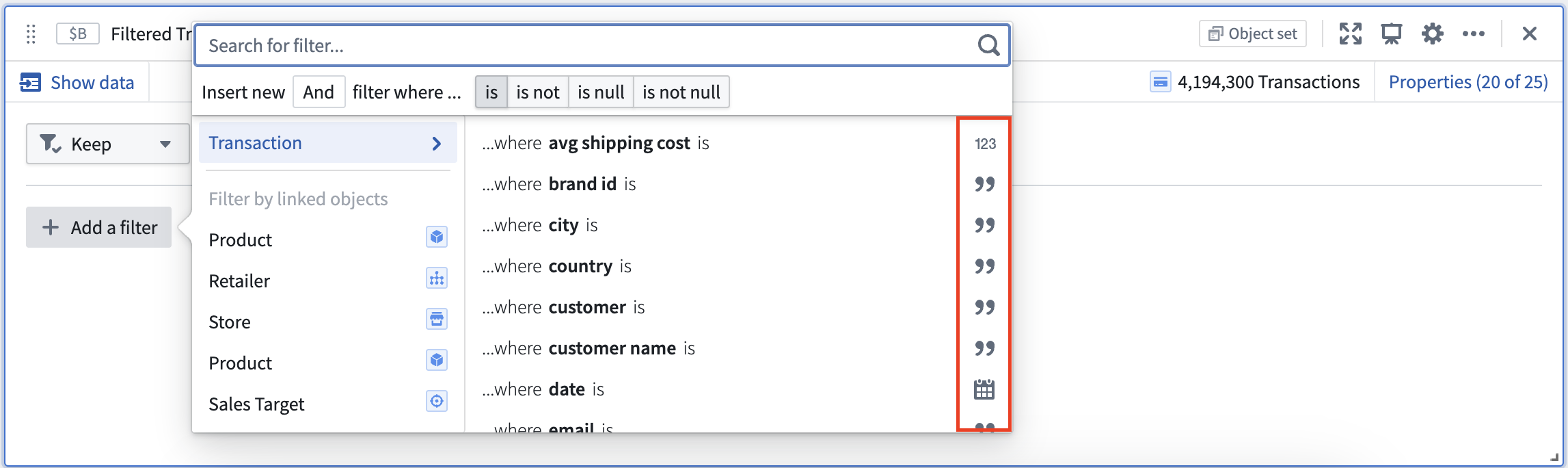
Only parameters that are the same type as the property being configured can be selected from the parameter dropdown. For example, the parameter added above of type `string` does not show up when trying to filter a property of type `number`.
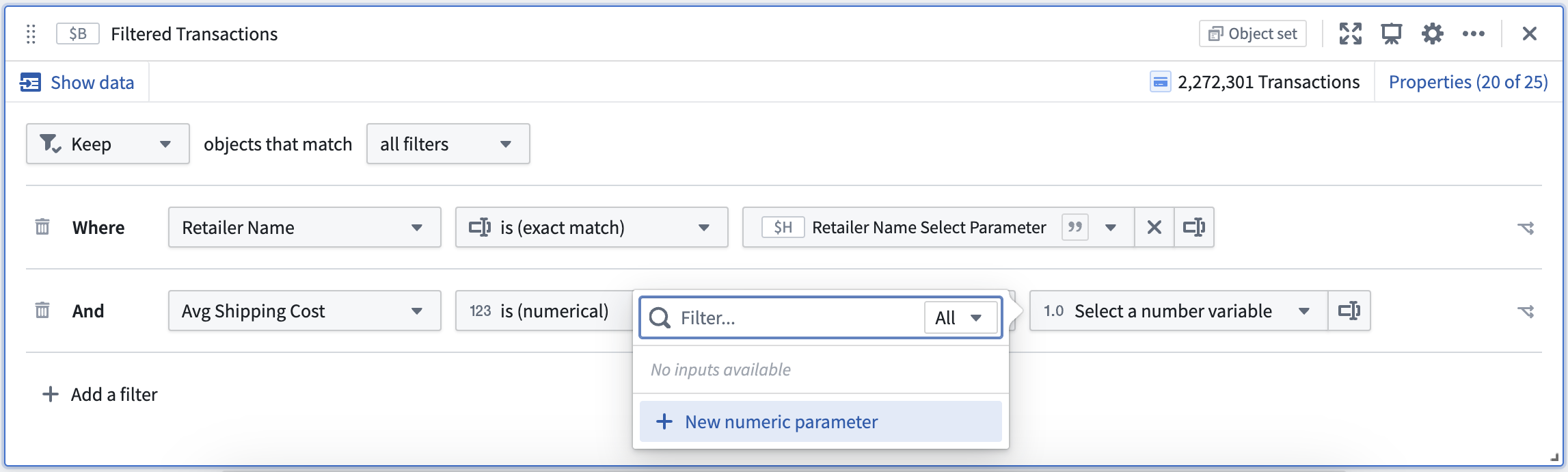
You can see what type a property is in the **Add filter** menu on the right side, as well as after selecting a property when configuring its variable input.
## Example: Use parameters to dynamically filter object sets
In the analysis below, we have created a bar plot and two numerical aggregations that both read from the **Filter Transactions** object set. The following steps show how to control the filtering of objects in the object set using parameters, and how the bar plot and numeric aggregations update accordingly.
To begin, we can add a property filter for Retailer Name. Next, create a new [property value select parameter](../card-property-value-select-parameter/index.md) to control this value. You can create the parameter by selecting the **Use variable input** button next to the filter input box and then **Create new parameter**. This will both add the new parameter card to your analysis and set it to control the filter.
Only parameters that are the same type as the property being configured can be selected from the parameter dropdown. For example, the parameter added above of type `string` does not show up when trying to filter a property of type `number`.

You can see what type a property is in the **Add filter** menu on the right side, as well as after selecting a property when configuring its variable input.