# Saving and sharing
## Save an analysis
To save a Quiver analysis, select **Save** at the top right of the screen.

## Access historical versions of analysis
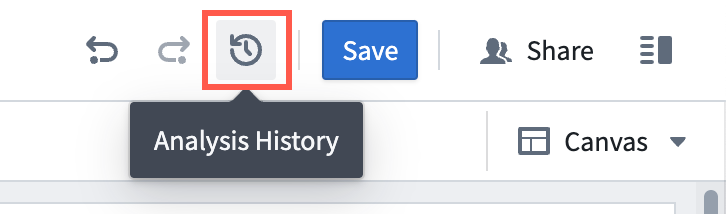
Access and revert to historical versions of your analysis by opening the **Analysis history** menu at the top of the screen.
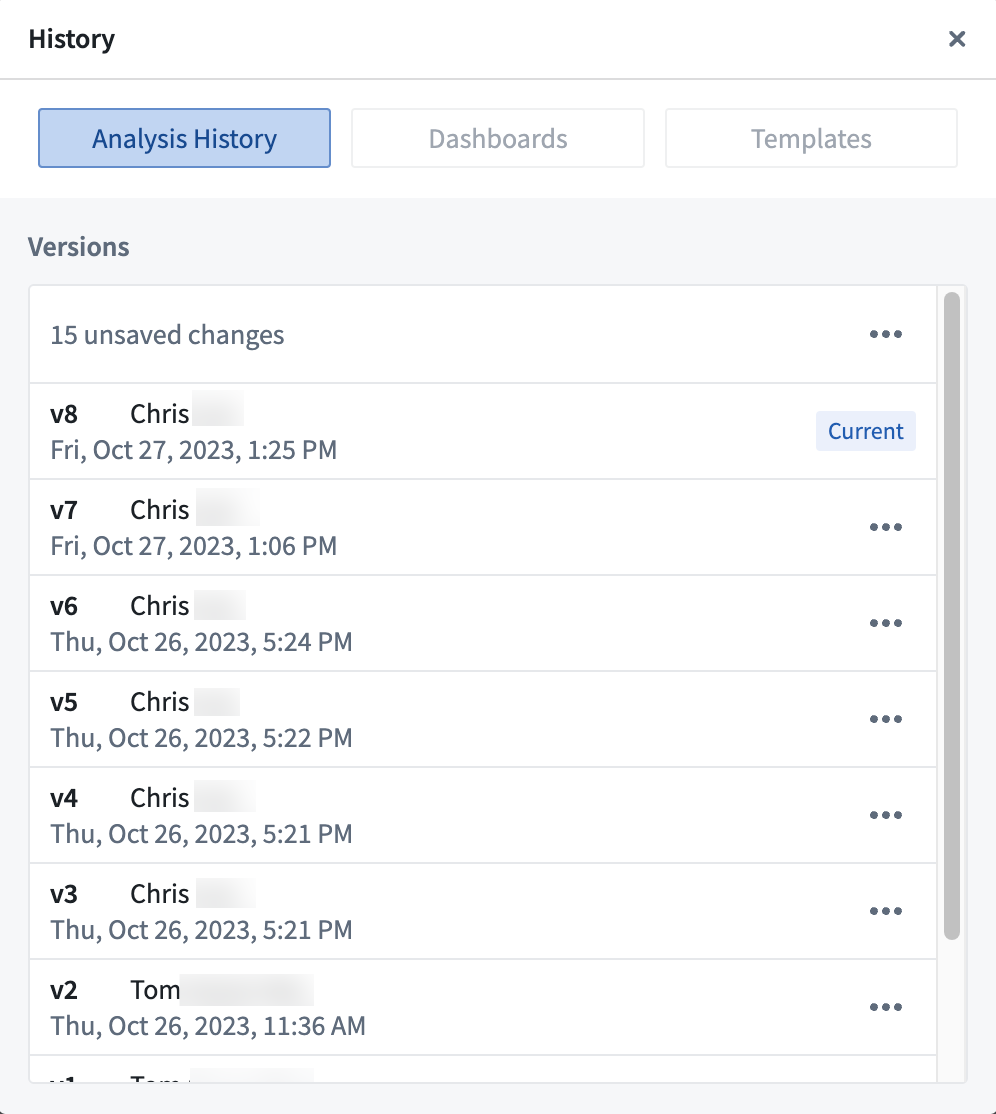 If you have unsaved changes in the version of the analysis that you are currently in, you will be presented with the option to clear or save the changes as a new version.
## Analysis permissions
The permissions for a Quiver analysis are derived from its Project in the Foundry file system. When you save a Quiver analysis in a Project, anyone with access to that project will have access to the analysis as well. The access level stays the same between the Project and the Quiver analysis. For example, users with view access can see (not edit) a Quiver analysis, while users with edit access can view and update it.
## Share an analysis
Editors of a Quiver analysis can share an analysis with other users. There are two main methods to do this: through a share link or by granting access to specific users. Both of these methods can be accessed from the **Share** button in the top bar to open up a side panel.
If you have unsaved changes in the version of the analysis that you are currently in, you will be presented with the option to clear or save the changes as a new version.
## Analysis permissions
The permissions for a Quiver analysis are derived from its Project in the Foundry file system. When you save a Quiver analysis in a Project, anyone with access to that project will have access to the analysis as well. The access level stays the same between the Project and the Quiver analysis. For example, users with view access can see (not edit) a Quiver analysis, while users with edit access can view and update it.
## Share an analysis
Editors of a Quiver analysis can share an analysis with other users. There are two main methods to do this: through a share link or by granting access to specific users. Both of these methods can be accessed from the **Share** button in the top bar to open up a side panel.
 Selecting the **Share** button opens up a side panel with sharing options.
### Link sharing
**Link sharing** creates a specific link that grants a certain level of access to users who access the analysis through that link.
Selecting the **Share** button opens up a side panel with sharing options.
### Link sharing
**Link sharing** creates a specific link that grants a certain level of access to users who access the analysis through that link.
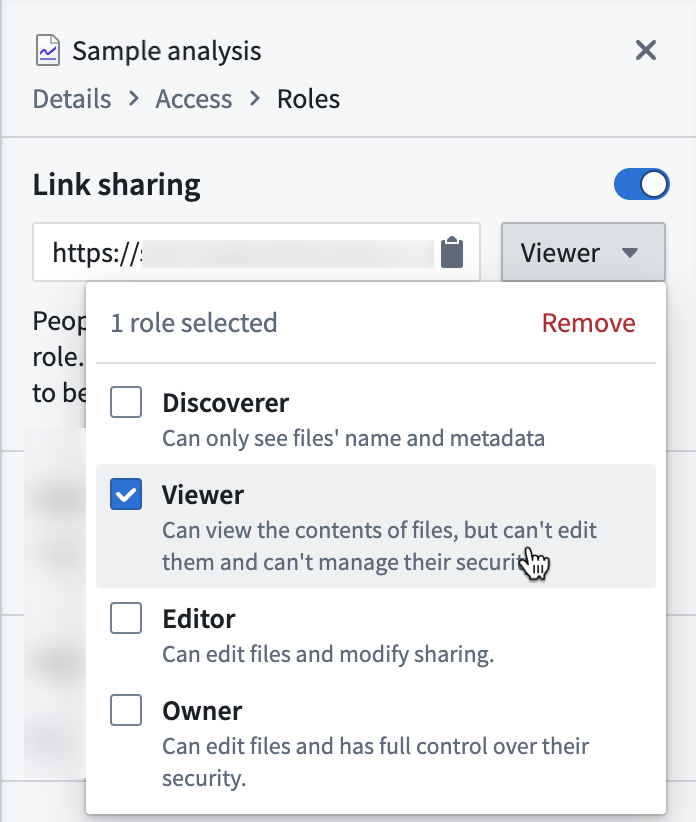
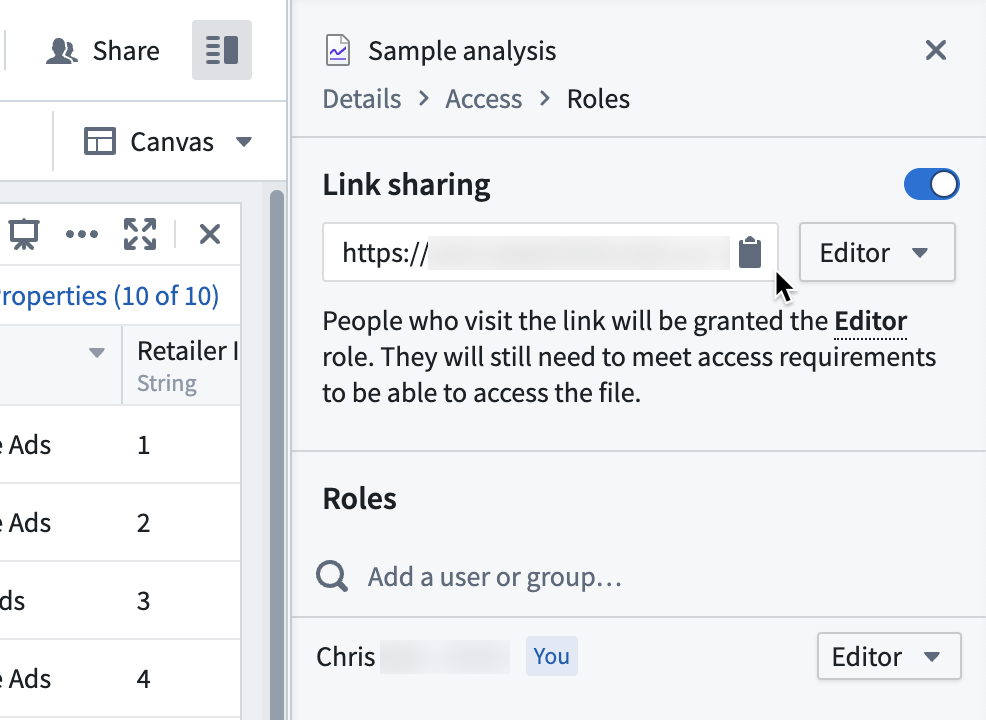 Use the dropdown menu to select the level of access that will be granted to users who visit this link, depicted below:
 ### Roles
The **Roles** section lets you grant access to individual users at specified access levels.
### Roles
The **Roles** section lets you grant access to individual users at specified access levels.
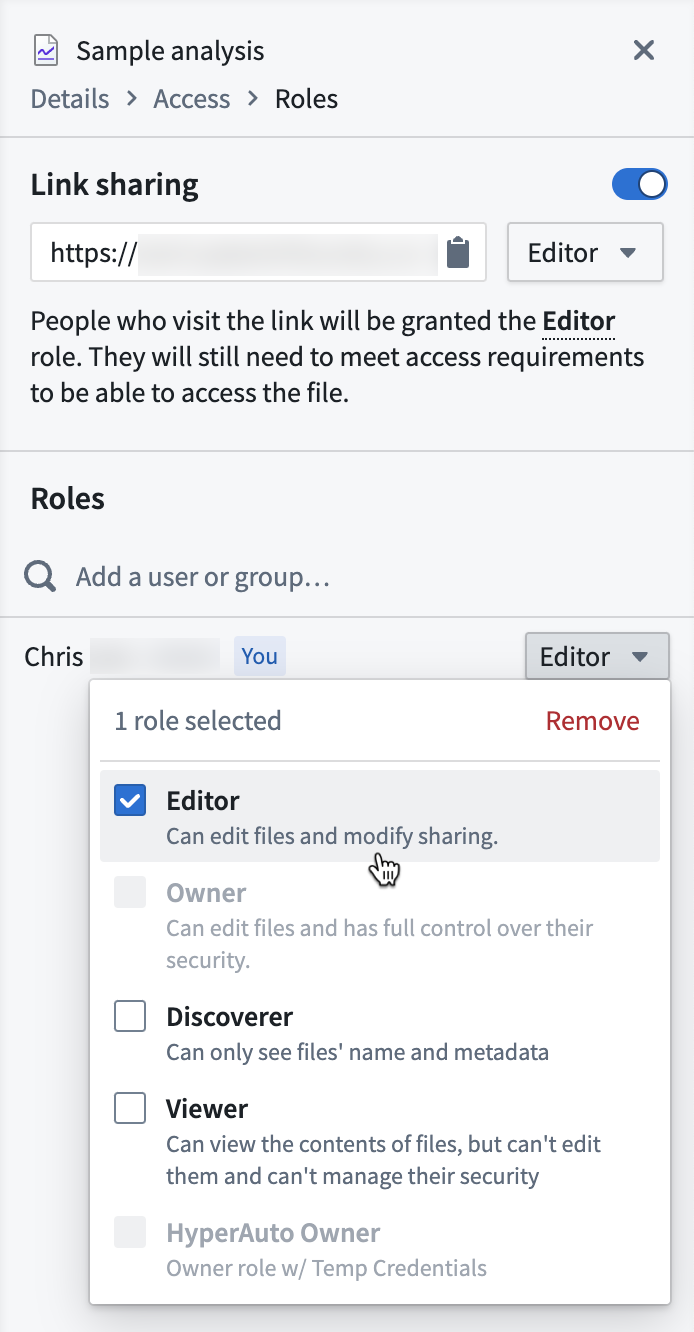 **Roles** shows any user that has gained access to the analysis, either through a share link or being granted access directly or through group membership.
This sharing panel can also be accessed from the Foundry file system if you navigate to your Quiver analysis and select the **Share...** button.

**Roles** shows any user that has gained access to the analysis, either through a share link or being granted access directly or through group membership.
This sharing panel can also be accessed from the Foundry file system if you navigate to your Quiver analysis and select the **Share...** button.
