# Registering third-party applications
:::callout{theme="success"}
Users should use [**Developer Console**](../../developer-console/create-application/index.md) to register a new application configuration. If you need the equivalent of a legacy standalone OAuth client, follow the steps to [create an unrestricted application](../../developer-console/application-restrictions/index.md#create-an-unrestricted-application). The **Control Panel** flow described on this page only applies if **Developer Console** has not been enabled for the user.
:::
Before a third-party application can be connected to Foundry, it must be registered on the Foundry platform. The initial registration process creates a name, a client ID, and a client secret for the third-party application; see [the OAuth.com docs ↗](https://www.oauth.com/oauth2-servers/client-registration/client-id-secret/) for more information on client IDs and client secrets, which are used in the authorization workflow. Then, a third-party application will need to be configured with a redirect URL for the authorization process, as well as a name, description, and icon which are used for the in-platform representation of the third-party application.
## Registration
1. To begin the process of registering a new application, navigate to the **Third-party applications** tab in **Control Panel** and click **New application**.

2. This will open the **Register new application** wizard. There will be four steps in the following order: **Details**, **Client type**, **Authorization grant types**, and **Summary**.
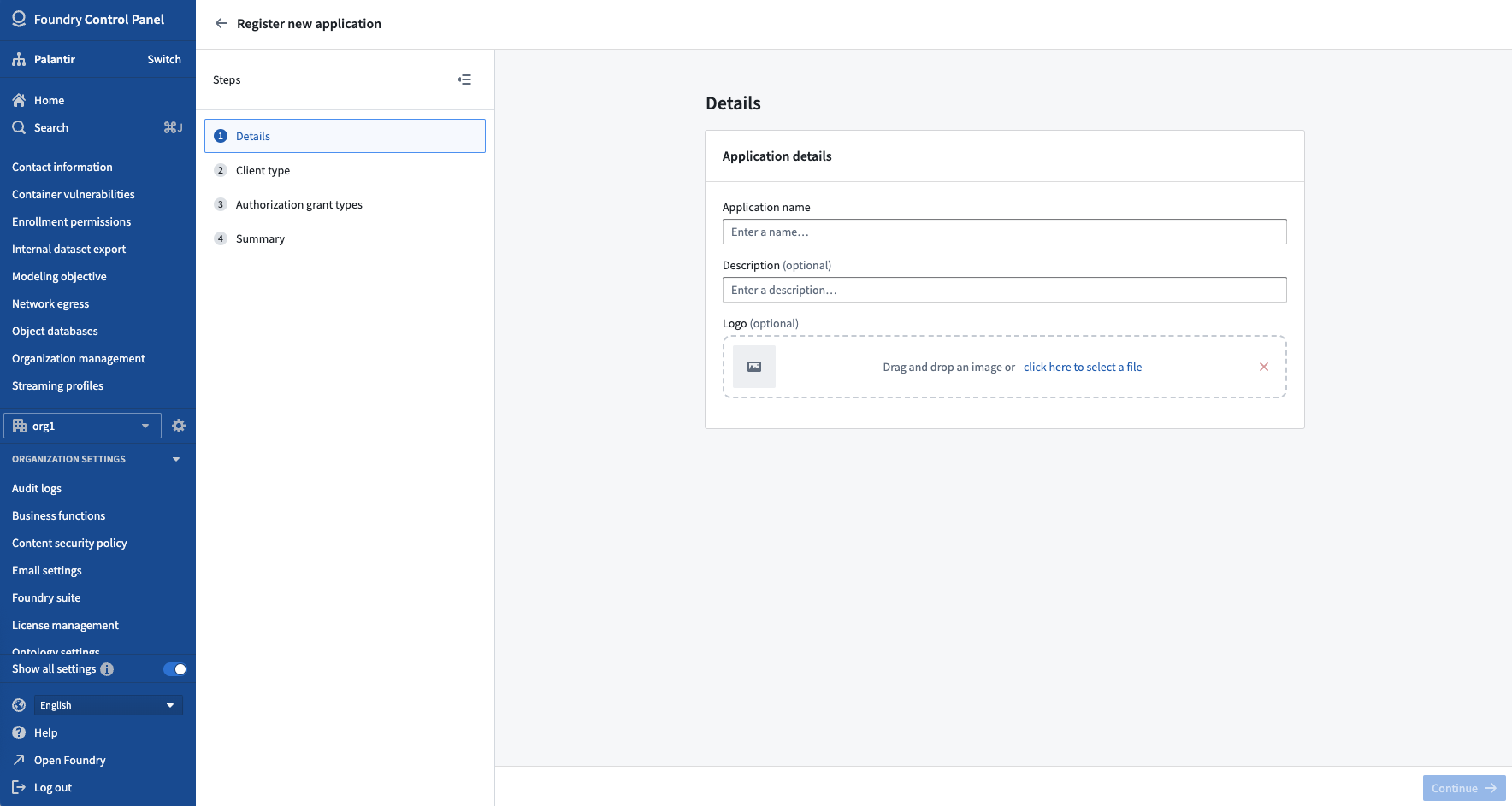
3. In the **Details** step, provide your application a name, description (optional), and logo (optional).
4. In the **Client type** step, specify the client type for your application. Client type refers to an OAuth2 standard regarding whether a client application can securely store a secret. The two options for client type are:
* [Confidential client ↗](https://tools.ietf.org/html/rfc6749#section-2.1): This is intended for clients that are able to hold their credentials securely; for example, a client implemented on a secure server with restricted access to the client credentials. This client type supports both [authorization code grant](../writing-oauth2-clients/index.md#authorization-code-grant) and [client credentials grant](../writing-oauth2-clients/index.md#client-credentials-grant) options for authorization.
* [Public client ↗](https://tools.ietf.org/html/rfc6749#section-2.1): This is intended for clients that cannot hold their credentials securely; for example, a browser-based application where the authorization client runs on the web browser itself. This client type supports [authorization code grant](../writing-oauth2-clients/index.md#authorization-code-grant) with PKCE, which means that using the `code_verifier` and `code_challenge` parameters is required. [Client credentials grant](../writing-oauth2-clients/index.md#client-credentials-grant) is *not* supported.
For more information about these client types, see the documentation on [writing OAuth2 clients](../writing-oauth2-clients/index.md).
:::callout{theme="warning" title="Secrets in distributed binaries can be extracted to impersonate users"}
Native or single-page applications, such as mobile apps, are distributed to users for deployment. Thus, the application binaries are available and can be disassembled to extract a client secret. The client secret could then be used to impersonate an authorized user in an attack. [Proof Key for Code Exchange (PKCE) ↗](https://oauth.net/2/pkce/) is used to prevent such attacks.
:::
5. In the **Authorization grant types** step, you will see the grant types supported by the client type chosen in the previous step. If you choose to enable the [Authorization code grant](../writing-oauth2-clients/index.md#authorization-code-grant), you will be asked to specify at least one **redirect URL**.
* In the authorization process, OAuth2 uses browser redirects to send a user from the authorization provider (in this case, Foundry) back to the client that the user is trying to authorize (in this case, the third-party application). Thus, specifying redirect URLs helps provide additional security when a third-party application asks for permission to access Foundry resources.
* Note redirect URLs can be updated later in the [Manage application](../manage-3pa/index.md) screen.
If you choose to enable the [Client credentials grant](../writing-oauth2-clients/index.md#client-credentials-grant) (this will only be available to confidential clients), a service user will be created for the application. The service user can be permissioned to access Foundry resources for requests on behalf of the application.
6. In the **Summary** step, an overview of all the information provided will be shown along with any missing pieces that still need to be given. When required fields are completed, you can click **Register application** on the bottom right of the screen.
7. Upon submission, you will be presented with the newly created client's ID and secret, if applicable.
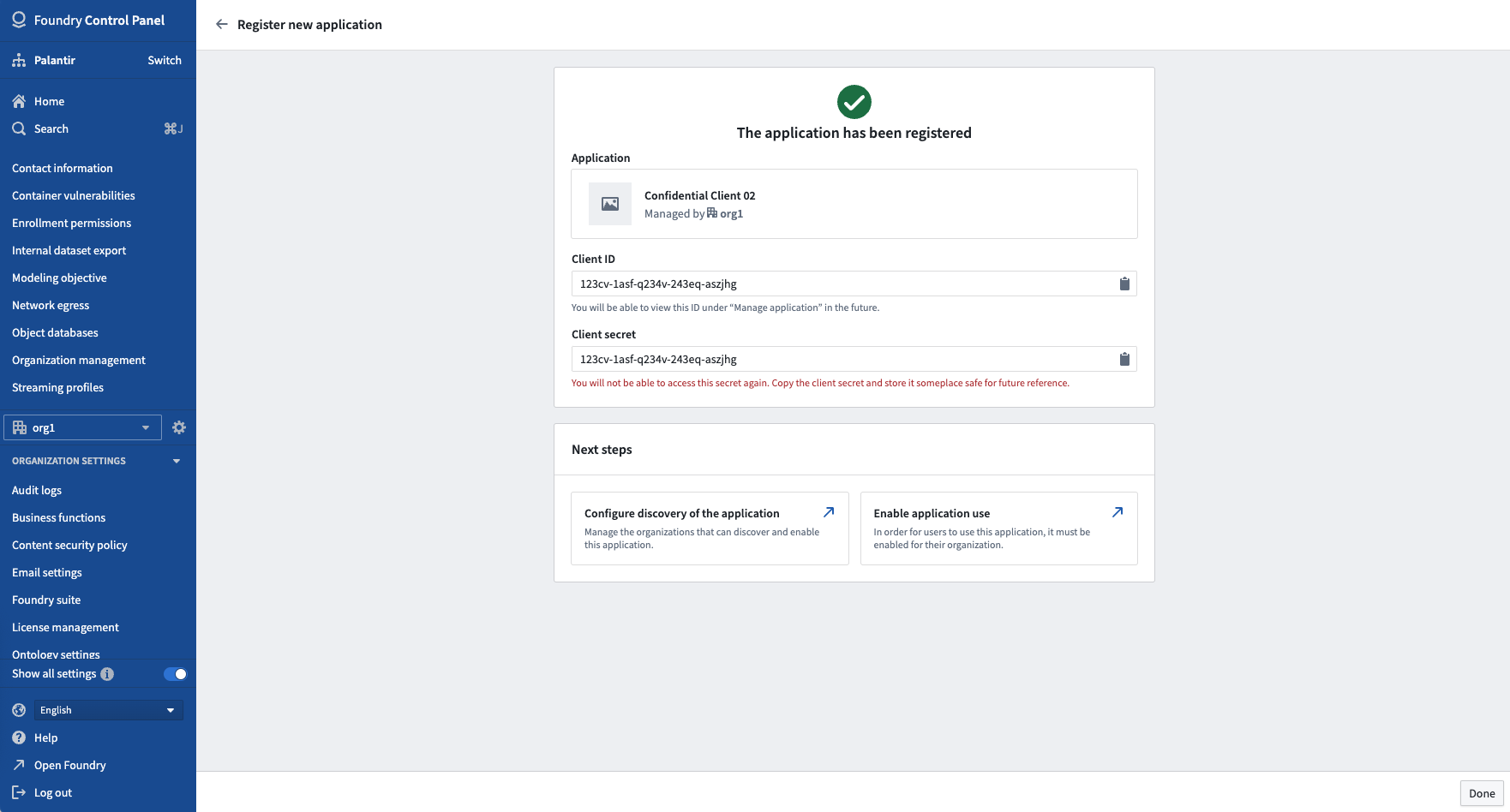
:::callout{theme="warning" title="The client secret is shown only once"}
If using a *confidential client*, you **must** copy the client secret at this point. The secret will not be available again after leaving this page. If you lose access to the client secret, you will need to rotate the secret.
:::
## Next steps
Registration alone does not make the application usable. Before users can authorize it, the application must be enabled for an Organization; see [Enabling third-party applications](../enabling-3pa-access/index.md). Project access and Marking restrictions are also set there rather than during registration.