# Configure sources and data syncs within Pipeline Builder
You can create and import [Foundry-provided JDBC sources](../../data-integration/foundry-provided-drivers/index.md) and sync datasets directly in Pipeline Builder.
## Import a source in Pipeline Builder
You can now import any Data Connection source to your Pipeline Builder pipeline, with the two methods listed below.
### Import sources from input datasets
If your input data was created directly from a [Data Connection sync](../../data-connection/set-up-sync/index.md), then you can add the source to the Pipeline Builder graph by selecting the input data node and then using the **Add source to graph** option.
 ### Search over all sources and import or create a source
You can access the dialog to search over, import, and create sources through the **Add data** toolbar button, or through the **Import data to Foundry** action after creating a new pipeline.
### Search over all sources and import or create a source
You can access the dialog to search over, import, and create sources through the **Add data** toolbar button, or through the **Import data to Foundry** action after creating a new pipeline.
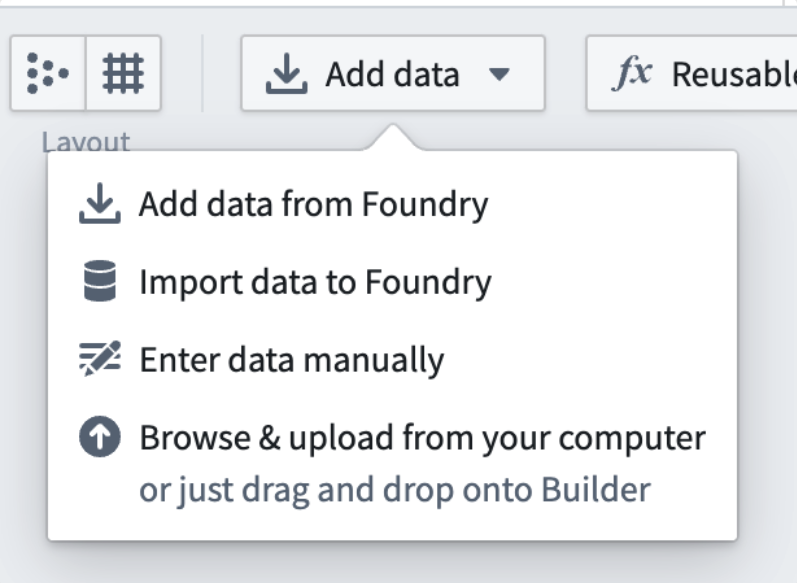 Select **Import data to Foundry**. To create a new source, select the source type under **Connect to a new source...** Otherwise, to select an existing source, search for the name or type of the existing source and select the source under **Connect to an existing source...**
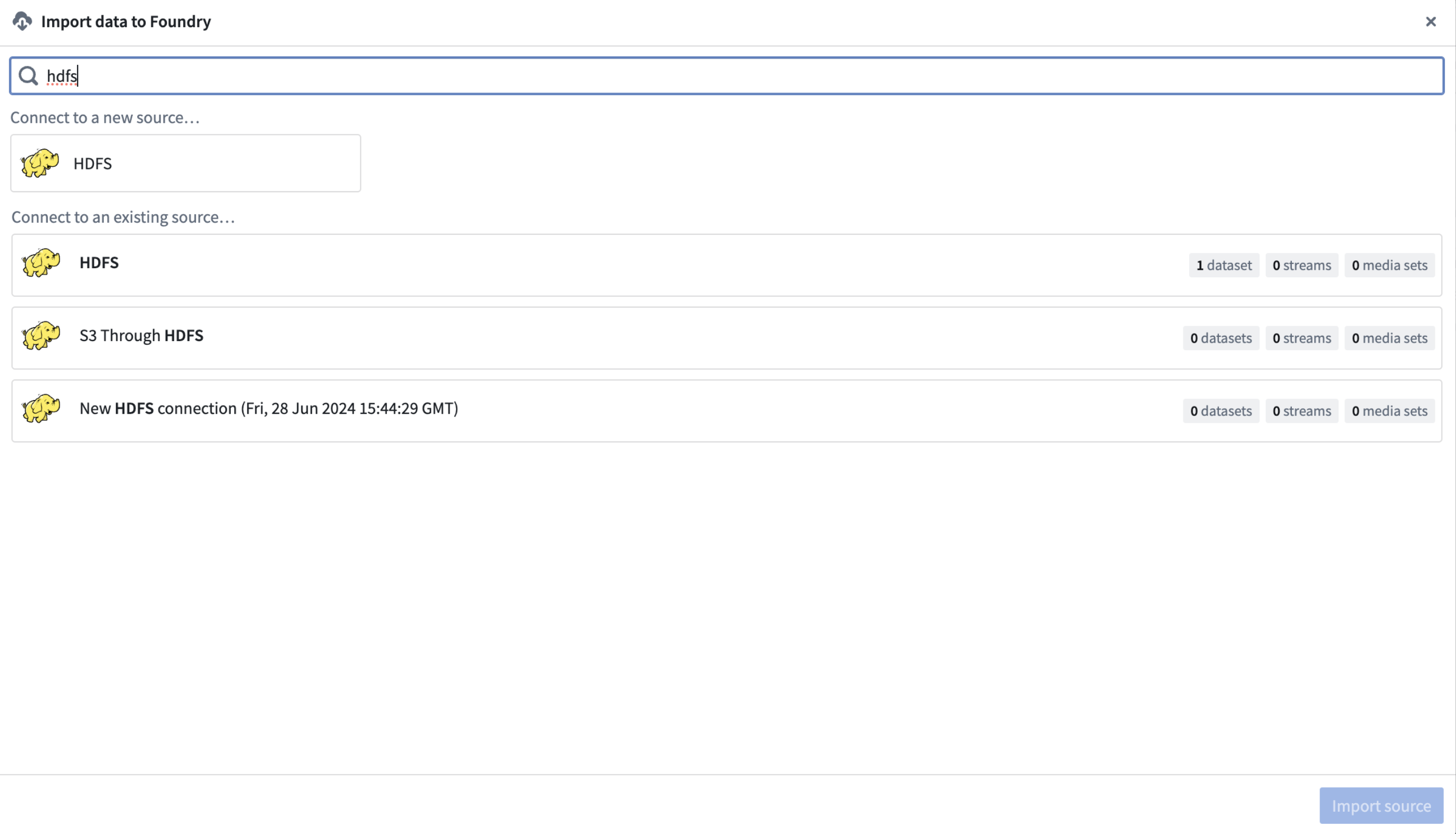
After the source is imported, you should see a new link on the graph between the imported source and any datasets synced from it.
Select **Import data to Foundry**. To create a new source, select the source type under **Connect to a new source...** Otherwise, to select an existing source, search for the name or type of the existing source and select the source under **Connect to an existing source...**

After the source is imported, you should see a new link on the graph between the imported source and any datasets synced from it.
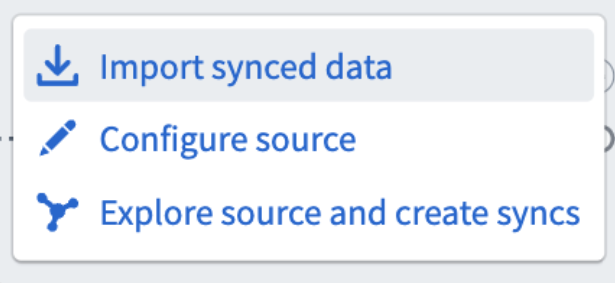
 Once a source is imported, you can either import already synced data from the source, configure the source, or explore the source and create syncs.
:::callout{theme="warning"}
Actions available will depend on the source type and your permissions for the source.
:::
Once a source is imported, you can either import already synced data from the source, configure the source, or explore the source and create syncs.
:::callout{theme="warning"}
Actions available will depend on the source type and your permissions for the source.
:::
 For more information on sources and configuration options, [review the Data Connection source documentation.](../../data-connection/set-up-source/index.md)
## Create or configure a source in Pipeline Builder
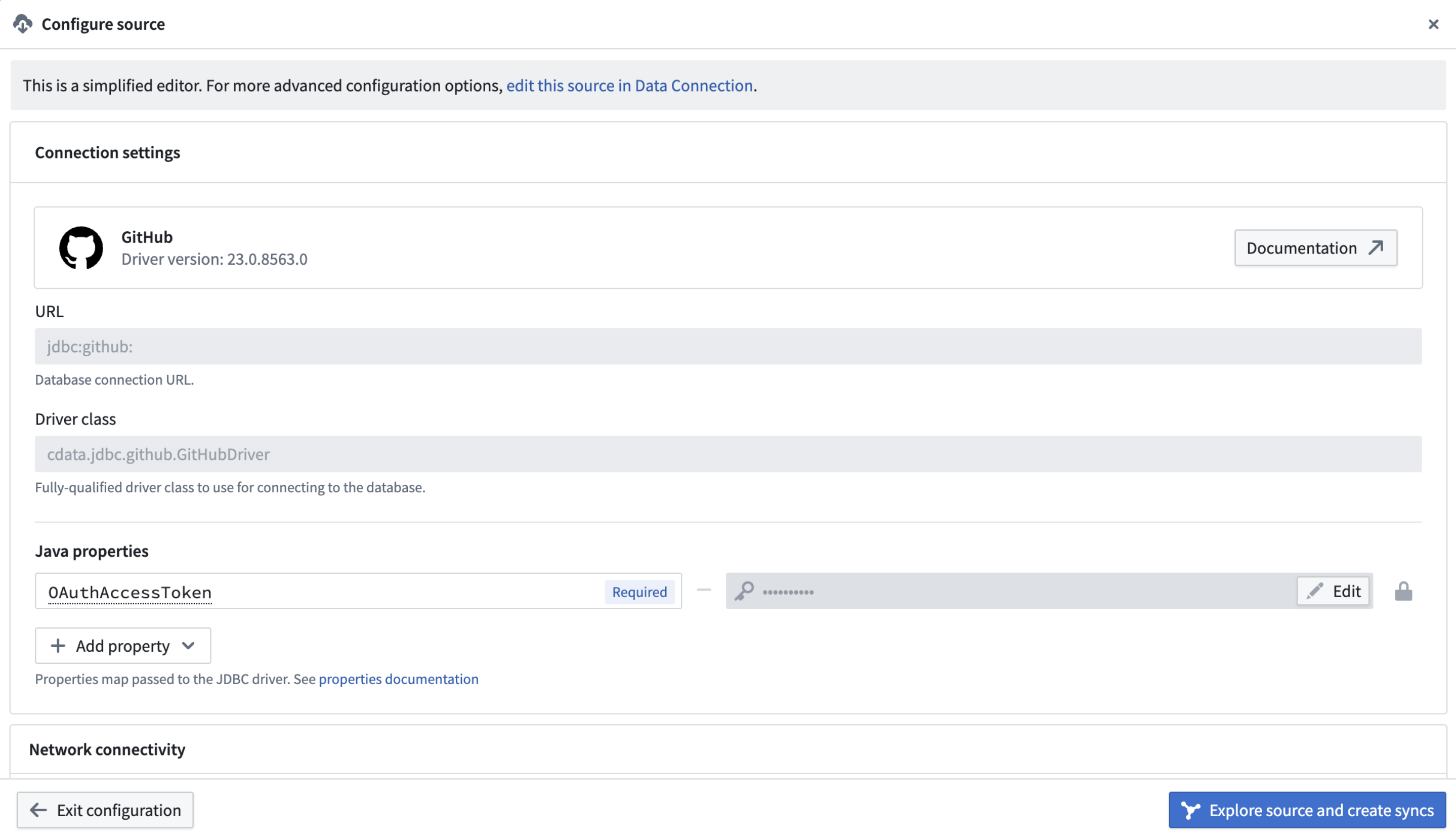
Once the [source is imported](https://www.palantir.com/docs/foundry/pipeline-builder/datasets-sources/datasets-sources.md#import-a-source-in-pipeline-builder) select **Configure Source**.
Pipeline Builder solely supports [Foundry worker](../../data-connection/core-concepts/index.md#foundry-worker) sources that only require the mandatory configuration fields. Optional fields are not supported. Connection sources that are more complex can be created or configured in [Data Connection](../../data-connection/overview/index.md).
From the editor, you will be able to specify required source-specific configuration as well as [network egress policies](../../data-connection/set-up-direct-connection/index.md#configure-a-network-policy). If any type of further configuration is needed, you can also [edit your source in Data Connection](../../data-connection/set-up-source/index.md).
### Create a sync in Pipeline Builder
Select **Explore source and create syncs**, which will only show up for sources that produce batch dataset syncs.
If you do not see the **Explore source and create syncs** option, double check that you have the [correct permissions.](../../data-connection/permissions/index.md)
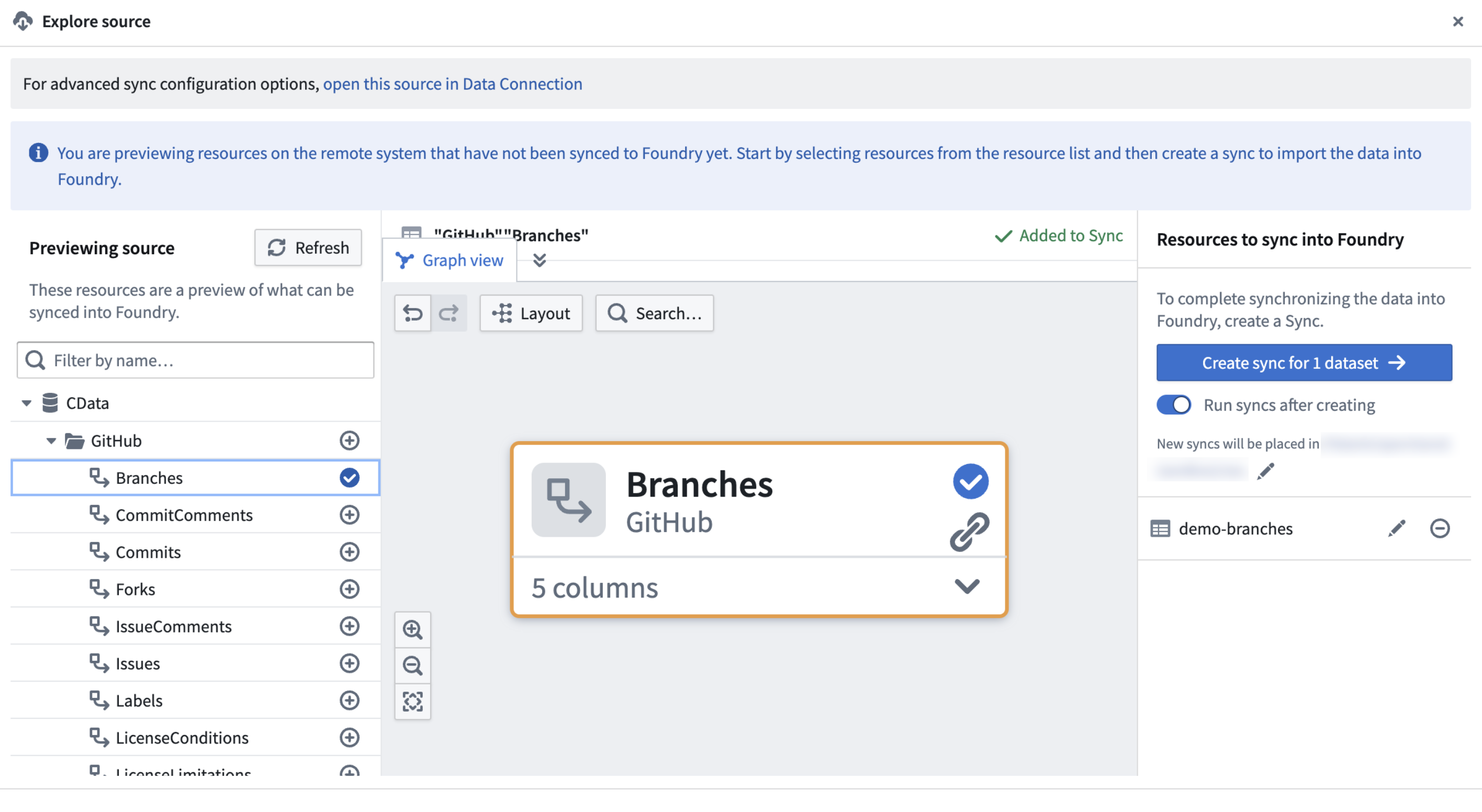
In the source explorer dialog, you will be able to see the data available from source. Select the data you want to sync by using the + sign icon located inline with the name. Pipeline Builder currently only supports batch dataset syncs.
:::callout{theme="warning"}
Creating and running a sync will only build the synced dataset once. Any deploys will not re-build the synced dataset. To build the synced dataset, configure schedules, or edit the sync, open the sync in Data Connection.
:::
To manage advanced sync options, or for a full list of options when creating syncs, [review the documentation for setting up a sync in Data Connection.](../../data-connection/set-up-sync/index.md)
For more information on sources and configuration options, [review the Data Connection source documentation.](../../data-connection/set-up-source/index.md)
## Create or configure a source in Pipeline Builder
Once the [source is imported](https://www.palantir.com/docs/foundry/pipeline-builder/datasets-sources/datasets-sources.md#import-a-source-in-pipeline-builder) select **Configure Source**.
Pipeline Builder solely supports [Foundry worker](../../data-connection/core-concepts/index.md#foundry-worker) sources that only require the mandatory configuration fields. Optional fields are not supported. Connection sources that are more complex can be created or configured in [Data Connection](../../data-connection/overview/index.md).
From the editor, you will be able to specify required source-specific configuration as well as [network egress policies](../../data-connection/set-up-direct-connection/index.md#configure-a-network-policy). If any type of further configuration is needed, you can also [edit your source in Data Connection](../../data-connection/set-up-source/index.md).

### Create a sync in Pipeline Builder
Select **Explore source and create syncs**, which will only show up for sources that produce batch dataset syncs.
If you do not see the **Explore source and create syncs** option, double check that you have the [correct permissions.](../../data-connection/permissions/index.md)
In the source explorer dialog, you will be able to see the data available from source. Select the data you want to sync by using the + sign icon located inline with the name. Pipeline Builder currently only supports batch dataset syncs.
:::callout{theme="warning"}
Creating and running a sync will only build the synced dataset once. Any deploys will not re-build the synced dataset. To build the synced dataset, configure schedules, or edit the sync, open the sync in Data Connection.
:::

To manage advanced sync options, or for a full list of options when creating syncs, [review the documentation for setting up a sync in Data Connection.](../../data-connection/set-up-sync/index.md)