# Configure file peering
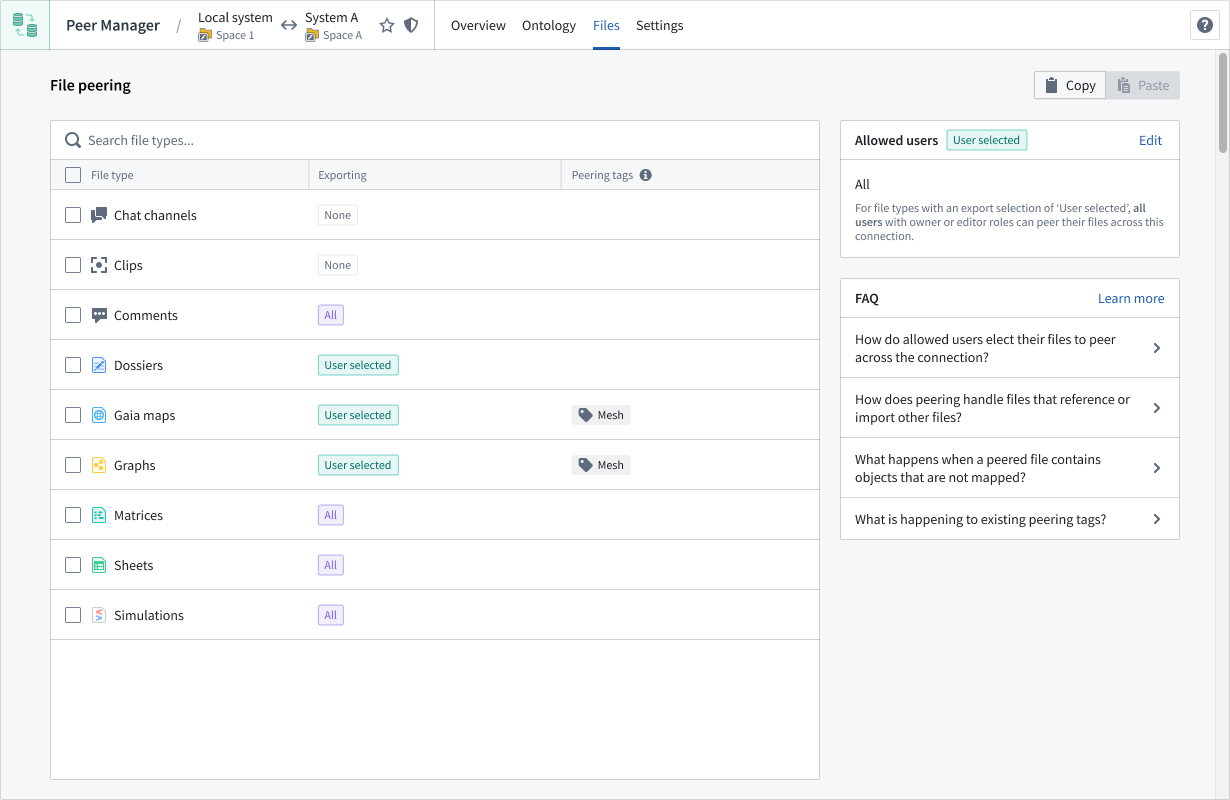
After you [establish a peering relationship between two spaces](../create-a-peer-connection/index.md), you can use Peer Manager to configure file peering. File peering enables you to synchronize Gotham files, such as [Gaia maps](../../object-link-types/create-ontology-objects-from-gaia/index.md), between your enrollment and another across a peer connection.
:::callout{theme="neutral"}
To peer files between spaces, your enrollment must use both Foundry and Gotham.
Contact Palantir Support with questions about Gotham files or their additional documentation present in platform.
:::
## Enable file peering for each file type
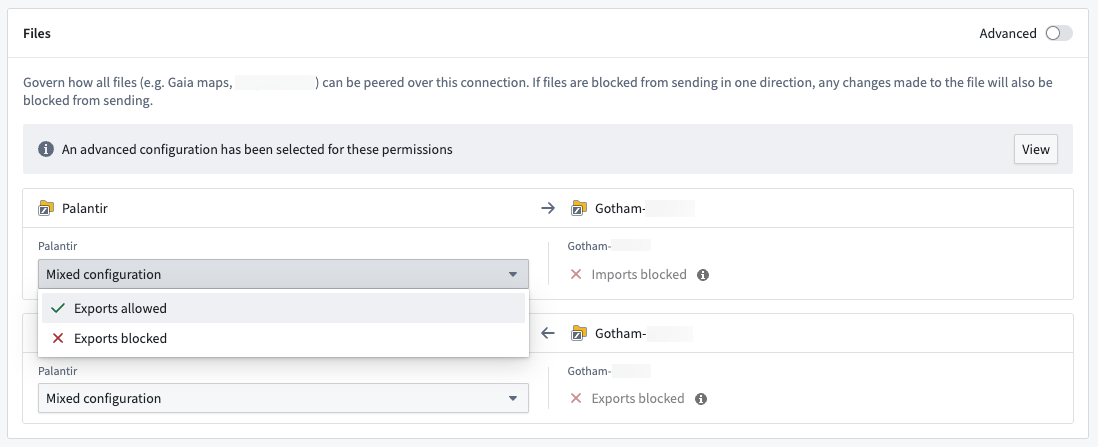
Before you are able to peer files across a peer connection, navigate to the connection in Peer Manager and select **Settings** from the top ribbon to ensure [the connection's settings](../peer-connection-settings/index.md) enable file export and import.
Once you configure the peer connection's file export and import settings, select **Files** to set the desired peer behavior for each file type. Choose a **File type** from the **File peering** panel to launch its configuration in a drawer popover on the right side of your screen.
:::callout{theme="warning"}
You must configure file type peering behavior on **both** the local and remote sides of the peer connection.
:::
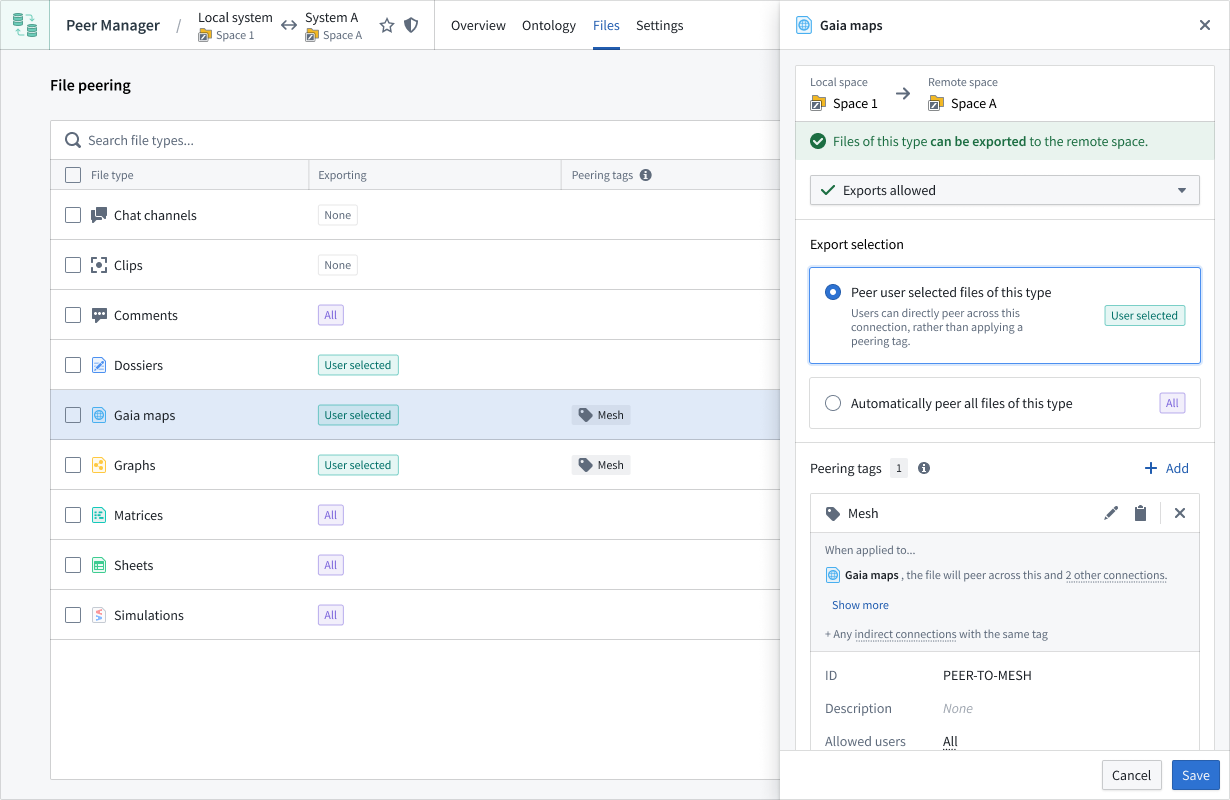
Within the drawer popover, you can set the file's **Export selection** to automatically peer all files or only a selection based on an applied tag or temporal parameter.