# Object View versioning
Saved edits to an Object View will be stored as a new version. A version can contain several changes, such as adding, editing, and deleting tabs. Versioning enables you to:
* Iterate on Object Views safely by saving your changes incrementally
* Control which version is published and visible to users
* Republish older versions in case newer versions contain errors
* Collaborate with other editors by adding descriptions to versions
There are separate [versions for each Workshop module](../../workshop/versions/index.md) included in the Object View. Both version numbers appear in the [Object View editor header](../config-object-views/index.md#use-the-object-view-editor).
## Save new versions
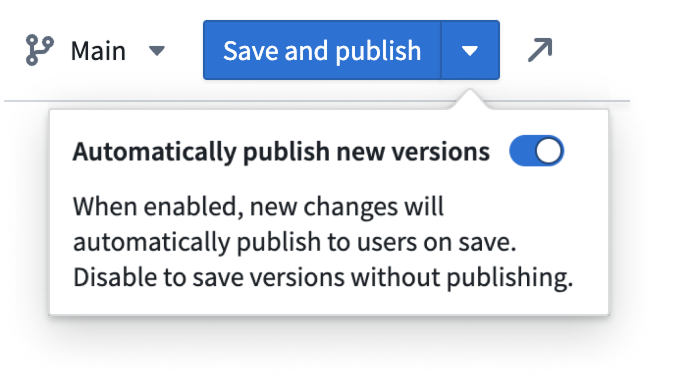
After editing the Object View, you can save changes by selecting the **Save** button in the Object View editor header. If **Automatically publish new versions** is enabled, this button will display **Save and publish** instead, and will publish both tab changes and any changes to the current Workshop module. Automatic publishing is enabled by default.
Disabling **Automatically publish new versions** will display two separate buttons for saving and publishing. The **Save** button will save both tab and workshop module changes, and the **Publish** button will publish both of these changes to the user.
 As you edit the Workshop module, it will be periodically auto-saved like any other Workshop module, but these changes will not be visible to users until the Object View is published.
:::callout{theme="success" title="Best practice"}
If your Object View is actively used by many users or there are multiple editors collaborating on the view, we recommend disabling automatic publishing. This improves collaboration and lowers the chances of breaking user workflows.
:::
## Access prior versions
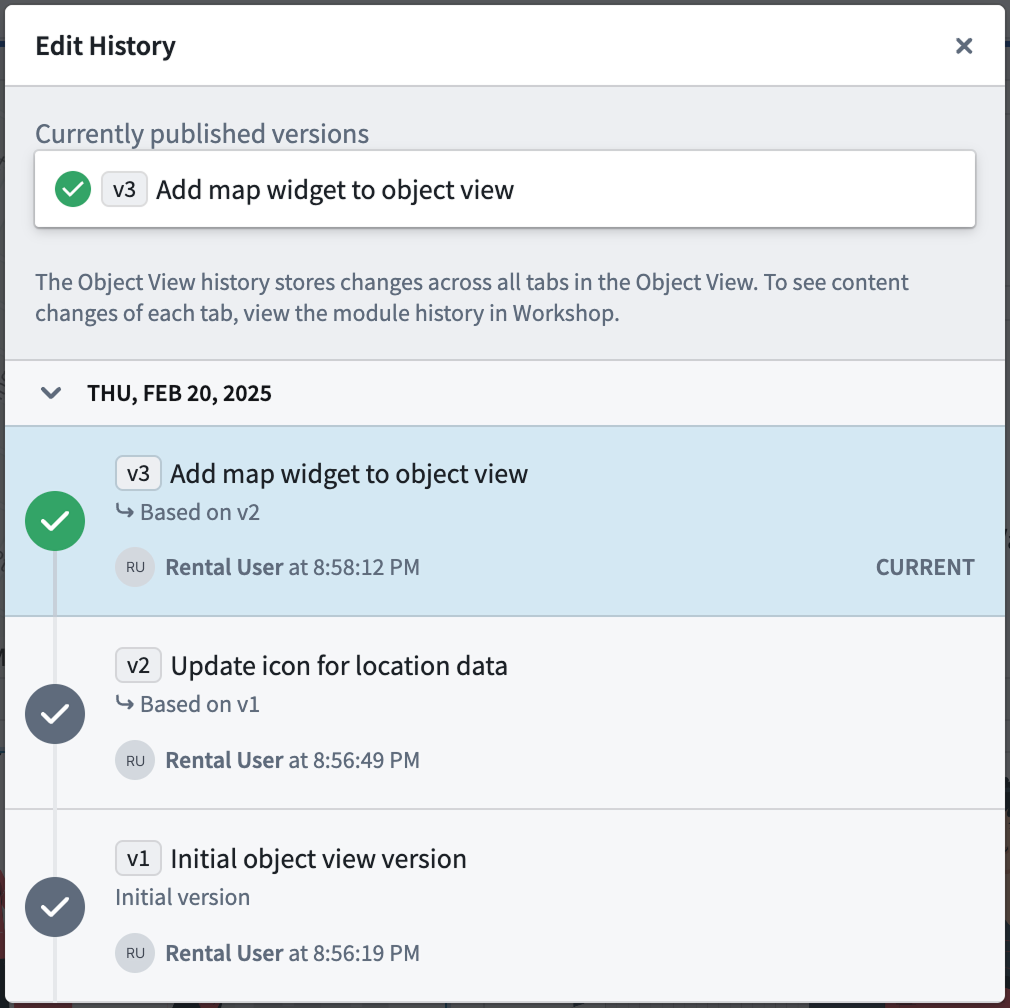
To view a list of prior versions of the Object View, select the blue Object View version number in the Object View editor header. This will open a dialog displaying the date, author, and description of all prior versions. From this dialog, all versions can be previewed.
* The currently published version will be marked with a green checkmark.
* Prior published versions will show a gray checkmark.
* Versions that were never published will not have a checkmark.
As you edit the Workshop module, it will be periodically auto-saved like any other Workshop module, but these changes will not be visible to users until the Object View is published.
:::callout{theme="success" title="Best practice"}
If your Object View is actively used by many users or there are multiple editors collaborating on the view, we recommend disabling automatic publishing. This improves collaboration and lowers the chances of breaking user workflows.
:::
## Access prior versions
To view a list of prior versions of the Object View, select the blue Object View version number in the Object View editor header. This will open a dialog displaying the date, author, and description of all prior versions. From this dialog, all versions can be previewed.
* The currently published version will be marked with a green checkmark.
* Prior published versions will show a gray checkmark.
* Versions that were never published will not have a checkmark.