# Create a new object monitor
:::callout{theme="warning" title="Sunset"}
Object Monitors are superseded by [Automate](../../automate/overview/index.md). Automate is a fully backward-compatible product that offers a single entry point for all business automation in the platform.
:::
You need data integrated into your Foundry Ontology before you can create an object monitor. If your data is not yet integrated, learn how to [create your Ontology](../../ontology/overview/index.md) first.
## Create from Object Explorer
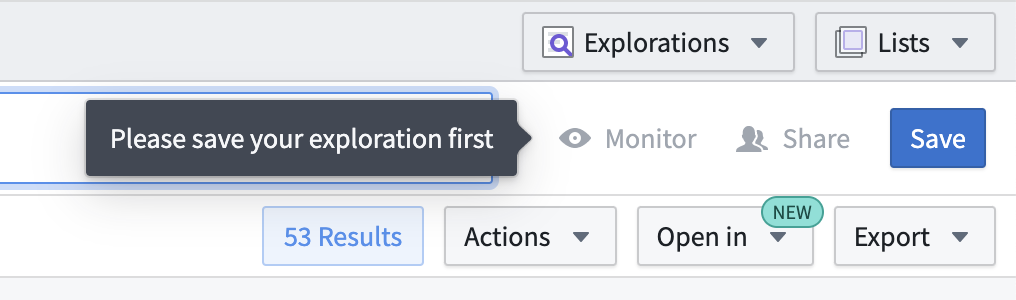
Monitors can be created in Object Explorer after saving an exploration by clicking **Monitor** in the upper right of your screen. An exploration can be saved by clicking **Save** in the exploration view and selecting a Project or folder destination.
 ### Create an object monitor
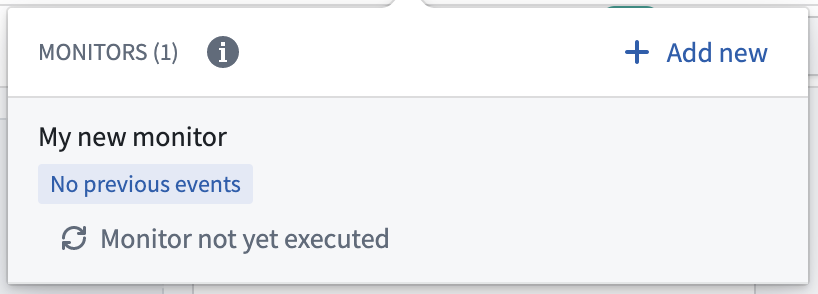
After saving the exploration, click **Monitor** to open a view showing all object monitors using this exploration as an input. In newly created explorations, this list is empty.
### Create an object monitor
After saving the exploration, click **Monitor** to open a view showing all object monitors using this exploration as an input. In newly created explorations, this list is empty.
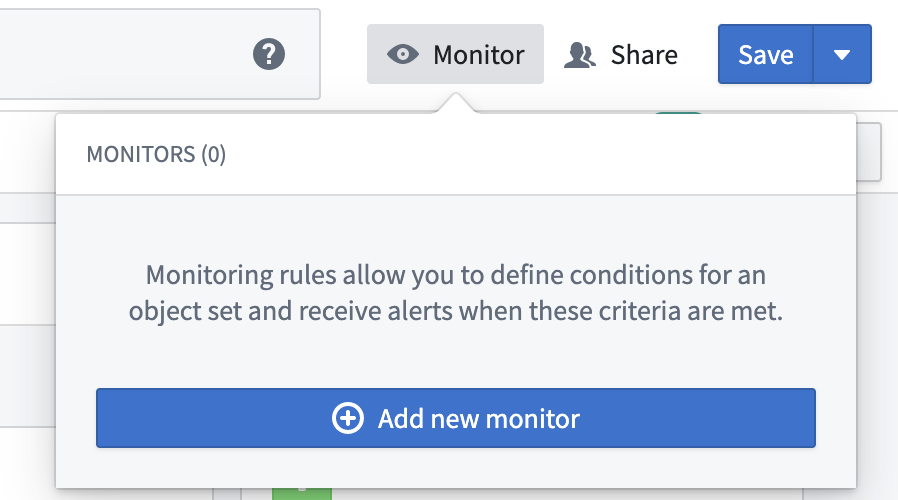 Click **Add new Monitor** to open a simplified setup view for a new monitor.
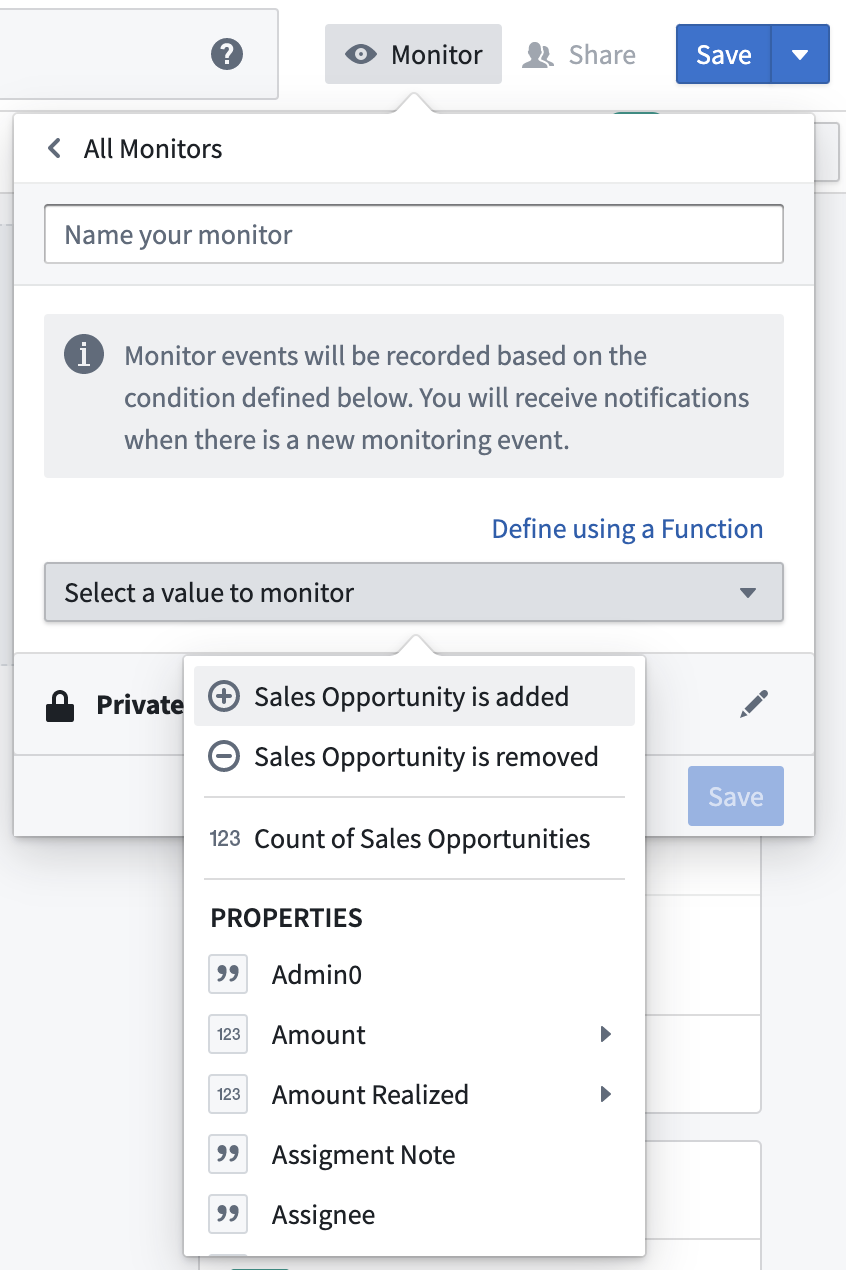
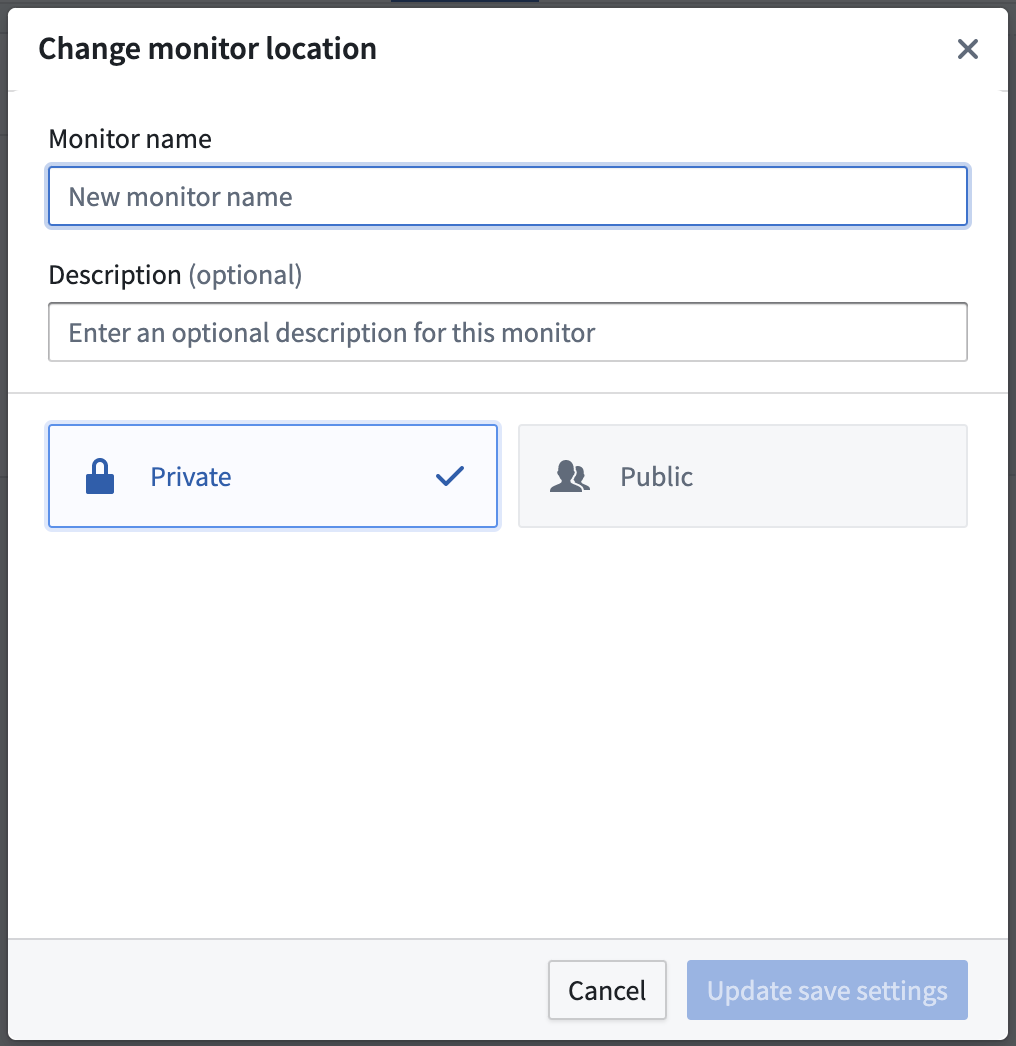
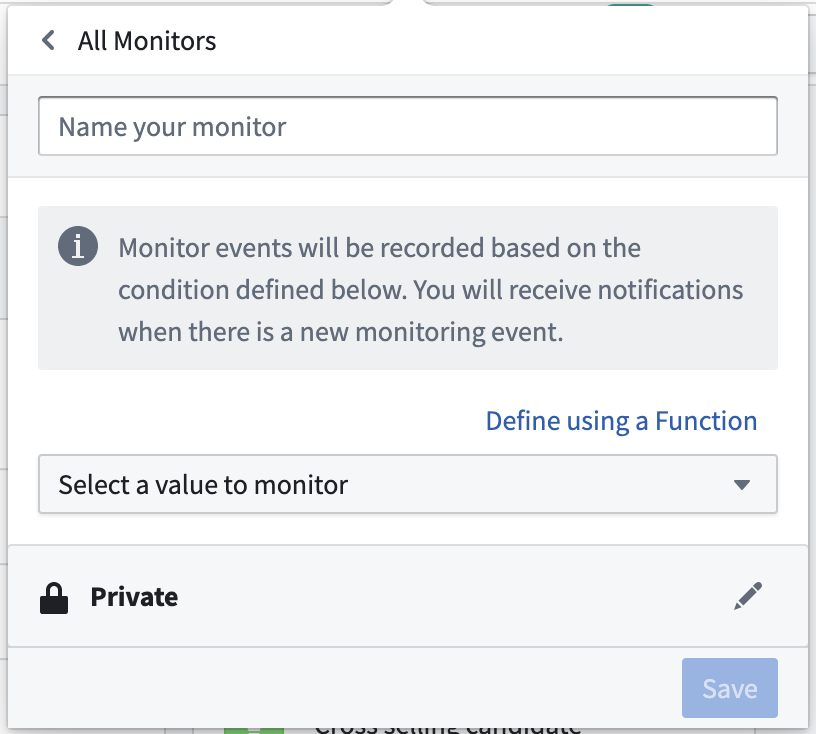 Add a monitor name, optional description, and monitor [condition](../condition/index.md).
 :::callout{theme="neutral"}
Advanced conditions containing nested sub-conditions cannot be configured from this view. Instead, they must be created and modified from the Object Monitors application.
:::
You may also optionally change the default save location from **Private** to a Public project. If you plan to have additional subscribers, we recommend storing the saved exploration and monitor in a shared Project.
:::callout{theme="neutral"}
Advanced conditions containing nested sub-conditions cannot be configured from this view. Instead, they must be created and modified from the Object Monitors application.
:::
You may also optionally change the default save location from **Private** to a Public project. If you plan to have additional subscribers, we recommend storing the saved exploration and monitor in a shared Project.
 After entering the required information and clicking save, you will return to the list of monitors for the exploration. This list will now contain the newly created monitor.
 ### After saving
Additional options are available once a monitor has been saved.
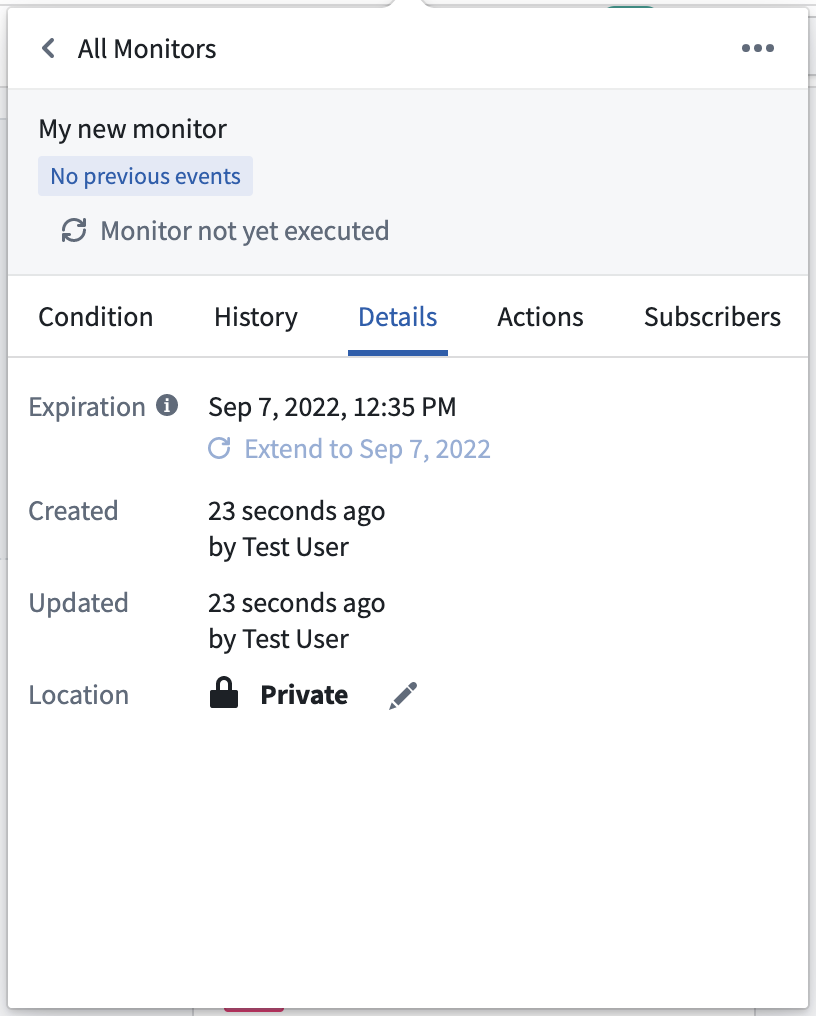
Metadata about the monitor, including its save location, creation time, and last updated time, are shown in the **Details** tab. This tab also displays the [expiration date](../monitor/index.md#expiration) and allows you to extend the expiration three months into the future.
### After saving
Additional options are available once a monitor has been saved.
Metadata about the monitor, including its save location, creation time, and last updated time, are shown in the **Details** tab. This tab also displays the [expiration date](../monitor/index.md#expiration) and allows you to extend the expiration three months into the future.
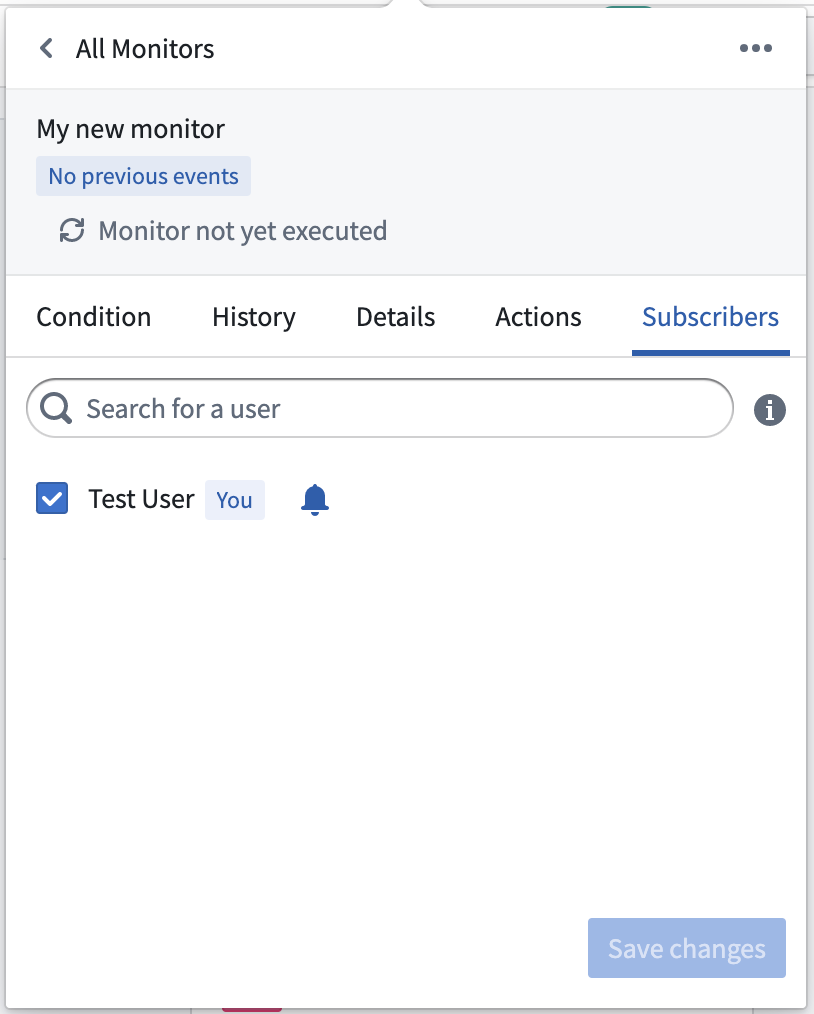
 Subscribers may be added or removed from the **Subscribers** tab, and notifications can be enabled or disabled per subscriber.
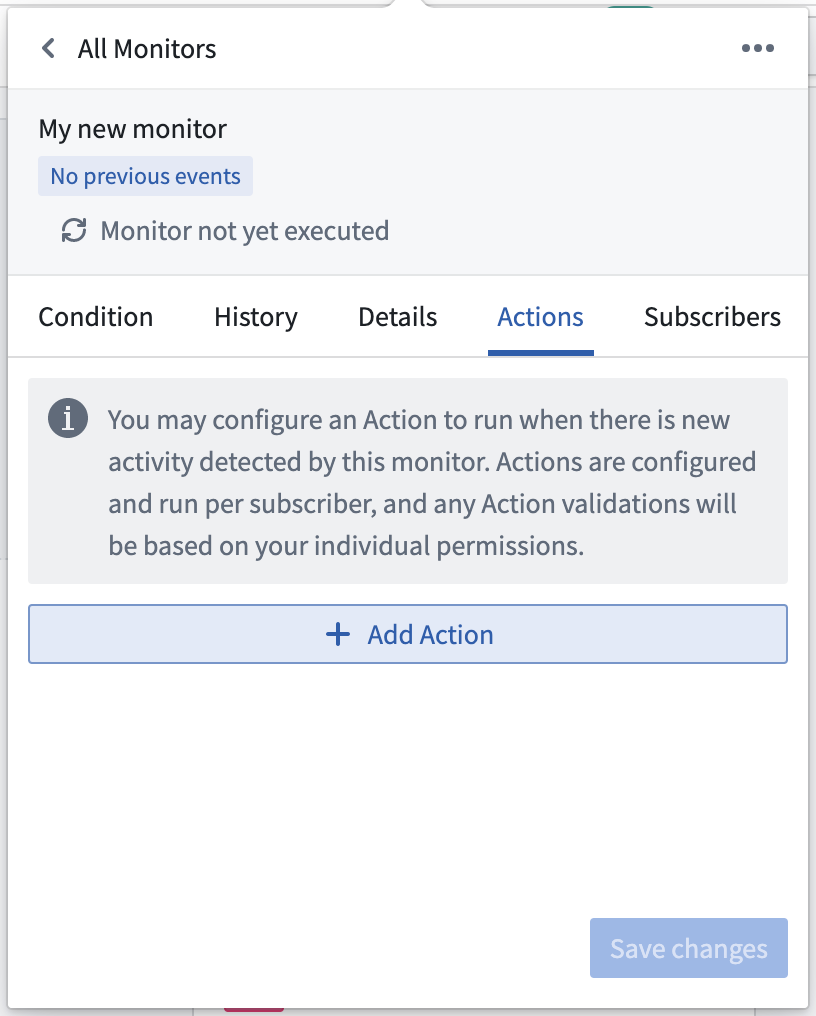
 Actions may be optionally configured from the **Actions** tab.
Learn more about [configuring Actions](../actions/index.md) with Object Monitors.
Actions may be optionally configured from the **Actions** tab.
Learn more about [configuring Actions](../actions/index.md) with Object Monitors.
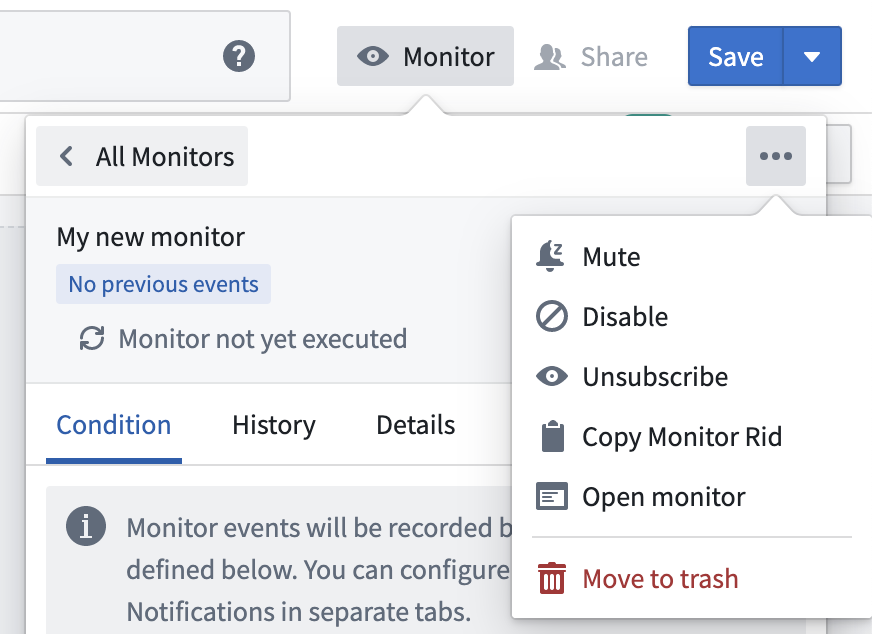
 The quick actions dropdown provides options for disabling or muting the monitor and an option to delete the monitor by moving it to the trash.
 ## Create from Object Monitors application
The Object Monitors application shows an overview of all available monitors across all Projects for a given user. Follow these steps to create a new monitor in the application interface.
## Create from Object Monitors application
The Object Monitors application shows an overview of all available monitors across all Projects for a given user. Follow these steps to create a new monitor in the application interface.
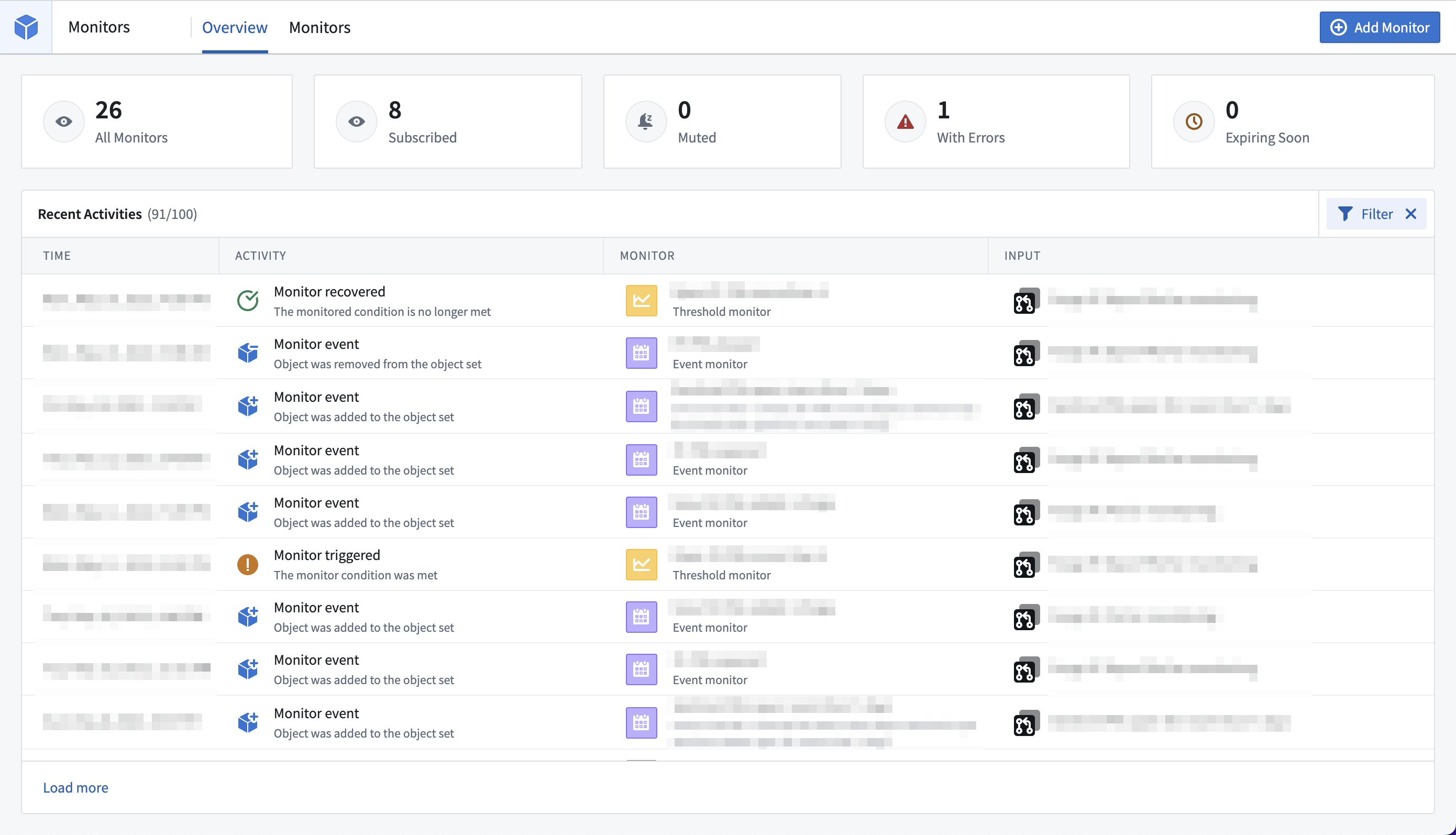 1. Create a new monitor by clicking **Add Monitor** in the upper right corner.
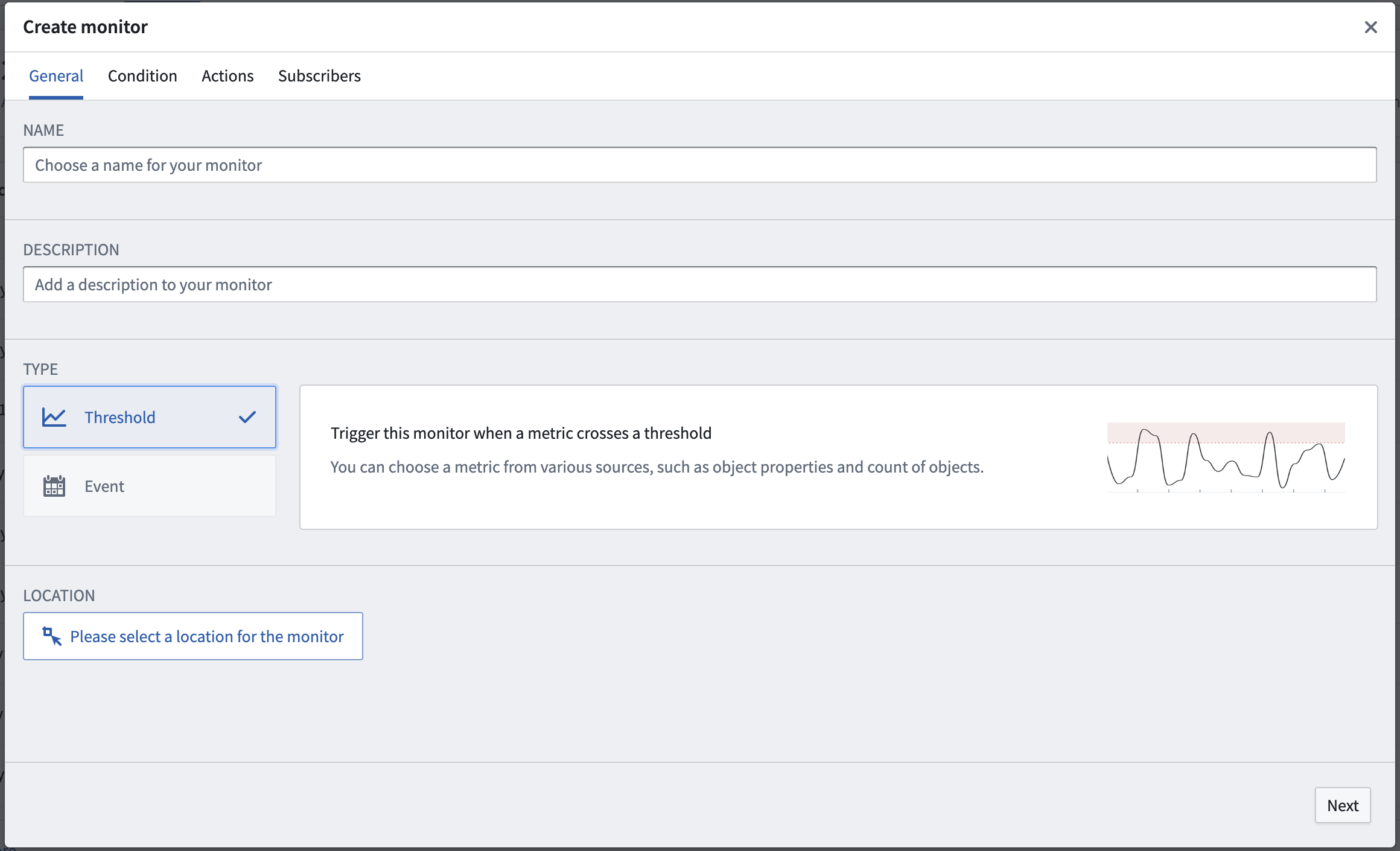 2. Select a save location for the new monitor. For monitors that will have multiple subscribers, we recommend storing them in a shared Project.
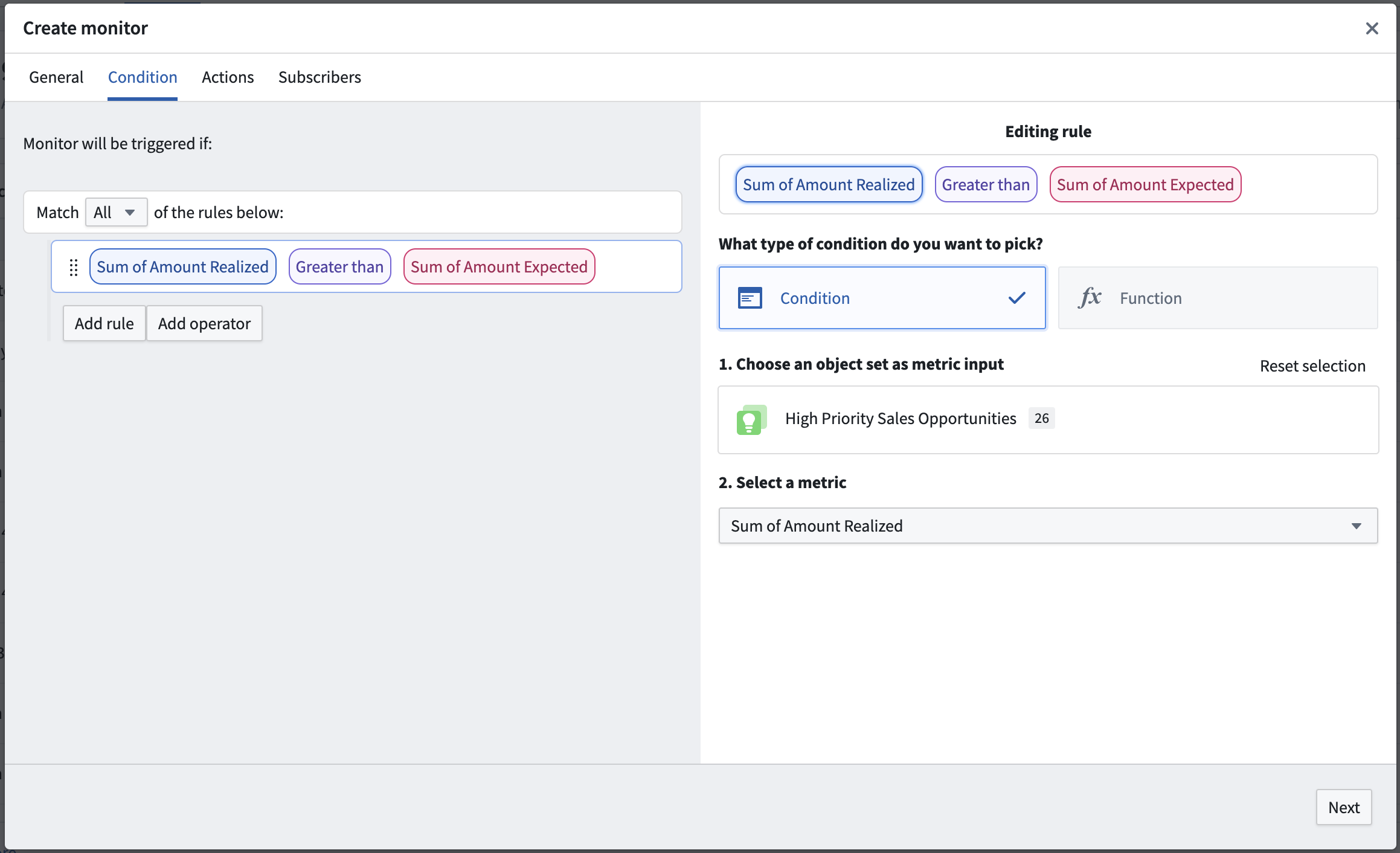
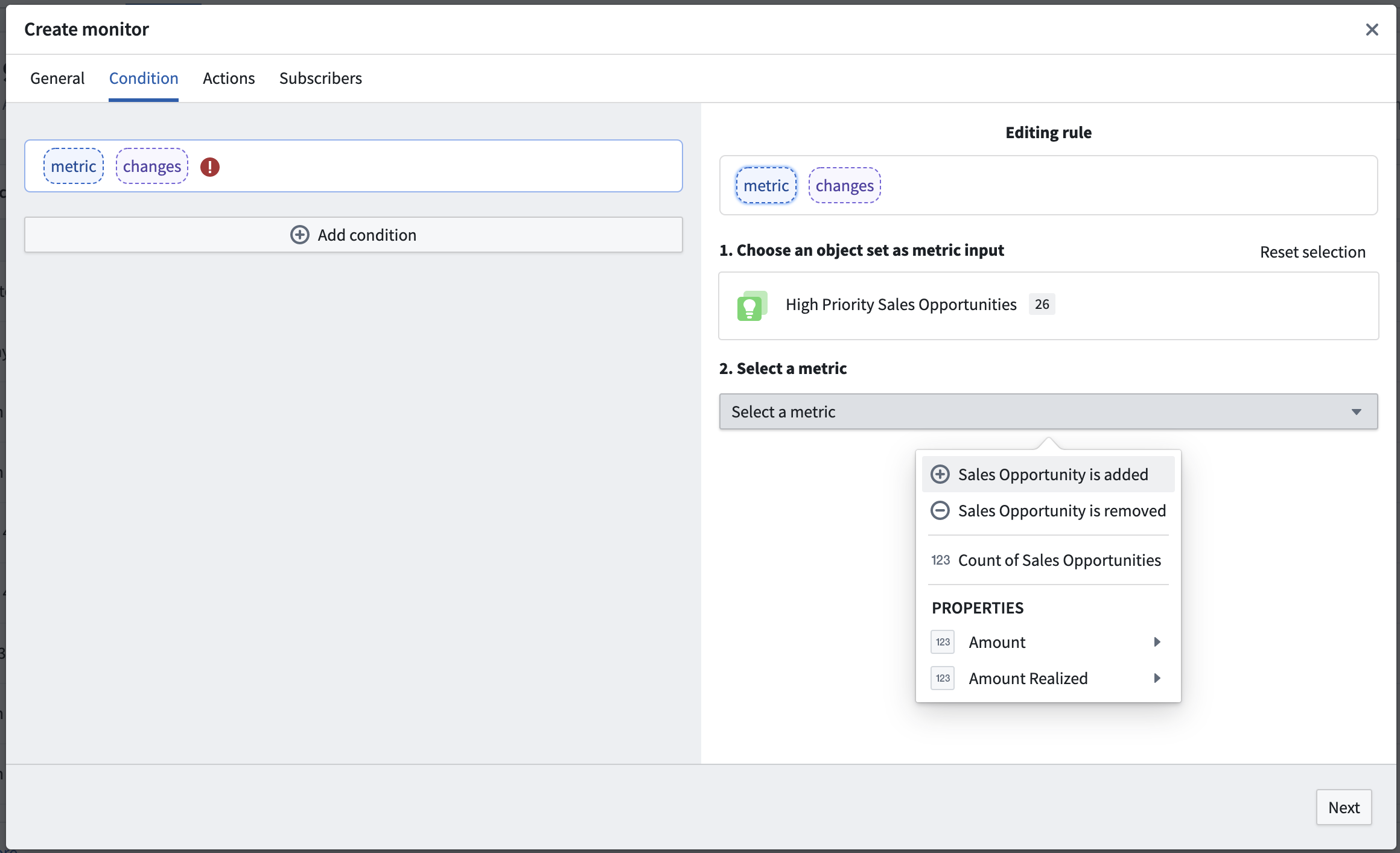
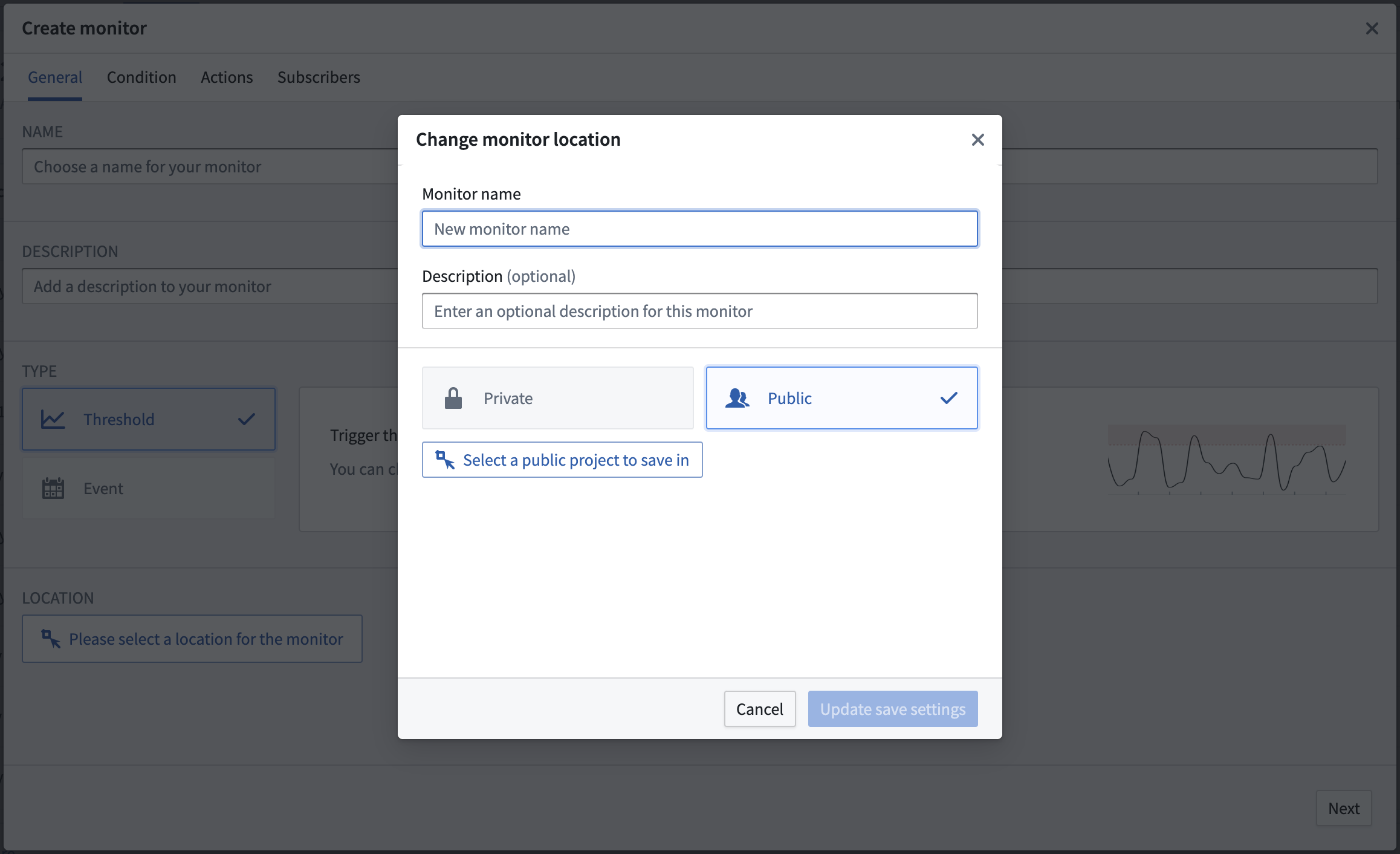 3. Provide the full condition configuration. Configuration options vary depending on if you choose to use [event](../condition/index.md#event) or [threshold](../condition/index.md#threshold) conditions. The monitor [inputs](../input/index.md) must use existing saved explorations created in Object Explorer. If the required input exploration does not exist, [create it](../../object-explorer/save-explorations/index.md) in Object Explorer and then return to this step.
 Additional subscribers may be added from the **Subscribers** tab.
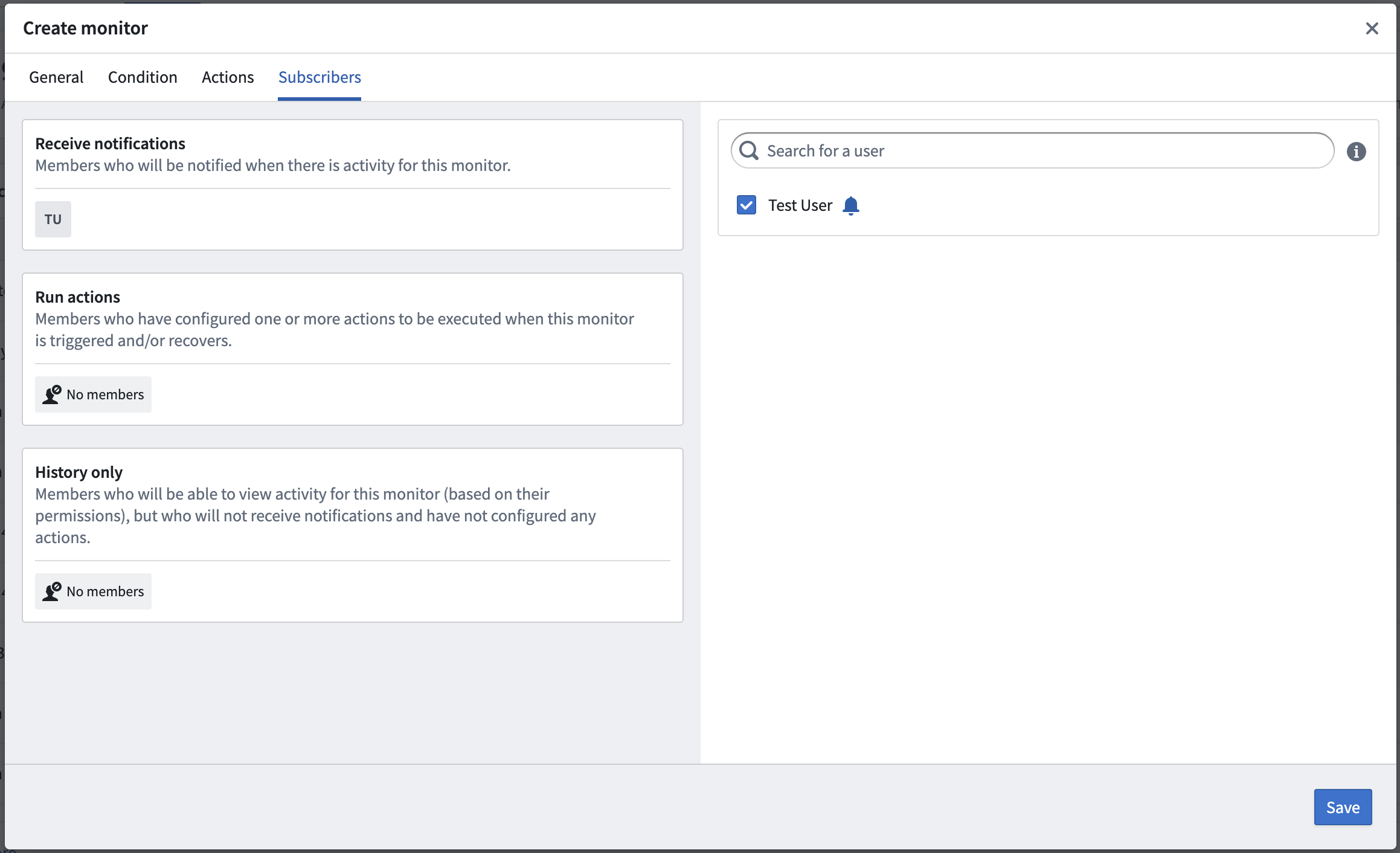 4. Click **Save** to store and enable your new monitor.