# Edit object types
:::callout{theme="warning" title="Object type edits can break user applications"}
Editing an object type and its properties can have **application-breaking consequences that can disrupt user workflows**. Read the section below on [potential breaking changes](#potential-breaking-changes) **before** proceeding with any object type or property edits.
:::
## Potential breaking changes
**Writeback** is the process of persisting user edits on Ontology objects to a durable Foundry dataset. This dataset is known as a writeback dataset. In [Object Storage v1 (Phonograph)](../../object-databases/object-storage-v1/index.md), you must configure a writeback dataset for an object type, or for a many-to-many link type with a join table. This is required before the object type or link type can receive user edits. Learn more about how writeback datasets compare to [materialized datasets](../../object-edits/materializations/index.md#comparison-of-writeback-datasets-and-materialized-datasets) in Object Storage v2.
### Object type without writeback
Changes that require Object Storage v1 (Phonograph) to unregister and reregister the backing datasources of an object type will make the objects of that type **unavailable** in user applications during that reindex time; these changes are described below.
The following changes will unregister and reregister (or delete) the backing datasources of an object type when saved:
* Changing an object type’s backing datasource.
* Changing the primary key of an object type.
* Deleting an object type.
When you try to save any of these changes, you will be warned about the potential impact on user applications.
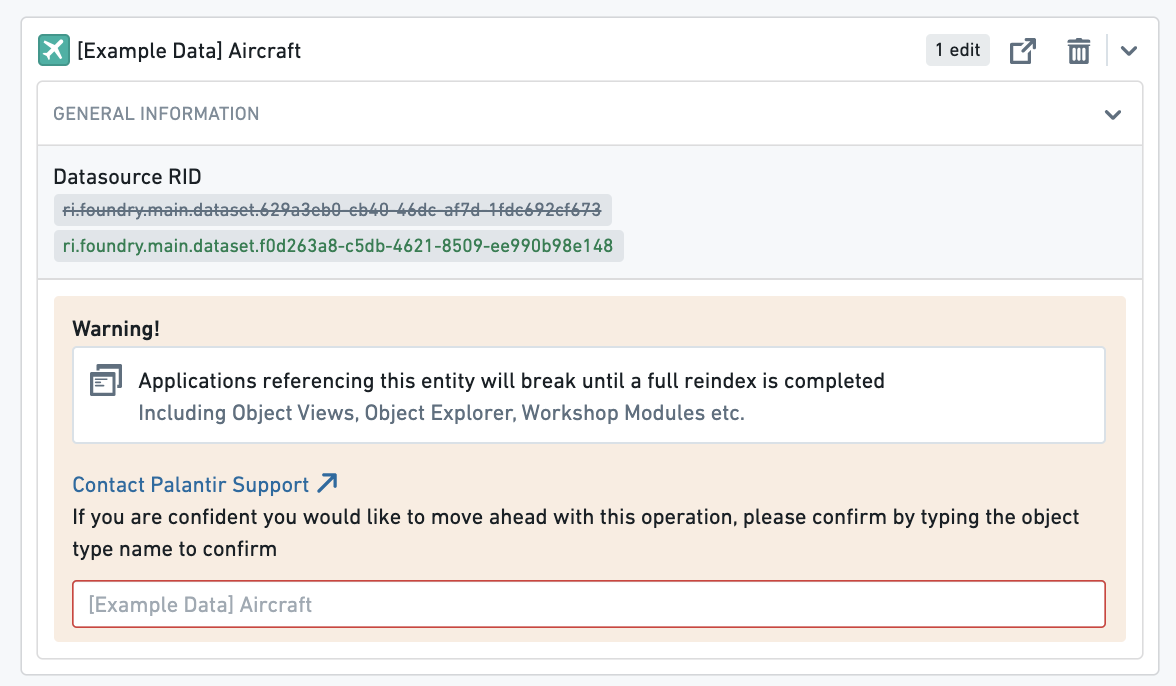 For example, if an object type is used in a Workshop application, that Workshop application will be broken until the reindex completes. You can track the progress of the reindex for an object type in the **Phonograph** pane of its **Datasources** page.
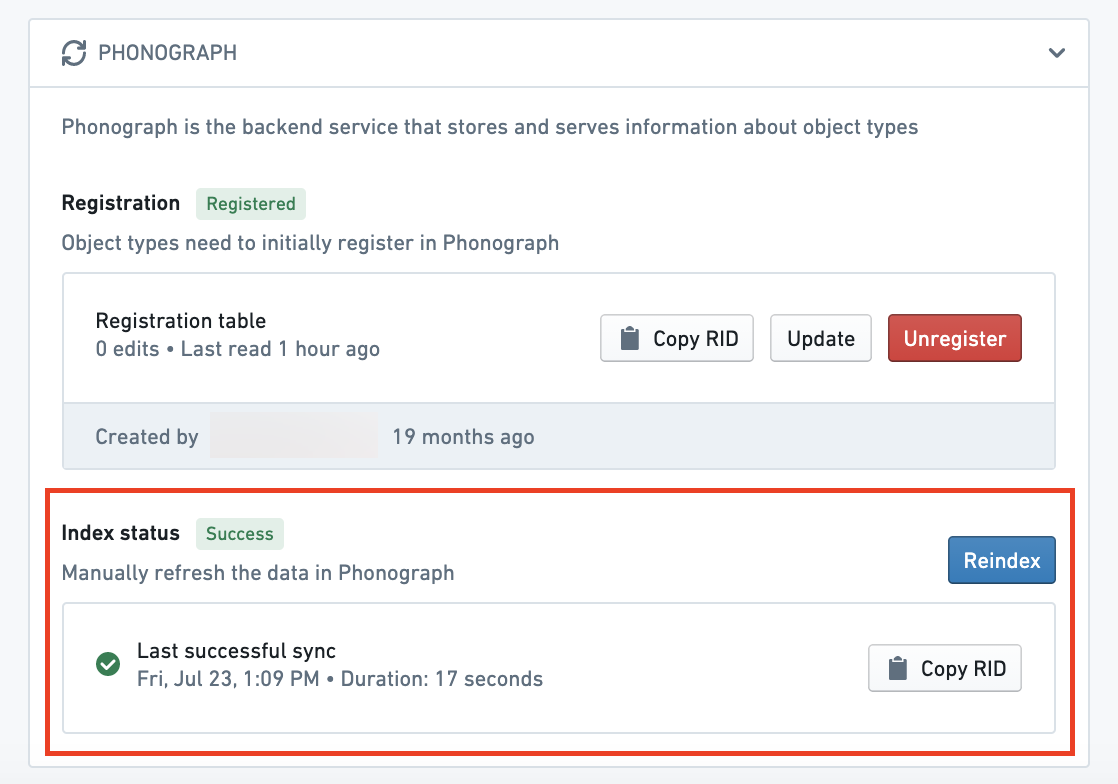 [Learn more about Object Storage v1 (Phonograph).](../../object-databases/object-storage-v1/index.md)
### Object type with writeback
If an object type has writeback enabled, extra precaution should be taken when making edits to that object type. The history of edits made to an object type is stored in Object Storage v1 (Phonograph). Every time a writeback dataset is built, the history of edits is reapplied to get the final state of edited objects in the writeback dataset. When the backing datasources of an object type are unregistered from Object Storage v1 (Phonograph), the history of edits in Object Storage v1 (Phonograph) is deleted and future builds of the writeback dataset will fail.
In addition to the changes that require unregistering that were listed in the [previous section](#object-type-without-writeback), unregistering is required for object types with writeback when schema changes are made to **any** property of an object type that has **ever** received edits, even if it does not currently receive edits. Schema changes include changes to the ID and base type of a property.
The following changes ***do not*** require unregistering and therefore do not risk losing the edit history:
* Changing the display name, title key, render hints, type classes, and visibility of a property that has received edits will ***not*** require the object type to unregister.
* Deleting fields or making schema changes to fields that have never received edits will ***not*** require the object type to unregister, and therefore will not erase or undo edits on other fields that are receiving edits.
:::callout{theme="warning" title="Reindex fails until you undo or manually reregister the datasources"}
Object Storage v1 (Phonograph) will **not** automatically unregister the backing datasources of an object type in response to one of these schema changes. Instead, the reindex will fail and will only succeed if the saved schema changes are undone, or if you manually unregister and reregister the backing datasources of the object type in the **Phonograph** pane of the object type’s **Datasource** page.
:::
The properties pane in the property editor highlights whether a field has ever received edits.
[Learn more about Object Storage v1 (Phonograph).](../../object-databases/object-storage-v1/index.md)
### Object type with writeback
If an object type has writeback enabled, extra precaution should be taken when making edits to that object type. The history of edits made to an object type is stored in Object Storage v1 (Phonograph). Every time a writeback dataset is built, the history of edits is reapplied to get the final state of edited objects in the writeback dataset. When the backing datasources of an object type are unregistered from Object Storage v1 (Phonograph), the history of edits in Object Storage v1 (Phonograph) is deleted and future builds of the writeback dataset will fail.
In addition to the changes that require unregistering that were listed in the [previous section](#object-type-without-writeback), unregistering is required for object types with writeback when schema changes are made to **any** property of an object type that has **ever** received edits, even if it does not currently receive edits. Schema changes include changes to the ID and base type of a property.
The following changes ***do not*** require unregistering and therefore do not risk losing the edit history:
* Changing the display name, title key, render hints, type classes, and visibility of a property that has received edits will ***not*** require the object type to unregister.
* Deleting fields or making schema changes to fields that have never received edits will ***not*** require the object type to unregister, and therefore will not erase or undo edits on other fields that are receiving edits.
:::callout{theme="warning" title="Reindex fails until you undo or manually reregister the datasources"}
Object Storage v1 (Phonograph) will **not** automatically unregister the backing datasources of an object type in response to one of these schema changes. Instead, the reindex will fail and will only succeed if the saved schema changes are undone, or if you manually unregister and reregister the backing datasources of the object type in the **Phonograph** pane of the object type’s **Datasource** page.
:::
The properties pane in the property editor highlights whether a field has ever received edits.
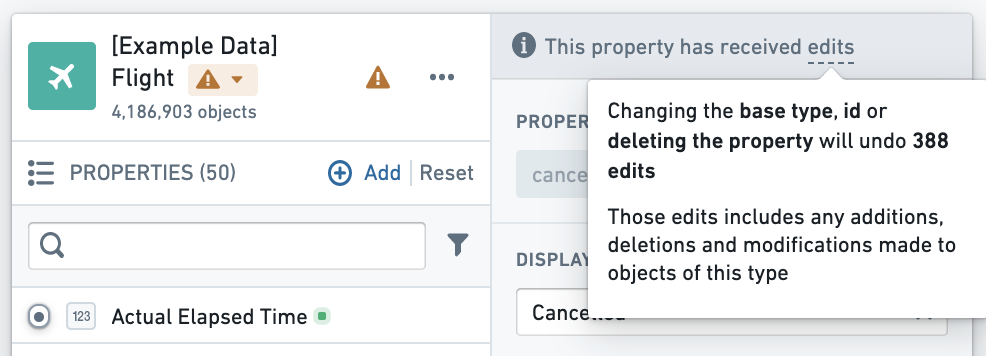 Furthermore, when you try to save any changes that risk erasing the edit history, you will be warned about the potential impact on edits.
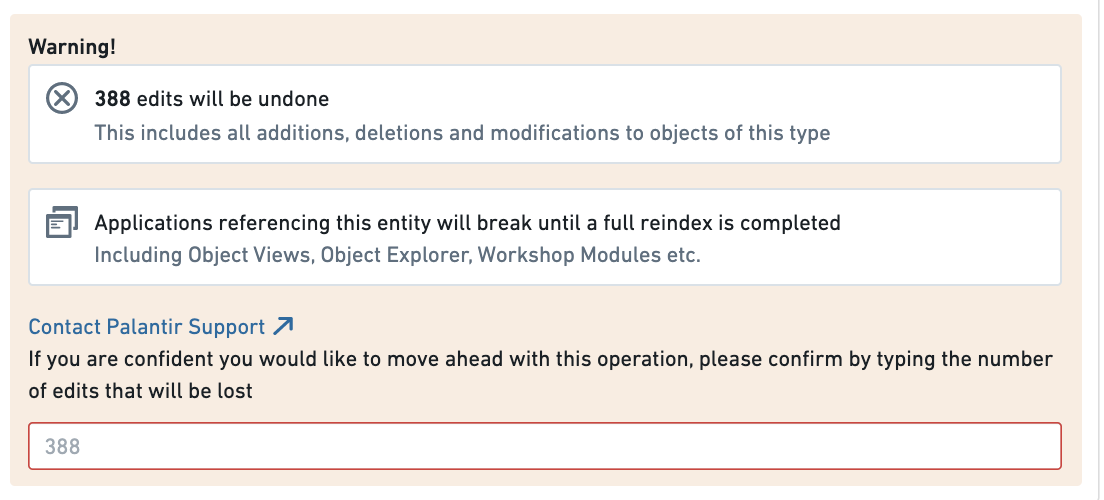 Now that you understand the considerations in editing existing object types and properties, you can safely make your changes.
## Edit an existing object type
* [Navigate to an existing object type](#navigate-to-an-existing-object-type)
* [Delete an object type](#delete-an-object-type)
* [Add or remove a backing datasource](#add-or-remove-a-backing-datasource)
* [Change a backing datasource](#change-a-backing-datasource)
* [Edit an object type’s metadata](#edit-an-object-types-metadata)
### Navigate to an existing object type
You can always change the object type you are working on by selecting the object type page from the home page sidebar and selecting a different object type from the list. You can also always search for a new object type in the search bar in the application header. [Read more about navigation.](../../ontology-manager/navigation/index.md)
### Delete an object type
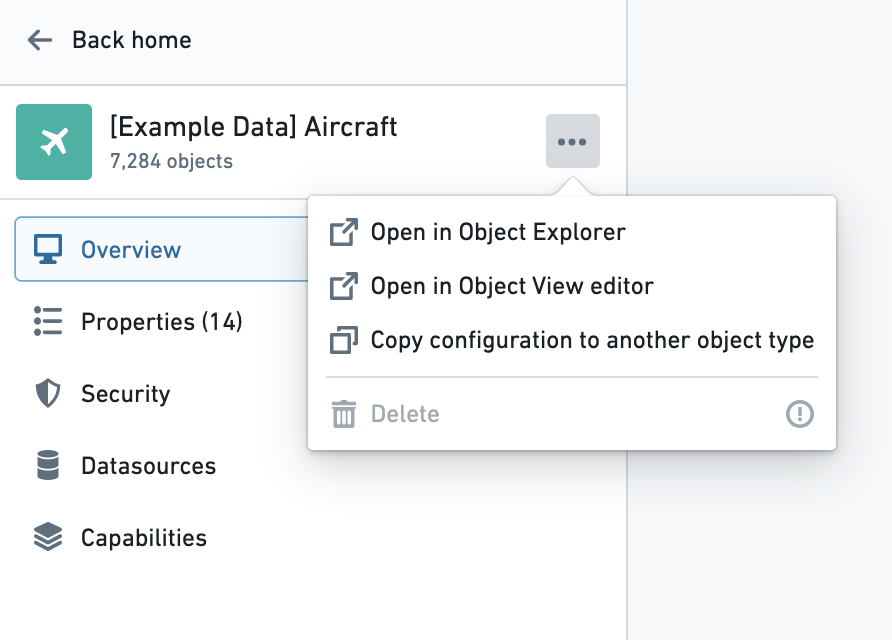
You can delete an object type by selecting the  (three dots) icon at the top right of the object type view sidebar (see image below) and then selecting the **Delete** option from the dropdown. A dialog will pop up to confirm you want to stage the object type and all of its associated link types for deletion.
* The deletion of the object type only takes effect after you save your changes, and will break any views or applications referencing the object type.
* Object types with an `active` status cannot be deleted. [Read more about statuses.](../metadata-statuses/index.md)
Now that you understand the considerations in editing existing object types and properties, you can safely make your changes.
## Edit an existing object type
* [Navigate to an existing object type](#navigate-to-an-existing-object-type)
* [Delete an object type](#delete-an-object-type)
* [Add or remove a backing datasource](#add-or-remove-a-backing-datasource)
* [Change a backing datasource](#change-a-backing-datasource)
* [Edit an object type’s metadata](#edit-an-object-types-metadata)
### Navigate to an existing object type
You can always change the object type you are working on by selecting the object type page from the home page sidebar and selecting a different object type from the list. You can also always search for a new object type in the search bar in the application header. [Read more about navigation.](../../ontology-manager/navigation/index.md)
### Delete an object type
You can delete an object type by selecting the  (three dots) icon at the top right of the object type view sidebar (see image below) and then selecting the **Delete** option from the dropdown. A dialog will pop up to confirm you want to stage the object type and all of its associated link types for deletion.
* The deletion of the object type only takes effect after you save your changes, and will break any views or applications referencing the object type.
* Object types with an `active` status cannot be deleted. [Read more about statuses.](../metadata-statuses/index.md)
 ### Add or remove a backing datasource
Follow the instructions below to add a backing datasource to an [object type created without one](../create-object-type/index.md#create-an-object-type-without-a-backing-datasource):
1. Navigate to the property editor by selecting **Edit property mapping** at the top of the **Properties** page of the object type.
2. Select **Add a backing datasource** in the **Datasources** pane, then choose an available datasource.
3. Map the datasource columns to the existing object type properties.
4. Review the object type's [security configuration](../../object-permissioning/managing-object-security/index.md), then save your changes.
To remove a backing datasource, navigate to the same property editor and remove the datasource from the **Datasources** pane. Configure the required [object security policy](../../object-permissioning/object-security-policies/index.md), then save your changes.
Removing a backing datasource is only available if the object type is saved in a project. This ensures the object type uses the [project-based permission model](../../object-permissioning/ontology-permissions/index.md) instead of inheriting permissions from a backing datasource. Every property that was mapped to a column of the removed datasource becomes an [edit-only property](../edit-only-properties/index.md), so its values are populated through [actions](../../action-types/overview/index.md) rather than from datasource columns.
### Change a backing datasource
You can change a backing datasource with the following steps:
1. Navigate to the property editor by selecting **Edit property mapping** at the top of the **Properties** page of an object type.
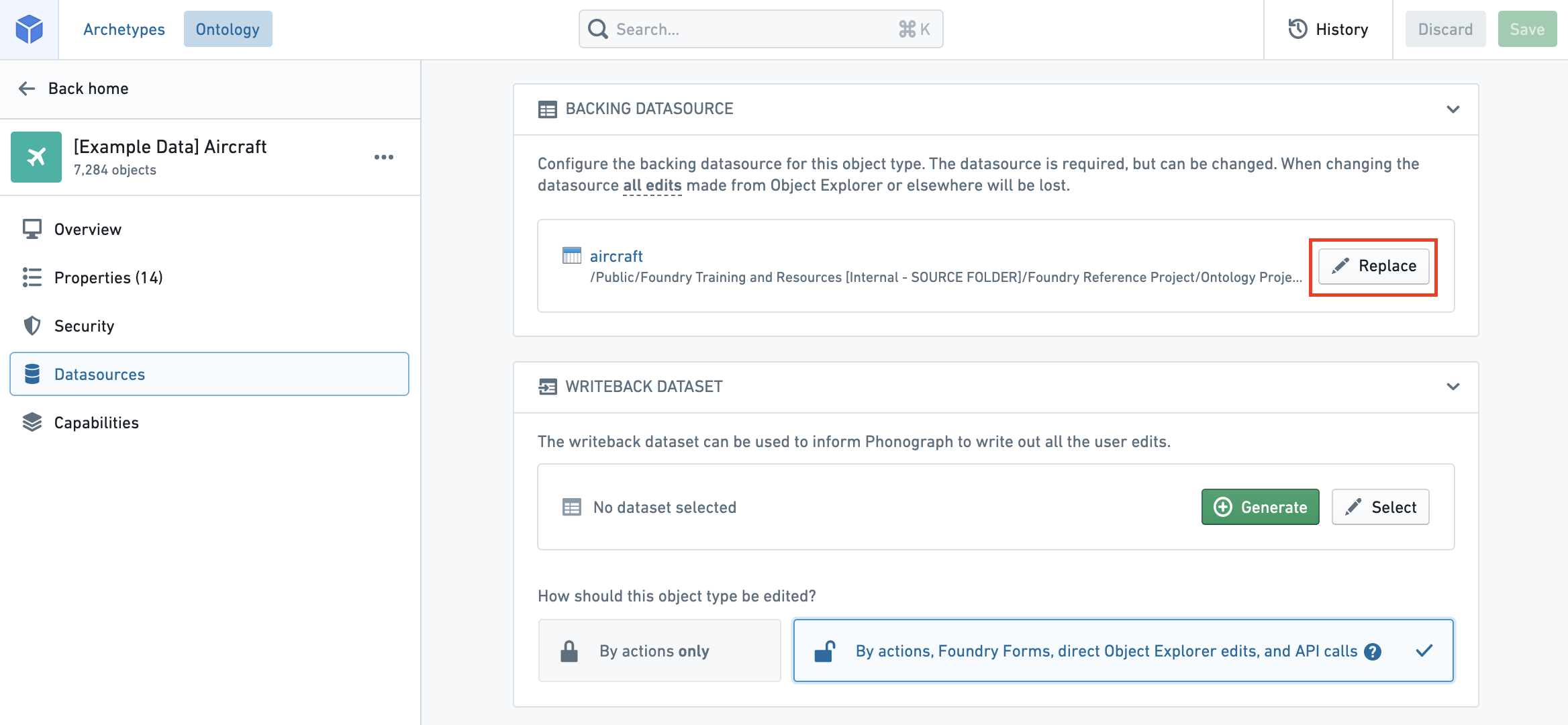
2. Select the  **Replace** button at the top of the **Datasources** pane. This will allow you to browse and select available datasources in Foundry.
:::callout{theme="warning" title="Properties are remapped automatically only if the schema matches"}
Changing the backing datasource of an object type will remove any connection between columns in the old datasource and the object type’s properties. Properties will be automatically remapped for you **only if** you change to a new datasource with the **same schema** as the old datasource. Otherwise, you will need to remap the object type’s properties to the new datasource.
:::
### Edit an object type’s metadata
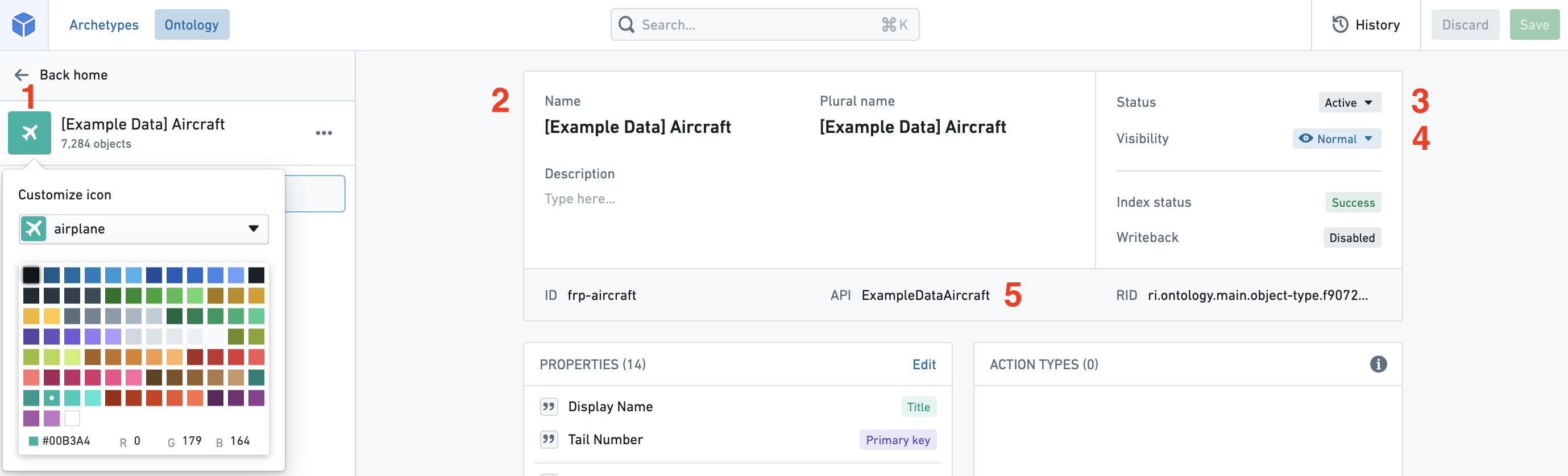
1. **Icon:** Select the default icon to customize the icon and color of the object type that will appear in user applications when a user views an object of this type.
2. **Display names and description:** Select into the existing display names or description to edit the text.
3. **Status:** Select the existing status to open a dropdown of available statuses. Choose from the `deprecated`, `experimental`, and `active` statuses.
* Read more about [statuses](../metadata-statuses/index.md).
4. **Visibility:** Select the existing visibility to open a dropdown of available visibilities. A `prominent` object type will lead applications to show this object type first to users. A `hidden` object type will not appear in user applications.
5. **API name:** Select into the existing API name to change its value.
* You cannot change the API name for object types with an `active` status.
* Read more about [statuses](../metadata-statuses/index.md).
* Read more about [valid API names](../create-object-type/index.md#api-name).
:::callout{theme="warning"}
The object ID of an object type cannot be edited after the initial object type creation process.
:::
## Troubleshooting
#### Error: `Phonograph2:FoundryColumnNameNotFound`
If you receive the error `Phonograph2:FoundryColumnNameNotFound`, a column has been removed from the datasource backing the object type you are trying to save and a property is left unmapped. The property needs to either be mapped or deleted.
#### Error: `Phonograph2:InvalidColumnRemoval`
If you receive the error `Phonograph2:InvalidColumnRemoval`, a column has been removed that was backing a property that has received edits. Either the column needs to be added back to the datasource, or the object type needs to be unregistered and reregistered.
See the section above on [potential breaking changes](#potential-breaking-changes) to learn more.
#### Error: `Phonograph2:InvalidColumnFieldSchemaChange`
If you receive the error `Phonograph2:InvalidColumnFieldSchemaChange`, a property that has received edits has had its ID or key changed. Either the change needs to be reverted, or the object type needs to be unregistered and reregistered.
See the section above on [potential breaking changes](#potential-breaking-changes) to learn more.
#### Error: `OntologyMetadata:IncompatibleFoundryFieldSchemaForPropertyType`
If you receive the error `OntologyMetadata:IncompatibleFoundryFieldSchemaForPropertyType`, you are trying to save a property with a base type that is incompatible with the column type that is backing it. For example, the type of column X may have been changed to “string”, but is mapped to property X of base type “integer”.
#### Error: `Phonograph2:SchemaMismatch`
If you receive the error `Phonograph2:SchemaMismatch`, you likely made an intentional change to the schema that backs the object but have not yet updated the object's property types in Ontology Manager. Modify the Ontology by editing the property's data type to accept the new type. Publish the changes and rebuild the dataset, then initiate a re-index of the object.
#### Error: `FieldTypeIncompatibleWithOntologyPropertyType`
If you receive the error `FieldTypeIncompatibleWithOntologyPropertyType` or receive the message "Failed to Update Object Type in Phonograph", there is a mismatch between the data types in the dataset that backs your object and the data types that the ontology expects. You must ensure that any schema updates are reflected in both the dataset and the ontology.
If you did make any intentional changes to the ontology or the dataset, communicate with the owner of the object and its backing data source to understand recent changes.
### Add or remove a backing datasource
Follow the instructions below to add a backing datasource to an [object type created without one](../create-object-type/index.md#create-an-object-type-without-a-backing-datasource):
1. Navigate to the property editor by selecting **Edit property mapping** at the top of the **Properties** page of the object type.
2. Select **Add a backing datasource** in the **Datasources** pane, then choose an available datasource.
3. Map the datasource columns to the existing object type properties.
4. Review the object type's [security configuration](../../object-permissioning/managing-object-security/index.md), then save your changes.
To remove a backing datasource, navigate to the same property editor and remove the datasource from the **Datasources** pane. Configure the required [object security policy](../../object-permissioning/object-security-policies/index.md), then save your changes.
Removing a backing datasource is only available if the object type is saved in a project. This ensures the object type uses the [project-based permission model](../../object-permissioning/ontology-permissions/index.md) instead of inheriting permissions from a backing datasource. Every property that was mapped to a column of the removed datasource becomes an [edit-only property](../edit-only-properties/index.md), so its values are populated through [actions](../../action-types/overview/index.md) rather than from datasource columns.
### Change a backing datasource
You can change a backing datasource with the following steps:
1. Navigate to the property editor by selecting **Edit property mapping** at the top of the **Properties** page of an object type.
2. Select the  **Replace** button at the top of the **Datasources** pane. This will allow you to browse and select available datasources in Foundry.
:::callout{theme="warning" title="Properties are remapped automatically only if the schema matches"}
Changing the backing datasource of an object type will remove any connection between columns in the old datasource and the object type’s properties. Properties will be automatically remapped for you **only if** you change to a new datasource with the **same schema** as the old datasource. Otherwise, you will need to remap the object type’s properties to the new datasource.
:::

### Edit an object type’s metadata

1. **Icon:** Select the default icon to customize the icon and color of the object type that will appear in user applications when a user views an object of this type.
2. **Display names and description:** Select into the existing display names or description to edit the text.
3. **Status:** Select the existing status to open a dropdown of available statuses. Choose from the `deprecated`, `experimental`, and `active` statuses.
* Read more about [statuses](../metadata-statuses/index.md).
4. **Visibility:** Select the existing visibility to open a dropdown of available visibilities. A `prominent` object type will lead applications to show this object type first to users. A `hidden` object type will not appear in user applications.
5. **API name:** Select into the existing API name to change its value.
* You cannot change the API name for object types with an `active` status.
* Read more about [statuses](../metadata-statuses/index.md).
* Read more about [valid API names](../create-object-type/index.md#api-name).
:::callout{theme="warning"}
The object ID of an object type cannot be edited after the initial object type creation process.
:::
## Troubleshooting
#### Error: `Phonograph2:FoundryColumnNameNotFound`
If you receive the error `Phonograph2:FoundryColumnNameNotFound`, a column has been removed from the datasource backing the object type you are trying to save and a property is left unmapped. The property needs to either be mapped or deleted.
#### Error: `Phonograph2:InvalidColumnRemoval`
If you receive the error `Phonograph2:InvalidColumnRemoval`, a column has been removed that was backing a property that has received edits. Either the column needs to be added back to the datasource, or the object type needs to be unregistered and reregistered.
See the section above on [potential breaking changes](#potential-breaking-changes) to learn more.
#### Error: `Phonograph2:InvalidColumnFieldSchemaChange`
If you receive the error `Phonograph2:InvalidColumnFieldSchemaChange`, a property that has received edits has had its ID or key changed. Either the change needs to be reverted, or the object type needs to be unregistered and reregistered.
See the section above on [potential breaking changes](#potential-breaking-changes) to learn more.
#### Error: `OntologyMetadata:IncompatibleFoundryFieldSchemaForPropertyType`
If you receive the error `OntologyMetadata:IncompatibleFoundryFieldSchemaForPropertyType`, you are trying to save a property with a base type that is incompatible with the column type that is backing it. For example, the type of column X may have been changed to “string”, but is mapped to property X of base type “integer”.
#### Error: `Phonograph2:SchemaMismatch`
If you receive the error `Phonograph2:SchemaMismatch`, you likely made an intentional change to the schema that backs the object but have not yet updated the object's property types in Ontology Manager. Modify the Ontology by editing the property's data type to accept the new type. Publish the changes and rebuild the dataset, then initiate a re-index of the object.
#### Error: `FieldTypeIncompatibleWithOntologyPropertyType`
If you receive the error `FieldTypeIncompatibleWithOntologyPropertyType` or receive the message "Failed to Update Object Type in Phonograph", there is a mismatch between the data types in the dataset that backs your object and the data types that the ontology expects. You must ensure that any schema updates are reflected in both the dataset and the ontology.
If you did make any intentional changes to the ontology or the dataset, communicate with the owner of the object and its backing data source to understand recent changes.