# Create Ontology objects from Gaia
Similar to how you can [add data from the Ontology to a Gaia map](../../geospatial/add-ontology-data-to-gaia/index.md), you can also create Ontology objects from a shape you draw, a point you drop, or a tactical graphic you configure on a map by tagging the object with an object type which implements the `Creatable Geoshape`, `Creatable Geopoint`, or the `MILSTD 2525C Symbol` [interface](../../interfaces/interface-overview/index.md).
:::callout{theme="neutral" title="Implement the superseding object creation interfaces instead of those in planned deprecation"}
The `Creatable Geoshape`, `Creatable Geopoint`, and `MILSTD 2525 Symbol` interfaces supersede the `Gaia Geoshape Creatable`, `Gaia Geopoint Creatable`, and `Gaia Milsym Creatable` interfaces, respectively. The `Gaia Geoshape Creatable` and `Gaia Geopoint Creatable` are in the [planned deprecation](../../platform-overview/development-life-cycle/index.md#planned-deprecation) phase of development and will be deprecated by November 2026. The `Gaia Milsym Creatable` interface has been [deprecated](../../platform-overview/development-life-cycle/index.md#deprecated). You should implement the superseding interfaces in place of those in planned deprecation; the object type and action type [configuration instructions below](#create-an-object-type-that-implements-the-gaia-geoshape-creatable-interface) are applicable to either interface. However, only the `Creatable Geoshape`, `Creatable Geopoint`, and `MILSTD 2525C Symbol` interfaces support [interface action type constraints](#use-interface-action-type-constraints-to-enable-automatic-discovery-of-object-types-supporting-object-creation). Instead of using interface action type constraints, the `Gaia Geoshape Creatable` and `Gaia Geopoint Creatable` interfaces require you to [register their implementing object types and supporting actions in Gaia's admin application or Control Panel extension.](#register-your-ontology-and-its-types)
Contact Palantir Support with questions about the availability of the `Creatable Geoshape`, `Creatable Geopoint`, or `MILSTD 2525 Symbol` interfaces on your enrollment.
:::
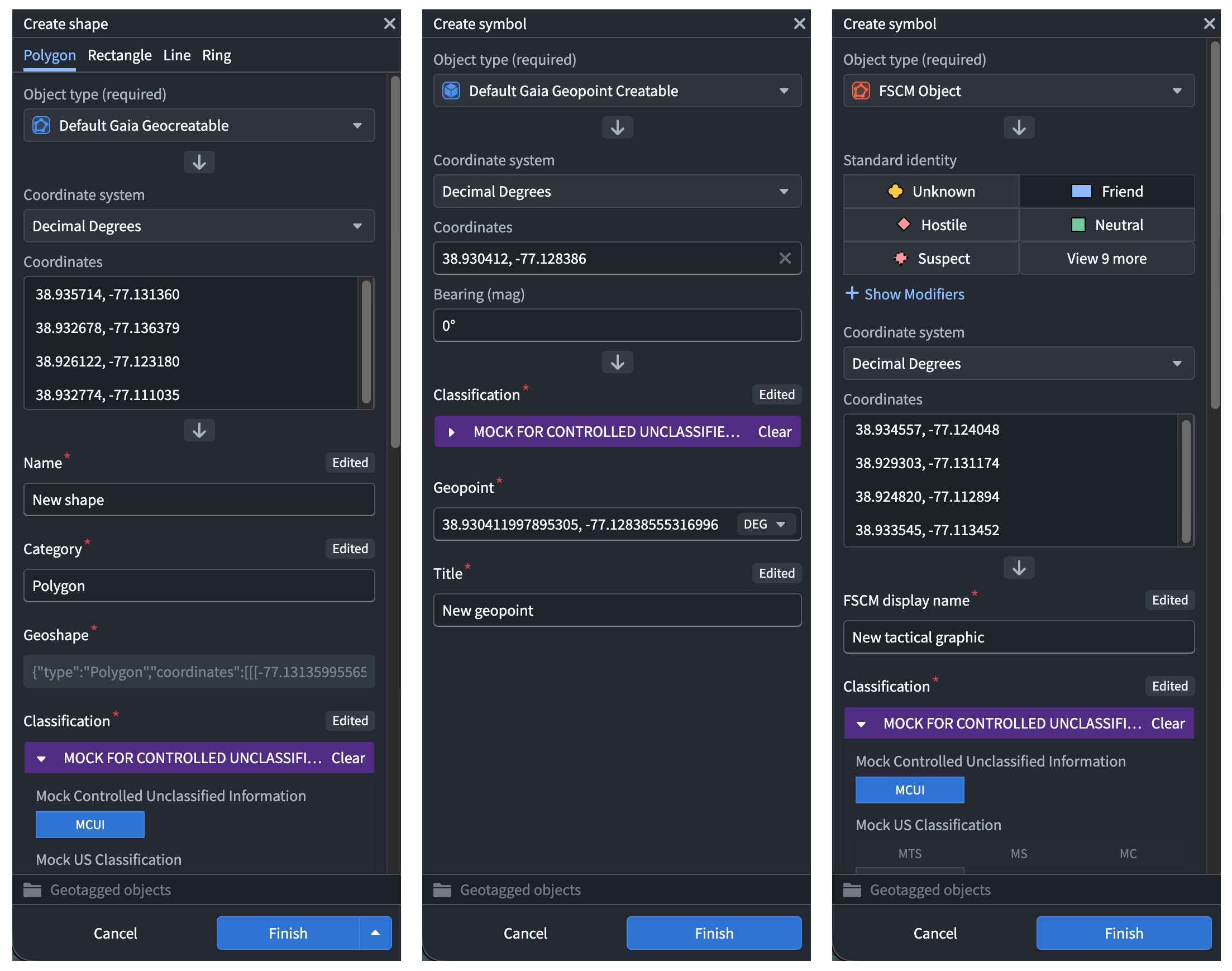
The sections below outline the end-to-end process to integrate Gaia shapes, points, and tactical graphics with the Ontology:
:::callout{theme="warning"}
To create Ontology objects from a Gaia map, your enrollment must use both Foundry and Gotham.
:::
* [Install all necessary Marketplace products](#install-prerequisite-marketplace-products).
* [Implement the `Gaia Geoshape Creatable` interface on a supported object type backed by a restricted view](#create-an-object-type-that-implements-the-gaia-geoshape-creatable-interface).
* [Implement the `Gaia Geopoint Creatable` interface on a supported object type backed by a restricted view](#create-an-object-type-that-implements-the-gaia-geopoint-creatable-interface).
* [Implement the `MILSTD 2525C Symbol` interface on a supported object type backed by a restricted view](#create-an-object-type-that-implements-the-milstd-2525c-symbol-interface).
* [Fulfill the interface action type constraint on your object types](#use-interface-action-type-constraints-to-enable-automatic-discovery-of-object-types-supporting-object-creation).
* [Register your ontology and search for your object types in Gaia](#register-your-ontology-and-its-types).
* [Understand the entry points for creating objects](#entry-points-to-create-objects-on-your-gaia-map).
* [Draw a new shape on your map and tag it within your object type](#draw-a-new-shape-on-your-gaia-map-and-tag-it-to-an-object-type).
* [Drop a new point on your map and tag it within your object type](#drop-a-new-point-on-your-gaia-map-and-tag-it-to-an-object-type).
* [Configure a tactical graphic from a shape drawn on your map and tag it within your object type](#configure-a-tactical-graphic-on-your-gaia-map-and-tag-it-to-an-object-type).
## Install prerequisite Marketplace products
:::callout{theme="neutral"}
You must only complete the instructions in this section when using the `Gaia Geoshape Creatable` or `Gaia Geopoint Creatable` interfaces. There are no installation prerequisites in Marketplace when using the latest `Creatable Geoshape` or `Creatable Geopoint` interfaces.
:::
[Marketplace](../../marketplace/overview/index.md) is Foundry's storefront for published data products or collections of platform resources made available for user installation. You can access Marketplace through the **Search...** bar or the **Applications** portal on your home screen.
Once you launch Marketplace, install the following products:
* [Core Property Types from the Core Ontology Store](#core-property-types-from-the-core-ontology-store), which contains core shared property types, such as an object's classification and geoshape, that can be used on multiple object types in your ontology.
* [`Gaia Geoshape Creatable` interface from the Gaia App Store](#gaia-geoshape-creatable-interface-from-the-gaia-app-store), which describes the shape of a geospatial object type to enable consistent modeling of and interaction with other object types of the same shape.
* [`Gaia Geopoint Creatable` interface from the Gaia App Store](#gaia-geopoint-creatable-interface-from-the-gaia-app-store), which describes the position of a single point object type.
### Core Property Types from the Core Ontology Store
Contact Palantir Support to install the Core Ontology on your Foundry enrollment as a [Foundry product](../../marketplace/foundry-products/index.md) if the Core Ontology Store, which contains the Core Property Types product, is not available in Marketplace.
### `Gaia Geoshape Creatable` interface from the Gaia App Store
In Foundry, [interfaces](../../interfaces/interface-overview/index.md) exist within your ontology to describe an object type's shape as well as its capabilities, enabling consistent modeling and interaction between object types of a common shape. You can implement an interface on multiple object types, and interfaces may extend any number of other interfaces. Once implemented on an object type, the `Gaia Geoshape Creatable` interface enables you to create objects in your ontology from shapes drawn on a Gaia map.
:::callout{theme="neutral"}
The `Gaia Geoshape Creatable` interface supersedes the deprecated `Gaia Geocreatable` interface. Contact Palantir Support if you are unable to access the `Gaia Geoshape Creatable` interface in Marketplace.
:::
To install the `Gaia Geoshape Creatable` interface from Marketplace:
1. Navigate back to Marketplace and search for the `Gaia App Store` in **Search stores...**.
2. Choose the `Gaia Geoshape Creatable` product.
3. Select the blue **Install** button on the right side of your screen to launch a draft installation. You can optionally add a descriptive suffix to your installation.
4. Identify a **Namespace** where your installation will save. Marketplace will automatically create a new **Project** within the chosen **Namespace**.
5. Configure the product's classification and access controls under **Permissions**. The classification you select under **Classification based access control (CBAC)** defines the *maximum* classification for the installation.
6. Select **Next** to launch the installation window's **Inputs** page.
7. Select the **Shared properties** tab under **Inputs** in the left panel to map the `Geoshape` shared property from your ontology to your new interface.
8. Select **Next** to launch the installation window's **Content** page.
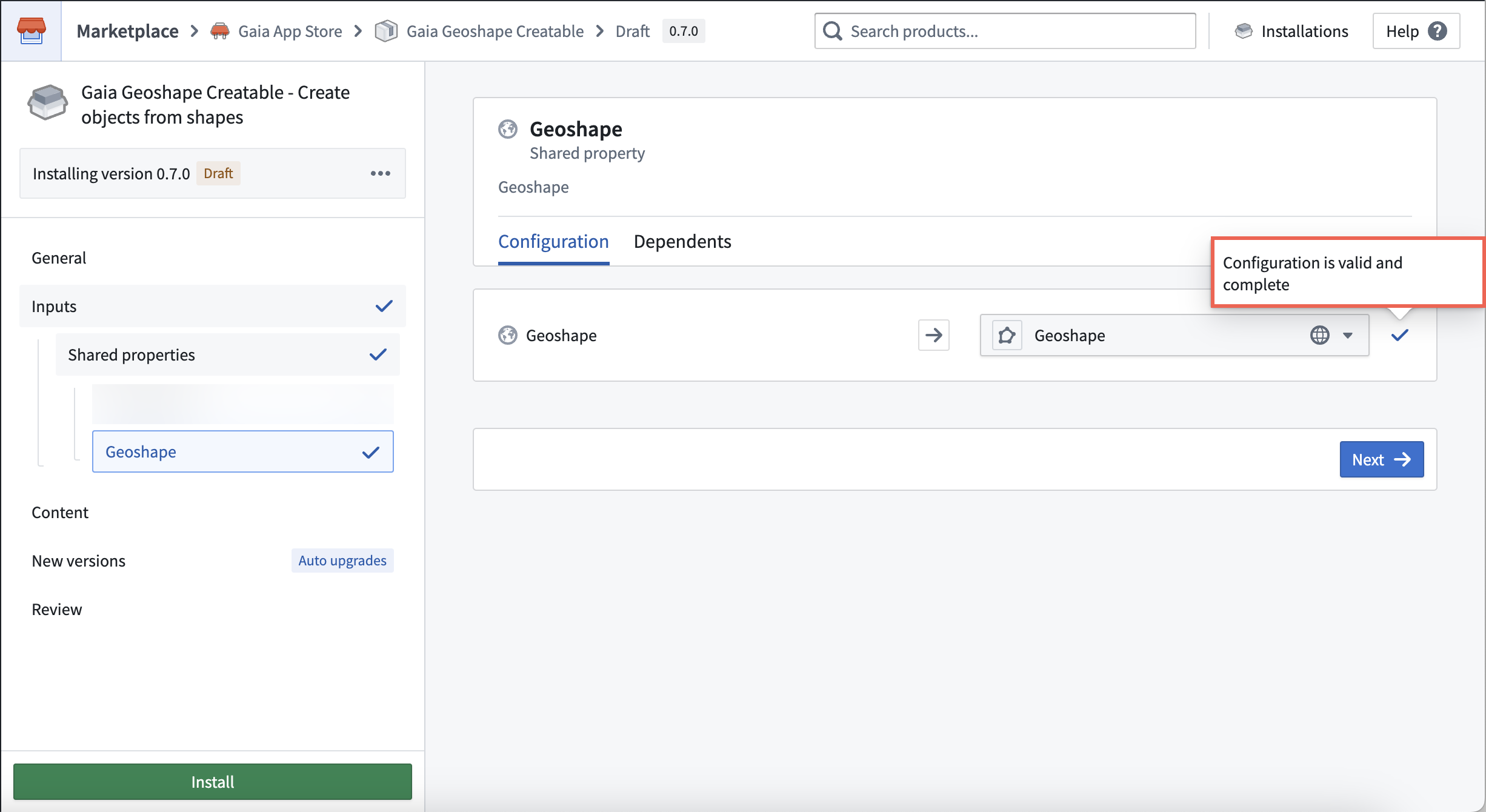
9. Optionally toggle on **Prefix Ontology entities** and insert a valid prefix, which may not contain certain special characters, such as parentheses or brackets.
10. Choose which **Ontology schema migrations** to enable on the right side of your screen. You can reference additional schema management information within the existing [object edits and materializations documentation](../../object-edits/schema-migrations/index.md).
11. Update the automatic configurations in **New versions** as necessary for your use case before you select **Next**. Marketplace pre-configures certain products to upgrade automatically.
12. Review your interface's configurations and select **Install**.
### `Gaia Geopoint Creatable` interface from the Gaia App Store
To install the `Gaia Geopoint Creatable` interface from Marketplace's Gaia App Store, select the `Gaia Geopoint Creatable` product from the store menu. Marketplace's interface installation workflows are common across different interfaces, so you can follow the same steps outlined in the [Geoshape Creatable interface installation instructions](#gaia-geoshape-creatable-interface-from-the-gaia-app-store) above with the following distinctions:
* In the **Shared properties** section of the **Inputs** window, map the `Geopoint` shared property from your ontology to the `Gaia Geopoint Creatable` interface.
## Create an object type that implements the `Gaia Geoshape Creatable` interface
Gaia can discover object types backed by a [dataset](../../data-integration/datasets/index.md) or [restricted view](../../security/restricted-views/index.md) in your ontology after they implement the `Gaia Geoshape Creatable` interface. In the following sections, you will:
* [Create an object type-backing dataset or restricted view](#create-an-object-type-backing-dataset-or-restricted-view).
* [Create an object type and ensure it integrates with Gotham](#create-an-object-type-and-ensure-it-integrates-with-gotham).
* [Configure an action type to enable object creation in Gaia](#create-and-configure-an-action-type-to-enable-object-creation-in-gaia).
* [Implement the `Gaia Geoshape Creatable` interface](#implement-the-gaia-geoshape-creatable-interface).
### Create an object type-backing dataset or restricted view
:::callout{theme="success"}
You should create a restricted view if you plan to secure objects based on a user's classification or by applying [markings](../../security/markings/index.md) to control file access. If your use case does not require the additional object security provided by classification-based access or markings, then you should create a dataset to back your object type.
:::
To create an object type that can integrate with Gaia, you will first need to create a dataset or restricted view that contains, at a minimum, the following columns:
* `Geoshape`, which you will set as a `string` for Gaia to automatically populate with your drawn object's shape.
* `Object ID`, which you will set as a `string` for Foundry to automatically populate with a unique ID for each Gaia shape you create as an object. This will serve as your object type's primary key.
* `Classification`, which you will set as an `array` to capture your object's classification. A `Classification` column is *only* required if a restricted view backs your object type.
:::callout{theme="success"}
You can configure additional columns in your dataset or restricted view based on your specific use case, such as `Name`, `Category`, or `Notes` columns set as `strings` to capture user-entered descriptive information about the object.
:::
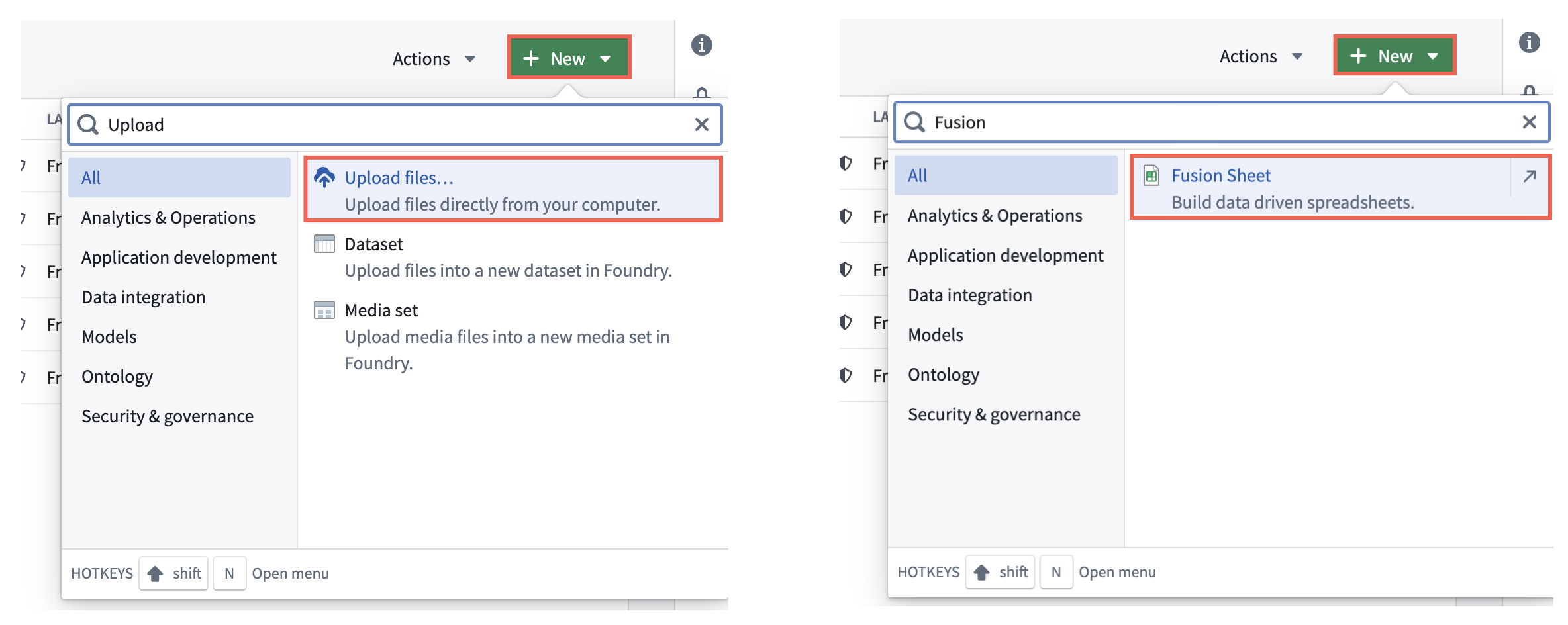
Select the **New** button in your Project to upload an existing file, such as a `.csv`, or use [Fusion](../../fusion/overview/index.md) to create a standalone dataset or a dataset that backs your restricted view. If you use a dataset to back your object type, you can skip the restricted view creation instructions below and proceed to [create your object type](#create-an-object-type-and-ensure-it-integrates-with-gotham).
:::callout{theme="success"}
You can reference additional restricted view creation instructions in Foundry's [security](../../security/restricted-views/index.md#create-restricted-views) and [object permissions](../../object-permissioning/configuring-rv-access-controls/index.md) documentation.
:::
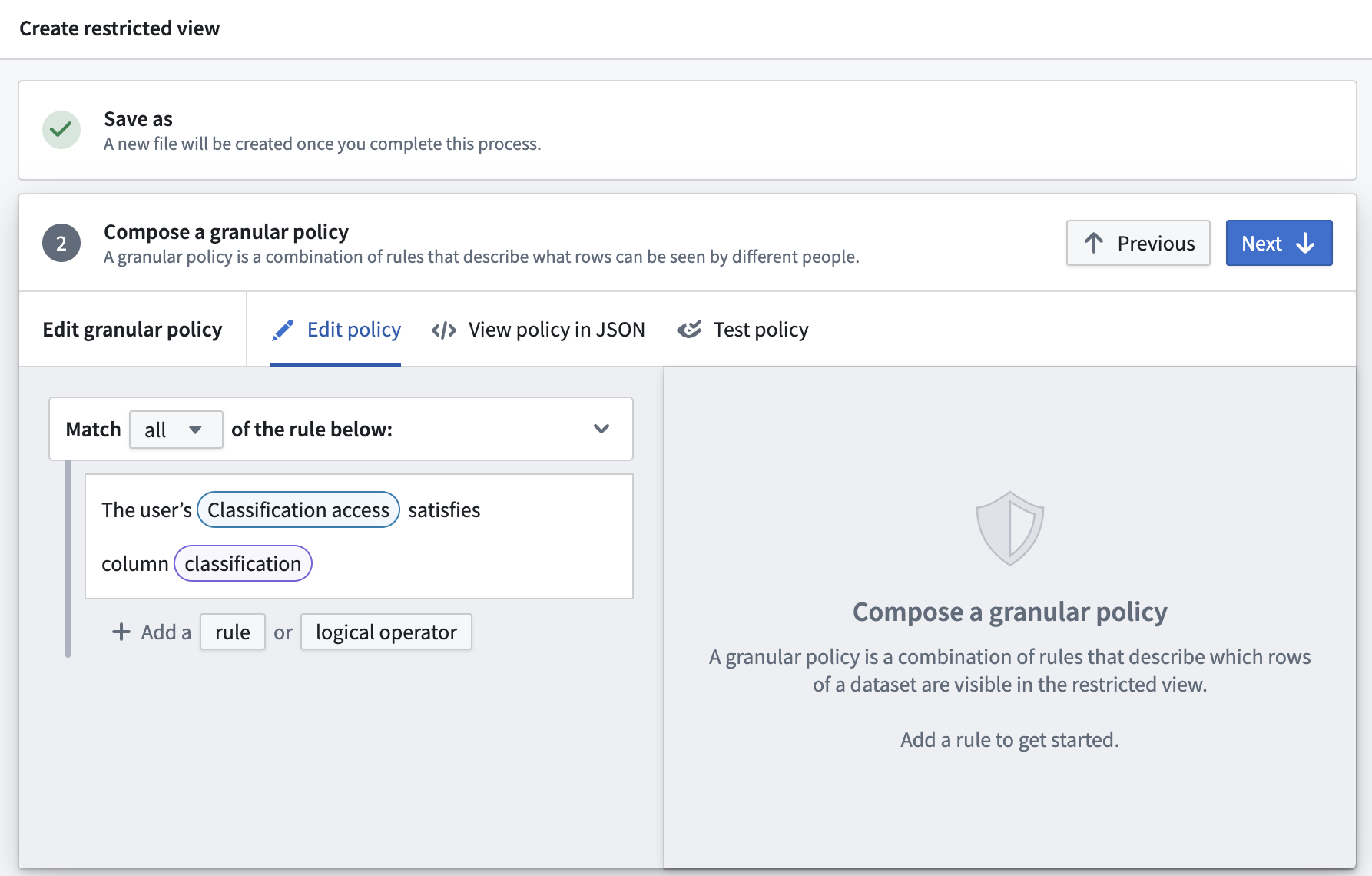
Your restricted view should contain a [granular policy](../../security/restricted-views/index.md#compose-a-granular-policy) that restricts user access to the data contained in the view based on their [classification access](../../security/classification-based-access-controls/index.md). Compose the granular policy as the first step in the **Create '{restricted view}'** window.
:::callout{theme="warning"}
If an object contains a CBAC or mandatory marking property to restrict its access, then Foundry creates objects using the CBAC or mandatory markings it inherits from the Gaia map and will *not* apply group restrictions defined in the map's security and sharing settings.
:::
You can reference an example policy in JSON below.
```json
{
"condition": {
"and": {
"conditions": [
{
"markings": {
"value": {
"field": {
"fieldName": "classification"
},
"type": "field"
},
"filters": [
{
"markingTypes": {
"markingTypes": [
"CBAC"
]
},
"type": "markingTypes"
}
]
},
"type": "markings"
}
]
},
"type": "and"
}
}
```
### Create an object type and ensure it integrates with Gotham
Once you configure your restricted view, launch [Ontology Manager](../../ontology-manager/overview/index.md) and follow the steps below to create your object type:
1. Select **New** > **Object type** from the top right of your screen.
2. Select **Use existing datasource** and choose **Select datasource** to locate and **Select** your restricted view before choosing **Next**.
3. Name your object type and optionally enter a **Description**.
4. Set `Object ID` as the **Primary Key** and `Name` as the **Title**.
5. Ensure `Classification`'s **Property** is an array of strings and `Geoshape`'s **Property** is geoshape. You will only need to validate the former if a restricted view backs your object type.
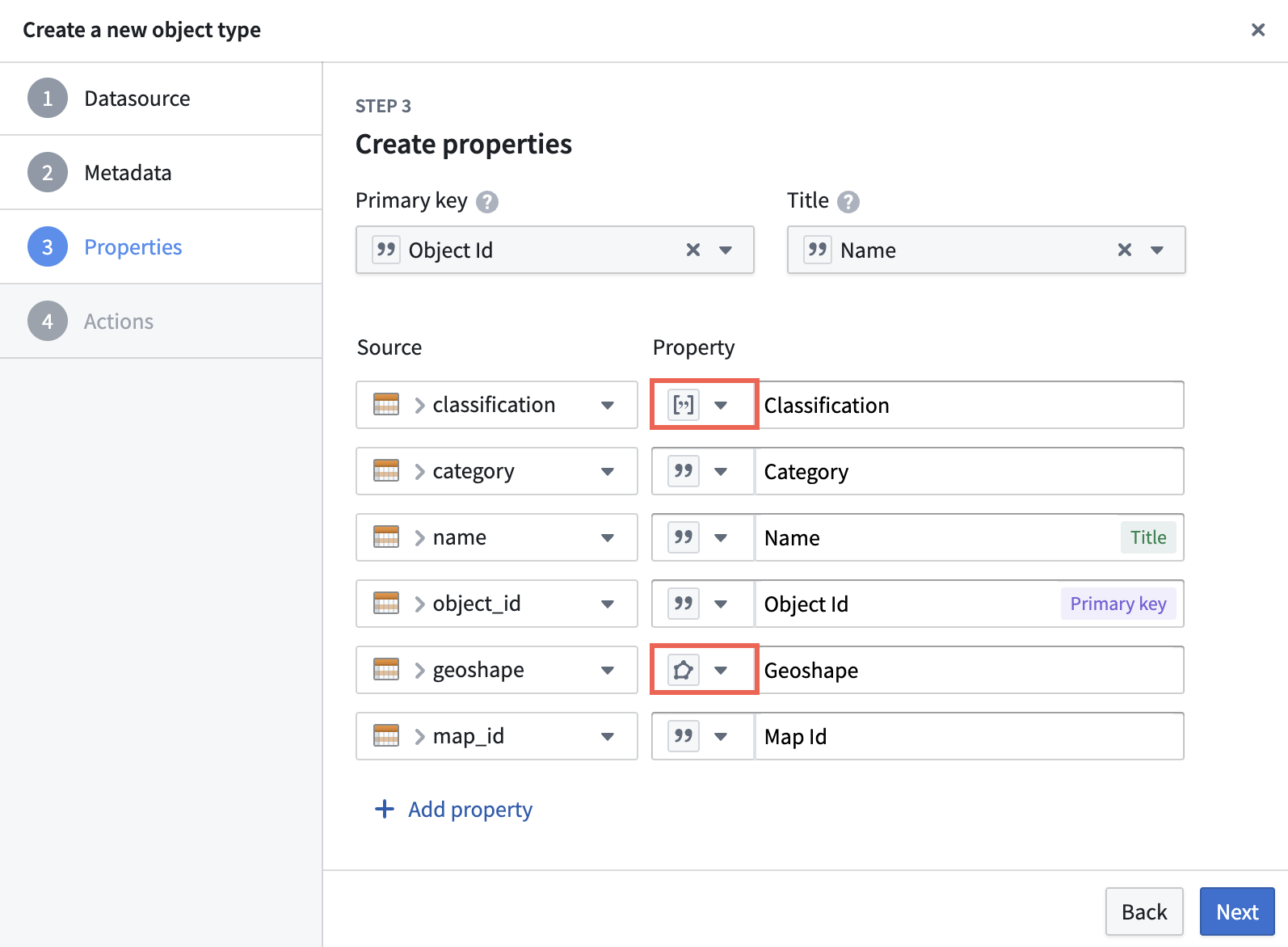
6. Select **Create**, as you will generate and configure action types *after* object type creation.
With your draft object type viewable in Ontology Manager, you will next select the `Classification` and `Geoshape` properties as shared property types in your ontology. Select the **Properties** panel beneath **Overview** and follow the steps below to complete the shared property type selection process:
:::callout{theme="success"}
If you are using a dataset to back your object type that does *not* contain a `Classification` property, then you should complete steps 1 and 4 below for your `Geoshape` property.
:::
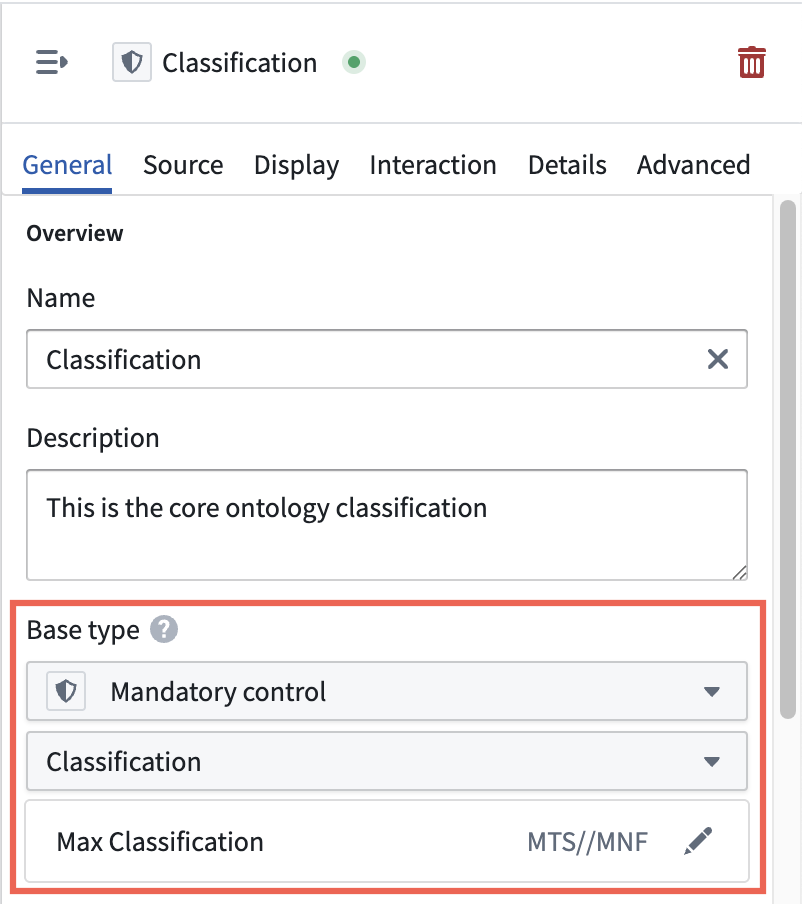
1. Select `Classification` from your list of properties to launch the **Property editor** window on the right side of your screen.
2. Update the **Base type** dropdown menus to contain `Mandatory control` and `CBAC Marking`, respectively.
3. Configure the property's **Max Classification**.
 :::callout{theme="warning"}
Contact Palantir Support if you are unable to select **Mandatory control** as the base type for `Classification`, as **Mandatory control** markings are not generally available across all Foundry enrollments.
:::
4. Scroll to the bottom of the window to the **Shared property** section and use the dropdown menu to assign `Classification` as a shared property.
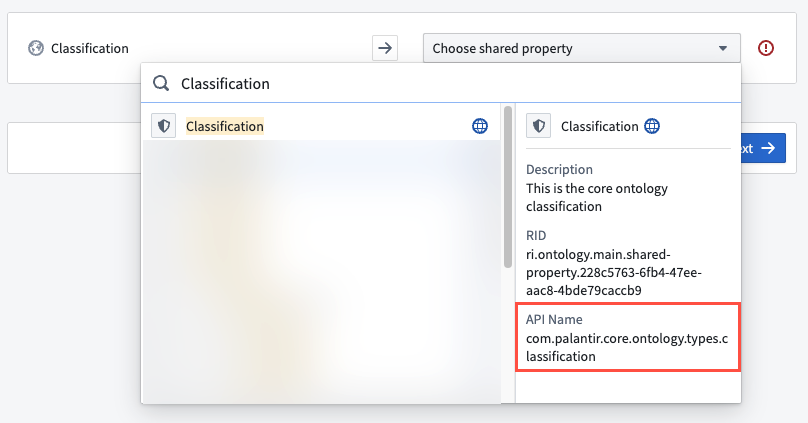
Repeat steps 1 and 4 above for your `Geoshape` property, as you will *not* need to configure its mandatory control markings or classification.
Select the green **Save** button at the top of the screen to publish incremental changes to your ontology before proceeding.
If your Foundry enrollment contains Map Rendering Service (MRS), then object types in your ontology with a geospatial property type automatically integrate with Gotham, and you can proceed to [create an action type to enable object creation in Gaia](#create-and-configure-an-action-type-to-enable-object-creation-in-gaia). Follow the steps [in the Gotham integration documentation](../enable-gotham-integration/index.md#how-to-check-if-your-enrollment-contains-mrs) to check if your enrollment contains MRS. If your enrollment does *not* contain MRS, then [follow the instructions](../enable-gotham-integration/index.md#toggle-on-type-mapping-in-foundrys-ontology-manager) to integrate data in your ontology with Gotham.
### Create and configure an action type to enable object creation in Gaia
Once you create your object type and ensure it integrates with Gotham, navigate back to the **Overview** window in Ontology Manager. Here, create an [action type](../../action-types/overview/index.md) that enables users to create and edit objects from shapes and configure their properties, such as `Name` and `Category`, from Gaia.
:::callout{theme="warning"}
Your Foundry enrollment must contain MRS to edit Ontology objects in Gaia, as this capability does not extend to objects added to Gaia through type mapping. Contact Palantir Support with questions about MRS installation or functionality.
:::
Follow the steps below to configure your action type:
1. Select **New** from the **Action types** section of your object type's **Overview** window to launch the **Create a new action type** pop-up window.
:::callout{theme="success"}
If you are unable to select the **New** button in **Action types**, then you can toggle on **Allow edits** on your object type in the **Datasources** window.
:::
2. Select **Modify or create object** under **Object actions** before choosing **Next**.
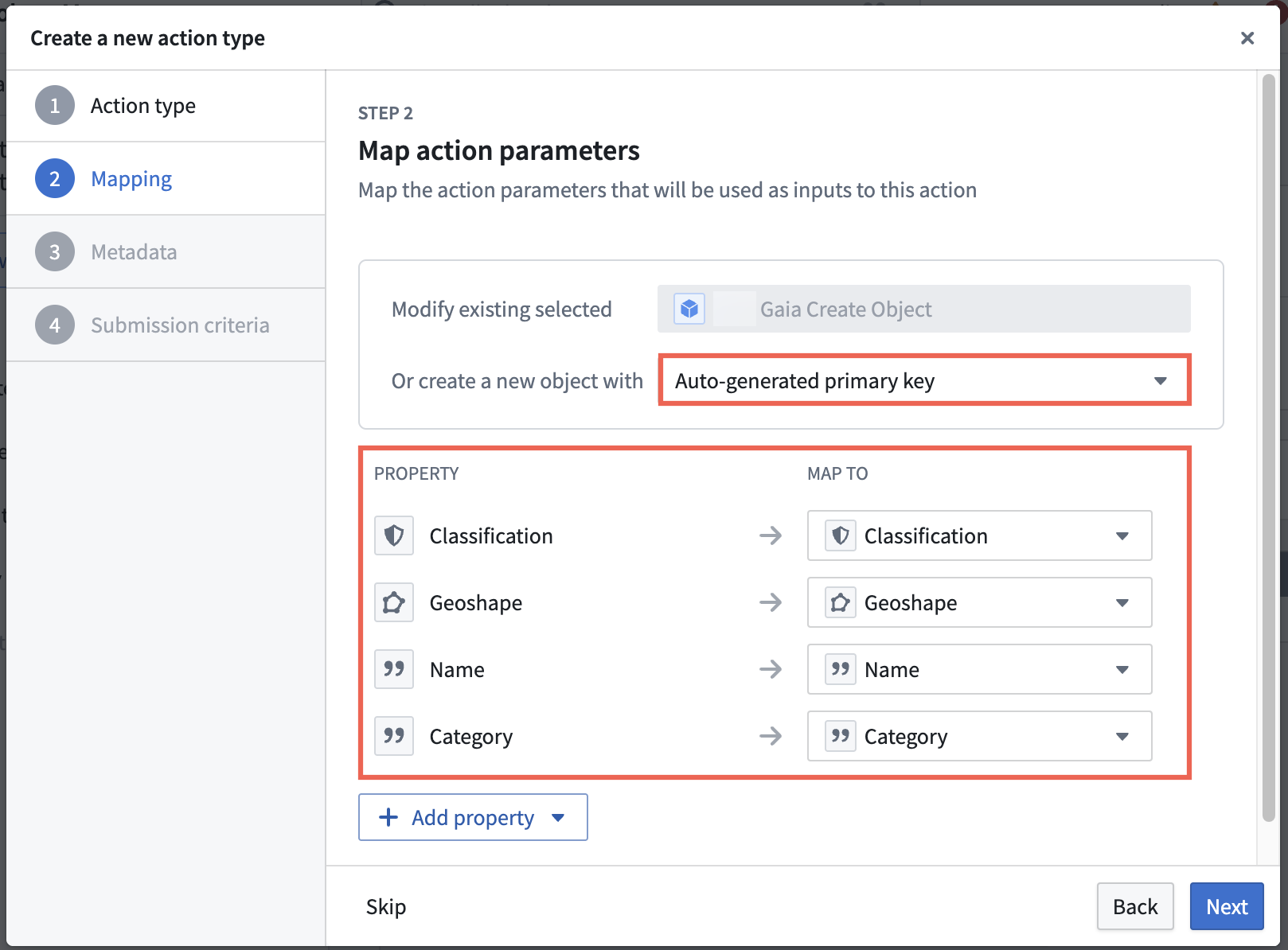
3. Select **Auto-generated primary key** from the **Or create a new object with** dropdown menu.
4. Select **Add property** to add all your existing properties to the action type, then choose **Next** to configure your action type's metadata.
You will only need to map a `Classification` property if a restricted view backs your object type.
5. Name your action type, and optionally enter a description and update its default icon.
6. Select an **Organization**, **Group**, or **User** who may execute the action, then select **Create**.
Select the green **Save** button at the top of the screen to publish incremental changes to your ontology before proceeding.
Next, you will configure your action type's **Rules** and **Parameters** by following the steps below:
1. Select **Rules** from the left side of the screen.
2. Validate the `Geoshape` property's configurations by selecting the arrow icon next to **Configure parameter**.
* Ensure the `Geoshape` property's type is either `Geoshape` or `String` from the **Type** dropdown menu on the right side of the screen.
* Ensure the **Disabled** option is selected in the **General** panel so a user cannot manually configure the location of a `Geoshape`.
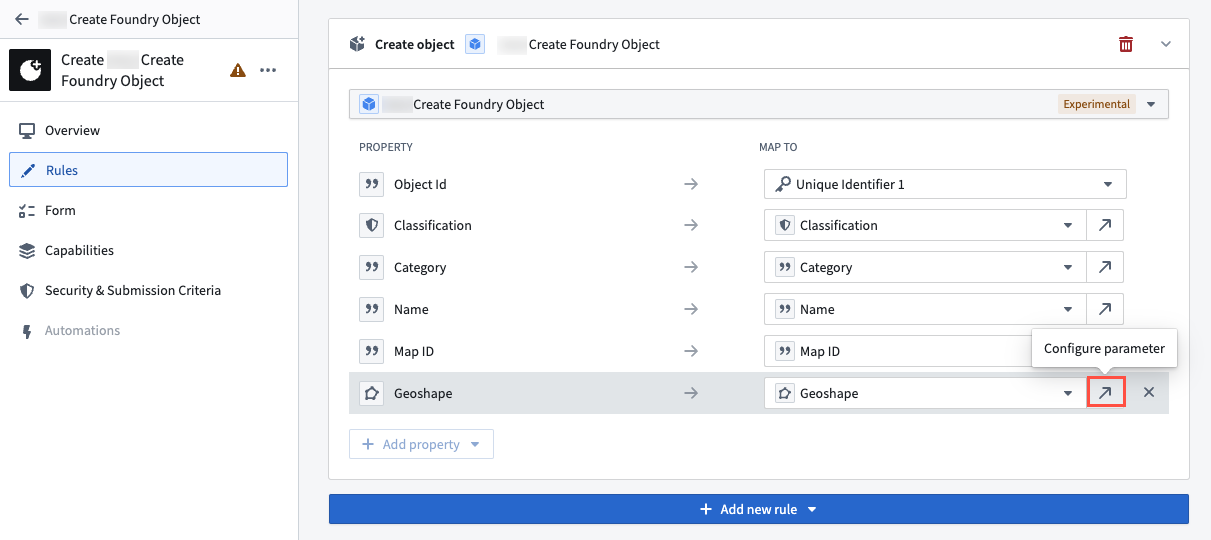
3. Select your `Classification` property from the **Form content** panel on the left side of your screen and verify that its **Type** is `Mandatory control`. You will only need to configure a `Classification` property if a restricted view backs your object type.
4. Select **Back to Form** and remove `Object Id` from **Form content** by selecting the **X** icon on the far right side of the **Object Id** panel. Foundry will automatically generate a unique ID for each object created from Gaia.
5. Select the green **Save** button at the top of your screen to save your action type's configurations to the Ontology.
### Implement the `Gaia Geoshape Creatable` interface
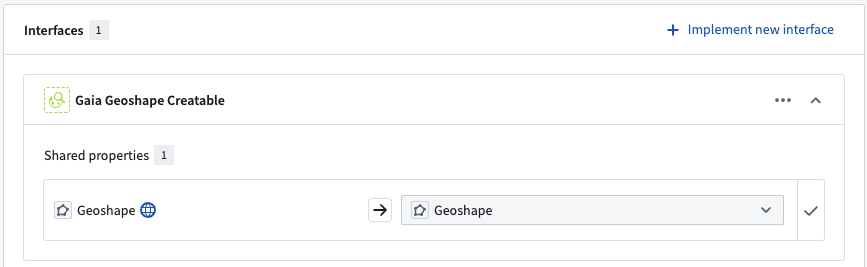
The final step in creating and configuring your object type in Ontology Manager is to implement the `Gaia Geoshape Creatable` interface that you [previously installed from Marketplace](#gaia-geoshape-creatable-interface-from-the-gaia-app-store). Navigate back to your object type's **Overview** page and follow the steps below to implement the interface before saving changes to your ontology:
1. Navigate to the **Interfaces** window beneath **Object Views** on the left side of your screen.
2. Select **Implement new interface** and search for `Gaia Geoshape Creatable` before choosing **Next**. If the superseding `Creatable Geoshape` interface is available on your enrollment, search for it instead.
3. Select **Choose an option** > **Replace existing** to map your ontology's `Geoshape` shared property type to the object type implementing the interface.
4. Select **Confirm** to close the **Implement an interface** window and **Save** the newly configured interface to your ontology.
## Create an object type that implements the `Gaia Geopoint Creatable` interface
To create an object type that implements the `Gaia Geopoint Creatable` interface, you can follow the same steps outlined in the [object type creation instructions for the `Gaia Geoshape Creatable` interface above](#create-an-object-type-that-implements-the-gaia-geoshape-creatable-interface) with the following distinctions in each section:
* [Create an object type-backing restricted view](#create-an-object-type-backing-dataset-or-restricted-view).
* Create a `Geopoint` instead of `Geoshape` column.
* [Create an object type and ensure it integrates with Gotham](#create-an-object-type-and-ensure-it-integrates-with-gotham).
* In the object type creation window, ensure `Geopoint`'s **Property** is geopoint.
* [Configure an action type to enable object creation in Gaia](#create-and-configure-an-action-type-to-enable-object-creation-in-gaia).
* Ensure your `Geopoint` property's **Type** is `Geopoint` in your action type's **Parameters** window.
* [Implement the `Gaia Geoshape Creatable` interface](#implement-the-gaia-geoshape-creatable-interface).
* Search for the `Gaia Geopoint Creatable` instead of the `Gaia Geoshape Creatable` interface, or the superseding `Creatable Geopoint` interface if it is available on your enrollment.
* When mapping your ontology's shared property types, select **Replace existing** for the `Geopoint` instead of the `Geoshape` property.
## Create an object type that implements the `MILSTD 2525C Symbol` interface
:::callout{theme="warning"}
Unlike the `Gaia Geoshape Creatable` and `Gaia Geopoint Creatable` interfaces, you **must** use a restricted view to back an object type that implements the `MILSTD 2525C Symbol` interface.
:::
To create an object type that implements the `MILSTD 2525C Symbol` interface, you can follow the same steps outlined in the [object type creation instructions for the `Gaia Geoshape Creatable` interface above](#create-an-object-type-that-implements-the-gaia-geoshape-creatable-interface) with the following distinctions in each section:
* [Create an object type-backing restricted view](#create-an-object-type-backing-dataset-or-restricted-view).
* You will *only* need to create `Object ID`, `Classification`, and `Title` columns.
* [Create an object type and ensure it integrates with Gotham](#create-an-object-type-and-ensure-it-integrates-with-gotham).
* In the object type creation window, set `Object ID` as the **Primary key** and `Title` as the **Title**.
When [configuring an action type to enable object creation](#create-and-configure-an-action-type-to-enable-object-creation-in-gaia), ensure you map *at least* the `Symbol Anchor Points` and `SIDC` properties in the **Create a new action type** window before you select **Next**. Mapping the `Classification` property is optional, but doing so lets you control how classification markings are applied to the objects a user creates from a Gaia map.
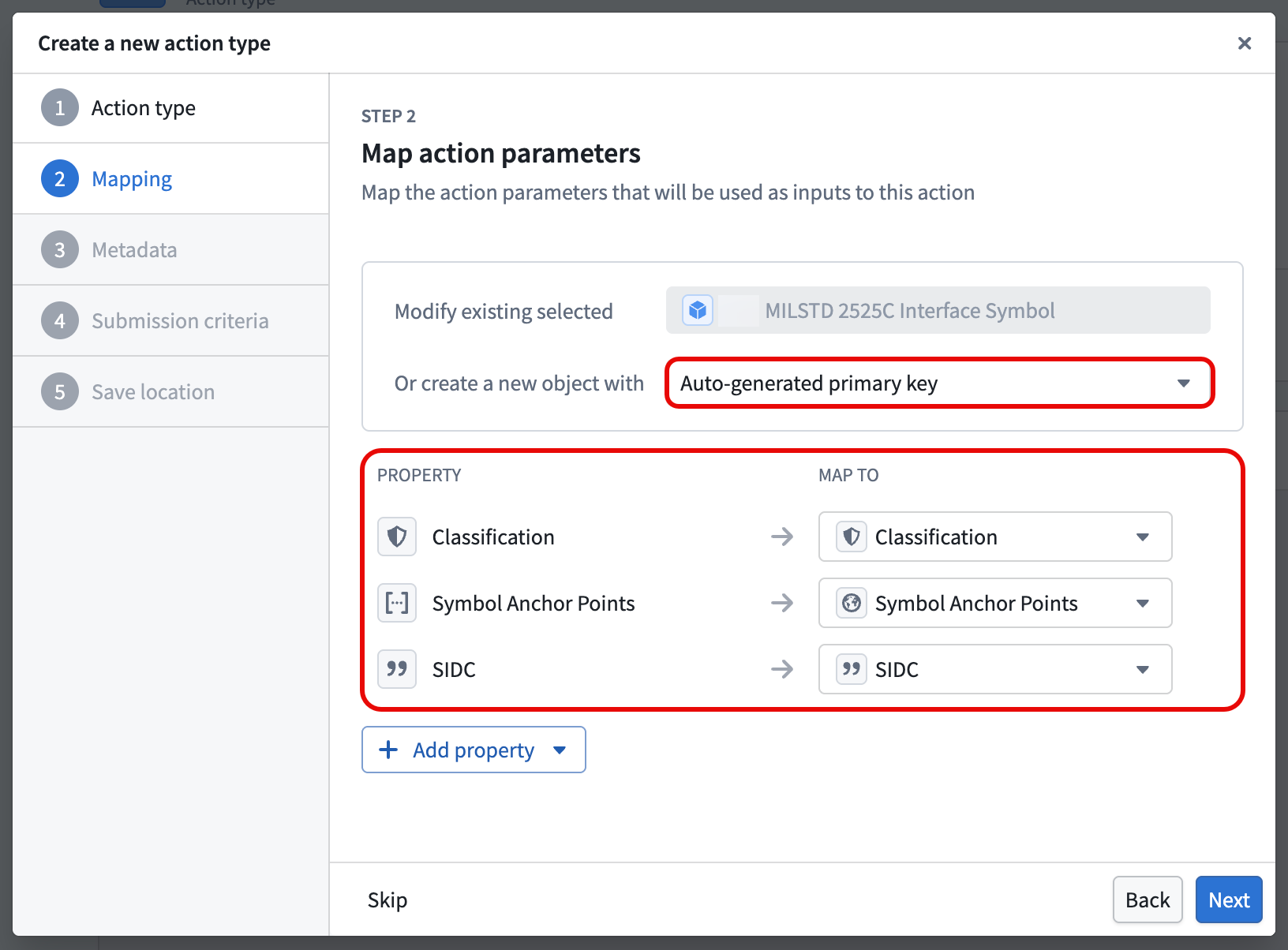
Select the green **Save** button at the top of the screen to publish incremental changes to your ontology before proceeding.
If you mapped the `Classification` property, configure your action type's **Rules** and **Parameters** by following the steps below:
1. Select **Rules** from the left side of the screen.
2. Select the arrow icon to the right of your `Classification` property to **Configure parameter**.
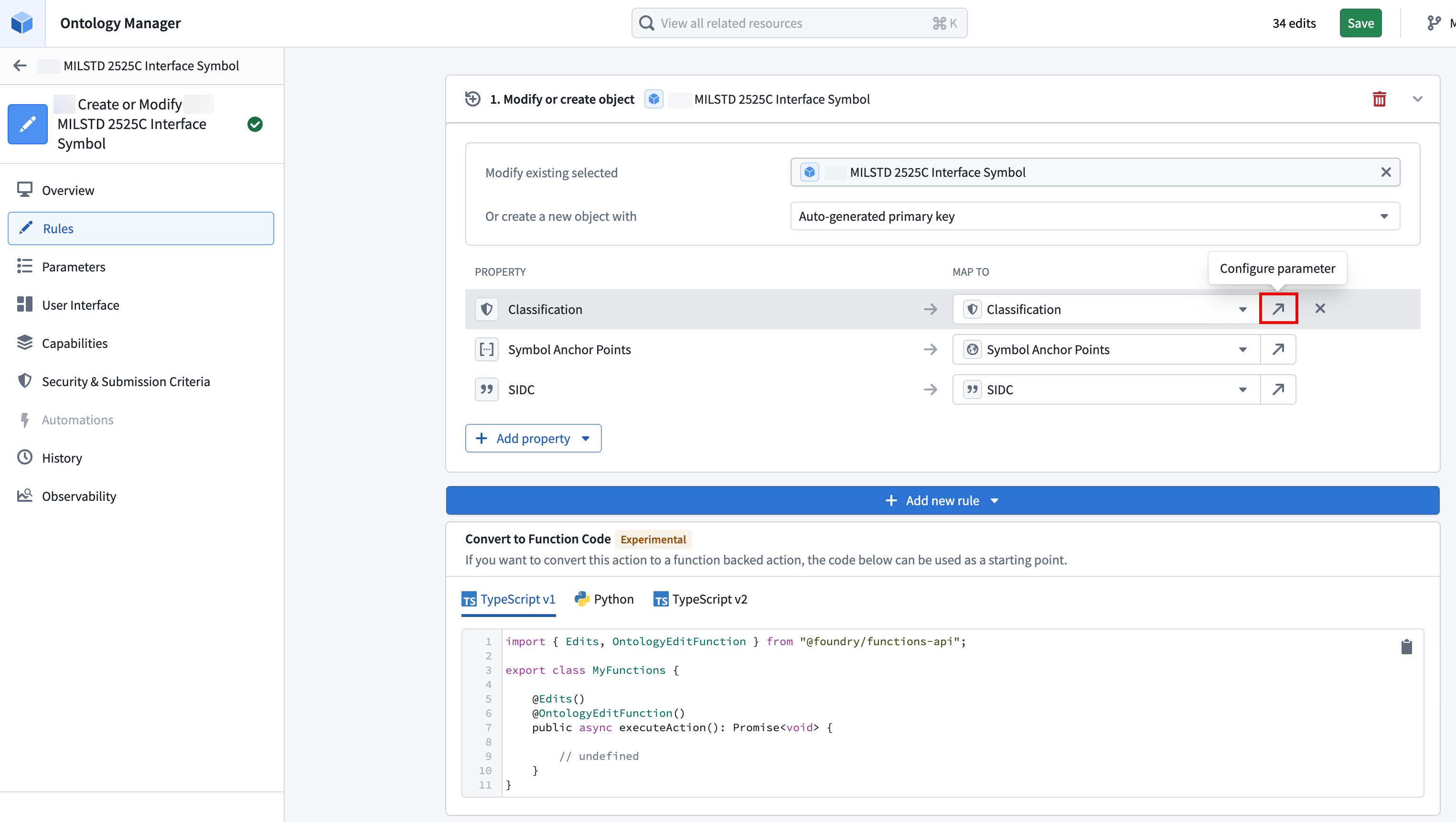
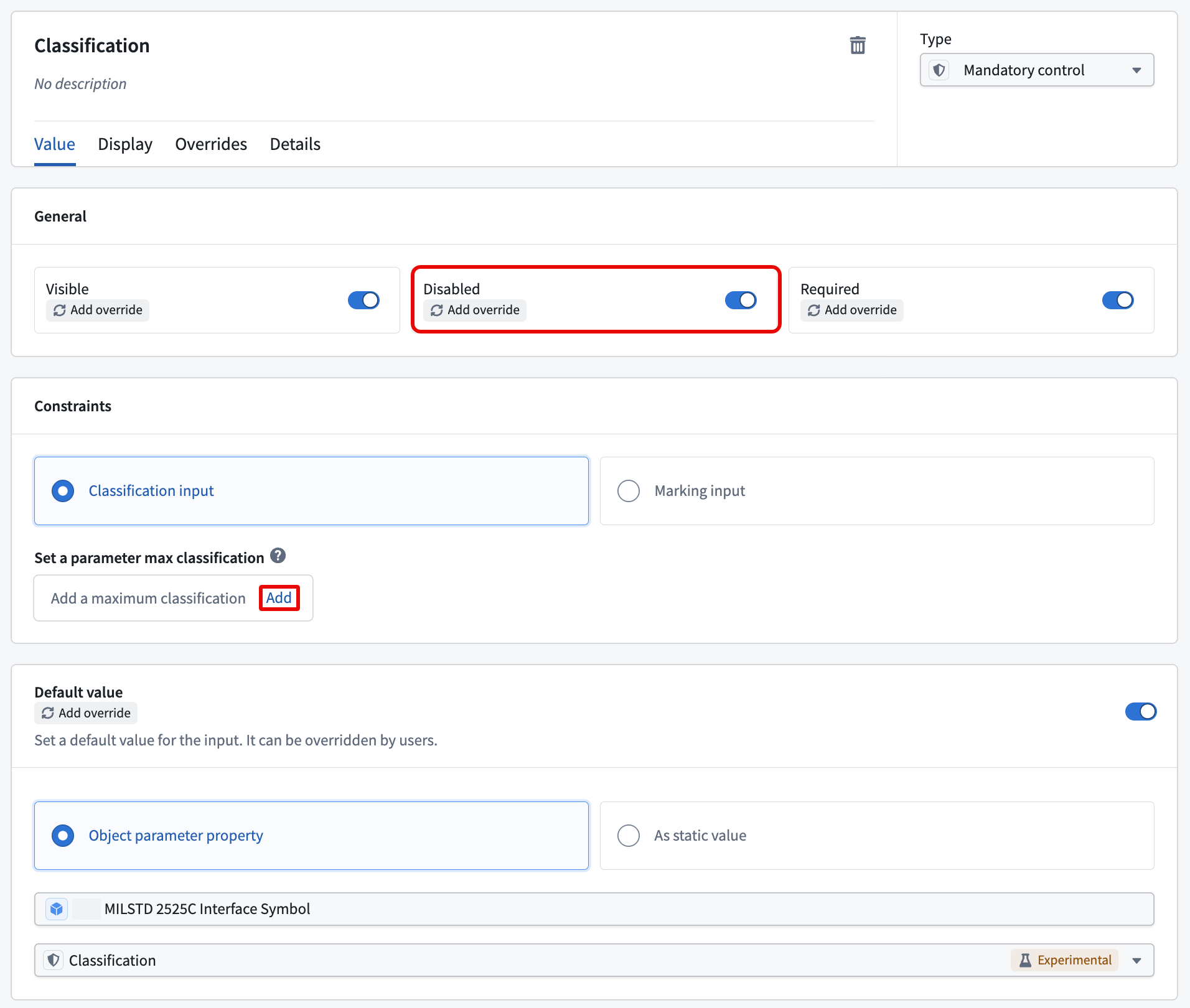
3. If the `Classification` property on your object type is fulfilled by the shared property type, then you should toggle on **Disabled** in the **General** section to ensure the object created automatically inherits its classification markings from your Gaia map. If you want to manually set the classification markings on creation, then do not toggle on **Disabled**.
4. Select **Add** under **Set a parameter max classification** to ensure the action type's maximum classification matches the object type's maximum classification.
Select the green **Save** button at the top of the screen to publish the action type to your ontology.
:::callout{theme="warning"}
Since the [use of struct properties in actions is not currently supported](../structs-overview/index.md#current-levels-of-support), you will not be able to configure the `Speed Modifier (Z)` or `Altitude/Depth Modifier (X)` properties as action type parameters.
:::
* [Implement the `Gaia Geoshape Creatable` interface](#implement-the-gaia-geoshape-creatable-interface).
* Search for the `MILSTD 2525C Symbol` instead of the `Gaia Geoshape Creatable` interface.
* When mapping your ontology's shared property types, select **Replace existing** for your `Classification` property and **Create edit-only property** for the others.
## Use interface action type constraints to enable automatic discovery of object types supporting object creation
You can use `Create or Modify` actions configured on object types that implement the `Creatable Geoshape`, `Creatable Geopoint`, or `MILSTD 2525C Symbol` interface to fulfill their optional `Create or Modify` [interface action type constraint](../../interfaces/interface-action-type-constraints/index.md). Mapped interface action type constraints enable ontology object creation in Gaia *without* the need to register the object type and its action type in the [Gaia admin application or Control Panel extension](#register-your-ontology-and-its-types). You should fulfill interface action type constraints instead of registering object type and action type entries manually, as these constraints help eliminate the potential for manual registration errors.
:::callout{theme="neutral" title="Planned deprecation of the Gaia admin application and Control Panel extension"}
The Gaia admin application and Control Panel extension will enter into [planned deprecation](../../platform-overview/development-life-cycle/index.md#planned-deprecation) in November 2026. From November 2026, the **Foundry Object Creation Config** (admin application) and **Actions for Creating Objects From Gaia** (Control Panel extension) sections will be read-only in favor of using interface action type constraints. Contact Palantir Support with questions about migrating object types you have already registered manually.
:::
The superseded `Gaia Geoshape Creatable`, `Gaia Geopoint Creatable`, `Gaia Geocreatable`, and `Gaia Milsym Creatable` interfaces do *not* define interface action type constraints. An object type that implements only superseded interfaces cannot fulfill an interface action type constraint, so you must register the object type and its action type manually in the Gaia admin application or Control Panel extension.
### Fulfill an interface action type constraint on your object type
Open your object type in Ontology Manager and validate the following prerequisites:
* The object type must implement an [interface that supports interface action type constraints](#use-interface-action-type-constraints-to-enable-automatic-discovery-of-object-types-supporting-object-creation). If your object type implements more than one supported interface, review [your action type configuration options](#choose-your-action-type-configuration) before you fulfill its constraints.
* The object type must have a configured `Create or Modify` action type, ensuring you can create new *and* modify existing objects from Gaia.
Next, follow the steps below to fulfill the interface action type constraint:
1. Select **Interfaces** from the left panel of your object type before choosing the **Actions** tab.
2. Map your `Create or Modify` action type to the interface's action type constraint.
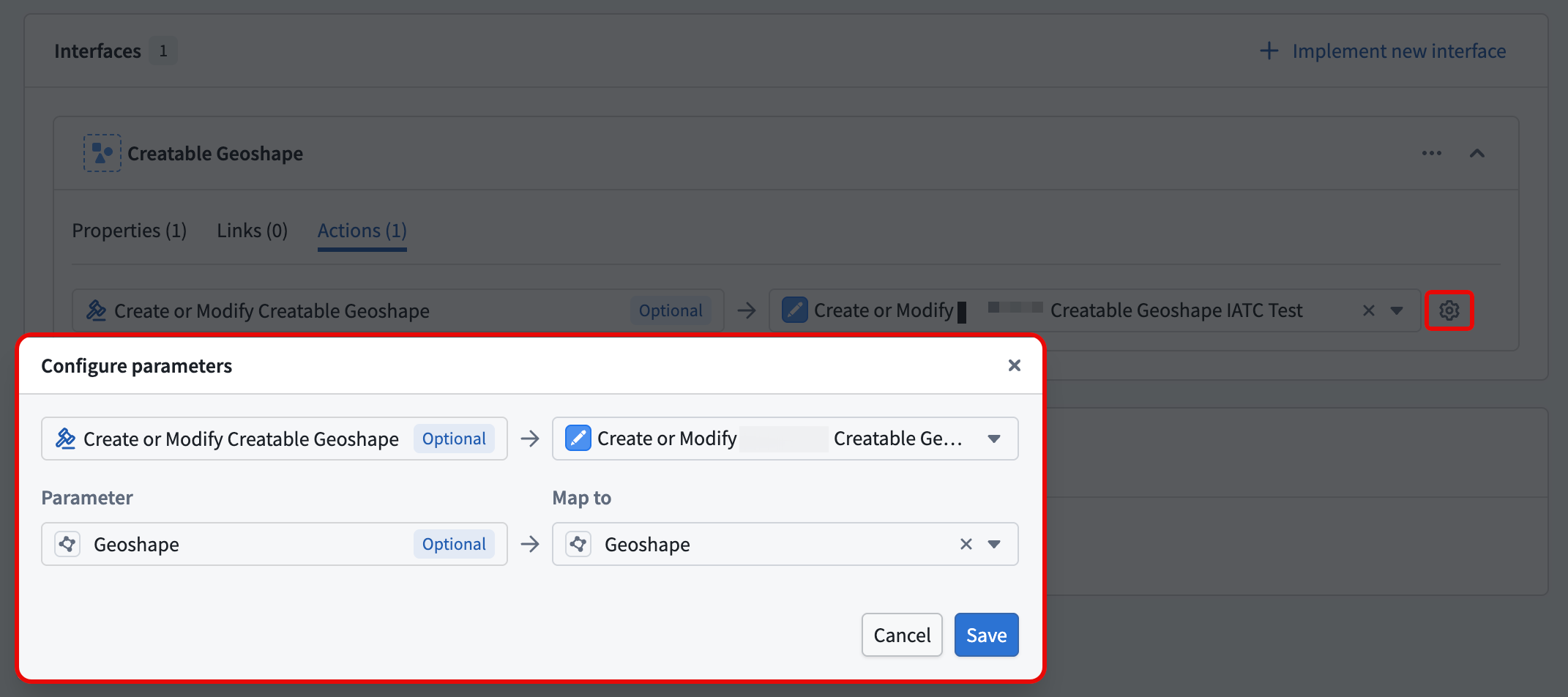
3. Select the **Settings** icon to map the constraint's parameters to your action type's parameters. For the `Creatable Geopoint` interface, map the `Geopoint` parameter. For the `Creatable Geoshape` interface, map the `Geoshape` parameter. For the `MILSTD 2525C Symbol` interface, map at least the `Symbol Anchor Points` and `SIDC` parameters.
:::callout{theme="warning"}
Contact Palantir Support if you are unable to select **Mandatory control** as the base type for `Classification`, as **Mandatory control** markings are not generally available across all Foundry enrollments.
:::
4. Scroll to the bottom of the window to the **Shared property** section and use the dropdown menu to assign `Classification` as a shared property.

Repeat steps 1 and 4 above for your `Geoshape` property, as you will *not* need to configure its mandatory control markings or classification.
Select the green **Save** button at the top of the screen to publish incremental changes to your ontology before proceeding.
If your Foundry enrollment contains Map Rendering Service (MRS), then object types in your ontology with a geospatial property type automatically integrate with Gotham, and you can proceed to [create an action type to enable object creation in Gaia](#create-and-configure-an-action-type-to-enable-object-creation-in-gaia). Follow the steps [in the Gotham integration documentation](../enable-gotham-integration/index.md#how-to-check-if-your-enrollment-contains-mrs) to check if your enrollment contains MRS. If your enrollment does *not* contain MRS, then [follow the instructions](../enable-gotham-integration/index.md#toggle-on-type-mapping-in-foundrys-ontology-manager) to integrate data in your ontology with Gotham.
### Create and configure an action type to enable object creation in Gaia
Once you create your object type and ensure it integrates with Gotham, navigate back to the **Overview** window in Ontology Manager. Here, create an [action type](../../action-types/overview/index.md) that enables users to create and edit objects from shapes and configure their properties, such as `Name` and `Category`, from Gaia.
:::callout{theme="warning"}
Your Foundry enrollment must contain MRS to edit Ontology objects in Gaia, as this capability does not extend to objects added to Gaia through type mapping. Contact Palantir Support with questions about MRS installation or functionality.
:::
Follow the steps below to configure your action type:
1. Select **New** from the **Action types** section of your object type's **Overview** window to launch the **Create a new action type** pop-up window.
:::callout{theme="success"}
If you are unable to select the **New** button in **Action types**, then you can toggle on **Allow edits** on your object type in the **Datasources** window.
:::
2. Select **Modify or create object** under **Object actions** before choosing **Next**.
3. Select **Auto-generated primary key** from the **Or create a new object with** dropdown menu.
4. Select **Add property** to add all your existing properties to the action type, then choose **Next** to configure your action type's metadata.
You will only need to map a `Classification` property if a restricted view backs your object type.

5. Name your action type, and optionally enter a description and update its default icon.
6. Select an **Organization**, **Group**, or **User** who may execute the action, then select **Create**.
Select the green **Save** button at the top of the screen to publish incremental changes to your ontology before proceeding.
Next, you will configure your action type's **Rules** and **Parameters** by following the steps below:
1. Select **Rules** from the left side of the screen.
2. Validate the `Geoshape` property's configurations by selecting the arrow icon next to **Configure parameter**.
* Ensure the `Geoshape` property's type is either `Geoshape` or `String` from the **Type** dropdown menu on the right side of the screen.
* Ensure the **Disabled** option is selected in the **General** panel so a user cannot manually configure the location of a `Geoshape`.

3. Select your `Classification` property from the **Form content** panel on the left side of your screen and verify that its **Type** is `Mandatory control`. You will only need to configure a `Classification` property if a restricted view backs your object type.
4. Select **Back to Form** and remove `Object Id` from **Form content** by selecting the **X** icon on the far right side of the **Object Id** panel. Foundry will automatically generate a unique ID for each object created from Gaia.
5. Select the green **Save** button at the top of your screen to save your action type's configurations to the Ontology.
### Implement the `Gaia Geoshape Creatable` interface
The final step in creating and configuring your object type in Ontology Manager is to implement the `Gaia Geoshape Creatable` interface that you [previously installed from Marketplace](#gaia-geoshape-creatable-interface-from-the-gaia-app-store). Navigate back to your object type's **Overview** page and follow the steps below to implement the interface before saving changes to your ontology:
1. Navigate to the **Interfaces** window beneath **Object Views** on the left side of your screen.
2. Select **Implement new interface** and search for `Gaia Geoshape Creatable` before choosing **Next**. If the superseding `Creatable Geoshape` interface is available on your enrollment, search for it instead.
3. Select **Choose an option** > **Replace existing** to map your ontology's `Geoshape` shared property type to the object type implementing the interface.
4. Select **Confirm** to close the **Implement an interface** window and **Save** the newly configured interface to your ontology.

## Create an object type that implements the `Gaia Geopoint Creatable` interface
To create an object type that implements the `Gaia Geopoint Creatable` interface, you can follow the same steps outlined in the [object type creation instructions for the `Gaia Geoshape Creatable` interface above](#create-an-object-type-that-implements-the-gaia-geoshape-creatable-interface) with the following distinctions in each section:
* [Create an object type-backing restricted view](#create-an-object-type-backing-dataset-or-restricted-view).
* Create a `Geopoint` instead of `Geoshape` column.
* [Create an object type and ensure it integrates with Gotham](#create-an-object-type-and-ensure-it-integrates-with-gotham).
* In the object type creation window, ensure `Geopoint`'s **Property** is geopoint.
* [Configure an action type to enable object creation in Gaia](#create-and-configure-an-action-type-to-enable-object-creation-in-gaia).
* Ensure your `Geopoint` property's **Type** is `Geopoint` in your action type's **Parameters** window.
* [Implement the `Gaia Geoshape Creatable` interface](#implement-the-gaia-geoshape-creatable-interface).
* Search for the `Gaia Geopoint Creatable` instead of the `Gaia Geoshape Creatable` interface, or the superseding `Creatable Geopoint` interface if it is available on your enrollment.
* When mapping your ontology's shared property types, select **Replace existing** for the `Geopoint` instead of the `Geoshape` property.
## Create an object type that implements the `MILSTD 2525C Symbol` interface
:::callout{theme="warning"}
Unlike the `Gaia Geoshape Creatable` and `Gaia Geopoint Creatable` interfaces, you **must** use a restricted view to back an object type that implements the `MILSTD 2525C Symbol` interface.
:::
To create an object type that implements the `MILSTD 2525C Symbol` interface, you can follow the same steps outlined in the [object type creation instructions for the `Gaia Geoshape Creatable` interface above](#create-an-object-type-that-implements-the-gaia-geoshape-creatable-interface) with the following distinctions in each section:
* [Create an object type-backing restricted view](#create-an-object-type-backing-dataset-or-restricted-view).
* You will *only* need to create `Object ID`, `Classification`, and `Title` columns.
* [Create an object type and ensure it integrates with Gotham](#create-an-object-type-and-ensure-it-integrates-with-gotham).
* In the object type creation window, set `Object ID` as the **Primary key** and `Title` as the **Title**.
When [configuring an action type to enable object creation](#create-and-configure-an-action-type-to-enable-object-creation-in-gaia), ensure you map *at least* the `Symbol Anchor Points` and `SIDC` properties in the **Create a new action type** window before you select **Next**. Mapping the `Classification` property is optional, but doing so lets you control how classification markings are applied to the objects a user creates from a Gaia map.

Select the green **Save** button at the top of the screen to publish incremental changes to your ontology before proceeding.
If you mapped the `Classification` property, configure your action type's **Rules** and **Parameters** by following the steps below:
1. Select **Rules** from the left side of the screen.
2. Select the arrow icon to the right of your `Classification` property to **Configure parameter**.

3. If the `Classification` property on your object type is fulfilled by the shared property type, then you should toggle on **Disabled** in the **General** section to ensure the object created automatically inherits its classification markings from your Gaia map. If you want to manually set the classification markings on creation, then do not toggle on **Disabled**.
4. Select **Add** under **Set a parameter max classification** to ensure the action type's maximum classification matches the object type's maximum classification.

Select the green **Save** button at the top of the screen to publish the action type to your ontology.
:::callout{theme="warning"}
Since the [use of struct properties in actions is not currently supported](../structs-overview/index.md#current-levels-of-support), you will not be able to configure the `Speed Modifier (Z)` or `Altitude/Depth Modifier (X)` properties as action type parameters.
:::
* [Implement the `Gaia Geoshape Creatable` interface](#implement-the-gaia-geoshape-creatable-interface).
* Search for the `MILSTD 2525C Symbol` instead of the `Gaia Geoshape Creatable` interface.
* When mapping your ontology's shared property types, select **Replace existing** for your `Classification` property and **Create edit-only property** for the others.
## Use interface action type constraints to enable automatic discovery of object types supporting object creation
You can use `Create or Modify` actions configured on object types that implement the `Creatable Geoshape`, `Creatable Geopoint`, or `MILSTD 2525C Symbol` interface to fulfill their optional `Create or Modify` [interface action type constraint](../../interfaces/interface-action-type-constraints/index.md). Mapped interface action type constraints enable ontology object creation in Gaia *without* the need to register the object type and its action type in the [Gaia admin application or Control Panel extension](#register-your-ontology-and-its-types). You should fulfill interface action type constraints instead of registering object type and action type entries manually, as these constraints help eliminate the potential for manual registration errors.
:::callout{theme="neutral" title="Planned deprecation of the Gaia admin application and Control Panel extension"}
The Gaia admin application and Control Panel extension will enter into [planned deprecation](../../platform-overview/development-life-cycle/index.md#planned-deprecation) in November 2026. From November 2026, the **Foundry Object Creation Config** (admin application) and **Actions for Creating Objects From Gaia** (Control Panel extension) sections will be read-only in favor of using interface action type constraints. Contact Palantir Support with questions about migrating object types you have already registered manually.
:::
The superseded `Gaia Geoshape Creatable`, `Gaia Geopoint Creatable`, `Gaia Geocreatable`, and `Gaia Milsym Creatable` interfaces do *not* define interface action type constraints. An object type that implements only superseded interfaces cannot fulfill an interface action type constraint, so you must register the object type and its action type manually in the Gaia admin application or Control Panel extension.
### Fulfill an interface action type constraint on your object type
Open your object type in Ontology Manager and validate the following prerequisites:
* The object type must implement an [interface that supports interface action type constraints](#use-interface-action-type-constraints-to-enable-automatic-discovery-of-object-types-supporting-object-creation). If your object type implements more than one supported interface, review [your action type configuration options](#choose-your-action-type-configuration) before you fulfill its constraints.
* The object type must have a configured `Create or Modify` action type, ensuring you can create new *and* modify existing objects from Gaia.
Next, follow the steps below to fulfill the interface action type constraint:
1. Select **Interfaces** from the left panel of your object type before choosing the **Actions** tab.
2. Map your `Create or Modify` action type to the interface's action type constraint.
3. Select the **Settings** icon to map the constraint's parameters to your action type's parameters. For the `Creatable Geopoint` interface, map the `Geopoint` parameter. For the `Creatable Geoshape` interface, map the `Geoshape` parameter. For the `MILSTD 2525C Symbol` interface, map at least the `Symbol Anchor Points` and `SIDC` parameters.
4. Select the green **Save** button at the top of the screen to publish the changes to your ontology.
5. If you previously registered this object type manually, locate its object type and action type RID entry in the **Foundry Object Creation Config** panel of the admin application or Control Panel extension, delete the entry, and save your changes.
6. Reload Gaia and confirm that your object type appears in the **Object type** dropdown menu.
### Choose your action type configuration
If your object type implements multiple supported interfaces, use a *single* or *separate* action type for each constraint:
* **Single action type (recommended):** Map one `Create or Modify` action type to the constraint on each interface your object type implements. This option requires the least configuration and is the most flexible. Because one action type covers every interface, its action form can contain optional parameters that may not be relevant to every creation workflow.
* **Separate action type:** Define one `Create or Modify` action type for each interface your object type implements, and map each action type to the constraint on the corresponding interface. Each action form then contains only the parameters relevant to that interface, so users see fewer optional parameters. This option requires more configuration.
## Register your ontology and its types
Now, you have object types that implement the `Gaia Geoshape Creatable`, `Gaia Geopoint Creatable`, and `MILSTD 2525C Symbol` interfaces and contain accompanying action types that enable a user to configure objects they create from shapes drawn, points dropped, and tactical graphics configured on a Gaia map. Next, you will register your ontology, object types, and action types either in Gaia's admin application or [Control Panel](../../administration/control-panel/index.md) extension, depending on your enrollment.
:::callout{theme="neutral"}
To access Gaia's admin application, you must be a platform administrator. To access Gaia's Control Panel extension, you must be granted the **Organization administrator** role.
Contact Palantir Support with questions about access to the admin application or Control Panel extension if you are unable to access either.
:::
To register your ontology, object types, and action types, launch Gaia's admin application or Control Panel extension and follow the steps below:
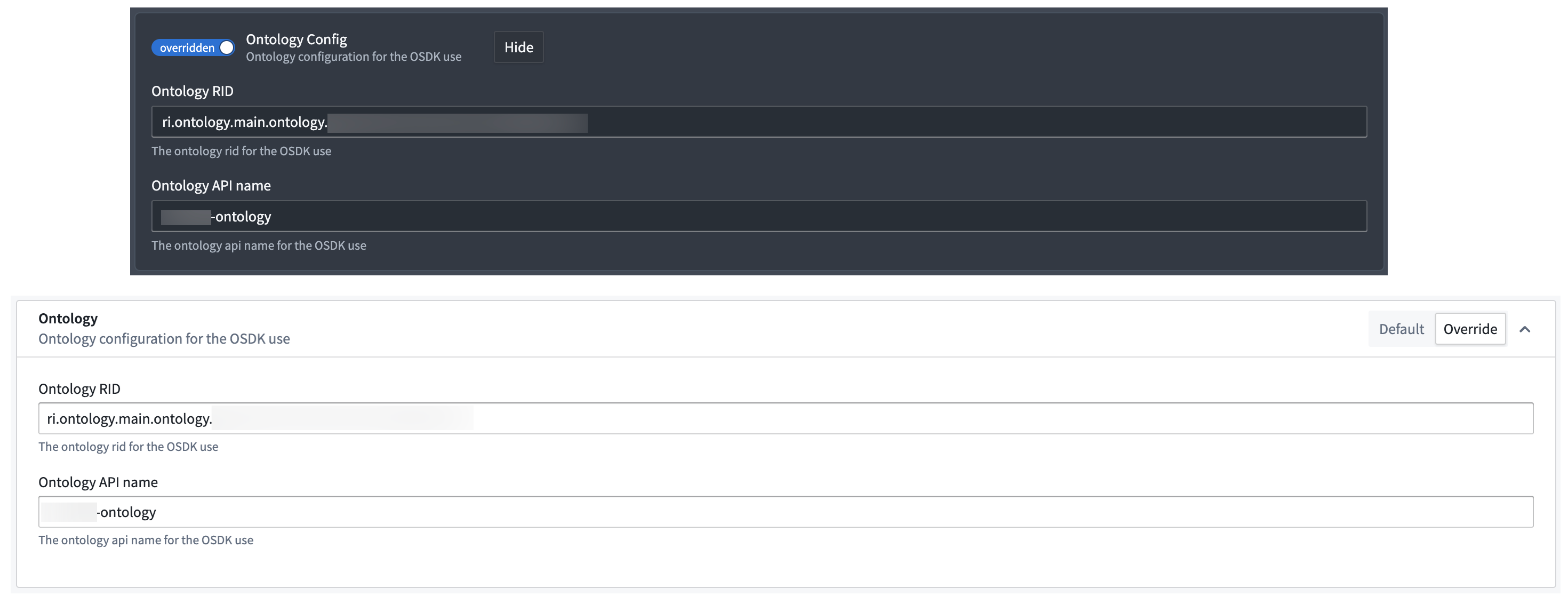
1. Locate the **Ontology Config** (admin application)/**Ontology** (Control Panel extension) panel and verify your ontology's configuration. If your ontology is not configured, select the toggle on the left side of the panel to set **Ontology Config**/**Ontology** to `overridden` (admin application)/`Override` (Control Panel extension).
2. Enter your ontology's RID and API name into the **Ontology RID** and **API Name** text boxes. To locate and copy your ontology's RID and API name, navigate to Ontology Manager and choose **Ontology configuration** from the bottom of its left panel to launch the **Ontology metadata** window.
:::callout{theme="neutral"}
Skip the remaining steps below if your object type implements one of the `Creatable Geoshape`, `Creatable Geopoint`, or `MILSTD 2525C Symbol` interfaces. Gaia automatically makes these object types available for object creation through their [fulfilled interface action type constraints](#use-interface-action-type-constraints-to-enable-automatic-discovery-of-object-types-supporting-object-creation) without the need for manual entry in the **Foundry Object Creation Config** panel.
:::
1. Locate the **Foundry Object Creation Config** panel and select **Show** (admin application)/**Override** (Control Panel extension).
2. Select **Add** at the bottom of your enrollment's existing object and action type list.
3. Copy and paste the RIDs for all three object types and their supporting action types into three separate **Object type rid** and **Action type rid** text boxes, respectively.
4. Select **Preview and save** in the top right ribbon (admin application)/**Save for {Organization}** in the bottom right corner (Control Panel extension).
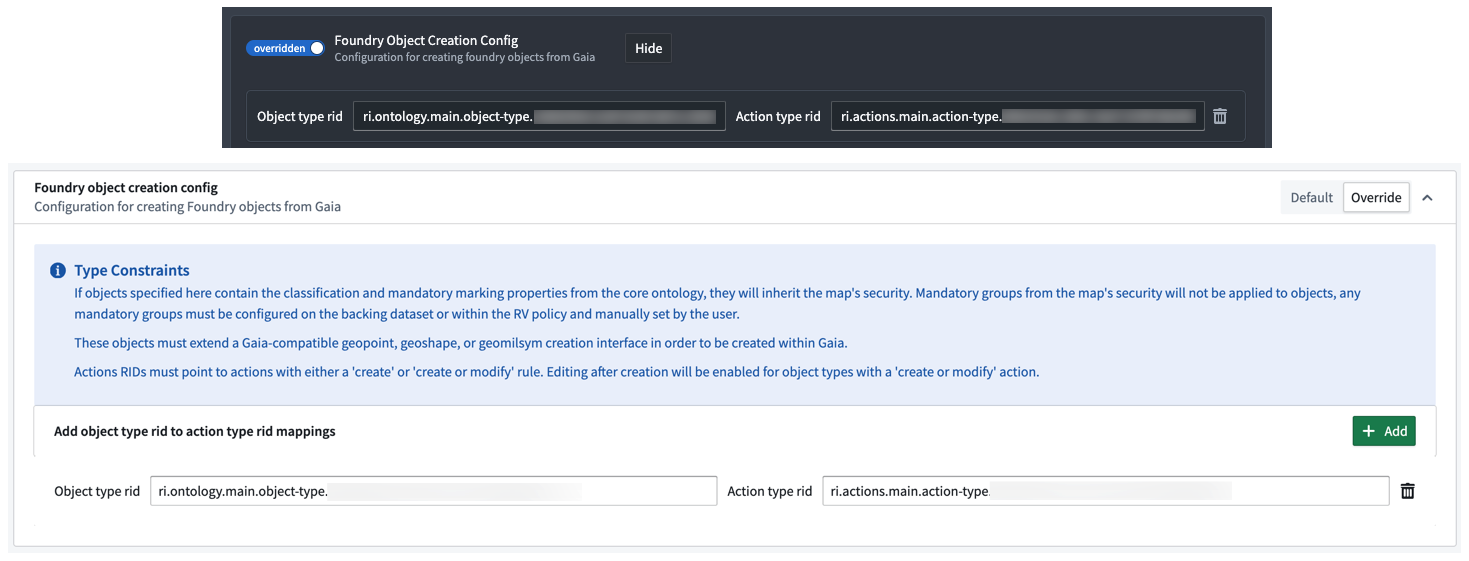
You can access your object type's RID from the **Overview** window in Ontology Manager. Select the clipboard icon to copy the RID. Additionally, you can access your action type's RID by selecting **Create {object type name}** in the **Action types** section of the **Overview** window. The action type's RID can also be copied through the clipboard icon.
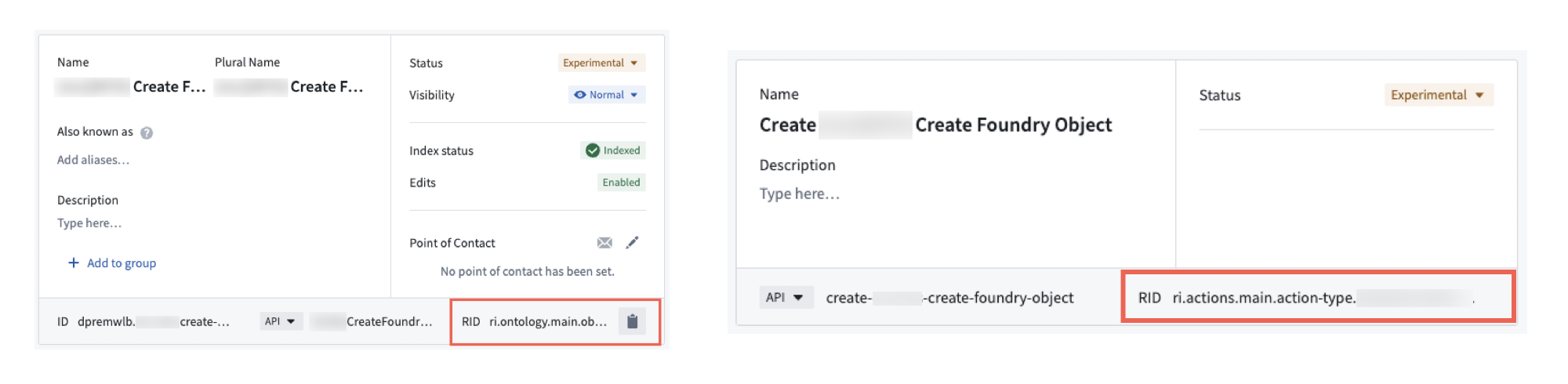
Next, you will launch Gotham's Gaia application to create objects from shapes you draw, points you drop, and tactical graphics you configure on a map using its **Add to map** menu.
## Entry points to create objects on your Gaia map
Gaia provides two distinct entry points you can use to create one or multiple objects on your map which determine the list of available object types that render in the **Object type** dropdown menu.
* **Select an object type first:** Gaia's toolbar dropdown menu lists every object type that implements a supported interface. Supported interfaces include the `Creatable Geoshape`, `Creatable Geopoint`, `Gaia Geoshape Creatable`, `Gaia Geopoint Creatable`, and `MILSTD 2525C Symbol` interfaces. After you select an object type, Gaia filters the available drawing tools to *only those* compatible with the interfaces that the object type implements. For example, selecting an object type that implements the `Gaia Geoshape Creatable` interface displays only the shape drawing tools. When you then select a drawing tool, Gaia opens the left panel with your object type already populated in the **Object type** dropdown menu.
:::callout{theme="success"}
An object type can implement more than one interface. For example, if an object type implements both the `Gaia Geopoint Creatable` and `Gaia Geoshape Creatable` interfaces, then selecting it from the toolbar displays both the point symbol and all shape drawing tools while filtering out the symbol **Search** menu.
:::
* **Select a drawing tool first:** When you select a drawing tool before selecting an object type, Gaia opens the left panel with no object type pre-selected. In this case, the **Object type** dropdown menu lists only the object types that implement the interface matching the tool you selected. For example, selecting the point symbol displays only object types that implement the `Gaia Geopoint Creatable` interface.
### Draw a new shape on your Gaia map and tag it to an object type
:::callout{theme="warning" title="Current limitations around the International Date Line"}
While you can create map annotations that cross the 180th meridian, or antimeridian, on a Gaia map, you cannot draw shapes tagged as Foundry objects that do so.
Contact Palantir Support with questions about annotation creation, rendering, or Gaia's additional documentation present in Gotham.
:::
Before you begin, review the [entry points for creating objects](#entry-points-to-create-objects-on-your-gaia-map) to understand how the object type and drawing tool you select determine which object types are available to you.
With your Gaia map open, select the object icon from the menu in the top left region of your map to switch from **Draw annotation** to **Create object** mode.
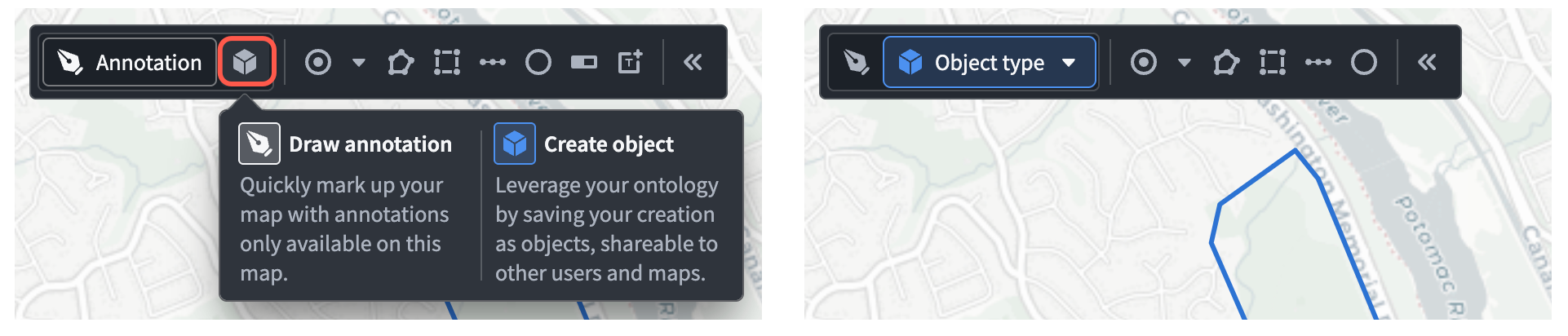
Next, select a shape to draw from the right side of the same menu. When you finish drawing your shape, the **Create shape** window will appear in Gaia's left panel. Follow the steps below to configure your shape and save it to your ontology as an object:
1. Search for and select your object from the **Object type** dropdown menu. If you selected an object type from the tool bar's dropdown menu on your map canvas, then Gaia will automatically populate the **Create shape**'s dropdown menu with that value.
2. Complete the required fields in the action form, such as `Category` and `Name`, for your object before you select **Finish**.
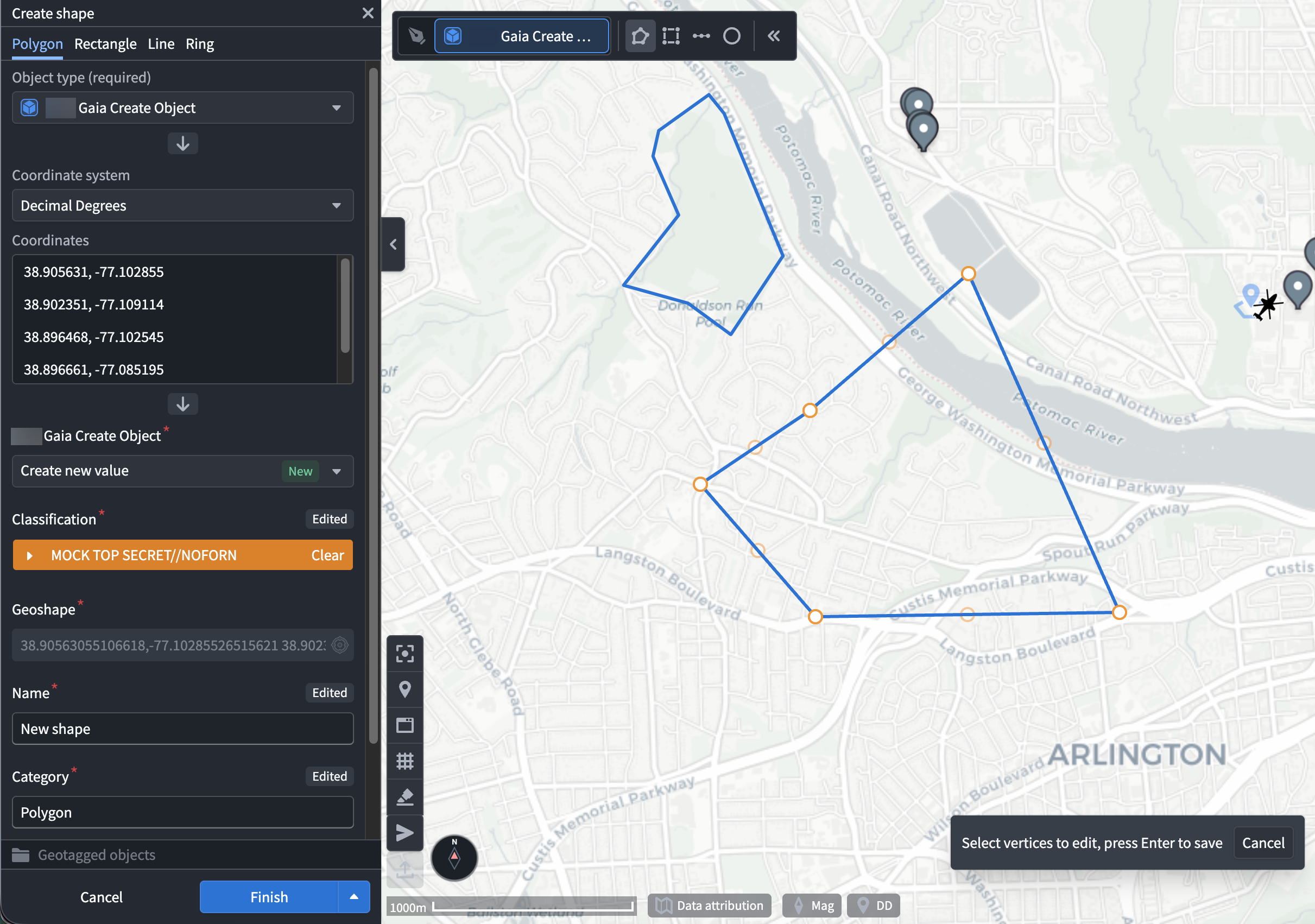
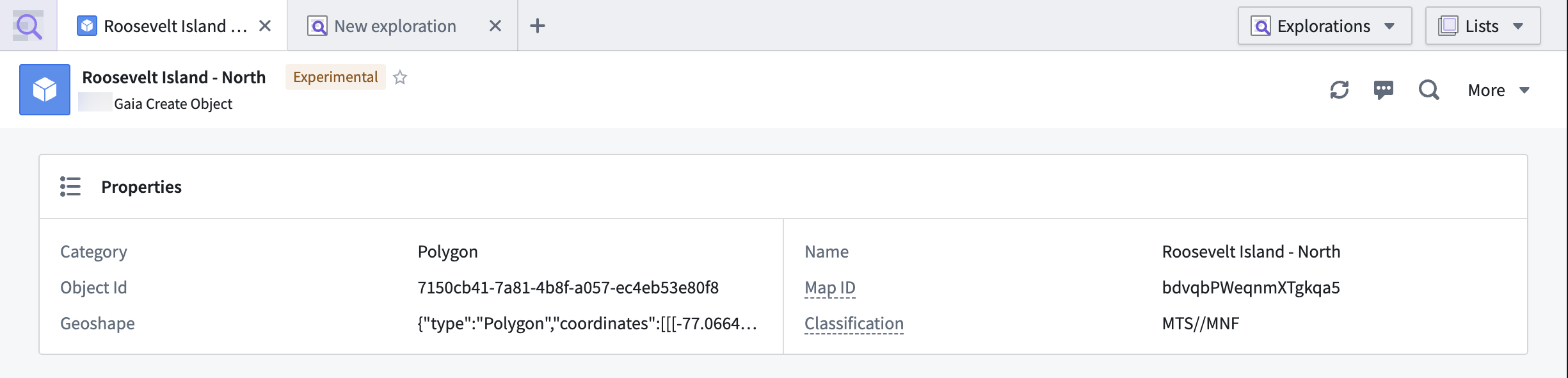
Once you save your shape as an object, it will render as one of the **Layers** in Gaia's left panel. You can select the object's name to launch the **Selection** panel on the right side of your screen, where you can view its properties and customize its appearance.
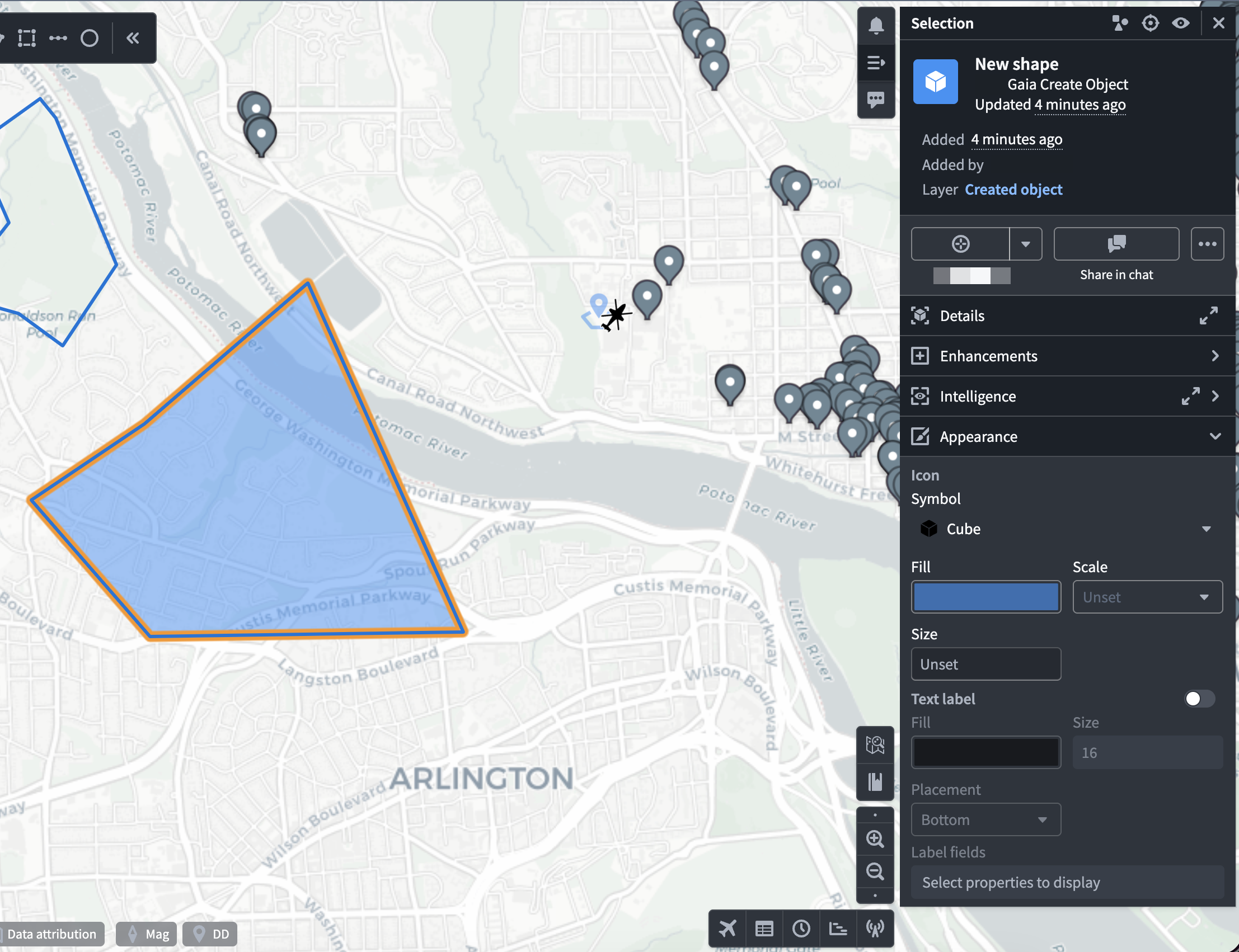
You can also view your object in Foundry's [Object Explorer](../../object-explorer/overview/index.md).
#### Edit an existing shape object
To edit an existing shape object, hover your cursor over the object in the left panel and choose **Edit selection** to launch the **Edit shape** window, which you can also access by double-clicking the object on your map.
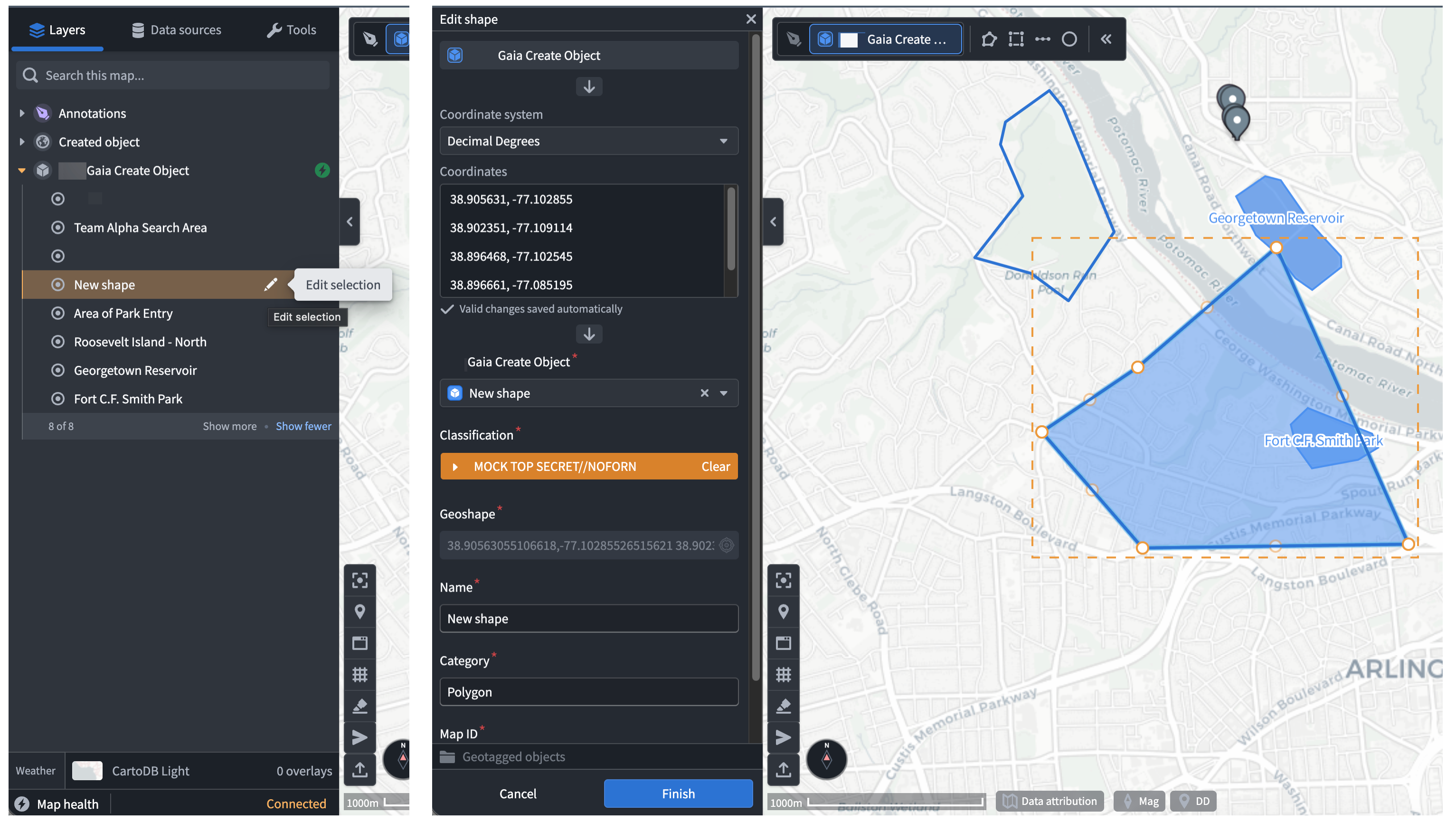
Select and drag any vertex to adjust the shape, or select a point within the shape's boundary to drag the shape to another location on your map. When you are finished making changes, choose **Finish** at the bottom of the **Edit shape** window.
### Drop a new point on your Gaia map and tag it to an object type
Before you begin, review the [entry points for creating objects](#entry-points-to-create-objects-on-your-gaia-map) to understand how the object type and drawing tool you select determine which object types are available to you.
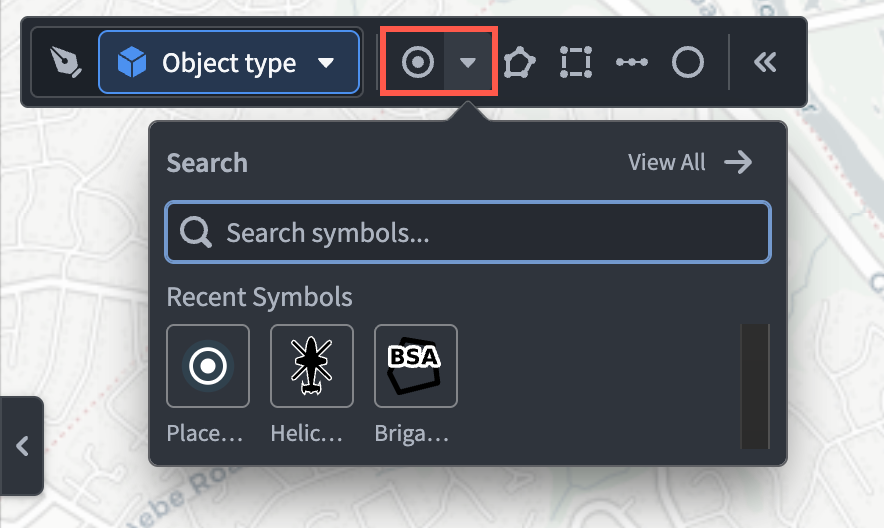
With your Gaia map open, select the down arrow to render the symbol **Search** menu, where you can choose an available symbol to drop anywhere on your map. If you select one of the available **Tactical Graphics** symbols, then you will only be able to create an object within an object type that implements the [`MILSTD 2525C Symbol` interface](#create-an-object-type-that-implements-the-milstd-2525c-symbol-interface). Gaia will automatically populate the **Coordinates** input box based on your map's coordinate system preference.
:::callout{theme="success"}
Select **File** > **Preferences** > **Coordinate system** from Gaia's top ribbon to update the default coordinate system.
:::
The **Create symbol** window will appear in Gaia's left panel, where you can search for and select your object type that implements the `Gaia Geopoint Creatable` interface. Next, optionally adjust the **Bearing (mag)** of your geopoint before entering a **Title** for your object. Choose **Finish** to save the dropped symbol to your ontology as an object.
Once you save your geopoint as an object, you can interact with the new map layer and view the object in Foundry's Object Explorer [in the same manner you can for a shape drawn on your map](#draw-a-new-shape-on-your-gaia-map-and-tag-it-to-an-object-type).
#### Edit an existing geopoint object
You can edit an existing geopoint object [in the same manner you can for a shape drawn on your map](#edit-an-existing-shape-object).
### Configure a tactical graphic on your Gaia map and tag it to an object type
:::callout{theme="warning"}
Your Foundry enrollment must contain MRS to tag a tactical graphic to an object type. Contact Palantir Support with questions about MRS installation or functionality.
:::
Before you begin, review the [entry points for creating objects](#entry-points-to-create-objects-on-your-gaia-map) to understand how the object type and drawing tool you select determine which object types are available to you.
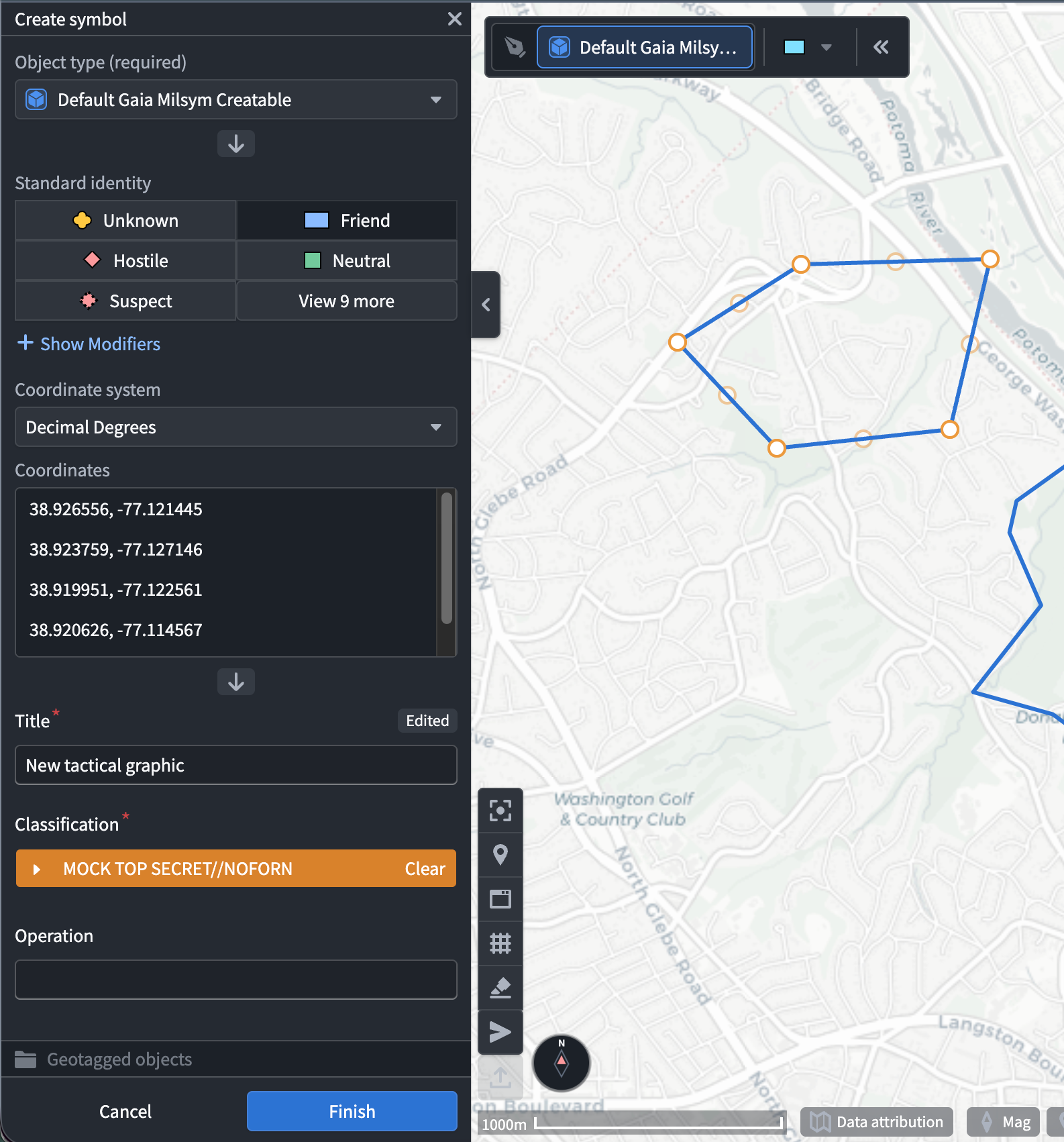
[Similar to adding a new geopoint to tag as an object](#drop-a-new-point-on-your-gaia-map-and-tag-it-to-an-object-type), select the down arrow to render the symbol **Search** menu, where you can choose an available tactical graphic to drop anywhere on your map. Type the name of your desired tactical graphic in the **Search symbols...** input box, such as `Brigade Support Area`.
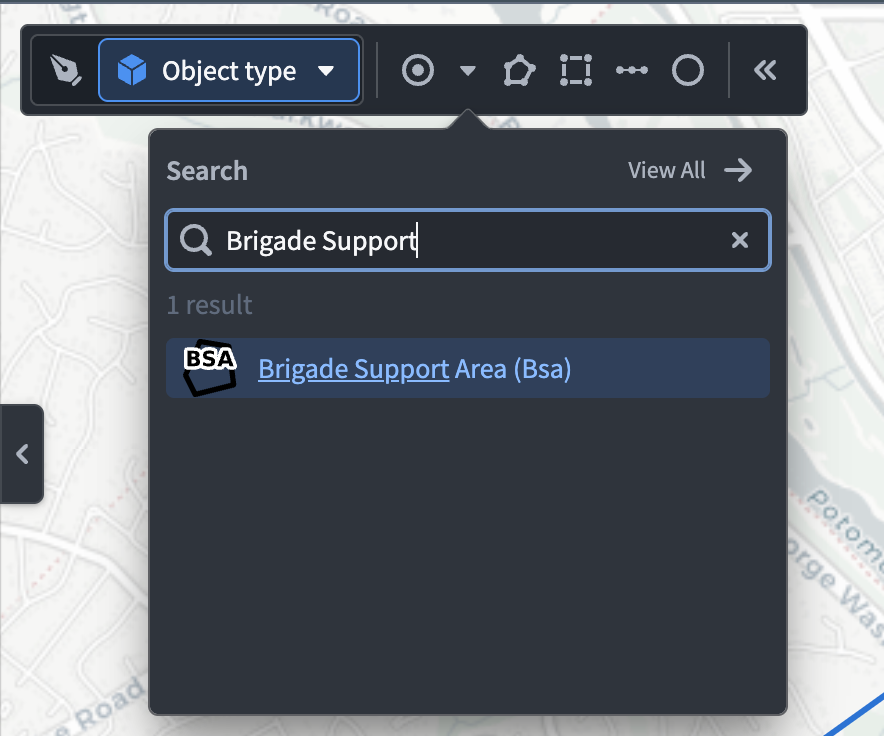
The **Create symbol** window will appear in Gaia's left panel, and you can follow the same [shape creation instructions](#draw-a-new-shape-on-your-gaia-map-and-tag-it-to-an-object-type) above to add your tactical graphic to the map and tag it to an object type.
#### Edit an existing tactical graphic object
You can edit an existing tactical graphic object by following the [shape object editing instructions above](#edit-an-existing-shape-object).
### Create new objects in bulk
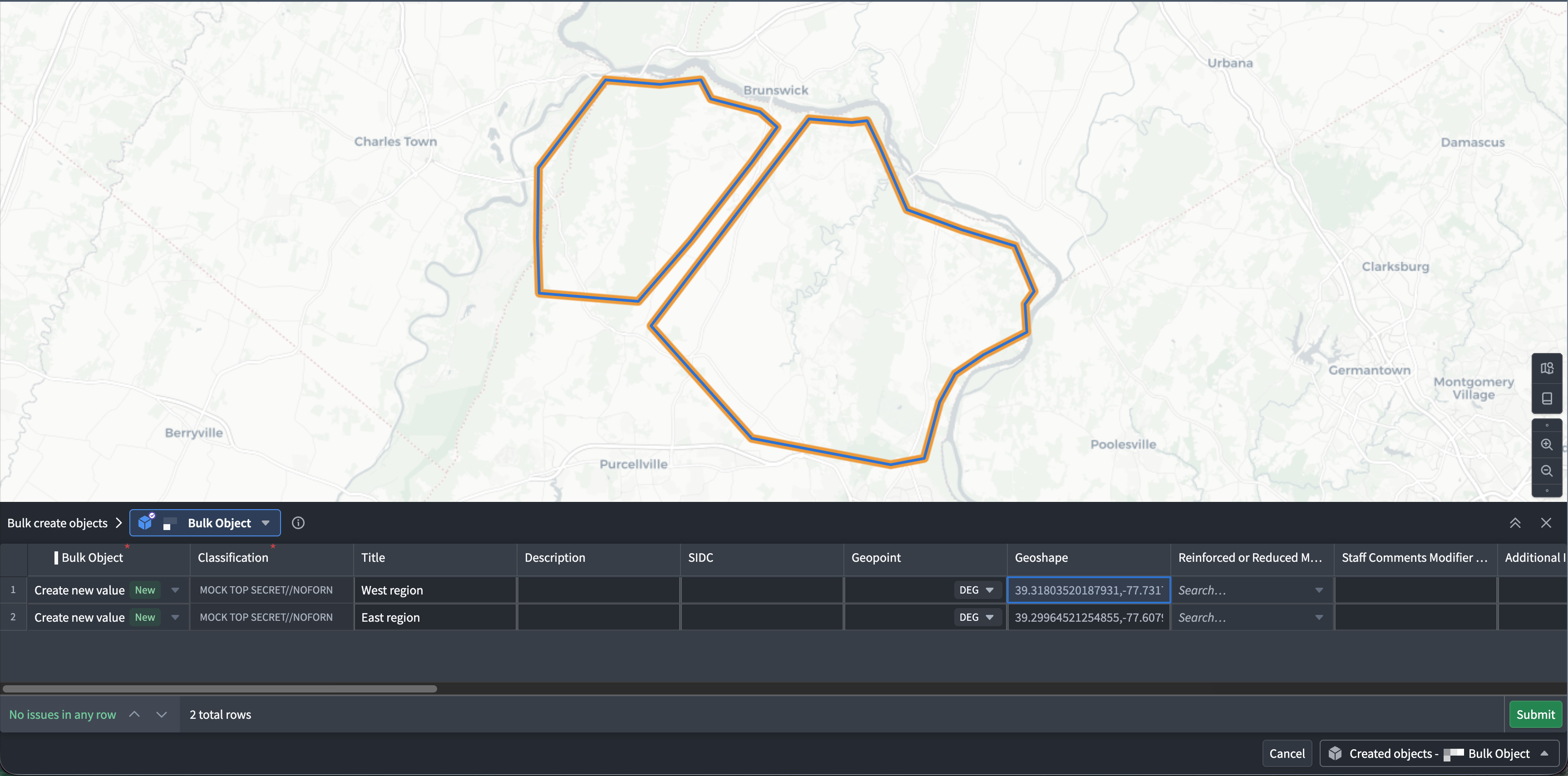
From the **Create shape** or **Create symbol** panel, select **Bulk create** in the bottom left to open the **Bulk create objects** table on your map.
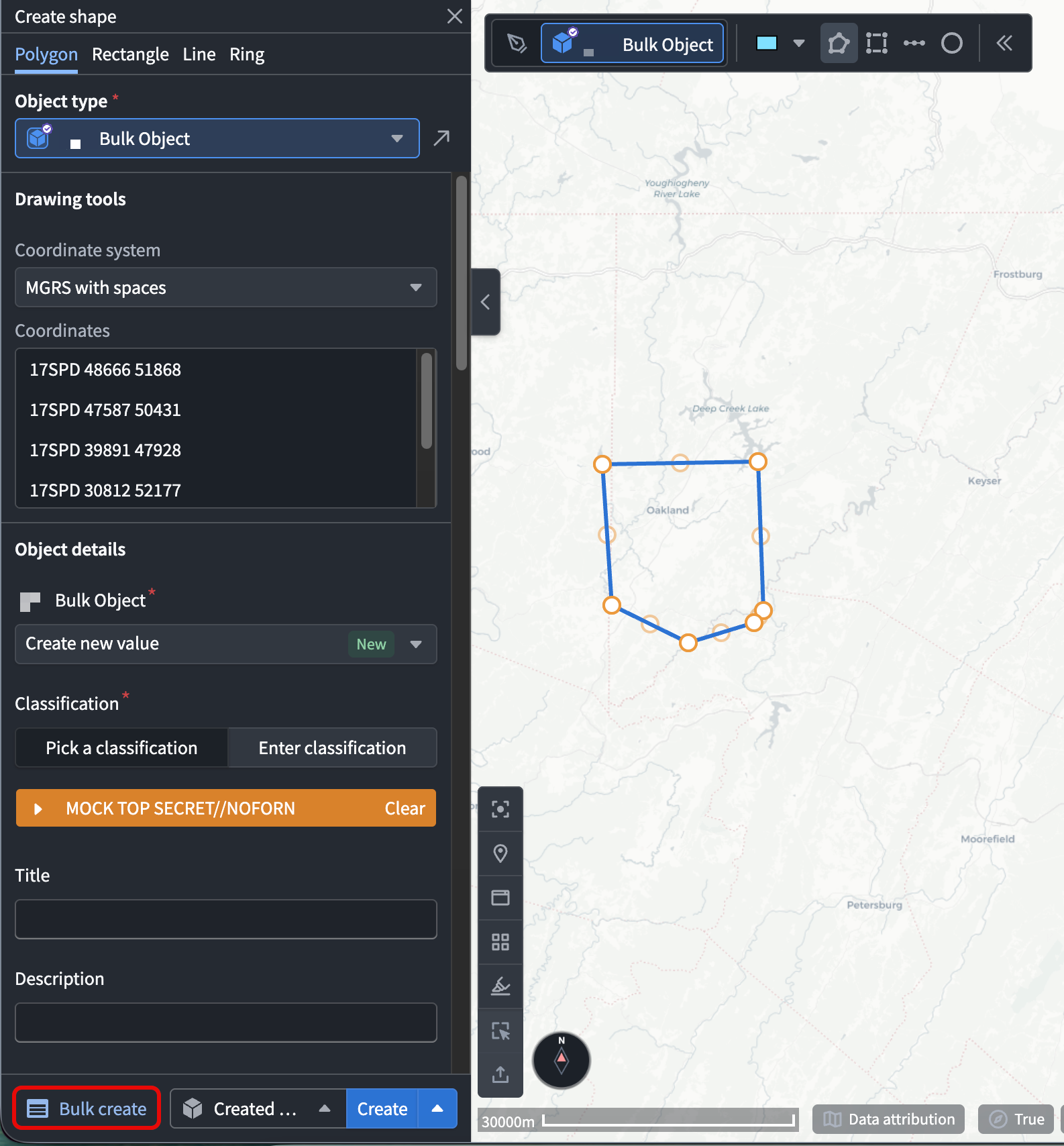
Each row represents a separate action submission that renders a single geometry as an object on your Gaia map, and each column represents an action parameter. You can create up to 5,000 objects from one table at a time.
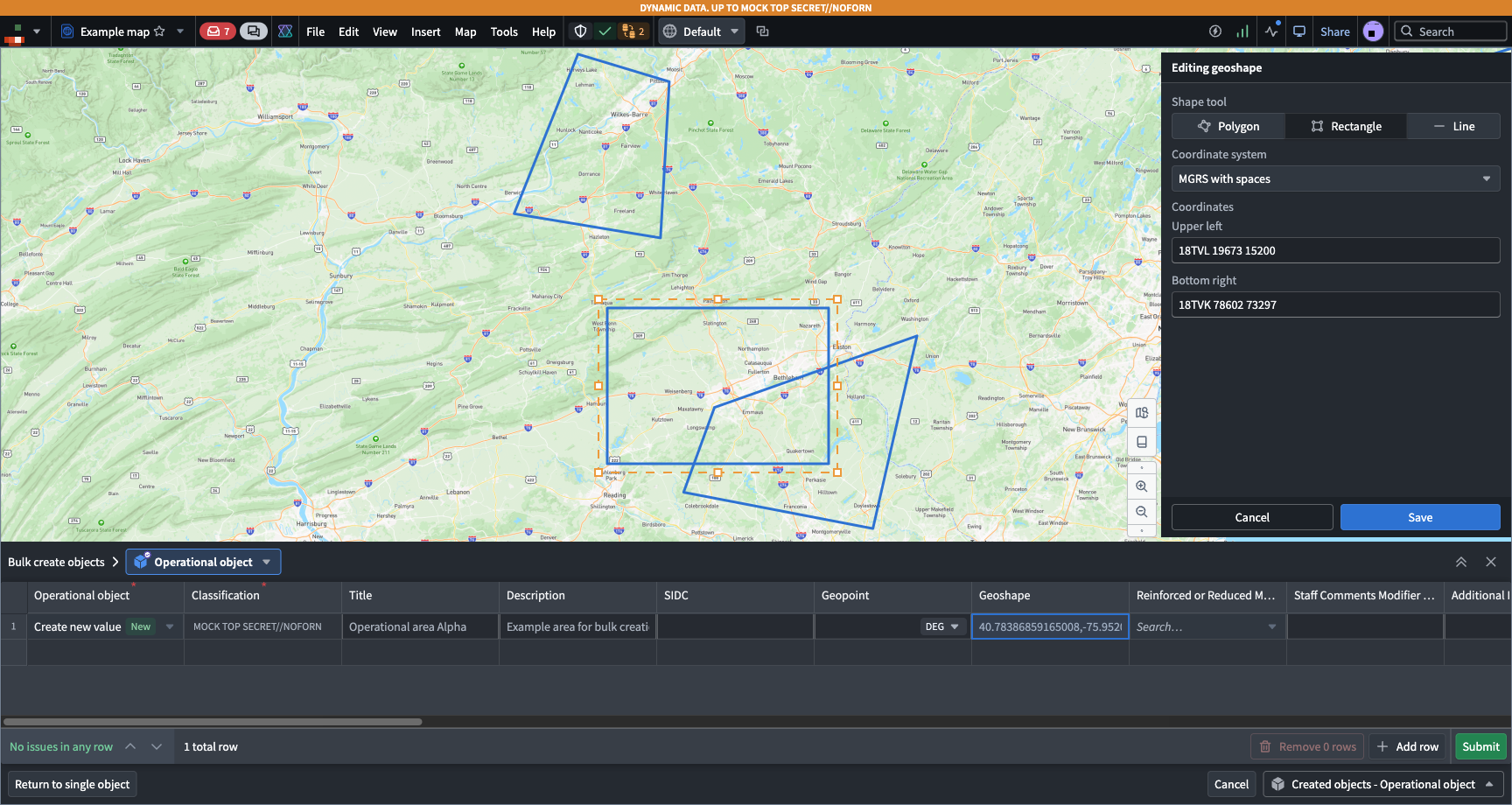
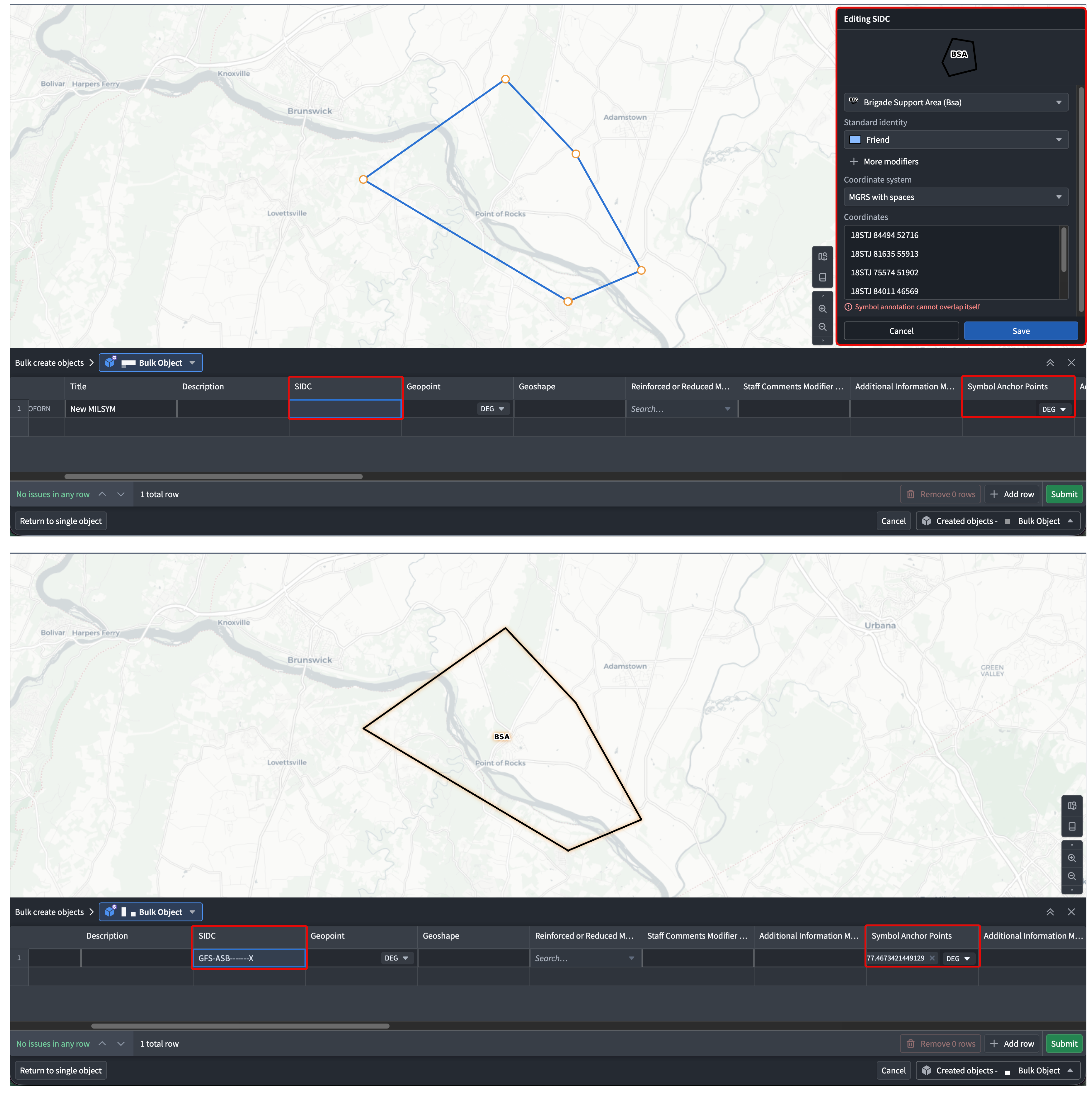
Gaia populates the first row of the table with the first shape drawn or symbol dropped on your map. To add another shape or symbol, select **Add row**. Alternatively, hover over and select an empty cell in an empty row at the bottom of the table. Select the object's `geoshape` or `geopoint` cell to open the corresponding **Editing geoshape** or **Editing geopoint** panel. Draw the new shape or drop a new symbol on your map, then choose **Save**.
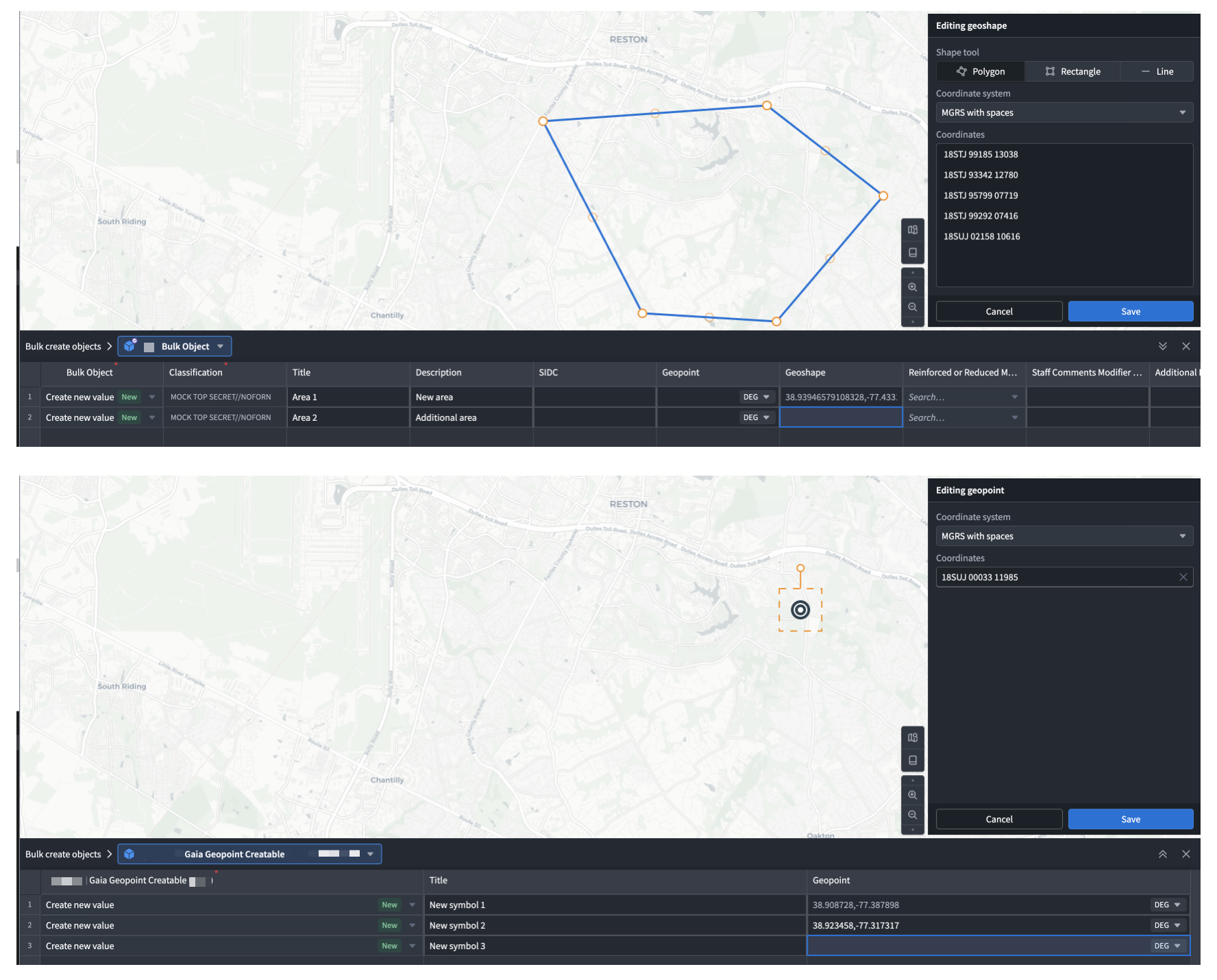
To create tactical graphics or military symbols through the `MILSTD 2525C Symbol` interface, configure the create action with `SIDC` and `Symbol Anchor Points`. You can optionally include additional scalar modifiers for Gaia to populate automatically. Select a tactical graphic or military symbol from the symbols selector. Gaia sets the object's `SIDC` value and opens the relevant coordinate editor. Draw a shape on your map to populate the `Symbol Anchor Points` property.
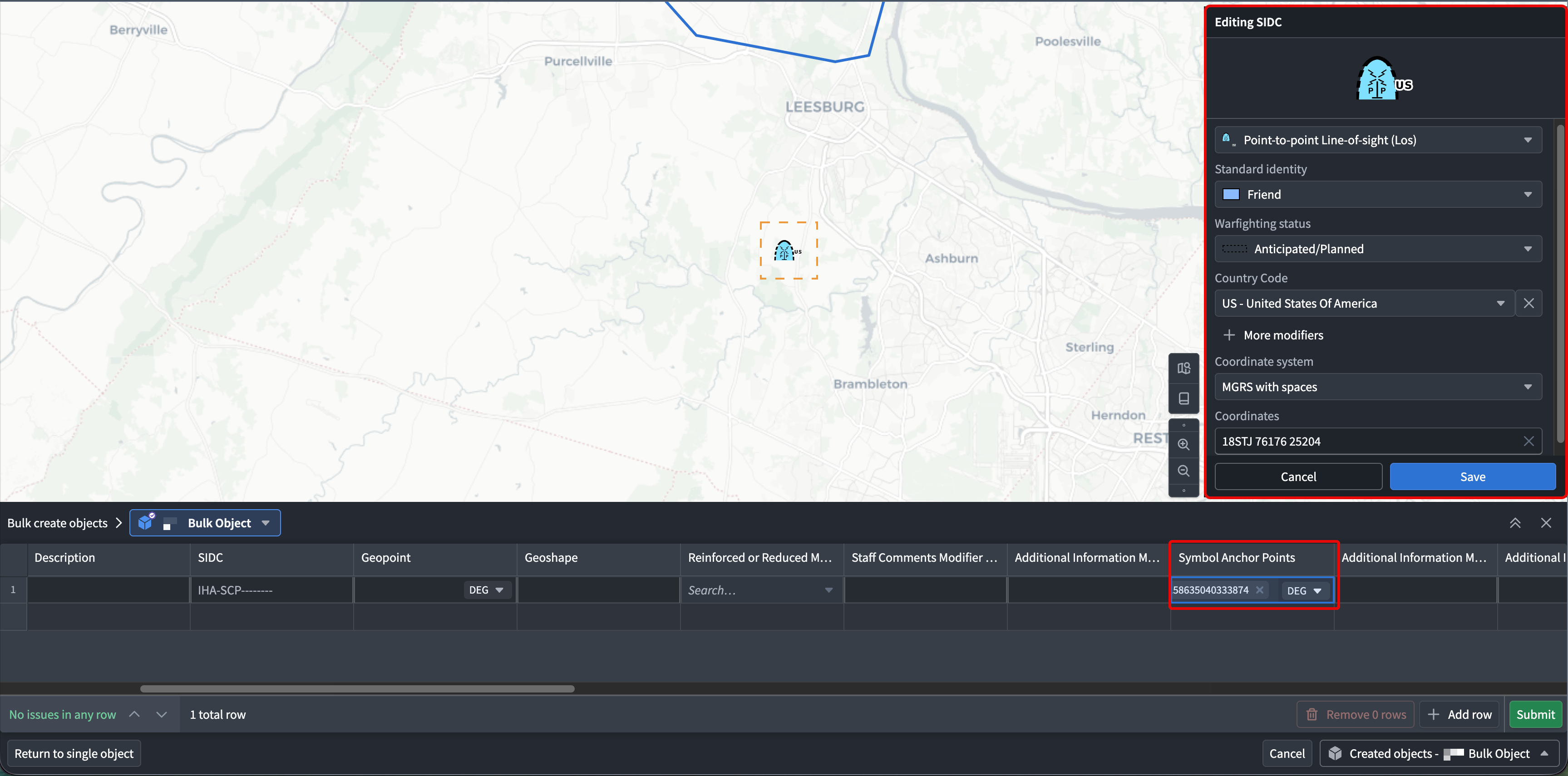
When you select a single-point tactical graphic, Gaia uses one symbol anchor point to populate the `Symbol Anchor Points` property as opposed to the array used when drawing a shape.
When you are finished, select **Submit** in the bottom right of the table to create your new objects. To exit the **Bulk create objects** table without saving, choose **Return to single object** at any time. To highlight multiple rows to remove, select the index number on the far left of the table. Then, press `Cmd+Up`/`Cmd+Down` (macOS) or `Ctrl+Up`/`Ctrl+Down` (Windows). Additionally, you can copy and paste entire rows or select values from one row to another by pressing `Cmd+C`(macOS)/`Ctrl+C` (Windows) over the values to copy before pressing `Cmd+V` (macOS)/`Ctrl+V` (Windows) to paste them in the relevant destination row.
### Promote an annotation to an object
In Gaia, an *annotation* is a shape, point, or symbol that is local to your current map. You can promote annotations on your map to objects in your ontology for use on other maps created by other users who can access the object type. Promotion does *not* delete the annotation from your map. Instead, Gaia displays the newly created object in a separate layer while the original annotation and its source layer both remain on the map. After object creation, you can hide or remove the original annotation when it is no longer needed.
To tag an existing annotation as an object, double-click the annotation on your map or hover your cursor over the annotation's pencil icon in the **Layers** tab of the left panel to launch the shape, point, or symbol edit window. Next, select **Promote to object**, choose your object type from the **Object type** dropdown menu, and complete the action form in the shape, point, or symbol edit window.
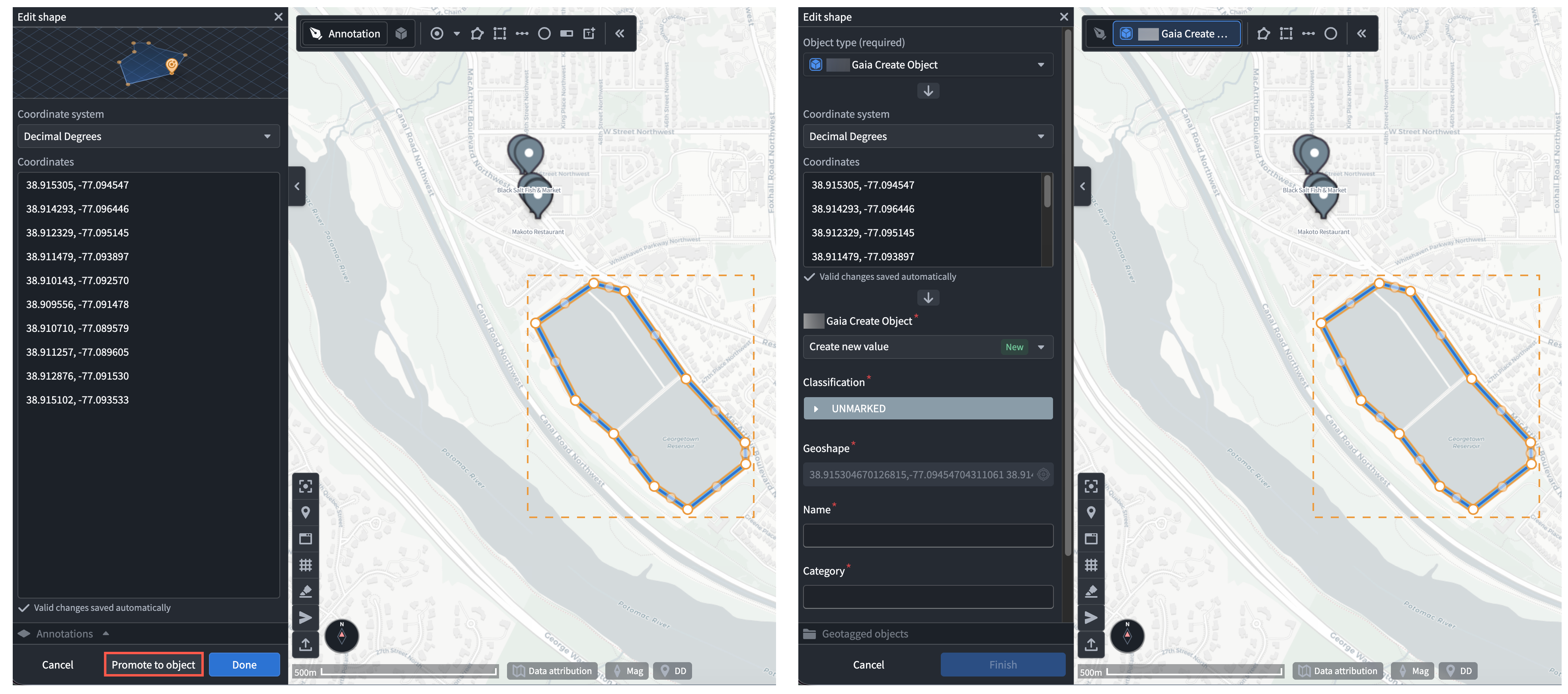
To learn more about the various methods you can use to add data *from* your ontology *to* Gotham, review the existing [geospatial data integration documentation](../../geospatial/add-ontology-data-to-gaia/index.md).
#### Promote existing annotations in bulk
Gaia enables you to promote the following annotation types to objects in bulk:
* Points
* Shapes (including polygons, rectangles, lines, and range rings)
* Military symbols
* Single-point and multi-point tactical graphics
Follow the instructions below to promote multiple annotations on your map to objects in your ontology:
1. Select at least two supported annotations on your map or in the **Layers** tab in the left panel.
2. Choose **Create objects** from the **Selection** panel on the right side of your screen.
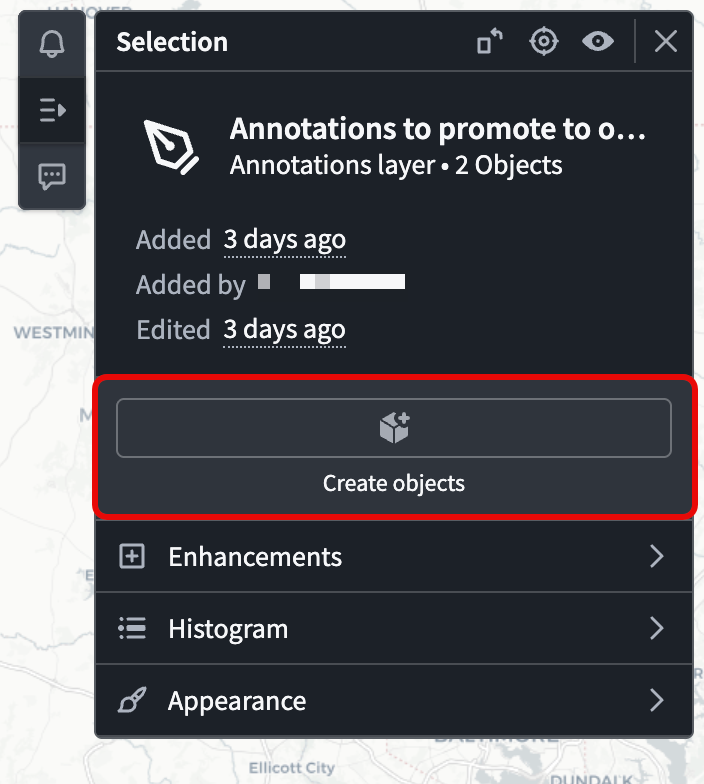
3. Search for and select the relevant object type to launch the **Bulk create objects** table.
4. Review the pre-filled rows in the action table, such as the annotations' position, shape, or anchor points.
5. Complete any remaining required fields configured in the action form and select **Submit**.
Gaia displays a list of object types that are compatible and incompatible for bulk promotion with a tooltip explaining the reason for incompatibility you can render by hovering over a listed object type. The list is displayed in *both* the **Selection** panel and the **Bulk create objects** table.
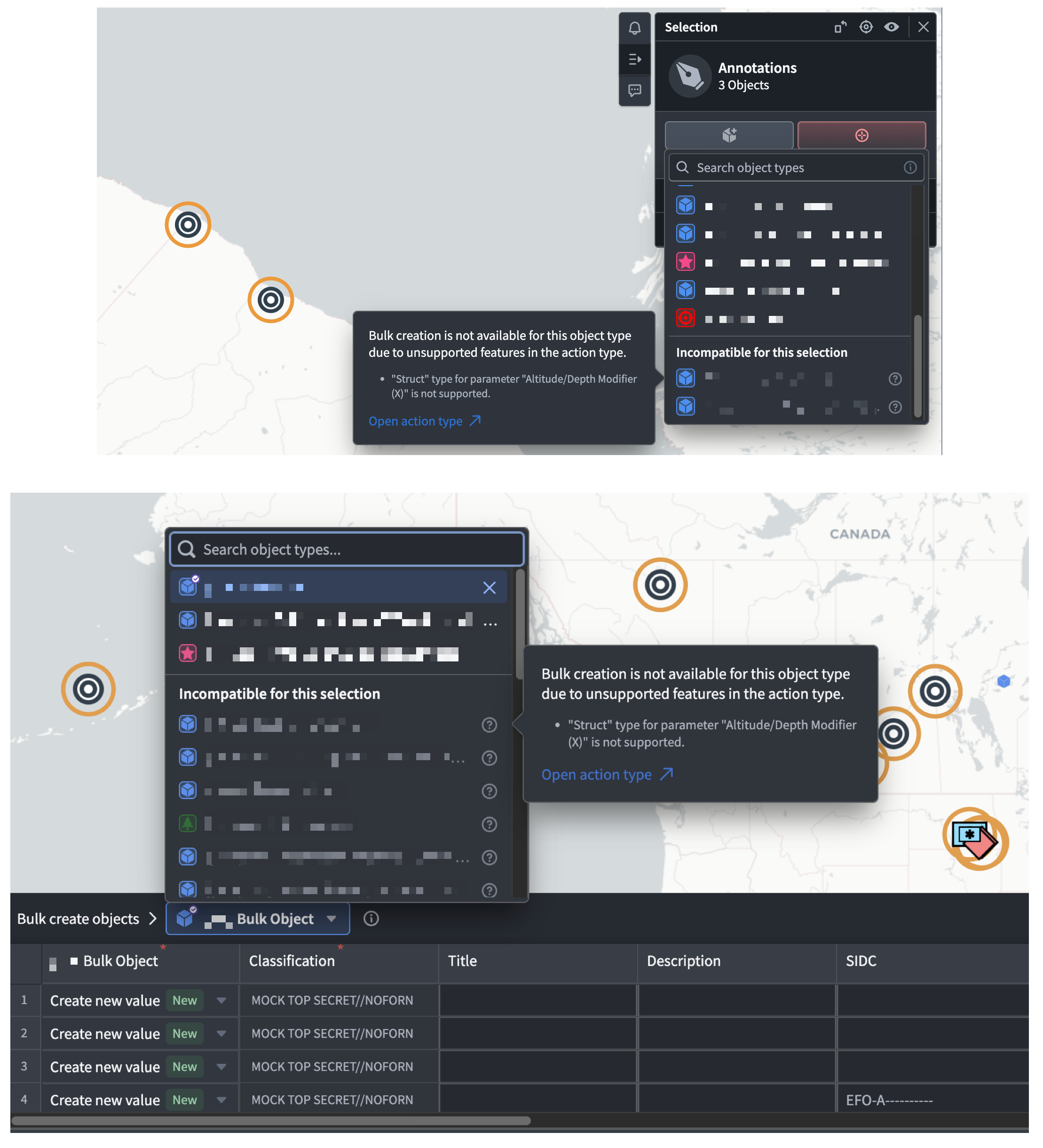
:::callout{theme="neutral" title="Action types must support all selected annotation types"}
For an object type to appear as a promotion option, its action type must include the parameters from every interface that corresponds to your selection. For example, if your selection includes geopoints, geoshapes, and tactical graphics, your object's action type must contain at least the `Geopoint`, `Geoshape`, `SIDC`, and `Symbol Anchor Point` parameters from the respective interfaces.
:::
### Troubleshoot bulk object creation and promotion
The section below contains tips for troubleshooting errors that you may encounter when creating objects or promoting annotations in bulk.
#### The **Bulk create** button does not appear
If the **Bulk create** button does not appear in the bottom left of the **Create shape** or **Create symbol** window, then you should confirm that:
* You are working from **Create object** as opposed to **Draw annotation** mode.
* You have `Edit` permissions on the map.
* The selected object type implements at least one of the `Gaia Geopoint Creatable`, `Gaia Geoshape Creatable`, or `MILSTD 2525C Symbol` interfaces.
* You have the appropriate [permissions necessary to execute the action.](../../action-types/permissions/index.md)
* The action to create the object does not contain a [struct](../structs-overview/index.md) parameter. As an example, the `Speed Modifier (Z)` and `Altitude/Depth Modifier` properties on the `MILSTD 2525C Symbol` interface are structs, so they are not supported in the bulk creation table.
If single-object creation is available but bulk creation is not after you verify the checks above, then contact Palantir Support to confirm that bulk object creation is enabled on your enrollment.
#### The **Bulk create objects** table reports that the tabular view is unavailable
This can occur if your `Create` action contains a rule or parameter type that the action table cannot represent. For example, an action with a struct parameter is not supported. Configure a separate `Modify or create` action that uses supported parameter types.
#### Gaia does not prefill geometry or symbol values
Verify that the object type's interface properties map to object properties and that the fulfilled action contains parameters for those properties. For tactical graphics, both `SIDC` and `Symbol Anchor Points` must belong to the same action. Next, verify the object type and action RIDs are registered in the [Gaia admin application or Control Panel extension.](#register-your-ontology-and-its-types)
#### Gaia reports invalid or excess selections
Remove unsupported items from the table, such as folders, fragments, and non-annotation layers. If the selection exceeds 5,000 eligible items, use the provided deselection action or select a smaller group and submit it as a separate batch.
#### The action submits but the object does not appear on the map
First, confirm that the action created the objects by opening your object type in [Insight](../../insight/overview/index.md) and searching for one or multiple objects by their name or another property value. Next, check the destination layer on your map that contains objects of that object type before validating the map's and object type's security markings are compatible.
#### Submission fails without a clear cell error
Actions can enforce constraints that the table does not detect before submission. Check your action's required parameters, coordinate and geometry validity, marking limits, and validate your action permissions.