**Conditional formatting** enables the configuration of rules for any property and dictates how that property’s values will be rendered (e.g. coloring, alignment, etc.) in user facing applications. When you configure conditional formatting in the Ontology Manager, the formatting rules will apply in Object Explorer, Object Views, Quiver, and Workshop.
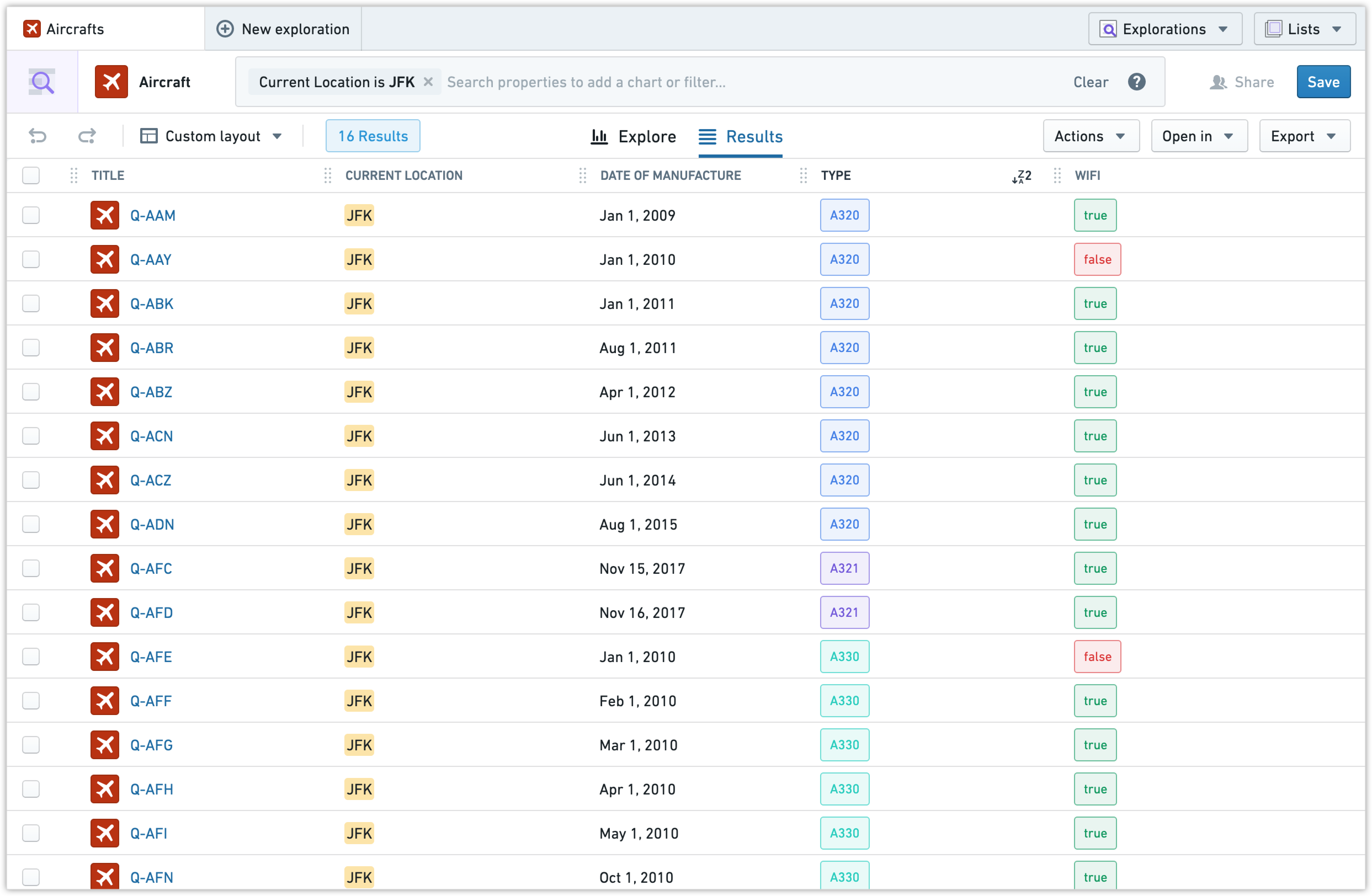 For the example `Aircraft` object type in Object Explorer, pictured above, the `type` and `wifi` properties have their values in colored boxes that are applied based on certain conditions. The main benefit of adding these is to make information easier to understand quickly. If an analyst was looking for all “A320” planes without wifi in “JFK”, just by glancing at the results above, they could tell that “Q-AAY” is the plane they need.
Take a look at how these conditions are applied.
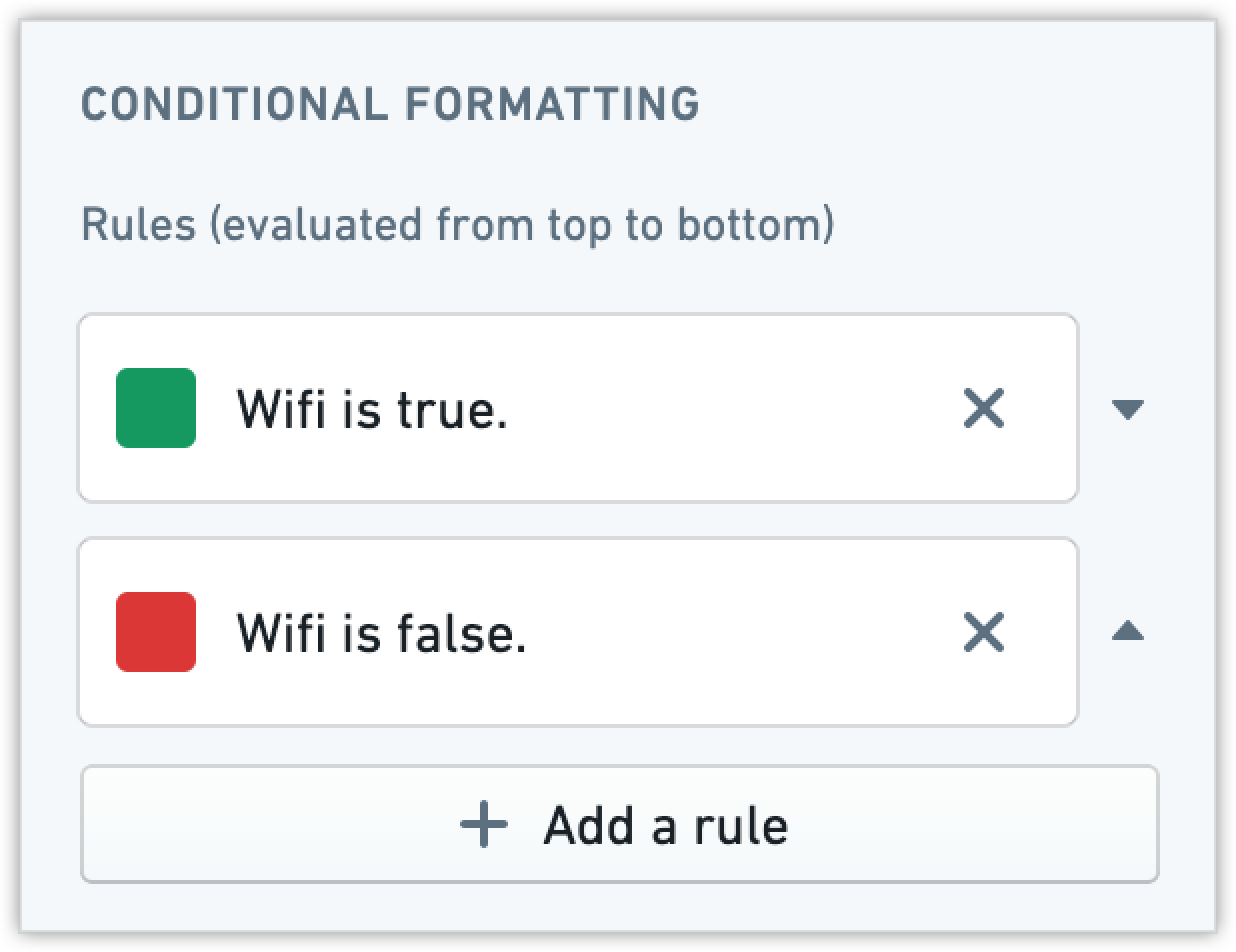
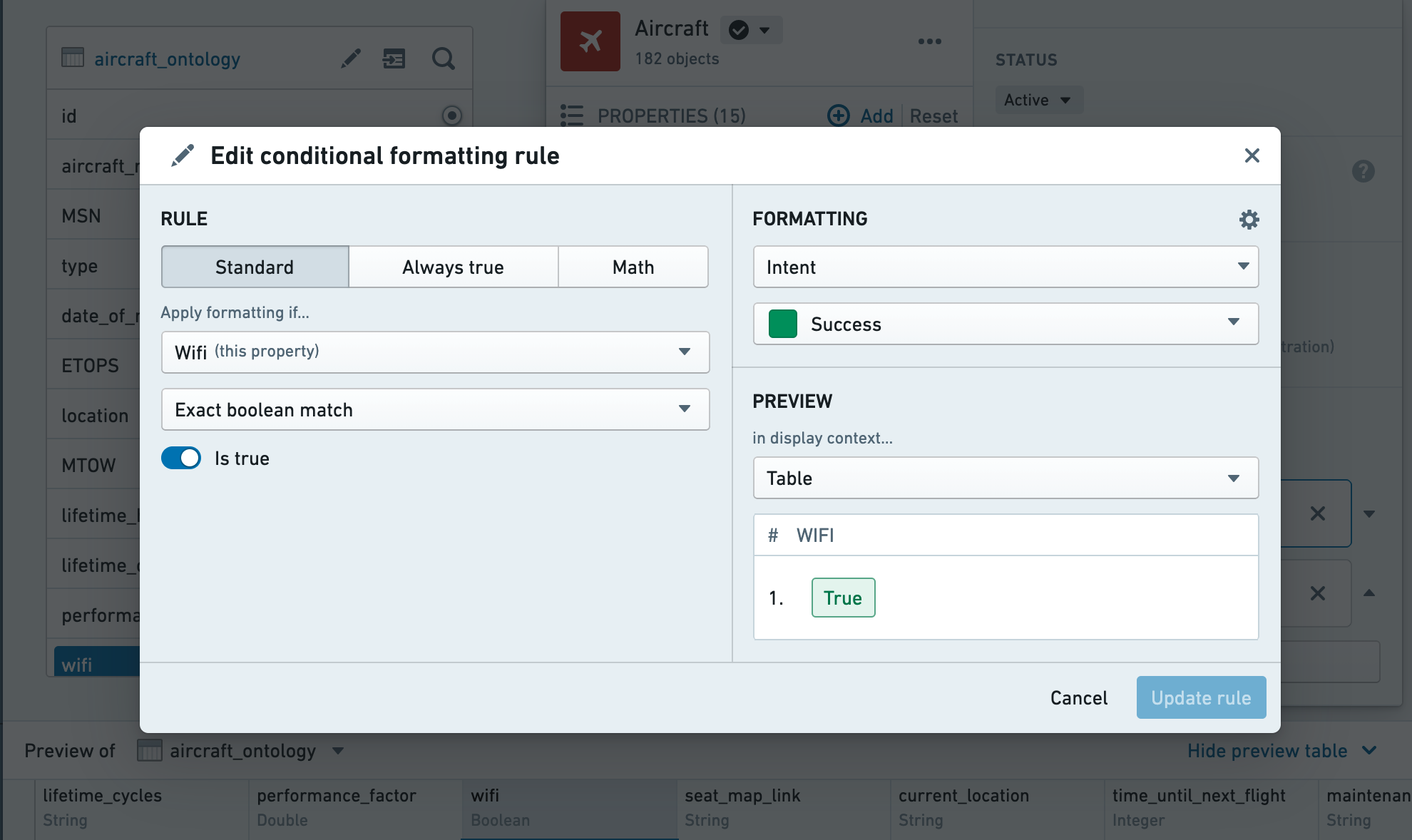
* For property `wifi`, we assign green if the value of the property is “true” for each object in the table, and red if it is “false.”
For the example `Aircraft` object type in Object Explorer, pictured above, the `type` and `wifi` properties have their values in colored boxes that are applied based on certain conditions. The main benefit of adding these is to make information easier to understand quickly. If an analyst was looking for all “A320” planes without wifi in “JFK”, just by glancing at the results above, they could tell that “Q-AAY” is the plane they need.
Take a look at how these conditions are applied.
* For property `wifi`, we assign green if the value of the property is “true” for each object in the table, and red if it is “false.”
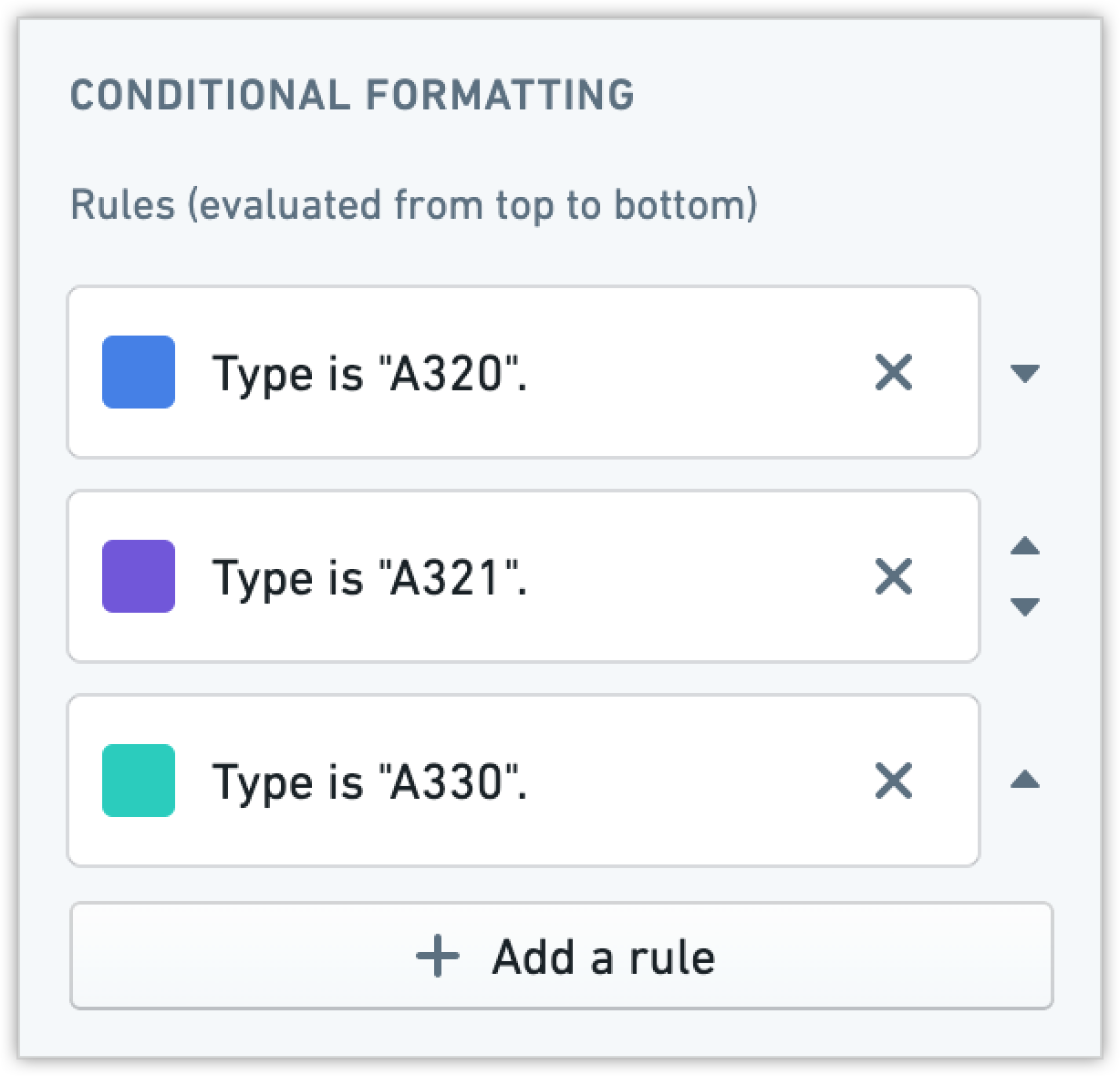
 * For property `type`, we assign colors based on exact match between “A320”, “A321” and “A330”.
 ## Add conditional formatting
In the property editor:
1. Select the property to which you want to add conditional formatting.
2. You will see conditional formatting on the properties pane; select the **Add a rule** button.
## Add conditional formatting
In the property editor:
1. Select the property to which you want to add conditional formatting.
2. You will see conditional formatting on the properties pane; select the **Add a rule** button.
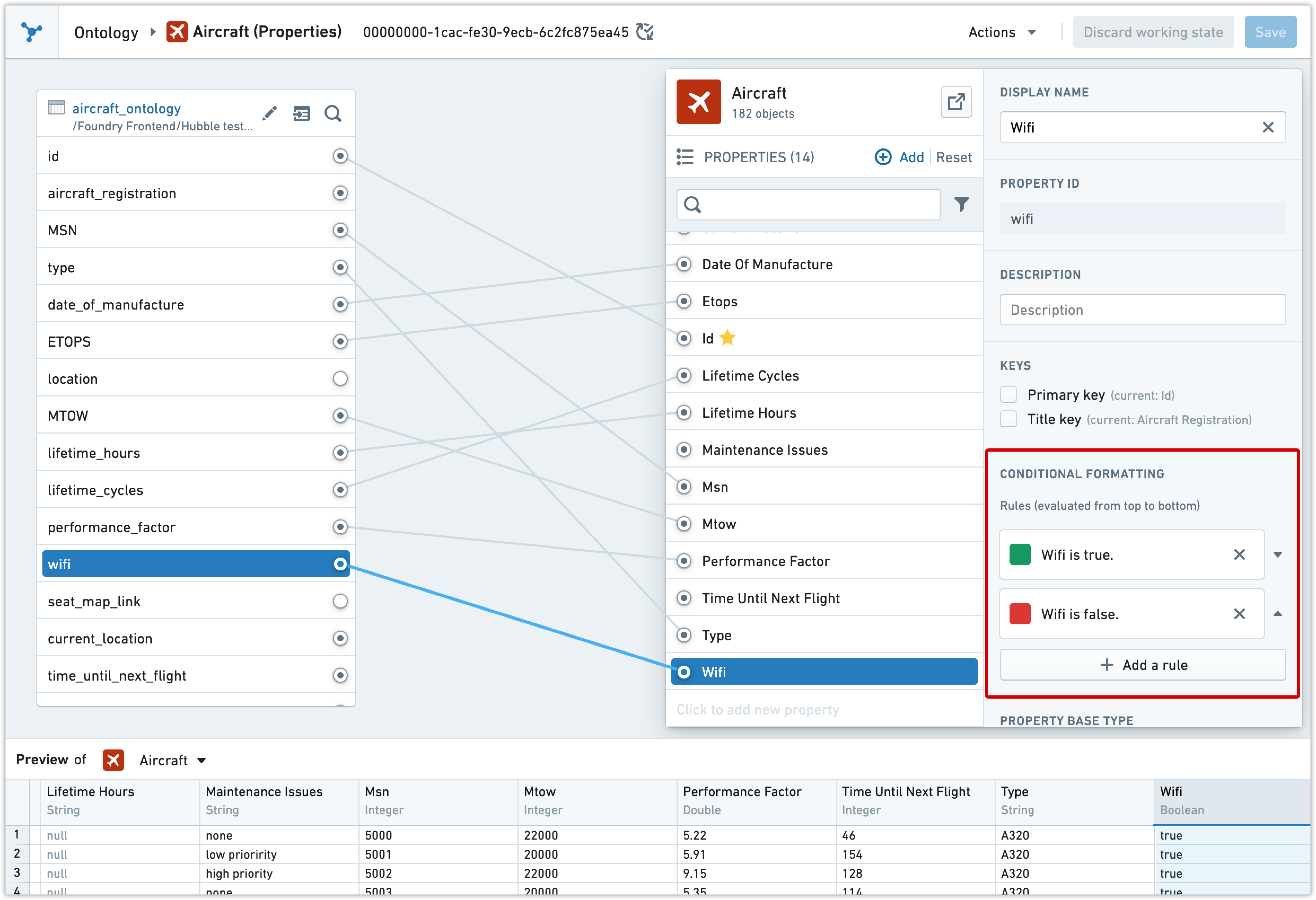 1. Click on the newly created default rule to open the **Edit conditional formatting rule** editor. [Read on for more information about the components of the Rule editor](#edit-rules-using-the-rule-editor).
2. Modify the rule.
1. Click on the newly created default rule to open the **Edit conditional formatting rule** editor. [Read on for more information about the components of the Rule editor](#edit-rules-using-the-rule-editor).
2. Modify the rule.
 ## Edit rules using the Rule editor
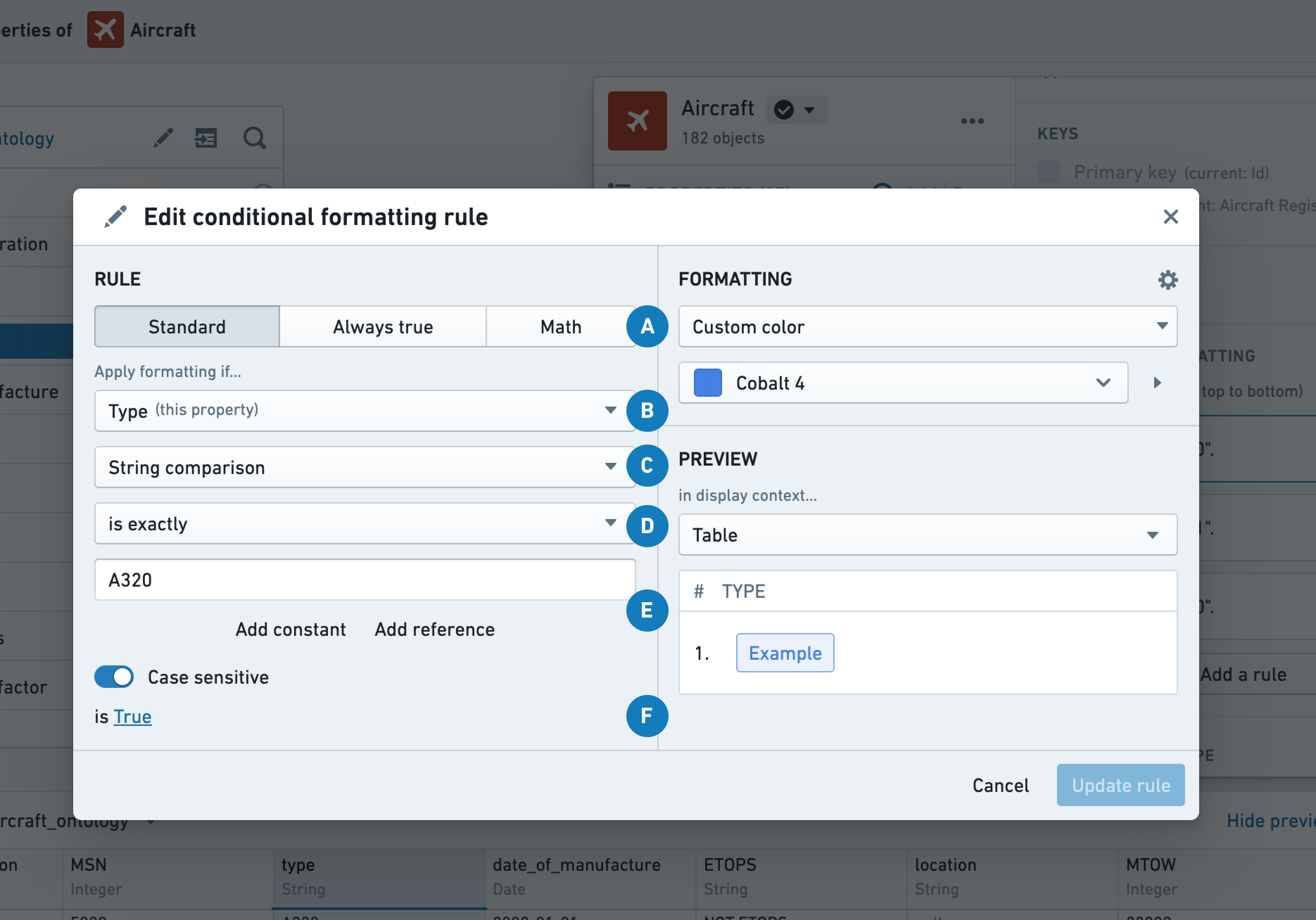 |Label |Description |Usage |
|--- |--- |--- |
|A |Switch between a **Standard** rule, an **Always true** rule, or a **Math** rule. |Use **Always true** as a fallback in case your other rules do not match. In the example above, we could have gray as the fallback case when neither of the `type` values match.
|Label |Description |Usage |
|--- |--- |--- |
|A |Switch between a **Standard** rule, an **Always true** rule, or a **Math** rule. |Use **Always true** as a fallback in case your other rules do not match. In the example above, we could have gray as the fallback case when neither of the `type` values match.
Use a **Math** rule when you want to run math operators on some of your properties. |
|B |The rule will always be applied to the property from which you selected **Add a rule**; however, this dropdown allows you to choose to apply the rule based on the value of another property. |In the case above, assume we want to color the value for `Type` in red when the value of `Performance factor` drops underneath a certain threshold. We would choose `Performance factor` in our logic instead of `Type`; however, the color would still show on `Type`. |
|C |Types of comparisons available are based on the type of the property. For example, for strings **String comparison** and **Is null** are available. For numeric types, **Numeric range** or **Exact numeric match** are available. |To color the `type` in gray if the value is null, select this dropdown and choose **Is null** instead of **String comparison**. |
|D |Subtypes of comparisons, **String comparison** has **Is exactly**, **Contains**, **Starts with**, etc. |Use this to color all plane `type` values that **Start with** "A32". |
|E |Compare against a constant or a property reference. |In this case, we are specifically looking for the constant "A320", but we could also add a reference from another property from the same object type. |
|F |Toggle between a **True** or **False** rule. |To color all planes in blue that are **not** A320, switch this to **False**. |
|Formatting |Use Blueprint colors and intents or add your own custom color. You can also switch alignment. |Switch between hex, RGB or Blueprint colors based on need; you can also align the boxes on the right hand side for easier readability for numbers. |
|Preview |View how conditional formatting appears in various contexts. |Preview an **Objects table** or a **Property card.** |
## Copy rules
In the property editor:
1. Select the property from which you want to copy the conditional formatting rule.
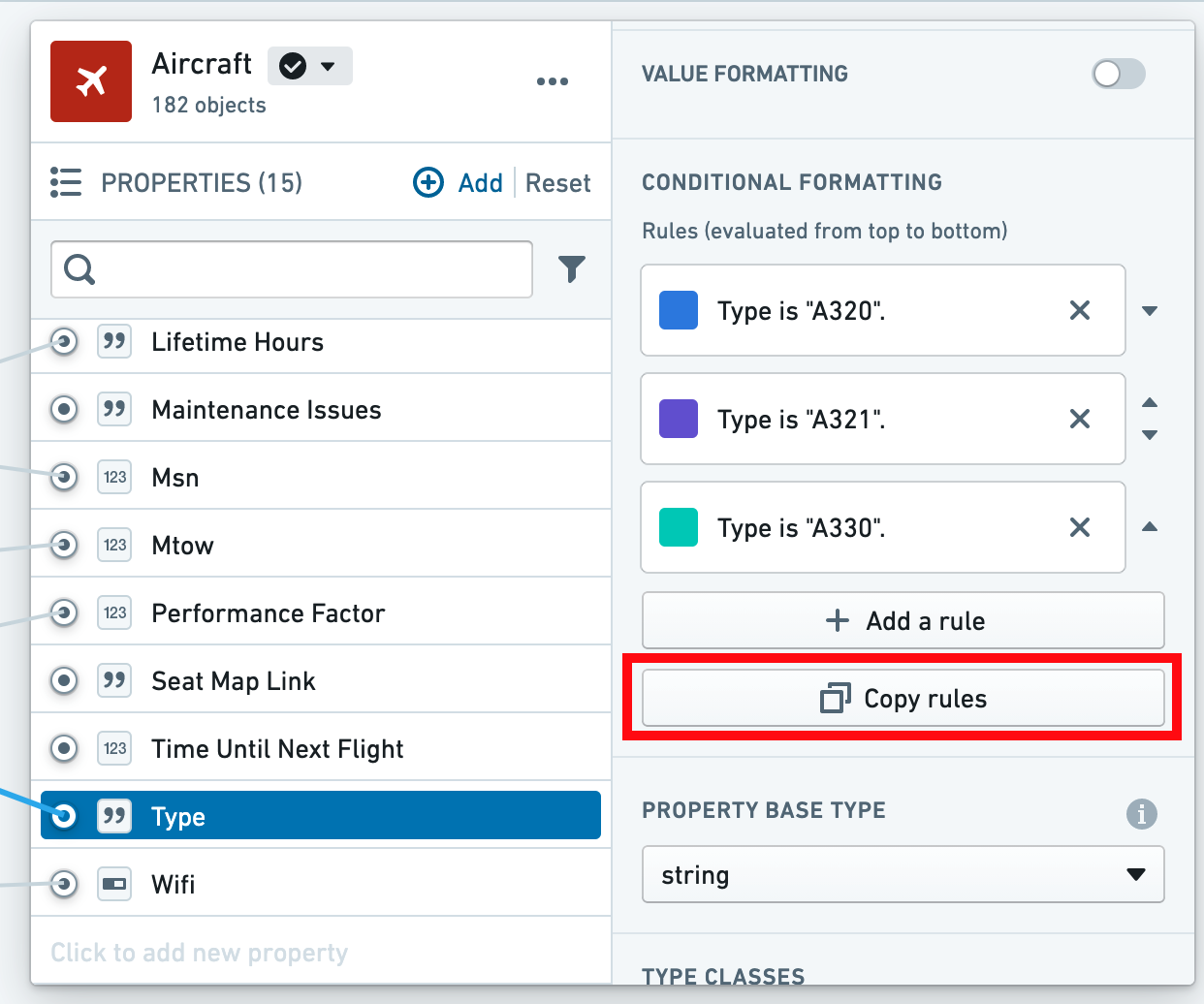
2. You will see conditional formatting on the properties pane; select the **Copy rules** button to open the **Copy rule** dialog.
 3. Select the properties to which you want to copy the conditional formatting rules.
:::callout{theme="warning"}
If the properties you are copying to already have their own conditional formatting rules, they will be overwritten by the new rules.
:::
3. Select the properties to which you want to copy the conditional formatting rules.
:::callout{theme="warning"}
If the properties you are copying to already have their own conditional formatting rules, they will be overwritten by the new rules.
:::
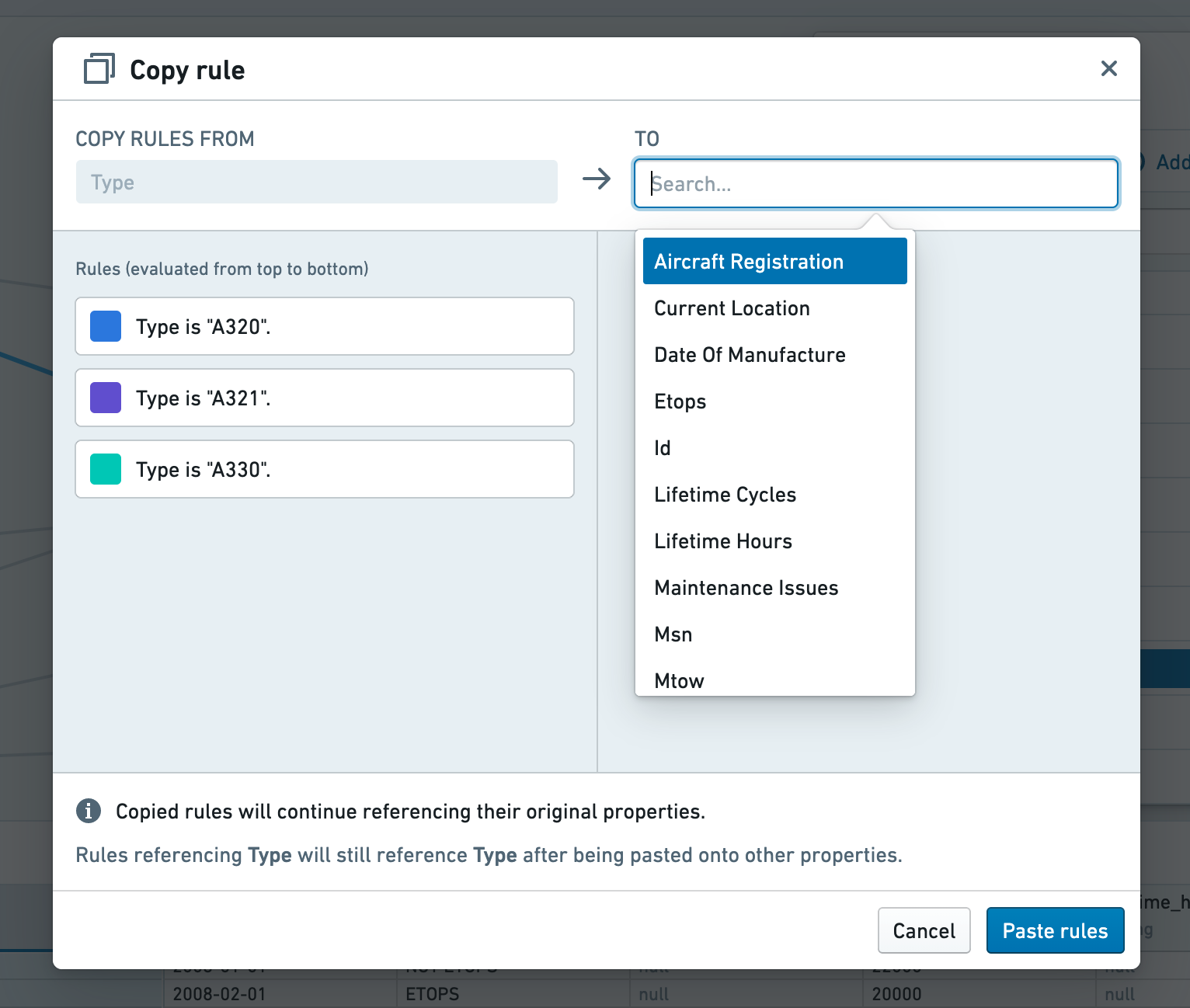 Copied rules will continue referencing their original properties. For example, if a rule states that `wifi` values should appear green when “true,” and that rule is copied to the `customer experience` property, values of the `customer experience` property will also be green when the object’s `wifi` value is “true.” To change the property a rule references, simply select the rule and choose a new property from the **Property** dropdown in the rule editor.
## FAQ
### Will this work with existing type classes?
Conditional formatting takes precedence over existing type classes (with one exception detailed in the [following question](#will-this-work-with-editable-properties-in-object-views)). If you have both configured, conditional formatting will be displayed. You can however, use conditional formatting on one property and type classes on another.
### Will this work with editable properties in Object Views?
Conditional formatting is supported for properties configured for [inline edits](../../action-types/inline-edits/index.md#object-explorer-inline-edits). Conditional formatting is disabled for properties with the legacy `hubble:editable` property type class.
Copied rules will continue referencing their original properties. For example, if a rule states that `wifi` values should appear green when “true,” and that rule is copied to the `customer experience` property, values of the `customer experience` property will also be green when the object’s `wifi` value is “true.” To change the property a rule references, simply select the rule and choose a new property from the **Property** dropdown in the rule editor.
## FAQ
### Will this work with existing type classes?
Conditional formatting takes precedence over existing type classes (with one exception detailed in the [following question](#will-this-work-with-editable-properties-in-object-views)). If you have both configured, conditional formatting will be displayed. You can however, use conditional formatting on one property and type classes on another.
### Will this work with editable properties in Object Views?
Conditional formatting is supported for properties configured for [inline edits](../../action-types/inline-edits/index.md#object-explorer-inline-edits). Conditional formatting is disabled for properties with the legacy `hubble:editable` property type class.