# Series panel \[Planned deprecation]
:::callout{theme="warning" title="Planned deprecation"}
The series panel in Map is in the [planned deprecation](../../platform-overview/development-life-cycle/index.md) phase of development and will be unavailable after January 31, 2026. Use the [timeline](../timeline/index.md#time-series-beta) to view time-based data and further inspect time-based object properties in Map.
Contact Palantir Support if you have questions about Map's timeline feature or require additional help migrating your workflows.
:::
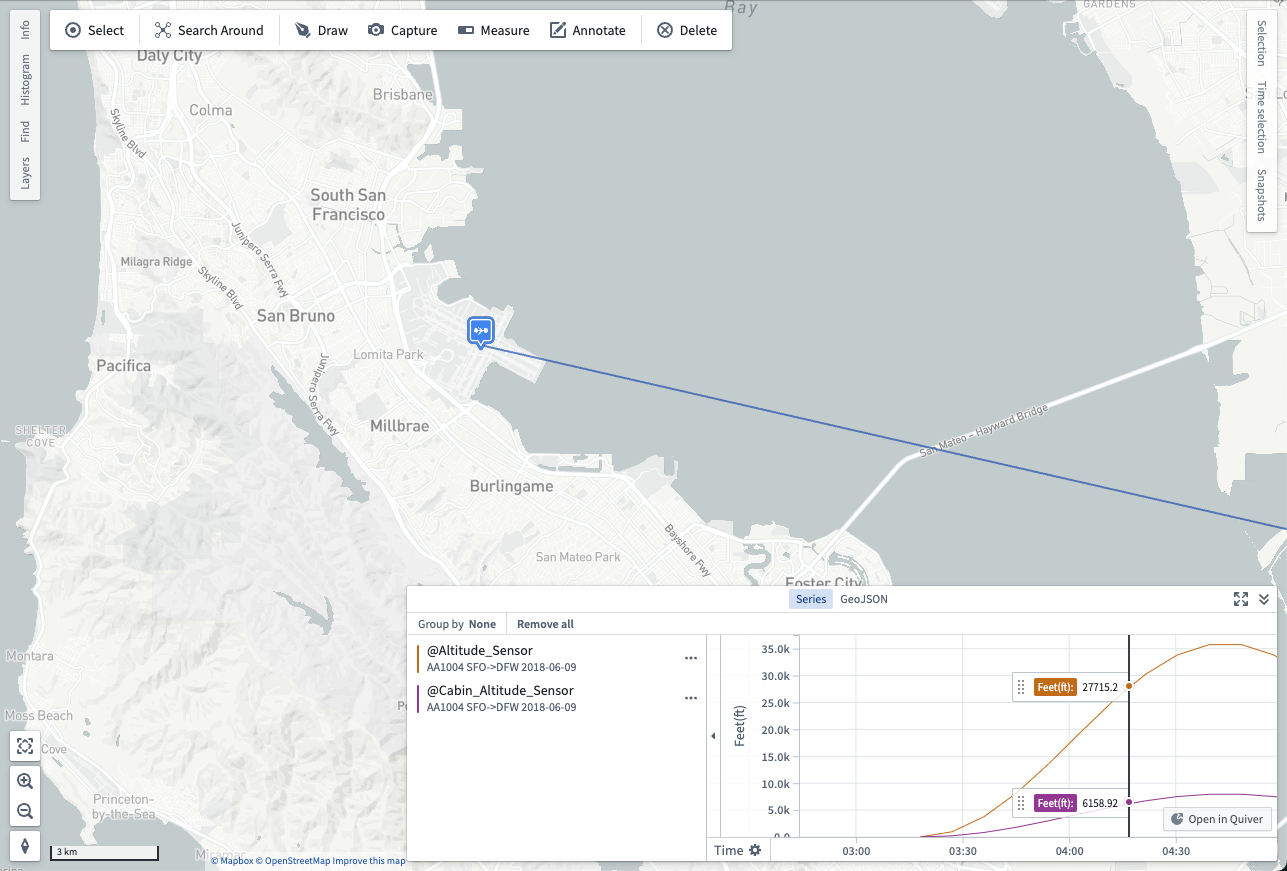
You can use a map's **Series** panel to further inspect [time series](../time-series/index.md) and [linked events](../events/index.md#linked-events) synced with the timeline's selected time and time window.
## Time series
[Time series](../../time-series/time-series-overview/index.md) are measured values that change over time.
You can add a time series to the series panel using the following methods:
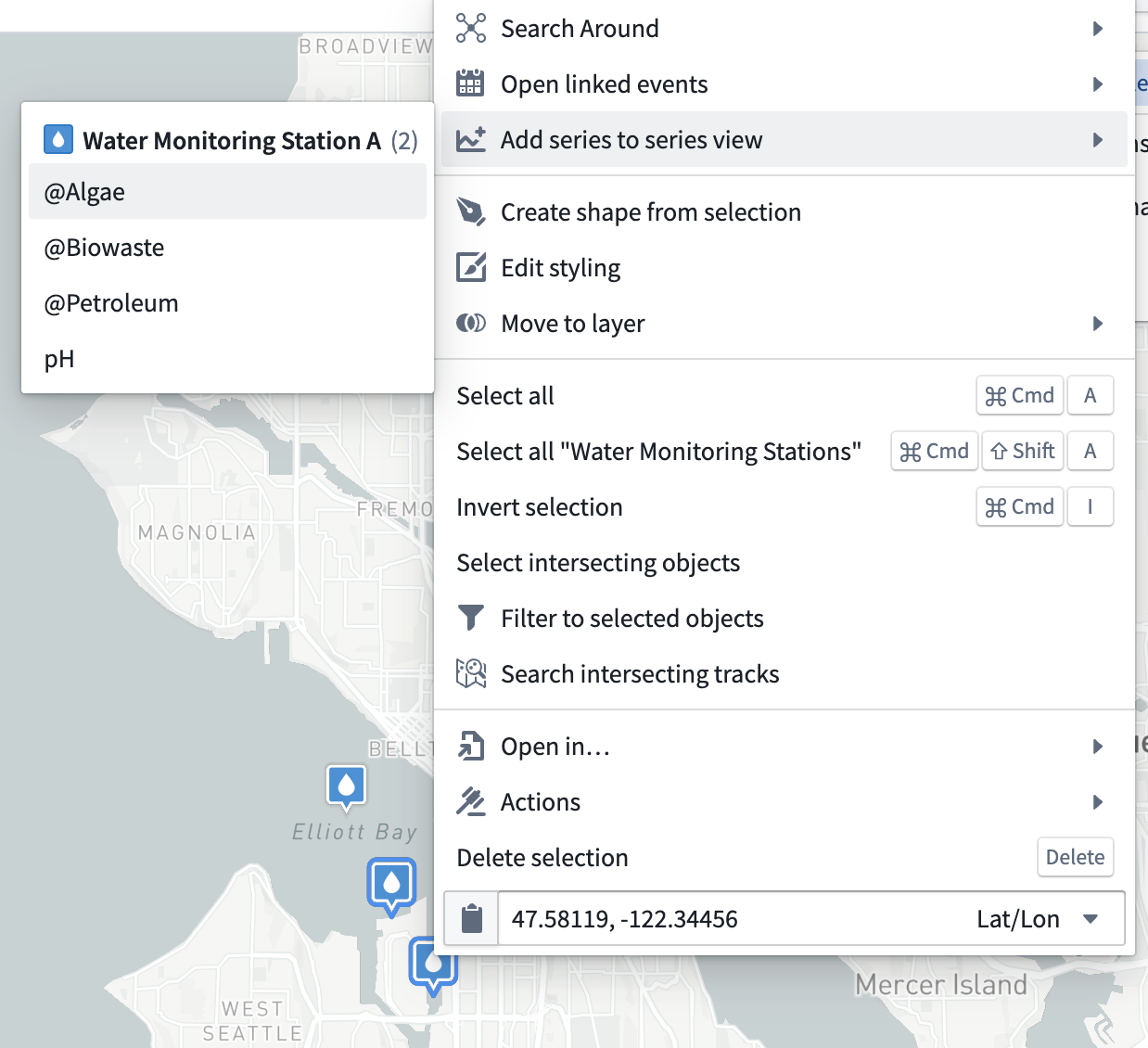
* Right-click an object and choose **Add series to series view** before selecting a series from the **Add series to series panel** menu.
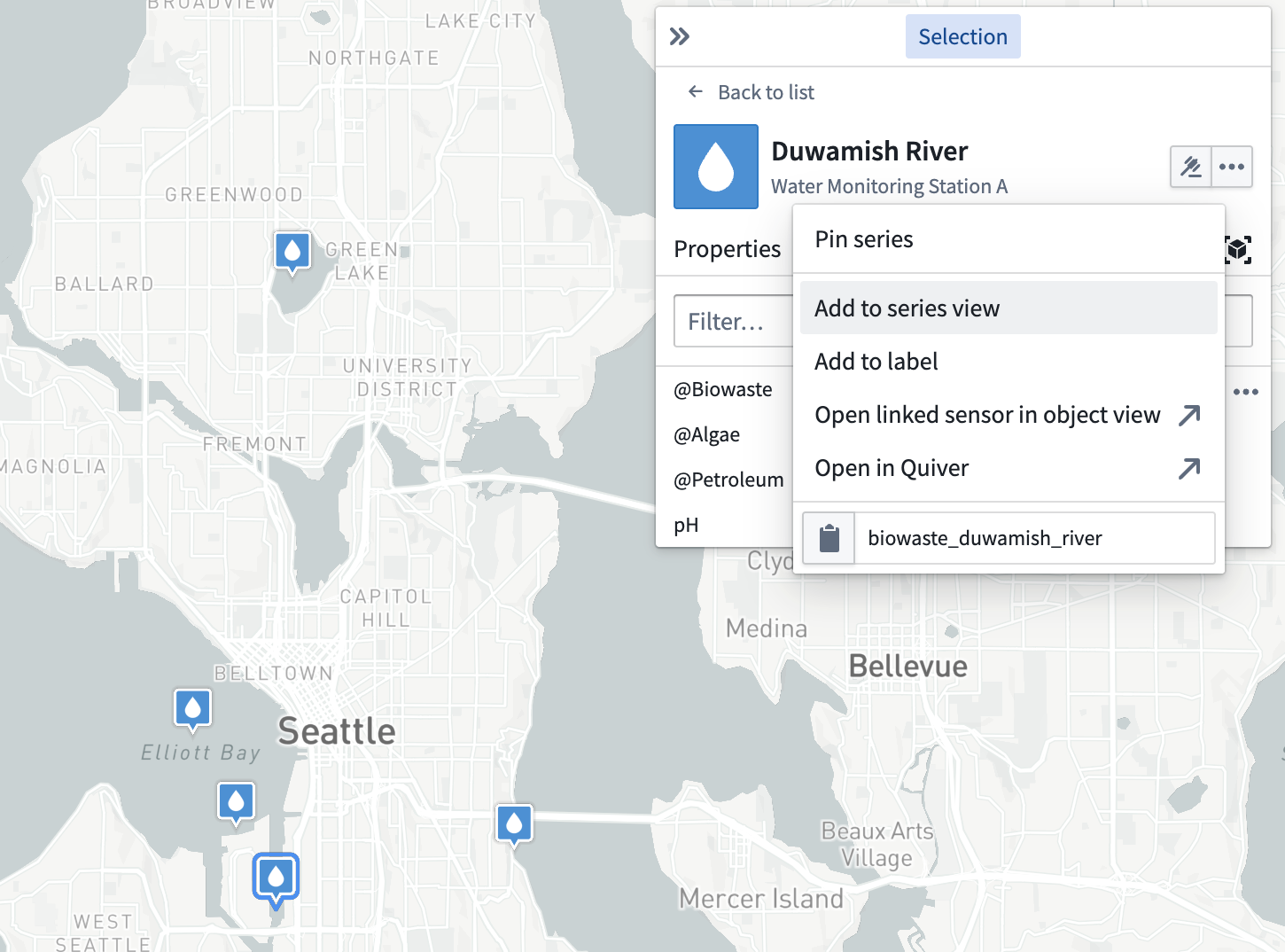
* Select an object, [open the **Selection** panel](../selection/index.md#selection-panel), and navigate to the **Series** tab. Select the **…** icon that appears when hovering over a series row to open a menu that contains additional actions related to the selected time series. Then, select **Add to series view**.
| Right-click to add a time series |
Use the Selection panel to add a time series |
 |
 |
When you add a time series to the **Series** panel, a visualization of the series over time appears at the bottom of the map. You can use the **Series** panel to move through time by selecting the point in time you wish to view. Additionally, you can scroll across the rendered time range.