# Filter card
With the **Filter** card, you can perform a keyword search across all properties of the object types in the analysis path.
The available search and filter types are described below:
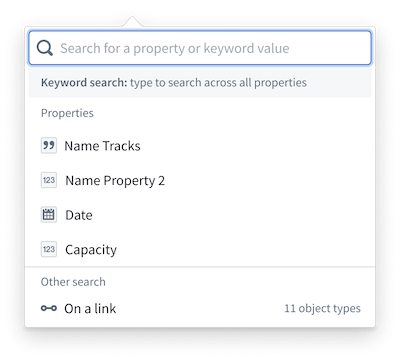
**Keyword search:** Type directly into the search bar and press `Enter` to search for a particular value across all data in the analysis.
**Property search:** Enter or choose a property from the dropdown menu to further define in the filter card. The default for each property is an exact match search type (`is`), but you can change this to a different parameter depending on the property type. For example, you could change a filter from `Project Start Date is May 15, 2023` to `Project Start Date is between Jan 1, 2023 and Dec 31, 2024`.
**Filter on linked property:** Filter on the properties of a linked object type without traversing to those object types. Select the **On a link** option at the bottom of the filter property dropdown menu to choose an object type linked to one or all object types in your analysis. Then choose whether to search for properties of an object type in your analysis that `is linked to` or `is not linked to` the selected linked object type.
## Special property types
Additional property types, such as vector, leading wildcard, and regex properties, appear at the bottom of the filter card when present in your analysis. For more information about regex searchable properties and syntax, review the [search syntax](../../ontology/search-syntax/index.md) documentation.
### Leading wildcards
Leading wildcard search lets you find values that end with a given term. For example, a query of `*smith` matches values such as `Goldsmith` and `Blacksmith`.
To enable leading wildcard search on a string property:
1. In the **Ontology Manager**, open the object type and select the string property you want to configure.
2. Enable the **Enable leading wildcards** render hint on the property.
3. Confirm that the **Searchable** render hint is also enabled, as it is required for leading wildcards to function.
4. Save your changes and reindex the object type's backing data sources into Object Storage v1 (Phonograph). You can wait for the next triggered reindex or manually start one from the **Data sources** tab.
For the full list of available render hints, see [Render hints](../../object-link-types/metadata-render-hints/index.md).
:::callout{theme="warning"}
Combined leading-and-trailing wildcards (`*term*`) are **not** supported. You can use either a leading wildcard (`*term`) or a trailing wildcard (`term*`), but not both at the same time. If you need partial string matching, consider using [Contour](../../contour/overview/index.md) or the Regex mode in a Workshop [Filter List](../../workshop/widgets-filter-list/index.md).
:::
## Search matching
When a search query is entered, it is broken into individual units called tokens. For example, `The Quick Brown Fox` produces four tokens: `the`, `quick`, `brown`, and `fox`. Tokenization is case-insensitive.
Underscores and periods are treated as part of a token rather than as separators. For example, `banana_pudding` is stored as a single token, so a query for `banana` will not match `banana_pudding` without a wildcard. Dashes, in contrast, are treated as token separators by the standard analyzer — a value like `well-known` is broken into two tokens (`well` and `known`). This is a common source of confusion when searching for hyphenated terms or formatted identifiers (such as UUIDs), because the query is split into separate tokens that are matched independently rather than as a single connected term.
For a detailed reference on analyzer behavior, analyzer types, and how text search works across the platform, see [Understanding text search](../../object-explorer/understanding-text-search/index.md).
### Search types
* **`is`:** Signals an exact match against non-analyzed text. For example, `The Quick Brown Fox` will only match `The Quick Brown Fox`.
* **`starts with`:** Appends `*` to the lowercase search term and matches against non-analyzed, raw field values.
* **`contains`:** Uses partial matching on the final token. All tokens in the query are matched exactly against the target field, except for the final token, which is matched as a prefix. This allows results to appear before the final word is fully entered.
**Example:**
The search term `The Quick Brown F` searches for records containing `the`, `quick`, and `brown` as exact matches, and any word beginning with `f` as a prefix match. This would return a record containing `the brown fox reached the quick rabbit`, as all tokens are present and `fox` satisfies the prefix match on `f`. It would not, however, match `the fox quickly jumped over the brown fence`. While `fence` satisfies the prefix match on `f`, the token `quick` is not present, as `quickly` is not considered an exact match for `quick`.
The order of tokens is not considered when evaluating matches. All tokens must be present in the target field but may appear in any position. This search behavior applies to text-based properties only.
* **`contains any word from`:** Uses the multi-match filter. An object matches if the search tokens exactly match any token from values in the given property.
**Example:**
For the search term `The Quick Brown Fox`, queries for `the` OR `quick` OR `brown` OR `fox`.
**This search will match:** `brown vehicle`, `fox hole`, `the quick fox ran through the forest`
**This search will not match:** `brownie`, `foxtrot`, `Many foxes move quickly`
* **`contains phrase`:** Uses a phrase filter that requires tokens to appear consecutively in the exact order entered.
**Example:**
A query of `The Quick Brown Fox` would match `The quick brown fox is climbing the tree`, as the four tokens appear consecutively in the correct order.
**This search will not match:**
* **`The Quick brown foxy bear`:** The token `fox` is not present as a standalone word.
* **`the brown rabbit met the quick fox near the river`:** The tokens are present, but not in the correct order.
* **`the quick smart and fast brown fox`:** Additional words appear between the tokens.
* **`matches terms within`:** Matches records where all the entered terms appear within a set number of words of each other. This is useful for proximity searches, where the terms must be close together but need not be adjacent.
Configure the search with the following controls:
* **Terms:** Enter one or more terms to search for. Add terms by typing, separating with commas, or pasting a list. Each term is matched as an exact phrase, so multi-word terms remain intact.
* **Maximum gap:** Set the maximum number of words that can appear between the terms.
* **Match terms in order:** Enable this option to also require that the terms appear in the sequence entered. When disabled, the terms can appear in any order.
**Example:**
For the terms `the` and `fox` with a maximum gap of `2` words:
**This search will match:** `the quick brown fox` — the terms `the` and `fox` are separated by two words (`quick brown`), which is within the maximum gap.
**This search will not match:** `the quick brown lazy fox` — the terms are separated by three words (`quick brown lazy`), which exceeds the maximum gap.
To exclude records that match this condition, invert the clause to `does not match terms within`.
### Common pitfalls
* **Partial-word searches do not match exact tokens:** A query of `app` does not match `application` with the default `is` search type, because the standard analyzer indexes `application` as a single token and `app` is not an exact token match. To match values that contain a word starting with your query term (such as `app` matching `application`), use the `contains` search type, which treats the final token of the query as a prefix and performs the wildcard search for you. To match a sequence of letters that appears in the middle of a word (such as `cat` inside `application`), none of the standard search types will match — you would need to use a regex pattern such as `.*cat.*` against a regex-enabled property.
* **Wildcard queries are not analyzed:** When you use a wildcard search (such as `Quick*`), the query string is compared character-for-character against the indexed tokens rather than being run through the analyzer. As a result, the case of your query must match the indexed (lowercased) form, and multi-word wildcard queries do not match because each indexed token is a single word.
* **Leading wildcards require a render hint:** Leading wildcard search (`*term`) is only available on string properties that have the **Enable leading wildcards** render hint enabled in the **Ontology Manager**. Without this render hint, leading wildcard queries do not return results.