# Getting started with HyperAuto V2
This guide is for HyperAuto V2. To get started with HyperAuto V1, see the [HyperAuto V1 documentation](../v1-getting-started/index.md).
If you do not have a direct connection to a system and are working with static data, you can create a [folder-based pipeline](../folder-based-sap/index.md) instead of following the steps below.
Create your first HyperAuto pipeline by following these steps:
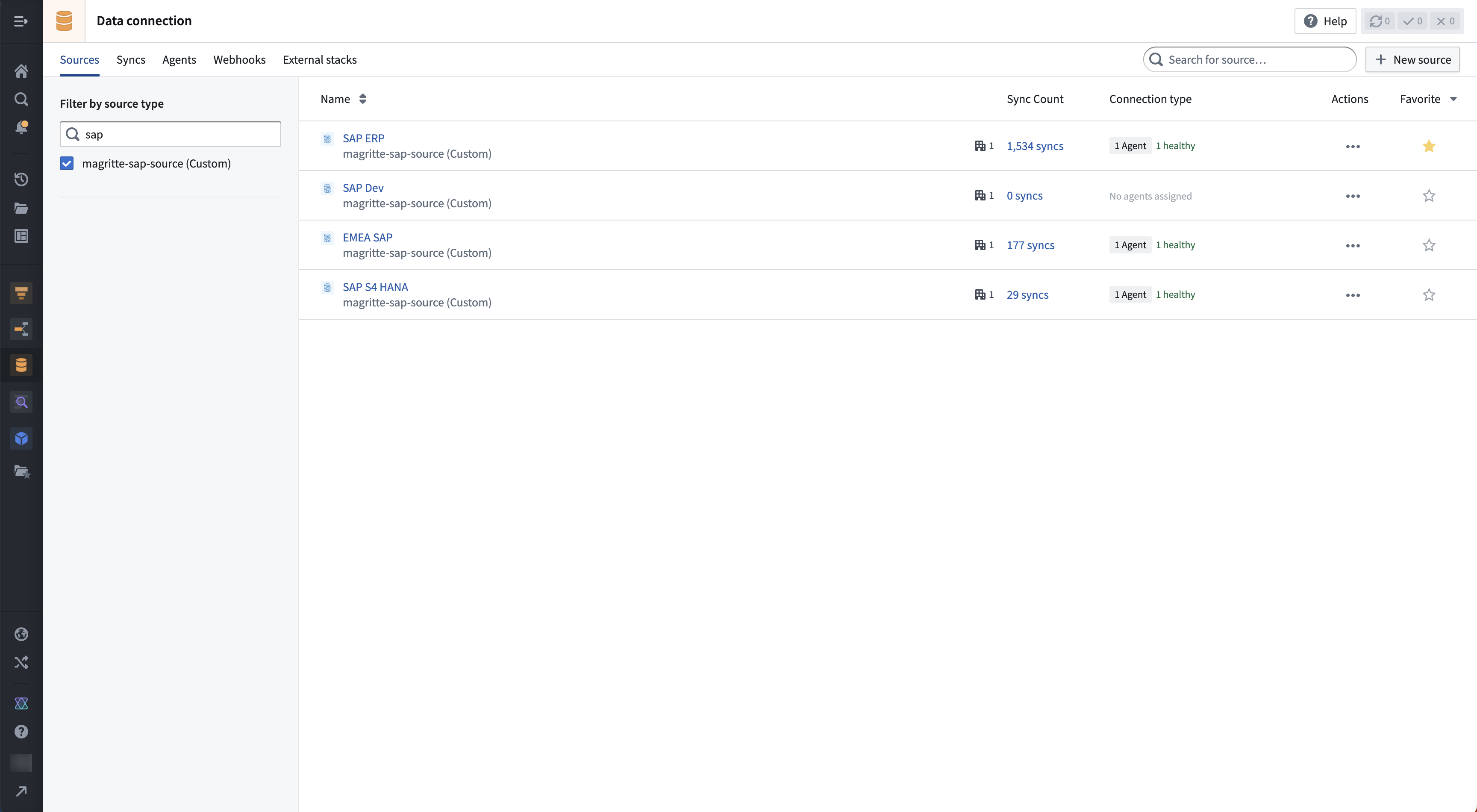
1. Navigate to the [supported source](../supported-sources/index.md) you would like to sync data from. You can find a list of all sources on your Foundry instance in the [Data Connection](../../data-connection/overview/index.md) app.
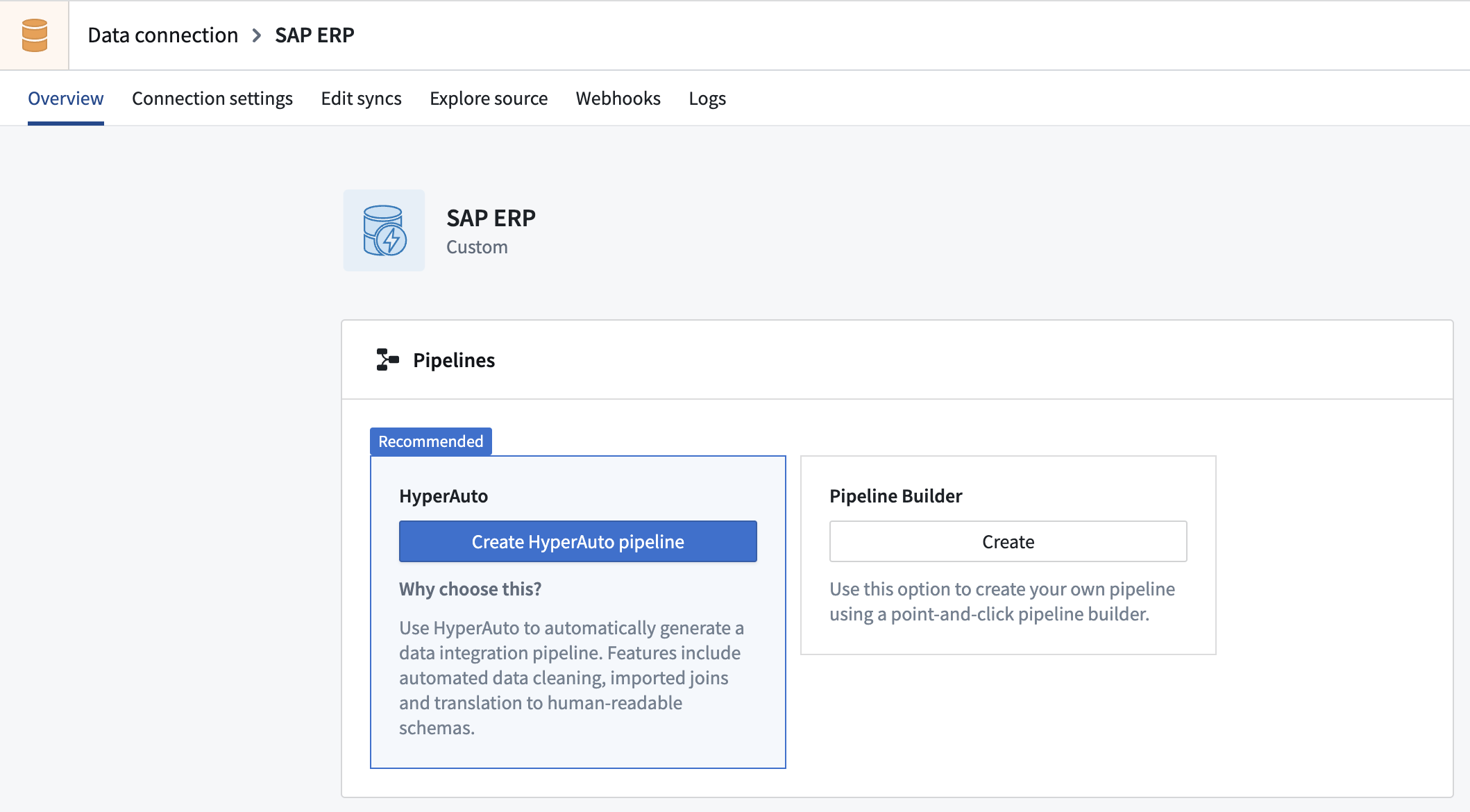
 2. From the source's specific overview tab, select **Create HyperAuto pipeline** to open the HyperAuto pipeline wizard.
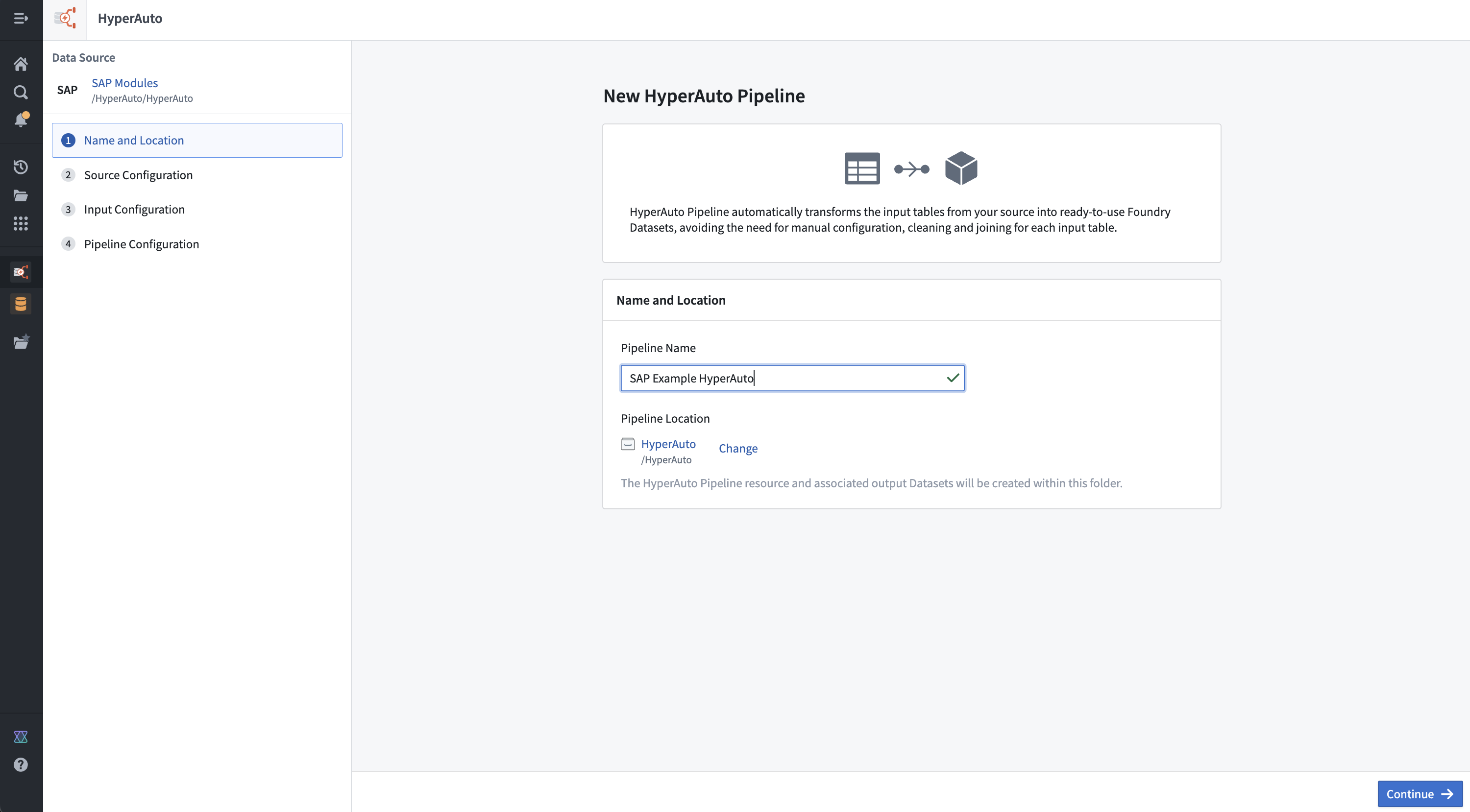
 3. Define the name and location of the new HyperAuto Pipeline resource and any corresponding generated resources. The HyperAuto pipeline must live in the same project as the input datasets.
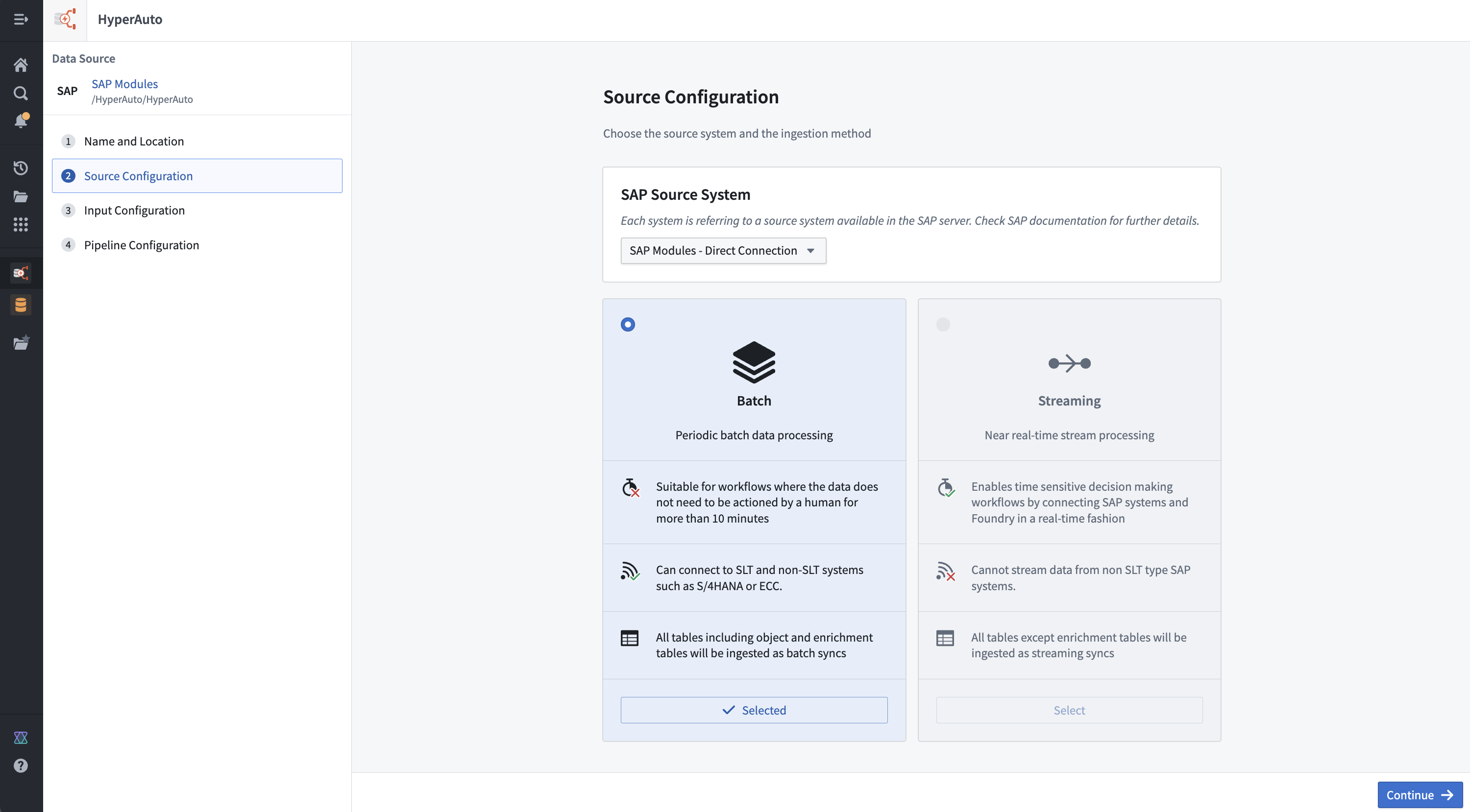
 4. Select the source sub-system if appropriate (for example, the "context" for SAP sources), along with the ingestion method (either batch or streaming, see [architecture](../architecture/index.md) for more info).
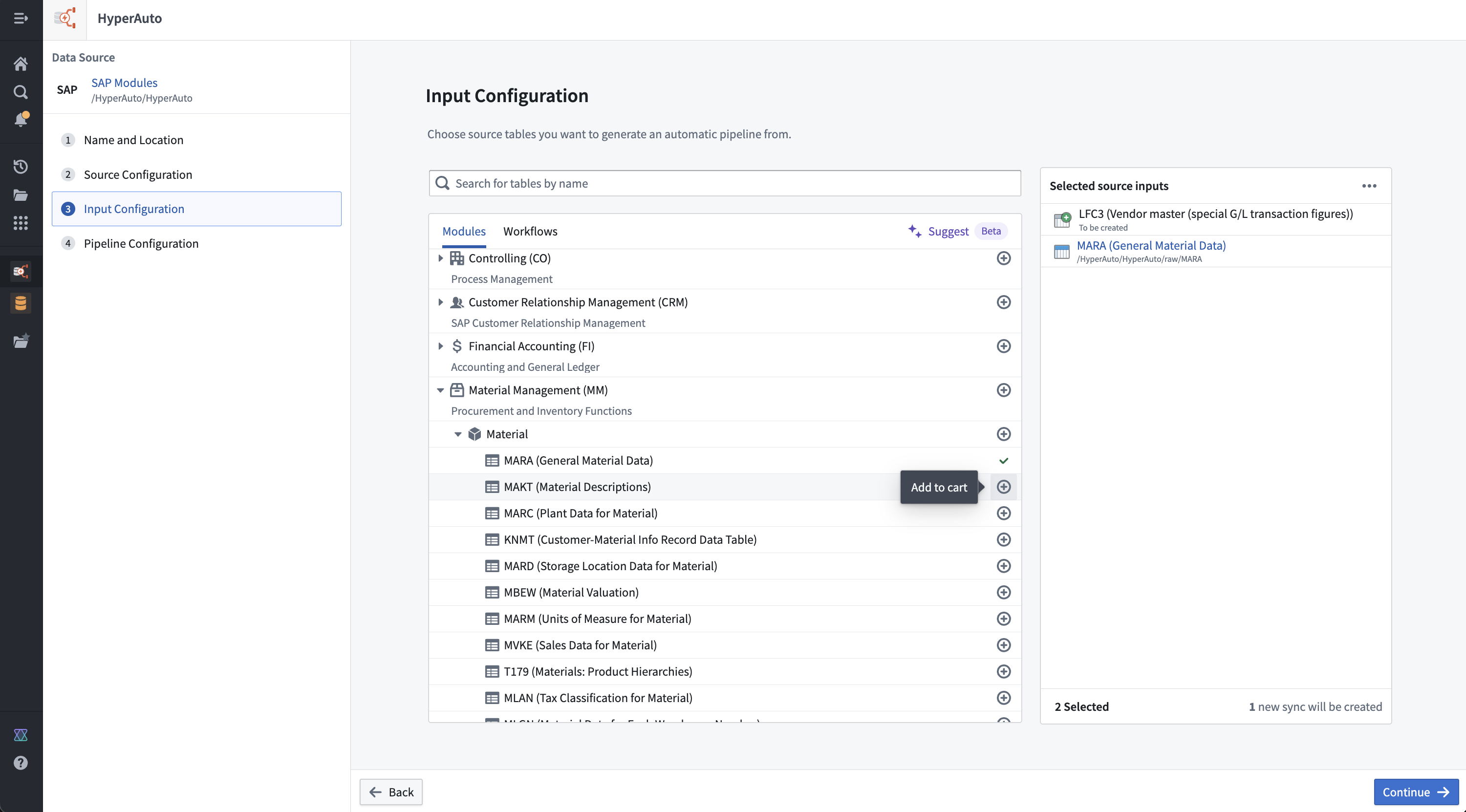
 5. In the **Input Configuration** step, choose the source tables from which you would like to process data. You can select tables individually, by category ("module"), or by workflow. You can also select tables without Data Connection syncs as inputs. If a chosen input has existing syncs, HyperAuto will default to using the most recent one. To reconfigure a selected input, hover over the **Configure input** table button. From this menu, you can either choose an alternative existing sync or create a new sync.
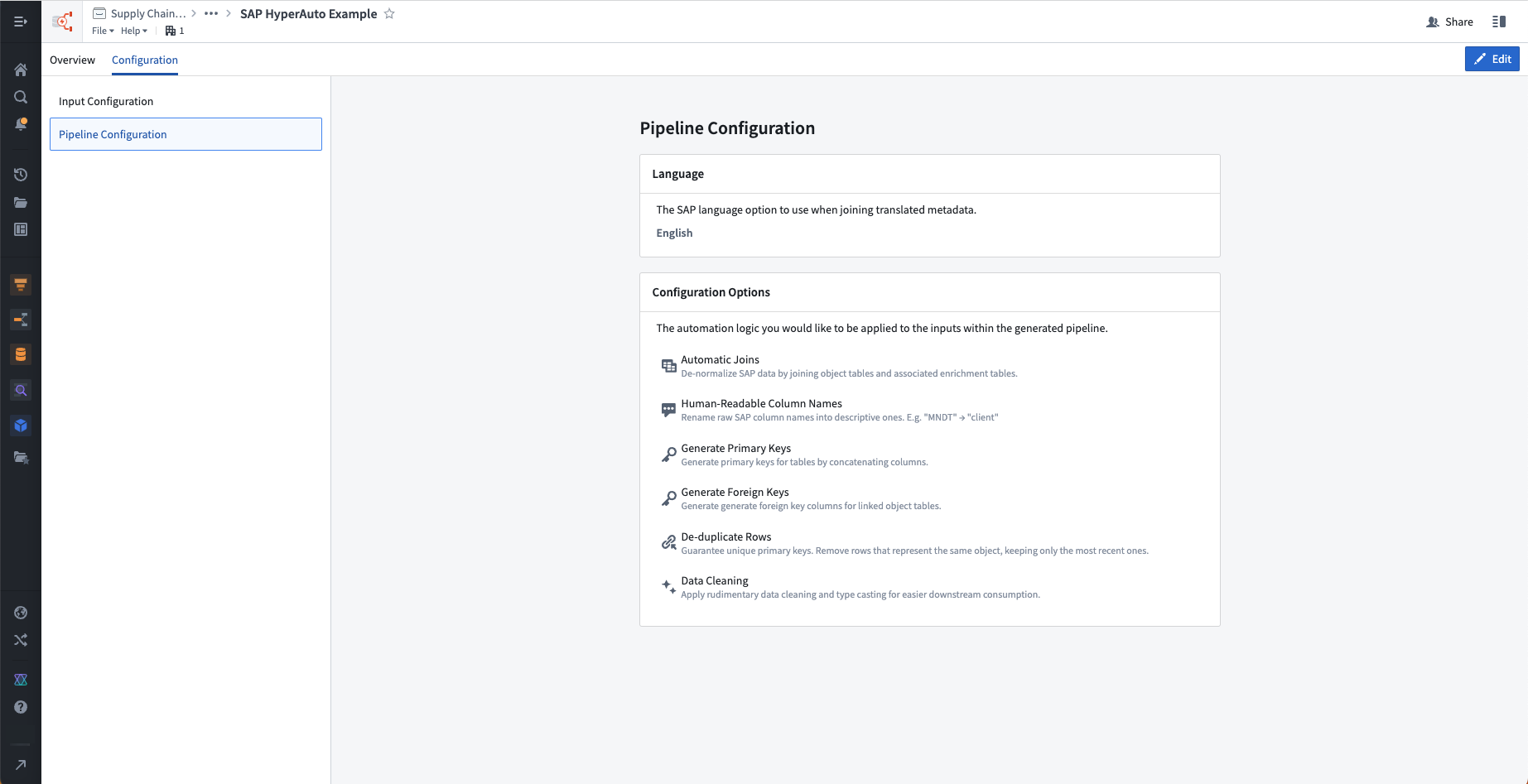
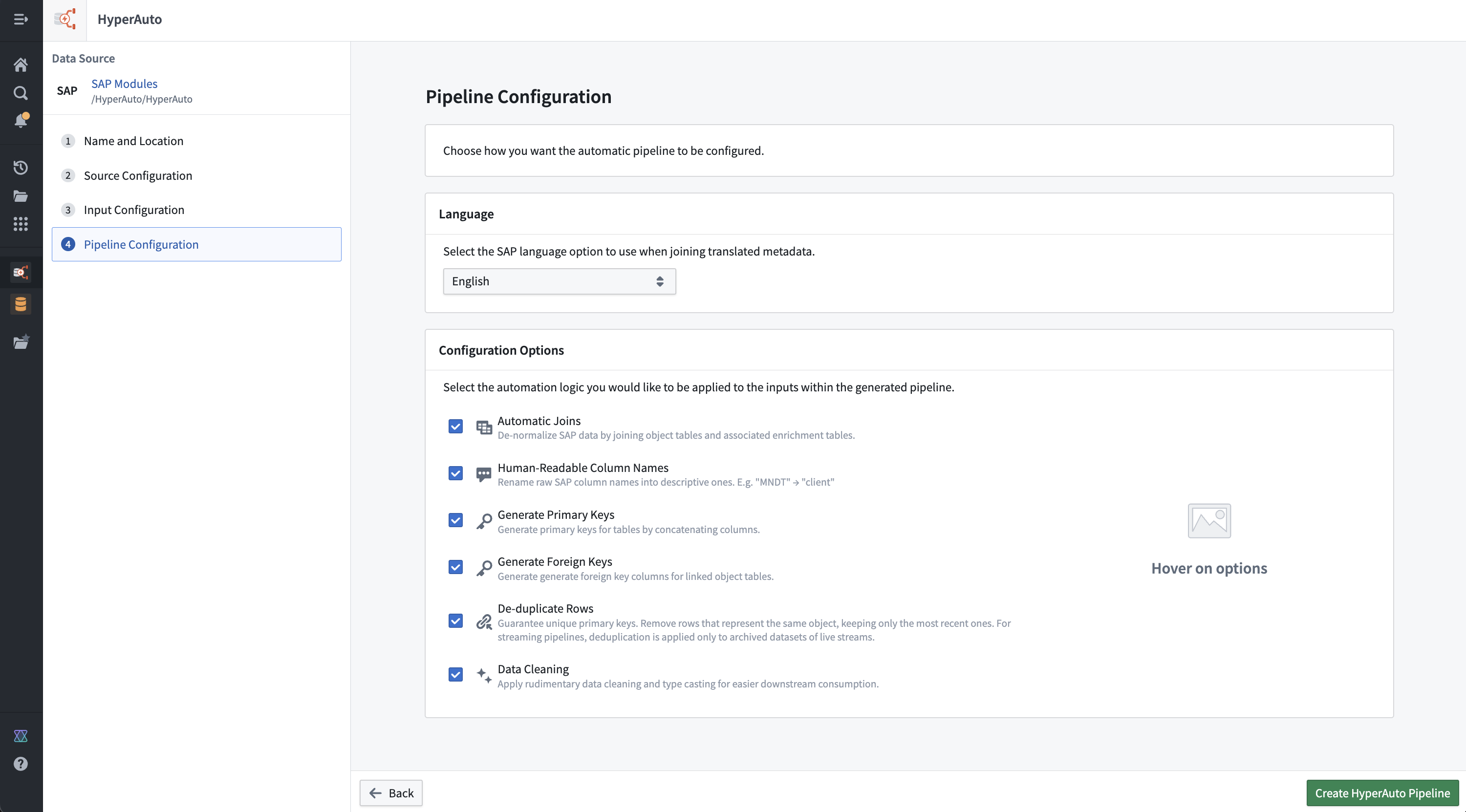
 6. Decide the desired pipeline configuration, including the language and transformation options. For more info, see [configuration options](../configuration-options/index.md).
 7. Select **Create HyperAuto pipeline**. Your new HyperAuto pipeline will be created and begin processing data. You will be redirected to the pipeline's overview page where you can monitor the generation progress.
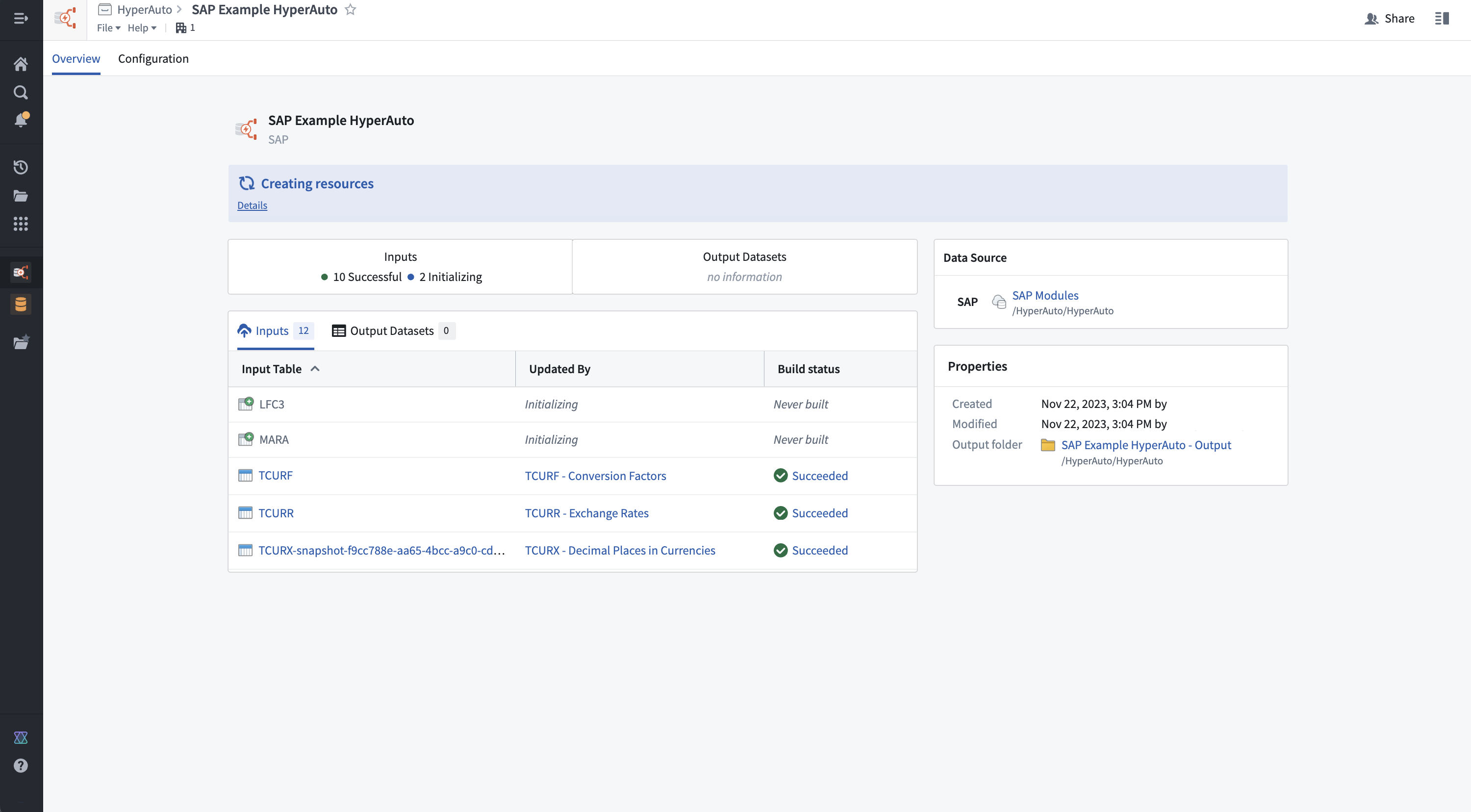 8. Once generation has succeeded, you can use the overview page to manage and monitor the pipeline and its related resources, including input syncs and datasets, and output datasets and objects.
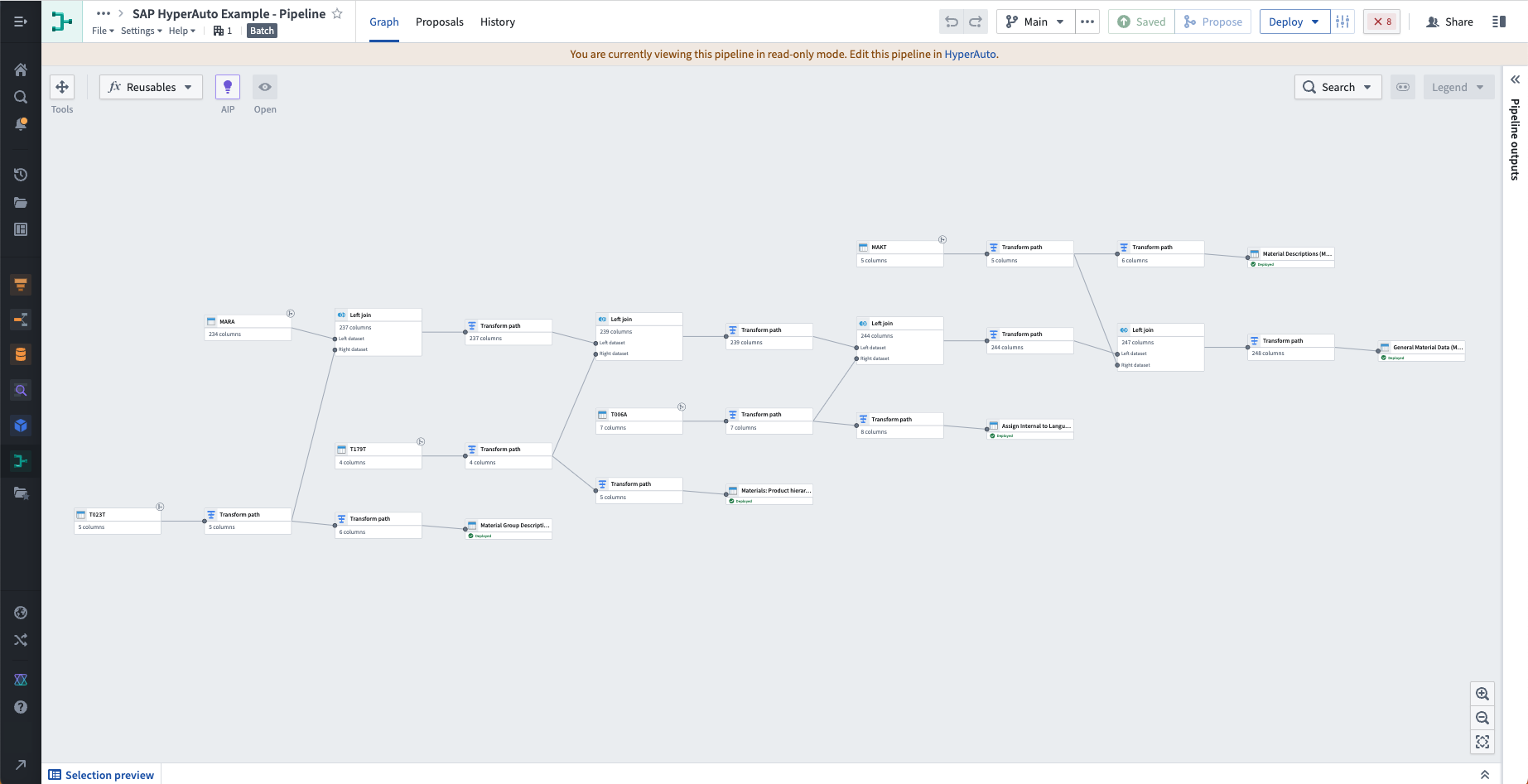
* Select **View builder pipeline** to open the read-only builder pipeline and view the transformation logic in more detail.
8. Once generation has succeeded, you can use the overview page to manage and monitor the pipeline and its related resources, including input syncs and datasets, and output datasets and objects.
* Select **View builder pipeline** to open the read-only builder pipeline and view the transformation logic in more detail.
 * The **Configuration** tab displays the input and pipeline configuration for the HyperAuto pipeline. Select **Edit** in this tab to make a new [proposal](../proposals/index.md) and update the configuration.