# Folder-based SAP pipelines
HyperAuto V2 also supports creating pipelines from SAP data without needing a direct SAP connection. This provides flexibility, enabling support for a large variety of architecture, including source mirrors, static data extracts and pre-filtered data.
## Set up a HyperAuto V2 pipeline for SAP static data
To create a HyperAuto V2 pipeline on top of SAP datasets, set up a single Foundry folder containing:
* Input table datasets (one dataset per SAP table you want to process)
* Data dictionary tables
Keep all datasets directly within the same folder to ensure auto-detection works and to minimize the pipeline creation steps. Calling the input table datasets by their SAP table name (for example, `MARA`) will facilitate the auto-mapping process and reduce the number of manual steps required.
The data needs to be an untransformed extract of raw SAP tables, with their technical column names.
### Data dictionary tables
Data dictionary tables contain the necessary metadata from SAP with which HyperAuto generates a pipeline, including table and column descriptions, and descriptions of the relationships between tables.
The data dictionary tables required to create a folder-based SAP HyperAuto pipeline are:
* **DD02L** (Details of tables in the SAP system)
* **DD02T** (Descriptive text and labels for tables in different languages)
* **DD03L** (Field definitions, data types, and lengths)
* **DD04T** (Descriptions and labels for data elements in multiple languages)
* **DD05S** (Details of foreign key relationships, including the parent and child table fields)
* **DD08L** (Metadata about the foreign key relationships between tables in the SAP system)
Data dictionary tables must be in their raw format and **unfiltered** for HyperAuto to function properly.
### Example
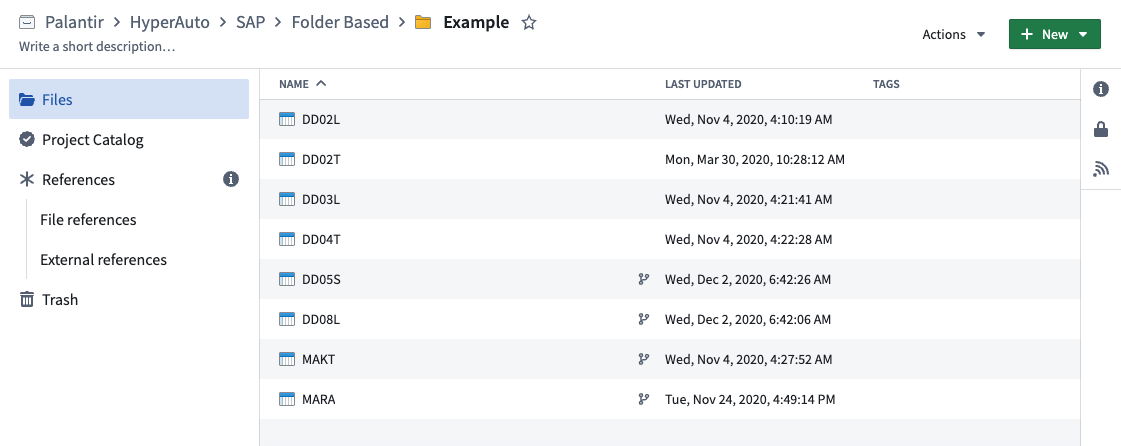
To create a basic HyperAuto pipeline on top of an SAP system's `MARA` and `MAKT` tables, create a folder containing the following datasets:
 ## Create a folder-based pipeline
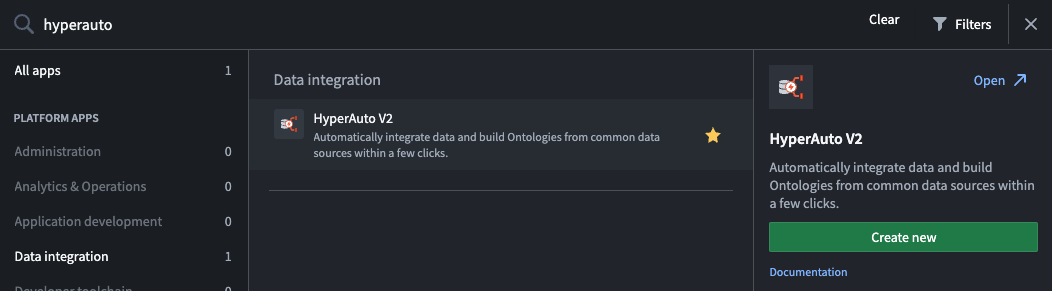
1. Once you have your [input folder set up](#set-up-a-hyperauto-v2-pipeline-for-sap-static-data), navigate to the HyperAuto homepage to create the new pipeline. This can be found via the Applications browser in the left-hand sidebar of Foundry.
## Create a folder-based pipeline
1. Once you have your [input folder set up](#set-up-a-hyperauto-v2-pipeline-for-sap-static-data), navigate to the HyperAuto homepage to create the new pipeline. This can be found via the Applications browser in the left-hand sidebar of Foundry.
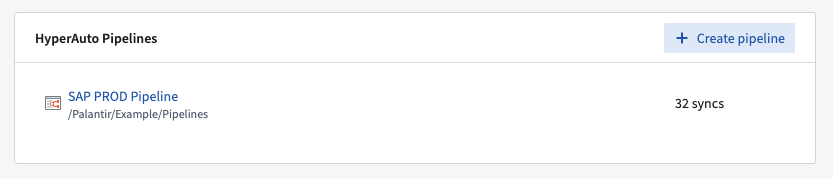
 2. Click **+ Create Pipeline** to open the create pipeline dialog.
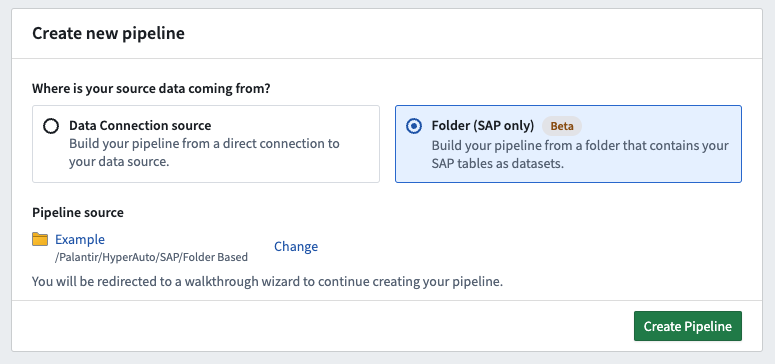
 3. Here you are provided the choice to create a typical pipeline (which will require a live SAP connection) or a folder-based SAP pipeline. Select "Folder (SAP only)" and choose your [input folder](#set-up-a-hyperauto-v2-pipeline-for-sap-static-data) by clicking **Browse**.
Click **Create Pipeline** to be taken to the HyperAuto pipeline creation wizard.
3. Here you are provided the choice to create a typical pipeline (which will require a live SAP connection) or a folder-based SAP pipeline. Select "Folder (SAP only)" and choose your [input folder](#set-up-a-hyperauto-v2-pipeline-for-sap-static-data) by clicking **Browse**.
Click **Create Pipeline** to be taken to the HyperAuto pipeline creation wizard.
 ### Setup wizard
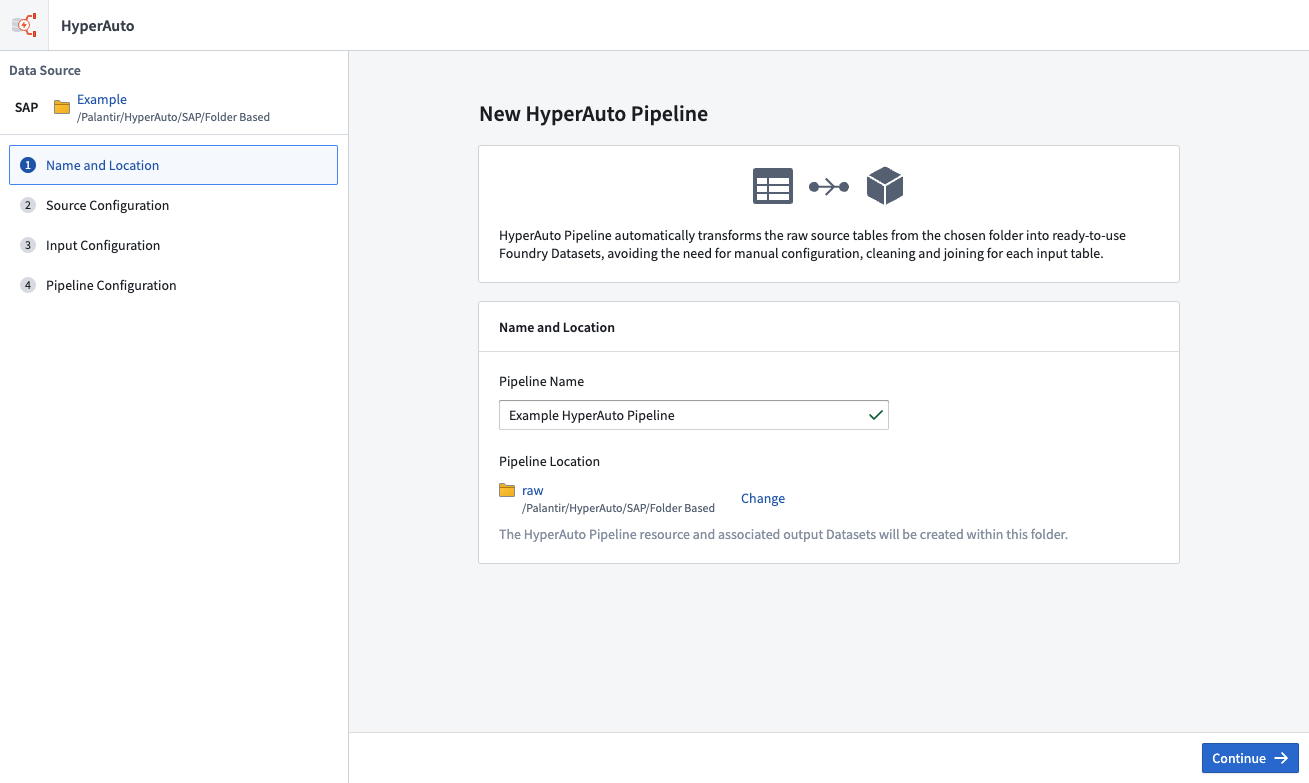
1. Now, you will define the basic pipeline configuration similarly to source-based pipelines.
First, choose a valid name and location for the pipeline.
### Setup wizard
1. Now, you will define the basic pipeline configuration similarly to source-based pipelines.
First, choose a valid name and location for the pipeline.
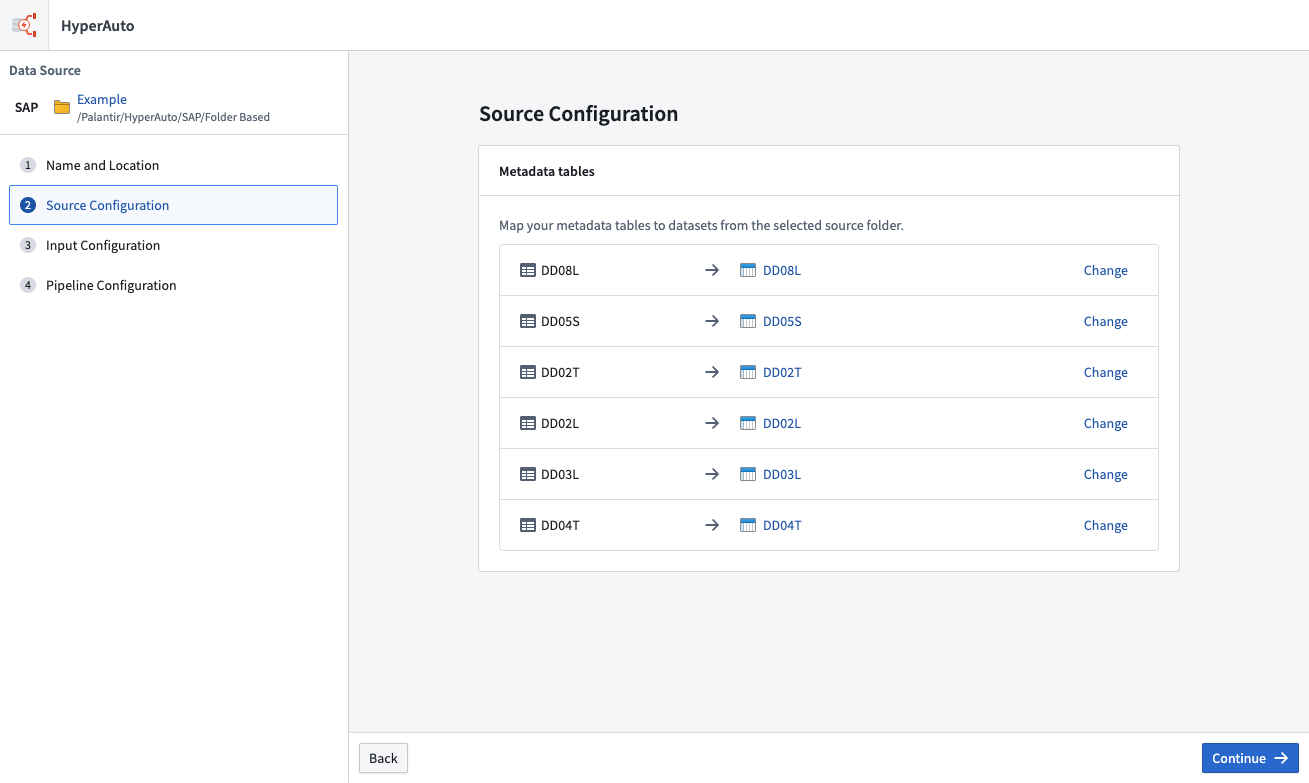
 2. The source configuration step ensures HyperAuto is aware of the data dictionary tables such that it can read the necessary metadata to build the pipeline.
If the input is set up correctly these will be automatically mapped. Otherwise, manually map each metadata table before progressing.
2. The source configuration step ensures HyperAuto is aware of the data dictionary tables such that it can read the necessary metadata to build the pipeline.
If the input is set up correctly these will be automatically mapped. Otherwise, manually map each metadata table before progressing.
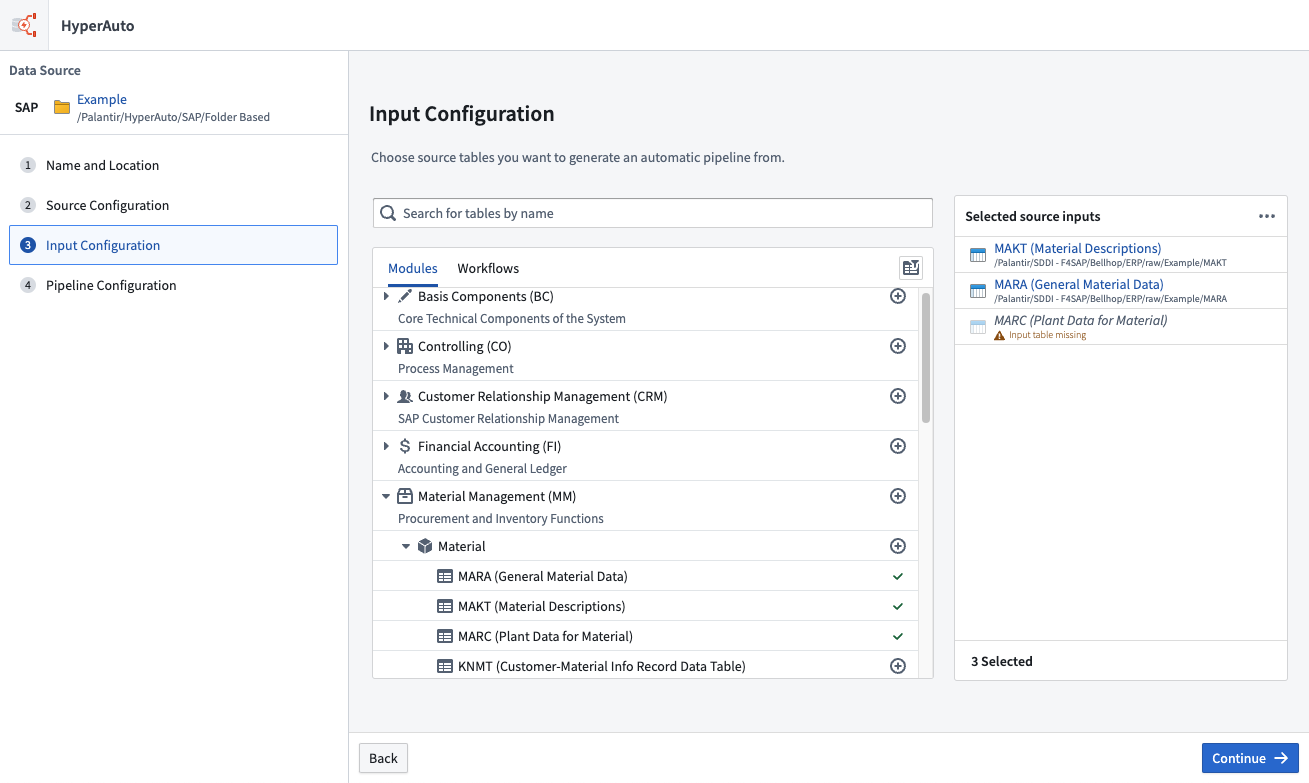
 3. The next step is to choose the inputs to be processed. By default, only discoverable inputs (those which have datasets matching by name directly within the input folder) are shown in the input selection interface.
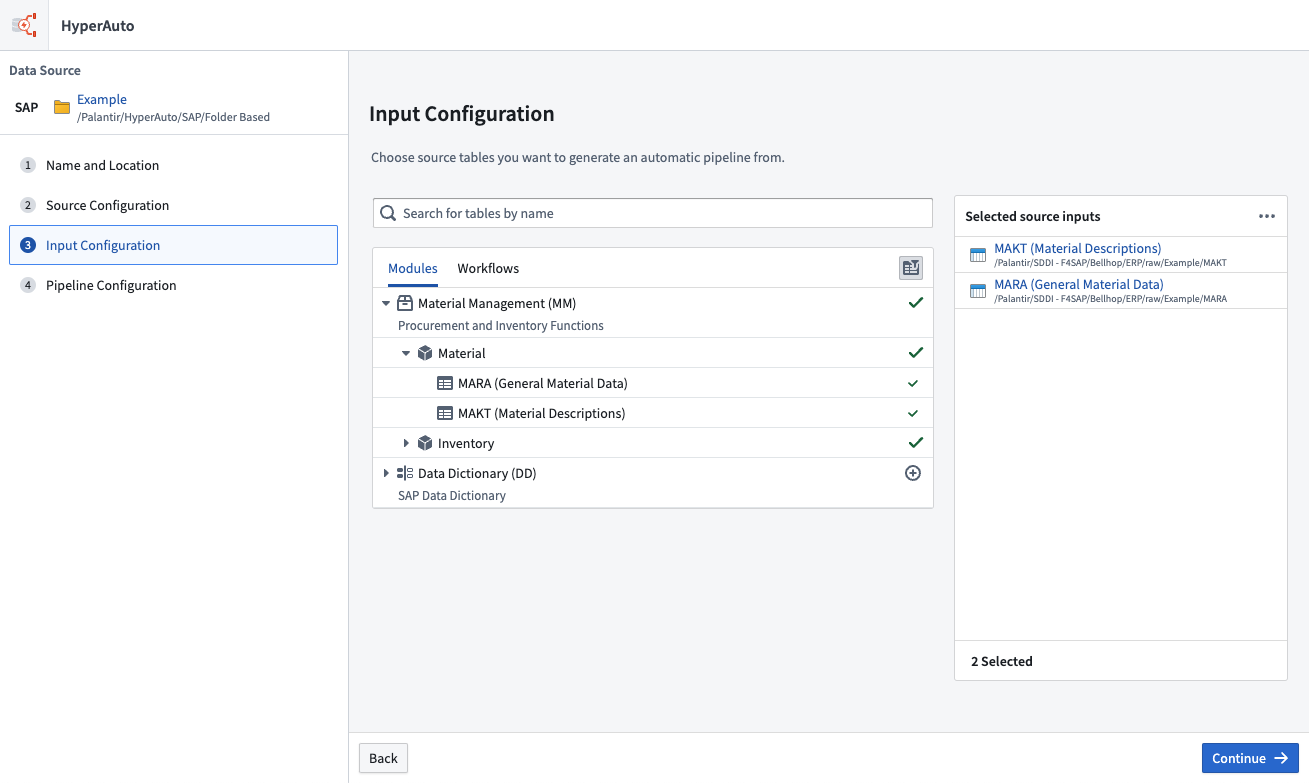 To show all available tables (based on the data dictionary tables) click **Show undiscovered tables**.
Adding an undiscovered table will require you to manually map the input to an appropriate Foundry dataset for it to be usable as an input.
To show all available tables (based on the data dictionary tables) click **Show undiscovered tables**.
Adding an undiscovered table will require you to manually map the input to an appropriate Foundry dataset for it to be usable as an input.
 :::callout{theme="warning"}
Creating a pipeline with an unmapped input will cause that input to be ignored.
:::
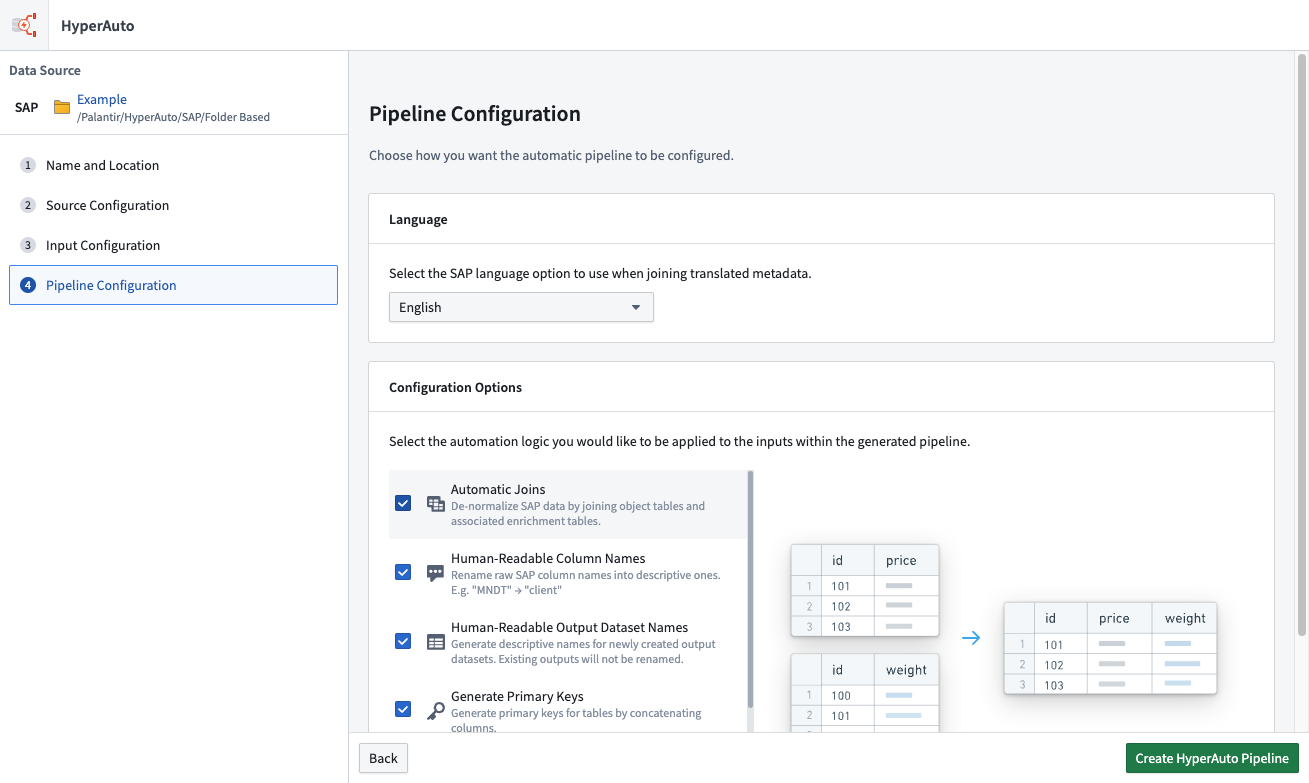
4. Select the pipeline configuration as desired and click **Create HyperAuto Pipeline** to complete the wizard and trigger pipeline creation.
:::callout{theme="warning"}
Creating a pipeline with an unmapped input will cause that input to be ignored.
:::
4. Select the pipeline configuration as desired and click **Create HyperAuto Pipeline** to complete the wizard and trigger pipeline creation.