# Issues application
The Issues application is a support system that enables users to get help from within the Palantir platform.
Using the Issues application, you can:
* Ask questions about applications or the platform itself.
* Triage and resolve problems, requests, and questions transparently.
* Report problems on resources from anywhere inside the platform and see which resources have unresolved issues.
* Make requests for integrating more data within the platform.
## Access the Issues application
From the platform home page:
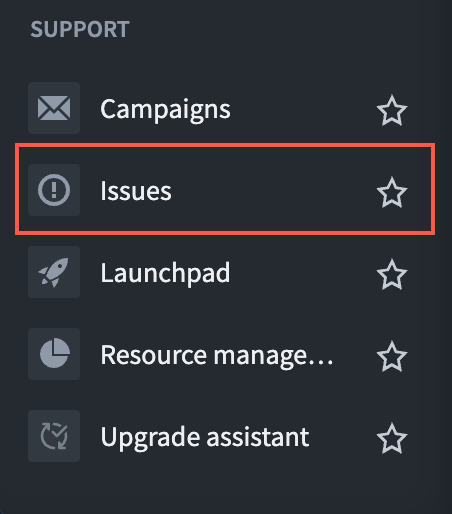
1. On the left navigation bar, select **View all** located to the right of the **Platform Apps** section.
2. Select **Issues** from under **Support**.
 ## Search for issues
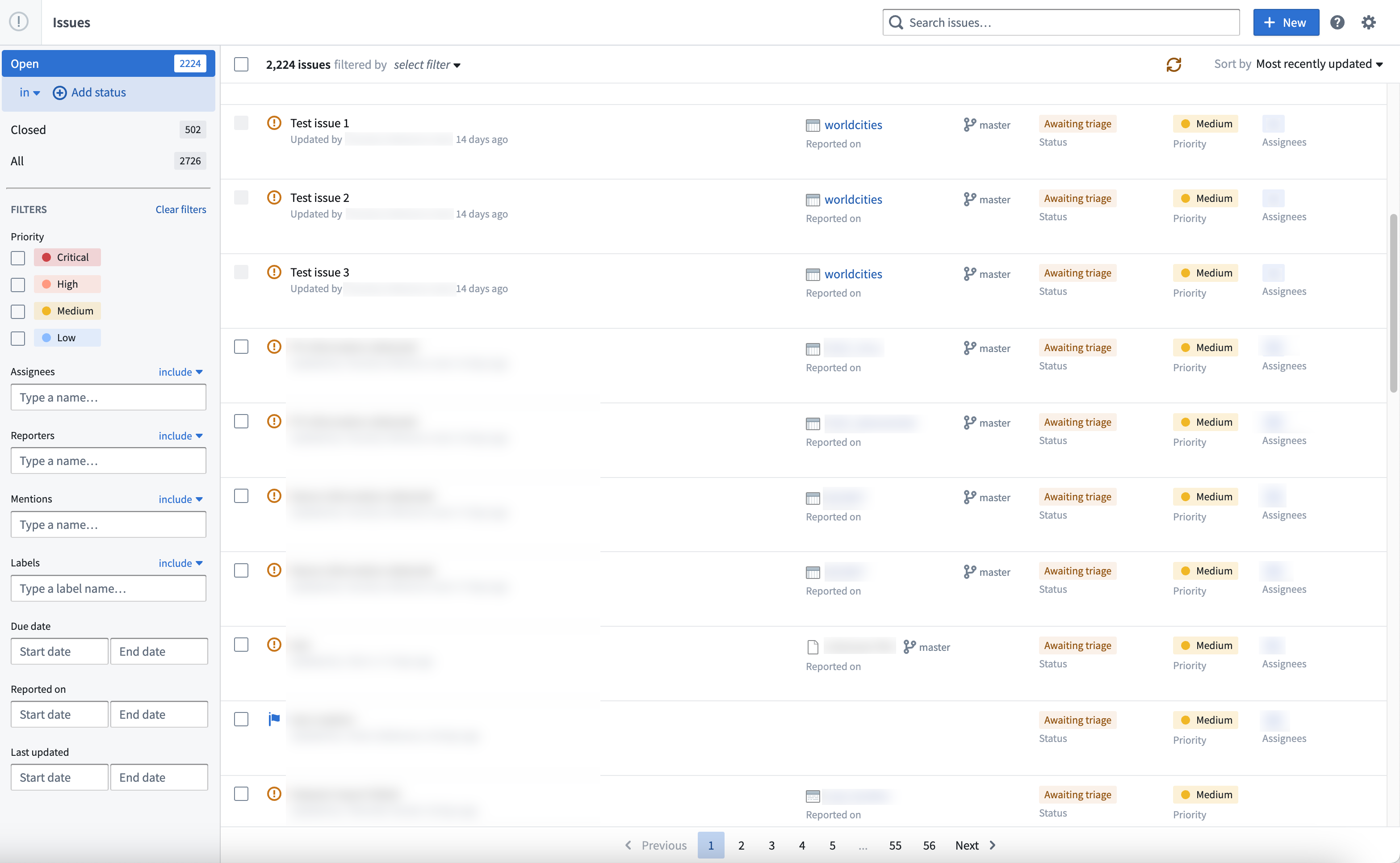
From the Issues home page, you can filter and search for specific issues to narrow down to issues of interest. By default, you will see the **Open** issues overview page. You may also select **Closed** or **All** to see the respective view.
1. Sidebar filtering: The sidebar on the left offers options to filter by:
* Priority
* Assignees
* Reporters
* Mentions
* Labels
* Due date
* Reported on date
* Last updated date
2. Search issues: This search bar allows you to search through all the user-entered fields, including the **Title** and **Comments**.
3. Select Filters: The select filter option allows you to filter by issues that are related to you (for instance, issues assigned to you, reported by you, or mentioning you). There are multiple ways to sort the issues displayed in the Issues application, including:
* Best match
* Most recently updated (default)
* Least recently updated
* Recently created
* Oldest created
* Highest priority
* Lowest priority
* Earliest due date
* Latest due date
## Report an issue
To report an issue, navigate to the **Support** section in your Workspace sidebar and select either **Report issue** or **Contact support**. View existing issues by selecting **View support tickets**.
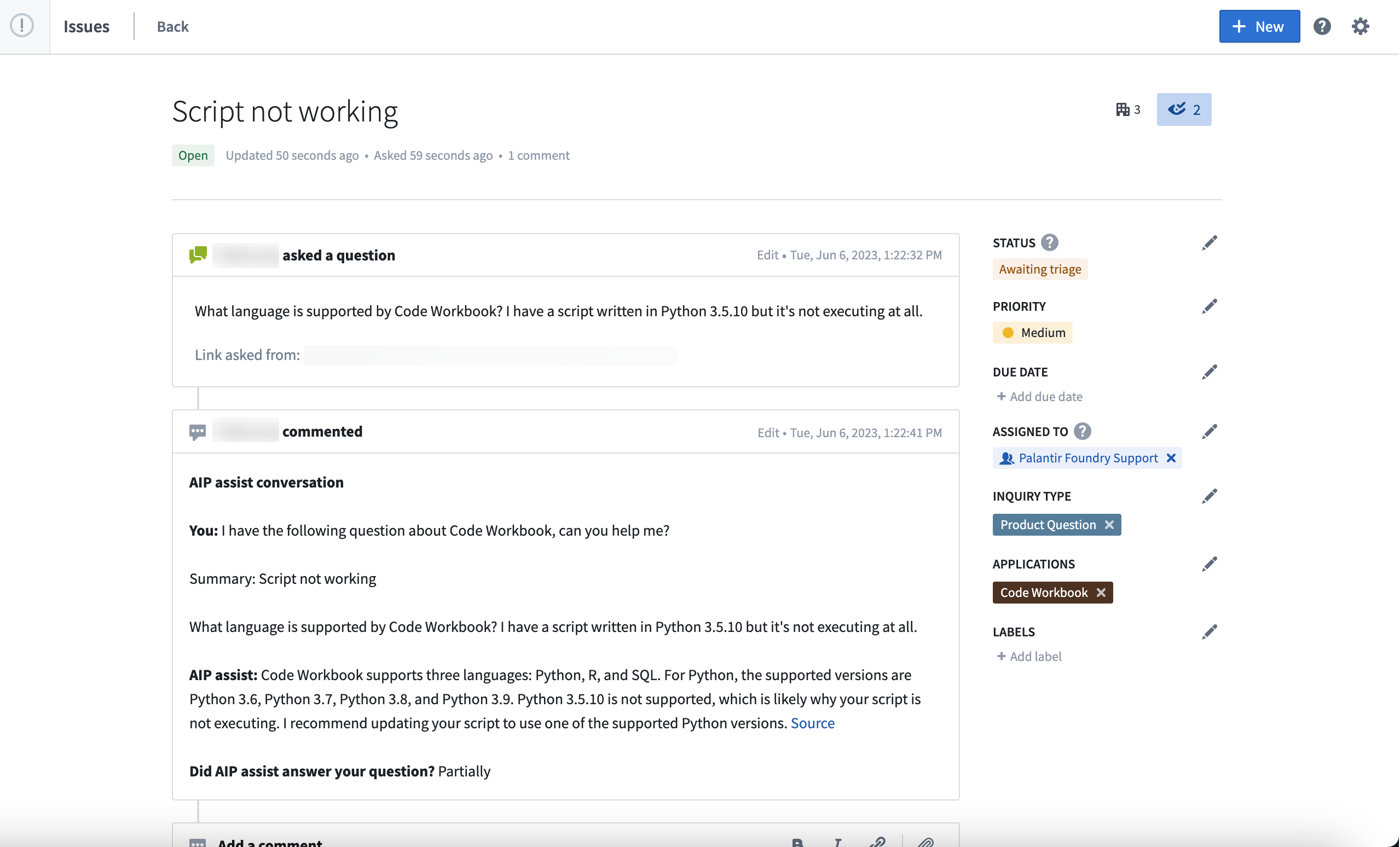
Once your issue is created, you will be brought back to the **Issues** overview page where recent issues are listed, which will be reviewed by the relevant assignees. Select it to enter the issue-specific page and add a comment to provide further updates, or edit its status, priority, due date, assignee, inquiry type, (related) application, or label. Otherwise, select **Close issue** if a resolution has been reached.
## Search for issues
From the Issues home page, you can filter and search for specific issues to narrow down to issues of interest. By default, you will see the **Open** issues overview page. You may also select **Closed** or **All** to see the respective view.
1. Sidebar filtering: The sidebar on the left offers options to filter by:
* Priority
* Assignees
* Reporters
* Mentions
* Labels
* Due date
* Reported on date
* Last updated date
2. Search issues: This search bar allows you to search through all the user-entered fields, including the **Title** and **Comments**.
3. Select Filters: The select filter option allows you to filter by issues that are related to you (for instance, issues assigned to you, reported by you, or mentioning you). There are multiple ways to sort the issues displayed in the Issues application, including:
* Best match
* Most recently updated (default)
* Least recently updated
* Recently created
* Oldest created
* Highest priority
* Lowest priority
* Earliest due date
* Latest due date
## Report an issue
To report an issue, navigate to the **Support** section in your Workspace sidebar and select either **Report issue** or **Contact support**. View existing issues by selecting **View support tickets**.
Once your issue is created, you will be brought back to the **Issues** overview page where recent issues are listed, which will be reviewed by the relevant assignees. Select it to enter the issue-specific page and add a comment to provide further updates, or edit its status, priority, due date, assignee, inquiry type, (related) application, or label. Otherwise, select **Close issue** if a resolution has been reached.

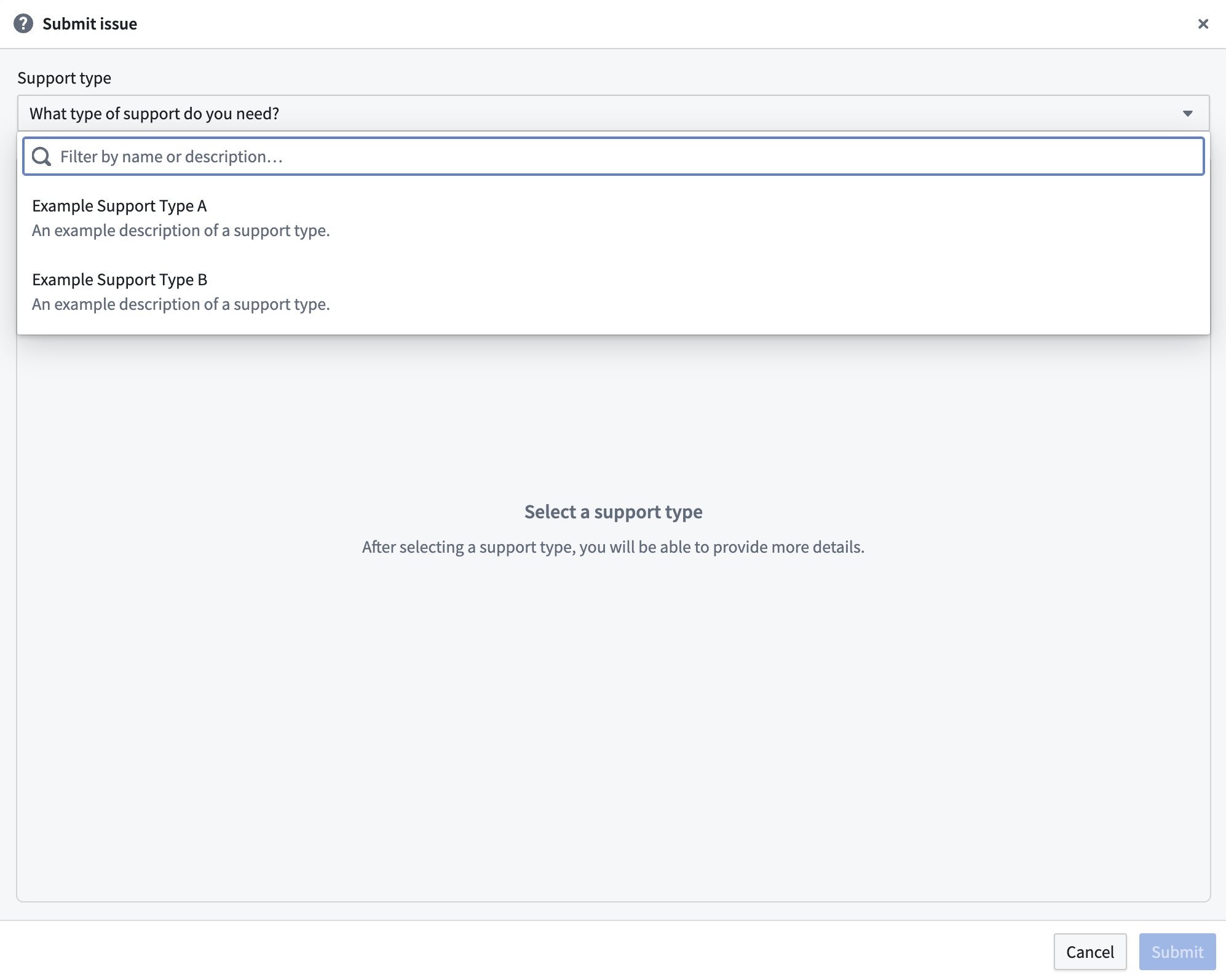
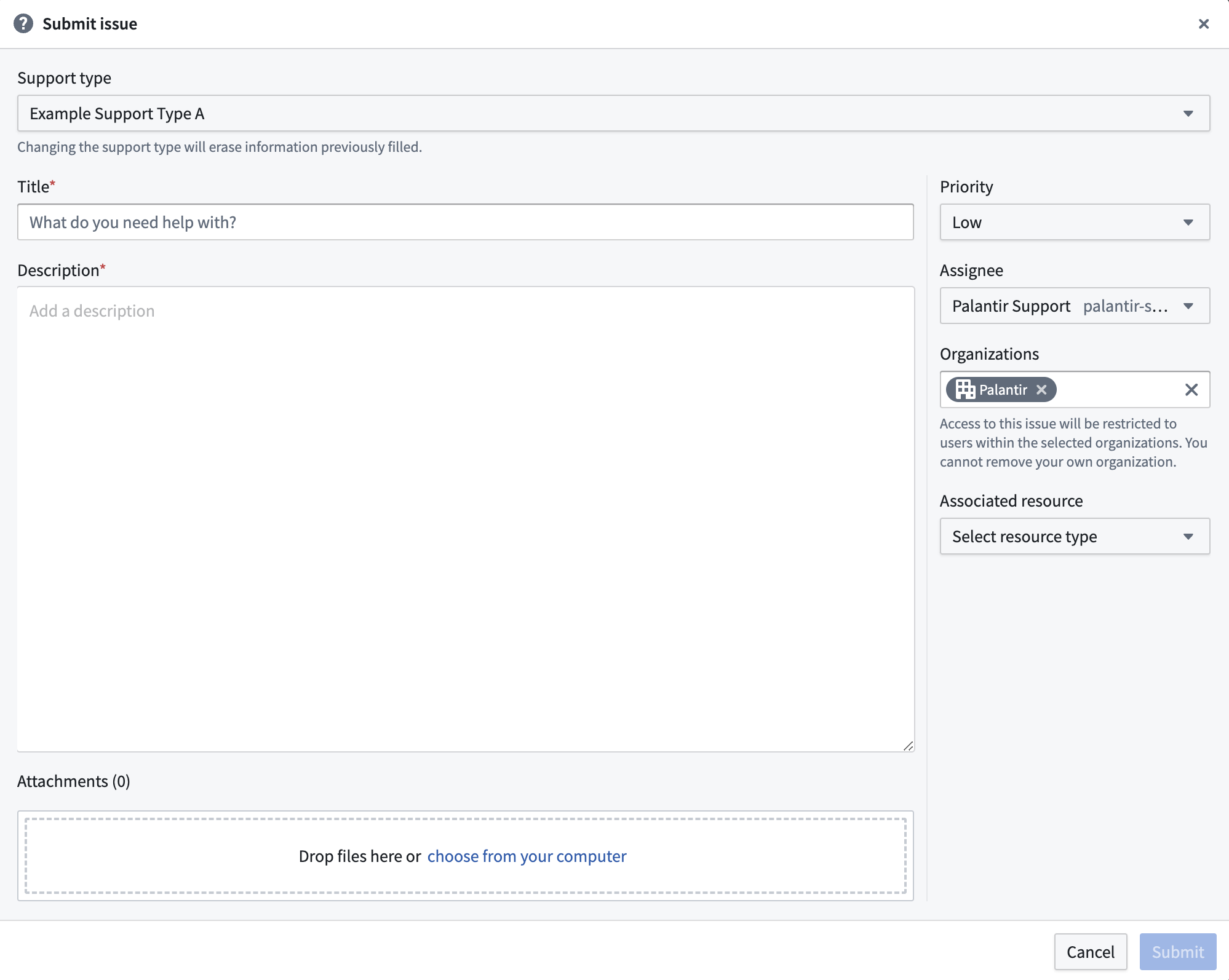
 When creating an issue:
1. Select the support type that most accurately reflects your need.
When creating an issue:
1. Select the support type that most accurately reflects your need.
 2. Provide as much information as possible, including a **Title**, **Description**, **Priority**, and any additional details such as **Associated resources** or **Attachments** where relevant. Then, select **Create Issue**.
 :::callout{theme="neutral"}
The assignee can only be modified after the creation of the issue, unless the selected [support type](../../administration/configure-support-types/index.md) has not been configured with an initial assignee, in which case the reporter is responsible for selecting the appropriate user or group to address their issue.
:::
## Issue permissions
Issues will generally be accessible to all other users in your Organization. However, if an issue is related to a dataset or resource, access can be controlled with [roles](../../security/projects-and-roles/index.md#roles) on the project where the dataset or resource is located. You can control whether a user can see an issue based on the filesystem permissions that user has on the dataset or resource.
**Note:** Creating an issue on a dataset or resource does not grant other users access to that dataset or resource.
### Collaboration across Organizations
Access to an issue is subject to the Organizations associated with it. By default, all issues are associated with the reporter's Organization. When assigning an issue to users or groups outside this Organization, the user updating the issue is able to add an Organization of those associated with the assignees to the issue. Assignees will only be able to view the issue if the issue is associated with an Organization to which they belong (for example, their Organization or an Organization to which they have been granted guest membership). This is also the case when re-assigning the issue.
When assigning issues to groups, there are no strict guarantees that any individual user of an assigned group will be able to view the issue. This is because individual members of the assigned group may not have access to any of the Organizations associated with the issue.
:::callout{theme="warning"}
The association of a group with an Organization does not grant all members of that group access to the Organization. This can only be done through granting guest membership to an Organization. When assigning groups to an issue, you should investigate the permissions of group members to confirm which Organizations (if any) need to be added to the issue to ensure that members have access to respond to the issue.
:::
## Comment tags
When viewing comments on an issue, you may see colored tags displayed next to the commenter's name. These tags help identify the role or relationship of the commenter to the issue, making it easier to understand who is responding and their context.
### Available tags
| Tag | Description |
|-----|-------------|
| **Assignee** | Displayed for users who are assigned to the issue, either directly or through a group assignment. |
| **Reporter** | Displayed for the user who originally created the issue. |
| **Automated** | Displayed for auto-generated comments from the system. |
### Tag display rules
* A single comment can have multiple tags if the commenter has multiple roles. For example, a user who reported an issue and is also assigned to it will see both the **Reporter** and **Assignee** tags.
* Tags are determined automatically based on the commenter's relationship to the issue and cannot be manually assigned or removed.
:::callout{theme="neutral"}
The assignee can only be modified after the creation of the issue, unless the selected [support type](../../administration/configure-support-types/index.md) has not been configured with an initial assignee, in which case the reporter is responsible for selecting the appropriate user or group to address their issue.
:::
## Issue permissions
Issues will generally be accessible to all other users in your Organization. However, if an issue is related to a dataset or resource, access can be controlled with [roles](../../security/projects-and-roles/index.md#roles) on the project where the dataset or resource is located. You can control whether a user can see an issue based on the filesystem permissions that user has on the dataset or resource.
**Note:** Creating an issue on a dataset or resource does not grant other users access to that dataset or resource.
### Collaboration across Organizations
Access to an issue is subject to the Organizations associated with it. By default, all issues are associated with the reporter's Organization. When assigning an issue to users or groups outside this Organization, the user updating the issue is able to add an Organization of those associated with the assignees to the issue. Assignees will only be able to view the issue if the issue is associated with an Organization to which they belong (for example, their Organization or an Organization to which they have been granted guest membership). This is also the case when re-assigning the issue.
When assigning issues to groups, there are no strict guarantees that any individual user of an assigned group will be able to view the issue. This is because individual members of the assigned group may not have access to any of the Organizations associated with the issue.
:::callout{theme="warning"}
The association of a group with an Organization does not grant all members of that group access to the Organization. This can only be done through granting guest membership to an Organization. When assigning groups to an issue, you should investigate the permissions of group members to confirm which Organizations (if any) need to be added to the issue to ensure that members have access to respond to the issue.
:::
## Comment tags
When viewing comments on an issue, you may see colored tags displayed next to the commenter's name. These tags help identify the role or relationship of the commenter to the issue, making it easier to understand who is responding and their context.
### Available tags
| Tag | Description |
|-----|-------------|
| **Assignee** | Displayed for users who are assigned to the issue, either directly or through a group assignment. |
| **Reporter** | Displayed for the user who originally created the issue. |
| **Automated** | Displayed for auto-generated comments from the system. |
### Tag display rules
* A single comment can have multiple tags if the commenter has multiple roles. For example, a user who reported an issue and is also assigned to it will see both the **Reporter** and **Assignee** tags.
* Tags are determined automatically based on the commenter's relationship to the issue and cannot be manually assigned or removed.