# Local development
You can carry out local development of Python functions repositories, allowing for high-speed iteration in your customized environment.
## Setting up local development for Python functions repositories
### Clone the repository
1. In the menu bar of your repository, select **Work locally** to open the dialog and copy the given repository URL.

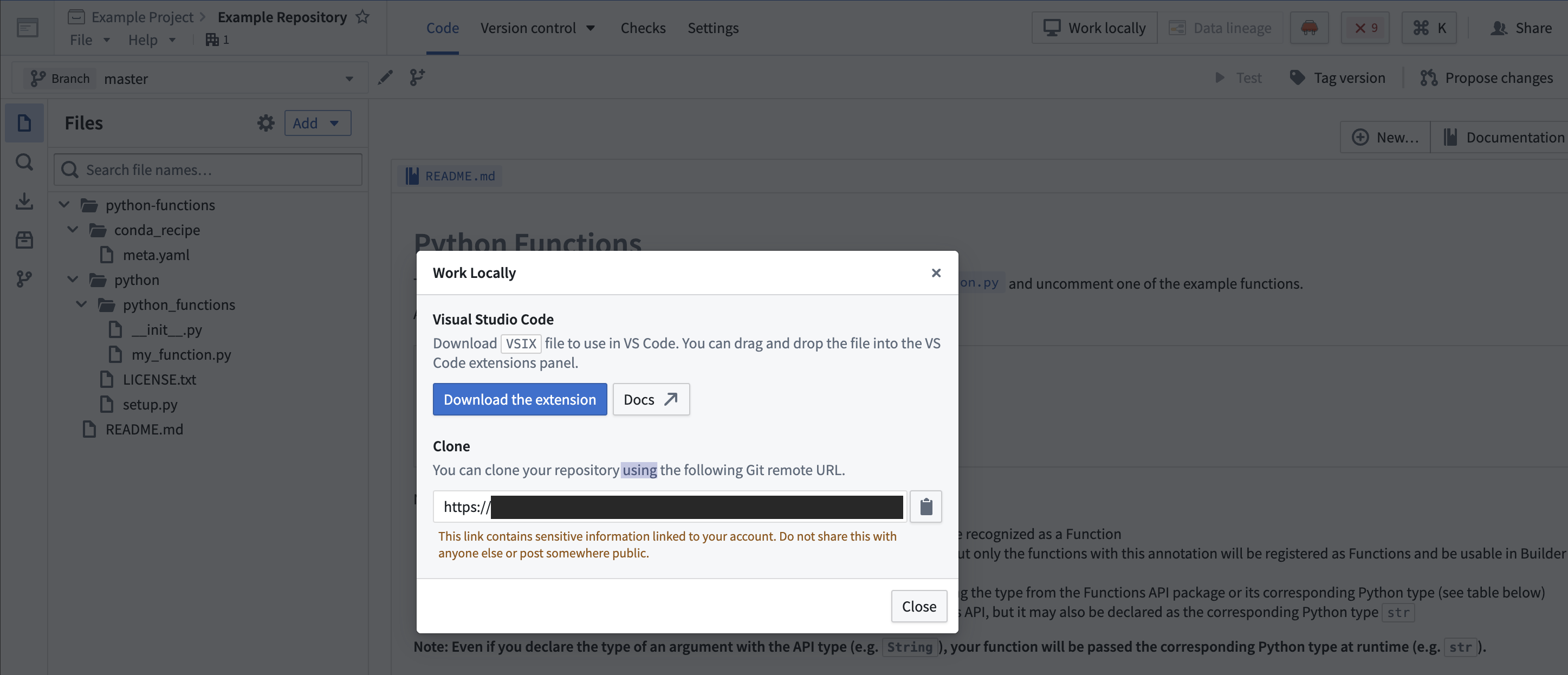
2. Using the command line, run `git clone ` on your local machine in a directory of your choice. Then use the `cd` command to navigate to the repository.
### Limitations
* The token granted for cloning is short-lived and read-only, with the exception of pushing back to your repository.
* You will still need to push your changes to Foundry to publish artifacts, or if you wish to run checks or build.
## Set up the development environment
### Prerequisites
* Ensure Java 21 is installed and that the environment variable `JAVA_HOME` points to the right Java installation. Java 21 can be downloaded from the [Oracle website ↗](https://www.oracle.com/java/technologies/downloads/#java21).
:::callout{theme="neutral"}
Setting the `JAVA_HOME` environment variable based on your operating system:
* Windows: Run `SETX JAVA_HOME -m ""` in PowerShell. This modifies the system environment variable and you will need to restart the shell for changes to take effect. Alternatively you can run ` [System.Environment]::SetEnvironmentVariable("JAVA_HOME", "")` to set `JAVA_HOME` in the running process.
* Linux or macOS: Run `export JAVA_HOME=`.
:::
* Ensure your repository is upgraded to the latest template version by following the steps outlined [here](../../code-repositories/repository-upgrades/index.md#manual-branch-upgrade).
* Ensure that the environment variables `CI`, `JEMMA`, and `CA` are not set.
* If running on an Apple silicon Mac, ensure that [Rosetta 2 ↗](https://developer.apple.com/documentation/apple-silicon/about-the-rosetta-translation-environment) is installed. You can install Rosetta 2 by running `/usr/sbin/softwareupdate --install-rosetta --agree-to-license` in the terminal.
:::callout{theme="warning" title="Template version error"}
If `./gradlew` commands fail with an error similar to the following, your repository is on an outdated template version:
```
A problem occurred evaluating project ':transforms-python'.
> Failed to apply plugin class 'com.palantir.transforms.lang.python.gradle.ModelTrainingPlugin'.
> Could not create task ':transforms-python:createCondaPackLayer'.
> Task with name 'condaPackRun' not found in project ':transforms-python'.
```
Upgrade your repository to the latest template version as described above to resolve this error.
:::
## Visual Studio Code
* Ensure you have [Visual Studio Code ↗](https://code.visualstudio.com/) installed.
* Install the [Python extension ↗](https://marketplace.visualstudio.com/items?itemName=ms-python.python) from the Visual Studio Code site or from the **Extensions** tab in the application.
* To auto-generate settings files that configure the Python interpreter for Visual Studio Code, run the command `./gradlew vsCode`.
## PyCharm
* To set up a Python development environment, run the command `./gradlew condaDevelop`.
* Ensure you have [JetBrains PyCharm ↗](https://www.jetbrains.com/pycharm/) installed locally.
* Import the project following the steps outlined [here ↗](https://www.jetbrains.com/help/pycharm/open-projects.html).
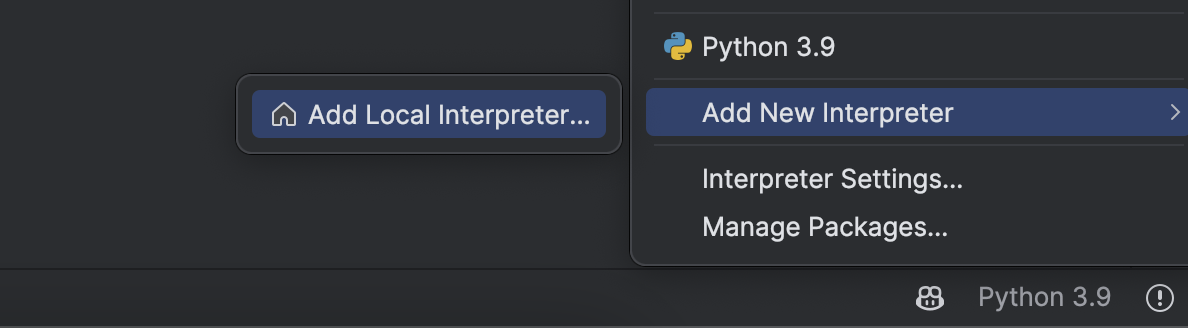
* Choose **Add New Interpreter** from the [Python Interpreter selector ↗](https://www.jetbrains.com/help/pycharm/configuring-python-interpreter.html#widget) on the status bar.
* In the left-hand pane of the **Add Python Interpreter** dialog, select **Virtualenv Environment**.
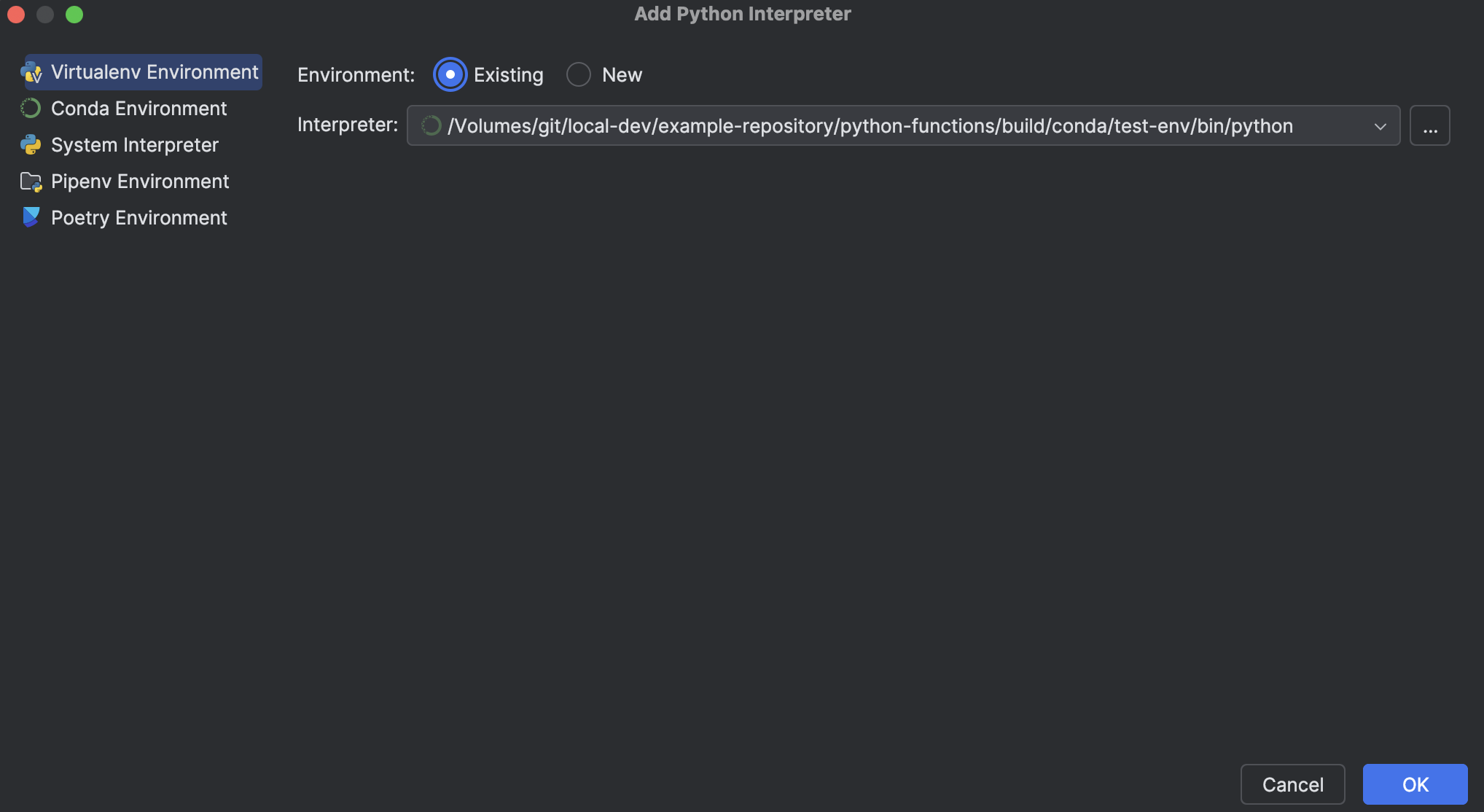
* Choose **Existing environment** and set the **Interpreter** field to the Python interpreter from your Conda environment.
* For Unix, the Python interpreter path is \/bin/python.
* For Windows, the Python interpreter path is \\python.exe.
:::callout{theme="success"}
Depending on whether the test plugin is enabled, the installed environments would include `./python-functions/build/conda/run-env`, `./python-functions/build/conda/test-env`, or both. You should pick the test environment if you plan on running tests.
:::
* Select **Ok**.