# Navigating VS Code
You can use [VS Code workspaces](../../vs-code/overview/index.md) with the [Palantir extension for Visual Studio Code](../../palantir-extension-for-visual-studio-code/overview/index.md) to import resources, preview functions, manage branches, commit and publish changes, upgrade your repository, and use local development tools without leaving the editor.
## Import resources into a functions repository
Before you use Foundry resources in a function, import them into your repository:
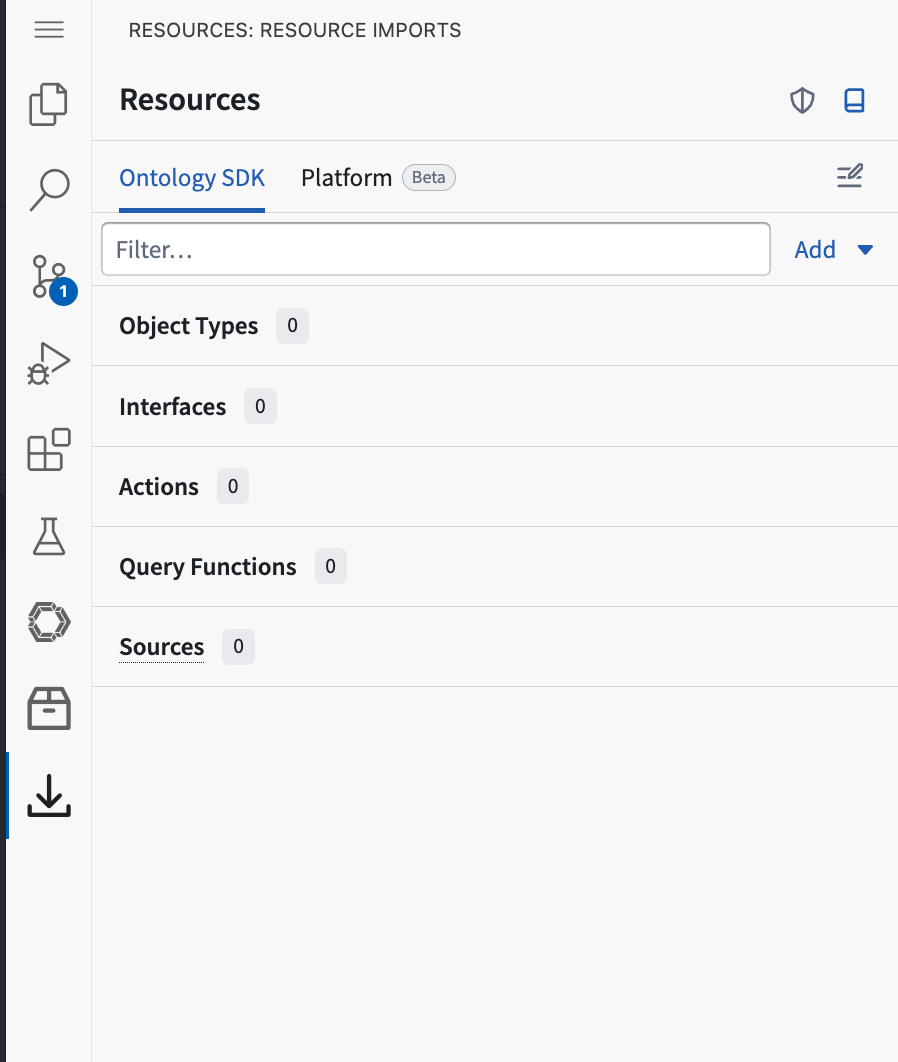
1. Select the **Resource imports** icon, represented by a downward arrow, in the VS Code Activity Bar.
2. In the **Resources** panel, select the **Ontology SDK** or **Platform** tab, depending on the resource you want to import.
3. Select **Add**, then choose a resource type, such as an object type, interface, action, query function, or source.
4. Find and select the resources you want to use, then confirm your selection.
5. Wait for code generation and dependency installation to finish before you reference the resource in your code.
 To get the latest available resource types, make sure your repository is up to date via [repository upgrades](../../code-repositories/repository-upgrades/index.md). Learn more about [importing Ontology types](../ontology-imports/index.md).
## Develop and publish with the Palantir extension
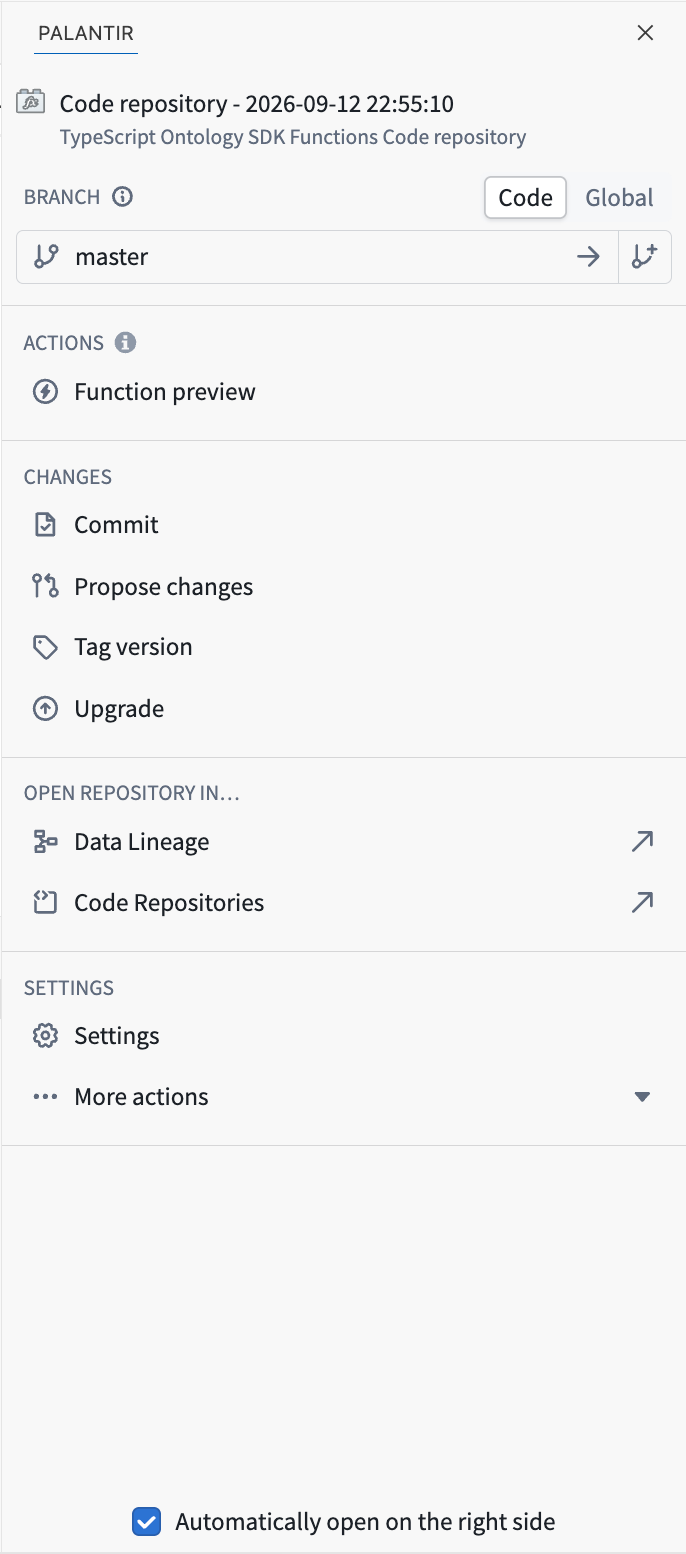
Select the Palantir icon in the Activity Bar to open the Palantir panel - this panel provides branch, preview, commit, publishing, and repository management actions.
To get the latest available resource types, make sure your repository is up to date via [repository upgrades](../../code-repositories/repository-upgrades/index.md). Learn more about [importing Ontology types](../ontology-imports/index.md).
## Develop and publish with the Palantir extension
Select the Palantir icon in the Activity Bar to open the Palantir panel - this panel provides branch, preview, commit, publishing, and repository management actions.
 ### Create or switch branches
Use the **Branch** section to create or switch branches before you begin editing:
1. Select the **Code** or **Global** tab.
* A **Code** branch is the underlying Git branch for changes within the code repository.
* A **Global** branch can contain related changes across multiple supported Foundry applications and resources.
2. Select the create branch icon, represented by a branch with a plus sign.
3. Enter a name for the new branch, then confirm to create it.
Global branch support depends on the functions language and repository configuration. Learn more about [branching in VS Code](../../vs-code/global-branching/index.md), [branch options in Code Repositories](../../code-repositories/navigation/index.md#branch-options), and [developing and publishing functions on a global branch](../branching-functions/index.md).
### Preview a function
1. In the Palantir panel, select **Function preview**.
2. Select a function, provide its inputs, and click run to execute your code with the provided input values.
3. Review the output, logs, edits, and more, as your code executes. This will help you debug and test your Functions.
If you are developing on a global branch, the preview runs against the branch currently selected in the Palantir panel. Learn more about [testing functions in live preview](../getting-started/index.md#test-in-live-preview).
### Commit, propose, and tag changes
When your preview and tests succeed:
1. Select **Commit** in the **Changes** section, review the changed files, and enter a descriptive commit message.
2. Select **Propose changes** if your work requires code review before it is merged.
3. Select **Tag version** to choose a version and publish the functions from the selected branch.
:::callout{theme="warning"}
Tagging publishes all functions in the repository, not only the function you most recently edited.
:::
Learn more about [publishing functions](../getting-started/index.md#publish-your-functions) and [function versioning](../functions-versioning/index.md).
### Upgrade the repository
Select **Upgrade** in the **Changes** section to start a repository upgrade. Review the generated changes, run your tests and function previews again, and then commit the upgrade. Learn more about [automatic and manual repository upgrades](../../code-repositories/repository-upgrades/index.md).
## Tips and tricks for VS Code
The following sections describe optional VS Code features and shortcuts that can speed up functions development.
### Run npm commands from the functions project
Open the integrated terminal and change to the `functions-typescript` directory, which contains the functions project's `package.json` file. TypeScript v1 and TypeScript v2 functions repositories use the same path:
```bash
cd functions-typescript
npm test
```
Run `npm run` to list the scripts available in the current project. For more information about the included test framework, review [unit testing functions](../unit-test-getting-started/index.md).
### Format when you save
Open **Settings**, search for `format on save`, and enable **Editor: Format On Save**. Press `Cmd+S` (macOS) or `Ctrl+S` (Windows/Linux) to save the current file and run the configured formatter. You can also run **Format Document** from the Command Palette.
Learn more about [formatting in VS Code ↗](https://code.visualstudio.com/docs/editing/codebasics#_formatting).
### Use AI development tools
Palantir MCP is integrated into VS Code workspaces by default and provides context tools for TypeScript function repositories, so the Continue extension can reference your functions code, imported Ontology resources, and Foundry context.
Learn more about [AI development tools in VS Code workspaces](../../vs-code/ai-development-tools/index.md) and [Palantir MCP](../../palantir-mcp/overview/index.md).
### Use built-in navigation and editing shortcuts
VS Code includes shortcuts that can reduce context switching:
| Action | macOS | Windows/Linux |
| --- | --- | --- |
| Open the Command Palette | `Cmd+Shift+P` | `Ctrl+Shift+P` |
| Quickly open a file | `Cmd+P` | `Ctrl+P` |
| Search across the repository | `Cmd+Shift+F` | `Ctrl+Shift+F` |
| Go to a symbol in the current file | `Cmd+Shift+O` | `Ctrl+Shift+O` |
| Go to a symbol's definition | `F12` | `F12` |
| Find references to a symbol | `Shift+F12` | `Shift+F12` |
| Rename a symbol and update its references | `F2` | `F2` |
| Show available quick fixes | `Cmd+.` | `Ctrl+.` |
In Quick Open, add a colon and a line number after a file name, such as `myFunction.ts:42`, to jump directly to that line. You can also hold `Option` (macOS) or `Alt` (Windows/Linux) while selecting locations to add multiple cursors and edit repeated code at the same time. Review the [default VS Code keyboard shortcuts ↗](https://code.visualstudio.com/docs/reference/default-keybindings) for the complete list.
### Create or switch branches
Use the **Branch** section to create or switch branches before you begin editing:
1. Select the **Code** or **Global** tab.
* A **Code** branch is the underlying Git branch for changes within the code repository.
* A **Global** branch can contain related changes across multiple supported Foundry applications and resources.
2. Select the create branch icon, represented by a branch with a plus sign.
3. Enter a name for the new branch, then confirm to create it.
Global branch support depends on the functions language and repository configuration. Learn more about [branching in VS Code](../../vs-code/global-branching/index.md), [branch options in Code Repositories](../../code-repositories/navigation/index.md#branch-options), and [developing and publishing functions on a global branch](../branching-functions/index.md).
### Preview a function
1. In the Palantir panel, select **Function preview**.
2. Select a function, provide its inputs, and click run to execute your code with the provided input values.
3. Review the output, logs, edits, and more, as your code executes. This will help you debug and test your Functions.
If you are developing on a global branch, the preview runs against the branch currently selected in the Palantir panel. Learn more about [testing functions in live preview](../getting-started/index.md#test-in-live-preview).
### Commit, propose, and tag changes
When your preview and tests succeed:
1. Select **Commit** in the **Changes** section, review the changed files, and enter a descriptive commit message.
2. Select **Propose changes** if your work requires code review before it is merged.
3. Select **Tag version** to choose a version and publish the functions from the selected branch.
:::callout{theme="warning"}
Tagging publishes all functions in the repository, not only the function you most recently edited.
:::
Learn more about [publishing functions](../getting-started/index.md#publish-your-functions) and [function versioning](../functions-versioning/index.md).
### Upgrade the repository
Select **Upgrade** in the **Changes** section to start a repository upgrade. Review the generated changes, run your tests and function previews again, and then commit the upgrade. Learn more about [automatic and manual repository upgrades](../../code-repositories/repository-upgrades/index.md).
## Tips and tricks for VS Code
The following sections describe optional VS Code features and shortcuts that can speed up functions development.
### Run npm commands from the functions project
Open the integrated terminal and change to the `functions-typescript` directory, which contains the functions project's `package.json` file. TypeScript v1 and TypeScript v2 functions repositories use the same path:
```bash
cd functions-typescript
npm test
```
Run `npm run` to list the scripts available in the current project. For more information about the included test framework, review [unit testing functions](../unit-test-getting-started/index.md).
### Format when you save
Open **Settings**, search for `format on save`, and enable **Editor: Format On Save**. Press `Cmd+S` (macOS) or `Ctrl+S` (Windows/Linux) to save the current file and run the configured formatter. You can also run **Format Document** from the Command Palette.
Learn more about [formatting in VS Code ↗](https://code.visualstudio.com/docs/editing/codebasics#_formatting).
### Use AI development tools
Palantir MCP is integrated into VS Code workspaces by default and provides context tools for TypeScript function repositories, so the Continue extension can reference your functions code, imported Ontology resources, and Foundry context.
Learn more about [AI development tools in VS Code workspaces](../../vs-code/ai-development-tools/index.md) and [Palantir MCP](../../palantir-mcp/overview/index.md).
### Use built-in navigation and editing shortcuts
VS Code includes shortcuts that can reduce context switching:
| Action | macOS | Windows/Linux |
| --- | --- | --- |
| Open the Command Palette | `Cmd+Shift+P` | `Ctrl+Shift+P` |
| Quickly open a file | `Cmd+P` | `Ctrl+P` |
| Search across the repository | `Cmd+Shift+F` | `Ctrl+Shift+F` |
| Go to a symbol in the current file | `Cmd+Shift+O` | `Ctrl+Shift+O` |
| Go to a symbol's definition | `F12` | `F12` |
| Find references to a symbol | `Shift+F12` | `Shift+F12` |
| Rename a symbol and update its references | `F2` | `F2` |
| Show available quick fixes | `Cmd+.` | `Ctrl+.` |
In Quick Open, add a colon and a line number after a file name, such as `myFunction.ts:42`, to jump directly to that line. You can also hold `Option` (macOS) or `Alt` (Windows/Linux) while selecting locations to add multiple cursors and edit repeated code at the same time. Review the [default VS Code keyboard shortcuts ↗](https://code.visualstudio.com/docs/reference/default-keybindings) for the complete list.