# Push data into a stream
Most data ingestion in Foundry focuses on pulling data from a source system and syncing it into a dataset or stream.
With streams, Foundry supports **push-based ingestion** to support event-based workflows.
If you already have a Foundry source configured for your data, you may want to connect with that source instead. Learn how to [set up a streaming sync](../set-up-streaming-sync/index.md) with an existing source, or learn how to [set up a Kafka source](../../available-connectors/kafka/index.md).
If you need to receive inbound webhooks from systems that cannot properly authenticate with Foundry or conform to standard stream schemas, consider using [listeners](../listeners-overview/index.md).
Push-based record ingestion in Foundry follows the same principles as typical REST services. Through a series of REST endpoints, we expose a push-based API that can consume records and write them into streams and datasets. The following high-level information is required to push into a stream:
* The dataset resource identifier of the stream.
* The name of the branch.
* A token to authenticate the request.
Below, we will discuss the steps required to push data into a stream:
1. [Set up](#part-1-initial-setup) a new stream.
2. [Push records](#part-2-push-records-into-the-stream) into the stream.
3. [Share](#part-3-share-the-stream) the stream.
4. [Test](#part-4-test-the-stream) the stream.
## Part 1. Initial setup
First, begin the stream creation workflow.
1. Log into Foundry.
2. Navigate to a [Project](../../compass/move-and-share-resources/index.md).
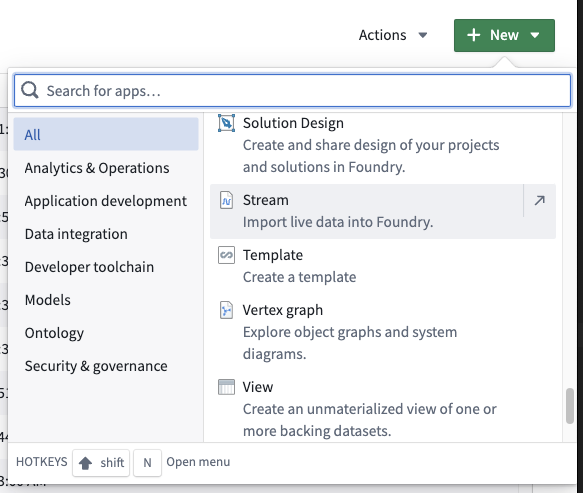
3. Select **+ New** in the top right corner.
4. Scroll down and select **Stream**.
 Next, we must define the schema, throughput, and keys for the stream.
* **Schema** defines the structure and types of your stream data.
* **Throughput** represents the data processing rate and will impact the number of partitions used in your stream. Learn more in our [throughput](../../building-pipelines/streaming-performance-considerations/index.md#throughput) and [partitions](../../data-integration/streams/index.md#partitions) documentation.
* **Keys** are used to guarantee ordering for unique IDs when using multiple partitions. Learn more in our [streaming keys](../../building-pipelines/streaming-keys/index.md) documentation.
For this tutorial, we will create a simple single partition stream.
* Set the schema to `sensor_id: String`, `temperature: Double`, and `created_at: Timestamp`.
* Set the throughput to `Normal`.
Then, configure your stream.
* Automatically generate schema from an existing JSON blob by selecting the `Generate from JSON sample...` button and pasting in your existing JSON blob.
* Set up [change data capture](../../data-integration/change-data-capture/index.md) if you are streaming real-time updates from a relational database.
* Consider the parallelism requirements of your stream to determine if you need higher throughput settings. Review our [partitions](../../data-integration/streams/index.md#partitions) documentation for more information.
* Consider setting a key for ordering guarantees when using multiple partitions.
Next, we must define the schema, throughput, and keys for the stream.
* **Schema** defines the structure and types of your stream data.
* **Throughput** represents the data processing rate and will impact the number of partitions used in your stream. Learn more in our [throughput](../../building-pipelines/streaming-performance-considerations/index.md#throughput) and [partitions](../../data-integration/streams/index.md#partitions) documentation.
* **Keys** are used to guarantee ordering for unique IDs when using multiple partitions. Learn more in our [streaming keys](../../building-pipelines/streaming-keys/index.md) documentation.
For this tutorial, we will create a simple single partition stream.
* Set the schema to `sensor_id: String`, `temperature: Double`, and `created_at: Timestamp`.
* Set the throughput to `Normal`.
Then, configure your stream.
* Automatically generate schema from an existing JSON blob by selecting the `Generate from JSON sample...` button and pasting in your existing JSON blob.
* Set up [change data capture](../../data-integration/change-data-capture/index.md) if you are streaming real-time updates from a relational database.
* Consider the parallelism requirements of your stream to determine if you need higher throughput settings. Review our [partitions](../../data-integration/streams/index.md#partitions) documentation for more information.
* Consider setting a key for ordering guarantees when using multiple partitions.
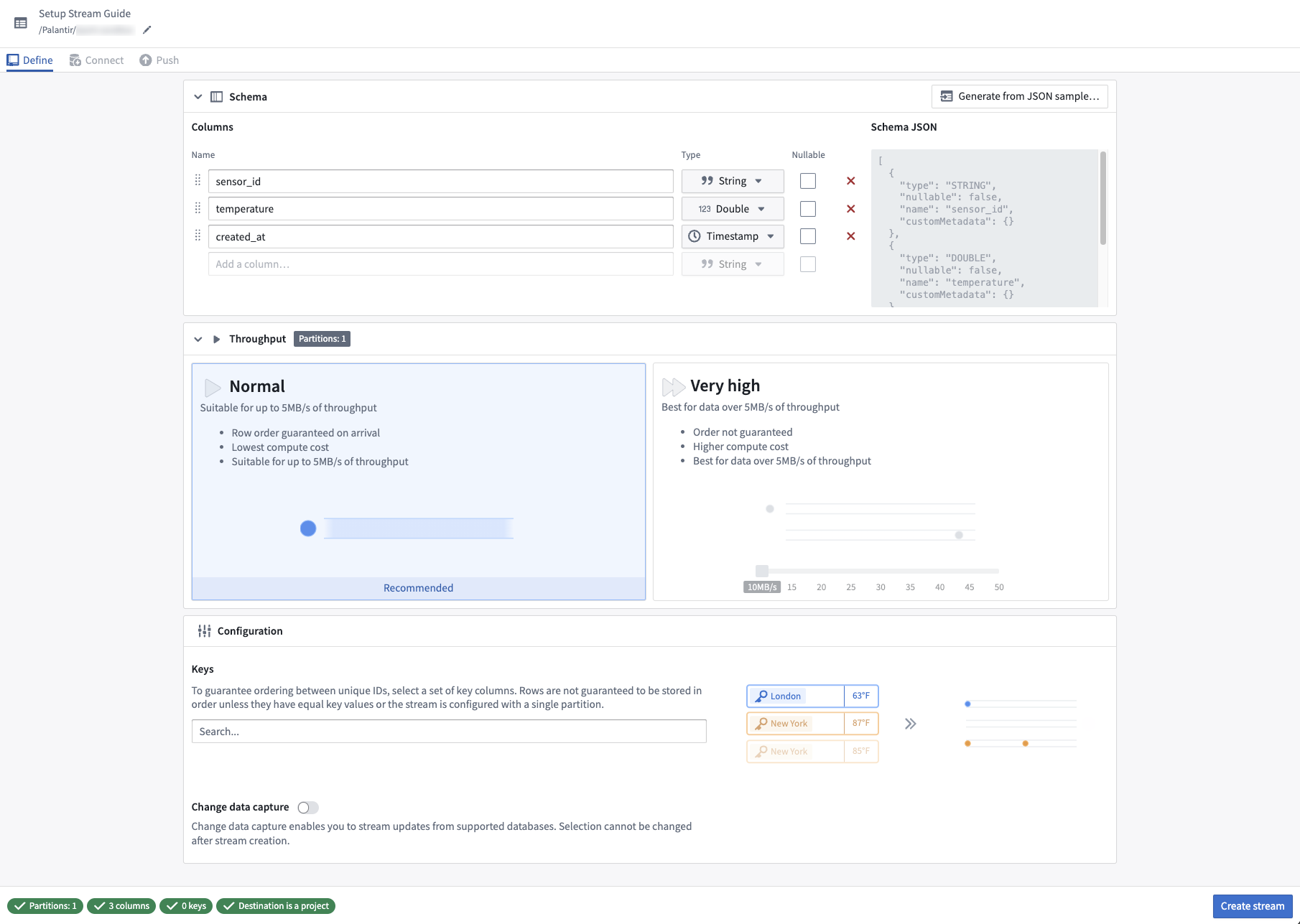 You must address all validation errors before selecting **Create stream**. Hover over the tooltips at the bottom of the page for more details about an error.
Select the **Create stream** button in the bottom right corner to navigate to the **Connect** page. Here, you can specify how to connect to the streaming data.
## Part 2. Push records into the stream
We are now ready to connect our stream.
1. For push-based ingestion, select one of the options under the **Connect via API** section.
Any language or technology that can make HTTP requests can be used to push records. We provide examples for cURL, Python, JavaScript via Node, and Java. If you want to ingest data via a Foundry sync instead of pushing the data into Foundry, review how to [set up a streaming sync](../set-up-streaming-sync/index.md).
For this example, we will select **cURL**.
You must address all validation errors before selecting **Create stream**. Hover over the tooltips at the bottom of the page for more details about an error.
Select the **Create stream** button in the bottom right corner to navigate to the **Connect** page. Here, you can specify how to connect to the streaming data.
## Part 2. Push records into the stream
We are now ready to connect our stream.
1. For push-based ingestion, select one of the options under the **Connect via API** section.
Any language or technology that can make HTTP requests can be used to push records. We provide examples for cURL, Python, JavaScript via Node, and Java. If you want to ingest data via a Foundry sync instead of pushing the data into Foundry, review how to [set up a streaming sync](../set-up-streaming-sync/index.md).
For this example, we will select **cURL**.
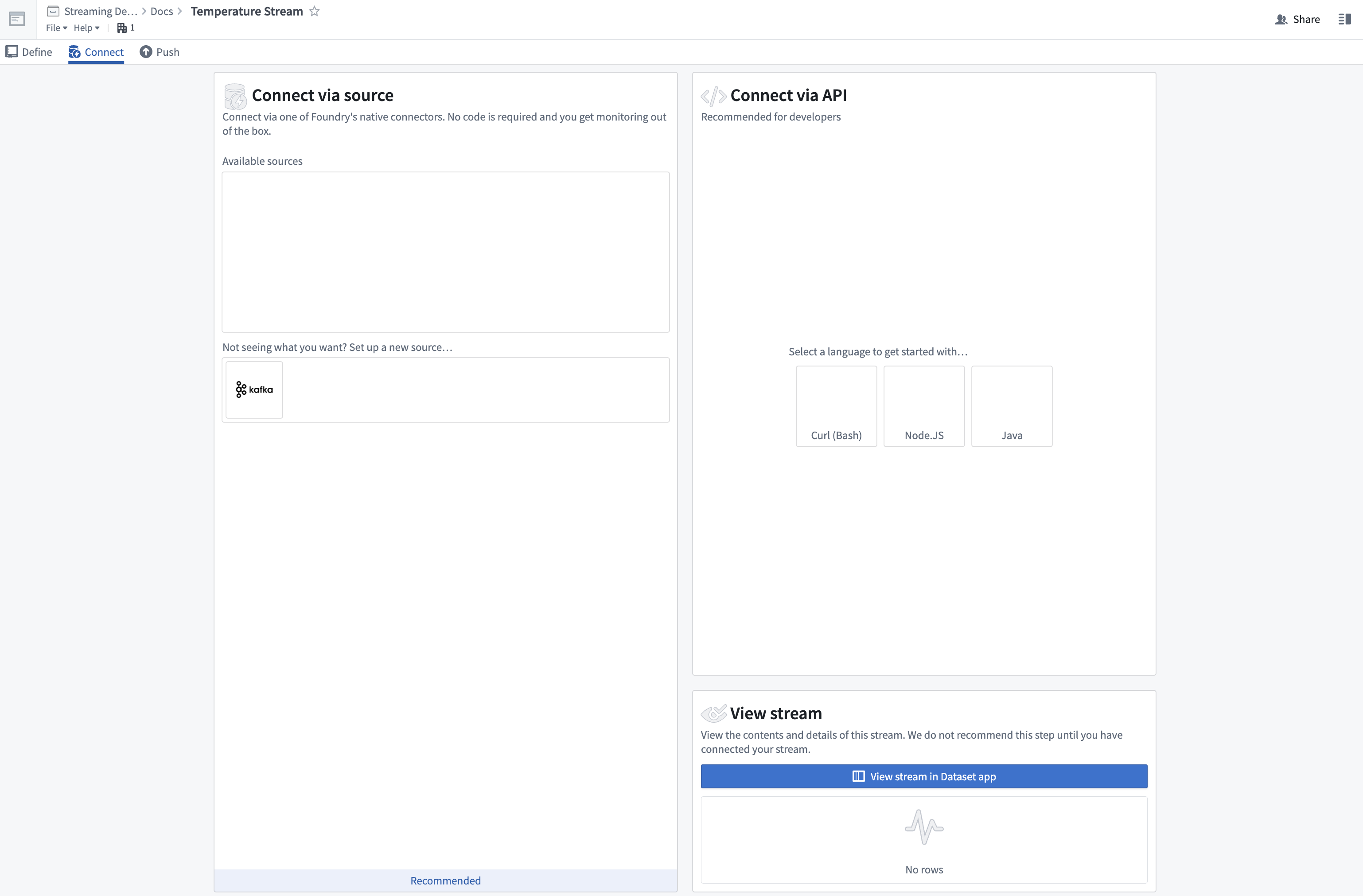 You will then land on the **Push** data workflow page.
2. Next, select an authentication mechanism. We support two ways to authenticate the request:
* **Push with a third-party application (recommended):** This method uses an OAuth2 workflow to create a secure token that can be used to push records into your stream.
* **Push with a personal token:** This method uses a user-generated token for testing purposes only.
You will then land on the **Push** data workflow page.
2. Next, select an authentication mechanism. We support two ways to authenticate the request:
* **Push with a third-party application (recommended):** This method uses an OAuth2 workflow to create a secure token that can be used to push records into your stream.
* **Push with a personal token:** This method uses a user-generated token for testing purposes only.
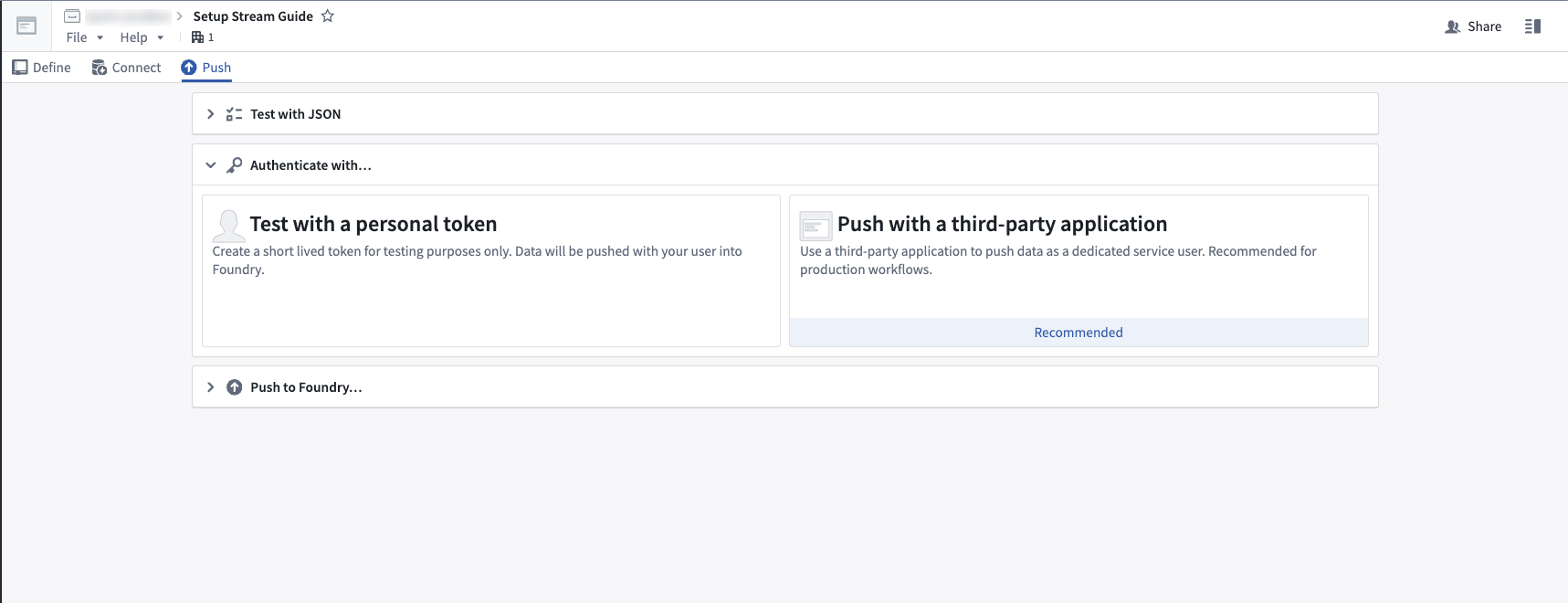 3. For this tutorial, choose the **Push with a third-party application** method. You need an application that authenticates with the client credentials grant, so that Foundry issues it a client ID, a client secret, and a service user. Create that application through whichever route is available on your enrollment:
* **Developer Console (recommended):** [Set up client credentials](../../consumer-mode/client-credentials-setup/index.md), choosing **Backend service** on the **Application type** page and **Application permissions** on the **Permissions** page. Once you have the client ID and secret, continue with step 8 below. Steps 9 through 11 apply only to the Control Panel route, because choosing **Application permissions** already enables the client credentials grant.
* **Control Panel:** If Developer Console is not enabled for you, follow [Registering third-party applications](../../platform-security-third-party/register-3pa/index.md) to register a confidential client with the client credentials grant enabled. Steps 4 through 11 below walk through this route.
Either route requires the `api:use-streams-write` operation in the application's operation restrictions before it can push records into the stream; see [Operation restrictions](../../developer-console/application-restrictions/index.md#operation-restrictions).
3. For this tutorial, choose the **Push with a third-party application** method. You need an application that authenticates with the client credentials grant, so that Foundry issues it a client ID, a client secret, and a service user. Create that application through whichever route is available on your enrollment:
* **Developer Console (recommended):** [Set up client credentials](../../consumer-mode/client-credentials-setup/index.md), choosing **Backend service** on the **Application type** page and **Application permissions** on the **Permissions** page. Once you have the client ID and secret, continue with step 8 below. Steps 9 through 11 apply only to the Control Panel route, because choosing **Application permissions** already enables the client credentials grant.
* **Control Panel:** If Developer Console is not enabled for you, follow [Registering third-party applications](../../platform-security-third-party/register-3pa/index.md) to register a confidential client with the client credentials grant enabled. Steps 4 through 11 below walk through this route.
Either route requires the `api:use-streams-write` operation in the application's operation restrictions before it can push records into the stream; see [Operation restrictions](../../developer-console/application-restrictions/index.md#operation-restrictions).
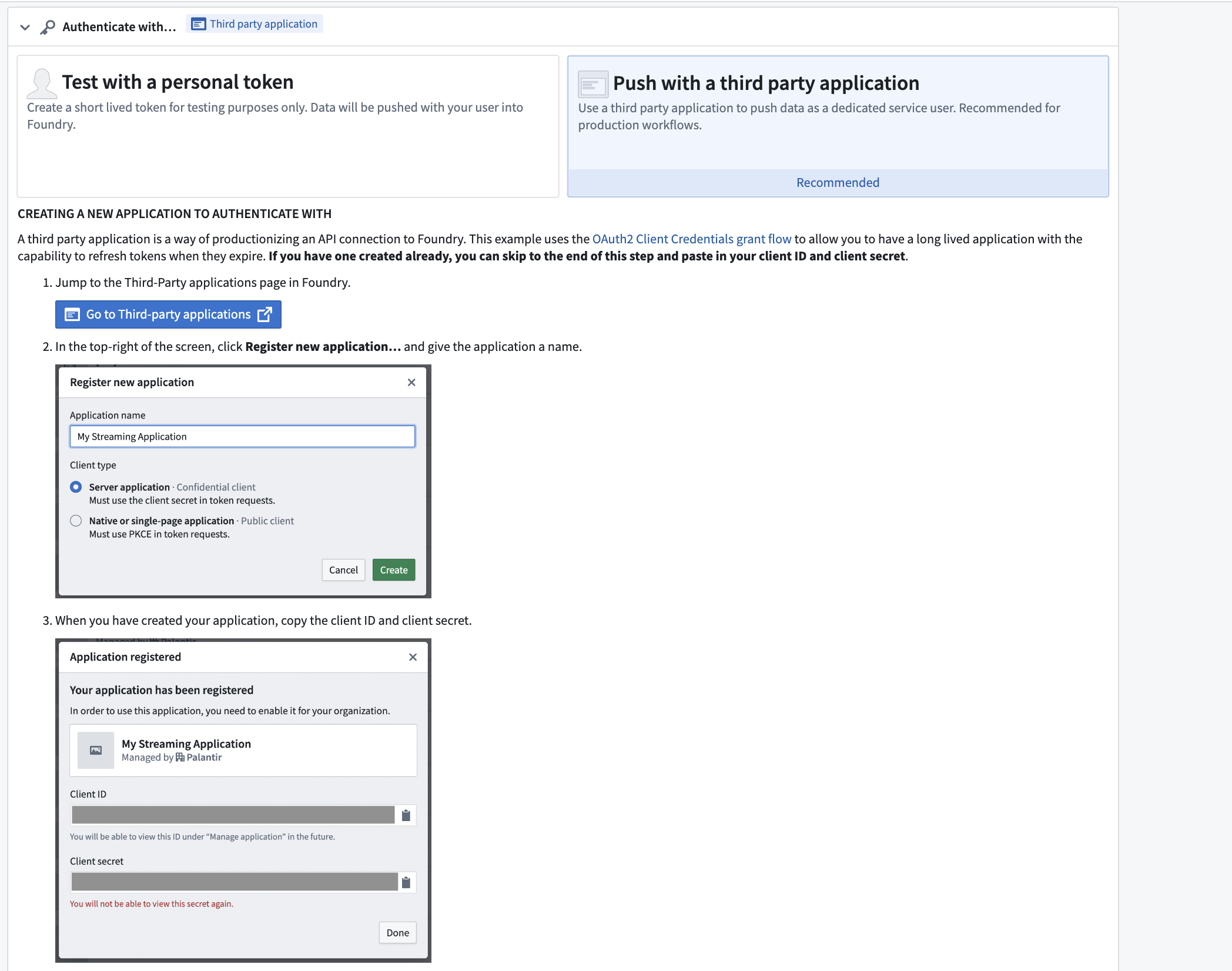 4. **Control Panel route:** Select **Go to third-party applications** to open the third-party application management page in your Foundry platform settings.
5. Select **Register new application** at the top right of your screen.
4. **Control Panel route:** Select **Go to third-party applications** to open the third-party application management page in your Foundry platform settings.
5. Select **Register new application** at the top right of your screen.
 6. Choose a name, and set the client type to **Server application**.
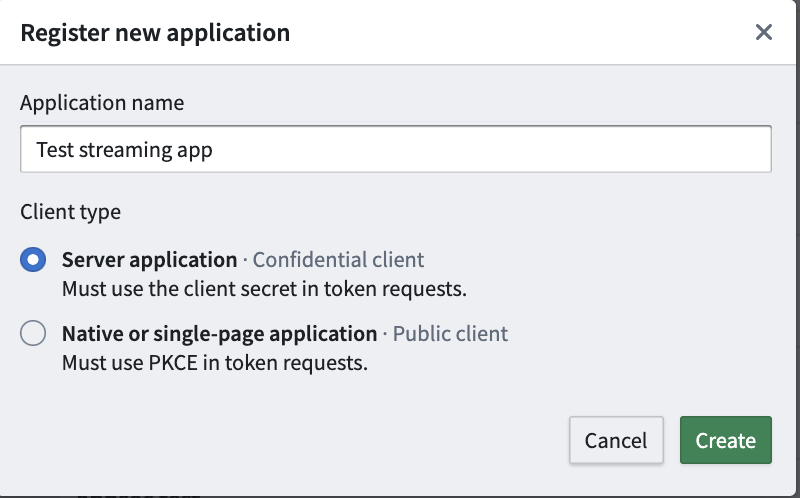 7. Select **Create,** and you will be presented with your client ID and secret.
:::callout{theme="warning"}
The client secret will not be accessible once you leave this page. Be sure to store it in a secure location.
:::
8. Now, you can add the client ID and secret into the **Push** workflow page.
7. Select **Create,** and you will be presented with your client ID and secret.
:::callout{theme="warning"}
The client secret will not be accessible once you leave this page. Be sure to store it in a secure location.
:::
8. Now, you can add the client ID and secret into the **Push** workflow page.
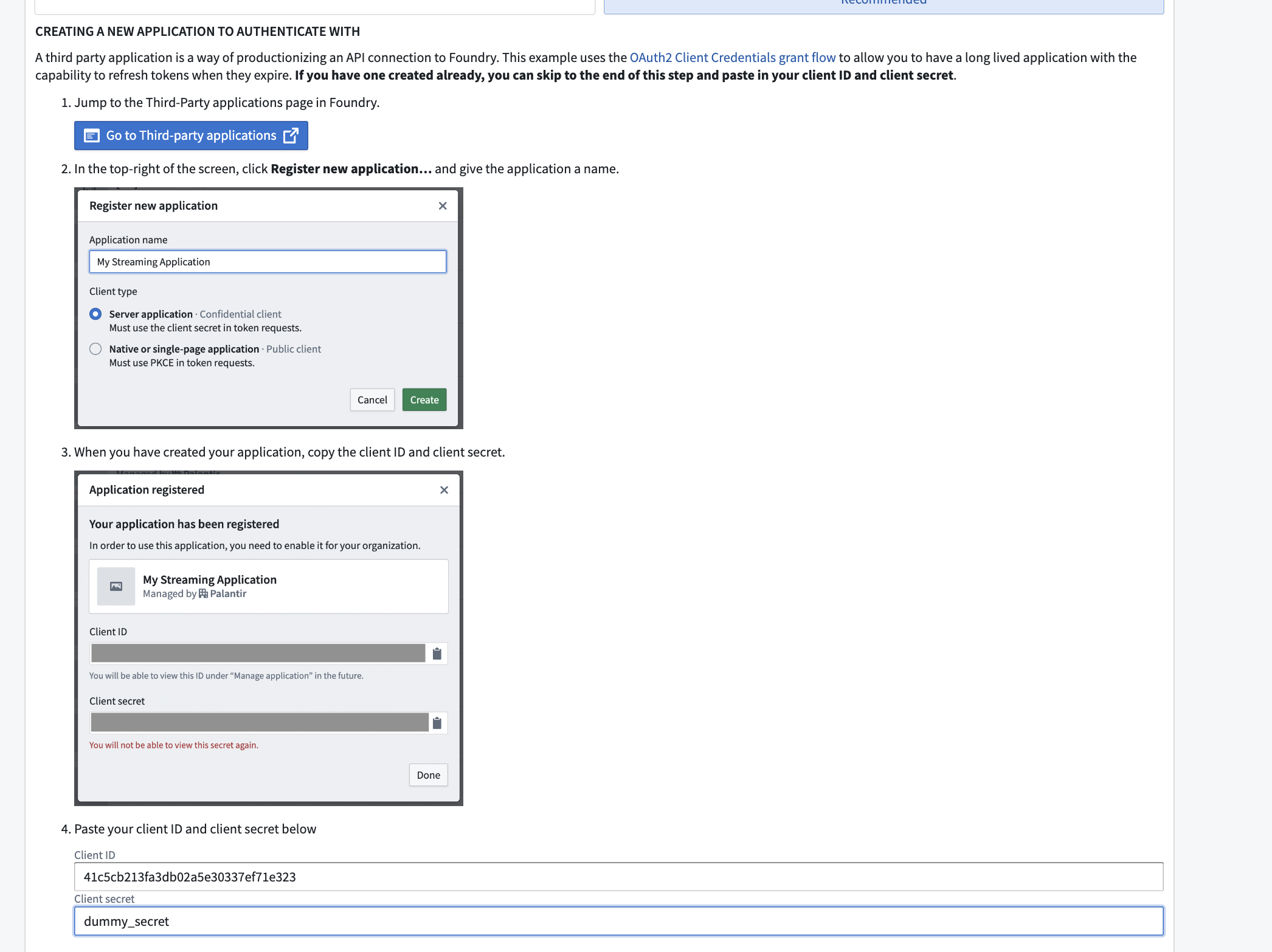 9. Scroll down to the **Configuring the Application** section of the workflow, then select **Manage application** to open the **Third-party applications** management page in your Foundry platform settings.
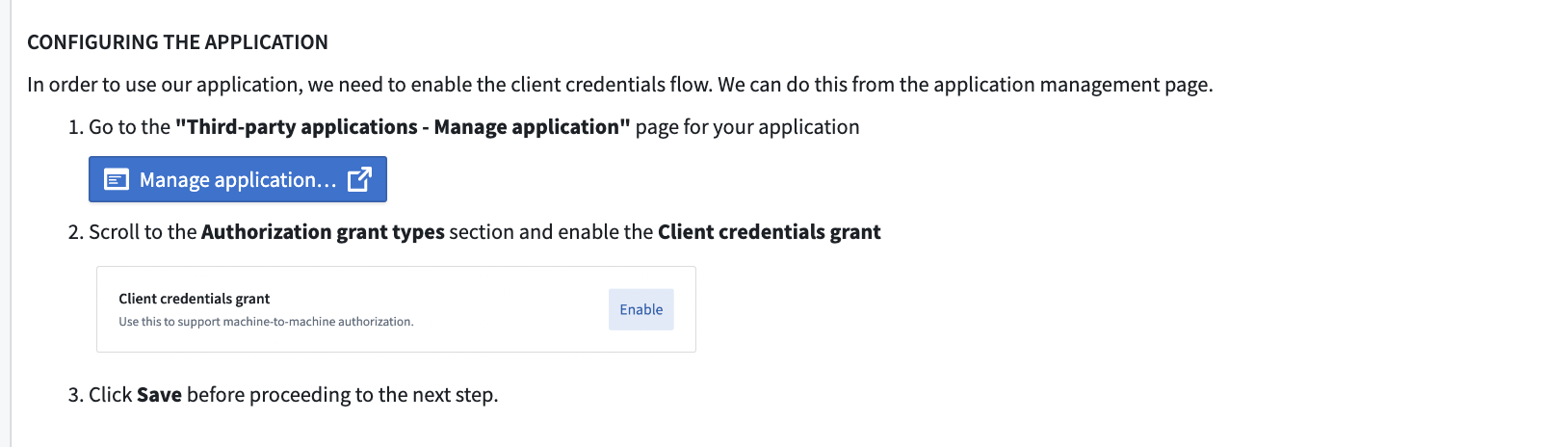 10. Next, enable the **Client credentials grant** setting.
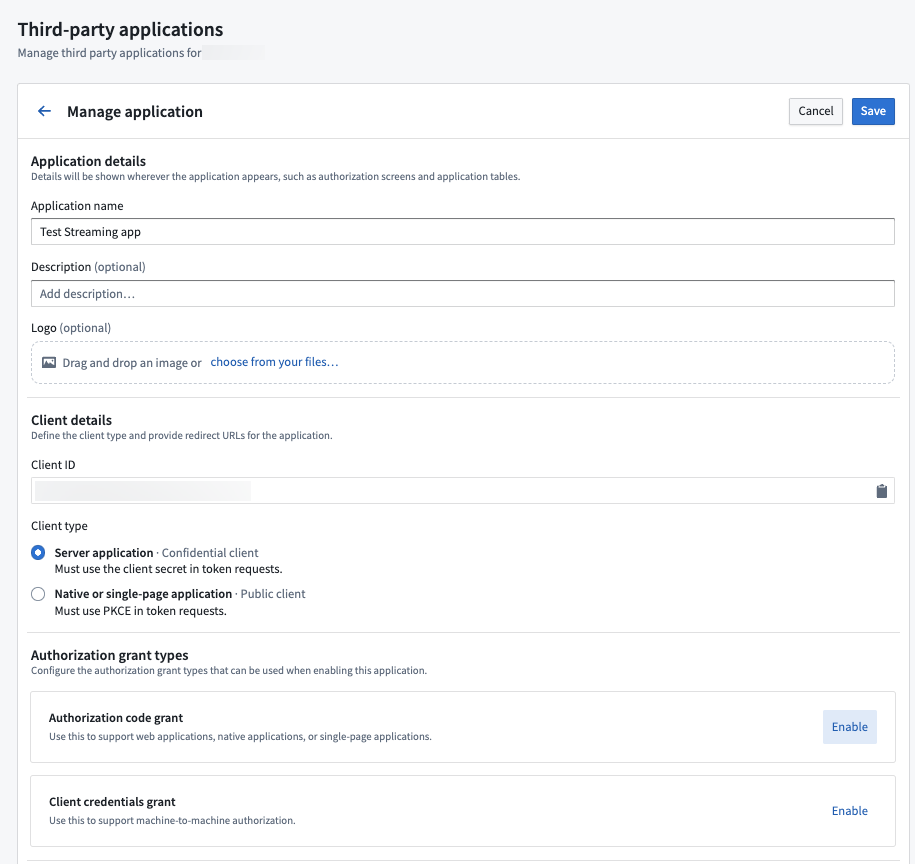 11. Finally, click **Save** in the upper right corner.
## Part 3: Share the stream
Now, we need to share the stream with the application we created.
1. First, return to the **Push** workflow page. Under the **Using Your New Application** section in the workflow, find the client ID that you generated.
11. Finally, click **Save** in the upper right corner.
## Part 3: Share the stream
Now, we need to share the stream with the application we created.
1. First, return to the **Push** workflow page. Under the **Using Your New Application** section in the workflow, find the client ID that you generated.
 2. Next, select **Share** on the top right to open the **Roles** tab of the stream **Details** sidebar to the right side of your screen.
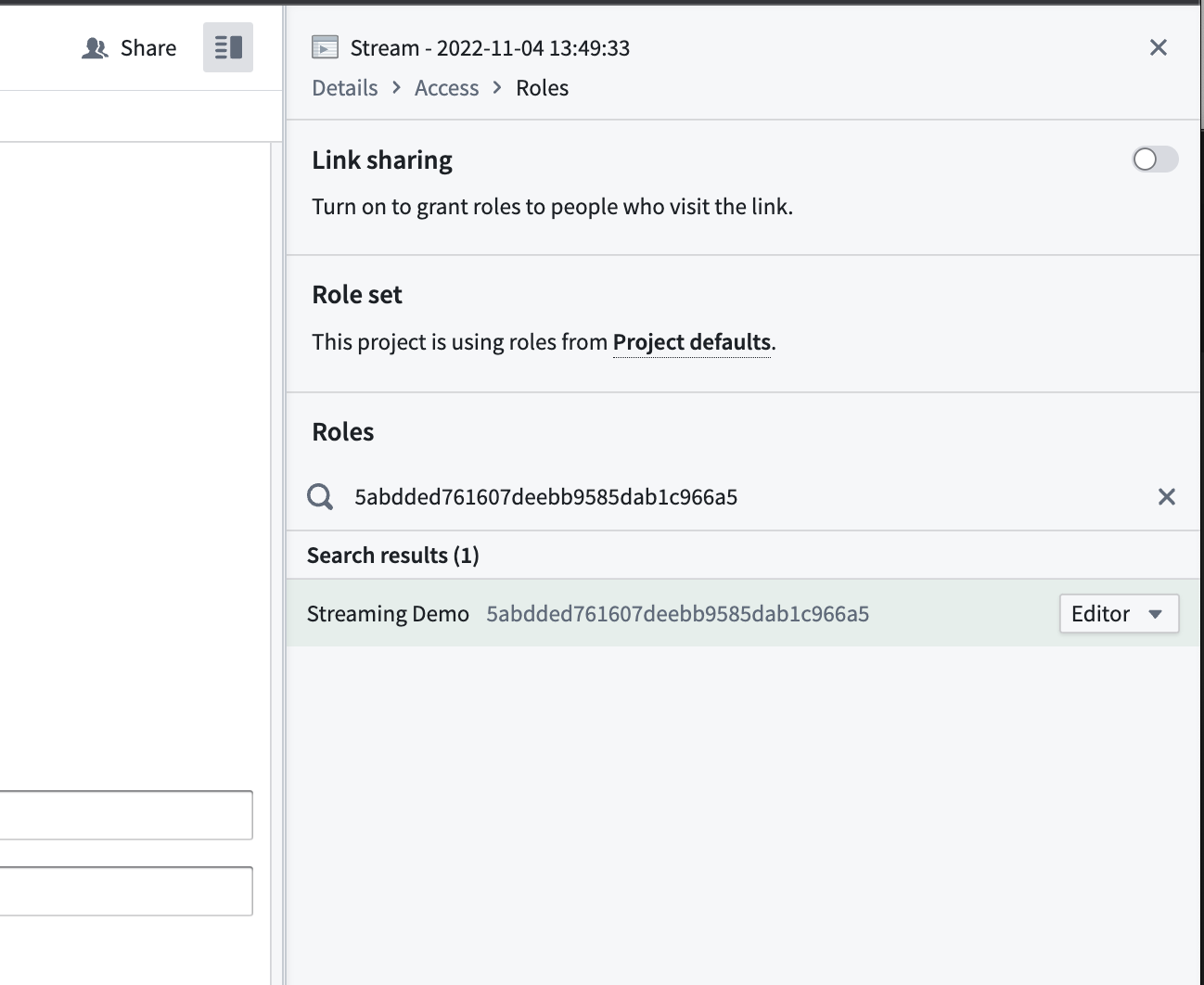 3. Copy and paste the client ID into the **Roles** search field to find the application you created. Select the **+** to search for and choose the `Editor` role.
4. Choose **Save** at the bottom of the side panel to share the stream.
5. Return to the push workflow and select **Next step.**
## Part 4: Test the stream
You will now be presented with code examples that can be used to push test records into the stream. The code examples differ depending on what language you selected in the previous steps. For this example, we are using cURL.
Before running cURL commands, be sure to install [jq ↗](https://jqlang.org/) for command line JSON parsing.
1. First, copy the command from the first box. This will hit Foundry’s OAuth2 endpoint, providing you with an access token you can use to push records.
3. Copy and paste the client ID into the **Roles** search field to find the application you created. Select the **+** to search for and choose the `Editor` role.
4. Choose **Save** at the bottom of the side panel to share the stream.
5. Return to the push workflow and select **Next step.**
## Part 4: Test the stream
You will now be presented with code examples that can be used to push test records into the stream. The code examples differ depending on what language you selected in the previous steps. For this example, we are using cURL.
Before running cURL commands, be sure to install [jq ↗](https://jqlang.org/) for command line JSON parsing.
1. First, copy the command from the first box. This will hit Foundry’s OAuth2 endpoint, providing you with an access token you can use to push records.
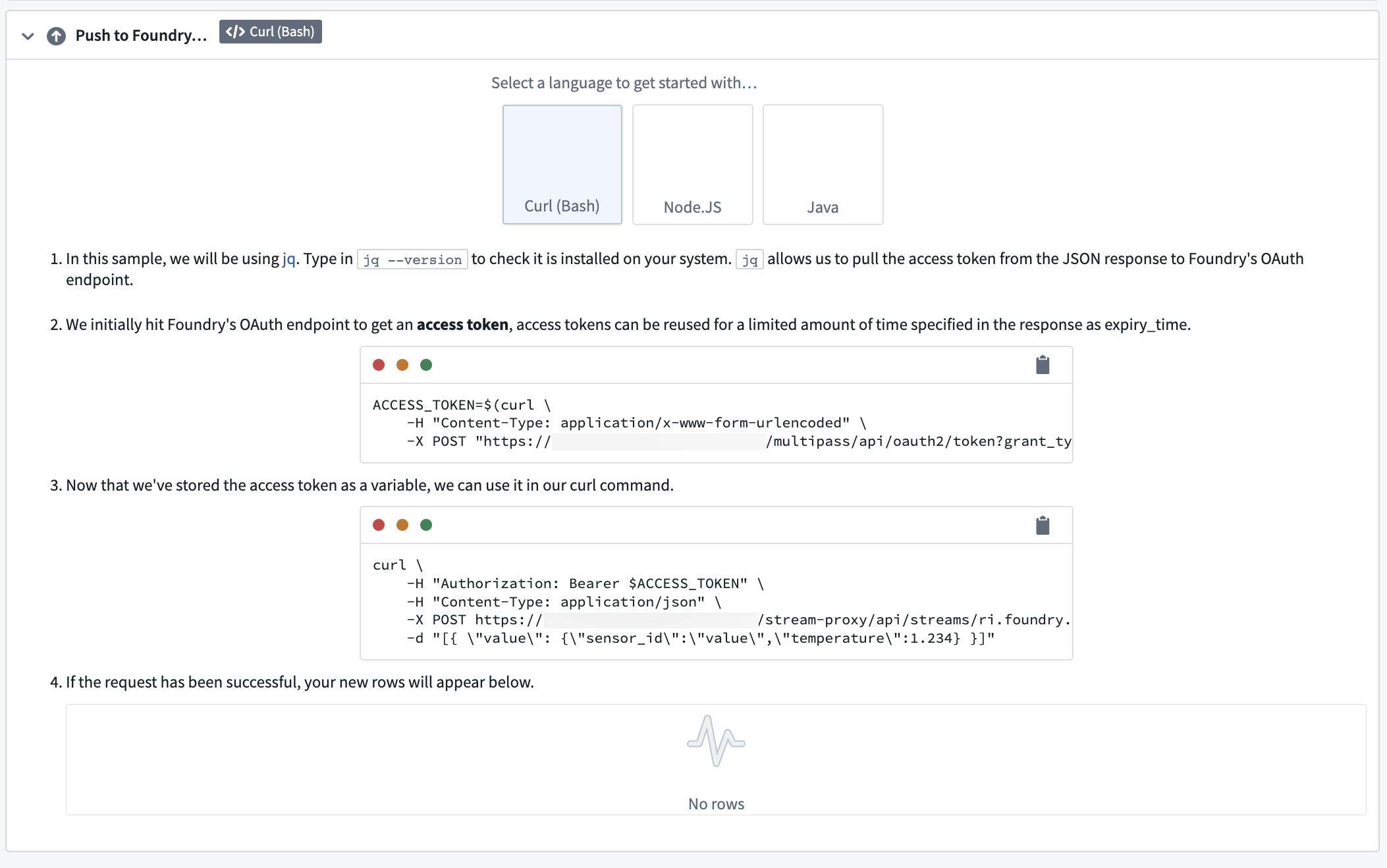 2. Execute the command in a bash terminal on your Mac, Windows, or Linux machine.
Once the command is executed, you will have an available variable called `$ACCESS_TOKEN`. You will use this variable in the next command to push records.
The second command will use cURL to hit a Foundry endpoint with a post request that contains the records we want to insert into the stream. The command is prepopulated with a dummy record to push into the stream, but you could provide any data in the HTTP request that adheres to the schema of the stream.
3. Copy and paste the second command into your terminal and execute it.
If the command is successful, you will see records appear in the stream.
2. Execute the command in a bash terminal on your Mac, Windows, or Linux machine.
Once the command is executed, you will have an available variable called `$ACCESS_TOKEN`. You will use this variable in the next command to push records.
The second command will use cURL to hit a Foundry endpoint with a post request that contains the records we want to insert into the stream. The command is prepopulated with a dummy record to push into the stream, but you could provide any data in the HTTP request that adheres to the schema of the stream.
3. Copy and paste the second command into your terminal and execute it.
If the command is successful, you will see records appear in the stream.
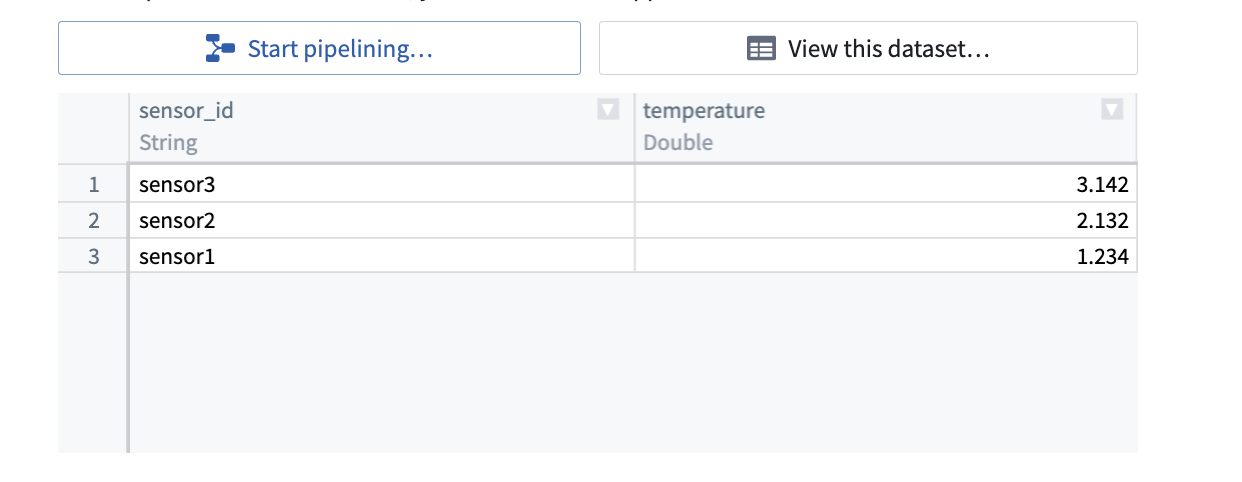 To change the data pushed into the stream, modify the data parameter of the post request.
```
[{ \"value\": {\"sensor_id\":\"sensor4\",\"temperature\":4.132} }]
```
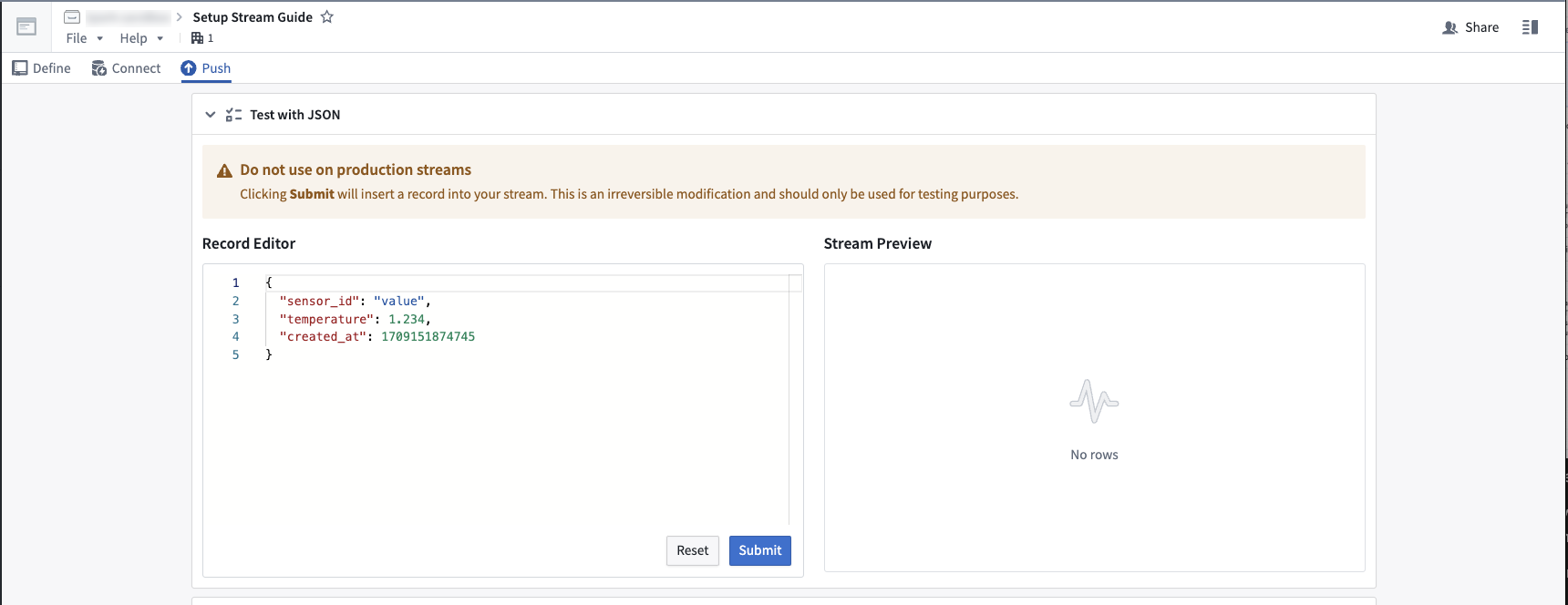
You can also send test records into the stream from the user interface by expanding the **Test with JSON** card.
To change the data pushed into the stream, modify the data parameter of the post request.
```
[{ \"value\": {\"sensor_id\":\"sensor4\",\"temperature\":4.132} }]
```
You can also send test records into the stream from the user interface by expanding the **Test with JSON** card.
 ## Next steps
Now that you have successfully pushed data into a stream, you are ready to start transforming your data. Select **Start pipelining** to navigate to the Pipeline Builder application where you will build your streaming pipeline. Learn how to [transform your data](../../building-pipelines/create-stream-pipeline-pb/index.md), and learn more about the [different transforms available in Pipeline Builder](../../pipeline-builder/overview/index.md).
## Next steps
Now that you have successfully pushed data into a stream, you are ready to start transforming your data. Select **Start pipelining** to navigate to the Pipeline Builder application where you will build your streaming pipeline. Learn how to [transform your data](../../building-pipelines/create-stream-pipeline-pb/index.md), and learn more about the [different transforms available in Pipeline Builder](../../pipeline-builder/overview/index.md).