# External transforms \[Legacy]
:::callout{theme="warning" title="Legacy"}
Transforms with direct references to egress policies, credential values, and export control markings are in the [legacy](../../platform-overview/development-life-cycle/index.md) phase of development, and no additional development is expected. Full support remains available. We recommend using [source-based external transforms](../external-transforms/index.md).
:::
You can use Python transforms in Code Repositories to connect to an external system directly in code. This could be useful if, for example, you require complex logic for interacting with an external system or you want to use a software development kit (SDK) provided by a third party. We recommend using external transforms to perform scheduled syncs and exports using REST APIs.
[Source-based external transforms](../external-transforms/index.md) are the supported way to connect to external systems with code. Their advantages over the legacy external transforms described on this page include connecting to systems that are not accessible from the Internet, rotating credentials without requiring code changes, and using [virtual tables](../../data-integration/virtual-tables/index.md). For more advantages and the workflow differences between the two approaches, review the [comparison of external transforms and legacy external transforms](../external-transforms/index.md#comparison-of-external-transforms-and-legacy-external-transforms).
Before continuing, be sure to create a [Python transforms code repository](../../transforms-python/getting-started/index.md#set-up-a-python-code-repository) and configure it following the instructions below.
:::callout{theme="neutral"}
Transforms connecting to an external system can only be previewed using the Preview helper in Code Repositories if they do *not* use Foundry inputs.
:::
## Allow Code Repositories to set up external connections
This section covers the configurations required to use external transforms.
:::callout{theme="neutral"}
External transforms may only be used with repositories running in **SECURE** mode. Alternative security modes are only available by speaking with Palantir Support.
:::
### Enable external system interaction
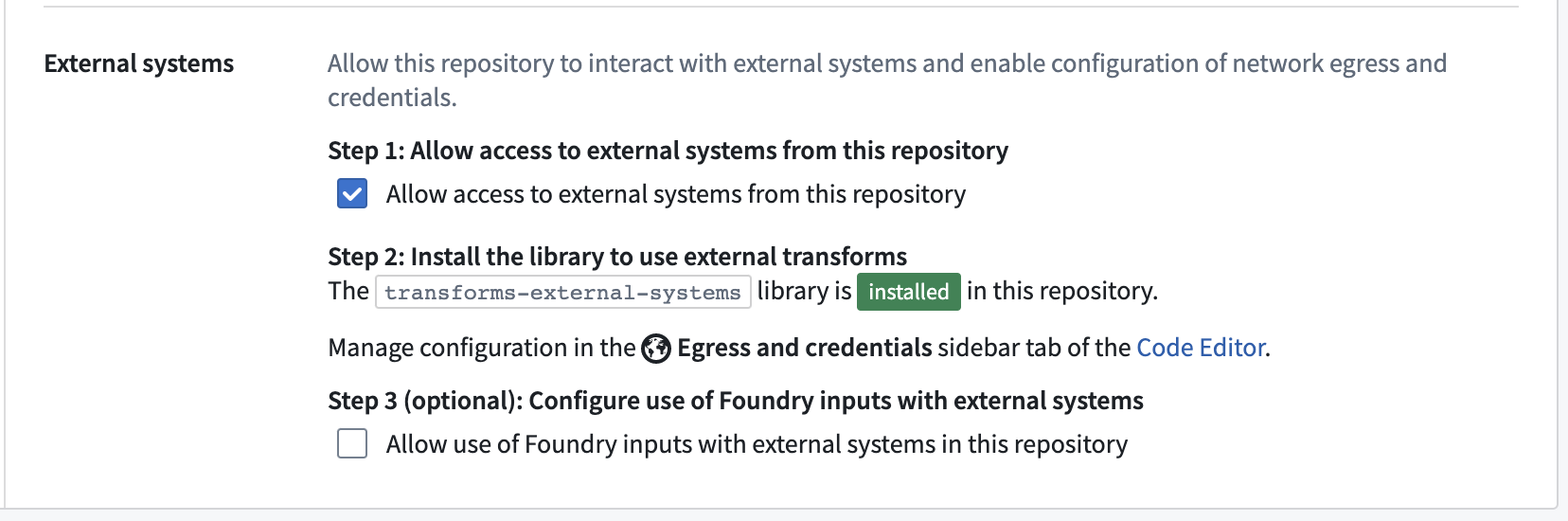
Within the code repository you just created, a Foundry user with the `Information Security Officer` role should navigate to the [repository **Settings**](../../code-repositories/repository-settings/index.md) tab, then navigate to **Repository > External systems** to toggle on the option to **Allow access to external systems from this repository**.
The `Information Security Officer` is a default role in Foundry; users can be granted the `Information Security Officer` role in [Control Panel](../../administration/enrollments-and-organizations-permissions/index.md) under **Enrollment permissions**.
### Enable dataset inputs
A Foundry user with the `Information Security Officer` role may optionally allow the use of inputs in external transforms.
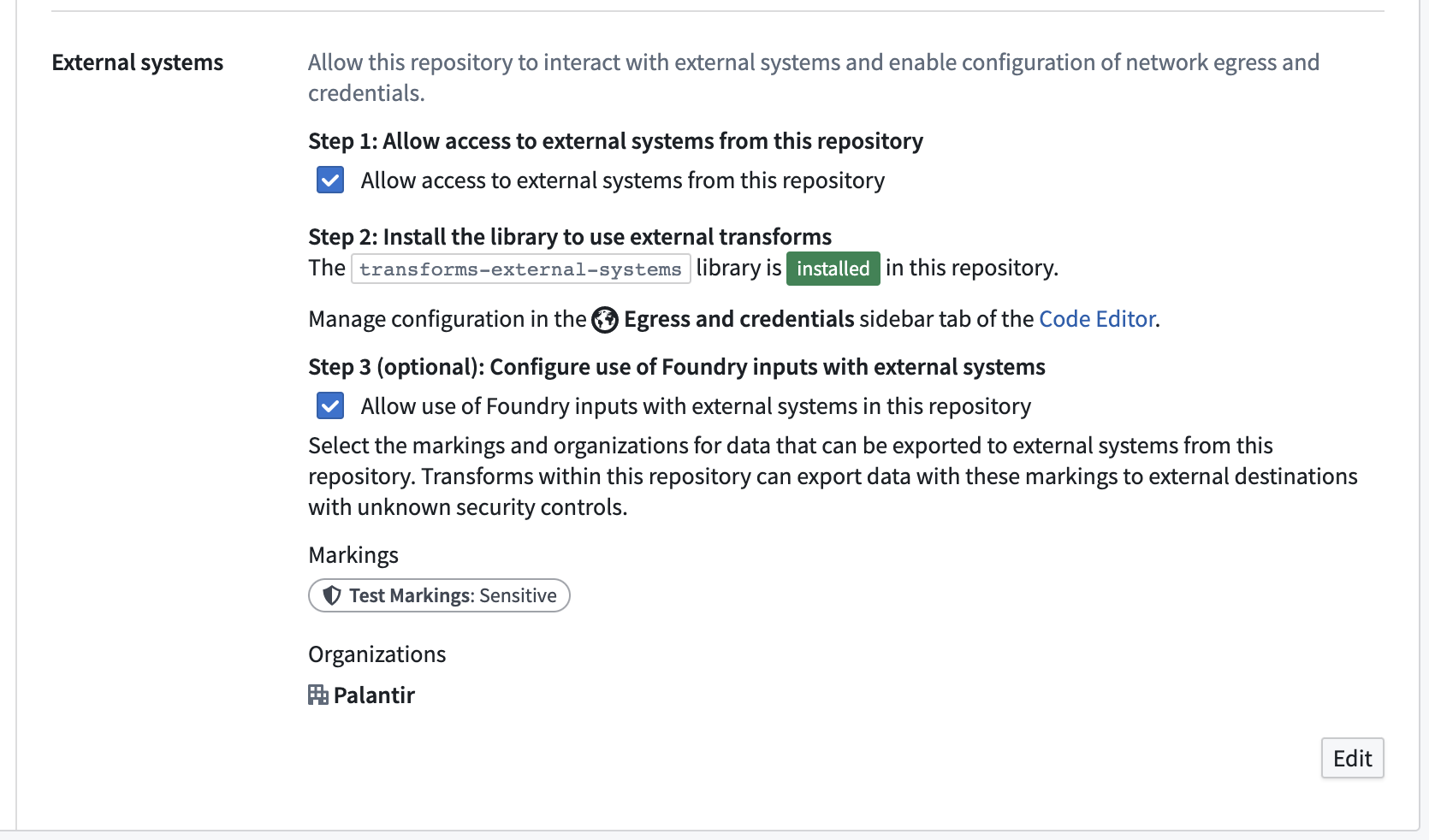
When a dataset is used as an input to a transform that can communicate with an external system, any data in that dataset can potentially leave Foundry. A Foundry user with the `Information Security Officer` role should select the set of security markings and Organization markings for any data that should be allowed as an input to external transforms in this repository.
As an example, you may have a dataset with a **Sensitive** marking in the **Palantir** Organization. To use this dataset in an external transform, the Information Security Officer must add both the **Sensitive** marking and the **Palantir** Organization under step three, **Configure use of Foundry inputs with external systems**, in the code repository settings.
### Add the `transforms-external-systems` library
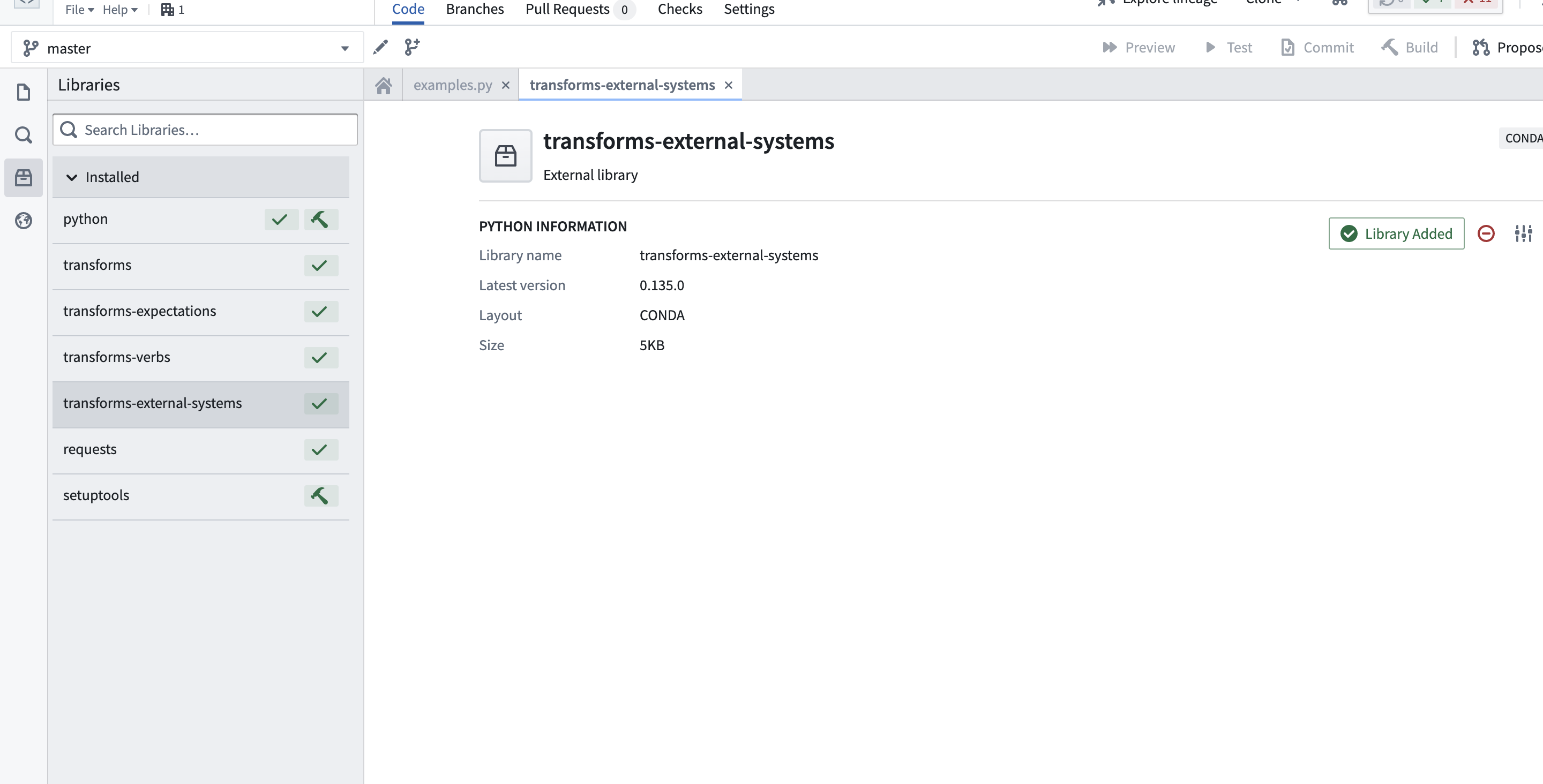
Once external system interactions are enabled for the code repository, you must add the `transforms-external-systems` library from the [**Libraries** sidebar tab](../../transforms-python/use-python-libraries/index.md) to the left of the code interface.
If you are working in a Python transforms repository in a [VS Code workspace](../../vs-code/overview/index.md), navigate to the **Settings** tab in the top navigation bar and select **External systems** to access the **Egress** and **Credentials** settings.
### Configure egress and credentials
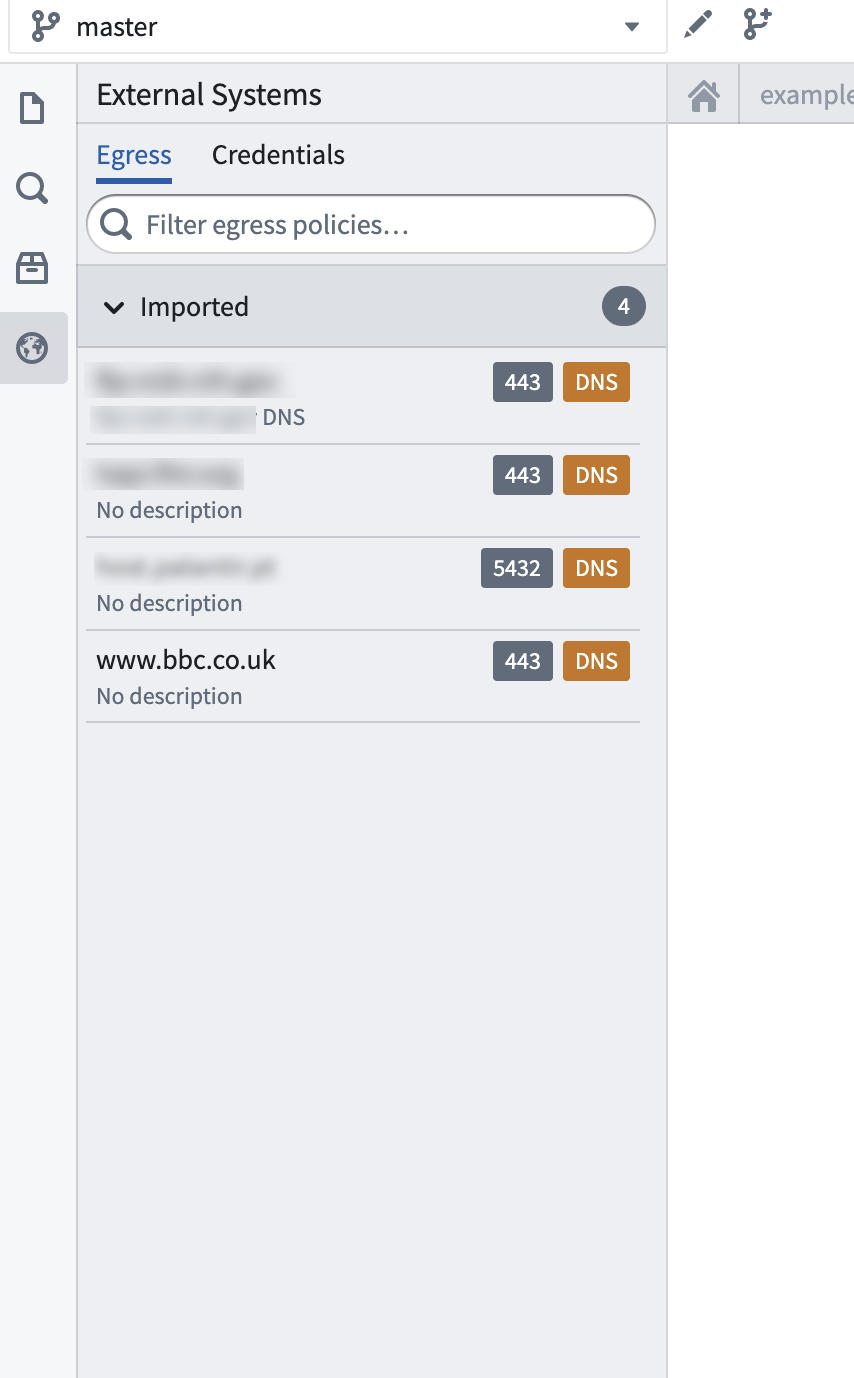
After adding the library, you can access a new **Egress and Credentials** tab to the left of the code interface.
In this tab, you can set up the network egress policies required for any endpoints called from your code, and add credentials for the repository to use. Not all endpoints require credentials.
 ## Use network egress policies and credentials
### Add egress policies
Foundry requires all connections initiated from user-authored code to be bound to a network egress policy when reaching out to external destinations. A network egress policy allows permitted connections that are initiated from user-authored code to reach destinations outside Foundry.
If self-service egress is enabled for your enrollment, you can [create and administer egress policies](../../administration/configure-egress/index.md) in Control Panel. If your connection requires you to add a new network route, contact your Information Security Officer or Palantir Support with the details of your egress policy. If your Foundry instance does not have self-service egress enabled, contact Palantir Support to internally enable the endpoint and configure the policy.
Before using egress policies for external transforms (whether global or non-global), you must import them from the **Egress** tab in the code repository, found in the **Egress and Credentials** panel. The **Egress** tab exposes all policies to which you have permissions and classifies them into three categories:
* **Imported:** The network egress policies ready for use from your transform in the current code repository.
* **Importable:** Requires adding a Project reference to the network egress policy.
* **Access request required:** You have `Viewer` but not `Importer` permissions on the policy.
Within this tab, search for the desired network egress policy. If the policy is marked as `Importable`, select it and choose **Import egress policy to project**.
If the desired network egress policy is marked as `Access request required`, a Foundry user with the `Information Security Officer` role should grant you the `Importer` role in the **Network egress** page in Control Panel. To grant the `Importer` role, the Information Security Officer should first select the desired network policy, then select **Actions > Manage Sharing** to add you as an `Importer` of the policy.
### Add credentials
If your external system requires authorized credentials (username and password) to gain access, you can add a set of credentials using the **Credentials** tab in the **Egress and Credentials** side panel and use them in your code.
:::callout{theme="warning"}
You must allowlist Foundry IP addresses if the source endpoint has an allowlisting process in place. Contact Palantir Support for the required IP addresses.
:::
#### Pass certificates
If your external system requires an SSL/TLS certificate to be passed, you can store the certificate in a credential, then use the credential in the external transforms logic.
## Write external transforms logic
You are now ready to write a Python data transform to an external system. We recommend reviewing the basic instructions on how to [write a Python data transformation](../../transforms-python/getting-started/index.md#write-a-python-data-transformation) before writing an external transform.
From the `transforms.external.systems` package, import the required `use_external_systems` decorator along with the `EgressPolicy` and `Credential` (if needed) inputs. From the `transforms-api`, import the transform decorator and `Output`. If your external source does not require credentials, you do not need to add `Credential` inputs to your logic.
:::callout{theme="warning"}
You must use the `use_external_systems` decorator to successfully write external transforms logic. A transform cannot contain both the `use_external_systems` decorator and the `external_systems` decorator for source-based external transforms.
:::
The following example shows how to use the `use_external_systems` decorator:
```python
from transforms.api import transform, Output
from transforms.external.systems import use_external_systems, EgressPolicy, Credential
@use_external_systems(
egress=EgressPolicy(''),
creds=Credential('')
)
@transform(
output=Output('/path/to/output/dataset')
)
def compute(egress, creds, ...):
# ...
```
You can then set up a simple transform to reach out to an API:
```python
from transforms.api import transform, Output
from transforms.external.systems import EgressPolicy, use_external_systems, Credential
import requests
@use_external_systems(
egress=EgressPolicy(''),
creds=Credential('')
)
@transform(
output=Output('/path/to/output/dataset')
)
def compute(egress, output, creds):
username = creds.get('username')
password = creds.get('password')
response = requests.get('https://', auth=(username, password), timeout=10).text
with output.filesystem().open('response.json', 'w') as f:
f.write(response)
```
You can also specify multiple egress policies or credentials in a single transform, as shown in the example below.
```python
from transforms.api import transform, Output
from transforms.external.systems import use_external_systems, EgressPolicy, Credential
@use_external_systems(
egress1=EgressPolicy(''),
egress2=EgressPolicy(''),
creds1=Credential(''),
creds2=Credential('')
)
@transform(
output=Output('/path/to/output/dataset')
)
def compute(egress1, egress2, creds1, creds2, ...):
# ...
```
## Add Foundry dataset inputs
In some cases, it may be useful to write external transforms that process Foundry input data. For example, you might want to query an API to gather additional metadata for each row in a tabular dataset. Alternatively, you might have a workflow where you need to mirror Foundry data into an external software system.
Such cases are considered *export-controlled* workflows, as they open the possibility of exporting secure Foundry data into another system with unknown security guarantees and severed data provenance. It is the transform developer's responsibility to assess the security of an export workflow and ensure that the data leaving Foundry is correctly secured in external systems. Foundry provides governance controls to ensure developers can clearly encode security intent, and Information Security Officers can audit the scope and intent of workflows interacting with external systems.
To opt into export controls, apply an `ExportControl` to your external transform. The `ExportControl` accepts a list of security Markings and Organization IDs that are intended for export. The transform job will then be guaranteed to fail if upstream data is marked with additional security Markings. To expand the set of exportable markings supported in a code repository, an Information Security Officer must adjust the repository settings. Navigate to the **Settings > Repository** tab. Then, in the **External Systems** section, choose to **Allow use of Foundry inputs with external systems in this repository** under Step 3.
:::callout{theme="warning"}
Security markings and Organizations are both implemented as markings and should be listed together in the export control configuration. An error message about missing markings may be referring to security markings or Organizations.
:::
As an example, you could use an export external transform to download an image URL as specified in a Foundry dataset:
```python
from transforms.api import transform, Input, Output
from transforms.external.systems import use_external_systems, ExportControl, EgressPolicy
from pyspark.sql.functions import udf
import shutil
@use_external_systems(
export_control=ExportControl(markings=['']),
egress=EgressPolicy(),
)
@transform(
images_output=Output('/path/to/output/dataset'),
image_urls=Input('/path/to/input/dataset'),
)
def compute(export_control, egress, images_output, image_urls):
@udf
def download(name, url):
response = requests.get(url, stream=True)
with images_output.filesystem().open(f'{name}.jpg', mode='wb') as out_file:
shutil.copyfileobj(response.raw, out_file)
return True
image_urls.dataframe().withColumn('downloaded', download(col('Name'), col('Url'))).collect()
```
## Add Foundry media set outputs
When using external transforms to ingest media files like images, audio, or PDFs, you may want to write the files out to a [media set](../../data-integration/media-sets/index.md). To write a media item to an existing media set, programmatically put the item in the specified media set output:
```python
from transforms.api import transform
from transforms.mediasets import MediaSetOutput
from transforms.external.systems import use_external_systems
import requests
import tempfile
@use_external_systems()
@transform(
media_set_output=MediaSetOutput('/path/to/output/media/set')
)
def compute(media_set_output):
response = requests.get('https://')
fname = 'my_image.png'
with tempfile.NamedTemporaryFile() as tmp:
tmp.write(response.content)
tmp.flush()
with open(tmp.name, 'rb') as tmp_read:
media_set_output.put_media_item(tmp_read, path=fname)
```
## More ways to connect to external systems
### Interact with API services
You are able to programmatically access and use API services if they exist within the external system. As an example, you can use the [Mapbox Static Images API ↗](https://docs.mapbox.com/api/maps/static-images/) from an external transform to output a map image to a Foundry dataset:
```python
from transforms.external.systems import EgressPolicy, use_external_systems, Credential
from transforms.api import transform, Output
from mapbox import Static
@use_external_systems(
egress=EgressPolicy(''),
mapbox_creds=Credential('')
)
@transform(
output=Output('/Users/username/datasets/example_mapbox'),
)
def compute(output, egress, mapbox_creds):
mapbox_access_token = mapbox_creds.get('mapbox-token')
client = Static(access_token=mapbox_access_token)
london = client.image('mapbox.satellite', lat=51.5072, lon=0.0, z=12)
with output.filesystem().open('london.log', 'w') as f:
f.write(f'response code: {london.status_code}')
with open('london.png', 'wb') as f:
f.flush()
with output.filesystem().open('london.png', 'wb') as f:
f.write(london.content)
```
### Interact with dataset files
You are able to programmatically open, stream, and interact with files as you would with a regular transform. Learn more about [reading and writing unstructured files](../../transforms-python/unstructured-files/index.md#read-and-write-unstructured-files).
### Incremental processing
You are able to run external transforms incrementally as you would with a regular transform.
Maintaining state between executions is often needed in external incremental transforms. With regular incremental transforms, the input files are tracked and compared to the latest transaction processed. For external incremental transforms, the incremental state must be stored in an alternative way explicitly. One option is to save a state file which will hold the latest state of the incremental transform, as shown in the example below:
```python
from transforms.api import transform, Input, Output, configure, incremental
from pyspark.sql import Row
from pyspark.sql import functions as F
from pyspark.sql import types as T
import logging
import time
import json
log = logging.getLogger(__name__)
@incremental()
@configure(profile=["KUBERNETES_NO_EXECUTORS"])
@use_external_systems(
egress=EgressPolicy(''),
creds=Credential('')
)
@transform(
out=Output(""),
)
def compute(ctx, out, egress, creds):
# Get the filesystem of the output dataset to read and write files onto it:
out_fs = out.filesystem()
state_filename = "_state.json" # Prepend with "_" to consider it a hidden file and not show it in the dataset preview.
state = {"last_seen" : 0} # Some arbitrary starting state
# Try to fetch the state from the output dataset:
try:
with out_fs.open(state_filename, mode='r') as state_file:
data = json.load(state_file)
# Validate the fetched state:
state = data
logging.info(f"state file found, continuing from : {data}")
except Exception as e:
logging.warn("state file not found, starting over from default state")
# Here, write logic to make API Calls, create custom processing, generate a dataframe and save it, or save files directly to the output dataset.
# For example purposes, the following generates a dataframe and saves it on the output dataset (as if we fetched some data through API calls):
out.write_dataframe(get_dataframe(ctx))
# Update the state for next iteration:
state["last_seen"] = 1 + state["last_seen"]
# Save the new state on the output dataset:
with out_fs.open(state_filename, "w") as state_file:
json.dump(state, state_file)
# This function generates a dataframe for example purposes. This step would not be relevant in a production implementation:
def get_dataframe(ctx):
# Define the schema of the dataframe:
schema = T.StructType([
T.StructField("name", T.StringType(), True),
T.StructField("age", T.IntegerType(), True),
T.StructField("city", T.StringType(), True)
])
# Create a list of rows:
data = [("Alice", 25, "New York"),
("Bob", 30, "San Francisco"),
("Charlie", 35, "London")]
# Create a PySpark dataframe:
df = ctx.spark_session.createDataFrame(data, schema=schema)
```
## Use network egress policies and credentials
### Add egress policies
Foundry requires all connections initiated from user-authored code to be bound to a network egress policy when reaching out to external destinations. A network egress policy allows permitted connections that are initiated from user-authored code to reach destinations outside Foundry.
If self-service egress is enabled for your enrollment, you can [create and administer egress policies](../../administration/configure-egress/index.md) in Control Panel. If your connection requires you to add a new network route, contact your Information Security Officer or Palantir Support with the details of your egress policy. If your Foundry instance does not have self-service egress enabled, contact Palantir Support to internally enable the endpoint and configure the policy.
Before using egress policies for external transforms (whether global or non-global), you must import them from the **Egress** tab in the code repository, found in the **Egress and Credentials** panel. The **Egress** tab exposes all policies to which you have permissions and classifies them into three categories:
* **Imported:** The network egress policies ready for use from your transform in the current code repository.
* **Importable:** Requires adding a Project reference to the network egress policy.
* **Access request required:** You have `Viewer` but not `Importer` permissions on the policy.
Within this tab, search for the desired network egress policy. If the policy is marked as `Importable`, select it and choose **Import egress policy to project**.
If the desired network egress policy is marked as `Access request required`, a Foundry user with the `Information Security Officer` role should grant you the `Importer` role in the **Network egress** page in Control Panel. To grant the `Importer` role, the Information Security Officer should first select the desired network policy, then select **Actions > Manage Sharing** to add you as an `Importer` of the policy.
### Add credentials
If your external system requires authorized credentials (username and password) to gain access, you can add a set of credentials using the **Credentials** tab in the **Egress and Credentials** side panel and use them in your code.
:::callout{theme="warning"}
You must allowlist Foundry IP addresses if the source endpoint has an allowlisting process in place. Contact Palantir Support for the required IP addresses.
:::
#### Pass certificates
If your external system requires an SSL/TLS certificate to be passed, you can store the certificate in a credential, then use the credential in the external transforms logic.
## Write external transforms logic
You are now ready to write a Python data transform to an external system. We recommend reviewing the basic instructions on how to [write a Python data transformation](../../transforms-python/getting-started/index.md#write-a-python-data-transformation) before writing an external transform.
From the `transforms.external.systems` package, import the required `use_external_systems` decorator along with the `EgressPolicy` and `Credential` (if needed) inputs. From the `transforms-api`, import the transform decorator and `Output`. If your external source does not require credentials, you do not need to add `Credential` inputs to your logic.
:::callout{theme="warning"}
You must use the `use_external_systems` decorator to successfully write external transforms logic. A transform cannot contain both the `use_external_systems` decorator and the `external_systems` decorator for source-based external transforms.
:::
The following example shows how to use the `use_external_systems` decorator:
```python
from transforms.api import transform, Output
from transforms.external.systems import use_external_systems, EgressPolicy, Credential
@use_external_systems(
egress=EgressPolicy(''),
creds=Credential('')
)
@transform(
output=Output('/path/to/output/dataset')
)
def compute(egress, creds, ...):
# ...
```
You can then set up a simple transform to reach out to an API:
```python
from transforms.api import transform, Output
from transforms.external.systems import EgressPolicy, use_external_systems, Credential
import requests
@use_external_systems(
egress=EgressPolicy(''),
creds=Credential('')
)
@transform(
output=Output('/path/to/output/dataset')
)
def compute(egress, output, creds):
username = creds.get('username')
password = creds.get('password')
response = requests.get('https://', auth=(username, password), timeout=10).text
with output.filesystem().open('response.json', 'w') as f:
f.write(response)
```
You can also specify multiple egress policies or credentials in a single transform, as shown in the example below.
```python
from transforms.api import transform, Output
from transforms.external.systems import use_external_systems, EgressPolicy, Credential
@use_external_systems(
egress1=EgressPolicy(''),
egress2=EgressPolicy(''),
creds1=Credential(''),
creds2=Credential('')
)
@transform(
output=Output('/path/to/output/dataset')
)
def compute(egress1, egress2, creds1, creds2, ...):
# ...
```
## Add Foundry dataset inputs
In some cases, it may be useful to write external transforms that process Foundry input data. For example, you might want to query an API to gather additional metadata for each row in a tabular dataset. Alternatively, you might have a workflow where you need to mirror Foundry data into an external software system.
Such cases are considered *export-controlled* workflows, as they open the possibility of exporting secure Foundry data into another system with unknown security guarantees and severed data provenance. It is the transform developer's responsibility to assess the security of an export workflow and ensure that the data leaving Foundry is correctly secured in external systems. Foundry provides governance controls to ensure developers can clearly encode security intent, and Information Security Officers can audit the scope and intent of workflows interacting with external systems.
To opt into export controls, apply an `ExportControl` to your external transform. The `ExportControl` accepts a list of security Markings and Organization IDs that are intended for export. The transform job will then be guaranteed to fail if upstream data is marked with additional security Markings. To expand the set of exportable markings supported in a code repository, an Information Security Officer must adjust the repository settings. Navigate to the **Settings > Repository** tab. Then, in the **External Systems** section, choose to **Allow use of Foundry inputs with external systems in this repository** under Step 3.
:::callout{theme="warning"}
Security markings and Organizations are both implemented as markings and should be listed together in the export control configuration. An error message about missing markings may be referring to security markings or Organizations.
:::
As an example, you could use an export external transform to download an image URL as specified in a Foundry dataset:
```python
from transforms.api import transform, Input, Output
from transforms.external.systems import use_external_systems, ExportControl, EgressPolicy
from pyspark.sql.functions import udf
import shutil
@use_external_systems(
export_control=ExportControl(markings=['']),
egress=EgressPolicy(),
)
@transform(
images_output=Output('/path/to/output/dataset'),
image_urls=Input('/path/to/input/dataset'),
)
def compute(export_control, egress, images_output, image_urls):
@udf
def download(name, url):
response = requests.get(url, stream=True)
with images_output.filesystem().open(f'{name}.jpg', mode='wb') as out_file:
shutil.copyfileobj(response.raw, out_file)
return True
image_urls.dataframe().withColumn('downloaded', download(col('Name'), col('Url'))).collect()
```
## Add Foundry media set outputs
When using external transforms to ingest media files like images, audio, or PDFs, you may want to write the files out to a [media set](../../data-integration/media-sets/index.md). To write a media item to an existing media set, programmatically put the item in the specified media set output:
```python
from transforms.api import transform
from transforms.mediasets import MediaSetOutput
from transforms.external.systems import use_external_systems
import requests
import tempfile
@use_external_systems()
@transform(
media_set_output=MediaSetOutput('/path/to/output/media/set')
)
def compute(media_set_output):
response = requests.get('https://')
fname = 'my_image.png'
with tempfile.NamedTemporaryFile() as tmp:
tmp.write(response.content)
tmp.flush()
with open(tmp.name, 'rb') as tmp_read:
media_set_output.put_media_item(tmp_read, path=fname)
```
## More ways to connect to external systems
### Interact with API services
You are able to programmatically access and use API services if they exist within the external system. As an example, you can use the [Mapbox Static Images API ↗](https://docs.mapbox.com/api/maps/static-images/) from an external transform to output a map image to a Foundry dataset:
```python
from transforms.external.systems import EgressPolicy, use_external_systems, Credential
from transforms.api import transform, Output
from mapbox import Static
@use_external_systems(
egress=EgressPolicy(''),
mapbox_creds=Credential('')
)
@transform(
output=Output('/Users/username/datasets/example_mapbox'),
)
def compute(output, egress, mapbox_creds):
mapbox_access_token = mapbox_creds.get('mapbox-token')
client = Static(access_token=mapbox_access_token)
london = client.image('mapbox.satellite', lat=51.5072, lon=0.0, z=12)
with output.filesystem().open('london.log', 'w') as f:
f.write(f'response code: {london.status_code}')
with open('london.png', 'wb') as f:
f.flush()
with output.filesystem().open('london.png', 'wb') as f:
f.write(london.content)
```
### Interact with dataset files
You are able to programmatically open, stream, and interact with files as you would with a regular transform. Learn more about [reading and writing unstructured files](../../transforms-python/unstructured-files/index.md#read-and-write-unstructured-files).
### Incremental processing
You are able to run external transforms incrementally as you would with a regular transform.
Maintaining state between executions is often needed in external incremental transforms. With regular incremental transforms, the input files are tracked and compared to the latest transaction processed. For external incremental transforms, the incremental state must be stored in an alternative way explicitly. One option is to save a state file which will hold the latest state of the incremental transform, as shown in the example below:
```python
from transforms.api import transform, Input, Output, configure, incremental
from pyspark.sql import Row
from pyspark.sql import functions as F
from pyspark.sql import types as T
import logging
import time
import json
log = logging.getLogger(__name__)
@incremental()
@configure(profile=["KUBERNETES_NO_EXECUTORS"])
@use_external_systems(
egress=EgressPolicy(''),
creds=Credential('')
)
@transform(
out=Output(""),
)
def compute(ctx, out, egress, creds):
# Get the filesystem of the output dataset to read and write files onto it:
out_fs = out.filesystem()
state_filename = "_state.json" # Prepend with "_" to consider it a hidden file and not show it in the dataset preview.
state = {"last_seen" : 0} # Some arbitrary starting state
# Try to fetch the state from the output dataset:
try:
with out_fs.open(state_filename, mode='r') as state_file:
data = json.load(state_file)
# Validate the fetched state:
state = data
logging.info(f"state file found, continuing from : {data}")
except Exception as e:
logging.warn("state file not found, starting over from default state")
# Here, write logic to make API Calls, create custom processing, generate a dataframe and save it, or save files directly to the output dataset.
# For example purposes, the following generates a dataframe and saves it on the output dataset (as if we fetched some data through API calls):
out.write_dataframe(get_dataframe(ctx))
# Update the state for next iteration:
state["last_seen"] = 1 + state["last_seen"]
# Save the new state on the output dataset:
with out_fs.open(state_filename, "w") as state_file:
json.dump(state, state_file)
# This function generates a dataframe for example purposes. This step would not be relevant in a production implementation:
def get_dataframe(ctx):
# Define the schema of the dataframe:
schema = T.StructType([
T.StructField("name", T.StringType(), True),
T.StructField("age", T.IntegerType(), True),
T.StructField("city", T.StringType(), True)
])
# Create a list of rows:
data = [("Alice", 25, "New York"),
("Bob", 30, "San Francisco"),
("Charlie", 35, "London")]
# Create a PySpark dataframe:
df = ctx.spark_session.createDataFrame(data, schema=schema)
```