# Create drag-and-drop integration points
:::callout{theme="neutral"}
The following tutorial only covers dragging and dropping between drag and drop zones that transfer or accept the same media type. For example, if your drag zone adds the [Foundry object RID](../objects/index.md#foundry-object-resource-identifiers) media type data to the DataTransfer, you can only drag it onto drop zones that accept the Foundry object RID media type. If you want to support dropping Foundry object RID data on drop zones that accept the [Gotham object](../objects/index.md#gotham-object-identifiers) media type for example, you will need to [enable type mapping for your objects](../../object-link-types/enable-gotham-integration/index.md) and follow the [enrichment tutorial](../enrichment-tutorial/index.md) after this tutorial.
:::
Drag and drop allows users to dynamically move data within and between applications. The following tutorial will teach you how to drag data between your application and the Palantir platform, including both Gotham and Foundry. Adding just one drag-and-drop integration point to your application will allow users to seamlessly perform workflows across your application and the Palantir platform.
Implementing drag and drop zones consists of two main components:
[Create a drag zone](#create-a-drag-zone):
1. [Make the HTML element draggable](#make-the-html-element-draggable)
2. [Add data to the DataTransfer](#add-data-to-the-datatransfer)
[Create a drop zone](#create-a-drop-zone):
1. [Enable items to be dropped on your drop zone](#enable-items-to-be-dropped-on-your-drop-zone)
2. [Handle the drop](#handle-the-drop)
3. [Style your drop zone](#style-your-drop-zone)
:::callout{theme="success"}
We recommend installing the latest version of our platform for increased drag-and-drop interoperability between your application and the Palantir platform.
:::
## Create a drag zone
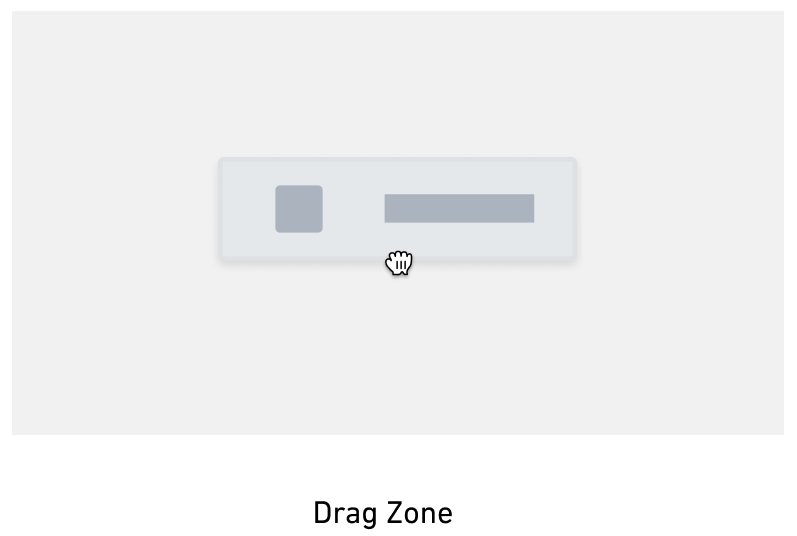
A drag zone is an interactive DOM element that allows users to "grab" data and transfer it elsewhere by "dropping" it on a drop zone. Drag zones write data to the DataTransfer object, allowing it to be transferred when the user drags a `draggable` element. The steps below detail how to make an element `draggable`, add data to the DataTransfer object, and handle drag events. Refer to [drag zones](../drag-and-drop-overview/index.md#drag-zones) and [the DataTransfer object](../drag-and-drop-overview/index.md#the-datatransfer-object) for details on these concepts.
### Make the HTML element draggable
Make an HTML element a drag zone by setting the `draggable` attribute to `true`. To attach data to the drag event, add an `ondragstart` handler, which will set data on the DataTransfer.
```html
Draggable Element
```
### Add data to the DataTransfer
To add data to the drag event, call the `dataTransfer.setData` method for the attached DataTransfer. This method adds data to the DataTransfer in the given media type format. Refer to the [MDN DataTransfer documentation ↗](https://developer.mozilla.org/en-US/docs/Web/API/DataTransfer) for more information.
```typescript
function handleDragStart(event) {
event.dataTransfer.setData(
,
);
event.dataTransfer.effectAllowed = "move";
}
```
Replace `` above with the dragged data's media type, for example `application/x-vnd.palantir.rid.phonograph2-objects.object` for Foundry object RIDs. Replace `` with a serialized version of the data by using `JSON.stringify` to convert the data to a string. Refer to the [Palantir media types documentation](../drag-and-drop-overview/index.md#palantir-media-types) to determine the correct media type for your use case.
:::callout{theme="warning"}
Keep security concerns in mind when adding data to your DataTransfer. Any drop zone will be able to access this data.
:::
Below is an example of a drag start handler for Foundry object RIDs:
```typescript
function handleDragStart(event) {
const foundryObjectRids = ["ri.phonograph2-objects.main.object.XXXXXXX", "ri.phonograph2-objects.main.object.YYYYYYY"]
event.dataTransfer.setData(
"application/x-vnd.palantir.rid.phonograph2-objects.object",
JSON.stringify(foundryObjectRids)
);
event.dataTransfer.effectAllowed = "move";
}
```
This handler adds the Foundry object RID media type to the DataTransfer. Any drop zone that accepts Foundry object RID data will be able to receive the data in `foundryObjectRids` when the dragged DataTransfer is dropped.
:::callout{theme="success"}
At this point, you should be able to drag from your drag zone onto drop zones that accept the media type in the DataTransfer. Refer to [Palantir media types](../drag-and-drop-overview/index.md#palantir-media-types) to find drop zones that accept your drag payload depending on the media type.
:::
## Create a drop zone
Drop zones are interactive elements on the DOM that receive "dropped" data from a drag zone. Drop zones work by listening to the `ondrop` event and accessing information from the event's DataTransfer when the event is fired. Refer to [drop zones](../drag-and-drop-overview/index.md#drop-zones) and [the DataTransfer object](../drag-and-drop-overview/index.md#the-datatransfer-object) to learn more.
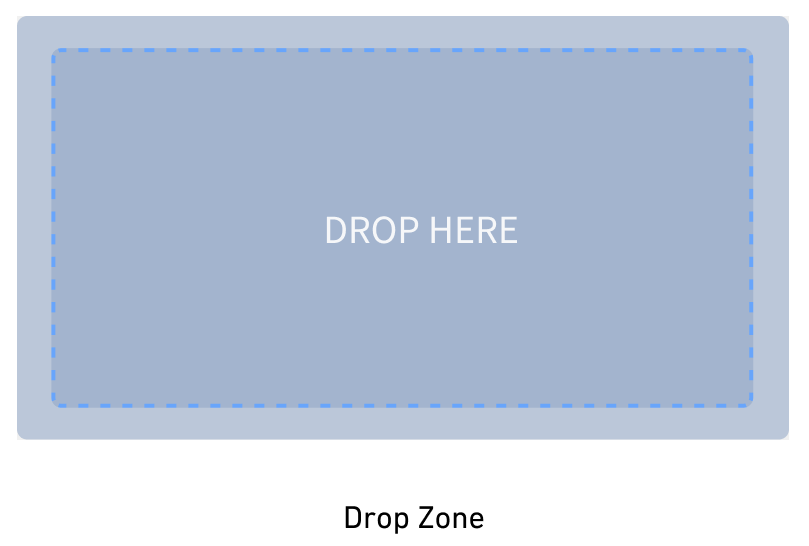
You can turn an HTML element into a drop zone by adding an `ondragover` handler, which prevents the default event behavior. Add an `ondrop` handler to process the dropped DataTransfer.
The steps are as follows:
1. [Enable items to be dropped on your drop zone](#enable-items-to-be-dropped-on-your-drop-zone)
2. [Handle the drop](#handle-the-drop)
3. [Style your drop zone](#style-your-drop-zone)
This tutorial covers creating a drop zone that accepts the [Foundry object RID](../objects/index.md#foundry-object-resource-identifiers) media type, but your implementation can replace this with a media type of your choice.
### Enable items to be dropped on your drop zone
1. Write functions to prevent the default `dragover` and `dragenter` event handling. The default event behavior does not accept dropped data, so we cancel this behavior to allow the element to accept dropped data, which is necessary for drop zones.
```typescript
// this is necessary to ensure the drop event will fire
// only prevent the default behavior if the drag payload is accepted
function handleDragOver(event){
if(event.dataTransfer?.types.includes("application/x-vnd.palantir.rid.phonograph2-objects.object")){
event.preventDefault();
}
}
function handleDragEnter(event){
if(event.dataTransfer?.types.includes("application/x-vnd.palantir.rid.phonograph2-objects.object")){
event.preventDefault();
}
}
```
2. Add the `handleDragOver` event handler to your drop zone
```html
Drop Zone
```
### Handle the drop
1. Create a function to handle the drop by accessing data from the DataTransfer once it has been dropped, and prevent the default event behavior, which is to open link data. Call the DataTransfer `getData` function to return data from the DataTransfer in string format. `getData` returns an empty string if the DataTransfer has no data or if the DataTransfer has no data for that media type. Refer to the [MDN getData documentation ↗](https://developer.mozilla.org/en-US/docs/Web/API/DataTransfer/getData) for more information on this method.
Below is an example of an `ondrop` callback for getting Foundry object RIDs from a DataTransfer. Replace the media type in the `event.dataTransfer.getData` call with a media type that reflects the type of data you would like to transfer.
```typescript
function handleDrop(event) {
// prevent default open-link behavior
event.preventDefault();
// get Foundry object RIDs data
const data = event.dataTransfer.getData(
"application/x-vnd.palantir.rid.phonograph2-objects.object"
);
try {
if (data != null && data !== ""){
// try to parse the returned data
const dataParsed = JSON.parse(data);
// print the data
console.log(dataParsed);
// do something with the data
doCoolThingWithFoundryObjects(dataParsed);
}
} catch (error) {
console.error("Unable to parse data", error)
}
}
```
2. Add the `handleDrop` function to your drop zone component as shown below:
```html
Drop Zone
```
:::callout{theme="success"}
At this point you should be able to drop data onto your drop zone. Refer to the [Palantir media types documentation](../drag-and-drop-overview/index.md#palantir-media-types) to find drag zones that can be dropped on your drop zone.
:::
3. (Recommended) We recommend using a runtime type guard/validator if possible when getting data off of the DataTransfer. While the media type to media type data connection exists as a contract, adding a type guard ensures that the received data follows that contract.
Refer to the following documentation for supported Palantir media types:
* [Foundry objects](../objects/index.md#foundry)
* [Foundry object sets](../object-sets/index.md)
* [Gotham objects](../objects/index.md#foundry)
### Style your drop zone
Applying styling to your drop zone is crucial so users can see whether drop zones accept their drag payload. Without this, usability of your drop zones will be suboptimal. We recommend applying different styling to your drop zone depending on whether the drag payload is valid for the drop zone, or if the drop zone needs to perform additional work to determine if it accepts the drag payload. Drop zone styling should be cleared after a drop, which is covered in the steps below.
:::callout{theme="success"}
By the end of this tutorial your drop zone will "light up" if it accepts the drag payload, but this tutorial does not cover implementing the "invalid" and "loading" styles outlined in the [design guidelines](../design-guidelines/index.md). We recommend implementing these additional styles for more cohesive and user-friendly drag-and-drop interactions.
:::
After following steps one through four, your drop zone should "light up" when a user drags a payload onto your application with an accepted media type. After following steps five through seven, your drop zone will "light up" when a user starts dragging from inside of your application. After following step eight, the hover styling shown in the image below will be applied to your drop zone.
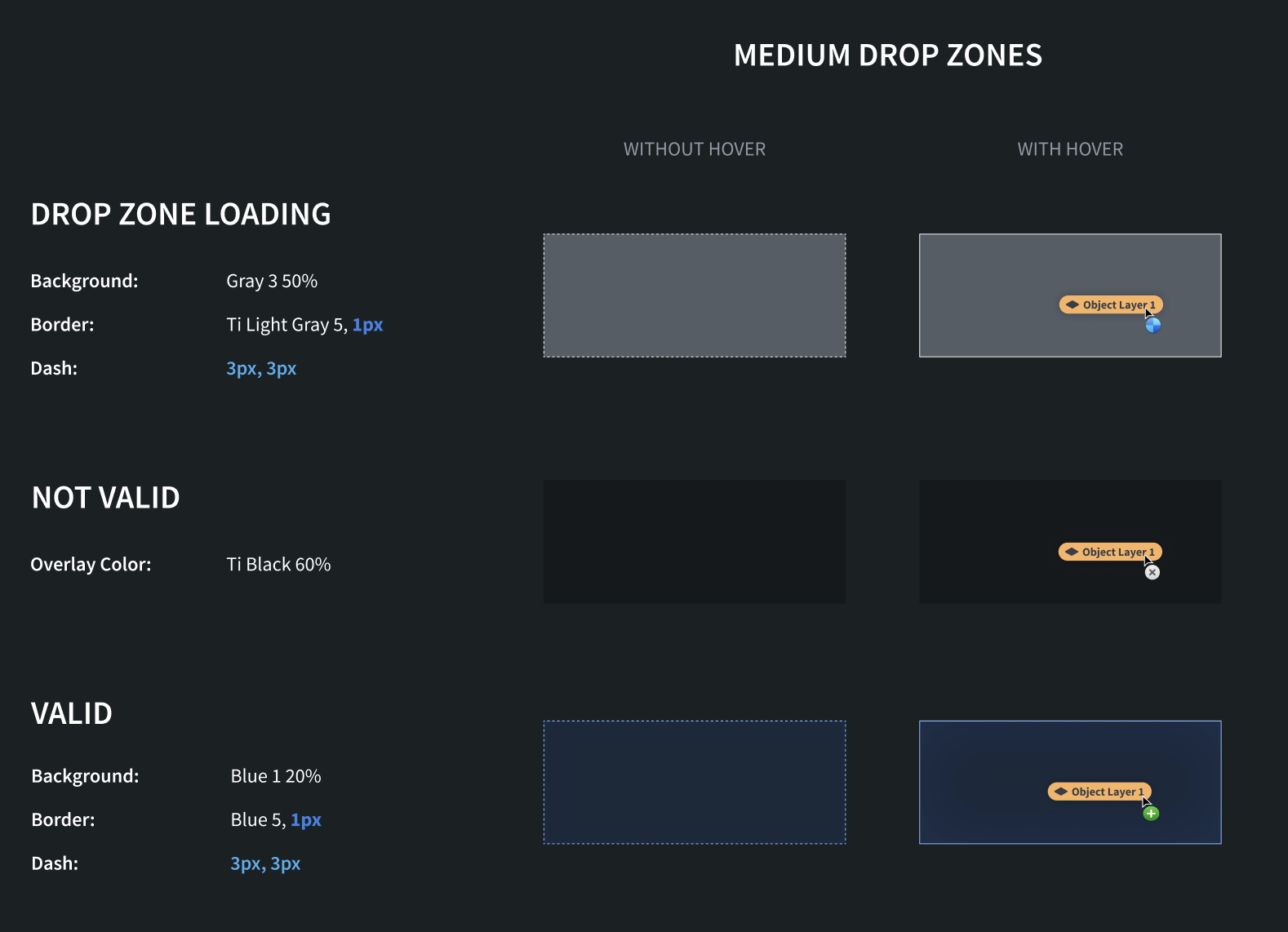
1. Copy CSS class implementations. In order to apply styling to your drop zone, create a CSS file for your styling and add the appropriate drop zone style classes from the [design guidelines](../design-guidelines/index.md), which include different style recommendations based on the size of your drop zone.
2. Add styling when your drop zone accepts the drag payload by writing a function to conditionally add styling if the drag payload contains an accepted media type. This function uses the [classlist ↗](https://developer.mozilla.org/en-US/docs/Web/API/Element/classList) property to add an additional classname to our drop zone if it accepts the drag payload. See [the design guidelines](../design-guidelines/index.md) for the CSS drag hover styling.
```typescript
function conditionallyApplyStylingToDropZone(event, className){
// our drop zone accepts the drag payload if it has a Foundry object RIDs media type
if(event.dataTransfer?.types.includes("application/x-vnd.palantir.rid.phonograph2-objects.object")){
const dropzone = document.getElementById("my-cool-drop-zone");
if(dropzone != null){
// add the style's classname
dropzone.classList.add(className);
}
}
}
```
3. Write a function to remove the styling from the drop zone using the classlist property.
```typescript
function removeStylingFromDropZone(){
const dropzone = document.getElementById("my-cool-drop-zone");
if(dropzone != null){
dropzone.classList.remove(className);
}
}
```
4. Apply styling to your drop zone when data is dragged over it from an external drag zone by adding `dragenter` and `dragleave` event handlers. You will want to listen to these events on the `capture` phase of the event in case child elements prevent the event from propagating farther upwards. See [the MDN event listener capture documentation ↗](https://developer.mozilla.org/en-US/docs/Web/API/EventTarget/addEventListener#usecapture) for more.
Here, we need to locally track how many times each event fires. These events will get fired by all child elements on the page.
```typescript
let dragInsideApplicationCount = 0;
function handleDragEnter(event){
if(dragInsideApplicationCount === 0){
maybeApplyValidStylingToDropZone(event, "valid-small");
}
dragInsideApplicationCount += 1;
}
function handleDragLeave(event){
if(dragInsideApplicationCount === 1){
removeValidStylingFromDropZone("valid-small");
}
dragInsideApplicationCount -= 1;
}
document.addEventListener("drag-enter", handleDragEnter, {capture: true});
document.addEventListener("drag-leave", handleDragLeave, {capture: true});
```
The code above only makes the drop zone light up if the drag was initiated from a drag zone on an external application or window. To make the drop zone light up for drag payloads coming from your application, add a `dragstart` listener as described in the next step.
:::callout{theme="success"}
At this point, you should be able to drag payloads from external applications or windows and have your drop zone light up if it accepts the drag payloads. Refer to the [Palantir media type documentation](../drag-and-drop-overview/index.md#palantir-media-types) to find drag zones that can be dragged onto your drop zone. After the drag payload is dropped, the styling will still be applied to your drop zone; instructions for removing the styling on-drop are in a later step.
:::
5. Write a global `dragstart` event listener to apply a style to your drop zone when it accepts the drag payload. This event listener will fire when the user initiates the drag from a drag zone on the same page. This styling indicates that your drop zone accepts the drag payload. See [the MDN drag start documentation ↗](https://developer.mozilla.org/en-US/docs/Web/API/HTMLElement/dragstart_event) for more.
```typescript
document.addEventListener("dragstart", maybeApplyValidDropStylingToDropZone, {capture: true});
```
6. Change the drop zone style when it is dragged over. In order to show users a visual change when the drag payload is on top of the drop zone, add `drag-enter` and `drag-leave` handlers to your dropzone to apply and remove those styles. This differs from the global `drag-enter` and `drag-leave` event listeners above in that these events will only be triggered by `dragenter` and `dragleave` events on the drop zone.
```typescript
let dropHoveringOverDropZoneCount = 0;
function handleDragEnter(event){
if (dropHoveringOverDropZoneCount === 0 && event.dataTransfer?.types.includes("application/x-vnd.palantir.rid.phonograph2-objects.object")){
// allow the drop and apply styling if the drop zone accepts the drag payload
event.preventDefault();
conditionallyApplyStylingToDropZone(event, "valid-small-hover");
}
dropHoveringOverDropZoneCount += 1;
}
function handleDragLeave(event){
if (dropHoveringOverDropZoneCount === 1){
removeStylingFromDropZone("valid-small-hover");
}
dropHoveringOverDropZoneCount -= 1;
}
```
7. Add the `handleDragEnter` and `handleDragLeave` drag event handlers to your drop zone component:
```html
Drop Zone
```
8. Update the drop zone to perform style cleanup. After data is dropped, remove the drop style CSS classes from the drop zone. This is necessary so the drop zone does not stay in its "light up" stage. Also reset the drag counters so new drag events are handled from scratch.
```typescript
function handleDrop(event) {
// prevent default open-link behavior
event.preventDefault();
// perform some styling cleanup
// remove CSS classes now that there is no active drag payload
removeStylingFromDropZone("valid-small-hover");
removeStylingFromDropZone("valid-small");
// reset counters
dropHoveringOverDropZoneCount = 0;
dragInsideApplicationCount = 0;
// get Foundry object RIDs data
const data = event.dataTransfer.getData(
"application/x-vnd.palantir.rid.phonograph2-objects.object"
);
try {
if (data != null && data !== ""){
// try to parse the returned data
const dataParsed = JSON.parse(data);
// print the data
console.log("dropped data: ", dataParsed);
// do something with the data
doCoolThingWithFoundryObjects(dataParsed);
}
} catch (error) {
console.error("Unable to parse data", error)
}
}
```
:::callout{theme="success"}
After this step, you should have a working drop zone. The drop zone should light up when it accepts the data on the drag payload, and the data should be printed in the console after the drag payload is dropped. Your drop zone should also remove styling after the drag payload has been dropped.
:::
If your workflow involves [transferring data between Gotham and Foundry](../enrichment-reference/index.md), follow the [data enrichment tutorial](../enrichment-tutorial/index.md) to implement this functionality.