# Create a Project
If you have the [appropriate permissions](../../security/projects-and-roles/index.md#create-projects), you can create new Projects by navigating to the Projects landing page and selecting **+ New project** located in the upper right.
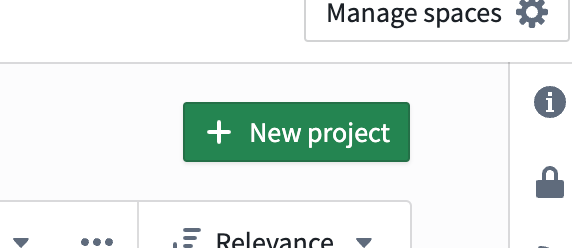 Select **Project** to open a **Create new project** pane.
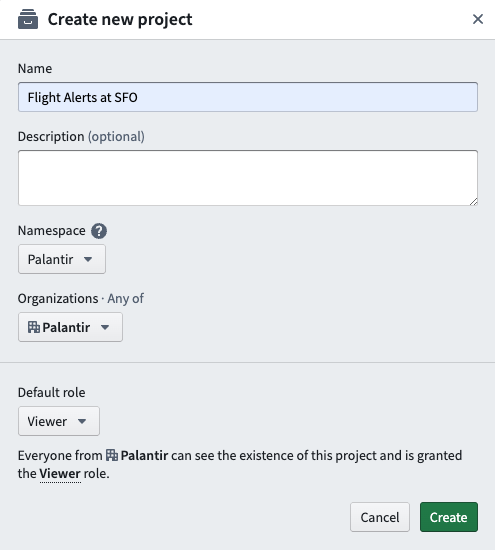 Name your Project, add an optional description, and select a location ([**space**](../../security/orgs-and-spaces/index.md#spaces)) where your Project will live. You can also change the default role for users within your Organization.
To set the default role that is initially selected for a particular space, go to the corresponding [**space settings**](../../platform-security-management/manage-orgs-and-spaces/index.md) and change the Project default roles.
Select **Create** to enter your new Project dashboard.
## Add documentation
You can add documentation to any folder by dragging and dropping a Markdown file named `README.md` into the folder, or selecting **Add description** from the folder’s Actions menu. [Standard Markdown ↗](https://daringfireball.net/projects/markdown/syntax) is supported, with some security-related restrictions:
* Inline HTML is disabled.
* Unless otherwise configured, only image files uploaded to Foundry will be rendered. Markdown for Foundry-hosted images is as follows: ``.
Links to Foundry resources are also supported. Use the following syntax to have the description automatically add links with icon and file name inferred: `[optional link text](rid)`.
:::callout{theme="warning"}
Existing `.md` files in a Project will not automatically convert to be rendered in place, even if they are correctly named `README.md`. Downloading the existing `README.md`, deleting it from the folder, and re-uploading it will make it display.
:::
Name your Project, add an optional description, and select a location ([**space**](../../security/orgs-and-spaces/index.md#spaces)) where your Project will live. You can also change the default role for users within your Organization.
To set the default role that is initially selected for a particular space, go to the corresponding [**space settings**](../../platform-security-management/manage-orgs-and-spaces/index.md) and change the Project default roles.
Select **Create** to enter your new Project dashboard.
## Add documentation
You can add documentation to any folder by dragging and dropping a Markdown file named `README.md` into the folder, or selecting **Add description** from the folder’s Actions menu. [Standard Markdown ↗](https://daringfireball.net/projects/markdown/syntax) is supported, with some security-related restrictions:
* Inline HTML is disabled.
* Unless otherwise configured, only image files uploaded to Foundry will be rendered. Markdown for Foundry-hosted images is as follows: ``.
Links to Foundry resources are also supported. Use the following syntax to have the description automatically add links with icon and file name inferred: `[optional link text](rid)`.
:::callout{theme="warning"}
Existing `.md` files in a Project will not automatically convert to be rendered in place, even if they are correctly named `README.md`. Downloading the existing `README.md`, deleting it from the folder, and re-uploading it will make it display.
:::