# Citations
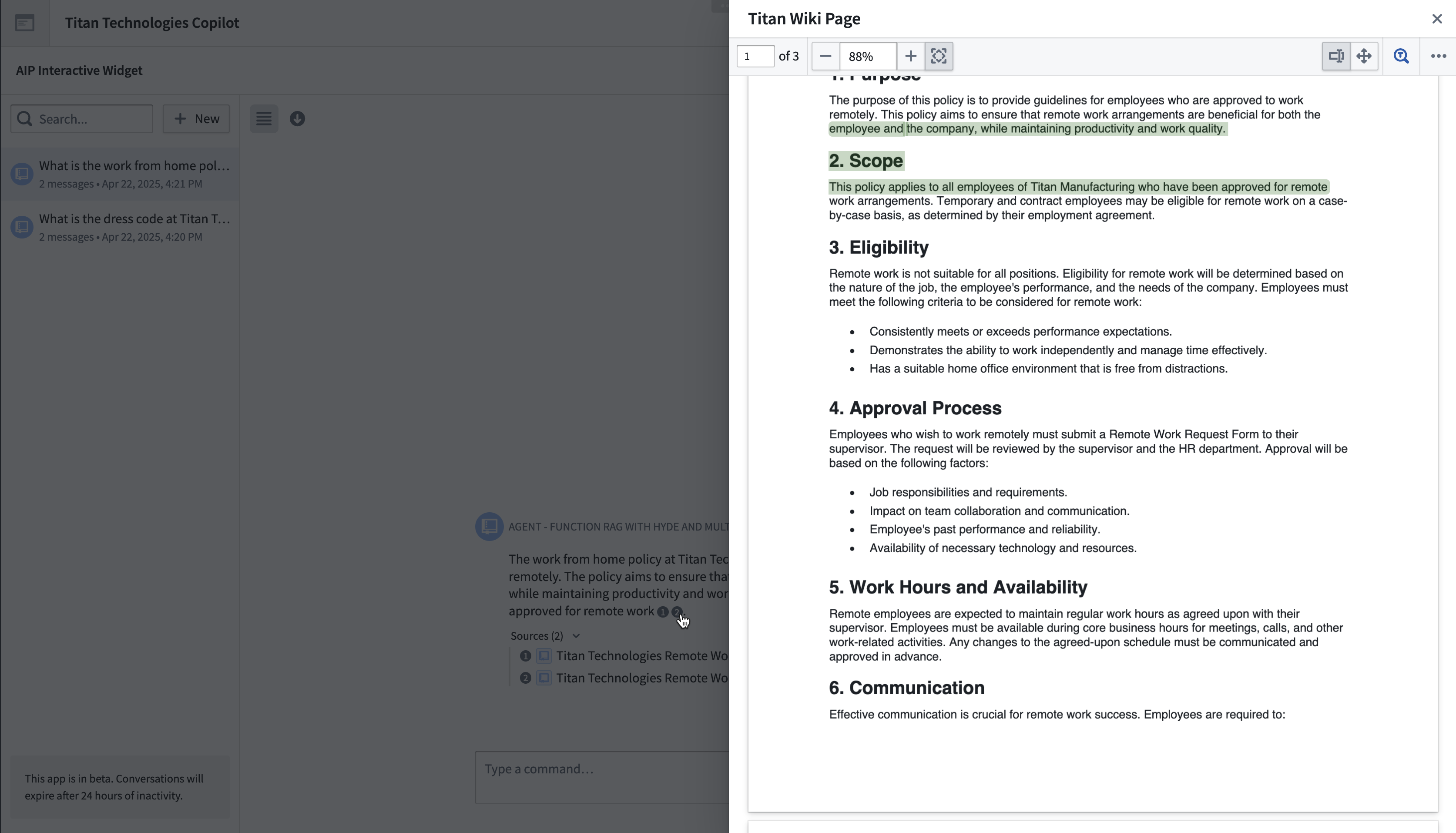
AIP Chatbots with document context or Ontology context will output citations that link out to the source material when selected. These citations will also appear in a **Sources** dropdown menu at the bottom of each message, giving users a clear understanding of the specific context used and referenced in each response.
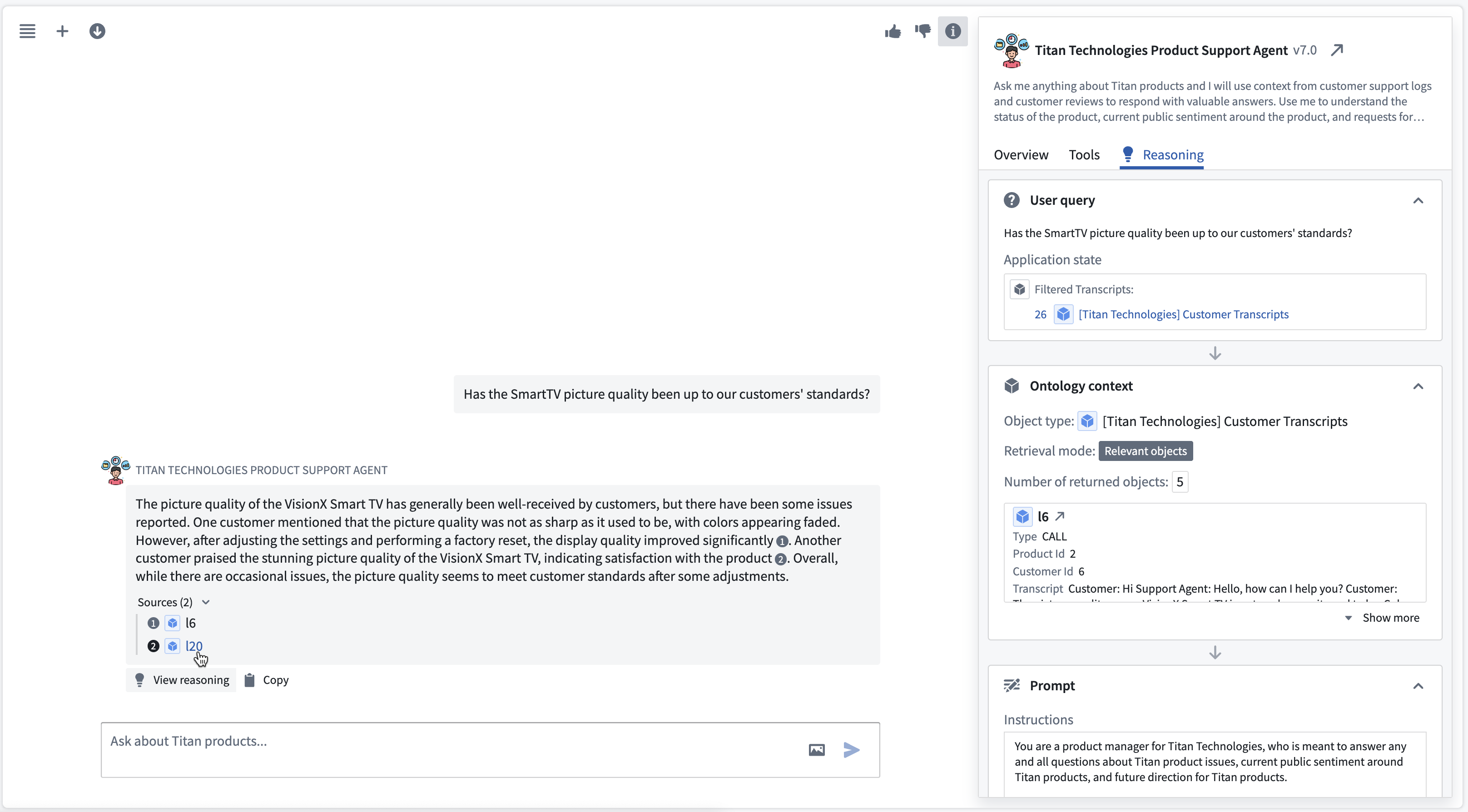 For other types of context, such as function-backed context or tools, citations are not provided by default. However, users can prompt the chatbot to include them. If the LLM responds with the correct citation format, the conversation user interface will render the citation. See [citation formats](#citation-formats) below for the full list of formats, and see [custom prompts for citations](#custom-prompts-for-citations) for examples on how to use these in your chatbot.
## Citation formats
The AIP Chatbot interface currently supports the following citation formats:
* **Ontology object citations** can be returned in either of the two formats below. Selecting the citation bubble will link to the Object Explorer view for that object.
```xml
ri.phonograph2-objects.main.object....
```
Where the `` tags encapsulate the object RID.
```xml
......
```
Where the `` tags encapsulate the object type ID, which can be found in Ontology Manager, and the `` tags encapsulate the value of the primary key for that object.
* **Document (PDF) citations** should be returned in the following format:
```xml
ri.mio.main.media-set...ri.mio.main.media-item...
```
Selecting the citation bubble will open a dialog that displays the first page of the document. If you would like to specify a page of the document in your citation, you can provide a `page` tag like so:
```xml
ri.mio.main.media-set...ri.mio.main.media-item...12
```
The document dialog will then display that page of the document.
* **External URL citations** should be returned in the following format:
```xml
My Websitewww.mywebsite.com
```
The citation bubble will display the provided name, for example `My website`, and selecting it will link to the provided URL, for example `www.mywebsite.com`.
You can set up a chatbot with Ontology context to cite objects in any one of the three formats above by navigating to the **Citations** tab under the Ontology context configuration panel.
## Citation settings
Citation settings allow you to enable or disable citations globally and override the default click behavior.
For other types of context, such as function-backed context or tools, citations are not provided by default. However, users can prompt the chatbot to include them. If the LLM responds with the correct citation format, the conversation user interface will render the citation. See [citation formats](#citation-formats) below for the full list of formats, and see [custom prompts for citations](#custom-prompts-for-citations) for examples on how to use these in your chatbot.
## Citation formats
The AIP Chatbot interface currently supports the following citation formats:
* **Ontology object citations** can be returned in either of the two formats below. Selecting the citation bubble will link to the Object Explorer view for that object.
```xml
ri.phonograph2-objects.main.object....
```
Where the `` tags encapsulate the object RID.
```xml
......
```
Where the `` tags encapsulate the object type ID, which can be found in Ontology Manager, and the `` tags encapsulate the value of the primary key for that object.
* **Document (PDF) citations** should be returned in the following format:
```xml
ri.mio.main.media-set...ri.mio.main.media-item...
```
Selecting the citation bubble will open a dialog that displays the first page of the document. If you would like to specify a page of the document in your citation, you can provide a `page` tag like so:
```xml
ri.mio.main.media-set...ri.mio.main.media-item...12
```
The document dialog will then display that page of the document.
* **External URL citations** should be returned in the following format:
```xml
My Websitewww.mywebsite.com
```
The citation bubble will display the provided name, for example `My website`, and selecting it will link to the provided URL, for example `www.mywebsite.com`.
You can set up a chatbot with Ontology context to cite objects in any one of the three formats above by navigating to the **Citations** tab under the Ontology context configuration panel.
## Citation settings
Citation settings allow you to enable or disable citations globally and override the default click behavior.
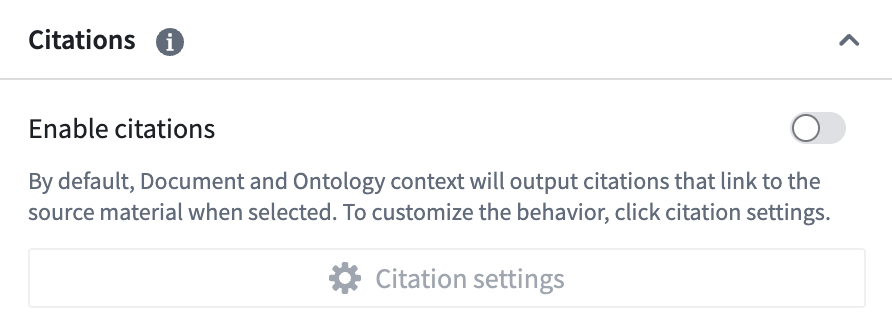 The default on-click behavior for ontology and document citations is to open the corresponding document or ontology object. You can override the default ontology context at a granular level for each object type. This can be done in the following ways:
* Open an external URL
* Open a PDF document
* [Update a variable](#citation-variable-updates)
### Citation variable updates
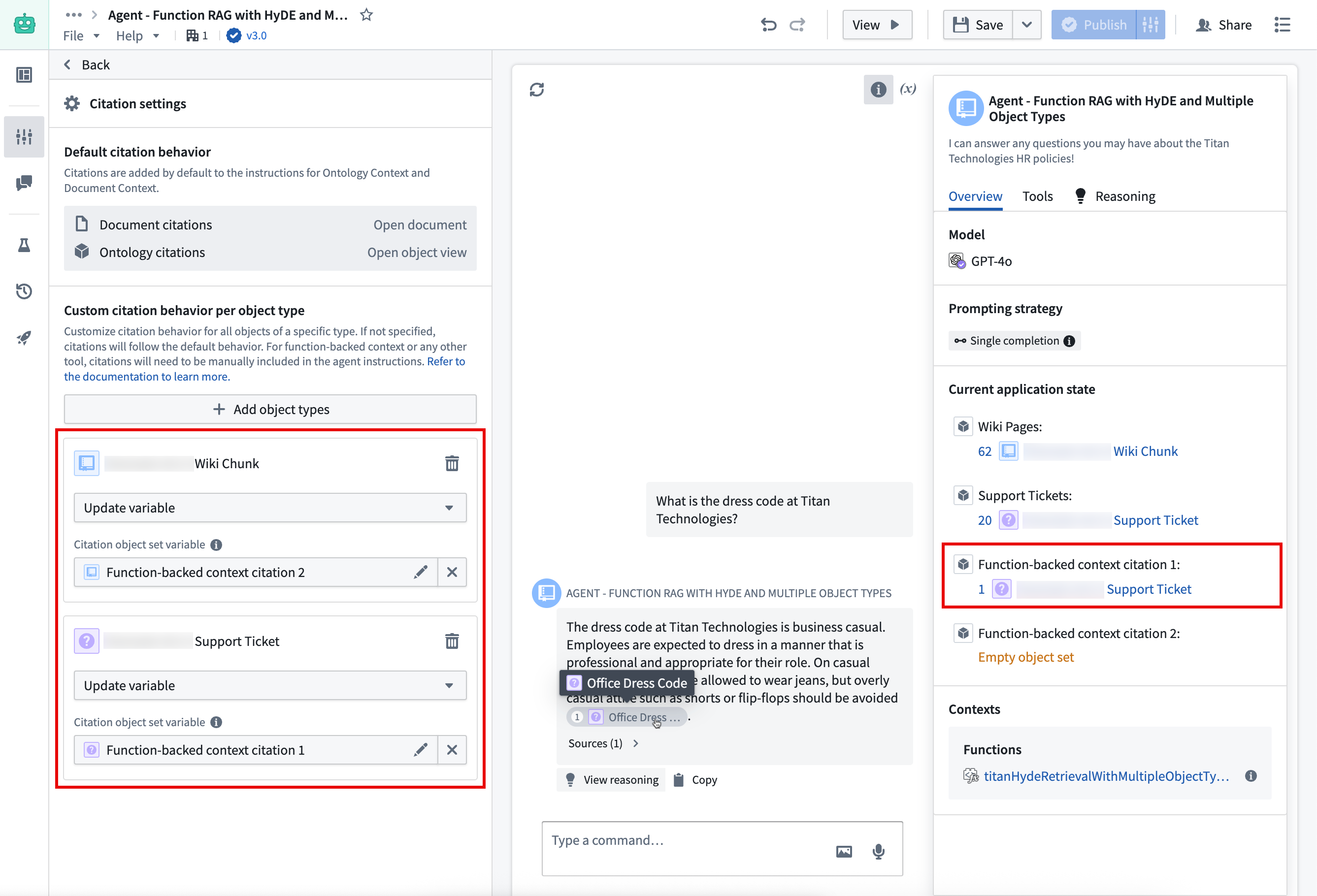
Chatbots with Ontology object citations can also be configured to update application variables when an object citation is selected. This allows consumers of AIP Chatbots to display additional information about cited objects outside of the conversation panel.
A common example of this is the AIP Chatbot Widget in Workshop, where you can use the application state to configure pop-up overlays on selection. You can find a walkthrough on how to set this up in the [integrating with Workshop overlays](#integrate-with-workshop-overlays) section below.
For chatbots that use function-backed context, you can prompt the chatbot to return object citations using one of the [custom prompts](#custom-prompts-for-citations).
If your function deals with multiple object types, it may return citations where some correspond to object type A, others to object type B, and so on. To handle such cases, you can create multiple citation variables for your function in the [citation settings](#citation-settings). When a citation is selected, the citation variable that matches the object type will be set to an object set containing the referenced object, while all other citation variables will be set to an empty object set. This approach ensures that only the most relevant citation variable is populated at any given time.
The default on-click behavior for ontology and document citations is to open the corresponding document or ontology object. You can override the default ontology context at a granular level for each object type. This can be done in the following ways:
* Open an external URL
* Open a PDF document
* [Update a variable](#citation-variable-updates)
### Citation variable updates
Chatbots with Ontology object citations can also be configured to update application variables when an object citation is selected. This allows consumers of AIP Chatbots to display additional information about cited objects outside of the conversation panel.
A common example of this is the AIP Chatbot Widget in Workshop, where you can use the application state to configure pop-up overlays on selection. You can find a walkthrough on how to set this up in the [integrating with Workshop overlays](#integrate-with-workshop-overlays) section below.
For chatbots that use function-backed context, you can prompt the chatbot to return object citations using one of the [custom prompts](#custom-prompts-for-citations).
If your function deals with multiple object types, it may return citations where some correspond to object type A, others to object type B, and so on. To handle such cases, you can create multiple citation variables for your function in the [citation settings](#citation-settings). When a citation is selected, the citation variable that matches the object type will be set to an object set containing the referenced object, while all other citation variables will be set to an empty object set. This approach ensures that only the most relevant citation variable is populated at any given time.
 ### Integrate with Workshop overlays
After configuring your variable updates in AIP Chatbot Studio, you can connect them to the AIP Chatbot widget in Workshop. For more information on the AIP Chatbot widget, refer to the section on [application state](../application-state/index.md).
1. In Workshop, create an empty object set variable for each citation variable you configured in your chatbot. These variables will be populated whenever a citation from the AIP Chatbot widget is selected.
2. Create an overlay in the Workshop module.
3. Set the overlay to **Variable-based visibility** and create a Boolean variable that checks whether the Workshop variable you configured in step one is empty. If you have multiple citation variables, you can create multiple overlays or a single overlay with visibility determined by the union of multiple Boolean variables.
### Integrate with Workshop overlays
After configuring your variable updates in AIP Chatbot Studio, you can connect them to the AIP Chatbot widget in Workshop. For more information on the AIP Chatbot widget, refer to the section on [application state](../application-state/index.md).
1. In Workshop, create an empty object set variable for each citation variable you configured in your chatbot. These variables will be populated whenever a citation from the AIP Chatbot widget is selected.
2. Create an overlay in the Workshop module.
3. Set the overlay to **Variable-based visibility** and create a Boolean variable that checks whether the Workshop variable you configured in step one is empty. If you have multiple citation variables, you can create multiple overlays or a single overlay with visibility determined by the union of multiple Boolean variables.
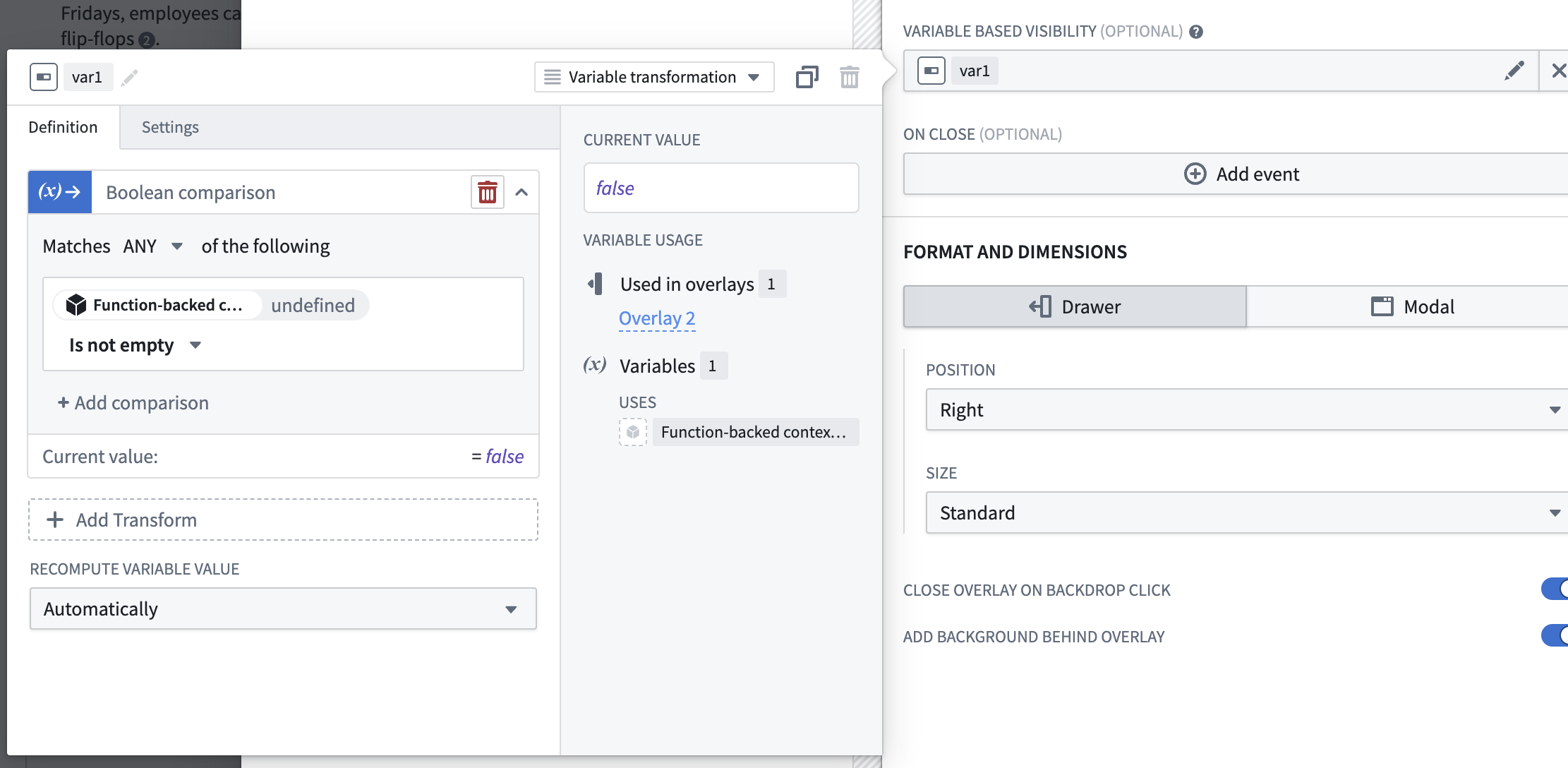 Pop-up overlays that appear on citation selection often provide the best user experience for users of the AIP Chatbot widget. However, you can explore other options by navigating to the [Workshop documentation](../../workshop/getting-started/index.md).
## Custom prompts for citations
To ensure citations are rendered in the AIP Chatbot user interface, the citations must be included in the response from the underlying LLM. To accomplish this, the LLM needs to be prompted using one of the formats listed above. This prompt is provided automatically for chatbots with document and Ontology context. However, for other chatbots, a custom prompt tailored to the specific use case is necessary.
You can provide a custom prompt to the chatbot in a few different ways. The first is to provide [instructions](../core-concepts/index.md#instructions-and-descriptions) using the **LLM Settings** for your chatbot. You can see an example of this with the chatbot below, which prompts the LLM to respond with citations every time it uses the object query tool for drivers.
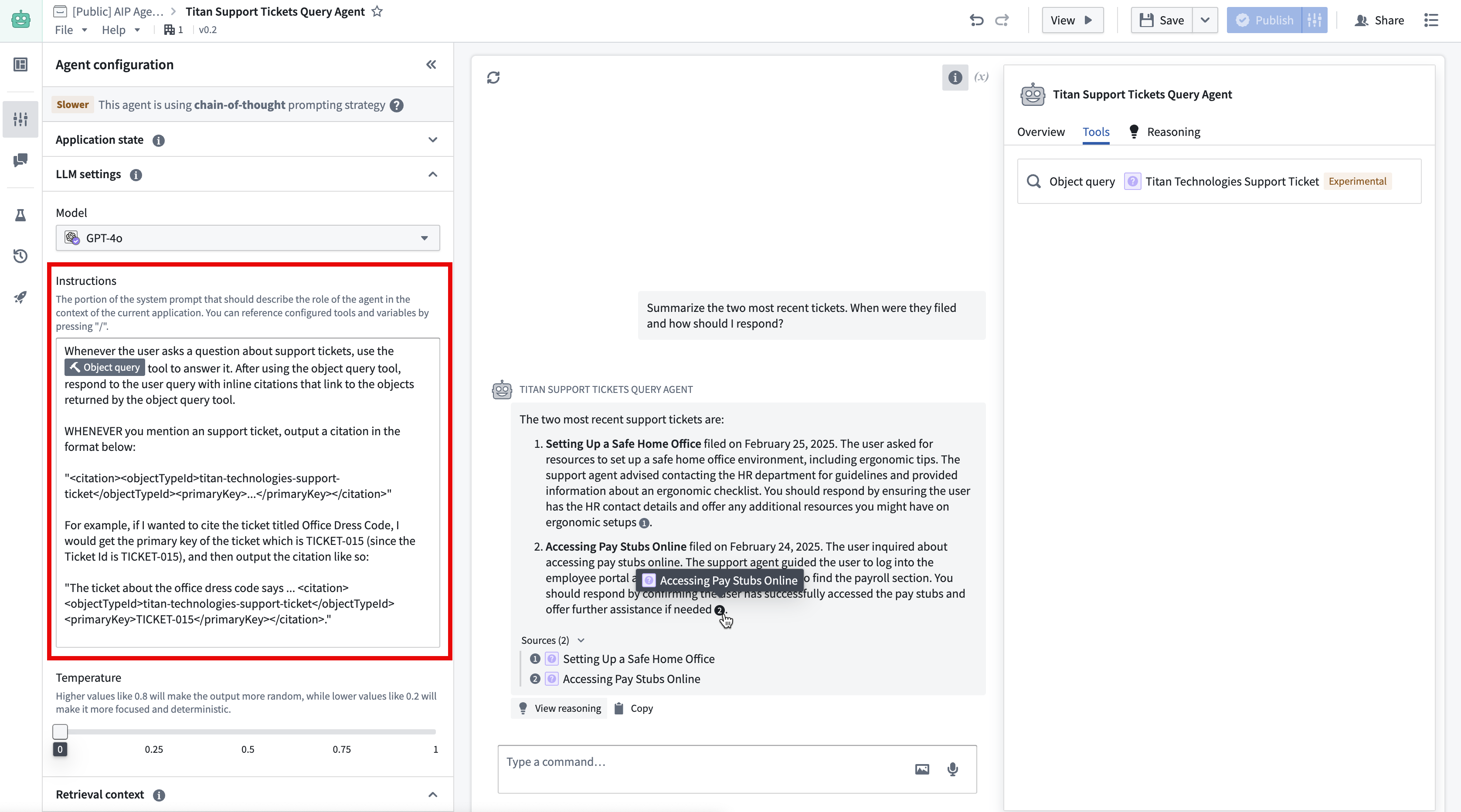
Below is the prompt used in the example image above to output object citations from a chatbot with the object query tool:
```xml
Whenever the user asks a question about support tickets, use the object query tool to answer it. After using the object query tool, respond to the user query with inline citations that link to the objects returned by the object query tool.
WHENEVER you mention a support ticket, output a citation in the format below:
"titan-technologies-support-ticket..."
For example, if I wanted to cite the ticket titled Office Dress Code, I would get the primary key of the ticket, which is TICKET-015 (since the Ticket Id is TICKET-015), and then output the citation like so:
"The ticket about the office dress code says ... titan-technologies-support-ticketTICKET-015.""
```
Another option is to use [function-backed context](../retrieval-context/index.md#function-backed-context), since the output of the context retrieval function is directly pasted into the LLM system prompt. In the example below, the context retrieval function generates a prompt that supplies the LLM with the relevant objects to include in its response, along with the format it should use to provide citations.
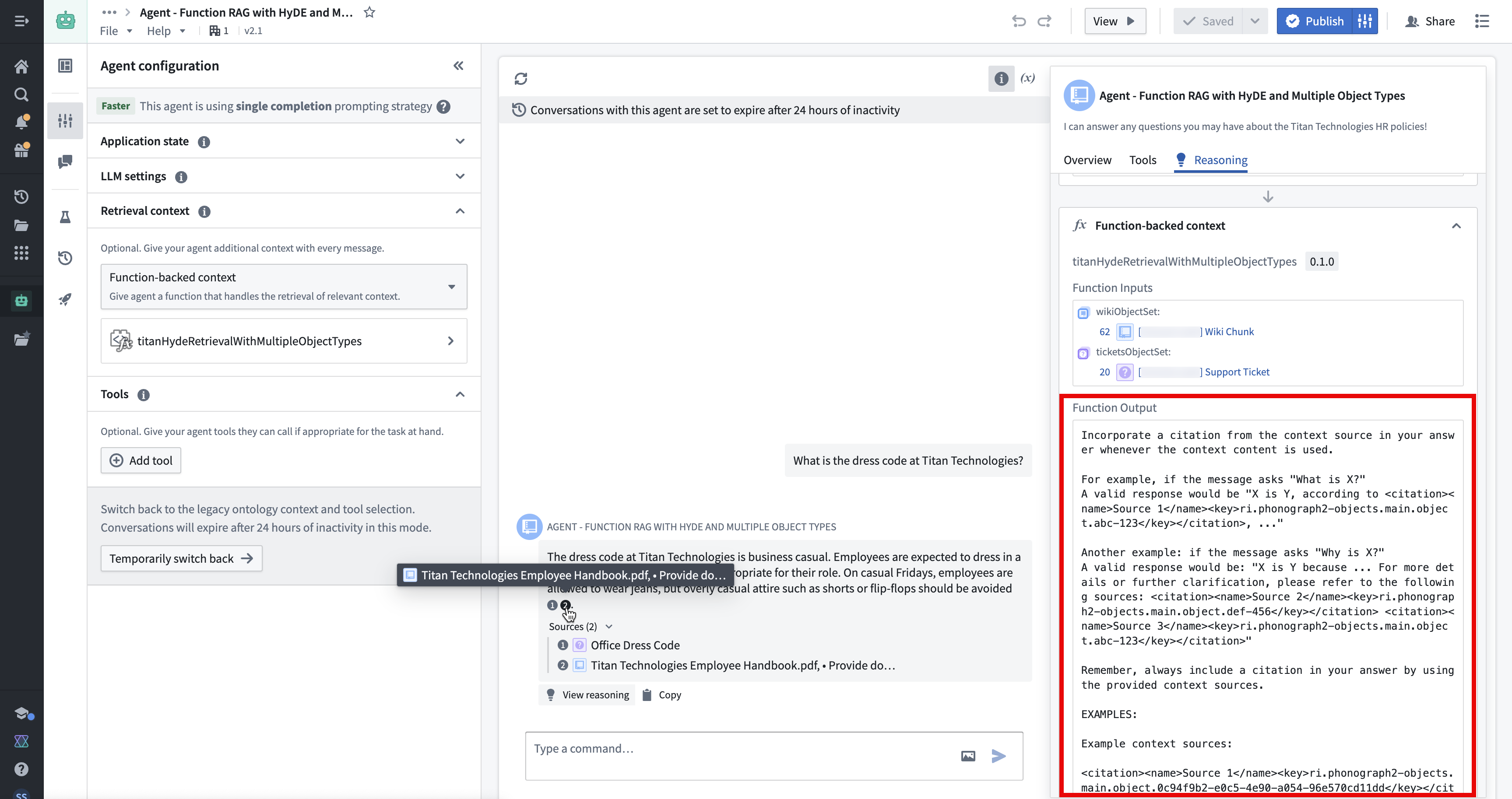
Below is the prompt from the example image above, used to output object citations from a chatbot with function-backed context:
```xml
Incorporate a citation from the context source in your answer whenever the context content is used.
For example, if the message asks "What is X?"
A valid response would be "X is Y, according to Source 1ri.phonograph2-objects.main.object.abc-123, ..."
Another example: if the message asks "Why is X?"
A valid response would be: "X is Y because ... For more details or further clarification, please refer to the following sources: Source 2ri.phonograph2-objects.main.object.def-456 Source 3ri.phonograph2-objects.main.object.abc-123"
Remember, always include a citation in your answer by using the provided context sources.
Example context sources:
Source 1ri.phonograph2-objects.main.object.0c94f9b2-e0c5-4e90-a054-96e570cd11dd
Consistency is key when teaching commands to your dog.
Source 1ri.phonograph2-objects.main.object.0c94f9b2-e0c5-4e90-a054-96e570cd11dd
Source 2ri.phonograph2-objects.main.object.8c6adc92-cfc6-4b76-b729-2744e369dac3
Socialization is important for a dog's development and behavior.
Source 2ri.phonograph2-objects.main.object.8c6adc92-cfc6-4b76-b729-2744e369dac3
Example response with citation:
"Maintaining consistency is essential when training your dog to follow commands Source 1ri.phonograph2-objects.main.object.0c94f9b2-e0c5-4e90-a054-96e570cd11dd. Socializing your dog is crucial for its behavioral development Source 2ri.phonograph2-objects.main.object.8c6adc92-cfc6-4b76-b729-2744e369dac3."
[Context Sources Sorted by Relevancy]
ri.phonograph2-objects.main.object.60599f54-c745-412b-98a0-2c7f5f0fa9bf
.... The Titan Technologies dress code is business casual ....
ri.phonograph2-objects.main.object.60599f54-c745-412b-98a0-2c7f5f0fa9bf
ri.phonograph2-objects.main.object.35910c26-8a87-4eb5-8243-52afb88bba11
.... Titan Technologies Employee Handbook ....
ri.phonograph2-objects.main.object.35910c26-8a87-4eb5-8243-52afb88bba11
ri.phonograph2-objects.main.object.3f21b8a6-536b-4374-aaf5-cae641ca836c
.... At Titan Technologies, flexible work hours may be possible .....
ri.phonograph2-objects.main.object.3f21b8a6-536b-4374-aaf5-cae641ca836c
ri.phonograph2-objects.main.object.10b2d64a-4043-438d-894a-80c001ff26e2
.... The dress code for the office is business casual ....
ri.phonograph2-objects.main.object.10b2d64a-4043-438d-894a-80c001ff26e2
[/Context Sources Sorted by Relevancy]
REMINDER:
ALWAYS include citations in the correct format sourceNamesourceKey in all responses. ALWAYS include the source name and the source key in all citations.
Valid examples are Source 1ri.phonograph2-objects.main.object.0c94f9b2-e0c5-4e90-a054-96e570cd11dd, Source 2ri.phonograph2-objects.main.object.8c6adc92-cfc6-4b76-b729-2744e369dac3.
```
Pop-up overlays that appear on citation selection often provide the best user experience for users of the AIP Chatbot widget. However, you can explore other options by navigating to the [Workshop documentation](../../workshop/getting-started/index.md).

## Custom prompts for citations
To ensure citations are rendered in the AIP Chatbot user interface, the citations must be included in the response from the underlying LLM. To accomplish this, the LLM needs to be prompted using one of the formats listed above. This prompt is provided automatically for chatbots with document and Ontology context. However, for other chatbots, a custom prompt tailored to the specific use case is necessary.
You can provide a custom prompt to the chatbot in a few different ways. The first is to provide [instructions](../core-concepts/index.md#instructions-and-descriptions) using the **LLM Settings** for your chatbot. You can see an example of this with the chatbot below, which prompts the LLM to respond with citations every time it uses the object query tool for drivers.

Below is the prompt used in the example image above to output object citations from a chatbot with the object query tool:
```xml
Whenever the user asks a question about support tickets, use the object query tool to answer it. After using the object query tool, respond to the user query with inline citations that link to the objects returned by the object query tool.
WHENEVER you mention a support ticket, output a citation in the format below:
"titan-technologies-support-ticket..."
For example, if I wanted to cite the ticket titled Office Dress Code, I would get the primary key of the ticket, which is TICKET-015 (since the Ticket Id is TICKET-015), and then output the citation like so:
"The ticket about the office dress code says ... titan-technologies-support-ticketTICKET-015.""
```
Another option is to use [function-backed context](../retrieval-context/index.md#function-backed-context), since the output of the context retrieval function is directly pasted into the LLM system prompt. In the example below, the context retrieval function generates a prompt that supplies the LLM with the relevant objects to include in its response, along with the format it should use to provide citations.

Below is the prompt from the example image above, used to output object citations from a chatbot with function-backed context:
```xml
Incorporate a citation from the context source in your answer whenever the context content is used.
For example, if the message asks "What is X?"
A valid response would be "X is Y, according to Source 1ri.phonograph2-objects.main.object.abc-123, ..."
Another example: if the message asks "Why is X?"
A valid response would be: "X is Y because ... For more details or further clarification, please refer to the following sources: Source 2ri.phonograph2-objects.main.object.def-456 Source 3ri.phonograph2-objects.main.object.abc-123"
Remember, always include a citation in your answer by using the provided context sources.
Example context sources:
Source 1ri.phonograph2-objects.main.object.0c94f9b2-e0c5-4e90-a054-96e570cd11dd
Consistency is key when teaching commands to your dog.
Source 1ri.phonograph2-objects.main.object.0c94f9b2-e0c5-4e90-a054-96e570cd11dd
Source 2ri.phonograph2-objects.main.object.8c6adc92-cfc6-4b76-b729-2744e369dac3
Socialization is important for a dog's development and behavior.
Source 2ri.phonograph2-objects.main.object.8c6adc92-cfc6-4b76-b729-2744e369dac3
Example response with citation:
"Maintaining consistency is essential when training your dog to follow commands Source 1ri.phonograph2-objects.main.object.0c94f9b2-e0c5-4e90-a054-96e570cd11dd. Socializing your dog is crucial for its behavioral development Source 2ri.phonograph2-objects.main.object.8c6adc92-cfc6-4b76-b729-2744e369dac3."
[Context Sources Sorted by Relevancy]
ri.phonograph2-objects.main.object.60599f54-c745-412b-98a0-2c7f5f0fa9bf
.... The Titan Technologies dress code is business casual ....
ri.phonograph2-objects.main.object.60599f54-c745-412b-98a0-2c7f5f0fa9bf
ri.phonograph2-objects.main.object.35910c26-8a87-4eb5-8243-52afb88bba11
.... Titan Technologies Employee Handbook ....
ri.phonograph2-objects.main.object.35910c26-8a87-4eb5-8243-52afb88bba11
ri.phonograph2-objects.main.object.3f21b8a6-536b-4374-aaf5-cae641ca836c
.... At Titan Technologies, flexible work hours may be possible .....
ri.phonograph2-objects.main.object.3f21b8a6-536b-4374-aaf5-cae641ca836c
ri.phonograph2-objects.main.object.10b2d64a-4043-438d-894a-80c001ff26e2
.... The dress code for the office is business casual ....
ri.phonograph2-objects.main.object.10b2d64a-4043-438d-894a-80c001ff26e2
[/Context Sources Sorted by Relevancy]
REMINDER:
ALWAYS include citations in the correct format sourceNamesourceKey in all responses. ALWAYS include the source name and the source key in all citations.
Valid examples are Source 1ri.phonograph2-objects.main.object.0c94f9b2-e0c5-4e90-a054-96e570cd11dd, Source 2ri.phonograph2-objects.main.object.8c6adc92-cfc6-4b76-b729-2744e369dac3.
```