# Edit a workspace
## Access the editing sidebar
To edit a workspace, enter edit mode via the **Edit** button on the right side of the Carbon menu bar.

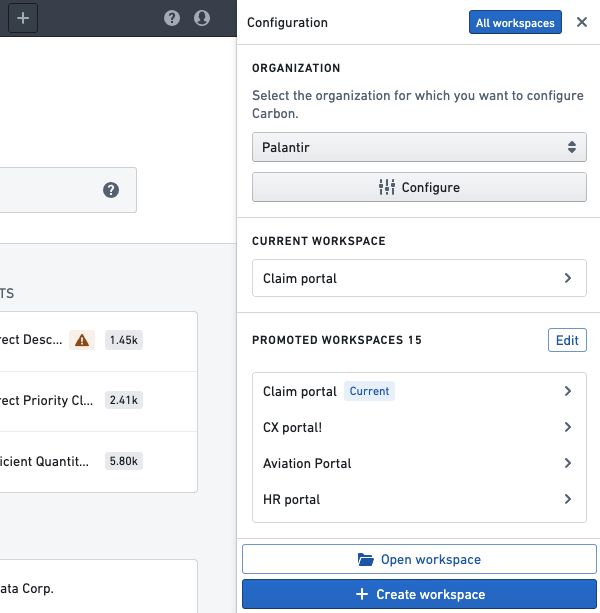
This opens the editing sidebar, where you can select the workspace you wish to edit. Organization administrators can view all of their editable workspaces by clicking the **All workspaces** button at the top of the sidebar. Non-administrator users will see all of their editable workspaces by default.
 For detailed information on the available configuration options, see the configuration references, starting with [General configuration](../configuration-general/index.md).
## Save and publish a configuration
Once the editing sidebar is open, an updated configuration can be saved by selecting the **Save** button in the upper right corner of the panel. Saving a configuration will immediately publish the updated configuration.
For detailed information on the available configuration options, see the configuration references, starting with [General configuration](../configuration-general/index.md).
## Save and publish a configuration
Once the editing sidebar is open, an updated configuration can be saved by selecting the **Save** button in the upper right corner of the panel. Saving a configuration will immediately publish the updated configuration.
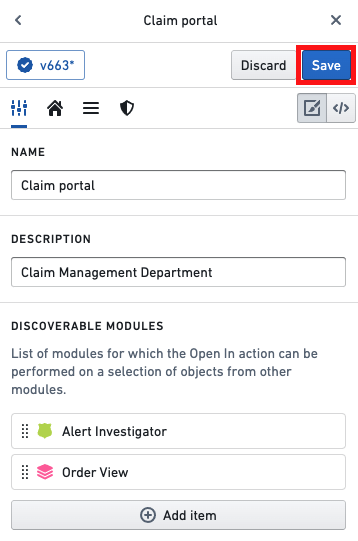 If you would prefer not to save the changes made to a configuration, the changes can be discarded by selecting the **Discard** button (adjacent to the **Save** button).