# Restrict navigation out of a workspace
In some cases, you may want to ensure that operational users will only interact with Carbon to curate their experience and restrict access to other Foundry applications or functionality.
There are two levels at which navigation out of Carbon can be restricted: workspace and module.
## Disable navigation at the workspace level
Switch to the **General** configuration tab (highlighted in red in the image below) and locate the **Navigation out of Carbon** section.
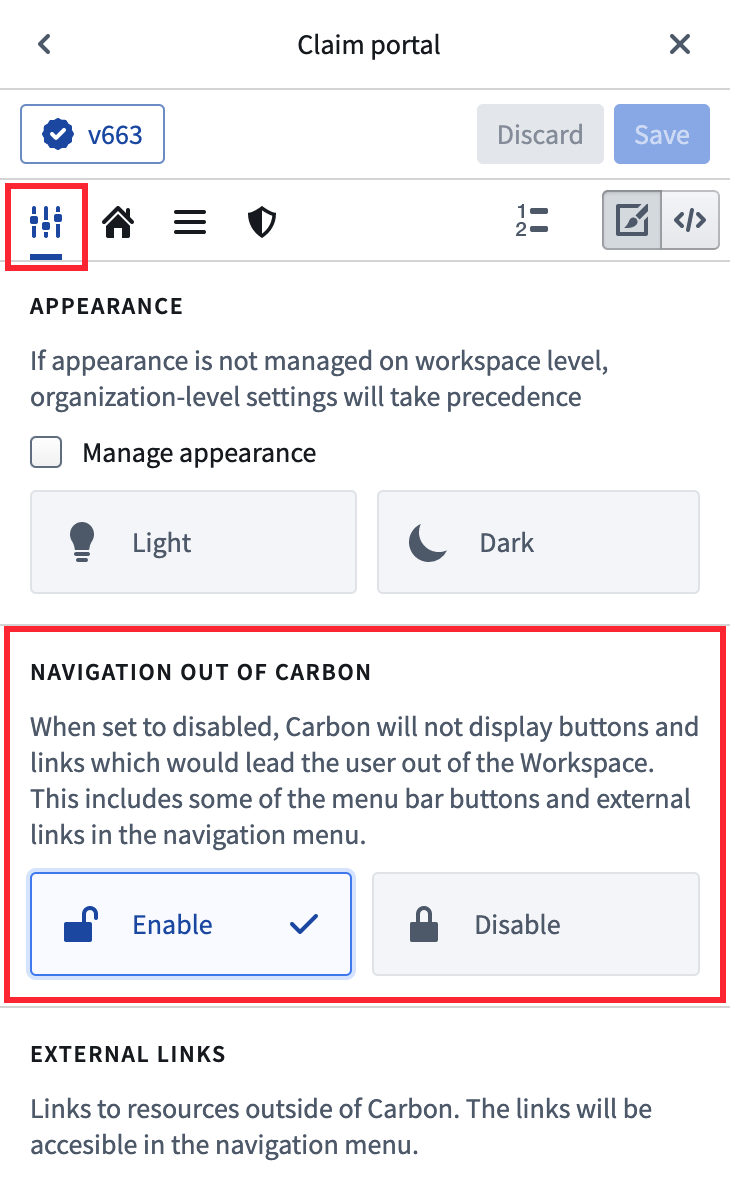 The default setting is **Enabled**; you can restrict navigation from Carbon interface elements by changing the setting to **Disabled**. The effects of disabling navigation in this way are as follows:
* External Foundry links will be hidden in the navigation menu.
* The configuration of existing links will be retained in the workspace's configuration, but these links will not be active. This allows you to restore link functionality if toggling **Navigation out of Carbon** back to the **Enabled** state.
* The configuration editor will render the **External links** section as inactive (grayed out) along with a message to notify you that the settings are superseded by the disabling of navigation out of Carbon.
The default setting is **Enabled**; you can restrict navigation from Carbon interface elements by changing the setting to **Disabled**. The effects of disabling navigation in this way are as follows:
* External Foundry links will be hidden in the navigation menu.
* The configuration of existing links will be retained in the workspace's configuration, but these links will not be active. This allows you to restore link functionality if toggling **Navigation out of Carbon** back to the **Enabled** state.
* The configuration editor will render the **External links** section as inactive (grayed out) along with a message to notify you that the settings are superseded by the disabling of navigation out of Carbon.
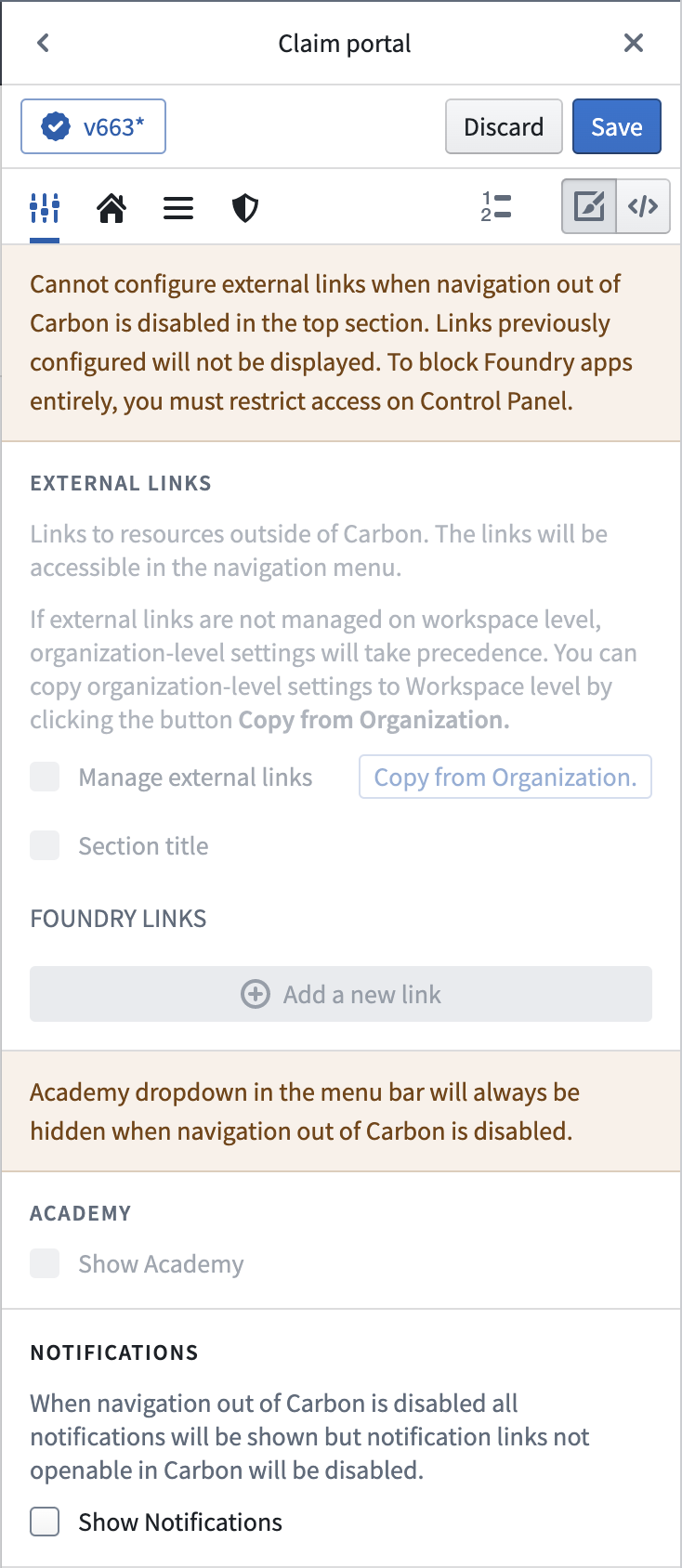 * Navigation from the elements on the right side of the menu bar will be restricted.
* The **Help and support** dropdown will be hidden entirely.
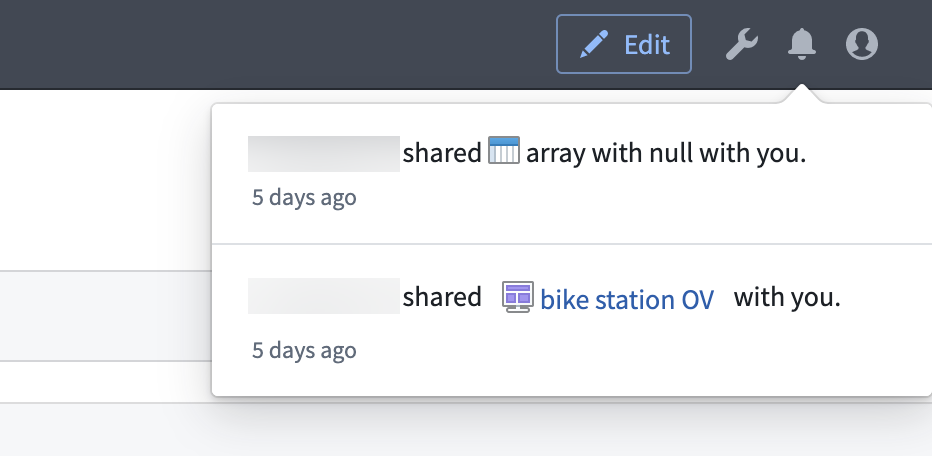
* The **Notifications** dropdown will show all notifications. However, links will only be clickable if the links keep the user inside Carbon. For example, a notification about a dataset being shared with the user will show up but will not be actionable. A notification about a Workshop module being shared with the user will be actionable since clicking the link will open that module inside of Carbon.
* Navigation from the elements on the right side of the menu bar will be restricted.
* The **Help and support** dropdown will be hidden entirely.
* The **Notifications** dropdown will show all notifications. However, links will only be clickable if the links keep the user inside Carbon. For example, a notification about a dataset being shared with the user will show up but will not be actionable. A notification about a Workshop module being shared with the user will be actionable since clicking the link will open that module inside of Carbon.
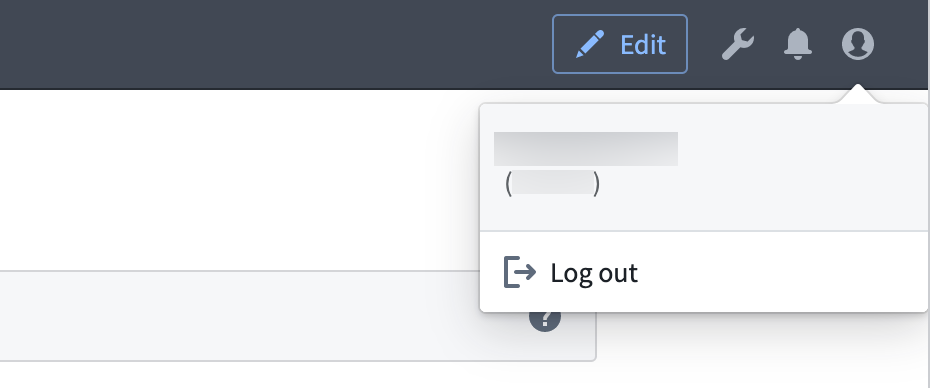
 * The **User** dropdown will still allow the user to log out and show the username, but users will not be able to click through to the Account page (which is outside of Carbon workspaces).
 :::callout{theme="warning"}
It might still be possible for users to leave a Carbon workspace via links inside of modules. While most of such links leading to applications should already be covered by the navigation framework and open a new tab in Carbon, it is still possible for actions leading to applications outside of Carbon (like Dataset Preview, Data Lineage, Contour, and so on) to be present in some cases. Use [Control Panel](../../administration/configure-workspaces/index.md) settings to restrict access for your users to spaces other than Carbon and to rely on modules to honor such restrictions. Learn more about module-level restrictions below.
:::
## Disable navigation at the module level
Carbon links that point to modules (using Carbon's [navigation framework](https://www.palantir.com/docs/foundry/carbon/restrict-workspace-nav/modules-navigation.md)) will keep the operational user inside the workspace; these links will remain active when navigation out of Carbon workspaces is disabled.
Some navigation actions available across modules may lead the user to applications outside of Carbon workspaces. These include actions to open a backing dataset for an object type, to explore the data lineage of an object type, or to start a new analysis (in Contour, Quiver, or Code Workbooks) on top of an object type. It is *not* possible to disable these actions on a level of a particular Carbon workspace. Instead, use the **Application access** page in [Control Panel](../../administration/configure-workspaces/index.md) to configure these settings for operational user groups.
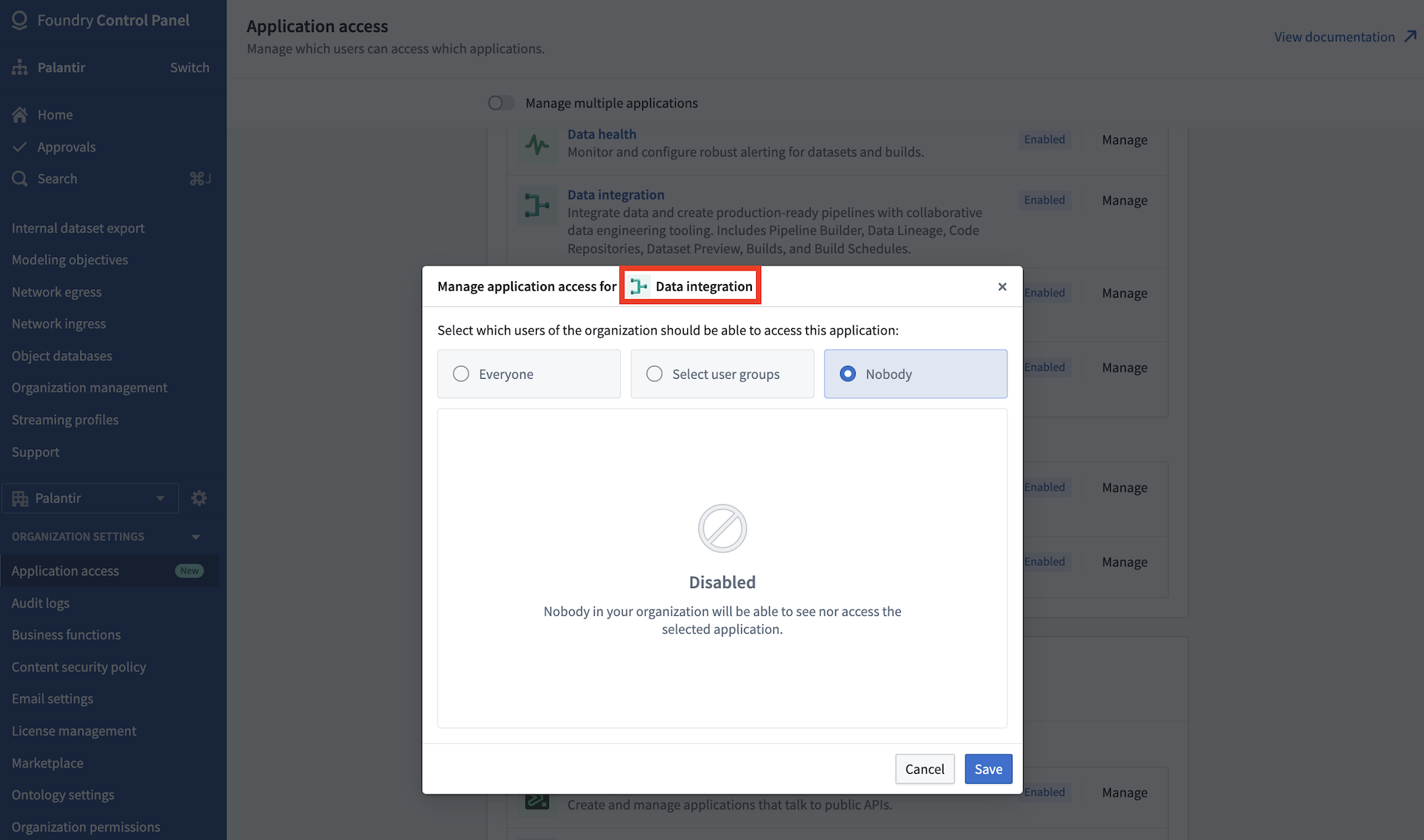
For example, to disable the action to explore the data lineage of an object type, remove access to the **Data integration** application group. Then, choose to disable all access, or only make the applications available to select users or groups.
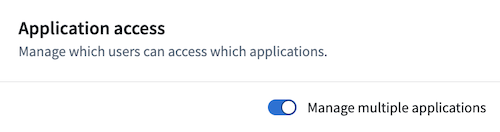
To disable an action to start a new analysis on top of an object type in either Contour, Quiver, or Code Workbook, toggle on the **Manage multiple application** option at the top of the page.
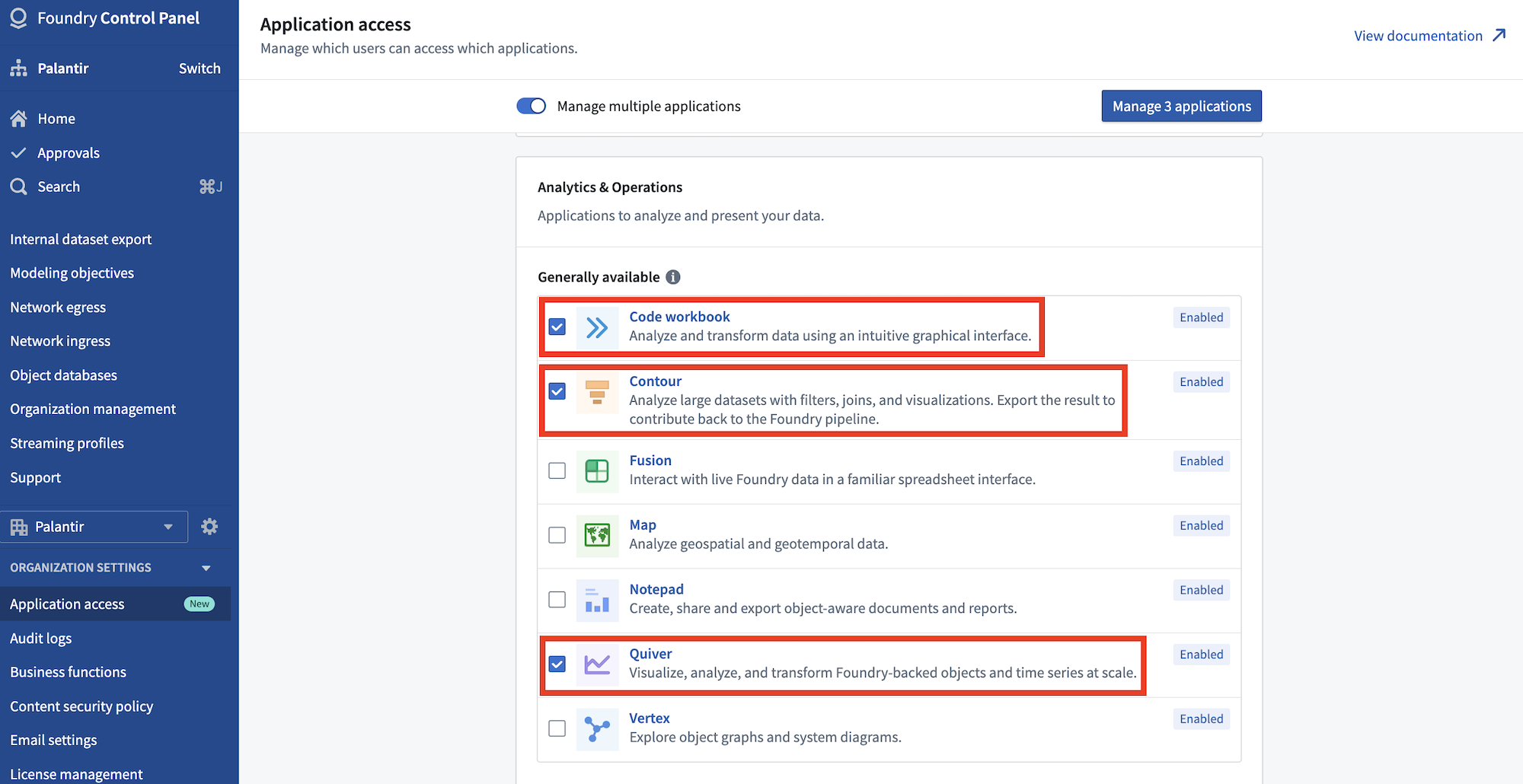
Then, select the applications you wish to disable, and choose the **Manage application** option in the top right corner to manage access.
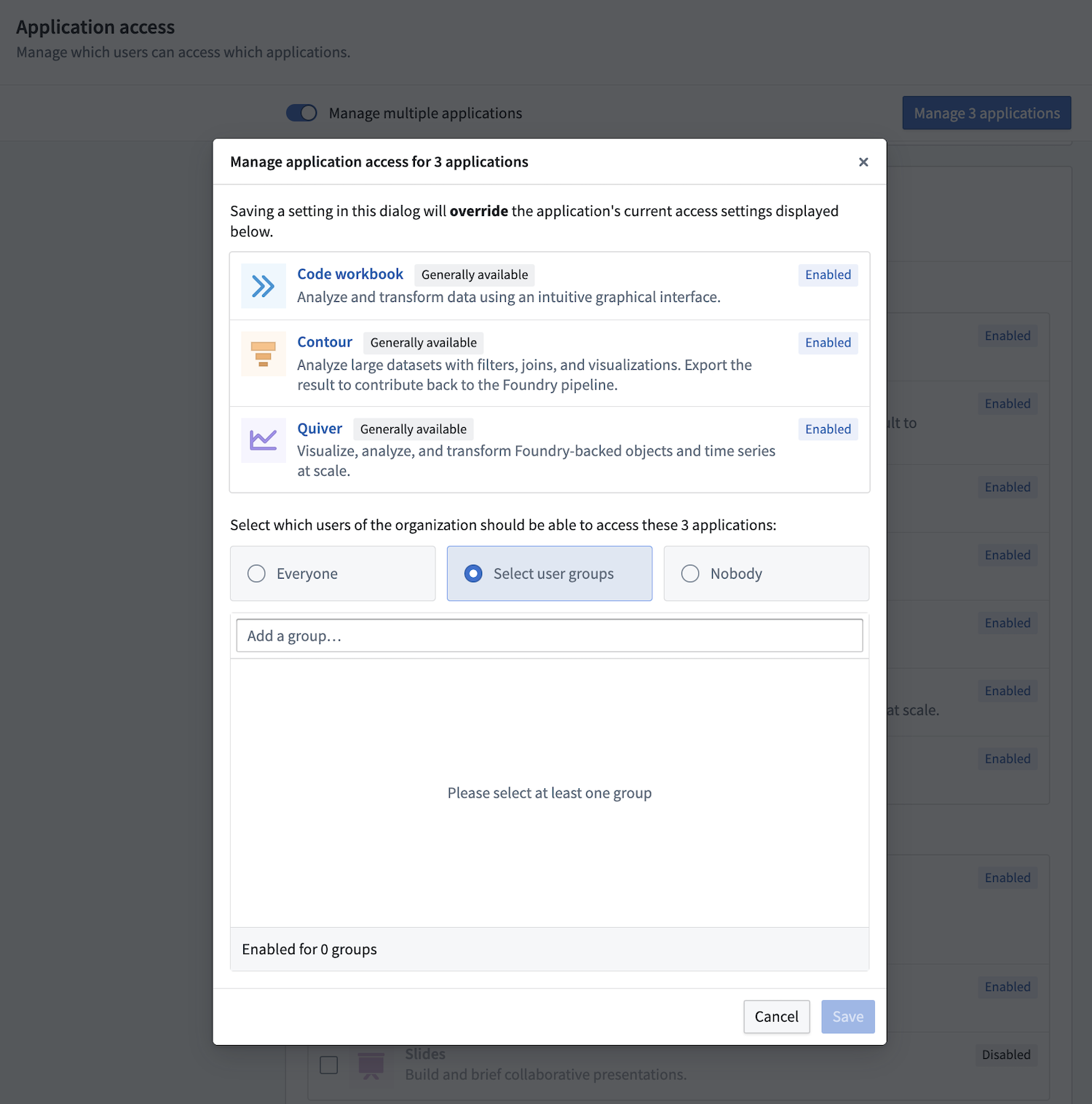
Select **Save** to apply your changes.
:::callout{theme="warning"}
It might still be possible for users to leave a Carbon workspace via links inside of modules. While most of such links leading to applications should already be covered by the navigation framework and open a new tab in Carbon, it is still possible for actions leading to applications outside of Carbon (like Dataset Preview, Data Lineage, Contour, and so on) to be present in some cases. Use [Control Panel](../../administration/configure-workspaces/index.md) settings to restrict access for your users to spaces other than Carbon and to rely on modules to honor such restrictions. Learn more about module-level restrictions below.
:::
## Disable navigation at the module level
Carbon links that point to modules (using Carbon's [navigation framework](https://www.palantir.com/docs/foundry/carbon/restrict-workspace-nav/modules-navigation.md)) will keep the operational user inside the workspace; these links will remain active when navigation out of Carbon workspaces is disabled.
Some navigation actions available across modules may lead the user to applications outside of Carbon workspaces. These include actions to open a backing dataset for an object type, to explore the data lineage of an object type, or to start a new analysis (in Contour, Quiver, or Code Workbooks) on top of an object type. It is *not* possible to disable these actions on a level of a particular Carbon workspace. Instead, use the **Application access** page in [Control Panel](../../administration/configure-workspaces/index.md) to configure these settings for operational user groups.
For example, to disable the action to explore the data lineage of an object type, remove access to the **Data integration** application group. Then, choose to disable all access, or only make the applications available to select users or groups.

To disable an action to start a new analysis on top of an object type in either Contour, Quiver, or Code Workbook, toggle on the **Manage multiple application** option at the top of the page.

Then, select the applications you wish to disable, and choose the **Manage application** option in the top right corner to manage access.

Select **Save** to apply your changes.
