# Configure module discovery
The [Object Explorer](../../object-explorer/overview/index.md) application includes an **[Open in](../../object-explorer/apply-actions/index.md#opening-in-other-applications)** button that enables users working in one platform application to open a result set in another platform application. The list of available options for the **Open in** button can be configured in the Carbon editing sidebar's [discoverable modules](../configuration-general/index.md#discoverable-modules) section. The "discoverable" options available for inclusion in the **Open in** menu include:
* [Workshop modules](#workshop-modules)
* [Quiver dashboards](#quiver-dashboards)
* [Slate applications](#slate-applications)
* [Vertex graph](#vertex-graph)
Module discovery behavior - that is, the options that appear in the **Open in** menu - differs depending on whether the user is working in Carbon or outside of a Carbon Workspace. [Learn more about module discovery behavior inside or outside of Carbon.](#module-discovery-behavior-in-carbon-and-outside-carbon)
## Workshop modules
Making a specific [Workshop](../../workshop/overview/index.md) module discoverable by the **Open in** button requires configuration in the Carbon editing sidebar as well as in the Workshop application.
### Carbon editing sidebar
The first steps of making a Workshop module discoverable by the **Open in** button occur in the Carbon editing sidebar.
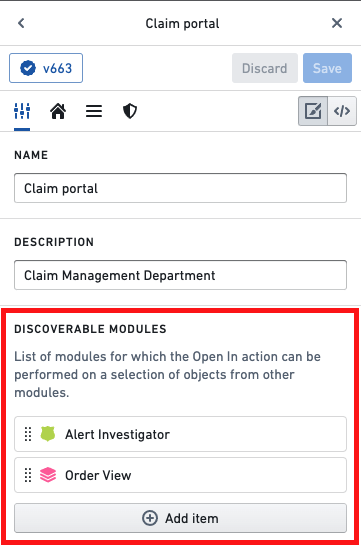
1. In the Carbon editor, navigate to the **General** tab and add the module to the list of **Discoverable modules**.
2. Select the **Add item** button to open a pop-up that prompts for **Module Type**.
3. Select **Workshop module** in the **Module Type** dropdown and then select **Open Compass dialog** to choose the specific Workshop module that you want to make discoverable.
 ### Workshop
After configuration in the Carbon editing sidebar is complete, the next steps of making a Workshop module discoverable by the **Open in** button take place in the Workshop tool itself.
1. In [Workshop](../../workshop/overview/index.md), open the Workshop module you want to make discoverable.
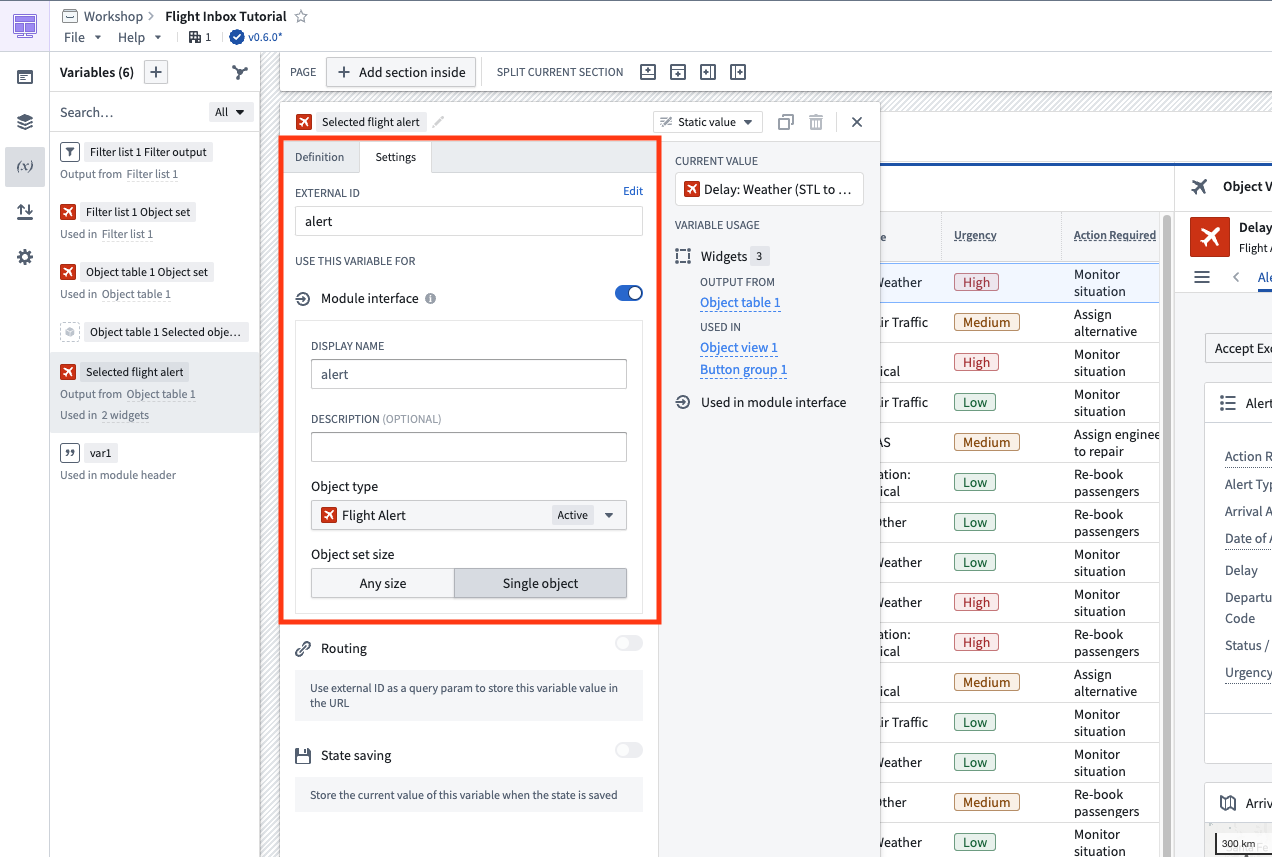
2. Create a module interface variable for the input object set, by adding an external ID in the variable **Settings** panel.
3. Set a constraint to the input object type.
4. If no constraint is set, the module will be discoverable for all object types on the **Open in** button.
## Quiver dashboards
[Quiver dashboards](../../quiver/dashboards-overview/index.md) can also be added to the **Open in** menu. The action will appear in the **Open in** menu in explorations on the object type by which the dashboard was created.
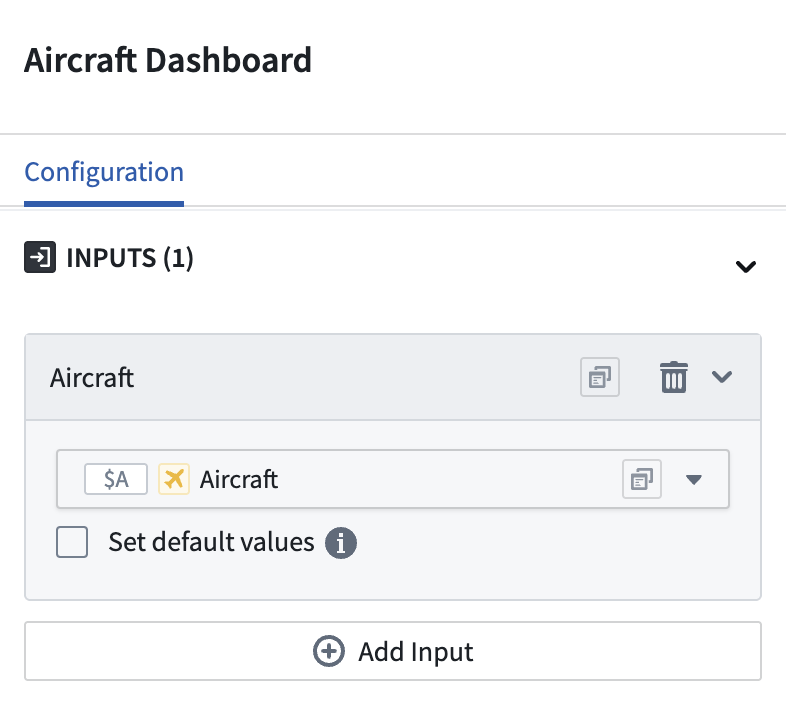
For example, if you were to create this Quiver dashboard and add it as a discoverable module in your workspace, then **Open in Aircraft Dashboard** would appear in explorations on the **Aircraft** object type.
### Workshop
After configuration in the Carbon editing sidebar is complete, the next steps of making a Workshop module discoverable by the **Open in** button take place in the Workshop tool itself.
1. In [Workshop](../../workshop/overview/index.md), open the Workshop module you want to make discoverable.
2. Create a module interface variable for the input object set, by adding an external ID in the variable **Settings** panel.
3. Set a constraint to the input object type.
4. If no constraint is set, the module will be discoverable for all object types on the **Open in** button.

## Quiver dashboards
[Quiver dashboards](../../quiver/dashboards-overview/index.md) can also be added to the **Open in** menu. The action will appear in the **Open in** menu in explorations on the object type by which the dashboard was created.
For example, if you were to create this Quiver dashboard and add it as a discoverable module in your workspace, then **Open in Aircraft Dashboard** would appear in explorations on the **Aircraft** object type.
 ## Slate applications
If you select a [Slate](../../slate/overview/index.md) application that contains a [variable](../../slate/concepts-variables/index.md), it will appear in the **Open in** menu in explorations on all object types.
## Vertex graph
Selecting [Vertex](../../vertex/overview/index.md) will add an **Open in Vertex graph** option to explorations on all object types.
## Module discovery behavior in Carbon and outside Carbon
Module discovery behavior - that is, the options that appear in the **Open in** menu - differs depending on whether the user is working in Carbon or outside of the Carbon interface.
When working in a Carbon workspace, the **Open in** button will surface only the discoverable modules configured for the currently selected workspace.
Outside of Carbon, the **Open in** button will surface a union of all the modules discoverable across the promoted Workspaces to which a user has access. [Learn more about promoted Workspaces.](../workspaces-overview/index.md#promoted-workspaces)
The following example illustrates this difference:
* Zayna is a member of two different promoted Carbon workspaces:
* Claims Workspace
* Actuary Workspace
* In the Claims Workspace, there are two different modules configured to be discoverable:
* Claim Alert Application
* Claim Investigator Application
* In the Actuary Workspace, there is one module configured to be discoverable:
* Claim Cohorts Application
Because of this configuration, Zayna will see different sets of modules in the **Open in** button depending on where she is working:
* In the Claims Workspace, the **Open in** button will display:
* Claim Alert Application
* Claim Investigator Application
* In the Actuary Workspace, the **Open in** button will display:
* Claim Cohorts Application
* Outside of Carbon, the **Open in** button will display:
* Claim Alert Application
* Claim Investigator Application
* Claim Cohorts Application
[Learn more about configuration of navigation between modules.](../modules-navigation/index.md)
## Slate applications
If you select a [Slate](../../slate/overview/index.md) application that contains a [variable](../../slate/concepts-variables/index.md), it will appear in the **Open in** menu in explorations on all object types.
## Vertex graph
Selecting [Vertex](../../vertex/overview/index.md) will add an **Open in Vertex graph** option to explorations on all object types.
## Module discovery behavior in Carbon and outside Carbon
Module discovery behavior - that is, the options that appear in the **Open in** menu - differs depending on whether the user is working in Carbon or outside of the Carbon interface.
When working in a Carbon workspace, the **Open in** button will surface only the discoverable modules configured for the currently selected workspace.
Outside of Carbon, the **Open in** button will surface a union of all the modules discoverable across the promoted Workspaces to which a user has access. [Learn more about promoted Workspaces.](../workspaces-overview/index.md#promoted-workspaces)
The following example illustrates this difference:
* Zayna is a member of two different promoted Carbon workspaces:
* Claims Workspace
* Actuary Workspace
* In the Claims Workspace, there are two different modules configured to be discoverable:
* Claim Alert Application
* Claim Investigator Application
* In the Actuary Workspace, there is one module configured to be discoverable:
* Claim Cohorts Application
Because of this configuration, Zayna will see different sets of modules in the **Open in** button depending on where she is working:
* In the Claims Workspace, the **Open in** button will display:
* Claim Alert Application
* Claim Investigator Application
* In the Actuary Workspace, the **Open in** button will display:
* Claim Cohorts Application
* Outside of Carbon, the **Open in** button will display:
* Claim Alert Application
* Claim Investigator Application
* Claim Cohorts Application
[Learn more about configuration of navigation between modules.](../modules-navigation/index.md)