# Home configuration
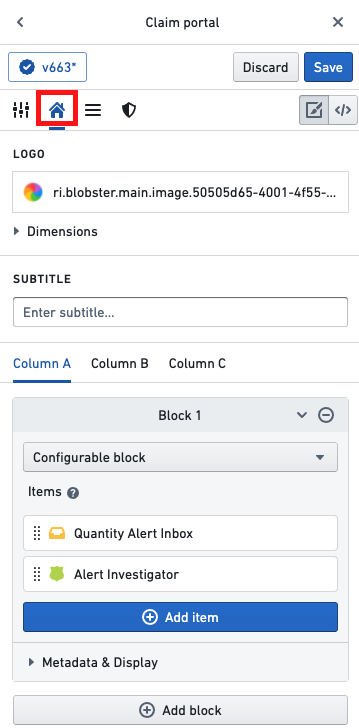
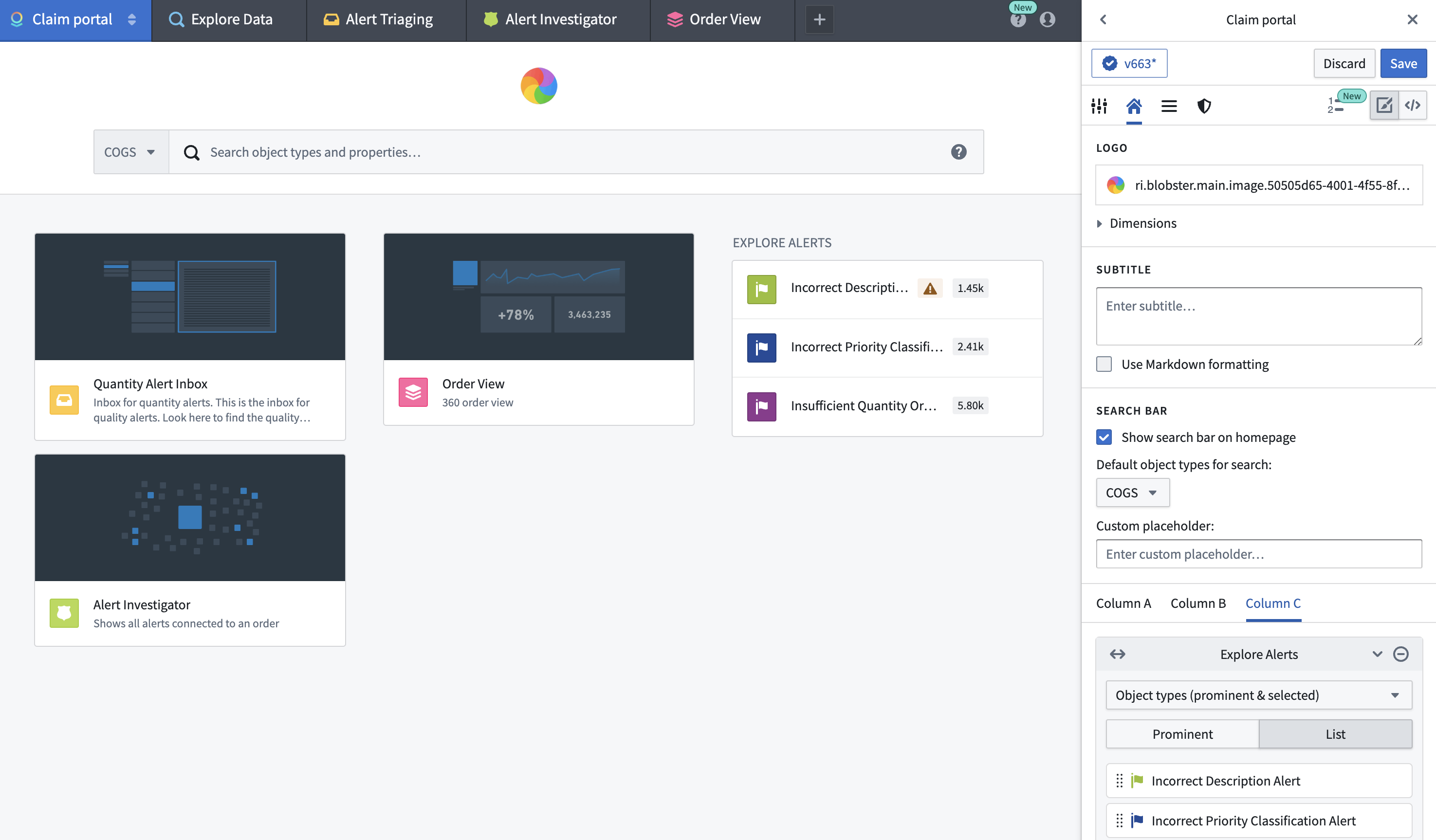
Switch to the **Home** configuration tab to configure the home page of your workspace. In the **Home** configuration tab (shown below), you can configure the [logo](#logo), [subtitle](#subtitle), and [featured items](#featured-items) for a workspace.
 ## Logo
By default, your workspace will have a Palantir logo featured in the top-middle of the Carbon home page. You can display a custom logo that has been uploaded to Foundry by navigating to the **Logo** section and clicking on **Select logo**.
## Logo
By default, your workspace will have a Palantir logo featured in the top-middle of the Carbon home page. You can display a custom logo that has been uploaded to Foundry by navigating to the **Logo** section and clicking on **Select logo**.
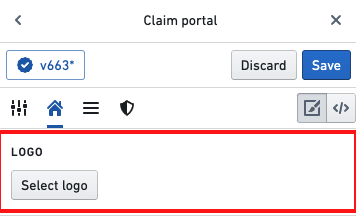 Continue by selecting your image file in a Project. This image file will now replace the default logo in your Carbon workspace.
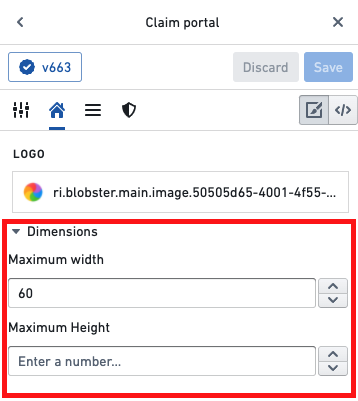
To adjust the size of the logo, expand the **Dimensions** section, where you can set a maximum width and/or height.
Continue by selecting your image file in a Project. This image file will now replace the default logo in your Carbon workspace.
To adjust the size of the logo, expand the **Dimensions** section, where you can set a maximum width and/or height.
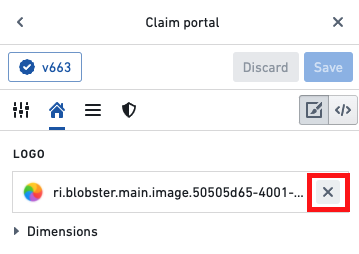
 To remove a custom logo, you can hover over the logo preview and select the **x** icon.
 ## Subtitle
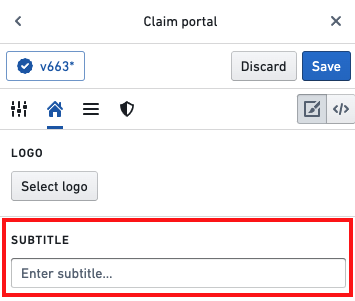
In the **Subtitle** section, you can add a subtitle to be displayed under the logo on the home page. For instance, you could provide a welcome message or description of the workspace.
## Subtitle
In the **Subtitle** section, you can add a subtitle to be displayed under the logo on the home page. For instance, you could provide a welcome message or description of the workspace.
 ## Featured items
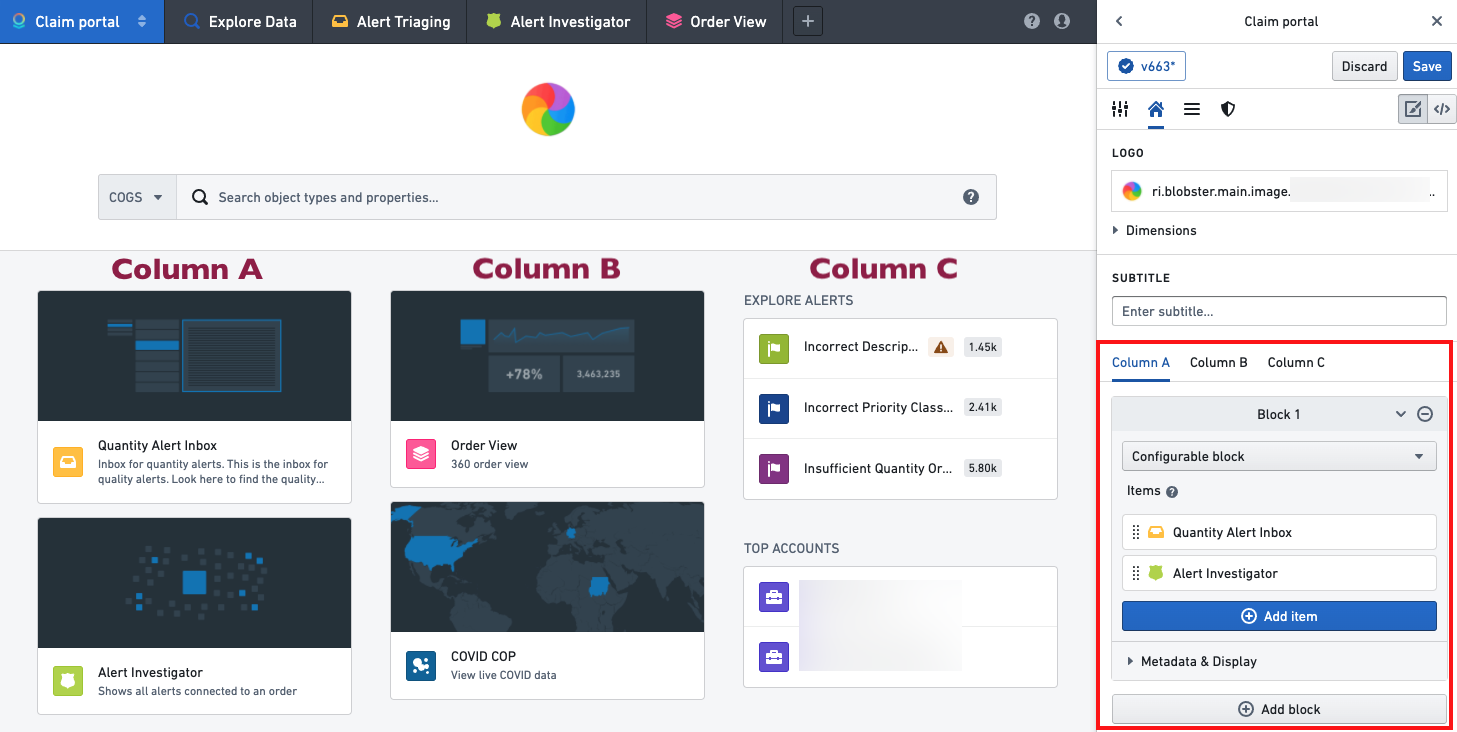
The Carbon workspace can prominently display three columns (labeled A, B, and C) that can contain **Featured items**. There are various types of **Featured items** that can be displayed, including objects, object types, saved explorations, and more. We recommend curating the home page to ensure that the workspace features the most useful resources for a user’s work.
Optionally, columns A, B, and C can contain widgets that group resources together. A widget can be custom configured, or you can select from a list of default options, such as a user's favorite objects or saved explorations.
## Featured items
The Carbon workspace can prominently display three columns (labeled A, B, and C) that can contain **Featured items**. There are various types of **Featured items** that can be displayed, including objects, object types, saved explorations, and more. We recommend curating the home page to ensure that the workspace features the most useful resources for a user’s work.

Optionally, columns A, B, and C can contain widgets that group resources together. A widget can be custom configured, or you can select from a list of default options, such as a user's favorite objects or saved explorations.
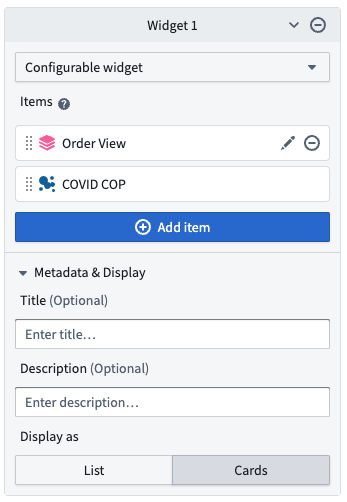
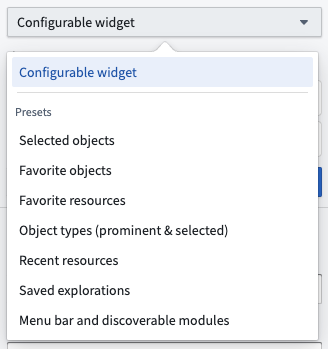 In a custom configurable widget, each item's appearance can be customized by hovering over the item and selecting the edit icon, which will open an edit dialog.
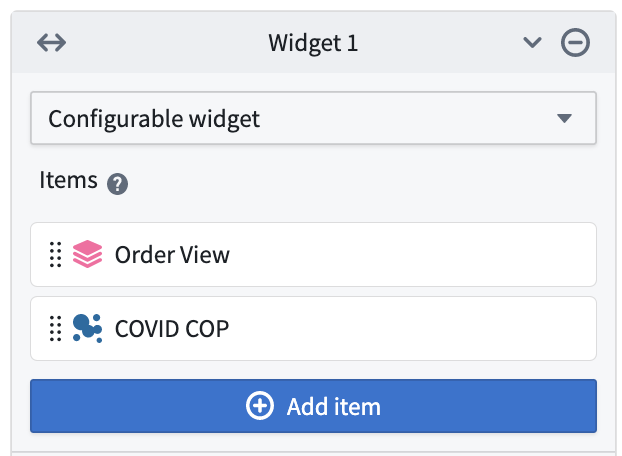 A widget's display can be further configured by adding a title and description and by choosing whether to display the items as a list or as cards. A **List** display is compact and shows the resource icons along with the name for each element. A **Cards** display is larger and can include a custom thumbnail image for each element. Cards are generally more useful when there are a small number of items. These options can be configured by expanding the **Metadata & Display** section in the widget editor.
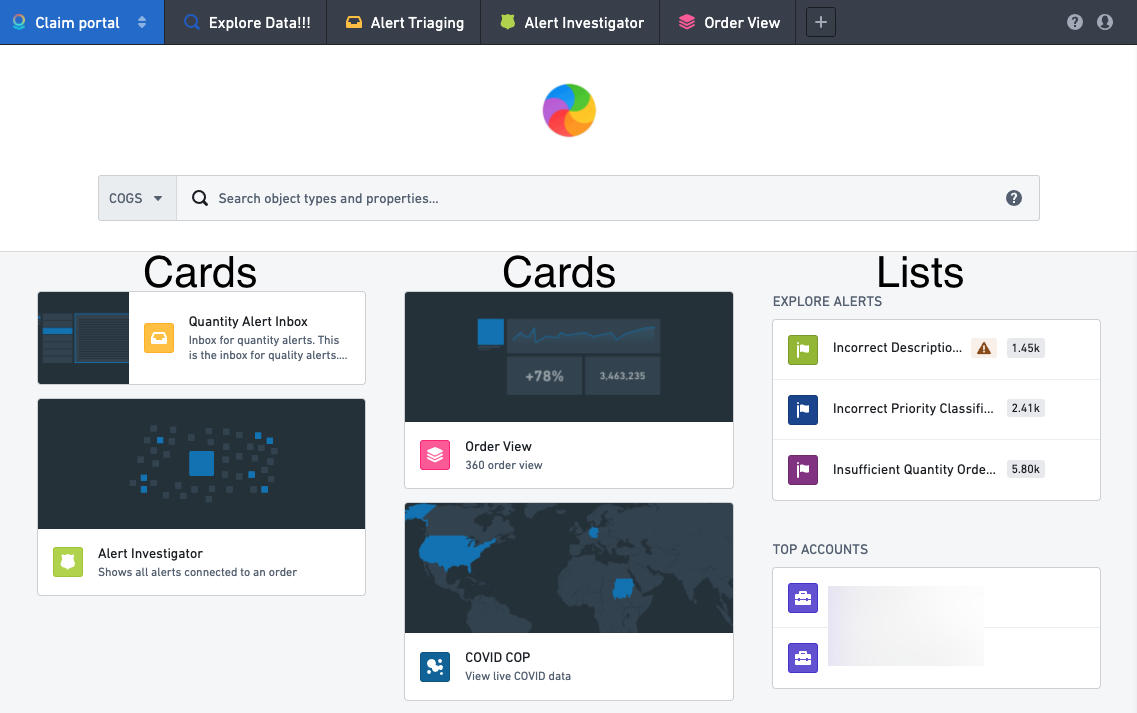
 In the following example, columns A and B each contain one widget displayed as cards, and column C contains two widgets each displayed as a list.
## Module-backed home pages
Builders can also configure a module to act as the home page for a workspace. Selecting **Replace Home with Compass Resource** on the home configuration tab will open a dialog to allow the selection of a module and parameters.
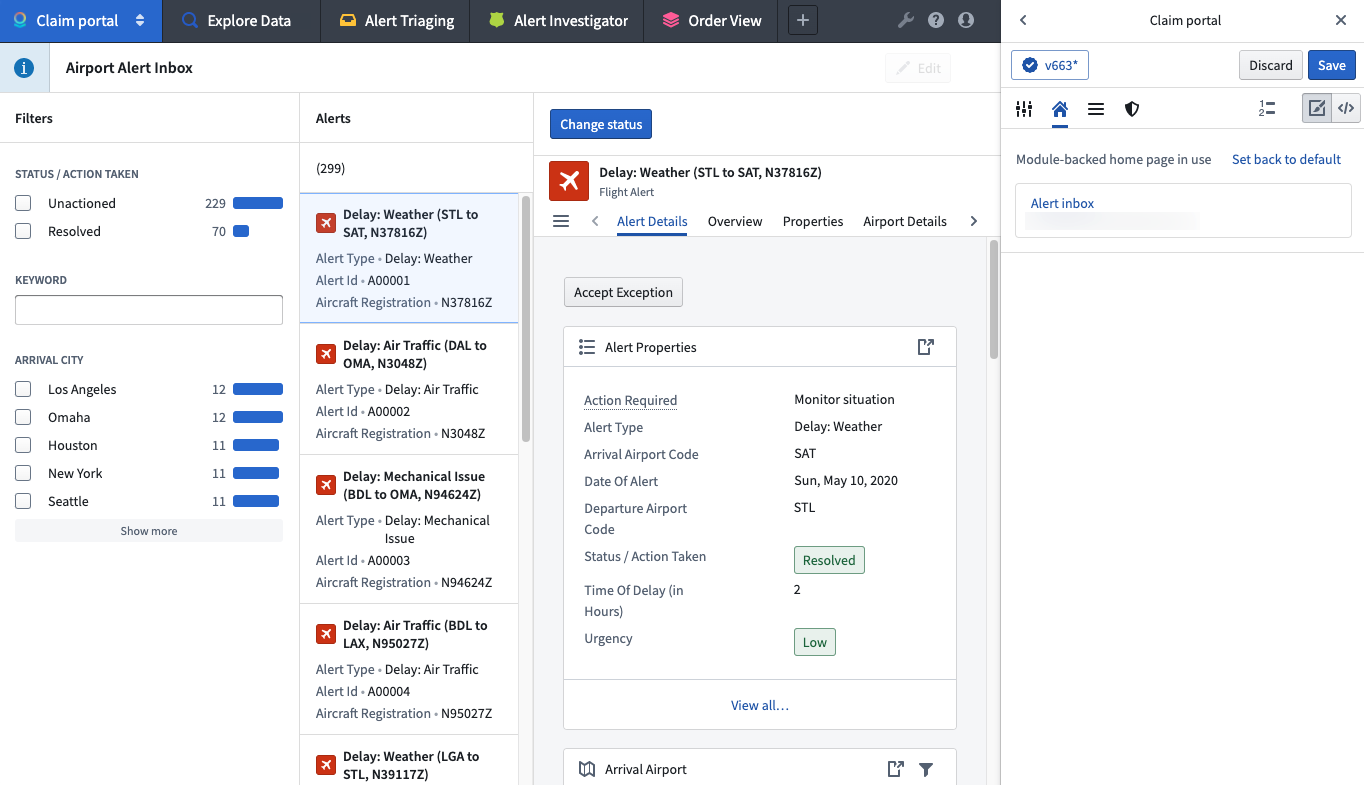
If a module is in use for the home page, builders can reset the workspace to the last configured default home page.
In the following example, columns A and B each contain one widget displayed as cards, and column C contains two widgets each displayed as a list.

## Module-backed home pages
Builders can also configure a module to act as the home page for a workspace. Selecting **Replace Home with Compass Resource** on the home configuration tab will open a dialog to allow the selection of a module and parameters.

If a module is in use for the home page, builders can reset the workspace to the last configured default home page.
