# General configuration
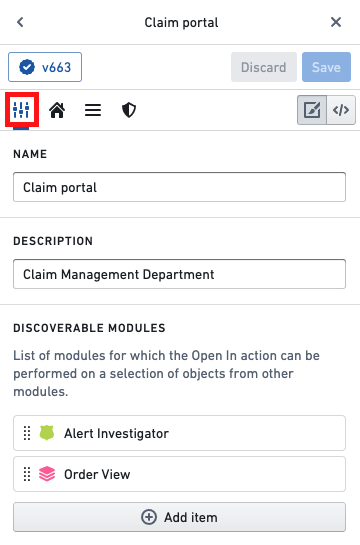
By default, the workspace editing panel will open on the **General** configuration tab. In the **General** configuration tab, you can configure the following parts of your workspace:
* [General configuration](#general-configuration)
* [Workspace name and description](#workspace-name-and-description)
* [Discoverable modules](#discoverable-modules)
* [Appearance](#appearance)
* [External links](#external-links)
* [Menu bar utilities](#menu-bar-utilities)
* [Search bar](#search-bar)
* [Delete workspace](#delete-workspace)
You may also use the **General** tab to [delete a workspace](#delete-workspace). Deleting a workspace is in the “Danger Zone” as it is a permanent action that cannot be undone.
 ## Workspace name and description
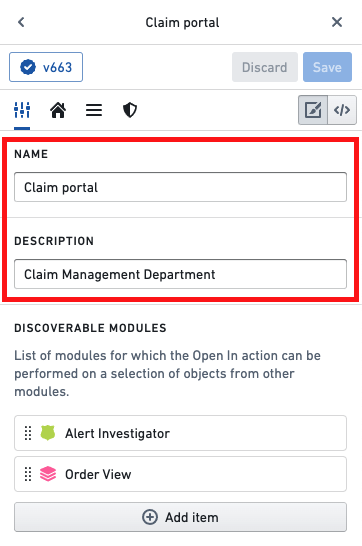
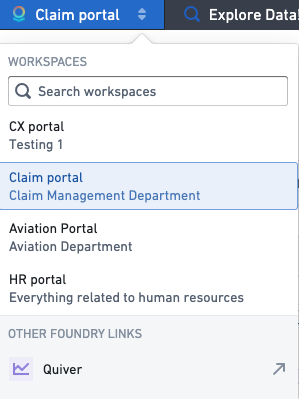
Each workspace has a name and a description. A workspace’s name is always displayed in the top left corner of the workspace interface as part of the navigation menu dropdown. If a user has access to multiple workspaces, the navigation menu displays the name and description of each available workspace.
We recommend using clear and concise workspace names and descriptions; as a best practice, choose a naming convention that makes sense and is understandable to the intended users of the workspace.
## Workspace name and description
Each workspace has a name and a description. A workspace’s name is always displayed in the top left corner of the workspace interface as part of the navigation menu dropdown. If a user has access to multiple workspaces, the navigation menu displays the name and description of each available workspace.
We recommend using clear and concise workspace names and descriptions; as a best practice, choose a naming convention that makes sense and is understandable to the intended users of the workspace.
 ## Discoverable modules
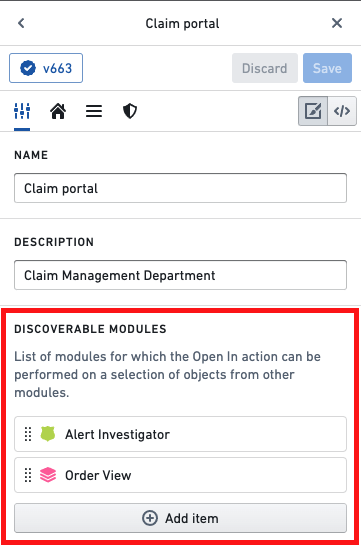
In the **Discoverable modules** section, you can control the list of modules for which the Open In action is available in Object Explorer. [Learn more about configuring module discovery.](../modules-discovery/index.md)
## Discoverable modules
In the **Discoverable modules** section, you can control the list of modules for which the Open In action is available in Object Explorer. [Learn more about configuring module discovery.](../modules-discovery/index.md)
 ## Appearance
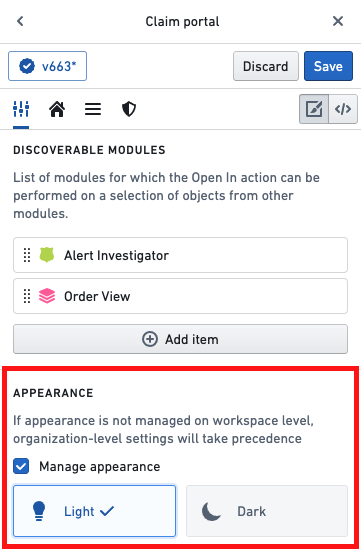
You can override the organization-level light/dark theme in the **Appearance** section. To do so, check the **Manage appearance** box and select which theme you would like the workspace to be displayed in. If the **Manage appearance** box is not checked, the organization-level setting will be used.
## Appearance
You can override the organization-level light/dark theme in the **Appearance** section. To do so, check the **Manage appearance** box and select which theme you would like the workspace to be displayed in. If the **Manage appearance** box is not checked, the organization-level setting will be used.
 ## Navigation out of Carbon
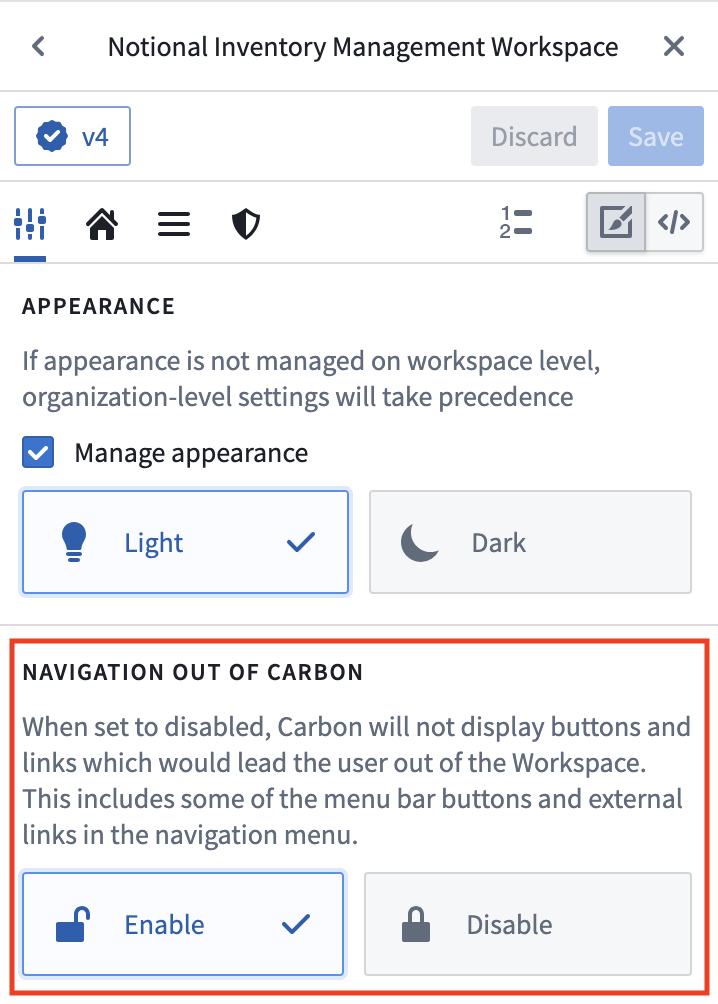
This configuration determines whether or not Carbon displays buttons and links that lead users out of the workspace, and is required for using [external links](#external-links) and some [menu bar utilities](#menu-bar-utilities).
## Navigation out of Carbon
This configuration determines whether or not Carbon displays buttons and links that lead users out of the workspace, and is required for using [external links](#external-links) and some [menu bar utilities](#menu-bar-utilities).
 ## External links
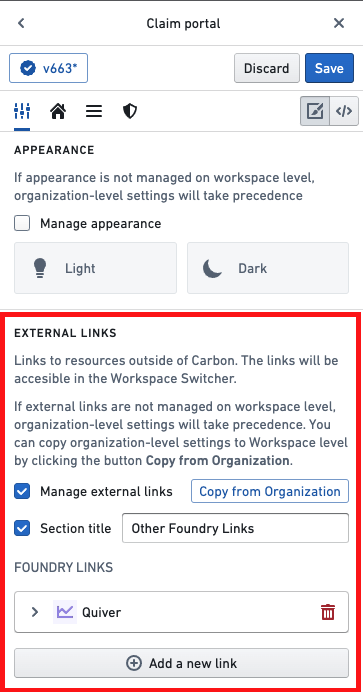
In the **External links** section, you can override the links to resources outside of Carbon that are listed in the Navigation Menu when a user is viewing the current workspace.
## External links
In the **External links** section, you can override the links to resources outside of Carbon that are listed in the Navigation Menu when a user is viewing the current workspace.
 To do so, check the **Manage external links** box and add the desired links along with an optional section title that will be displayed at the top of the list. The **Copy from Organization** button will populate the list with the external links set at the organization level, which you can add or remove.
 ## Menu bar utilities
In the **Menu bar utilities** section, you can customize the actions available in the upper right corner of the workspace.
## Menu bar utilities
In the **Menu bar utilities** section, you can customize the actions available in the upper right corner of the workspace.
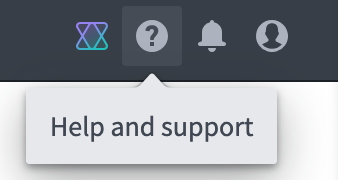 If **Show Notifications** is checked, a notifications option will be displayed in the menu bar and display the user's recent Foundry notifications.
## Search bar
When a workspace is created, by default there is an Ontology-aware search bar on the home page that can be used to discover objects, object types, and other object resources, such as Explorations and Workshop modules.
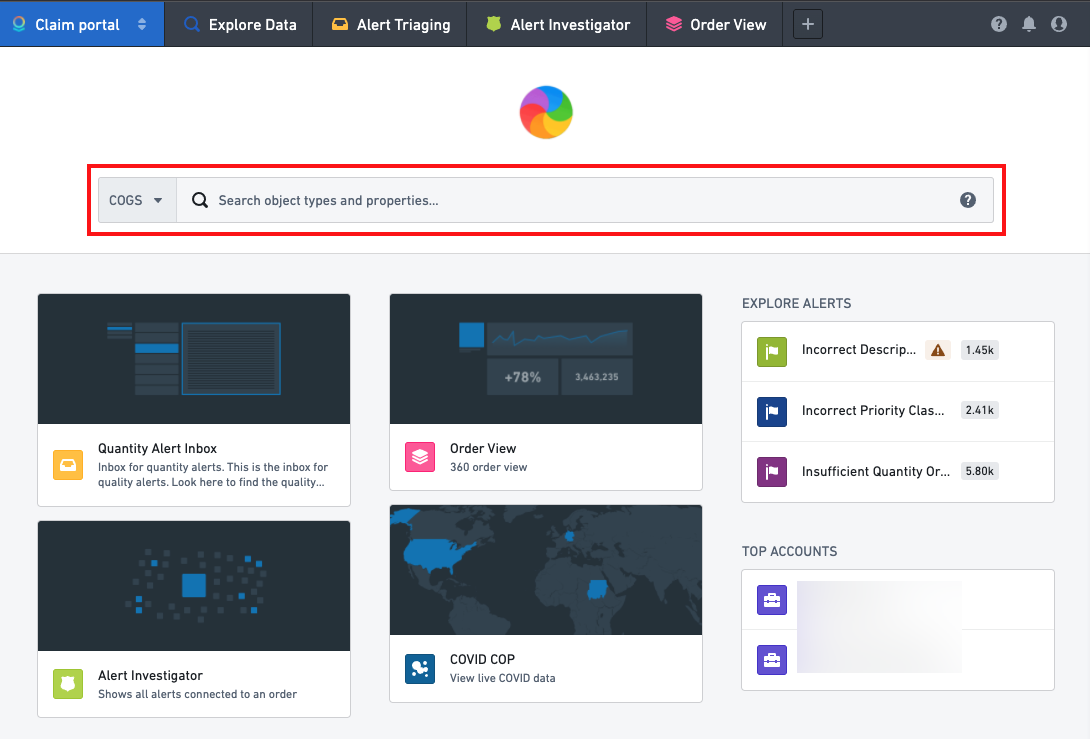
In the **Search bar** section, you can choose to hide the search bar from the workspace home page. Alternatively, to create a more customized experience for the intended users of a workspace, you can add default search filters to the search bar. This will narrow the search down to certain object types or search groups that are most relevant to the users of the workspace. Users can change or remove these filters in the dropdown on the left side of the search bar.
If **Show Notifications** is checked, a notifications option will be displayed in the menu bar and display the user's recent Foundry notifications.
## Search bar
When a workspace is created, by default there is an Ontology-aware search bar on the home page that can be used to discover objects, object types, and other object resources, such as Explorations and Workshop modules.

In the **Search bar** section, you can choose to hide the search bar from the workspace home page. Alternatively, to create a more customized experience for the intended users of a workspace, you can add default search filters to the search bar. This will narrow the search down to certain object types or search groups that are most relevant to the users of the workspace. Users can change or remove these filters in the dropdown on the left side of the search bar.
 ## Enable AIP Assist
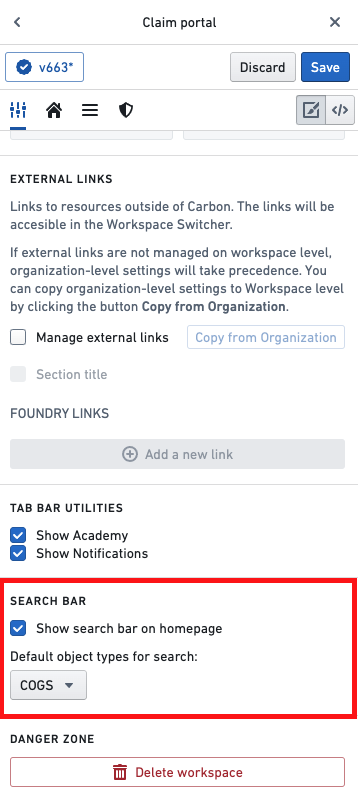
By default, users do not have access to AIP Assist in Carbon workspaces. Users can interact with AIP Assist chatbots (formerly AIP Assist agents) from their Carbon workspace if the **Enable AIP Assist** option is selected and the user has access to one or more configured chatbots. This requires dedicated AIP Assist chatbots to be configured in Chatbot Studio, and users need permission to access these chatbots in order to interact with AIP Assist.
## Enable AIP Assist
By default, users do not have access to AIP Assist in Carbon workspaces. Users can interact with AIP Assist chatbots (formerly AIP Assist agents) from their Carbon workspace if the **Enable AIP Assist** option is selected and the user has access to one or more configured chatbots. This requires dedicated AIP Assist chatbots to be configured in Chatbot Studio, and users need permission to access these chatbots in order to interact with AIP Assist.
 ## Delete workspace
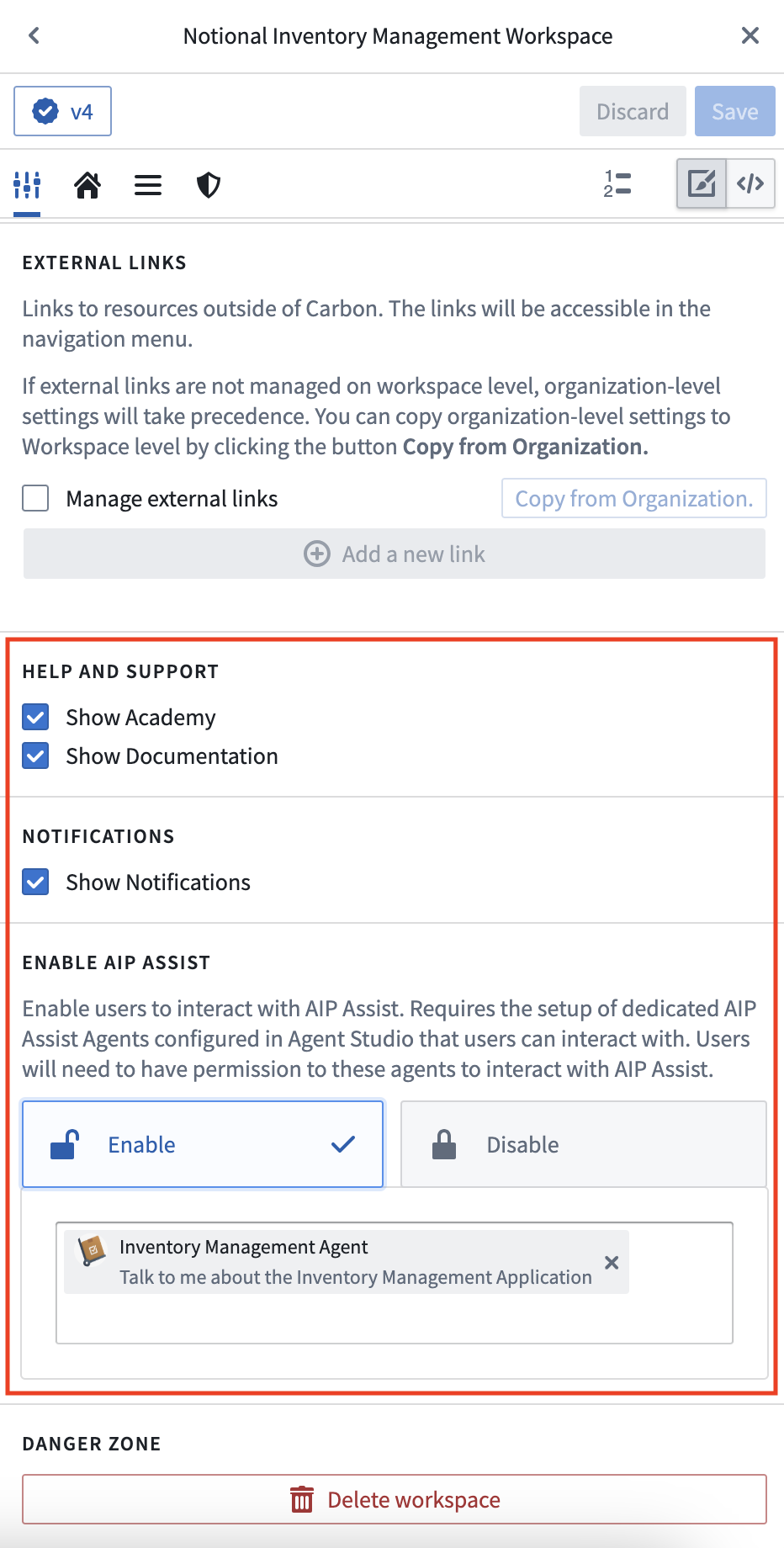
In the **Danger zone** section, you can delete a workspace by selecting the **Delete workspace** button.
:::callout{theme="danger"}
Deletion of a workspace is permanent and **cannot** be undone. Be very careful before deleting a workspace.
:::
## Delete workspace
In the **Danger zone** section, you can delete a workspace by selecting the **Delete workspace** button.
:::callout{theme="danger"}
Deletion of a workspace is permanent and **cannot** be undone. Be very careful before deleting a workspace.
:::
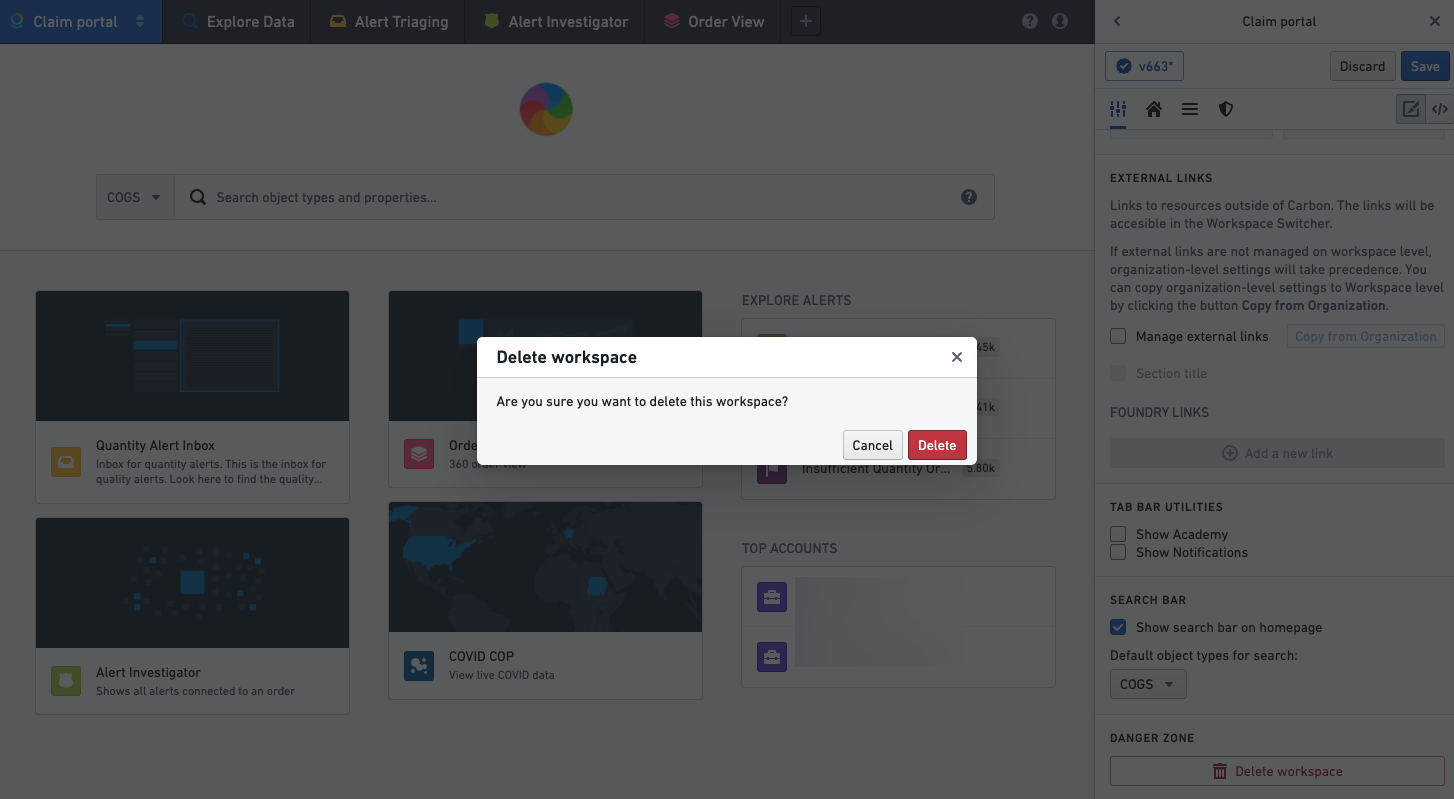
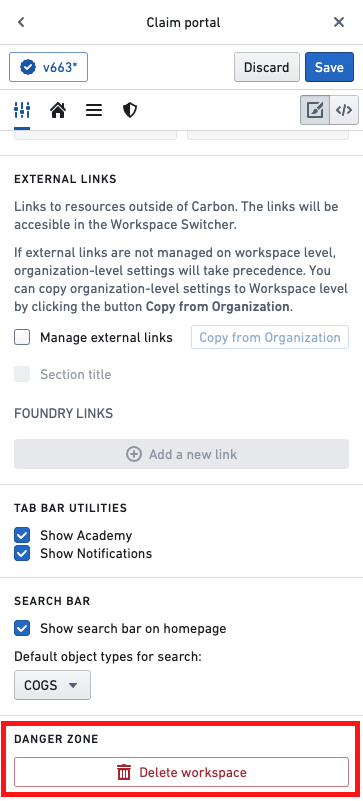 Selecting **Delete workspace** will present a confirmation screen; if you confirm the deletion by selecting **Delete**, the workspace will be immediately deleted. After deleting the workspace, you will be redirected back to your default Carbon workspace.
Selecting **Delete workspace** will present a confirmation screen; if you confirm the deletion by selecting **Delete**, the workspace will be immediately deleted. After deleting the workspace, you will be redirected back to your default Carbon workspace.
