# Access configuration
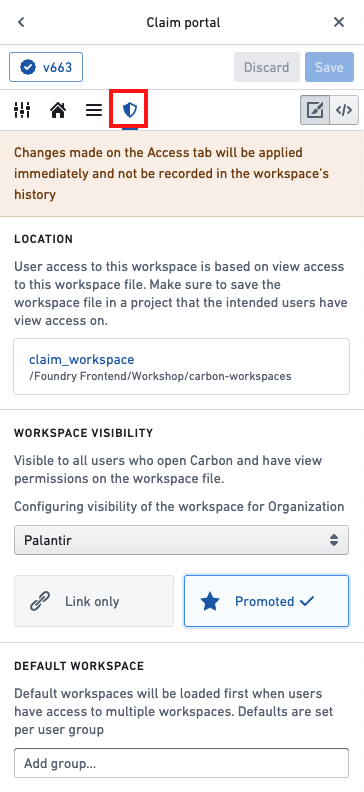
Switch to the **Access** configuration tab (highlighted in red in the image below) to configure the [location](#workspace-location) and [visibility](#workspace-visibility) of a Carbon workspace, as well as [set a default workspace](#default-workspace) for a user group.
 ### Workspace location
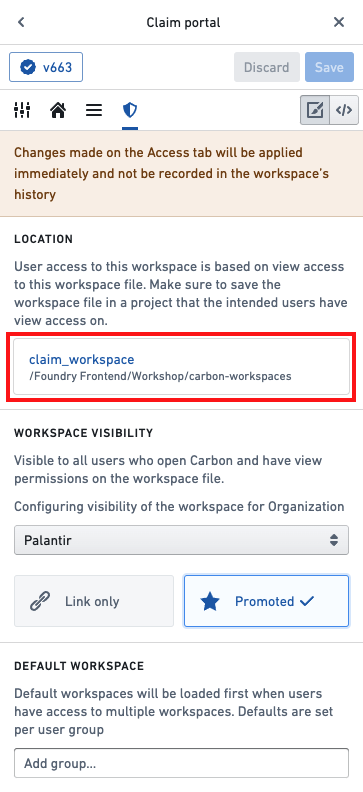
The **Location** section contains a link to the resource containing your workspace (highlighted in red in the image below). Clicking this link will allow you to change access settings or move the file in a Project.
### Workspace location
The **Location** section contains a link to the resource containing your workspace (highlighted in red in the image below). Clicking this link will allow you to change access settings or move the file in a Project.
 ### Workspace visibility
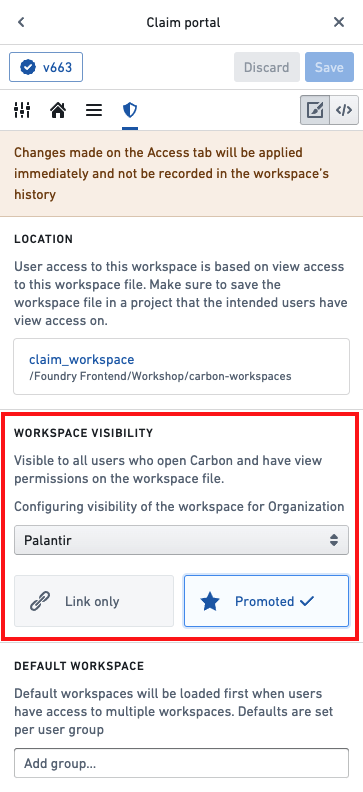
In the workspace visibility section (highlighted in red below), [Carbon Organization Administrators](../permissions-configure/index.md#configure-administrator-permissions) can set workspaces either as **Link only** or **Promoted**. A link-only workspace is only accessible by going directly to the URL of the workspace or opening it from a Project. A promoted workspace appears in the [Navigation Menu](../workspaces-navigation/index.md) for all members and guests of an organization.
### Workspace visibility
In the workspace visibility section (highlighted in red below), [Carbon Organization Administrators](../permissions-configure/index.md#configure-administrator-permissions) can set workspaces either as **Link only** or **Promoted**. A link-only workspace is only accessible by going directly to the URL of the workspace or opening it from a Project. A promoted workspace appears in the [Navigation Menu](../workspaces-navigation/index.md) for all members and guests of an organization.
 ### Default workspace
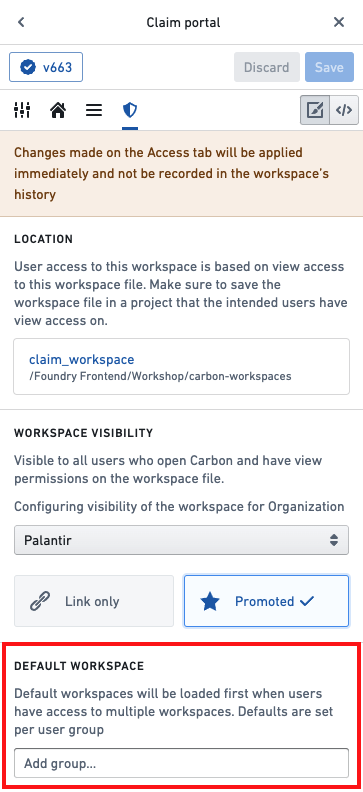
Users can have access to more than one Carbon workspace. Thus, we recommend setting a default workspace for each user group. You can do so in the **Default workspace** section in the **Access** tab (highlighted in red below). Follow the [instructions on how to set a default workspace](../permissions-default-workspace/index.md).
### Default workspace
Users can have access to more than one Carbon workspace. Thus, we recommend setting a default workspace for each user group. You can do so in the **Default workspace** section in the **Access** tab (highlighted in red below). Follow the [instructions on how to set a default workspace](../permissions-default-workspace/index.md).