# View and modify schedules
## View metrics
To view metrics and run history of an existing schedule:
1. Navigate to the dataset view, open the **Actions** menu, and select **Manage Schedules**.
2. This will bring you to the Data Lineage graph for that dataset, with the schedule panel open on the right.
To view metrics and build history for a schedule, select the **Metrics** button.
![schedules-page-metrics]
## View schedule edit history
A new version of a schedule is created whenever the schedule is edited. The schedule versions page allows you to:
* See previous versions of the schedule.
* Compare two schedule versions to see what has changed.
To view the previous versions of a schedule:
1. Navigate to the schedule's metrics page.
2. Select the versions tab:
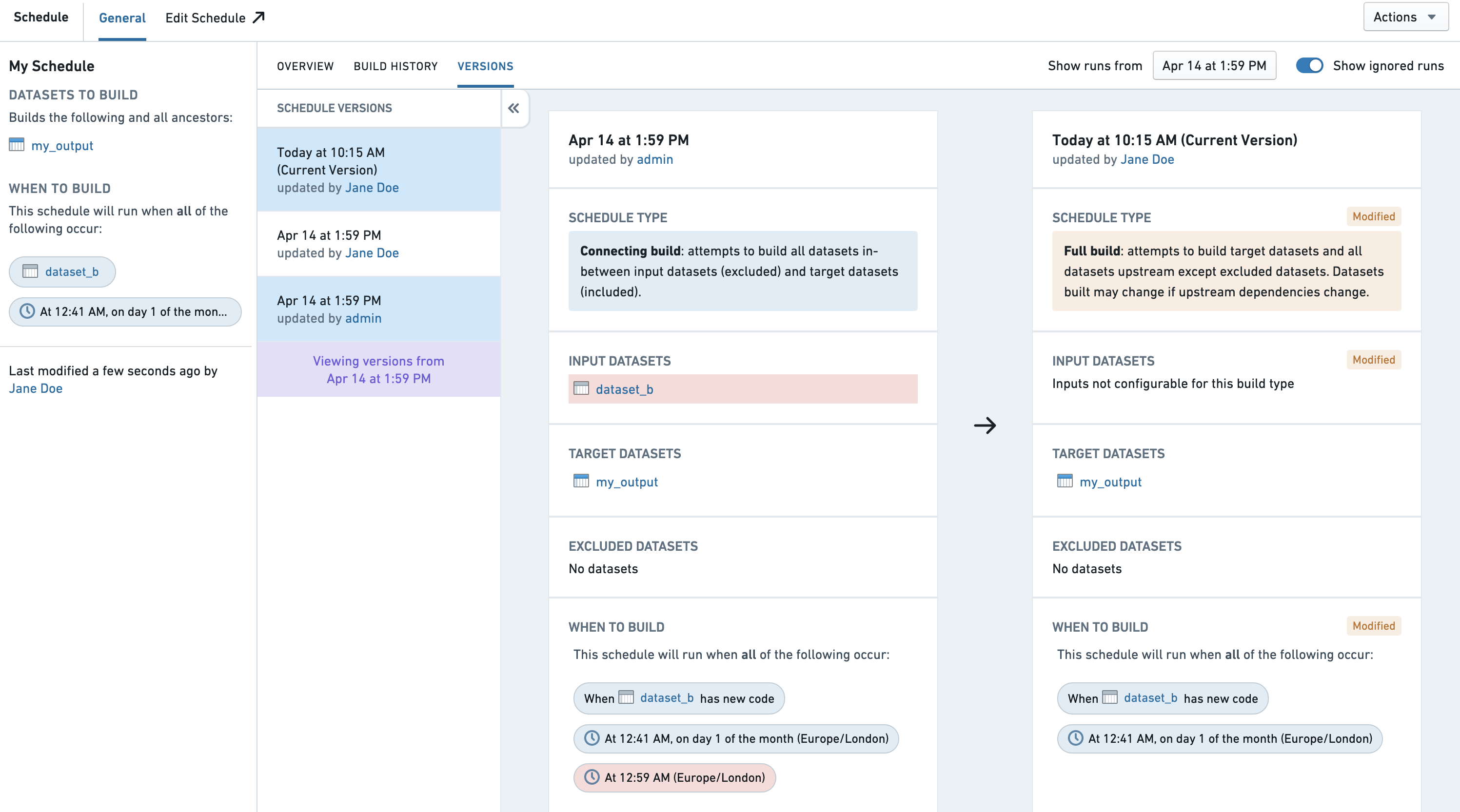
Only the versions up until the date displayed will be shown. If you need to see older versions, edit the date picker in the top right corner of the page.
## Edit a schedule
To edit an existing schedule:
1. Navigate to the dataset view, open the **Actions** menu, and select **Manage Schedules**.
2. This will bring you to the Data Lineage graph for that dataset, with the schedule panel open on the right.
3. To edit a schedule, click on the entry for that schedule.
![schedules-page-edit]
4. To edit the schedule, select the edit button. [Learn how to edit a schedule using the schedule editor.](../create-schedule/index.md#define-the-schedule)
5. When you have finished editing your schedule, click the **Save** button.
## Pause a schedule
To pause a schedule:
1. Navigate to the dataset in Data Lineage, and open the schedule sidebar, selecting the schedule from the sidebar.
2. This will bring you to the schedules page for the dataset.
3. To pause a schedule, select the pause icon in the top right.
![schedules-page-pause]
## Resume a schedule
To resume a schedule:
1. Navigate to the dataset in Data Lineage, and open the schedule sidebar, selecting the schedule from the sidebar.
2. This will bring you to the schedules page for the dataset.
3. To resume a schedule, select **Resume** in the top right.
![schedules-page-resume]
## Automatically paused schedules
Foundry automatically pauses schedules that fail all jobs consecutively and over multiple times. Once the schedule is run successfully, the schedule will automatically unpause and the failure counter will be reset. If your schedule was paused and you would like to resume it, follow these steps:
1. Navigate to the schedule by clicking the link in the email sent to you.
2. Debug the schedule. Refer to the [troubleshooting guide](../../optimizing-pipelines/troubleshoot-schedules/index.md) for reference.
3. Run the schedule after the fix is applied. After a job initiated by the schedule is completed successfully, the schedule will be automatically unpaused.
If you have a specific schedule that you want to exempt from being paused, contact your Palantir representative and provide the schedule RID.
## Delete a schedule
To delete a schedule:
1. Navigate to the schedule in Data Lineage, and choose the **Edit** button on the schedule.
2. To delete a schedule, select the trash icon in the top right.
![schedules-page-delete]
[actions-menu-manage-schedules]: ../../../assets/853a5f3863d06d104db1fa5df78dab86fe8511a9a5c6a6db16522b2fa690625e.webp
[schedules-page-metrics]: ../../../assets/aaf85e30963b728466ed127bf6590f32983e4d1ef682298e55457fde69ba06f3.webp
[schedules-page-edit]: ../../../assets/d760d7a7497b7f811e40beabcdf621389705e8c81a86fae2416c3d507cfa482a.webp
[schedules-page-pause]: ../../../assets/fb49ab6a67d9e602bce7acd1f2ed73df1aa909041181c87df65dd6484fc819e4.webp
[schedules-page-resume]: ../../../assets/d23b7c5ba8f61ef6d395903c772ecdf45a155ff2e08547ad0a283afef3123f90.webp
[schedules-page-delete]: ../../../assets/fb49ab6a67d9e602bce7acd1f2ed73df1aa909041181c87df65dd6484fc819e4.webp