# Create a streaming pipeline with Pipeline Builder
In this tutorial, we will use Foundry Streaming and Pipeline Builder to create a simple pipeline with an output of a single dataset with information on sensor temperatures. You will learn how to create a stream in Foundry, push records into that stream, and transform them in Pipeline Builder.
## Part 1. Initial setup
First, we need to create a new stream.
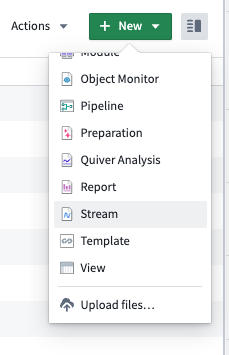
1. When logged into Foundry, navigate to a [Project](../../compass/move-and-share-resources/index.md) in Foundry, select **+ New** in the top right corner, then select **Stream**.
2. Next, you will need to define your stream. For this guide, we will create a simple one partition stream and manually push records to it.
On the **Define** page, select **Normal** for the throughput and define a basic schema as: **sensor\_id:** `String`, **temperature:** `Double`.
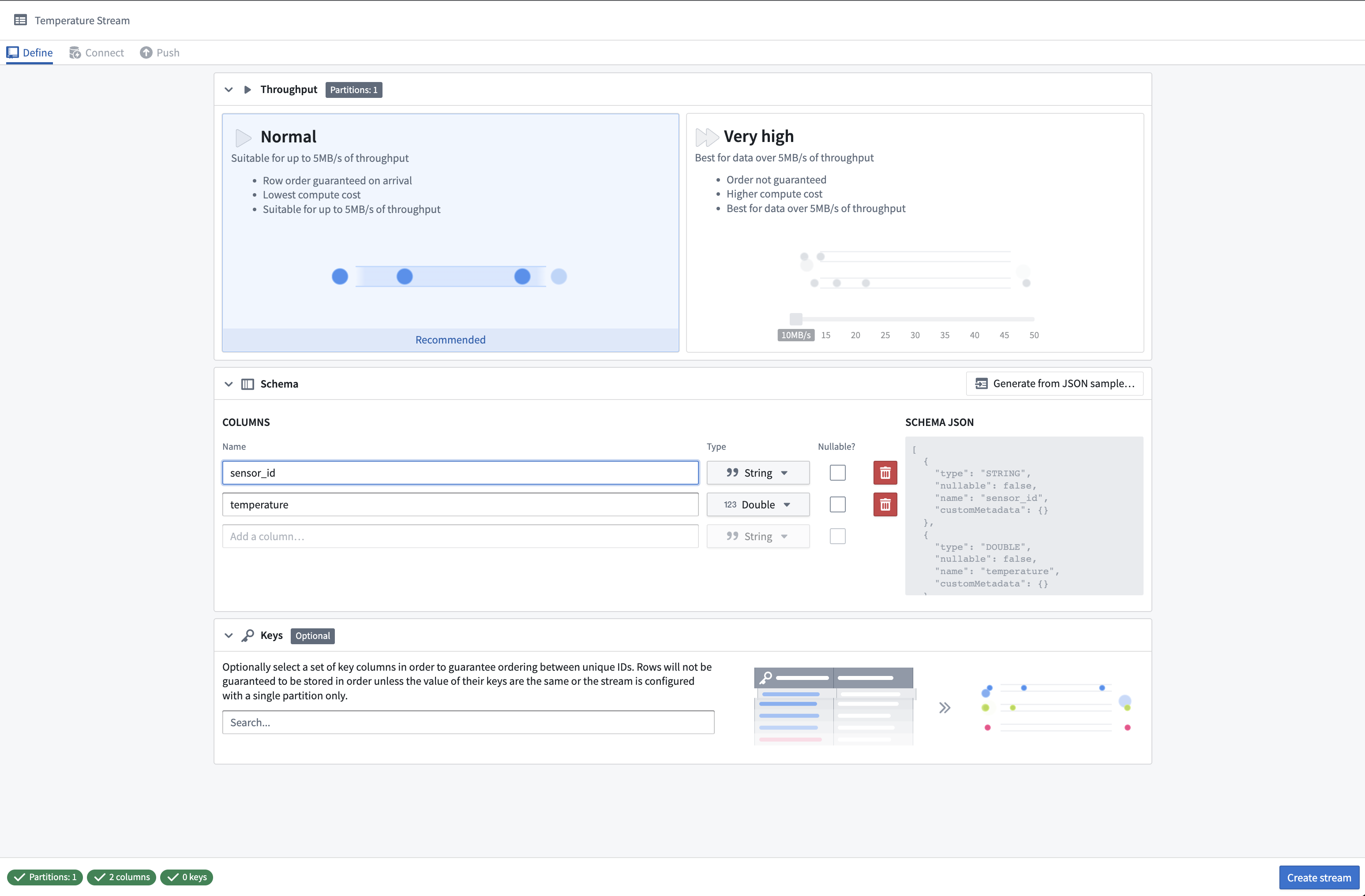
3. Select **Create stream**. This will take you to the **Connect** page where you can specify how to connect to the streaming data.
## Part 2. Push records into the stream
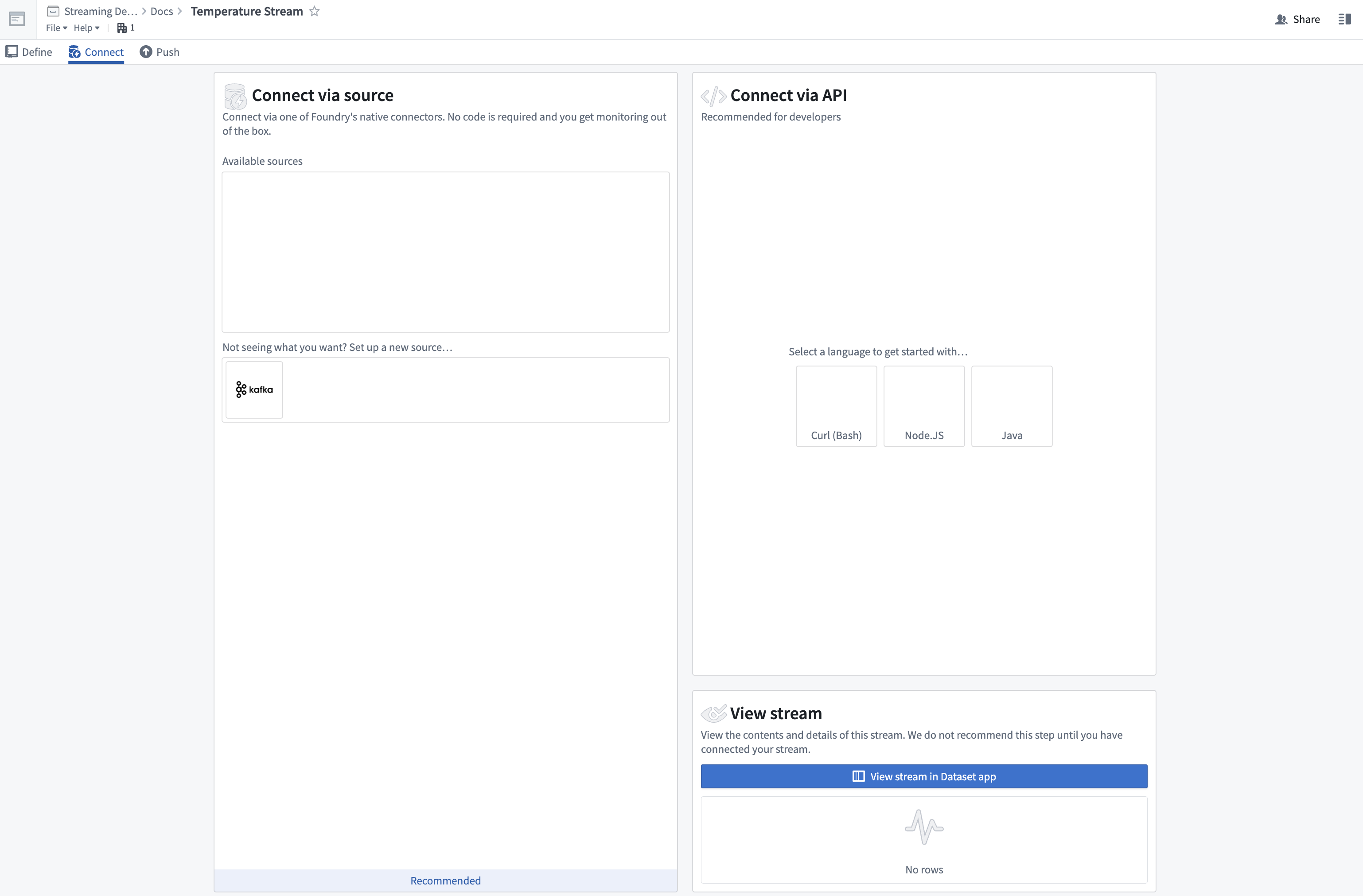
We are now ready to connect our stream. At this point, we could set up a streaming data ingestion task with a [source](../../data-integration/source-type-overview/index.md). For this tutorial, we will instead manually push records to the stream with **Curl.**
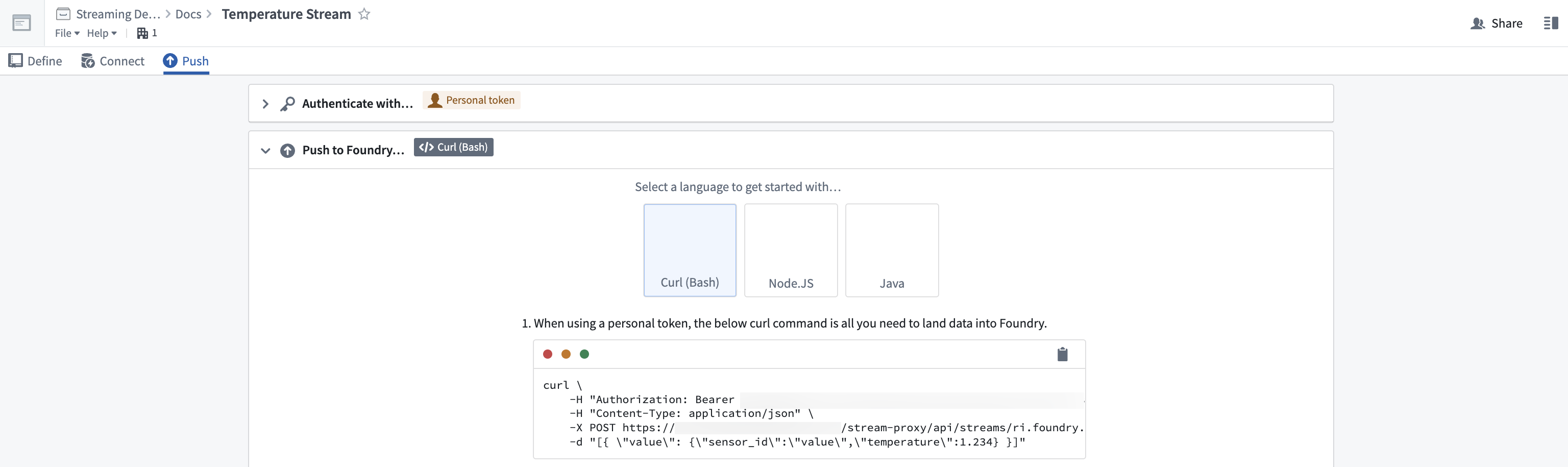
1. First, select **Curl (Bash)** under the **Connect via API** section to set up authentication for your stream. We will use a personal token to submit records.
2. Select **Test with a personal token** and follow the on-screen prompts for generating a short-lived personal token.
Personal tokens should not be used for production pipelines. Production pipelines should use an [OAuth token workflow](../../platform-security-third-party/writing-oauth2-clients/index.md#oauth2-api-reference).
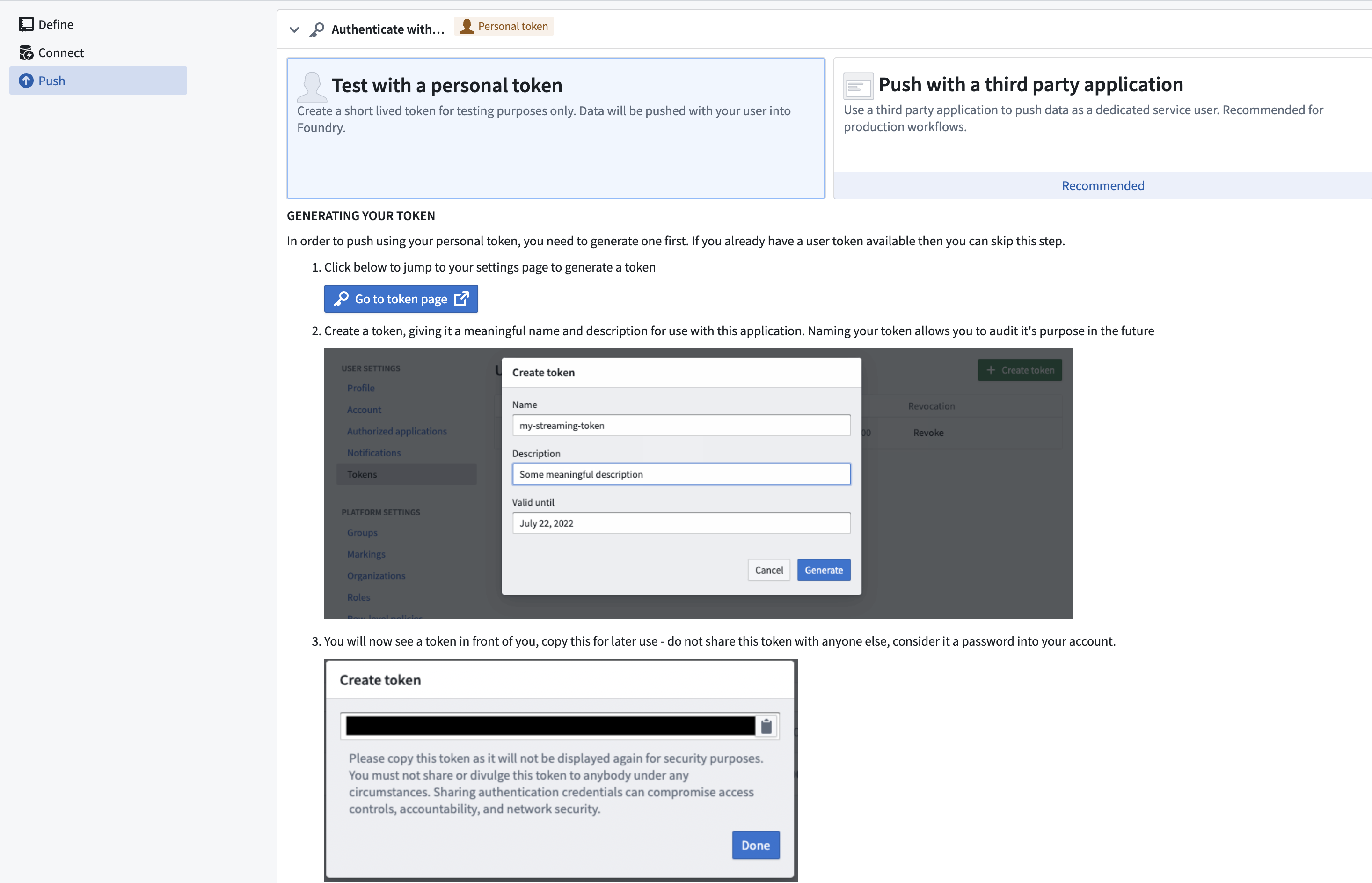
3. Paste your generated token into the text box, then click **Next Step**.
4. Copy the **Curl** command. Open a terminal on your computer that can execute Bash and paste the command. Run the command in your terminal.
Within seconds, you will see a record appear in the stream viewer on the page:
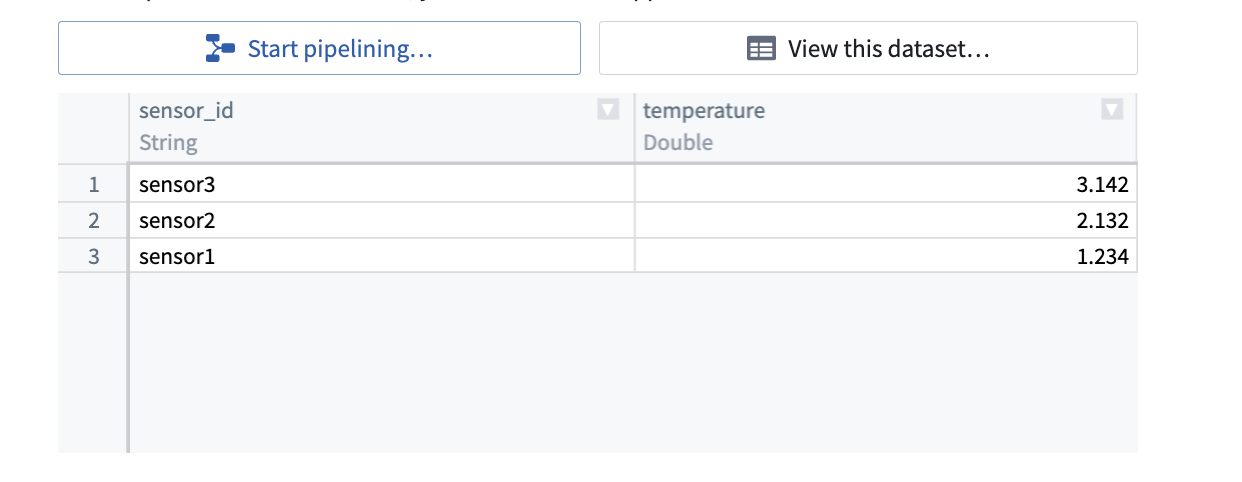
You have now ingested streaming data in real time. Next, transform that data.
## Part 3. Transform a stream
1. Select the **Start pipelining** button to begin writing a basic streaming transform in Pipeline Builder.

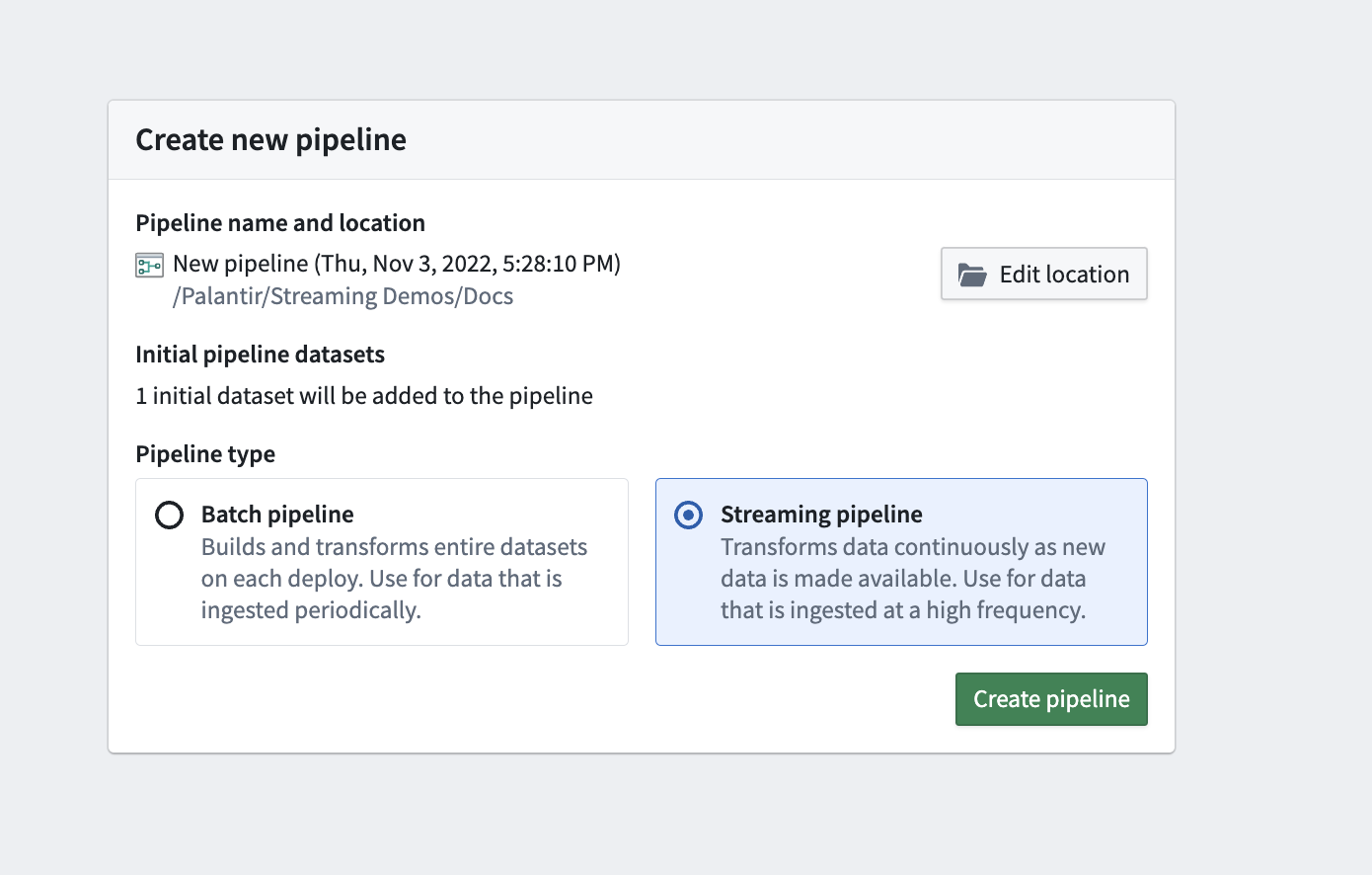
2. In the **Create new pipeline** modal, select the **Streaming pipeline** type, and click **Create Pipeline**.
This will create a pipeline for the input stream, displayed on a graph.
Selecting the input stream node will display a preview of the data. The preview runs on a cold storage view of the stream; records from the stream will be delayed before they appear.
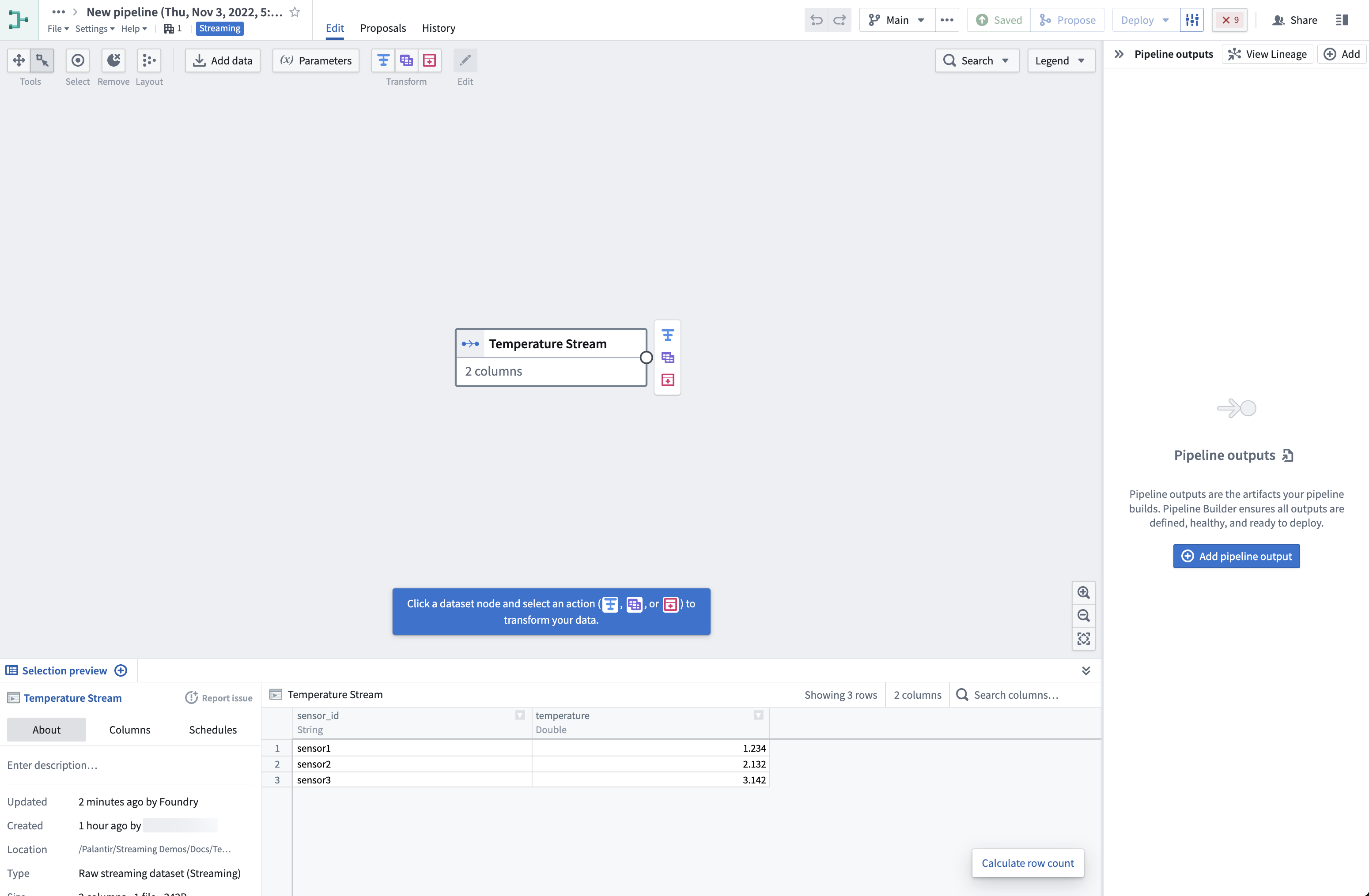
3. Click on the input stream node on the graph and select the **Transform** action (the blue **T** icon next to the input node).
This will open a list of all transforms currently supported for streams based on the input types of the columns in the stream. For this tutorial, we will convert all `sensor_ids` to uppercase, remove any whitespace on them, and filter by temperatures exceeding three degrees.
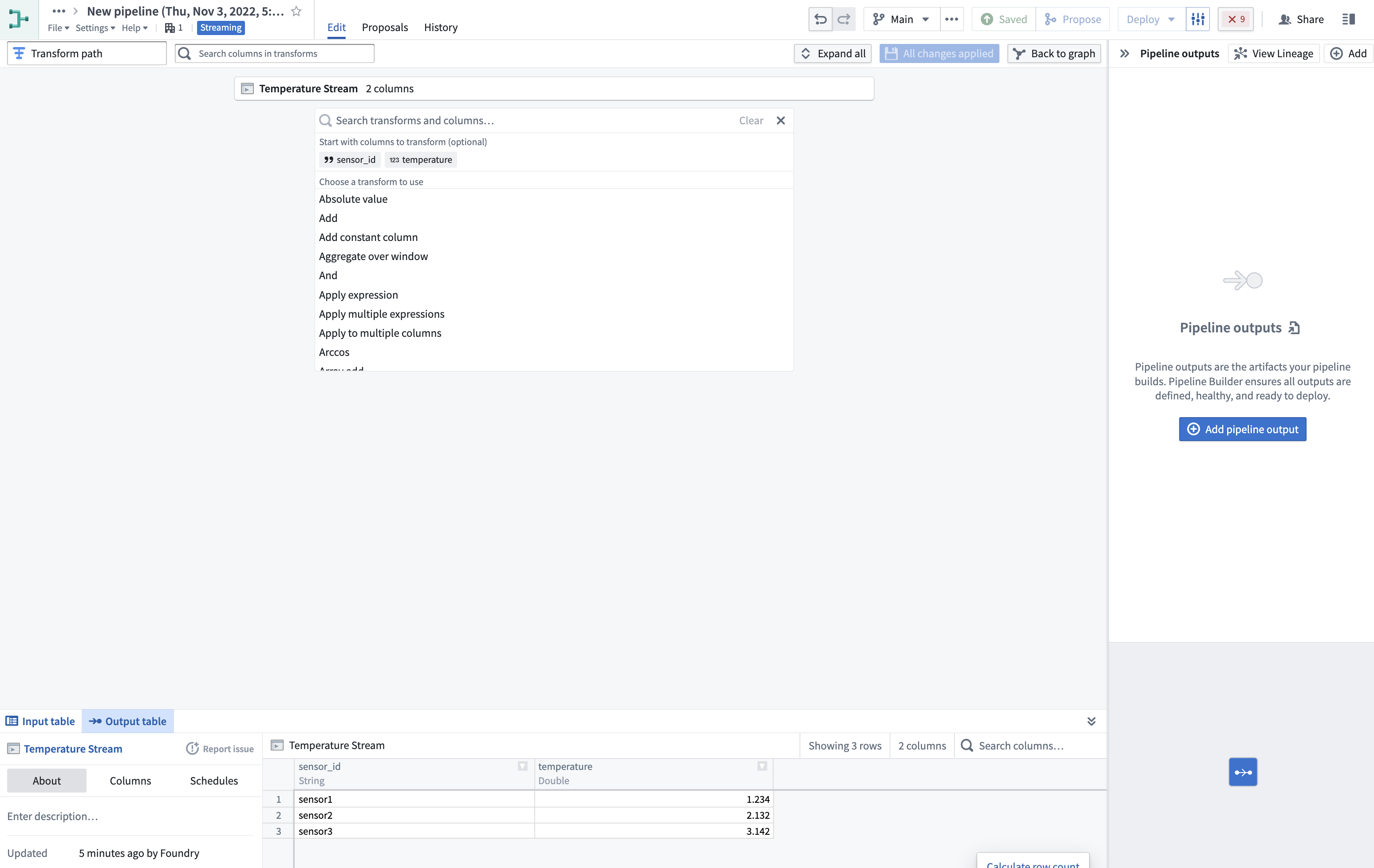
4. Select the **Uppercase** transform, choose the `sensor_id` column, and click **Apply**.
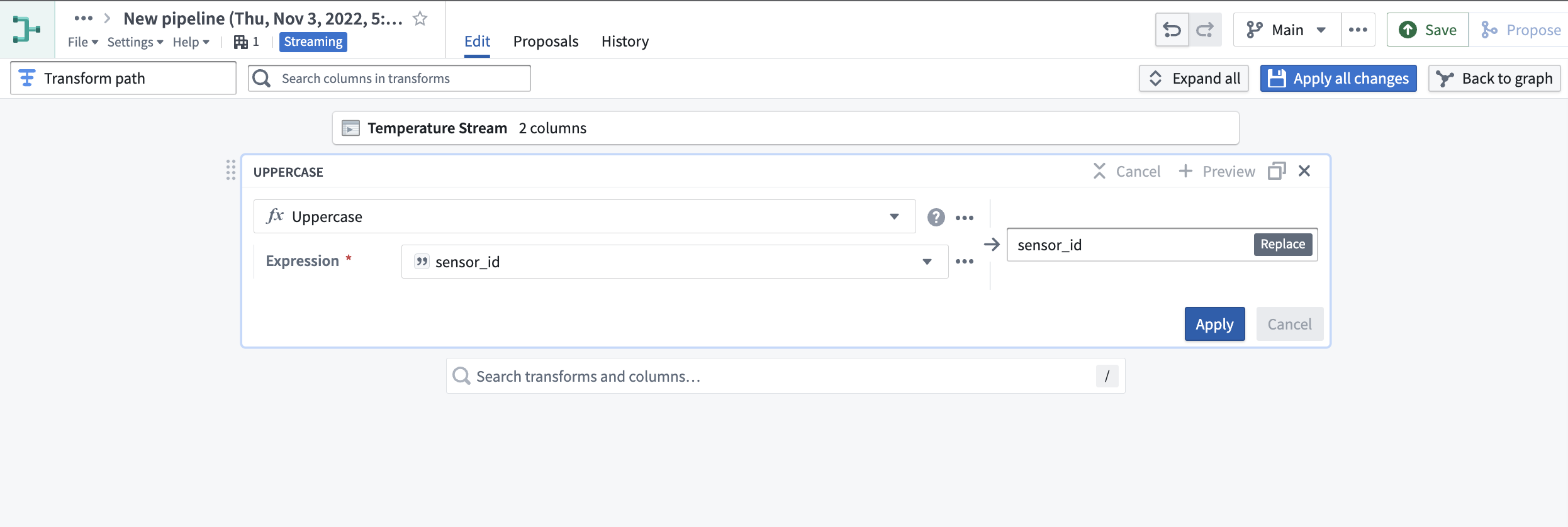
5. Then, search for the **Trim whitespace** transform and select it. Choose the `sensor_id` column again, and click **Apply**.

6. For the final transform, first search for the **Filter** transform and choose **Keep rows**. Then, select the `temperature` column, set the filter to **greater than** `3`, and select **Apply**.
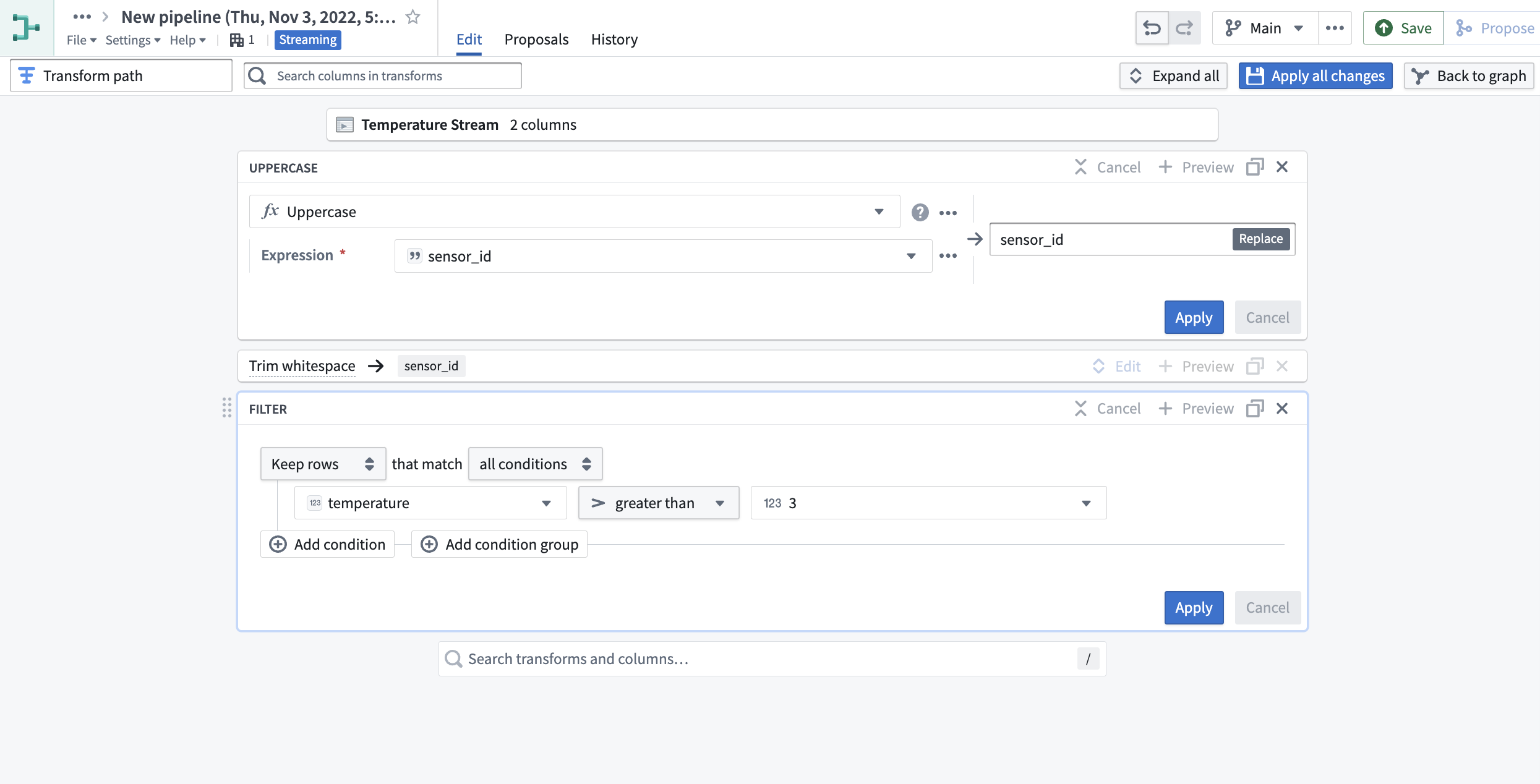
7. Click **Apply all changes** to the top right of your screen. Then, select **Back to graph** to return to your pipeline.
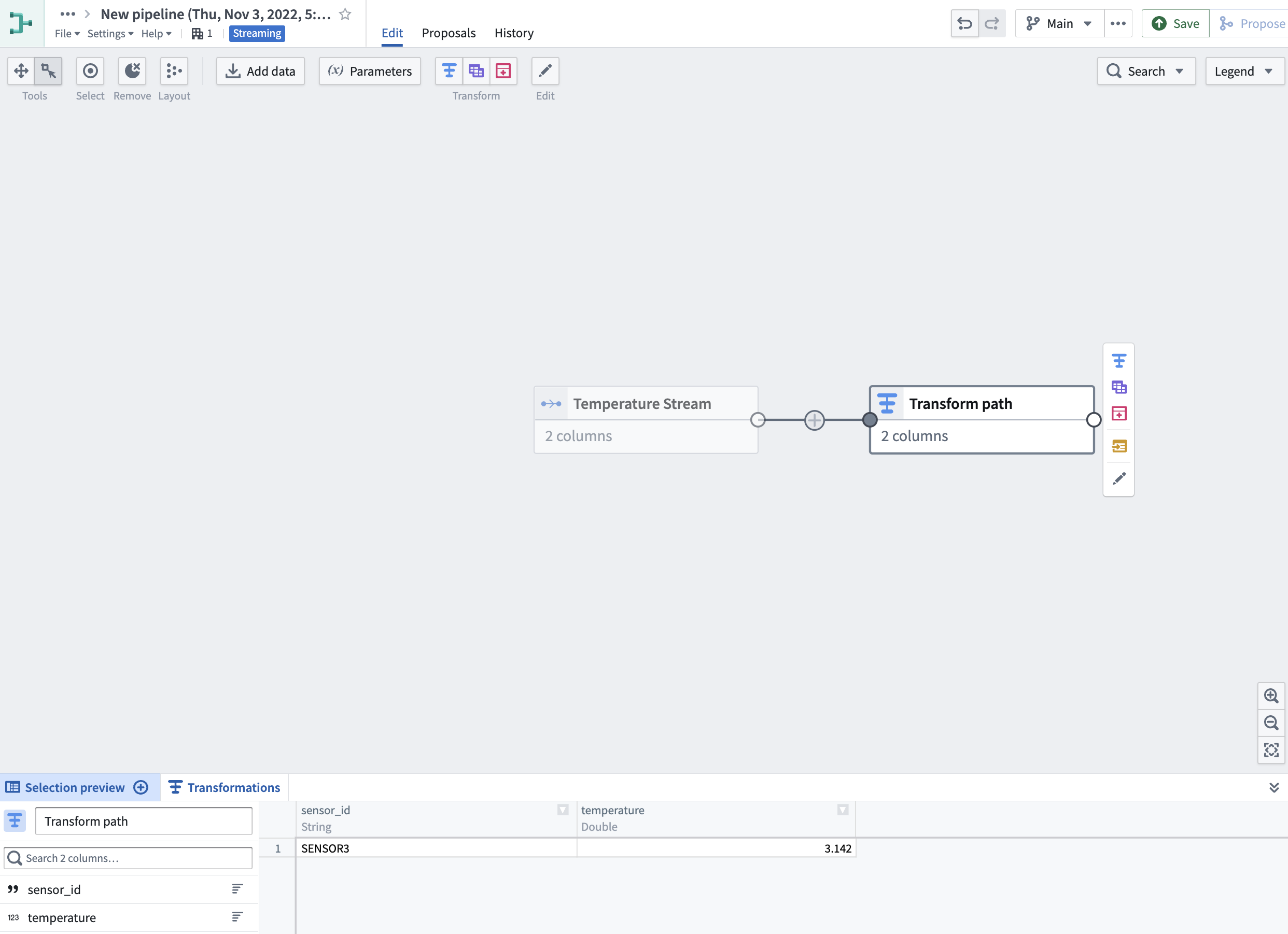
8. Select the **Transform path** node we just created, then click **New dataset**.
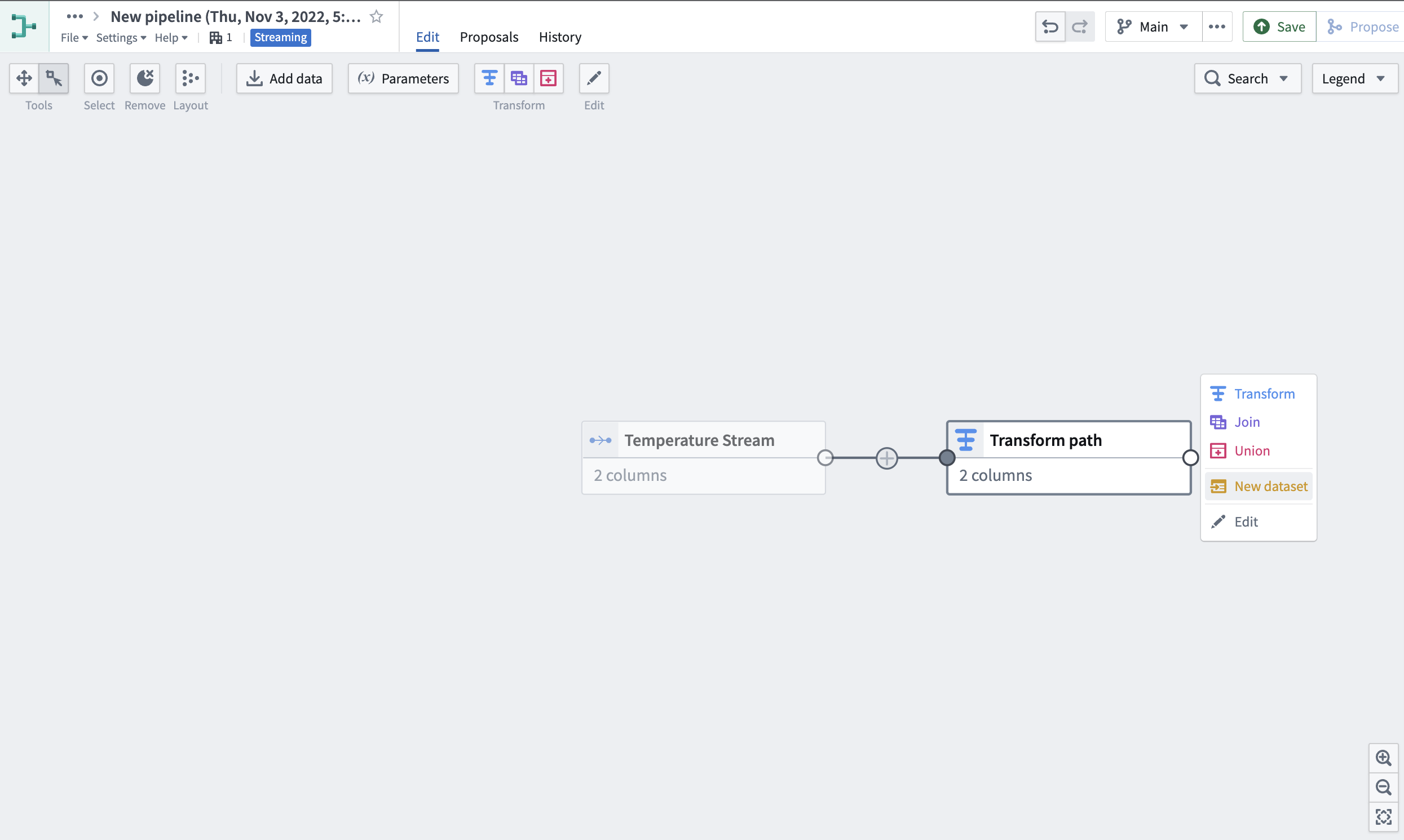
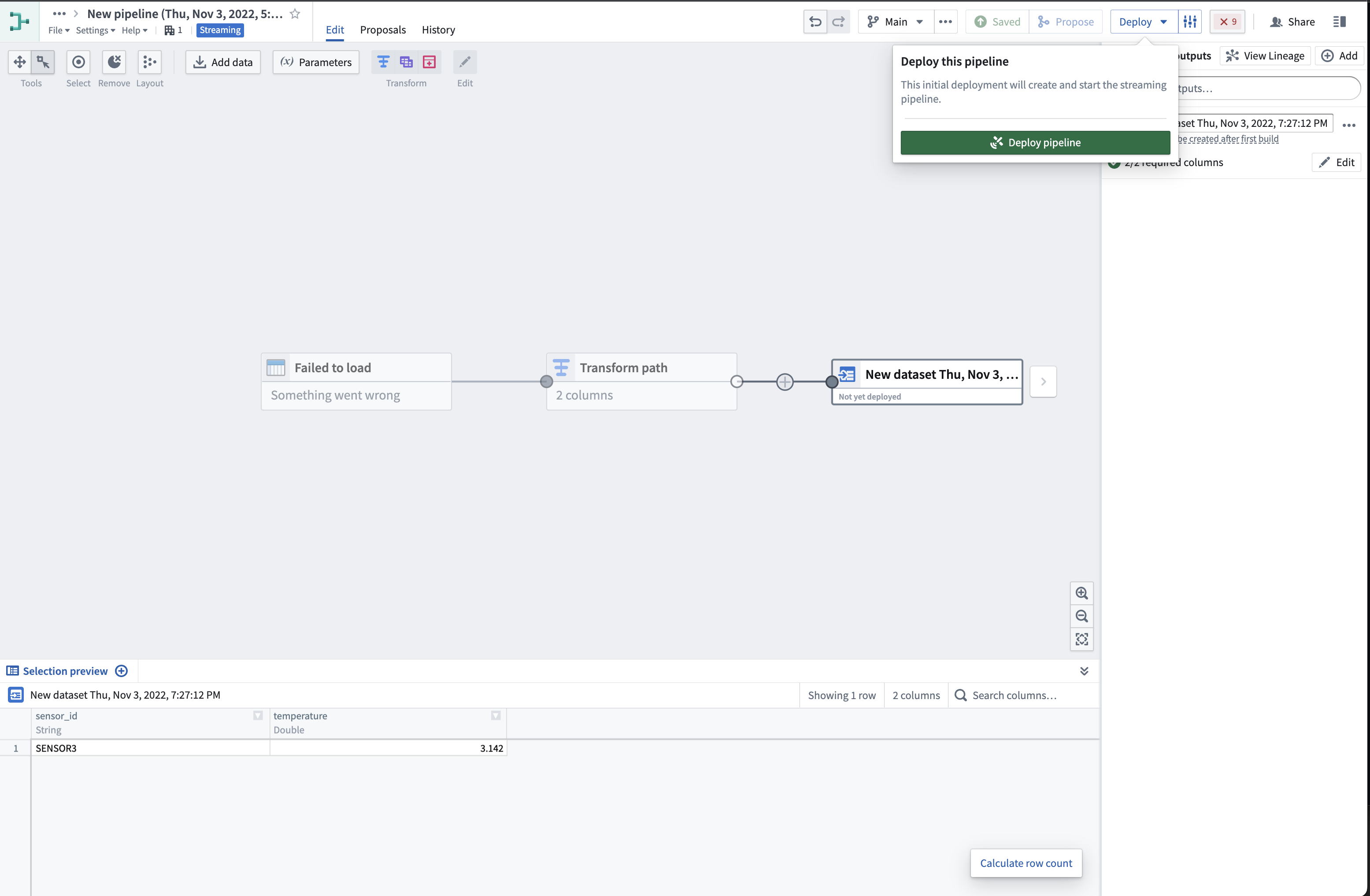
9. In the top right corner of the application, first click **Save** to apply all new changes to your pipeline. Then, click **Deploy** and **Deploy pipeline**.
:::callout{theme="neutral" title="Deployment validation"}
Before deployment begins, Foundry validates that the pipeline is deployable. This validation checks whether the pipeline configuration and required resources are ready for deployment. If validation fails, review the messages in the deployment dialog, resolve each issue, save your changes, and deploy again.
If you save your changes without deploying them, your pipeline logic will **not** update to the latest changes. You must deploy the pipeline to capture changes to transform logic.
:::
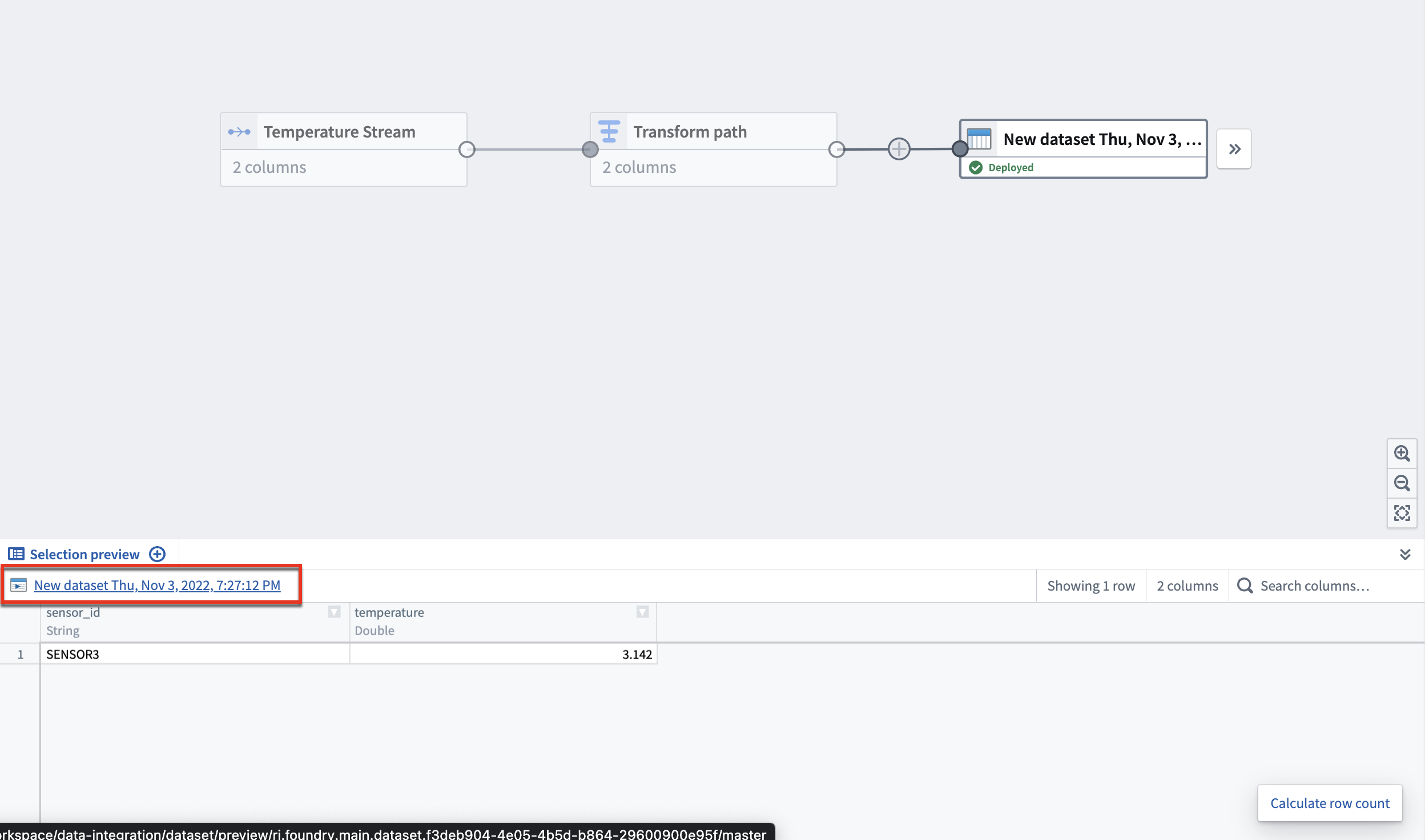
10. Select the output stream node you just created, then click on the stream name above the **Data preview** section at the bottom of your graph.
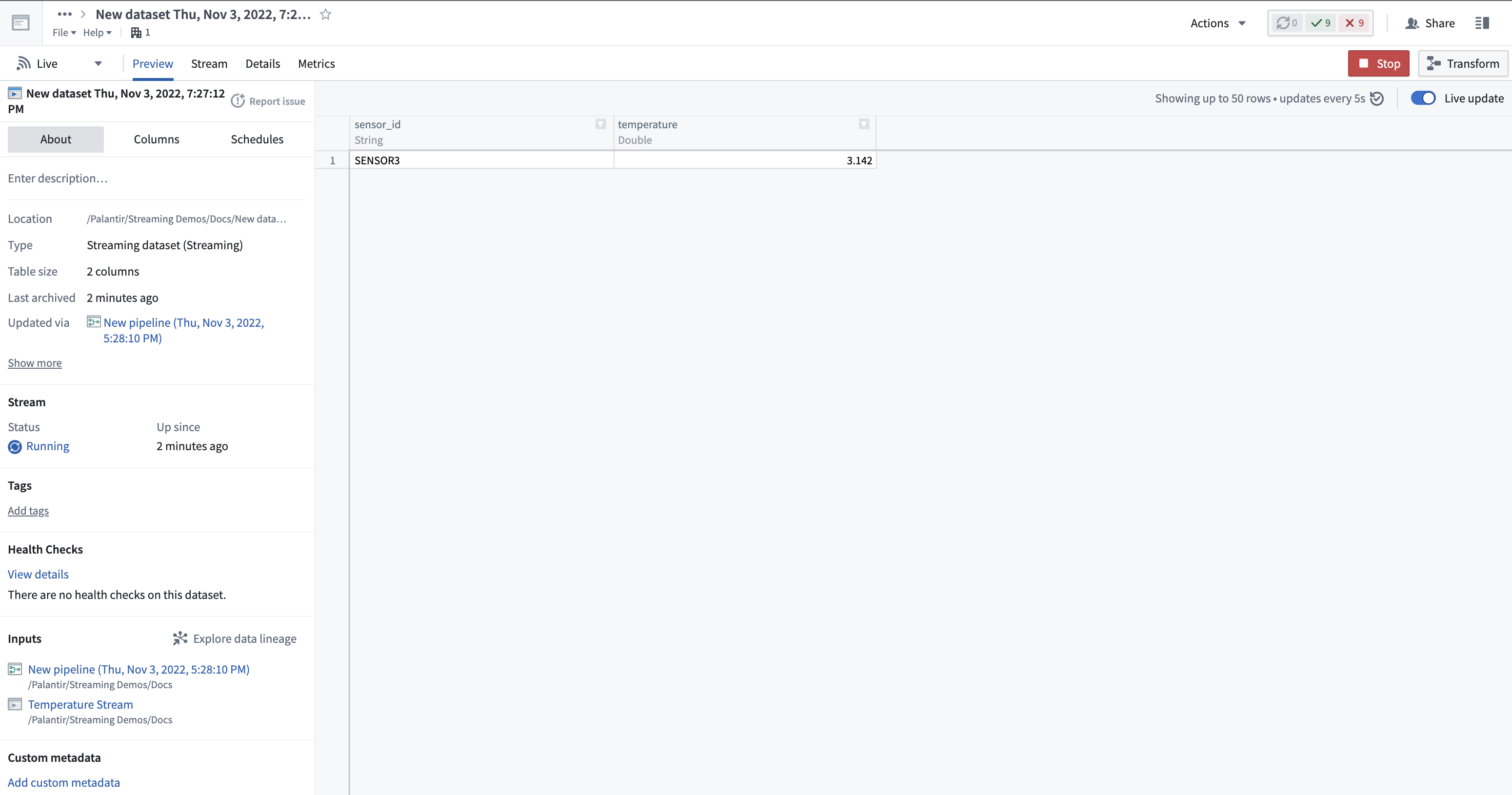
This will take you to the stream preview page with the output stream from your transform.
The streaming cluster takes about one minute to start, so you may not see records immediately. Once running, however, the cluster will process all new records in real time.
## Next steps
Now that you know how to create a simple streaming pipeline, learn more about managing streams by exploring how to [debug a failing stream](../../optimizing-pipelines/debug-stream/index.md). For more advanced transform functionality, learn more about [Pipeline Builder](../../pipeline-builder/overview/index.md).