# BigQuery
Connect Foundry to Google BigQuery to read and sync data between BigQuery tables and Foundry datasets.
## Supported capabilities
| Capability | Status |
|--- |--- |
| Exploration | 🟢 Generally available |
| Bulk import | 🟢 Generally available |
| Incremental | 🟢 Generally available |
| Virtual tables | 🟢 Generally available |
| Compute pushdown | 🟢 Generally available |
| Export tasks | 🟡 Sunset |
## Setup
1. Open the [Data Connection](../../data-connection/overview/index.md) application and select **+ New Source** in the upper right corner of the screen.
2. Select **BigQuery** from the available connector types.
3. Follow the additional configuration prompts to continue the setup of your connector using the information in the sections below.
Learn more about [setting up a connector](../../data-connection/set-up-source/index.md) in Foundry.
:::callout{theme="warning"}
You must have a [Google Cloud IAM service account ↗](https://cloud.google.com/iam/docs/overview#service_account0) to proceed with BigQuery authentication and set up.
:::
## Authentication
The following Identity and Access Management (IAM) roles are required to use a BigQuery connector:
Read BigQuery data:
* `BigQuery Read Session User`: Granted on BigQuery Project
* `BigQuery Data Viewer`: Granted on BigQuery data to read data and metadata
* `BigQuery Job User` (optional): Granted to ingest views and run custom queries
Export data to BigQuery from Foundry:
* `BigQuery Data Editor`: Granted on BigQuery dataset or Project
* `BigQuery Job User`: Granted on BigQuery Project
* `Storage Object Admin`: Granted on bucket if data is exported with Google Cloud Storage
Use temporary tables:
* `BigQuery Data Editor`: Granted for BigQuery Project if dataset is automatically created by the connector
* `BigQuery Data Editor`: Granted for the provided dataset as a place to store temporary tables
Learn more about required roles in the [Google Cloud documentation on access control ↗](https://cloud.google.com/bigquery/docs/access-control).
Choose from one of the available authentication methods:
* **GCP instance account:** Refer to the [Google Cloud documentation ↗](https://cloud.google.com/compute/docs/access/create-enable-service-accounts-for-instances#using) for information on how to set up instance-based authentication.
* GCP instance authentication only works for connectors operating through agents that run on appropriately configured instances in GCP.
* GCP instance authentication credentials are not supported with [virtual tables](../../data-integration/virtual-tables/index.md).
* **Service account key file:** Refer to the [Google Cloud documentation ↗](https://cloud.google.com/bigquery/docs/authentication/service-account-file) for information on how to set up service account key file authentication. The key file can be provided as JSON or PKCS8 credentials.
* **Workload Identity Federation (OIDC):** Follow the displayed source system configuration instructions to set up OIDC. Refer to the [Google Cloud Documentation ↗](https://cloud.google.com/iam/docs/workload-identity-federation-with-other-providers) for details on Workload Identity Federation and [our documentation](../../data-connection/oidc/index.md) for details on how OIDC works with Foundry.
### Networking
The BigQuery connector requires network access to the following domains on port 443:
* `bigquery.googleapis.com`
* `bigquerystorage.googleapis.com`
* `storage.googleapis.com`
* `www.googleapis.com`
Additional access may be required to the following domains:
* `oauth2.googleapis.com`
* `accounts.google.com`
If you are establishing a [direct connection](../../data-connection/architecture/index.md#foundry-worker-with-direct-connection-policies) between Foundry on Google Cloud Platform (GCP) with BigQuery on GCP, you must also enable the connection through the relevant VPC service controls. If this connection is required for your setup, contact Palantir Support for additional guidance.
## Connection details
The following configuration options are available for the BigQuery connector:
| Option | Required? | Description |
|--- |--- |--- |
| `Project ID` | Yes | The ID of the BigQuery Project; This Project will be charged for BigQuery compute usage regardless of what data is synced |
| `Credentials settings` | Yes | Configure using the [Authentication](#authentication) guidance shown above. |
| `Cloud Storage bucket` | No | Add a name of a Cloud Storage bucket to be used as a staging location for writing data to BigQuery.|
| `Proxy settings` | No | Enable to allow a proxy connection to BigQuery.|
| `Settings for temporary tables` | No [\[1\]](#temporary-tables-ref) | Enable to use [temporary tables](#temporary-tables). |
| `gRPC Settings` | No | Advanced settings used to configure gRPC channels. |
| `Spark settings` | No [\[2\]](#spark-settings-ref) | Enable **Spark-compatible BIGNUMERIC scale and precision** to read unparameterized `BIGNUMERIC` columns in Spark when using [virtual tables](#virtual-tables). When enabled, unparameterized `BIGNUMERIC` columns will use maximum precision and scale that is compatible with Spark's `DecimalType`. |
| `Additional projects` | No | Add the IDs of any additional Projects that must be accessed by the same connection; the Google Cloud account used as credentials for this connector will need to have access to these Projects. The connector `Project Id` will be charged for any BigQuery data access or compute usage. |
\[1] Temporary tables must be enabled when registering [BigQuery views ↗](https://cloud.google.com/bigquery/docs/views-intro) via [virtual tables](../../data-integration/virtual-tables/index.md).
\[2] **Spark-compatible BIGNUMERIC scale and precision** must be enabled in order to read unparameterized `BIGNUMERIC` columns. Given Spark supports a maximum precision and scale of 38 and 18 respectively, there may be data loss if the data's precision or scale in BigQuery exceeds these limits. Parameterized `BIGNUMERIC` columns with a precision or scale that exceed Spark's limits are not supported.
## Sync data from BigQuery
The BigQuery connector allows for advanced sync configurations for large data syncs and custom queries. For more complex scenarios, use [virtual tables](#virtual-tables) or [pro-code alternatives](#use-bigquery-sources-in-code).
To set up a BigQuery sync, select **Explore and create syncs** in the upper right of the source **Overview** screen. Next, select the tables you want to sync into Foundry. When you are ready to sync, select **Create sync for x datasets**.
Learn more about [source exploration](../../data-connection/source-exploration/index.md) in Foundry.
After exploring your available syncs and adding them to your connector, navigate to **Edit syncs**. From the **Syncs** panel to the left, find the sync you want to configure and select **>** to the right.
### Data model
Tables from BigQuery are imported into Foundry with the data saved in Avro format. Columns of type `BIGNUMERIC` and `TIME` are not supported at the time of import.
When exporting data from Foundry to BigQuery, all column types except for `MAPS`, `STRUCTS` and `ARRAYS` are supported.
### Import settings
Choose what data will be synced from BigQuery into Foundry.
#### Sync full table
Enter the following information to sync entire tables to Foundry:
Option | Required? | Description |
|--- |--- |--- |
| `BigQuery project Id` | No | The ID of the Project to which the table belongs. |
| `BigQuery dataset` | Yes | The name of the dataset to which the table belongs.|
| `BigQuery table` | No | The name of the table being synced into Foundry. |
#### Custom SQL
Any arbitrary query can be run, and the results will be saved in Foundry. The query output must be smaller than 20GB (the maximum BigQuery table size), or temporary table usage must be enabled. Queries must start with the keyword `select` or `with`. For example: `SELECT * from table_name limit 100;`.
### Incremental syncs
Typically, syncs will import all matching rows from the target table, regardless if data changed between syncs or not. Incremental syncs, by contrast, maintain state about the most recent sync and only ingest new matching rows from the target.
Incremental syncs can be used when ingesting large tables from BigQuery. To use incremental syncs, the table must contain a column that is strictly monotonically increasing. Additionally, the table or query being read from must contain a column with one of the following data types:
* `INT64`
* `FLOAT64`
* `NUMERIC`
* `BIGNUMERIC`
* `STRING`
* `TIMESTAMP`
* `DATE`
* `TIME`
* `DATETIME`
**Example:** A 5 TB table contains billions of rows that we want to sync to BigQuery. The table has a **monotonically increasing column** called `id`. The sync can be configured to ingest 50 million rows at a time using the `id` column as the **incremental column**, with an initial value of -1 and a configured limit of 50 million rows.
When a sync is initially run, the first 50 million rows (ascending based on `id`) containing an `id` value greater than -1 will be ingested into Foundry. For example, if this sync was run several times and the largest `id` that was ingested during the last run of this sync was `19384004822`, the next sync will ingest the next 50 million rows starting with the first `id` greater than `19384004822`, and so on.
Incremental syncs require the following configurations:
Option | Required? | Description |
|--- |--- |--- |
| Column | Yes | Select the column that will be used for incremental ingests. The dropdown will be empty if the table does not contain any supported column types. |
| `Initial value` | Yes | The value from which to start syncing data. |
| `Limit` | No | The number of records to download in a single sync. |
### Incremental syncs for custom queries
To enable incremental queries for custom query syncs, the query must be updated to match the following format:
`SELECT * from table_name where incremental_column_name > @value order by incremental_column_name asc limit @limit`
### Temporary tables
When syncing more than 20GB of data from a non-standard BigQuery table, temporary tables must be enabled. Temporary tables allow BigQuery to import results from large query outputs, import data from views and other non-standard tables, and allow for large incremental imports and ingests.
A single sync can import data up to the size available on the disk. For [syncs running on a Foundry worker](../../data-connection/core-concepts/index.md#foundry-worker), this is typically limited to 600 GB. Use incremental syncs to import larger tables.
To use temporary tables, enable **Settings for temporary tables** in the connector configuration and, if needed, configure the following settings:
* **Automatically create dataset:** Select this option to create a `Palantir_temporary_tables` dataset to store temporary tables. This option requires the BigQuery account to have the `BigQuery Data Editor` role on the project.
* **Provide dataset to use:** Select this option to manually add the **Project ID** and **Dataset name** of the dataset you want to use to store temporary tables. This option requires the BigQuery account to have the `BigQuery Data Editor` role on the dataset provided.
Temporary tables must be enabled when using [BigQuery views ↗](https://cloud.google.com/bigquery/docs/views-intro) with [virtual tables](../../data-integration/virtual-tables/index.md).
## Export data to BigQuery
Export to BigQuery is done via [export tasks](../../data-connection/export-tasks/index.md). For more complex scenarios, use [pro-code alternatives](#use-bigquery-sources-in-code).
The connector can export to BigQuery in two ways:
* Through **Google Cloud Storage** as an intermediary store (recommended). See the section below on [exporting via Cloud Storage](#export-via-cloud-storage-recommended) for more information.
* Through **BigQuery APIs** see [Reading data from local files ↗](https://cloud.google.com/bigquery/docs/batch-loading-data#loading_data_from_local_files) for details on API used
Writing through APIs is suitable for a data scale of several million rows. The expected performance for this mode is to export one million rows in approximately two minutes. If your data scale range reaches billions of rows, use Google Cloud Storage instead.
### Task configuration
To begin exporting data, you must configure an export task. Navigate to the Project folder that contains the connector to which you want to export. Right select on the connector name, then select `Create Data Connection Task`.
In the left side panel of the Data Connection view, verify the `Source` name matches the connector you want to use. Then, add an input dataset to the `Input` field. The input dataset must be called `inputDataset`, and it is the Foundry dataset being exported. The export task also requires one `Output` to be configured. The output dataset must be called `outputDataset` and point to a Foundry dataset. The output dataset is used to run, schedule, and monitor the task.
In the left panel of the Data Connection view:
1. Verify the `Source` name matches the connector you want to use.
2. Add an `Input` named `inputDataset`. The **input dataset** is the Foundry dataset being exported.
3. Add an `Output` named `outputDataset`. The **output dataset** is used to run, schedule, and monitor the task.
4. Finally, add a YAML block in the text field to define the task configuration.
The labels for the connector and input dataset that appear in the left side panel do not reflect the names defined in the YAML.
Use the following options when creating the export task YAML:
| Option | Required? | Default | Description |
|--- |--- |--- |--- |
| `project` | No | The Project ID of the connector | The ID of the Project that the destination table belongs to. |
| `dataset` | Yes | | The name of the dataset to which the table belongs. |
| `table` | Yes | | The name of the table to which the data will be exported. |
| `incrementalType` | Yes | SNAPSHOT | The value can either be SNAPSHOT or REQUIRE\_INCREMENTAL.
**• Export in snapshot mode:** Contents of the destination table will be replaced.
**• Export in incremental mode:** Contents will be [appended](#append-rows-to-output-table) to the existing table.|
:::callout{theme="warning"}
To set up incremental exports, run the first export as `SNAPSHOT`, then change `incrementalType` to `REQUIRE_INCREMENTAL`.
:::
Example task configuration:
```yaml
type: magritte-bigquery-export-task
config:
table:
dataset: datasetInBigQuery
table: tableInBigQuery
project: projectId #(Optional: Do not specify unless the Project for export differs from the Project configured for the connector.)
incrementalType: SNAPSHOT | REQUIRE_INCREMENTAL
```
:::callout{theme="neutral"}
Only datasets containing rows stored in Parquet format are supported for export to BigQuery.
:::
After you configure the export task, select **Save** in the upper right corner.
#### Append rows to output table
If you need to append rows to the destination table, you can use `REQUIRE_INCREMENTAL` rather than replacing the dataset.
:::callout{theme="warning"}
Incremental syncs require that rows are only appended to the input dataset and that the destination table in BigQuery matches the schema of the input dataset in Foundry.
:::
### Export via Cloud Storage (recommended)
To export via Cloud Storage, a Cloud Storage bucket must be configured in the connector [configuration settings](#connection-details). Additionally, the Cloud Storage bucket must only be used for temporary tables for the connector so that any data temporarily written to the bucket is accessible to the least amount of users possible.
We recommend exporting to BigQuery via Cloud Storage rather than BigQuery APIs; Cloud Storage operates better at scale and does not create temporary tables in BigQuery.
### Export via BigQuery APIs
The export job creates a temporary table alongside the destination table; this temporary table will not have extra access restrictions applied. Additionally, the `SNAPSHOT` export drops and recreates the table, meaning the extra access restrictions will also be dropped.
During an export via BigQuery APIs, data is exported to the temporary table `datasetName.tableName_temp_$timestamp`. Once the export is complete, rows are automatically transferred from the temporary table to the destination table.
:::callout{theme="warning"}
Hive table partitions are not supported for export through BigQuery APIs. For datasets partitioned with Hive tables, export through Cloud Storage instead.
:::
You can share the destination table if the export is run in `REQUIRE_INCREMENTAL` mode. Running in `SNAPSHOT` mode recreates the table on each run, and the sharing would need to be reapplied.
:::callout{theme="warning"}
To successfully export via BigQuery APIs, do not apply BigQuery row-level or column-level permissions to the exported table.
:::
## Use BigQuery sources in code
[Pro-code alternatives](../../data-connection/core-concepts/index.md#use-in-code) can be used to connect to BigQuery sources for more complex scenarios.
The examples below demonstrate how to connect to a BigQuery source using the [Python client for Google BigQuery ↗](https://cloud.google.com/python/docs/reference/bigquery/latest) `google-cloud-bigquery` in an [external transform](../../data-connection/external-transforms/index.md).
These examples are based on a `Shipments` table stored in BigQuery that represents a list of package shipments with their weight, carrier, and tracking number.
### Read from BigQuery with an external transform
This example reads shipments from a given list of carriers and above a certain weight.
```python
from pandas import DataFrame
from transforms.api import lightweight, Output, Input, transform_pandas
from transforms.external.systems import ResolvedSource, external_systems, Source
from google.cloud import bigquery
import json
@lightweight
@external_systems(
bigquery_source=Source("")
)
@transform_pandas(
Output(""),
carriers_df=Input("") # dataframe with schema [carrier_name: String, carrier_details: String]
)
def read(bigquery_source: ResolvedSource, carriers_df: DataFrame) -> DataFrame:
# Authenticate BigQuery client
account_info = json.loads(bigquery_source.get_secret("jsonCredentials"))
client = bigquery.Client.from_service_account_info(account_info)
# Table reference
bigquery_project = ""
bigquery_dataset = ""
bigquery_table = ""
table_ref = f"{bigquery_project}.{bigquery_dataset}.{bigquery_table}"
# Filter parameters
carrier_list = carriers_df['carrier_name'].drop_duplicates().tolist()
min_weight = 10
job_config = bigquery.QueryJobConfig(
query_parameters=[
bigquery.ArrayQueryParameter("carrier_list", "STRING", carrier_list),
bigquery.ScalarQueryParameter("min_weight", "FLOAT64", min_weight)
]
)
query = f"""
SELECT shipment_id, carrier, weight, tracking_number
FROM `{table_ref}`
WHERE carrier IN UNNEST(@carrier_list) AND weight >= @min_weight
"""
query_job = client.query(query, job_config=job_config)
return query_job.to_dataframe()
```
### Write to BigQuery with an external transform
This function updates tracking numbers for shipments based on the provided shipment information, and then returns the updated shipment details.
```python
from pandas import DataFrame
from transforms.api import lightweight, Output, Input, transform_pandas
from transforms.external.systems import ResolvedSource, external_systems, Source
from google.cloud import bigquery
import json
@lightweight
@external_systems(
bigquery_source=Source("")
)
@transform_pandas(
Output(""),
shipments_df=Input(""), # DataFrame with schema [shipment_id: Long, tracking_number: String]
)
def update_tracking_numbers(bigquery_source: ResolvedSource, shipments_df: DataFrame) -> DataFrame:
# Authenticate BigQuery client
account_info = json.loads(bigquery_source.get_secret("jsonCredentials"))
client = bigquery.Client.from_service_account_info(account_info)
# Table reference
bigquery_project = ""
bigquery_dataset = ""
bigquery_table = ""
table_ref = f"{bigquery_project}.{bigquery_dataset}.{bigquery_table}"
# 1. Clear temporary table if it exists
temp_table_id = f"{bigquery_project}.{bigquery_dataset}.temp_update_tracking"
client.delete_table(temp_table_id, not_found_ok=True)
# 2. Upload shipments_df to a temporary table
load_job_config = bigquery.LoadJobConfig(
schema=[
bigquery.SchemaField("shipment_id", "INT64"),
bigquery.SchemaField("tracking_number", "STRING"),
]
)
job = client.load_table_from_dataframe(shipments_df, temp_table_id, job_config=load_job_config)
job.result() # Wait for load to finish
# 3. MERGE to update tracking_number in main table
merge_query = f"""
MERGE `{table_ref}` T
USING `{temp_table_id}` S
ON T.shipment_id = S.shipment_id
WHEN MATCHED THEN
UPDATE SET tracking_number = S.tracking_number
"""
client.query(merge_query).result()
# 3. (Optional) Clean up temporary table
client.delete_table(temp_table_id, not_found_ok=True)
# Optionally, return the updated rows as a DataFrame for confirmation
updated_ids = shipments_df["shipment_id"].tolist()
query = f"""
SELECT shipment_id, tracking_number
FROM `{table_ref}`
WHERE shipment_id IN UNNEST(@updated_ids)
"""
job_config = bigquery.QueryJobConfig(
query_parameters=[
bigquery.ArrayQueryParameter("updated_ids", "INT64", [int(x) for x in updated_ids])
]
)
updated_rows = client.query(query, job_config=job_config).to_dataframe()
return updated_rows
```
## Virtual tables
This section provides additional details around using [virtual tables](../../data-integration/virtual-tables/index.md) with a BigQuery source. This section is not applicable when syncing to Foundry datasets.
The table below highlights the virtual table capabilities that are supported for BigQuery.
| Capability | Status |
| --- | --- |
| Bulk registration | 🟢 Generally available |
| Automatic registration | 🟢 Generally available |
| Table inputs | 🟢 Generally available: tables, views, materialized views in [Code Repositories](../../code-repositories/overview/index.md), [Pipeline Builder](../../pipeline-builder/overview/index.md) |
| Table outputs | 🟢 Generally available: tables in [Code Repositories](../../code-repositories/overview/index.md), [Pipeline Builder](../../pipeline-builder/overview/index.md) |
| Incremental pipelines | 🟢 Generally available: `APPEND` only [\[1\]](#bigquery-incremental)|
| Compute pushdown | 🟢 Generally available |
Consult the [virtual tables documentation](../../data-integration/virtual-tables/index.md#supported-foundry-workflows) for details on the supported Foundry workflows where BigQuery tables can be used as inputs or outputs.
\[1] To enable incremental support for pipelines backed by BigQuery virtual tables, ensure that [Time Travel ↗](https://cloud.google.com/bigquery/docs/time-travel) is enabled with the appropriate retention period. This functionality relies on [Change History ↗](https://cloud.google.com/bigquery/docs/change-history) and is currently append-only. The `current` and `added` read modes in [Python Transforms](../../transforms-python/incremental-usage/index.md#incrementaltransforminput) are supported. The `_CHANGE_TYPE` and `_CHANGE_TIMESTAMP` columns will be made available in Python Transforms.
:::callout{theme="warning"}
It is critical to ensure that incremental pipelines backed by virtual tables are built on `APPEND`-only source tables, as BigQuery does not provide `UPDATE` or `DELETE` change information. See official [BigQuery documentation ↗](https://cloud.google.com/bigquery/docs/change-history) for more details.
:::
### Source configuration requirements
When using [virtual tables](../../data-integration/virtual-tables/index.md), remember the following source configuration requirements:
* You must use a [Foundry worker](../../data-connection/core-concepts/index.md#foundry-worker) source. Virtual tables do not support use of [agent worker](../../data-connection/core-concepts/index.md#agent-worker) connections.
* Ensure that bi-directional connectivity and allowlisting is established as described in the [Networking section of this documentation](#networking).
* If using virtual tables in Code Repositories, refer to the [Virtual Tables documentation](../../data-integration/virtual-tables/index.md#virtual-tables-in-code-repositories) for details of additional source configuration required.
* Use service account key file credentials or Workload Identity Federation (OIDC). Instance-based authentication is not supported with virtual tables.
* [Temporary tables](#temporary-tables) must be enabled in order to register [BigQuery views ↗](https://cloud.google.com/bigquery/docs/views-intro), and the relevant roles must be added to the [authentication credentials](#authentication).
* Configure [Spark settings](#connection-details) to read unparameterized `BIGNUMERIC` columns in Spark.
See the [Connection details](#connection-details) and [Temporary tables](#temporary-tables) section above for more details.
## Compute pushdown
Foundry offers the ability to push down compute to BigQuery when using virtual tables. Virtual table inputs leverage the [BigQuery Spark connector ↗](https://github.com/GoogleCloudDataproc/spark-bigquery-connector) which has built-in support for predicate pushdown.
When using BigQuery virtual tables registered to the same source as inputs and outputs to a pipeline, it is possible to fully federate compute to BigQuery. This feature is currently available in Python transforms. See the [Python documentation](../../transforms-python/tables-bigquery/index.md) for details on how to push down compute to BigQuery.
## Troubleshooting
### Not found: Dataset `` was not found in location ``
BigQuery determines the location where a given query will be run based on either the inputs used in the query or where the results of the query are being stored. When temporary tables are used, the output is set to a temporary table in the temporary tables dataset; the location of this dataset will determine where the query is run. Ensure that all inputs of the sync and the temporary tables dataset are in the same region. If the **Automatically create dataset.** setting is enabled, use the Google Cloud console or Google's SDKs/APIs to determine the location of the dataset called `Palantir_temporary_tables`.
### gRPC message exceeds maximum size
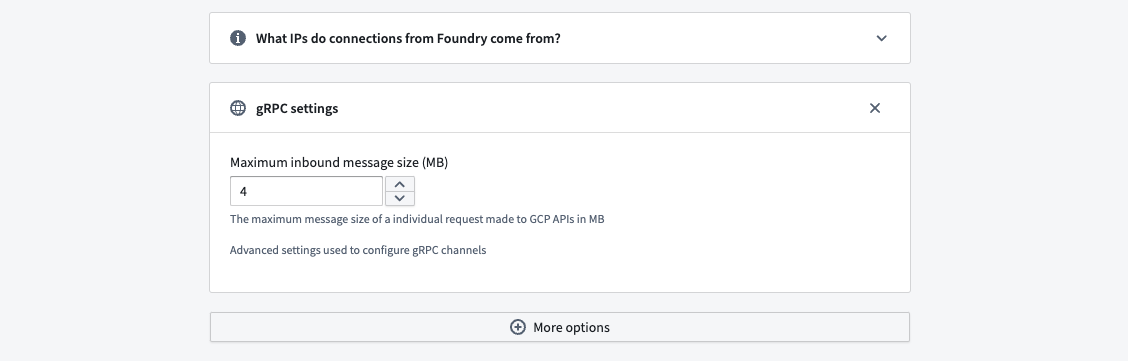
If syncing data with large content like JSON columns, the transfer may fail with the above error. Adjust BigQuery's `Maximum inbound message size` in **gRPC Settings** on the source to increase data transfer in a single API call. Remember, a single call fetches multiple rows, so setting it to the largest row size may not be enough.
You can find this configuration option by navigating to **Connection Settings > Connection Details**, then scrolling to **More options** and selecting **gRPC Settings**.
### Preview fails to load for a dataset or virtual table based on a BigQuery view
If your preview fails to load and the target BigQuery table is a view, this may be the result of a schema mismatch. Views' schemas are determined by the result of the SQL query defined at the time of creation. Subsequent changes to the underlying table's structure are *not* automatically applied to the view's schema and may lead to unexpected behavior when trying to consume the view (such as via a sync/virtual table in the Palantir platform.)
You can verify this by comparing the schemas between the view and the underlying table in the BigQuery console, checking for any discrepancies. This can include:
* Columns present in the view but not in the underlying table (and vice versa)
* Having two different data types for the same column
In the case that any discrepancies are identified, you can address them by recreating or refreshing the view using `CREATE OR REPLACE VIEW` or `ALTER VIEW`. For more information, reference this [Google Cloud community post ↗](https://www.googlecloudcommunity.com/gc/Data-Analytics/View-schema-not-updated/m-p/747908#M5903) which describes the expected behavior in more detail and provides additional guidance on best practices.