# Condition settings
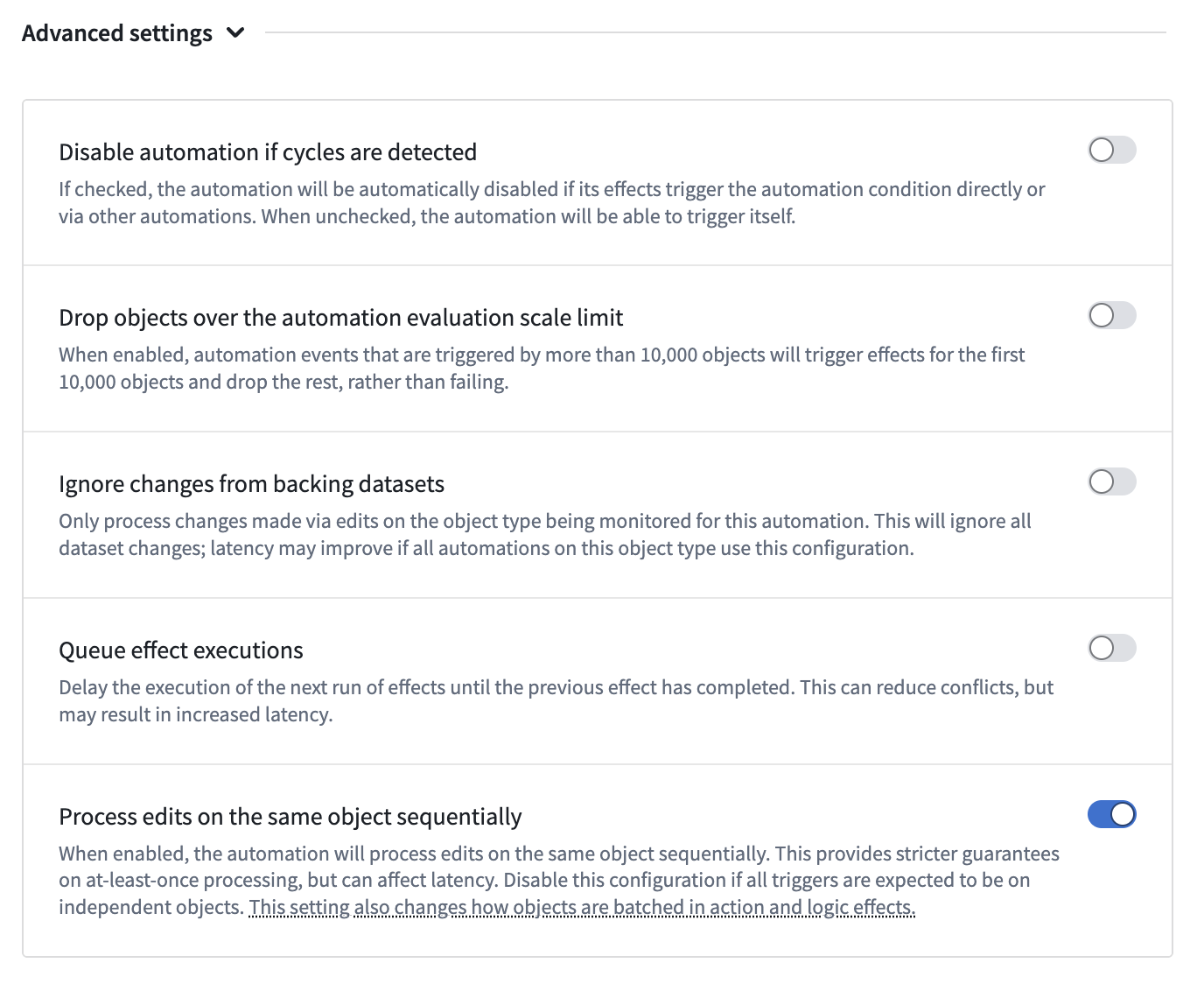
You can configure behavior for [cycles](#cycles), [dropped objects](#dropped-objects), execution [queuing](#queue-effect-executions), and [skipping peering events](#skip-peering-events) from the **Advanced settings** options found on the **Condition** page when setting up a new automation.
## Cycles
Automation sequences can sometimes cause infinite loops (cycles) when automations trigger each other. Review the documentation on [cycle detection](../errors/index.md#cycle-detection) for more information.
For certain automations, cycle detection may be undesirable. To allow up to 50 cycles, enable **Allow cycles** in the automation settings. Overriding cycle detection is only available for [live monitoring](../evaluation-frequency/index.md#live-monitoring).

## Dropped objects
You can configure how Automate handles objects when the [live automation scale limit](../limits/index.md) is reached.
When **Drop objects over the live automation scale limit** is enabled, events triggered by more than 10,000 objects will process the first 10,000 objects and drop the remaining objects (instead of failing).
This option is only available with [live monitoring](../evaluation-frequency/index.md#live-monitoring) enabled.

## Queue effect executions
You can enable **Queue effect executions** to process automation events sequentially in the order they triggered. When this setting is enabled, events execute one at a time, based on when they were triggered.
There are several reasons you might want to enable queue effect executions:
* **Ensure execution order:** When you need events to happen in a specific sequence, such as sending a "Processing started" notification before a "Processing finished" notification.
* **Control concurrency:** When you want events to run one at a time, which can be useful for:
* **Managing capacity limits:** Downstream actions, webhooks, or systems may have limited capacity. Using this option with low batch or parallelism limits places an upper bound on concurrency.
* **Avoiding conflicts:** Running effects concurrently can cause conflicts. For example, two actions cannot edit the same object simultaneously. When this happens, the first action will commit successfully while the second fails with a conflict error and requires a retry. Queue effect executions can reduce these conflicts at the cost of reduced throughput.
Queuing applies at the automation event level (individual runs in automation history). Concurrency settings (parallel vs. sequential effects) still apply within an individual event. The queuing only affects the order in which separate events are processed. For example, if three events trigger an automation in quick succession:
* **Without queuing:** All three events process simultaneously, potentially executing effects in parallel
* **With queuing:** "Event 1" completes all of its effects, then "Event 2" begins processing and completes before "Event 3" begins.
## Skip peering events
When your automation monitors an object type that receives updates through [ontology peering](../../peer-manager/ontology-peering-overview/index.md), you may want to prevent those peered changes from triggering the automation's effects. Enabling the **Skip events from peering patches to this object** option causes the automation to ignore events that originate from peering patches, so that only direct edits such as user actions or other non-peering sources trigger the automation's effects.
:::callout{theme="neutral"}
This setting only applies to automations using [live monitoring](../evaluation-frequency/index.md#live-monitoring) with an [object set condition](../condition-objects/index.md). Time-based triggers and scheduled evaluations are not affected.
:::
This setting is used in environments that have peering connections where the same automation logic exists on both sides of a peer connection. Without this setting, a peered edit arriving on the remote enrollment could re-trigger the automation, leading to duplicated or unintended side effects. For example, if an automation creates an alert and sends an email notification, both enrollments could independently fire the automation for the same peered event, resulting in duplicate emails being sent to the same user or group.
:::callout{theme="warning"}
Events that are skipped by this setting will not appear in the Automate **History** page.
Additionally, this setting only skips events that arrive as peering patches, which represent individual user edits. Large-volume changes peered as new base versions (for example, [source data peering](../../peer-manager/ontology-peering-overview/index.md#source-data-peering) from backing dataset updates) do not arrive as patches and will not be skipped. Instead, these events will still trigger the automation.
:::
### Enable this option
Follow the steps below to enable skipping events from peering patches.
:::callout{theme="neutral"}
If the following settings are not visible, contact your Palantir representative or Palantir Support to enable this option for your Enrollment.
:::
1. Open your automation in Automate.
2. Navigate to the **Condition** page.
3. Expand **Advanced settings**.
4. Enable **Skip events from peering patches to this object**.
5. Save your automation.