# Serve custom content sources with AIP Assist
You can serve a custom content source with AIP Assist by configuring its availability to users in Control Panel after it has been [registered](../aip-assist-registering-content/index.md). This functionality adds custom sources to the existing large search context that AIP Assist uses to answer all questions in default mode.
When making a custom source available to AIP Assist, you can choose whether it will only be served when a specific resource or set of resources is open, or if it will always be served. If you select the option to always serve content to users, AIP Assist will use the custom source to answer user queries regardless of the resources a user is viewing when using AIP Assist. We recommend using this functionality for custom, platform level content that would be valuable **along with** platform and developer documentation that AIP Assist stores in its search context in default mode.
## Register your content source with AIP Assist
The first step is registering your content source and making it available in AIP Assist. Depending on your needs, review the instructions for registering content from [Notepad](../aip-assist-registering-content/index.md#notepad-as-a-content-source-for-aip-assist) or [in-platform custom documentation](../aip-assist-registering-content/index.md#in-platform-custom-documentation-as-a-content-source-for-aip-assist).
## Enable content source visibility for your users
Once your custom source is registered with AIP Assist, you will need to configure its visibility for users on your enrollment.
:::callout{theme="warning"}
The following steps must be completed by a platform administrator with Control Panel access.
:::
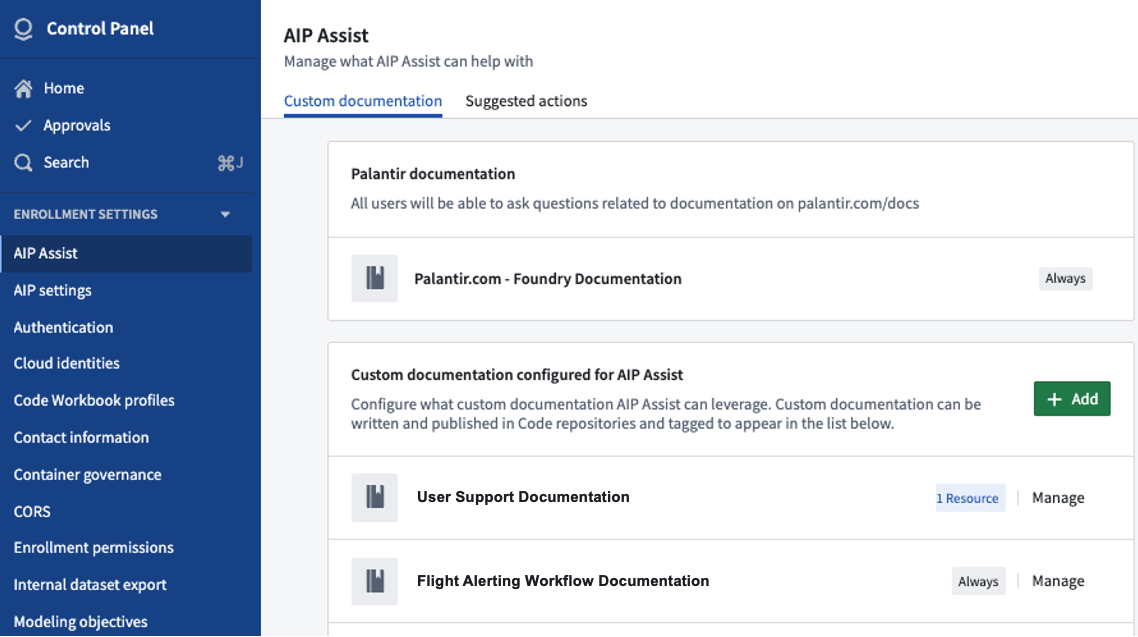
1. Navigate to **Control Panel**, select your enrollment, and open the **AIP Assist** page.
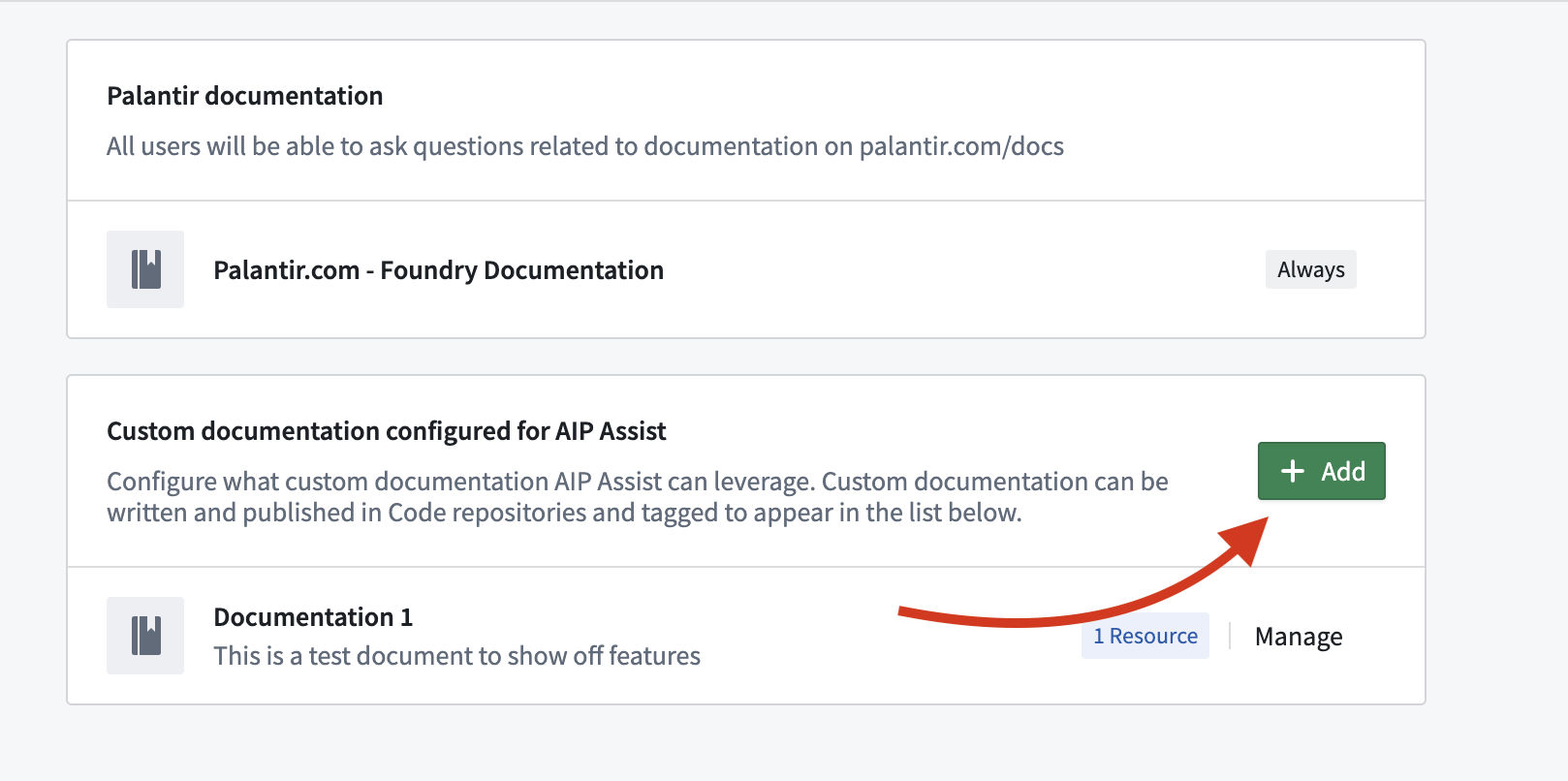
2. Select **+ Add**, which will open a dialog listing currently ingested documents.
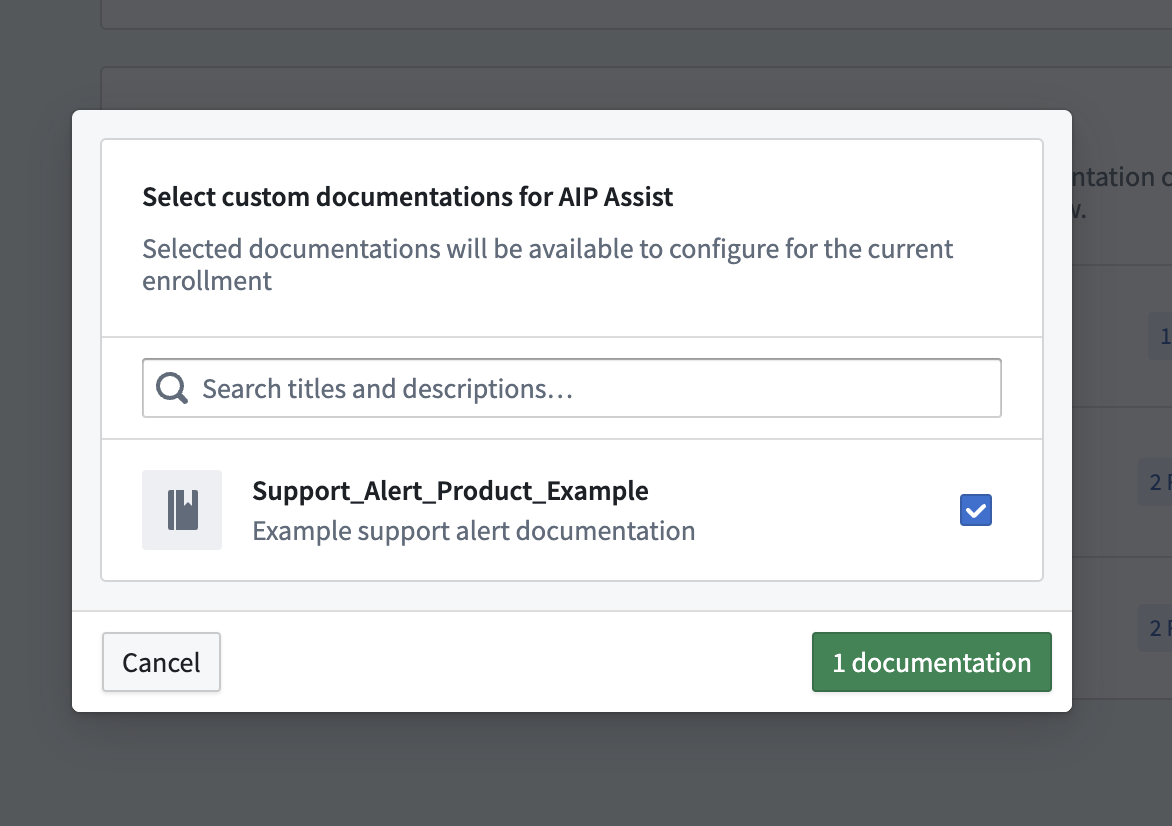
3. Find the relevant document, select it, and add it. By default, sources are added with visibility only in the repository or Notepad document that was used to create it. This level of visibility can be used to test that AIP Assist responses work as expected.
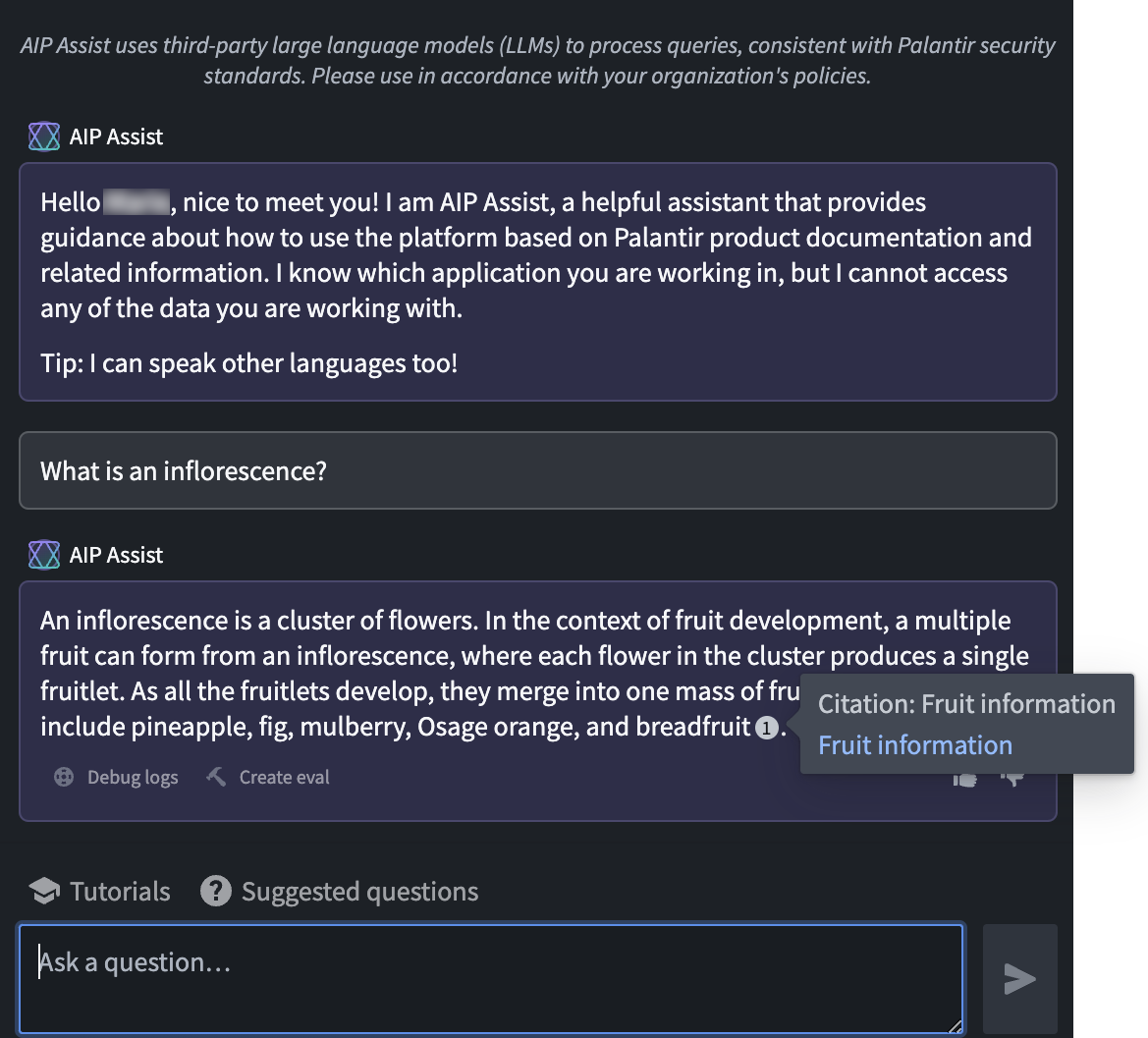
4. In the custom documentation repository or Notepad document(s) containing your content, open AIP Assist and input questions specifically related to your product to confirm that AIP Assist responds as expected.
5. When you are confident in the answers and want to expose them more broadly, re-configure the visibility by navigating to **Control Panel > AIP Assist**. Find your content source and select **Manage**.
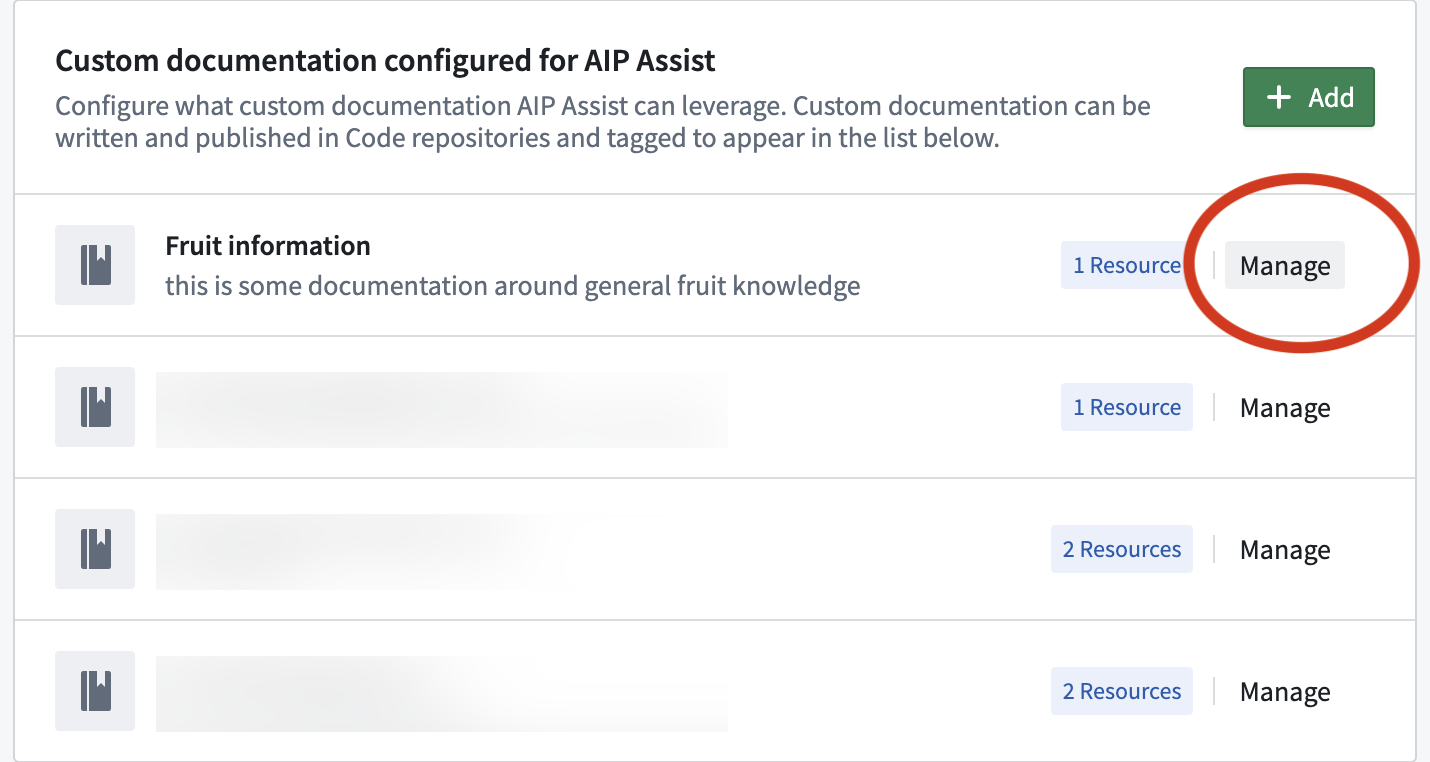
* If the content is relevant to your users wherever they are in Foundry, select **Always**.
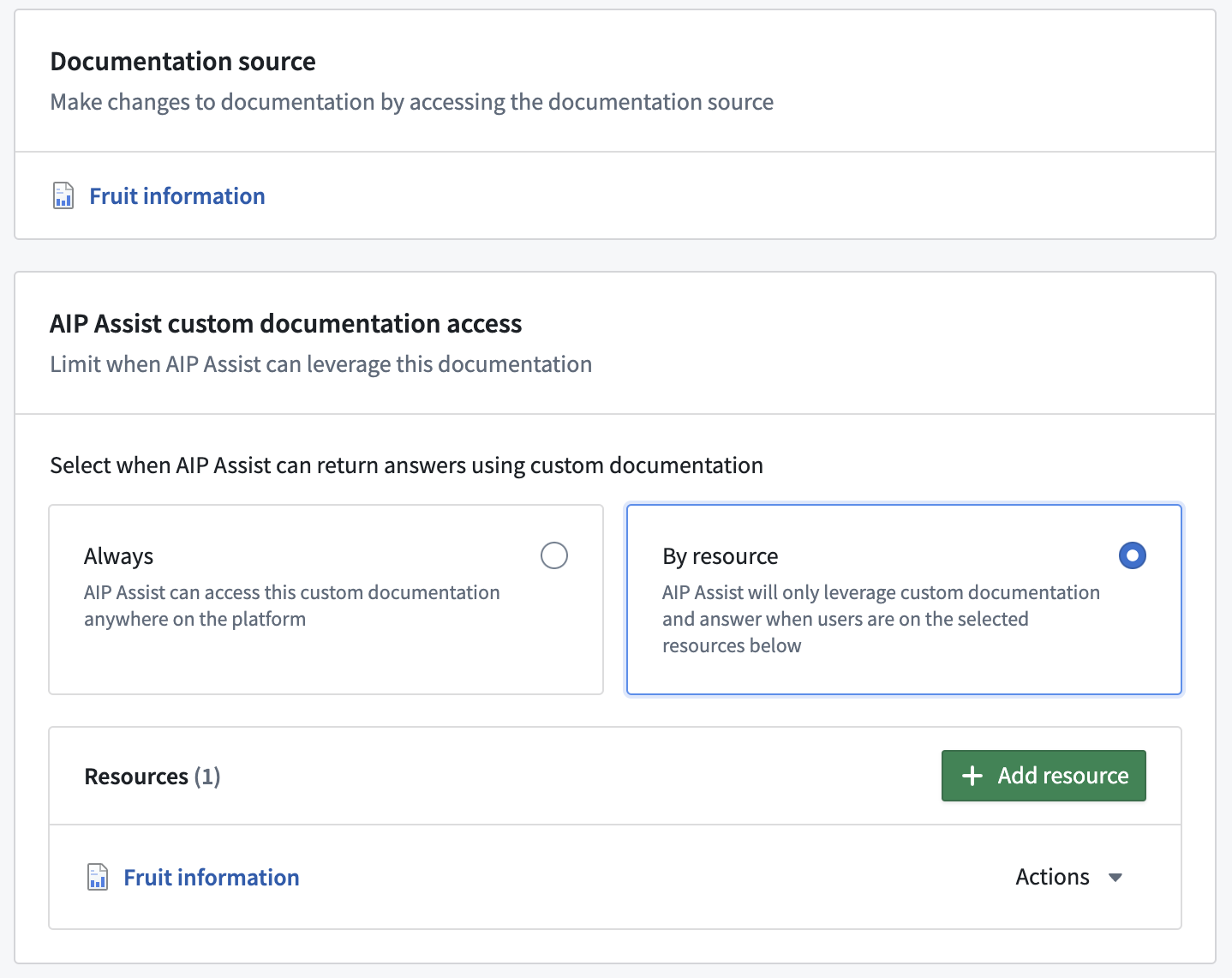
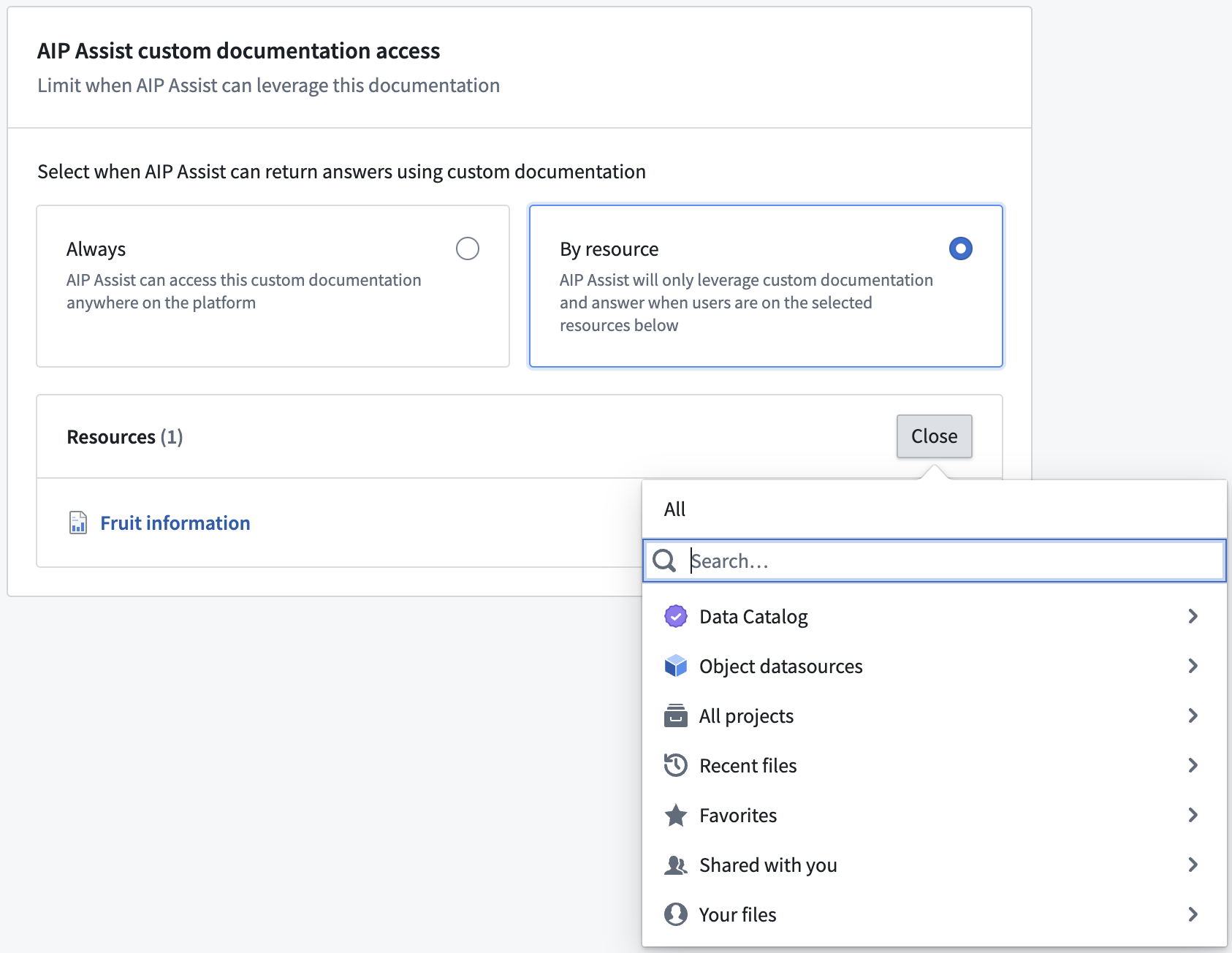
* If the content is only relevant in a specific context, for example in a Workshop application, select **By resource** and add one or more relevant resources.
6. Save your changes.
Your content will now be accessible to users depending on visibility settings when AIP Assist is prompted about relevant topics.