# Exporting outputs
Foundry allows qualified users to export analytical outputs for use off-platform.
Supported exports include [PDF export](#pdf-export), [export of visualizations as images](#visualization-export), and [export as CSV or XLSX](#data-export).
## PDF export
Notepad supports downloading documents to PDF with the ability to customize content such as page orientation, headers and footers, and individual embed (charts, tables, etc.) appearance.
[Learn how to get started with Notepad.](../../notepad/getting-started/index.md)
## Visualization export
You can export individual visualizations as images in Contour, Quiver, and Code Workbook.
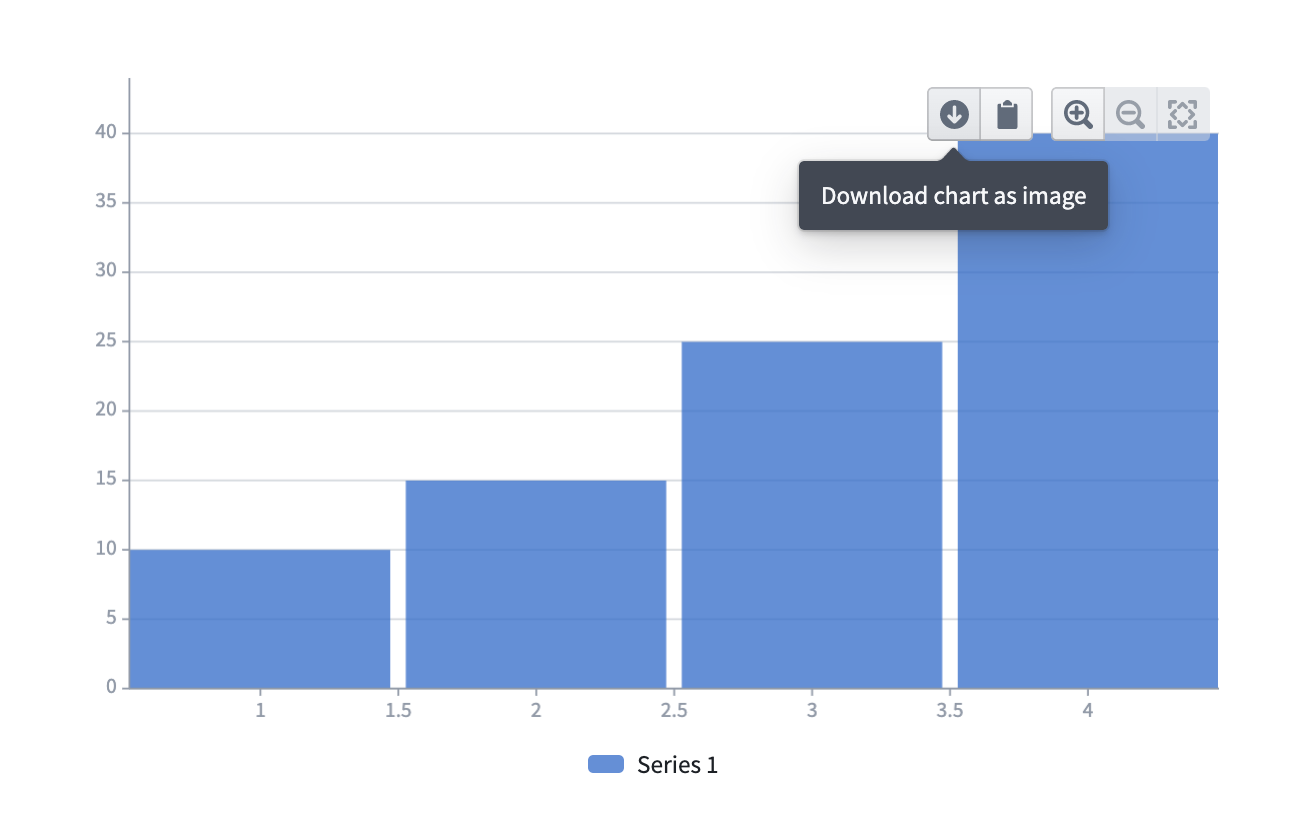
In Contour and Quiver, look for the  button (**Download chart as image**) in the top right of any chart, as shown below.
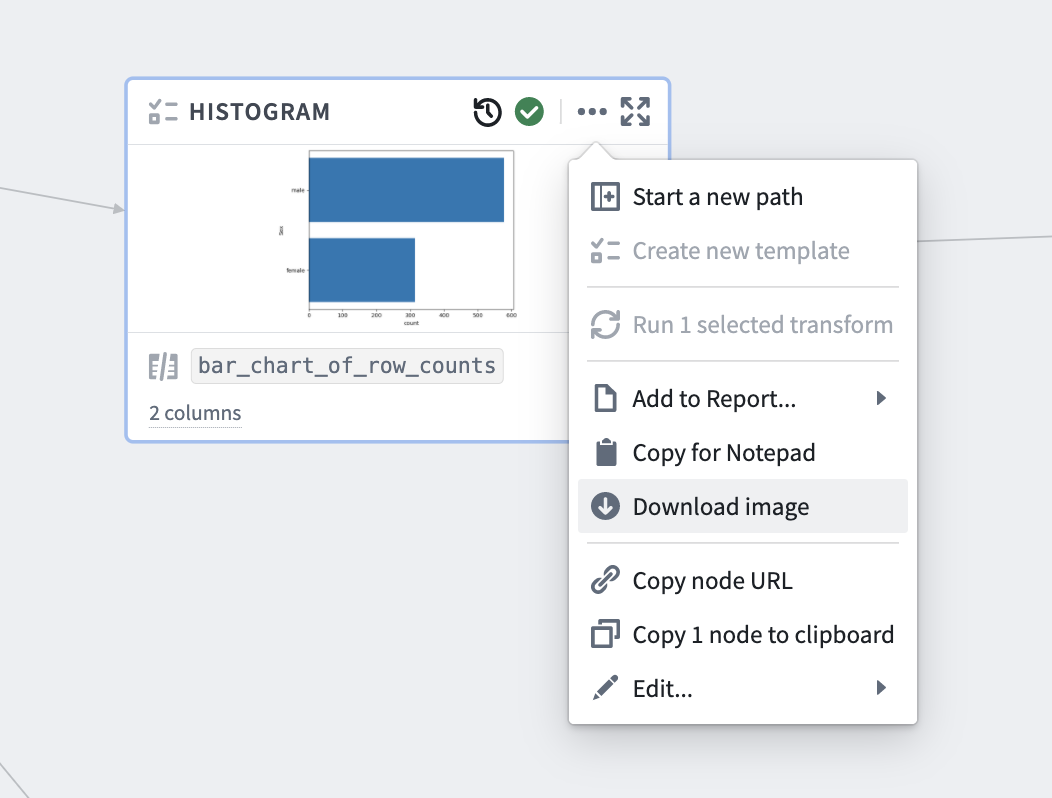
In Code Workbook, choose **Download image** from the action menu of any visualization node as shown below.
button (**Download chart as image**) in the top right of any chart, as shown below.

In Code Workbook, choose **Download image** from the action menu of any visualization node as shown below.
 ## Data export
You can export analytical results as CSV and/or XLSX in Contour, Quiver, and Code Workbook.
### Contour
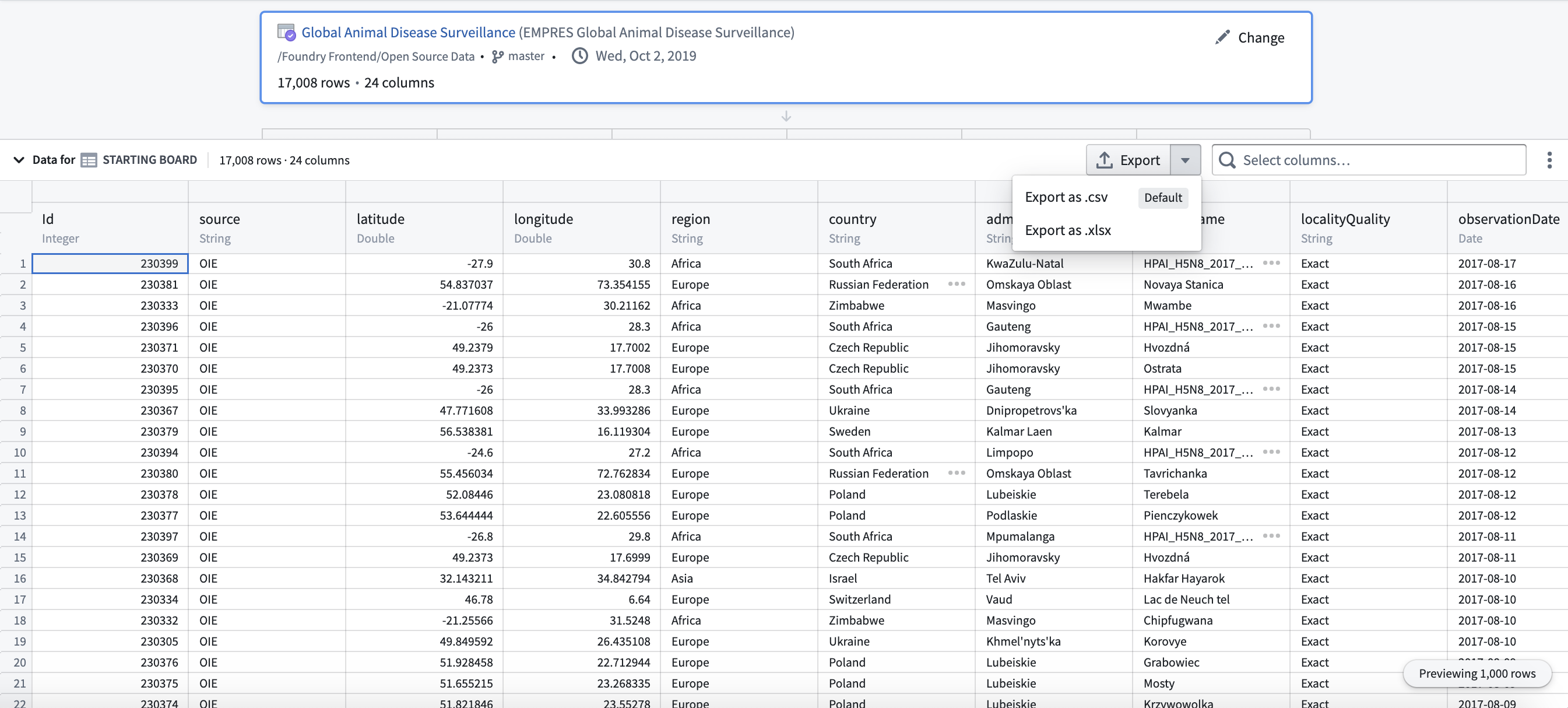
There are two ways to export data from Contour, both of which have an export limit of 100,000 rows:
* Add an **Export** board to your analysis path.

* Alternatively, you can select the relevant board in your analysis and open the table panel, then select your desired export option.
### Quiver
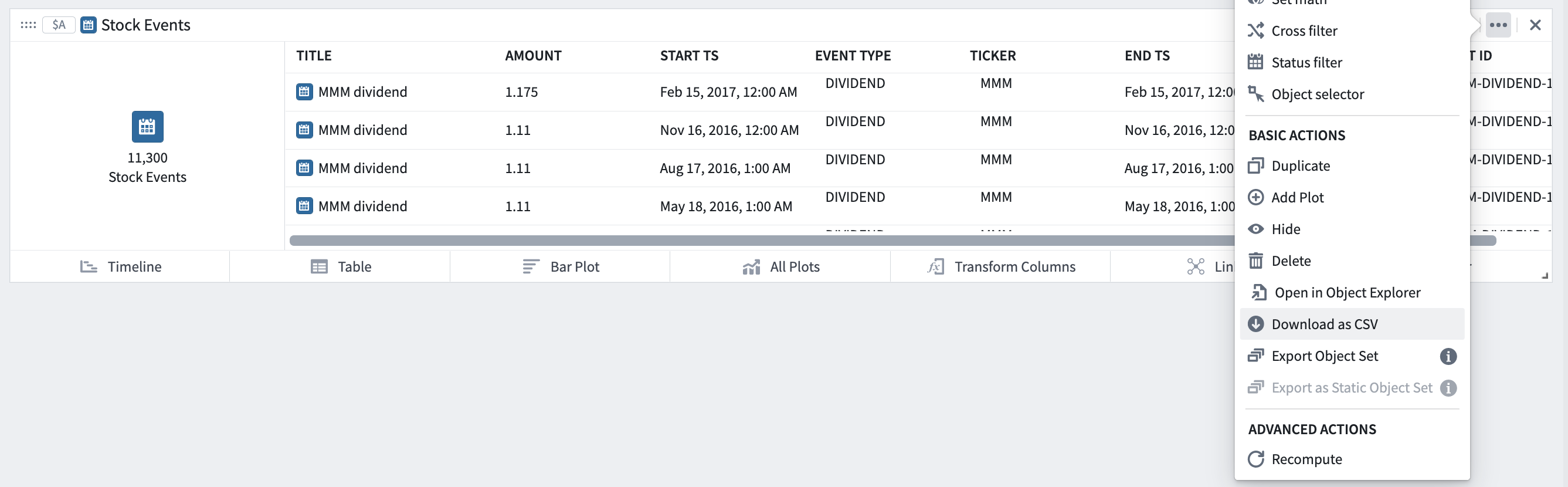
To export data from a Quiver analysis, select **Download as CSV** from the action menu for any card.
### Code Workbook
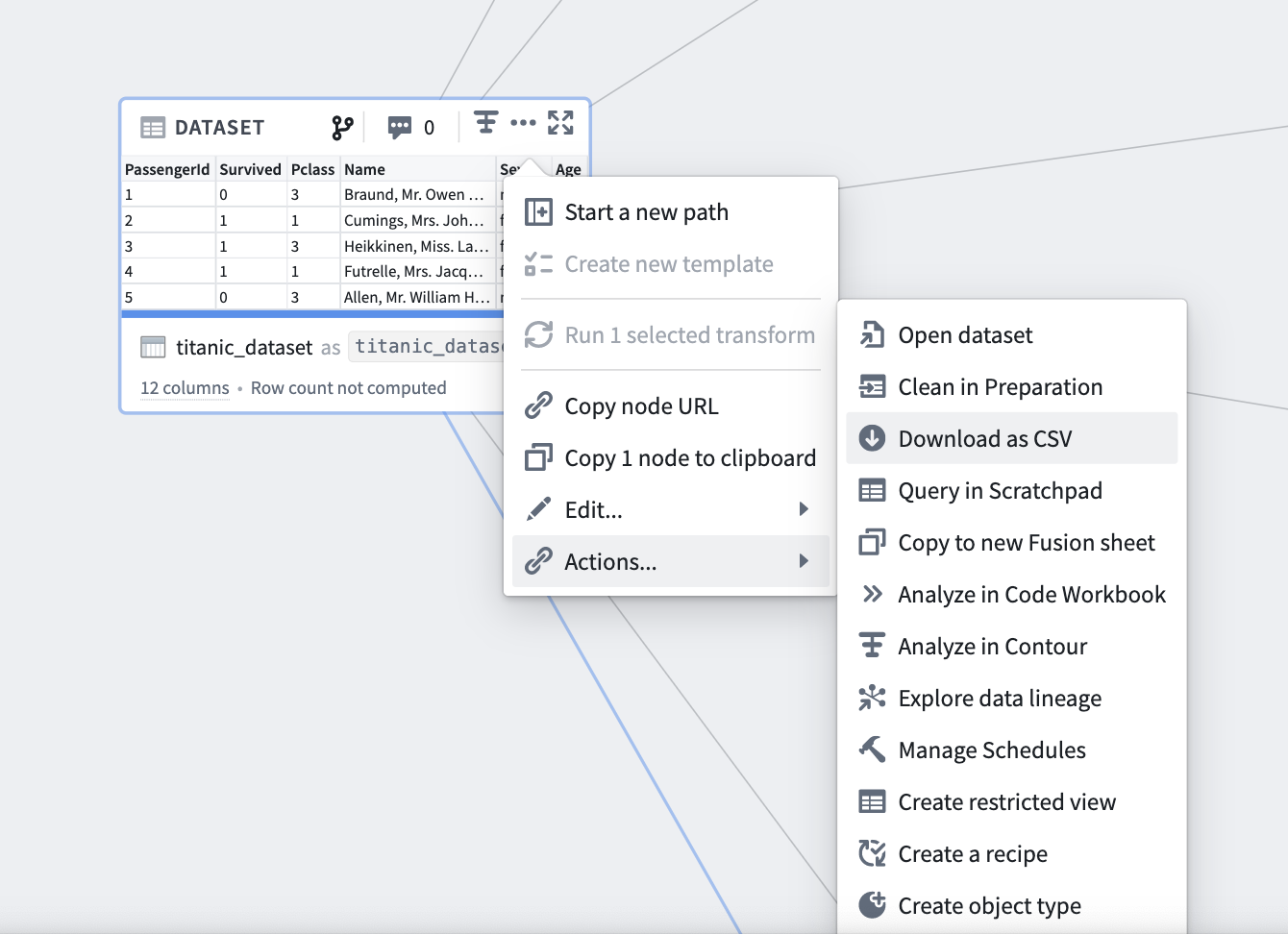
To export data from a Code Workbook, select **Download as CSV** from the action menu for transforms that are saved as datasets. The default export limit is 100,000 rows. The results of unpersisted transforms cannot be downloaded as CSV. [Learn more about persisted and unpersisted transforms in Code Workbook.](../../code-workbook/optional-data-persistence/index.md)
## Data export
You can export analytical results as CSV and/or XLSX in Contour, Quiver, and Code Workbook.
### Contour
There are two ways to export data from Contour, both of which have an export limit of 100,000 rows:
* Add an **Export** board to your analysis path.

* Alternatively, you can select the relevant board in your analysis and open the table panel, then select your desired export option.

### Quiver
To export data from a Quiver analysis, select **Download as CSV** from the action menu for any card.

### Code Workbook
To export data from a Code Workbook, select **Download as CSV** from the action menu for transforms that are saved as datasets. The default export limit is 100,000 rows. The results of unpersisted transforms cannot be downloaded as CSV. [Learn more about persisted and unpersisted transforms in Code Workbook.](../../code-workbook/optional-data-persistence/index.md)
