# Navigation
This page provides an overview of AI FDE's interface, navigation, and available controls.
## Initiate a session
Navigate to the AI FDE application and start by asking a question or making a request in the input field at the bottom of the page.

You can also open a new session with a prompt and skills already loaded by using a [pre-fill link](../prefill-sessions/index.md).
Sessions can be managed in the top toolbar, where you can create a new session and manage existing sessions.

## Manage context
AI FDE only has access to context that has been added to the chat.
Context can be added in various ways:
* Describe the task you want to accomplish, and the agent will pick a [mode](../modes-and-capabilities/index.md#modes) for you, determining available context and tools based on your prompt.
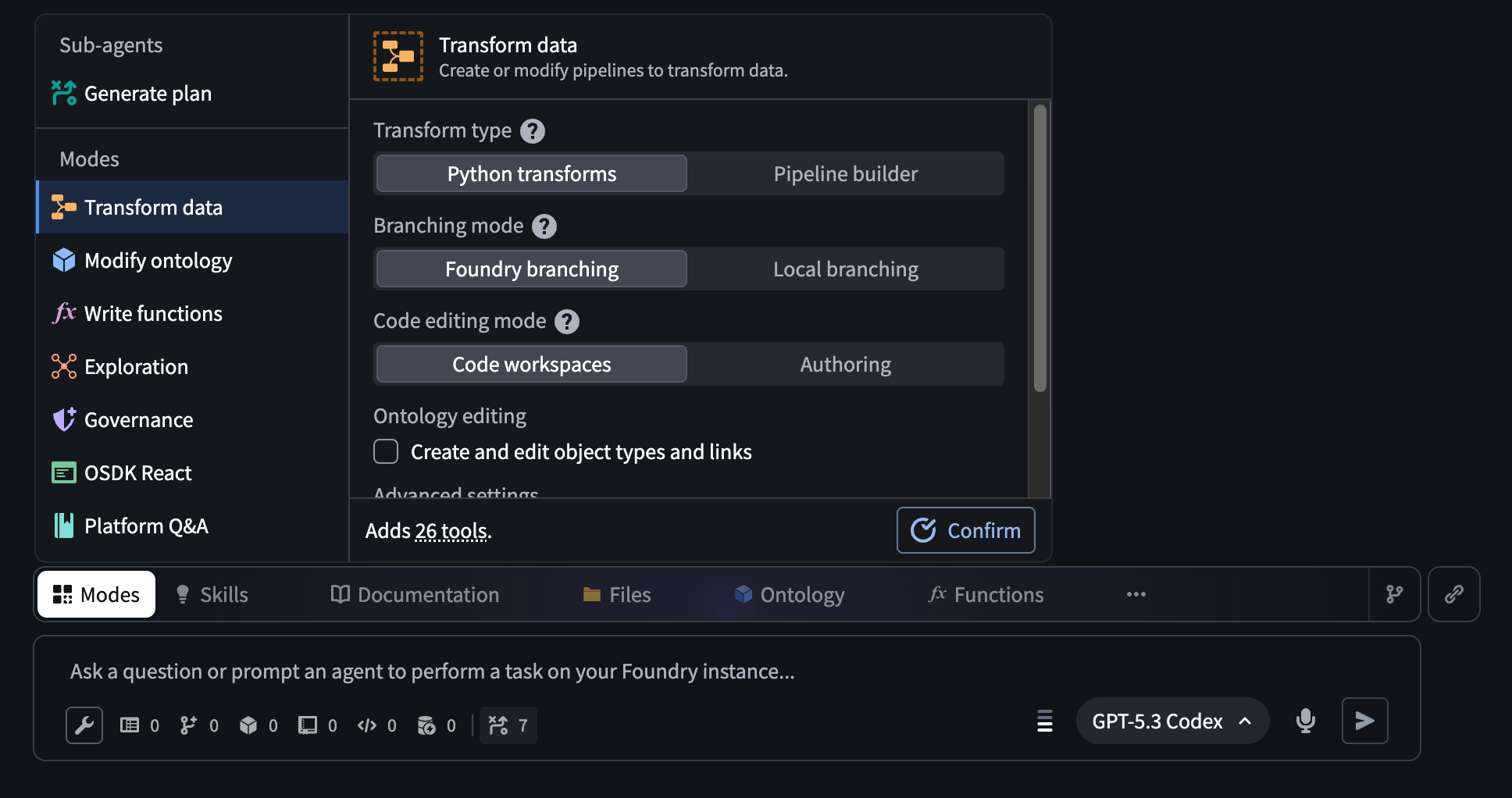
* Select a mode from the **Modes** menu above the input field. Depending on the mode, additional configurations are available, such as the language you want to use for functions, or whether you want to use transforms instead of Pipeline Builder.
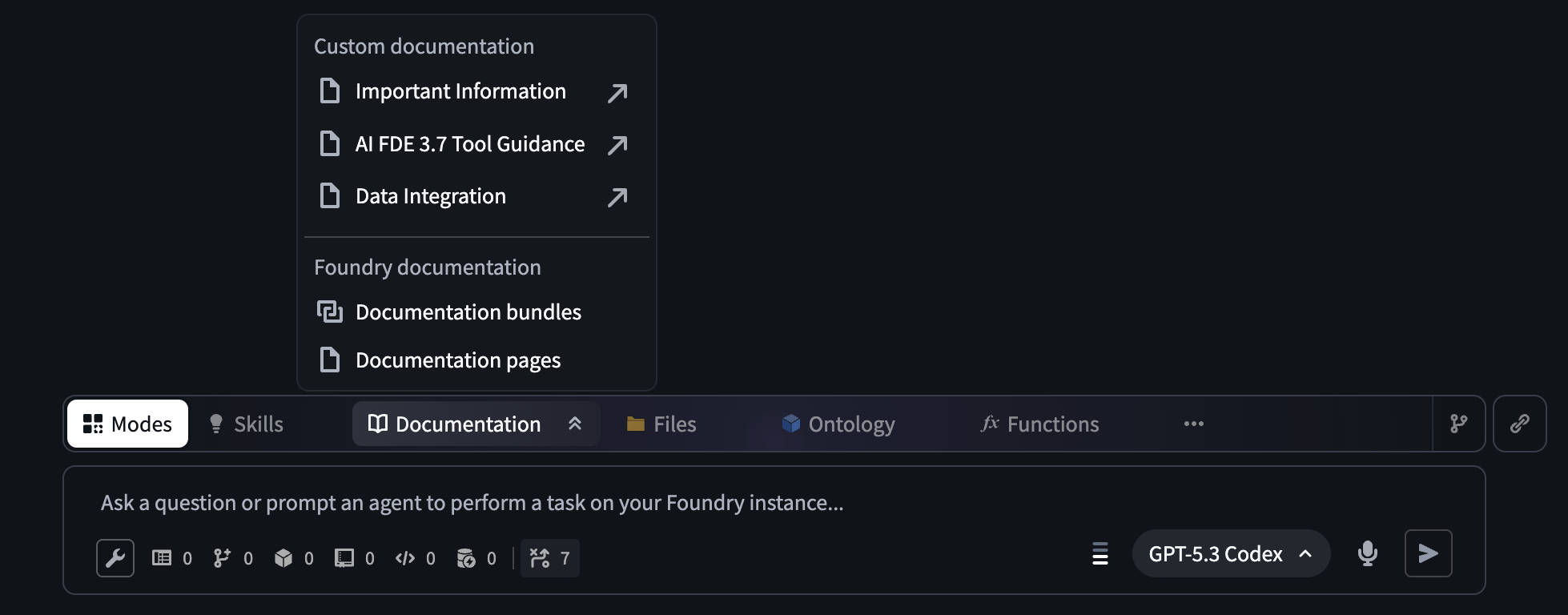
* Add context manually from the ribbon above the prompt input field. You can add documentation bundles that are relevant to the task you want AI FDE to perform or upload media. You can also select the following Foundry resources:
* Datasets
* Functions
* Branches
* Interfaces
* Action types
* Object types
* Drag and drop links from other applications in Foundry into AI FDE.
* Enable search tools that allow AI FDE to find relevant resources.
### Chat outline
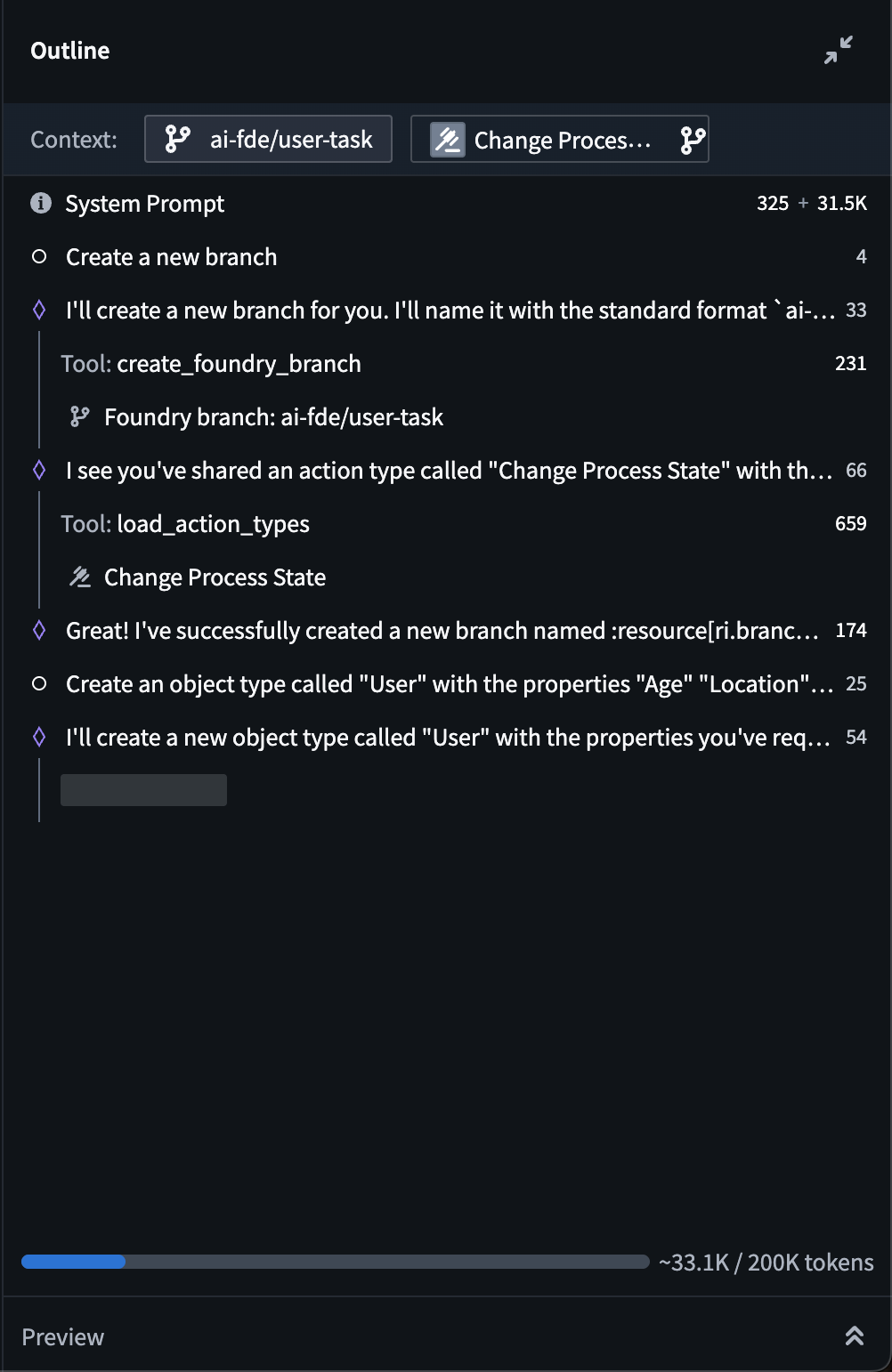
The chat outline can be found in a collapsible panel to the right, and contains a history of prompts, responses, and tools used in your session. Messages can be summarized or removed completely in the main chat or in the outline to prevent reaching the model’s context window in long-running sessions. The outline also displays the number of tokens used for each message.
 ## Tool configuration
AI FDE provides customizable access to tools. Models perform better when only the subset of tools needed to accomplish the task are enabled. You can choose which tools to enable using the tools menu below the input field.
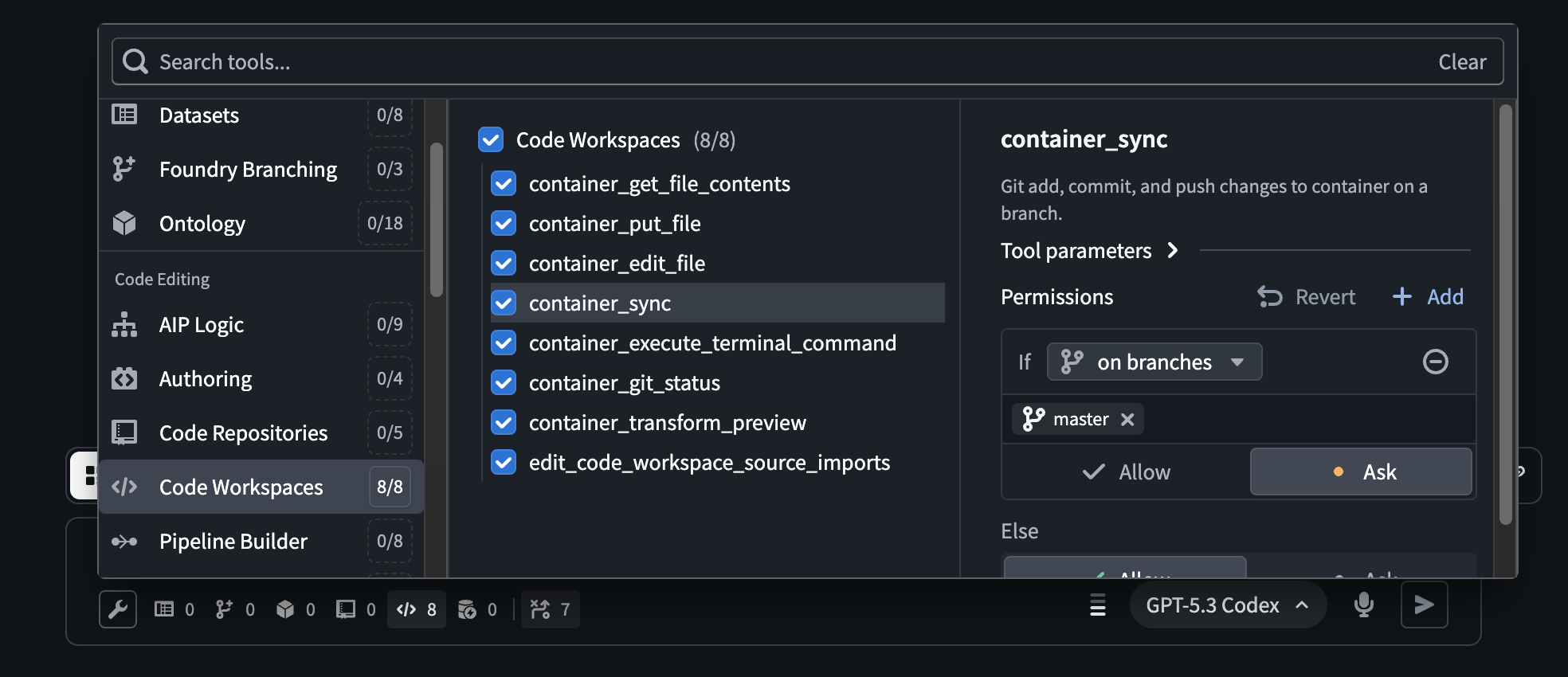
While prompting AI FDE with various tasks, you may be asked to approve tool usage. By default, executing tools requires approval in the following situations:
* The tool is making a change on the default branch.
* The tool is making an unbranched change such as creating a code repository.
* The tool might have side effects, for example dataset builds.
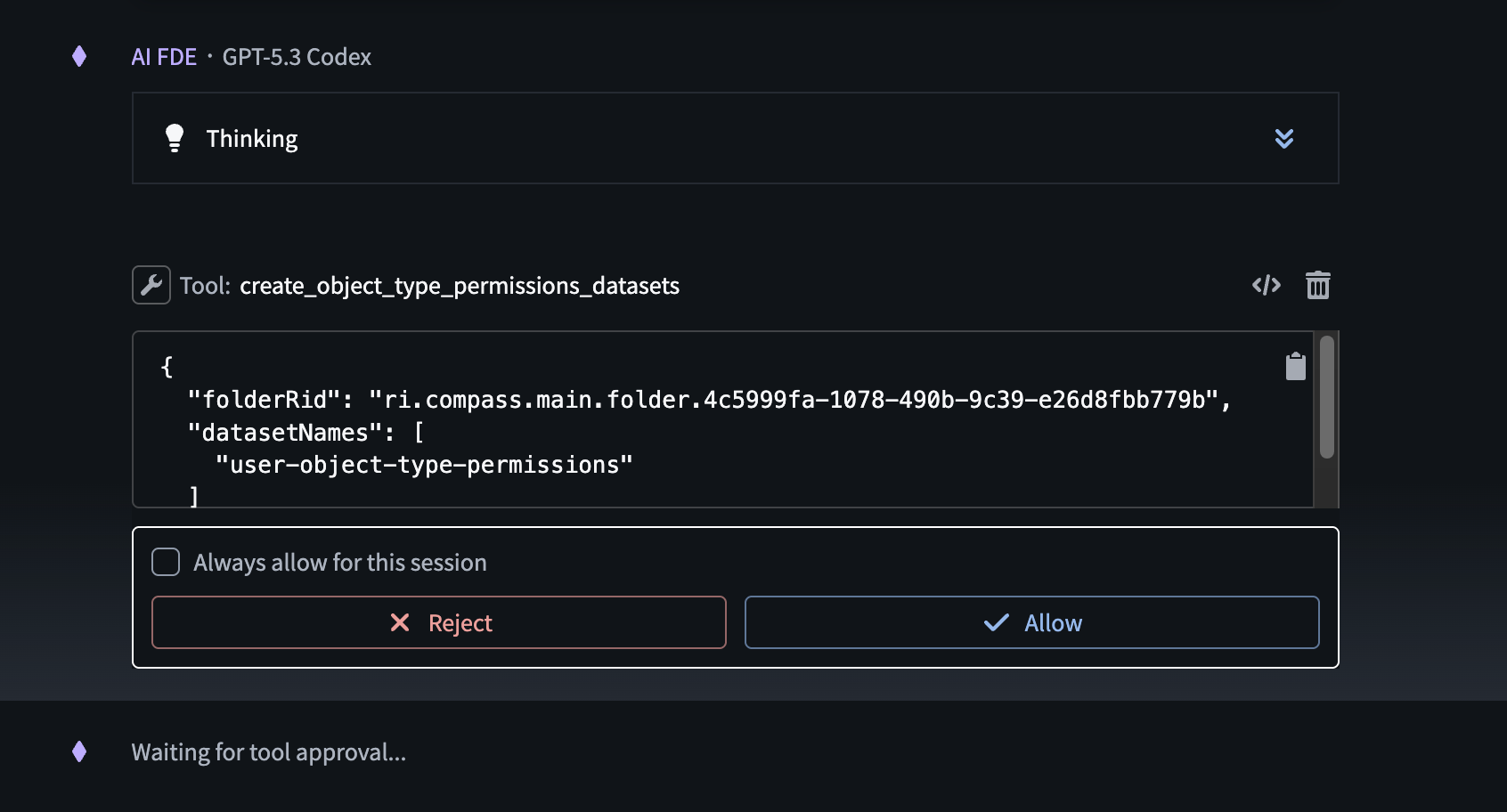
Tool approval for all tools can be customized in the tool selection panel. For example, relevant tools can be set to automatically execute on allowlisted branches and projects.
## Tool configuration
AI FDE provides customizable access to tools. Models perform better when only the subset of tools needed to accomplish the task are enabled. You can choose which tools to enable using the tools menu below the input field.

While prompting AI FDE with various tasks, you may be asked to approve tool usage. By default, executing tools requires approval in the following situations:
* The tool is making a change on the default branch.
* The tool is making an unbranched change such as creating a code repository.
* The tool might have side effects, for example dataset builds.

Tool approval for all tools can be customized in the tool selection panel. For example, relevant tools can be set to automatically execute on allowlisted branches and projects.